All guides
Your creatives library
Everything you make lands in one library. Learn to find any poster or video in seconds, sort them into folders and tags, and use the quick actions on each tile.
Before you start
- ✓At least one poster, video or article made (see Make a poster)
1. Open your library
Tap Creatives in the menu on the left. The top of the page is where you make new things; scroll down a little to Your creations — that is your library. It opens on month folders, one for each month you made something in.
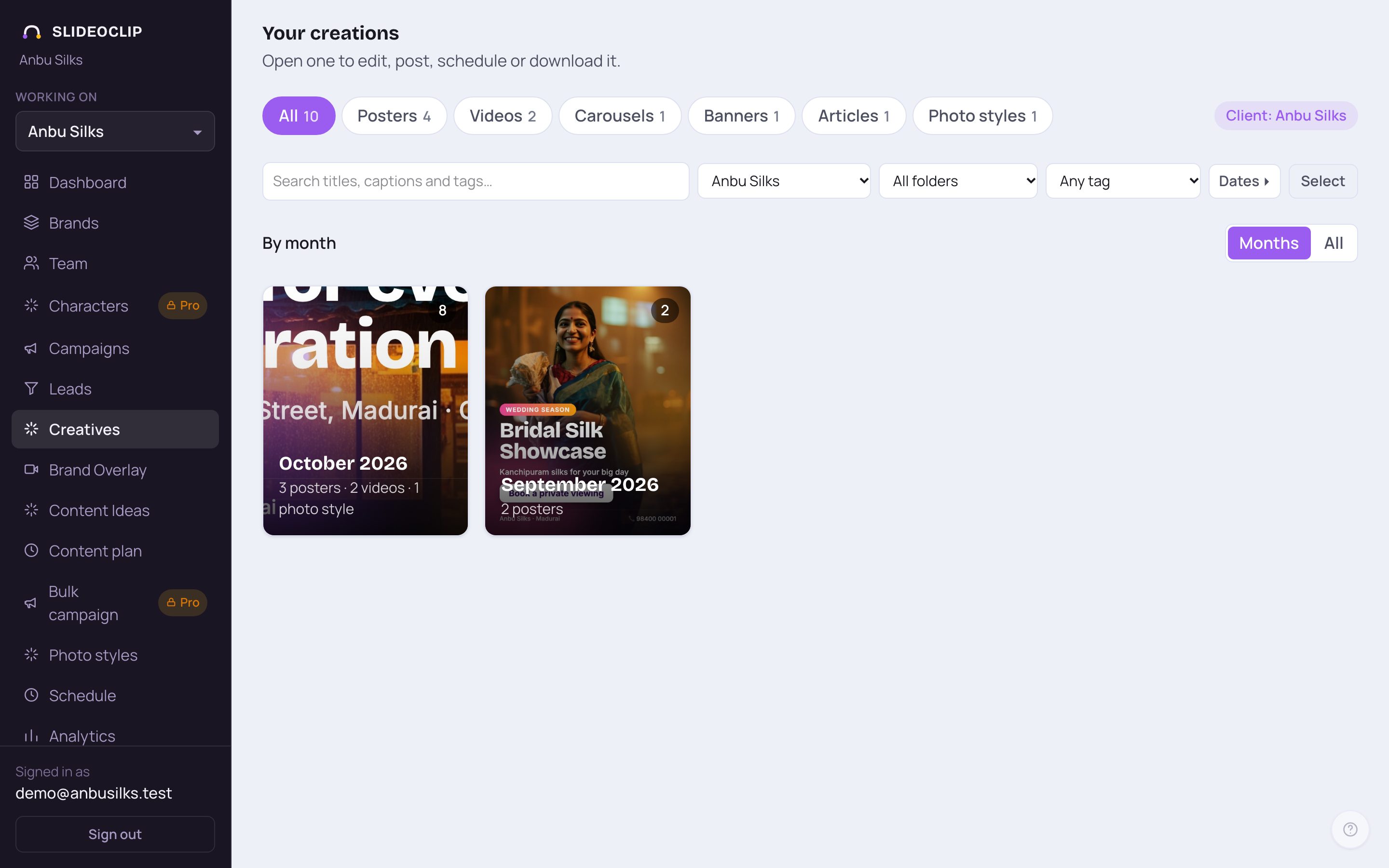
- 1Your creations is everything you have made or uploaded. It is sorted into month folders, newest month first.
- 2These tabs sort it by kind: All, Posters, Videos, Carousels, Banners, Articles and Photo styles. The small number on each tab tells you how many you have.
- 3Each folder is a month. Its cover is the last poster you made that month, the small number at the top right says how many things are inside, and the line at the bottom says what kind (for example 24 posters · 6 videos). The current month is marked This month. Tap a folder to open it.
- 4Tap All to see everything in one list, newest first, with no folders. Tap Months to come back to the folders.
💡 When a client is picked at the top of the app, you see that client's items plus anything not set to a client yet (for example, your own uploads).
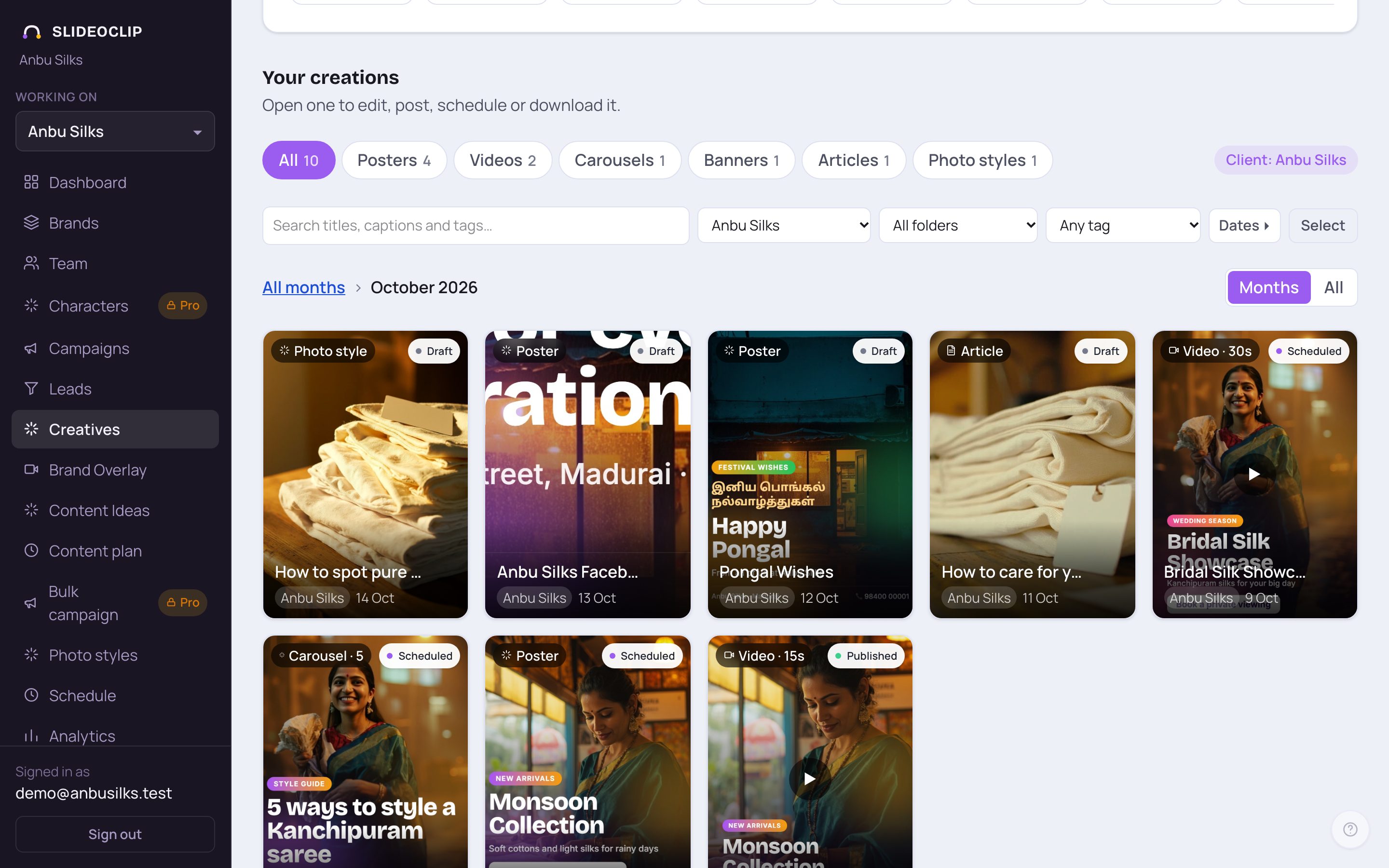
- 1Inside a month, this line shows where you are. Tap All months to go back to the folders.
- 2Each tile shows the picture, its title, the client it is for and the date. Tap a tile to open it, edit it, post it or download it.
- On the folders page, Open this month takes you straight to the current month.
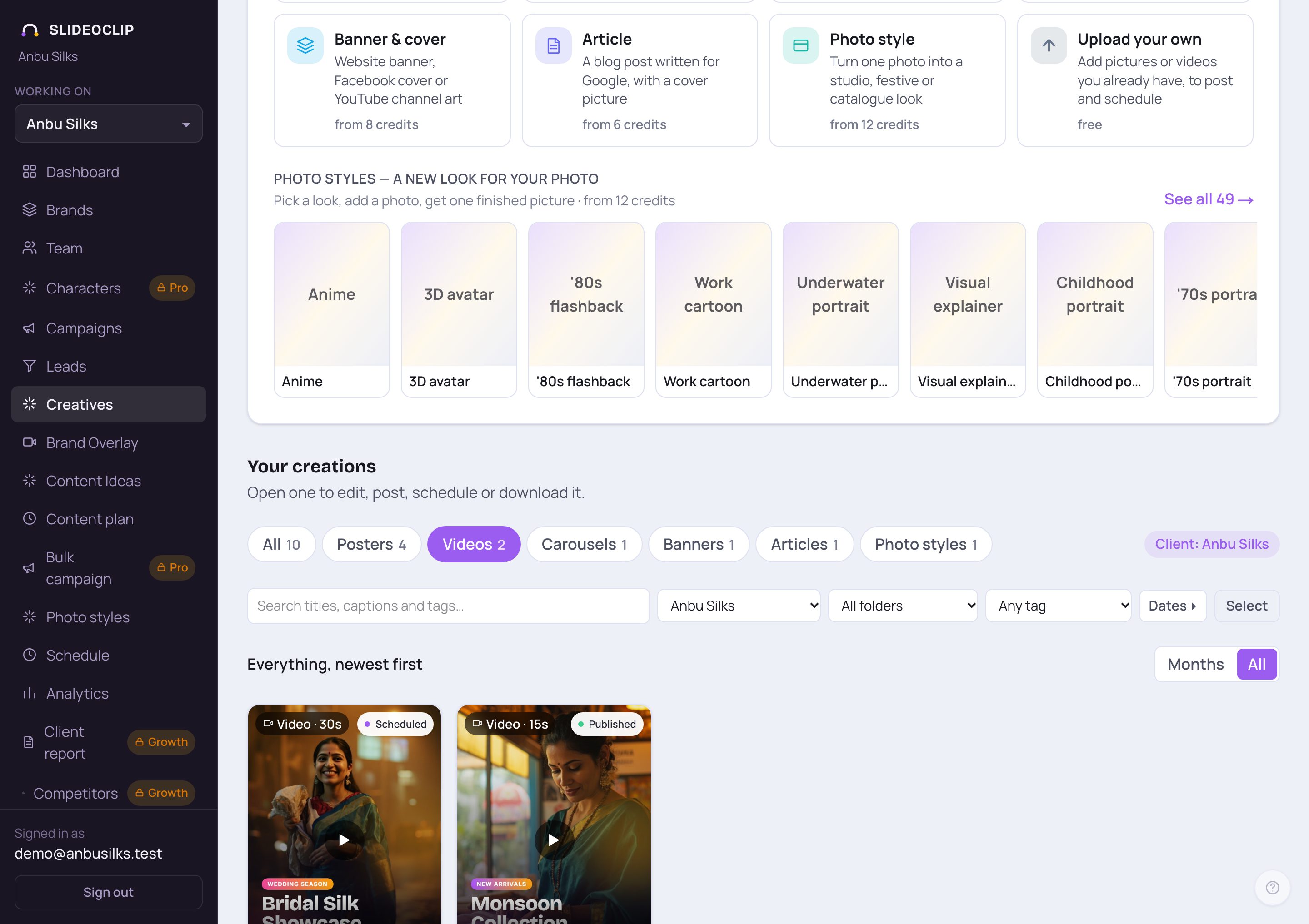
- 1Tap Videos to see only your videos. Tap All (the first tab) to see every kind again.
- 2A video tile shows its length on the small dark label at the top left (for example Video · 15s). Move your mouse over it to watch a silent preview.
- A video that is still being made shows a progress bar and how long it has been working. If one could not be made, it says Generation failed.
2. Search and filter
The bar under the tabs finds anything quickly. Search looks at titles, captions and tags.
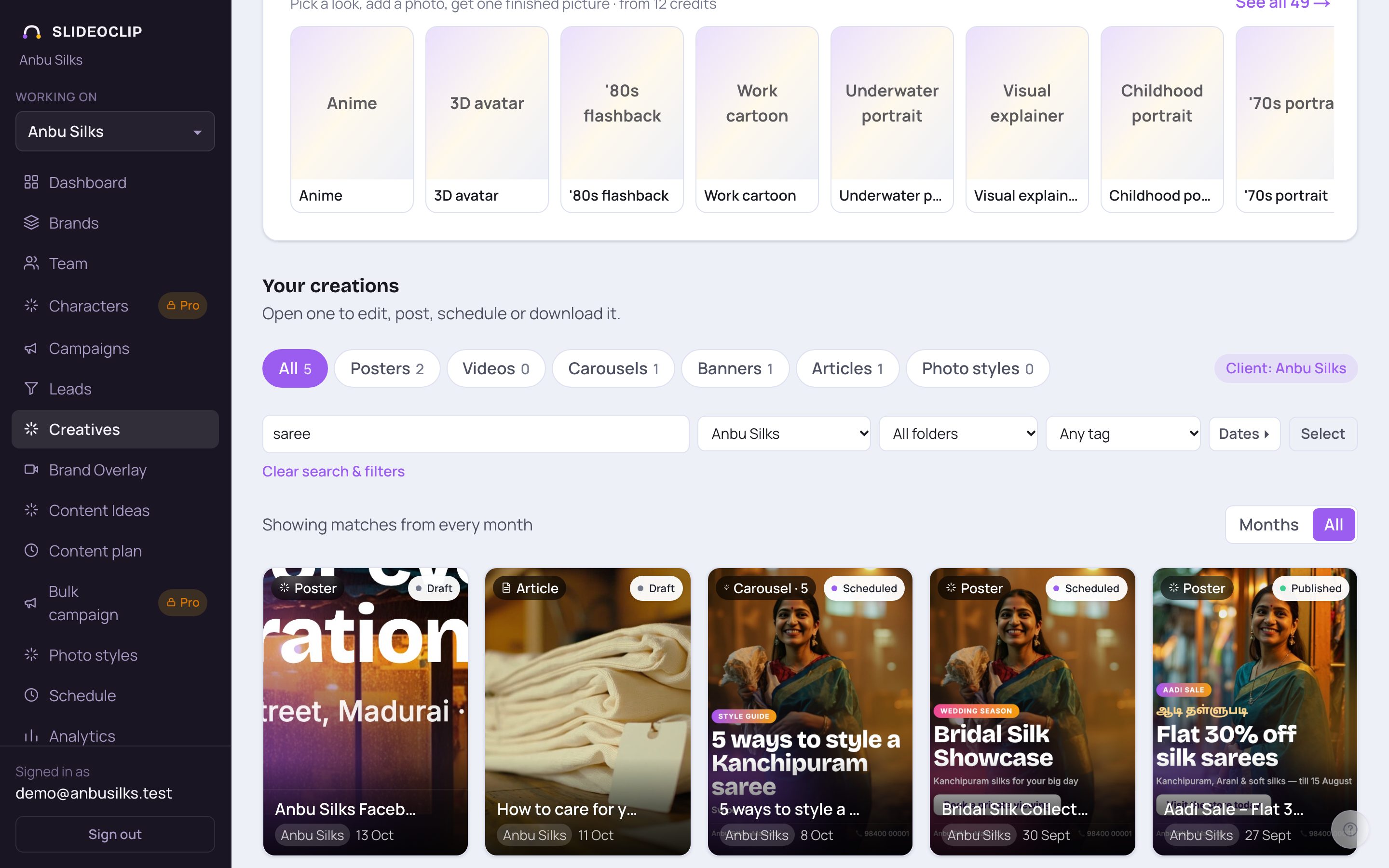
- 1Type a word — for example saree or Aadi. The library updates as you type.
- 2Pick a client to see only that client's work, or All clients to see everyone's. This also changes the client picked in the rest of the app.
- 3Pick a folder to see only what is in it. Not in a folder shows everything you haven't filed yet.
- 4Tap Clear search & filters to see everything again.
- Once you have added tags, a tag picker (Any tag) appears next to the folders, so you can show, say, only #diwali posts.
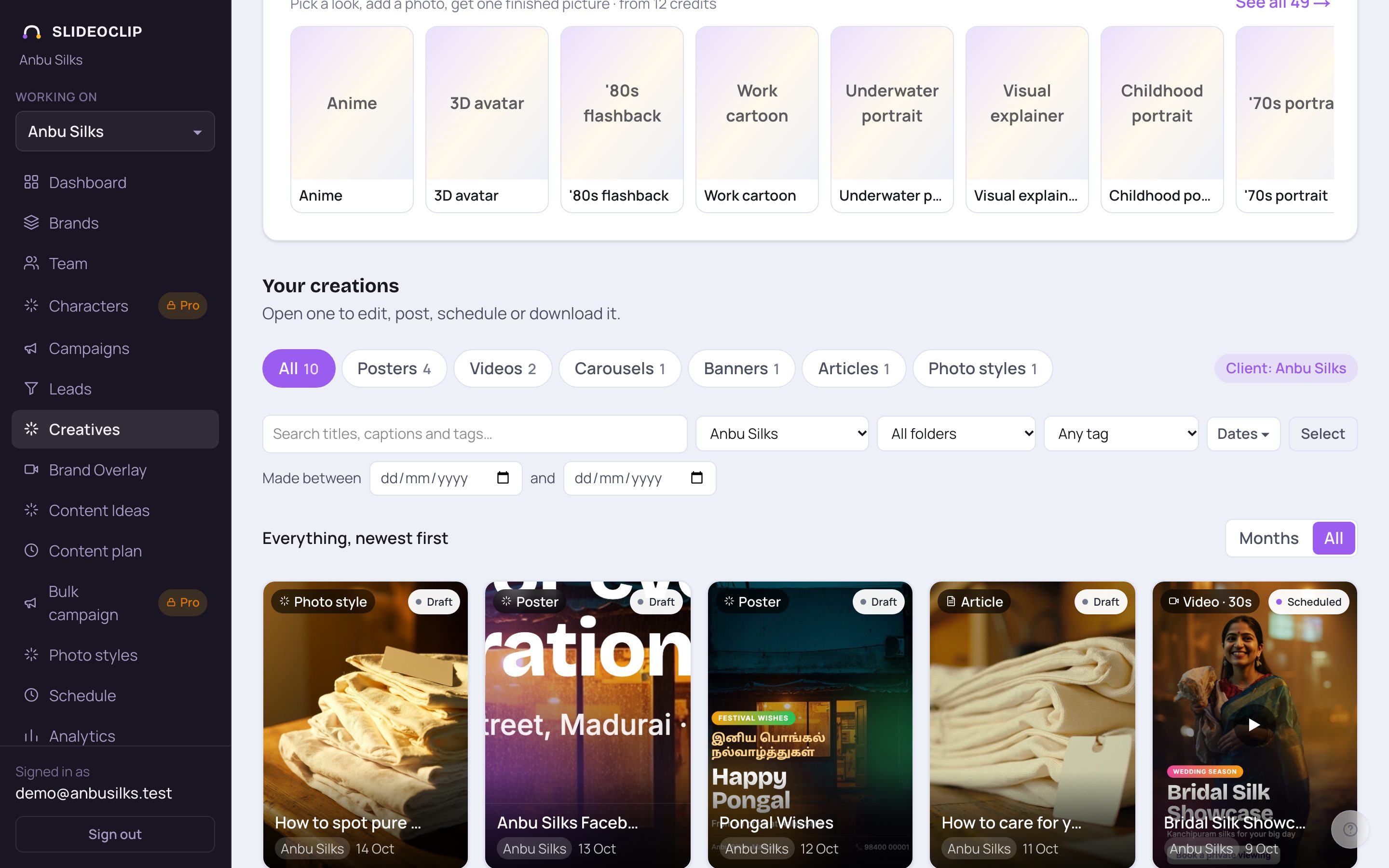
- 1Tap Dates to open the date filter.
- 2Pick the first day…
- 3…and the last day. You see only what was made between those dates, from every month — handy for a festival season that runs across two months.
3. Select several at once: tags and folders
Tags and folders keep a big library tidy — for example a folder per festival, or a tag per offer. You add them to many items at once.
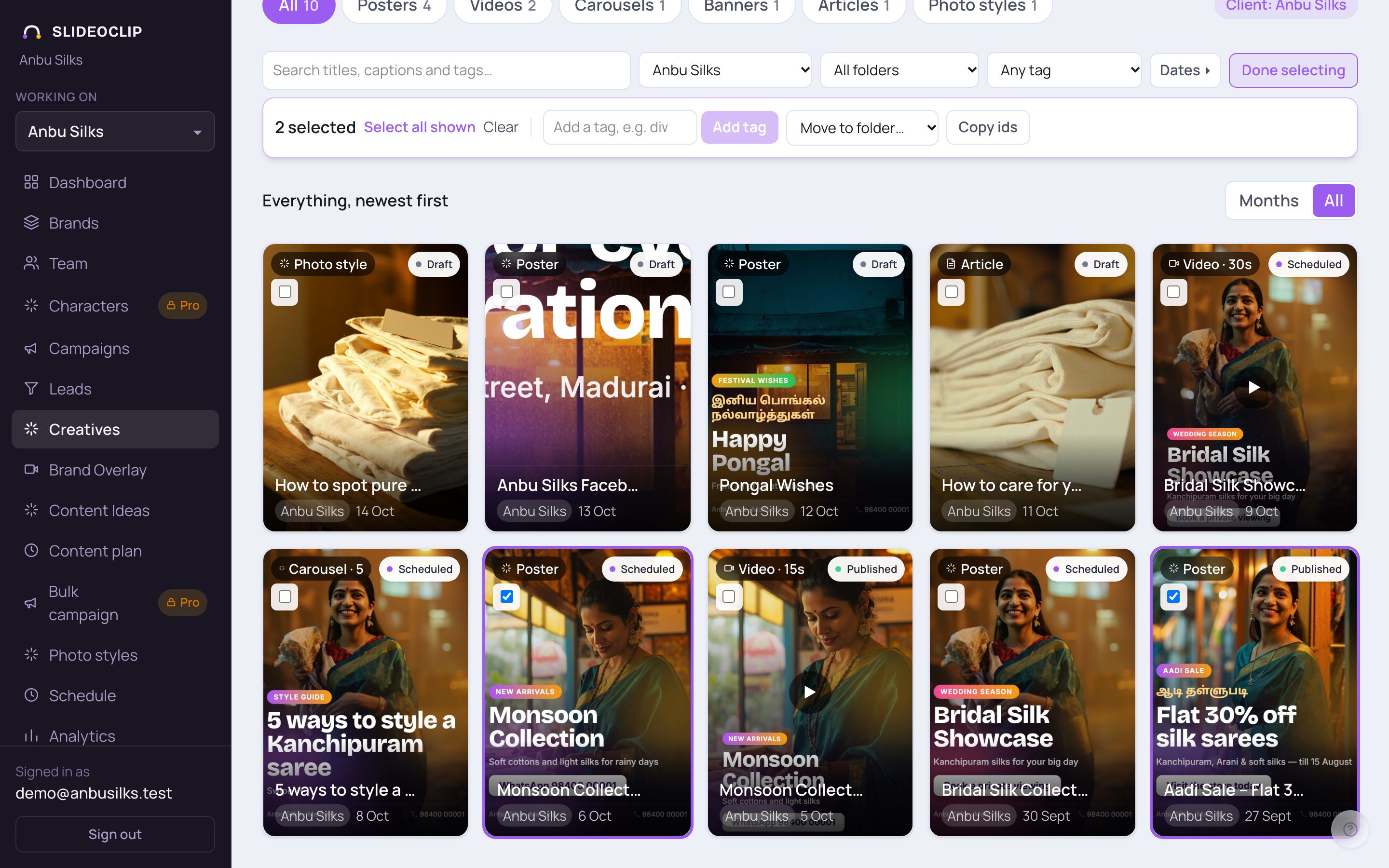
- 1Tap Select, then tap the tiles you want. A tick appears on each one, and the bar shows how many are selected. Select all shown picks everything on screen.
- 2To tag them, type a tag (for example aadi-sale) and tap Add tag. Separate several tags with commas.
- 3To file them, open Move to folder… and pick a folder. Pick + New folder… to make one (you'll be asked for a name), or Take out of folder to un-file them.
- 4Tap Done selecting when you're finished.
- When you are filtering by a tag, a Remove #tag button appears here too, to take that tag off the selected items.
- Copy ids copies the selected items' ids — only needed when you schedule posts from a spreadsheet (Schedule → Import from a spreadsheet).
💡 To rename or delete a folder, pick it in the folder filter. Rename and Delete folder appear under the search bar. Deleting a folder never deletes what was in it — those items simply go back to "not in a folder".
4. The ⋯ menu on a tile
Every tile has a small round ⋯ button at the bottom right (on a computer it appears when you move the mouse over the tile). It holds the quick actions for that item.
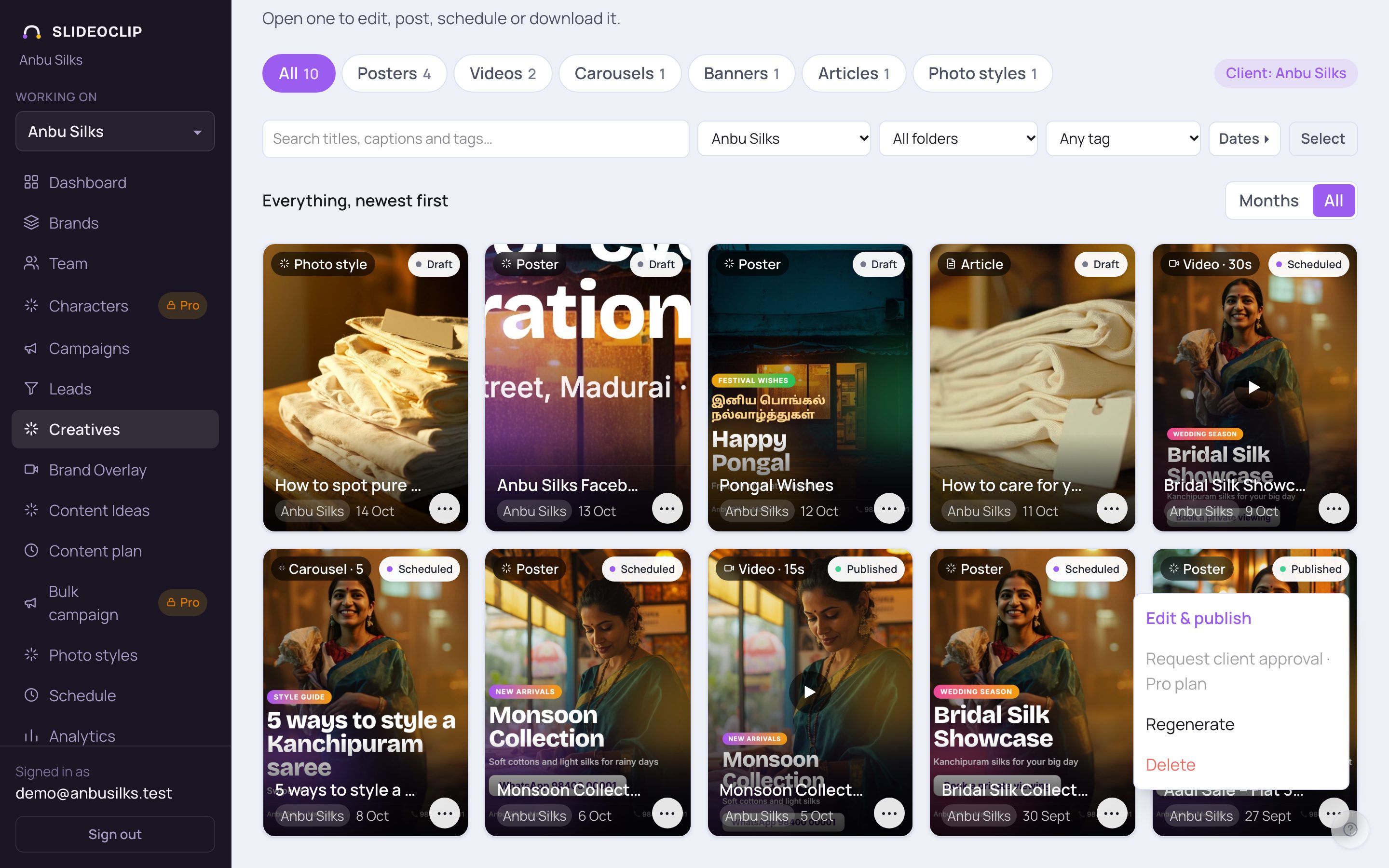
- 1Edit & publish opens the details screen — the same as tapping the tile.
- 2Request client approval sends your client a link to approve it or ask for changes. See the Approvals guide.
- 3Regenerate opens the poster maker again, filled in with this poster's details, so you can make a fresh version. You see the price before anything is made.
- 4Delete removes it for good. You are asked to confirm first, and it can't be undone.
- Videos have a few more: Regenerate (reuse look), Make Shorts (cut 3–10 short clips from a longer video), and Publish to YouTube or View on YouTube. A carousel adds View all … slides; an article adds Read article and Publish now.
5. What the labels on a tile mean
The white label at the top right of each tile tells you where that item stands.
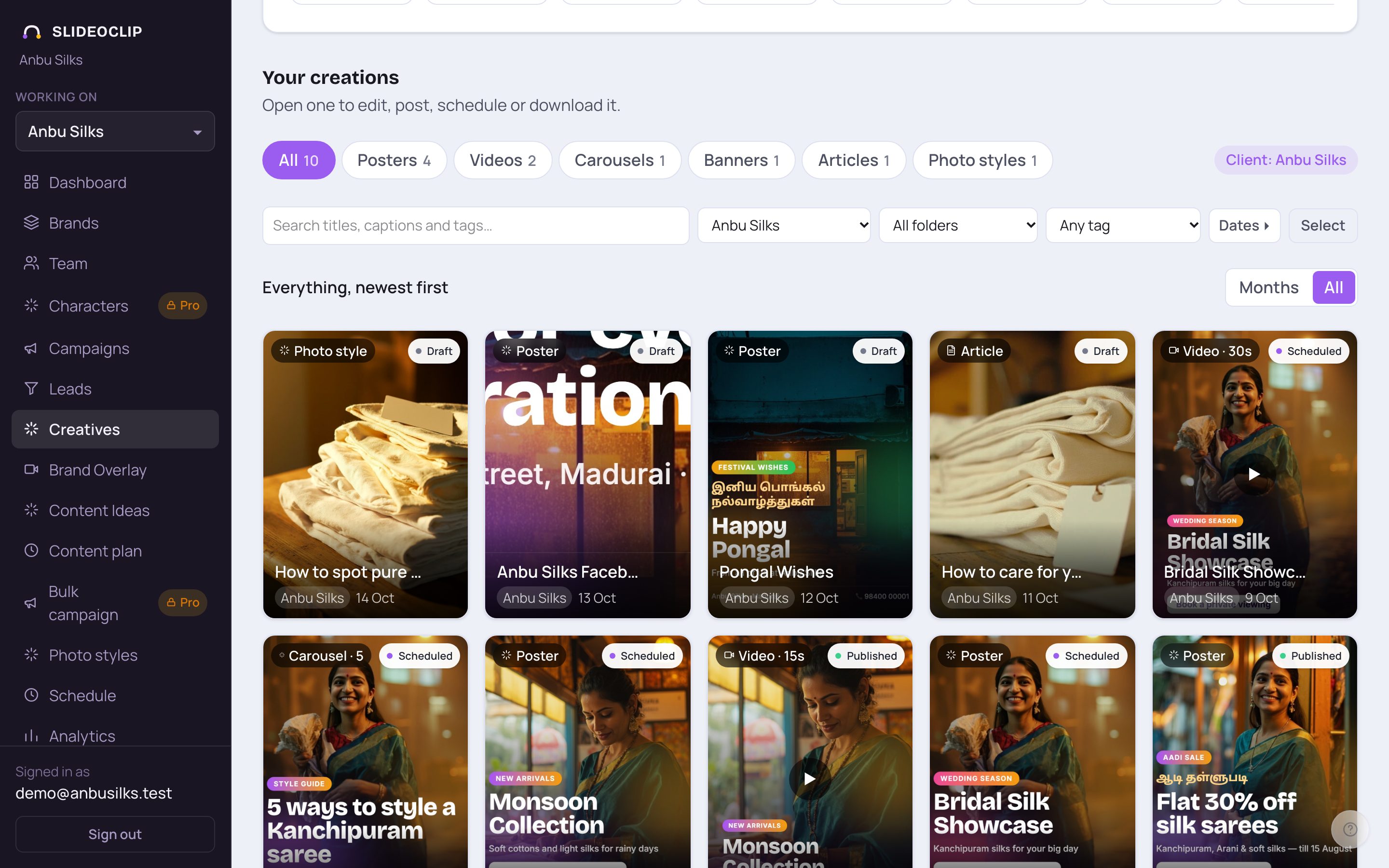
- 1Published — it has been posted to at least one place.
- 2Scheduled — it is waiting in your schedule to go out.
- Draft — made, but not posted or scheduled yet.
- After you ask a client to approve it, the label shows their answer instead: Awaiting client review, Client approved or Client requested changes.
6. On your phone
The library works the same on a phone. Swipe the kind tabs sideways to see them all.
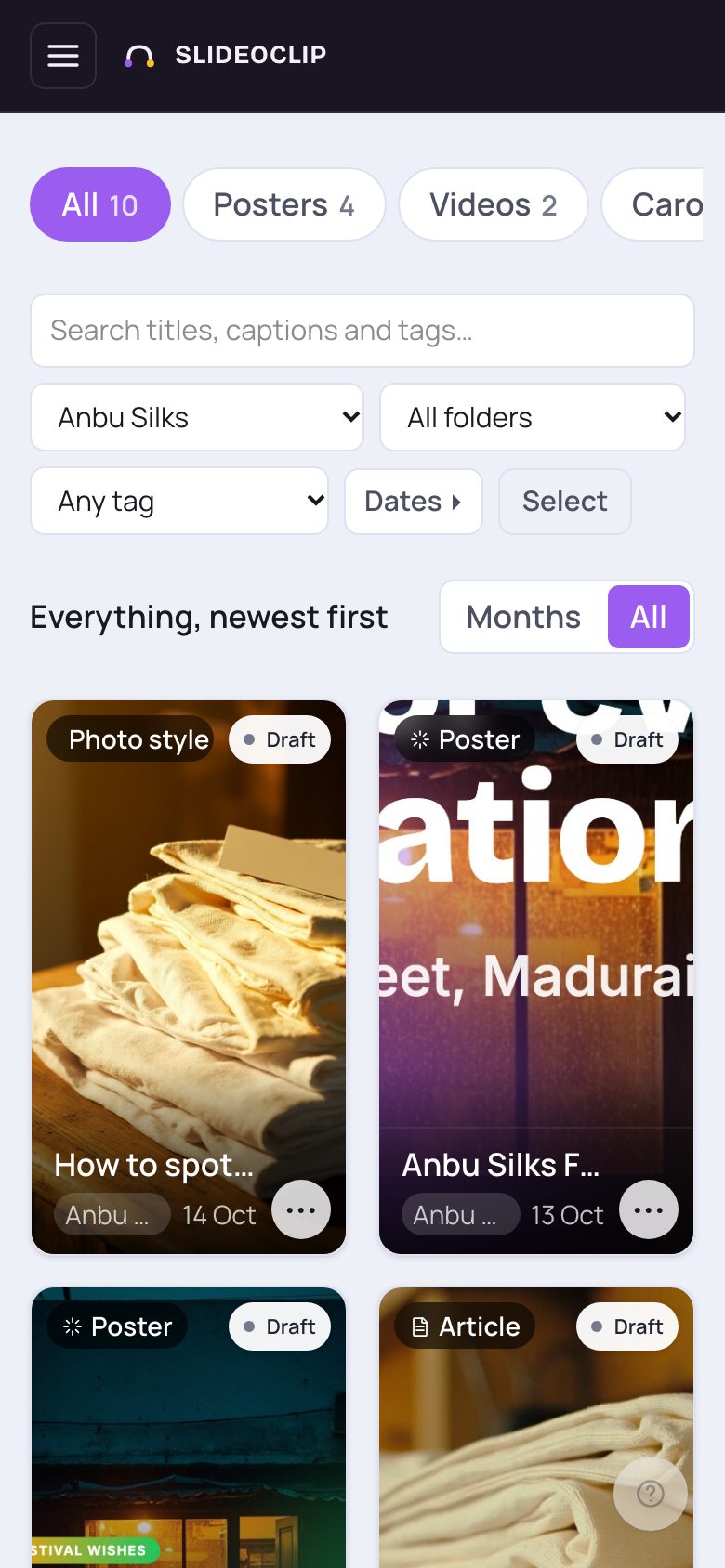
- 1Swipe left and right on the tabs to change the kind.
- 2Search works the same way.
- 3On a phone the ⋯ button is always showing — tap it for the quick actions.
Good to know
- Searching looks in every month at once, so you never need to remember which month something was made in.
- Make a folder per festival or season (for example "Diwali 2026") — next year you can find last year's posts in one tap.
- Use one tag per offer (for example "aadi-sale") so you can pull up every poster and video for that offer together.
- Your own photos and videos can go in the library too: tap Upload your own at the top of the Creatives page. Uploading uses no credits.
Questions
I made something but can't see it in the library.
Your work sits in the folder of the month it was made. Open that month, or tap All to see everything in one list. Then tap the kind tab All, clear any search or filter with Clear search & filters, and check the client picker. A video that is still being made shows as a tile with a progress bar.
Does deleting a folder delete my posters?
No. The folder goes away; everything that was in it stays in your library.
Can I get a deleted creative back?
No — deleting removes the file for good, which is why you are asked to confirm first.