All guides
Your logo and footer line
Learn where your logo comes from, how it is placed on posters, how to drag logos and a footer line (address, phone or website) exactly where you want them, and how to brand any video with Brand Overlay.
Before you start
- ✓A business with its logo uploaded on the Brands page (see Add your business)
1. Where your logo comes from
Each business's logo is saved on the Brands page. SlideoClip places that real logo file on your posters after they are made. The AI never draws or changes your logo.
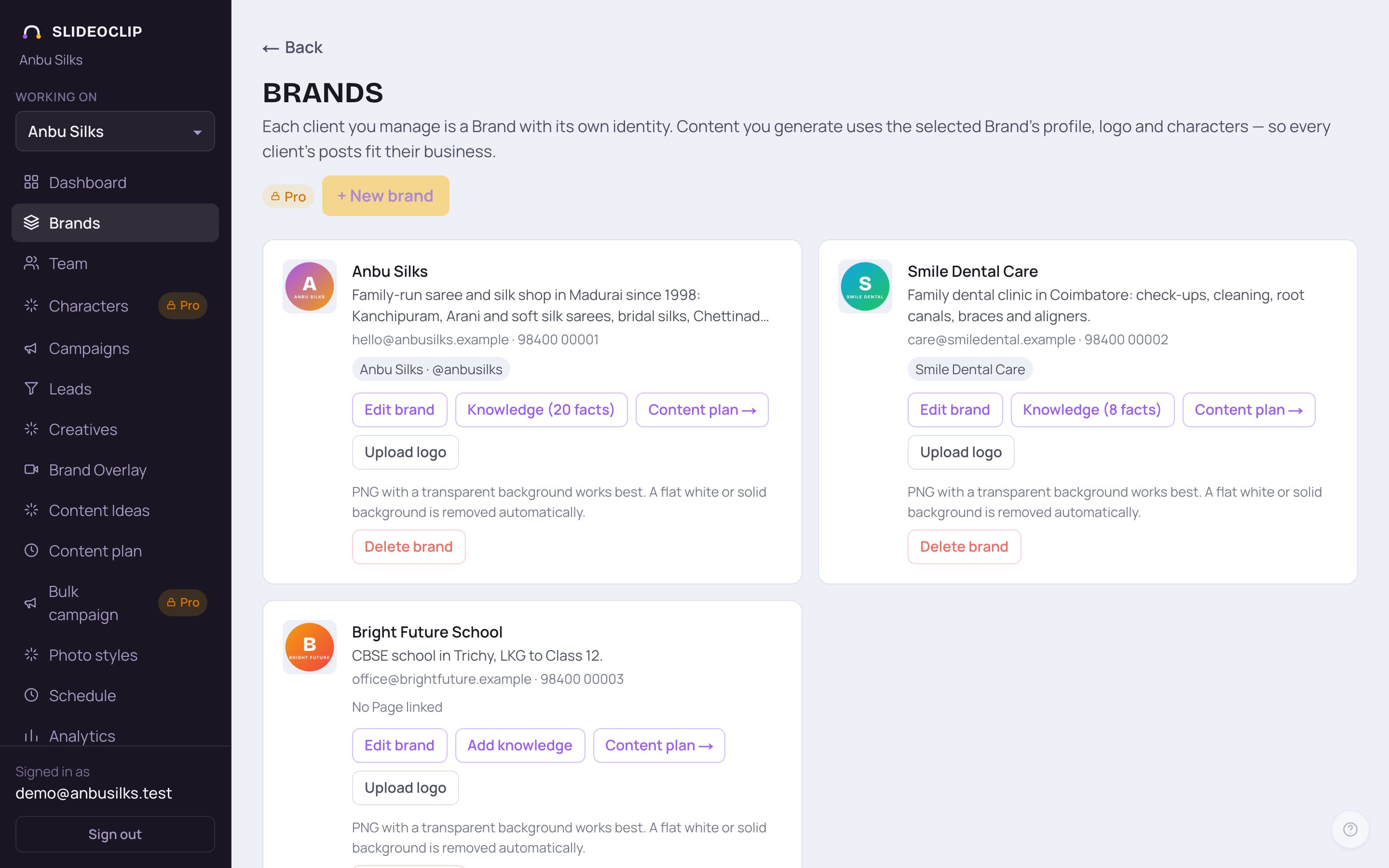
- 1Tap Upload logo on the business's card to add or change its logo. A PNG with a see-through background looks best. A plain white or single-colour background is removed for you.
- 2The address and phone number used on footers and on the closing card of ad videos come from Edit brand (Contact number and Shop / office address).
2. Logos on posters
When you make a poster, the business's logo goes in a clear corner by itself. You can say in your request where you want it, or that you want no logo. Once the poster is ready, you can still move the logo, change its size or take it off. Changing the logo position is free and always starts again from the original poster, so logos never pile up.
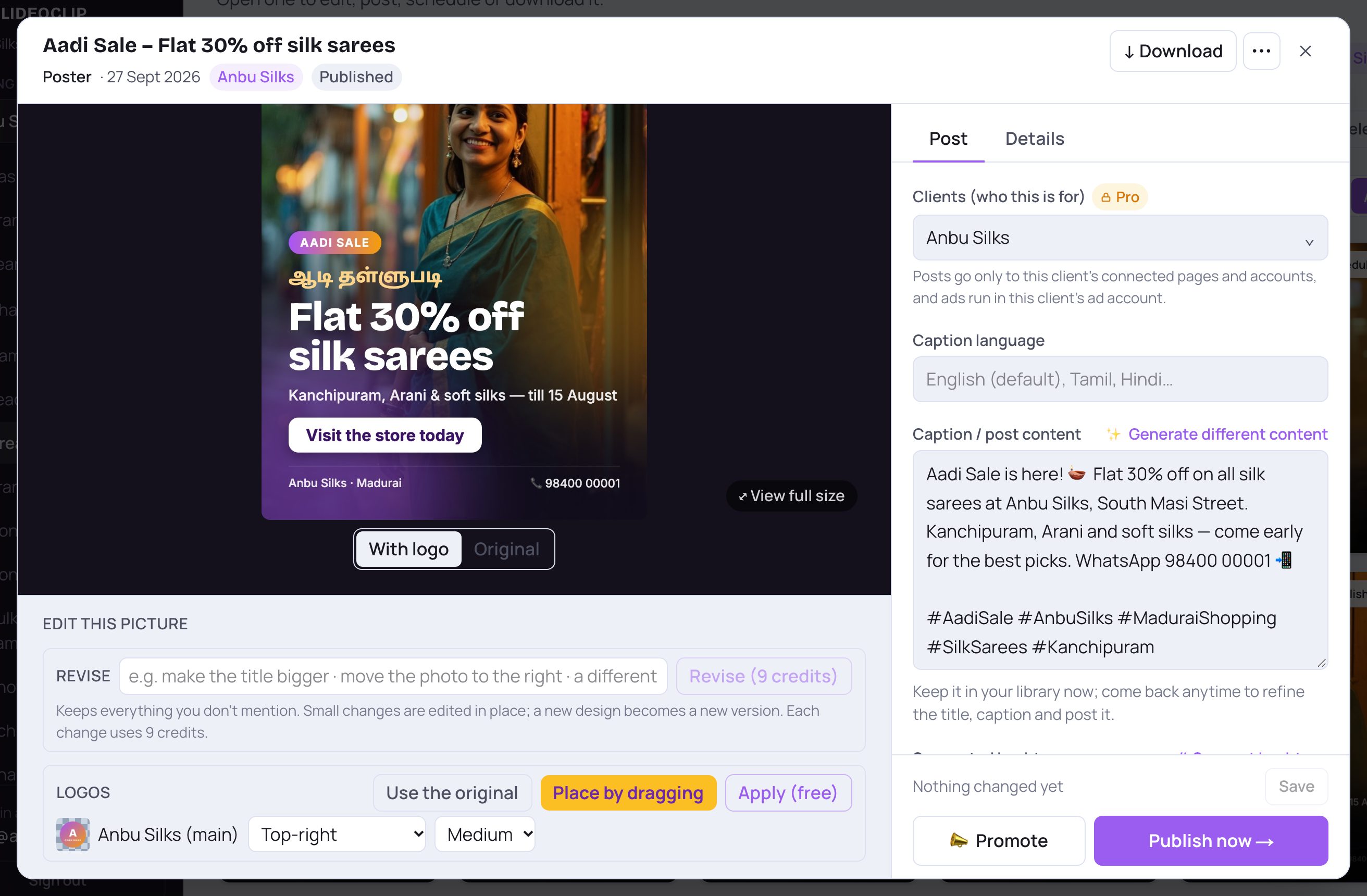
- 1Under Logos, each logo has its own row. Choose where it goes: Auto corner, Top-left, Top-right, Bottom-left, Bottom-right, Beside the previous logo (for a second logo), or Not on this image. Then pick Small, Medium or Large.
- 2Tap Place by dragging to move logos and the footer line with your finger or mouse (next step).
- 3Tap Use the original to go back to the poster as it was made, with no logos added.
- 4Tap Apply (free) to put the logos where you chose. No credits are used.
💡 Open a poster from Creatives by tapping it. The Logos box only appears on posters made in SlideoClip.
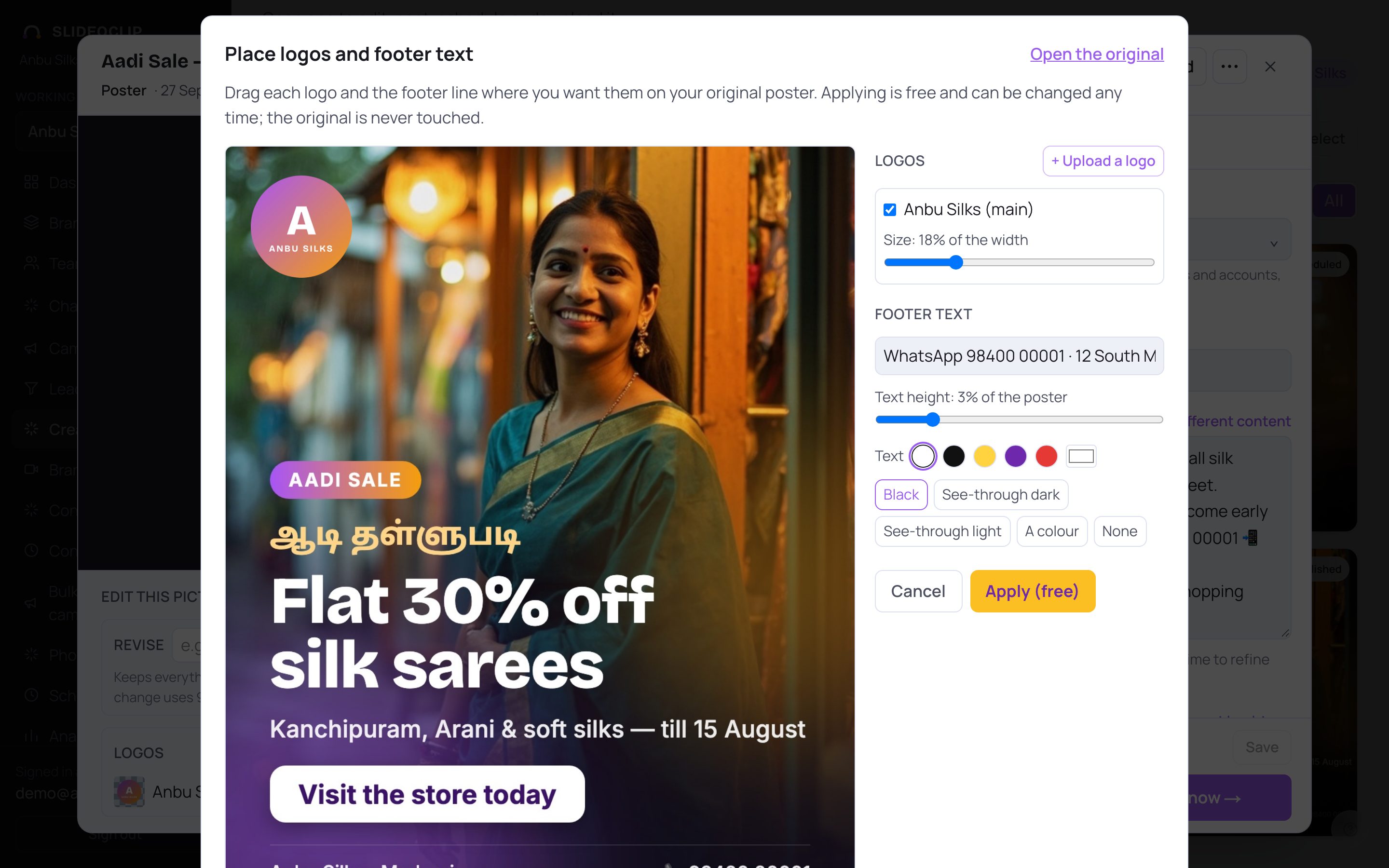
- 1Drag each logo, and the footer line, to where you want it on the poster.
- 2Under Logos, tick a logo to show it and use its Size slider. Tap + Upload a logo to add another logo, such as a partner's or a product's. It is saved with the business so you can use it again. A poster takes up to 3 logos.
- 3Under Footer text, type the line for the bottom of the poster, for example your address, phone or website. Then set its Text height, its text colour, and its background: Black, See-through dark, See-through light, A colour or None.
- 4Tap Apply (free). Cancel closes without changes, and Open the original shows the poster as it was first made.
3. The footer line on posters
When a poster is selling something, SlideoClip can add a footer line at the bottom with your contact details and when the offer ends, like "Call / WhatsApp 98400 00001 · Offer till 16 Aug". It uses only details you gave it: your request, or the phone and website saved for the business. It never makes up a number. You can change or remove the footer any time with Place by dragging, as shown above.
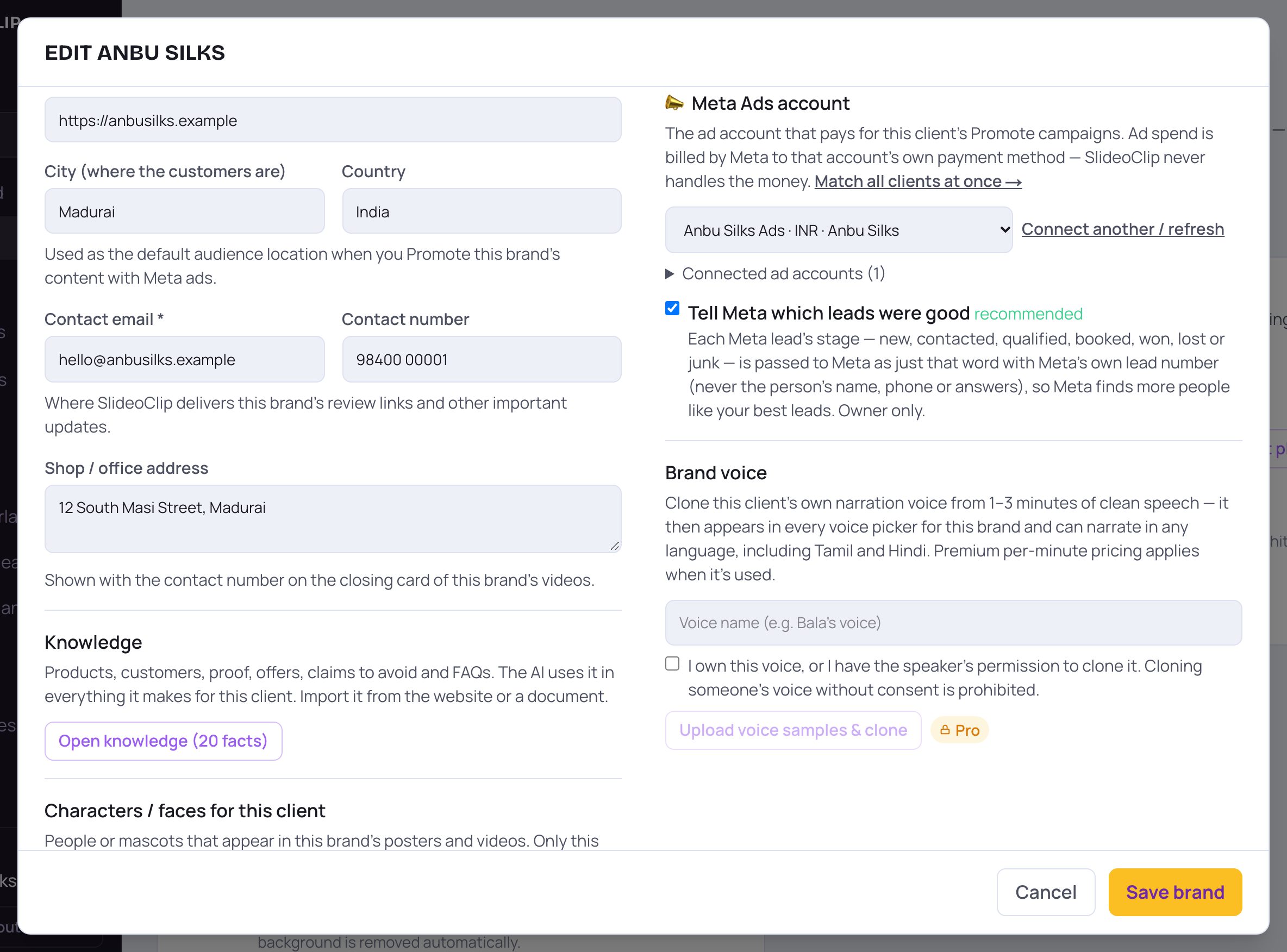
- 1Keep Contact number up to date. It is the phone or WhatsApp number SlideoClip can use on posters.
- 2Shop / office address is shown with the phone number at the end of ad videos.
- Tap Save brand after any change.
4. Videos: no logo unless you ask
Videos made by SlideoClip do NOT carry your logo, even when a business is chosen. If you want it, just say so when you ask for the video, for example "add my logo". Ad videos made from a product photo end with a short closing card showing the shop's name, address and phone from the Brands page. You can ask for no closing card, or change what it says, in your request. To put your logo and a footer on any video yourself, use Brand Overlay, below. Brand Overlay uses credits, and the cost is shown before you start.
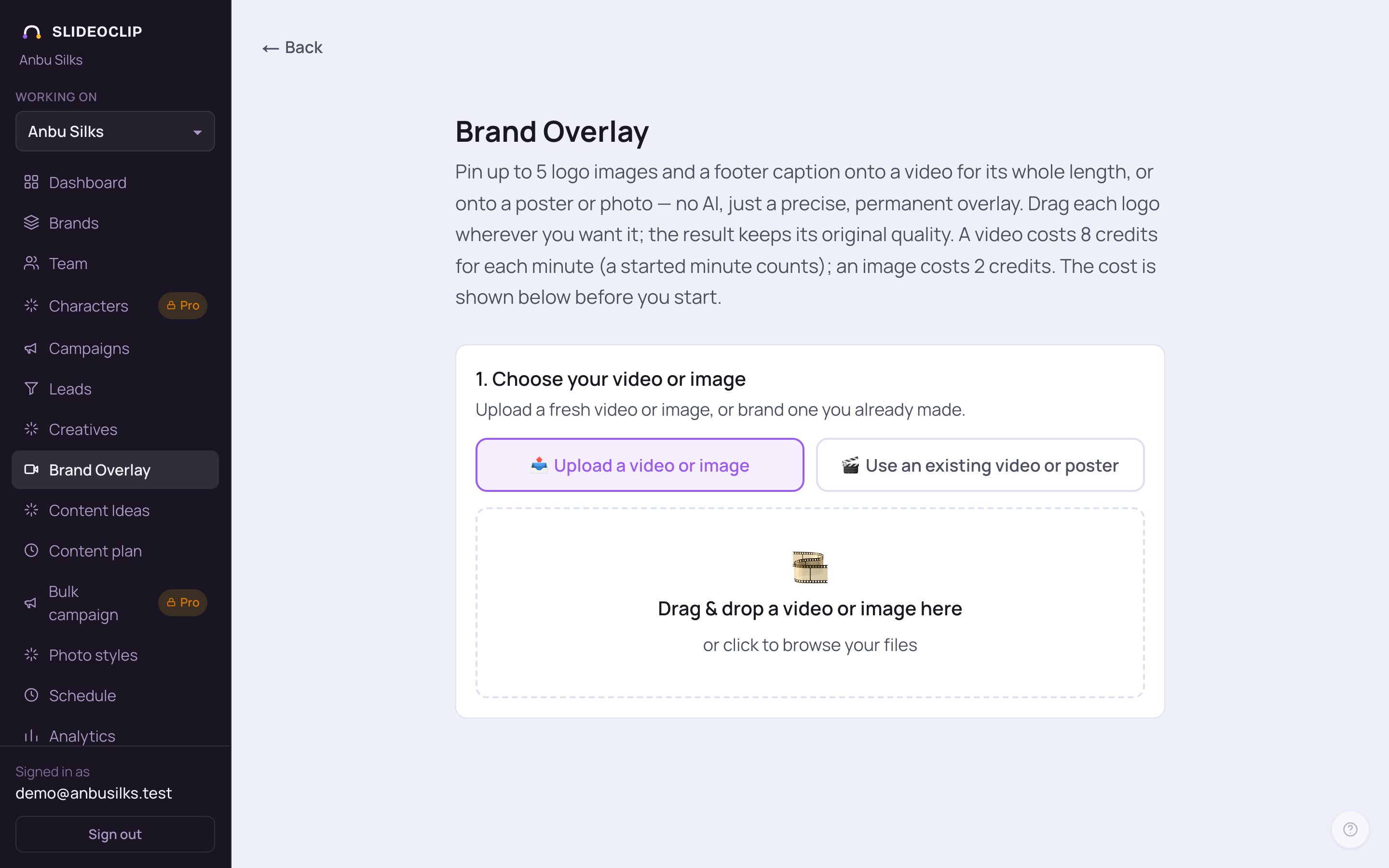
- 1Tap Brand Overlay in the menu. It pins up to 5 logos and one footer line onto a video for its whole length, or onto a poster or photo. There is no AI, and the result keeps its quality. It uses credits (for a video, a set number for each minute; for a picture, a smaller number). The cost is shown before you start.
- 2Tap 📤 Upload a video or image to brand a video or a picture (PNG or JPG) from your phone or computer.
- 3Or tap 🎬 Use an existing video or poster to brand one you already made in SlideoClip.
- 4Drag a video or image file onto this box, or tap it to choose one.
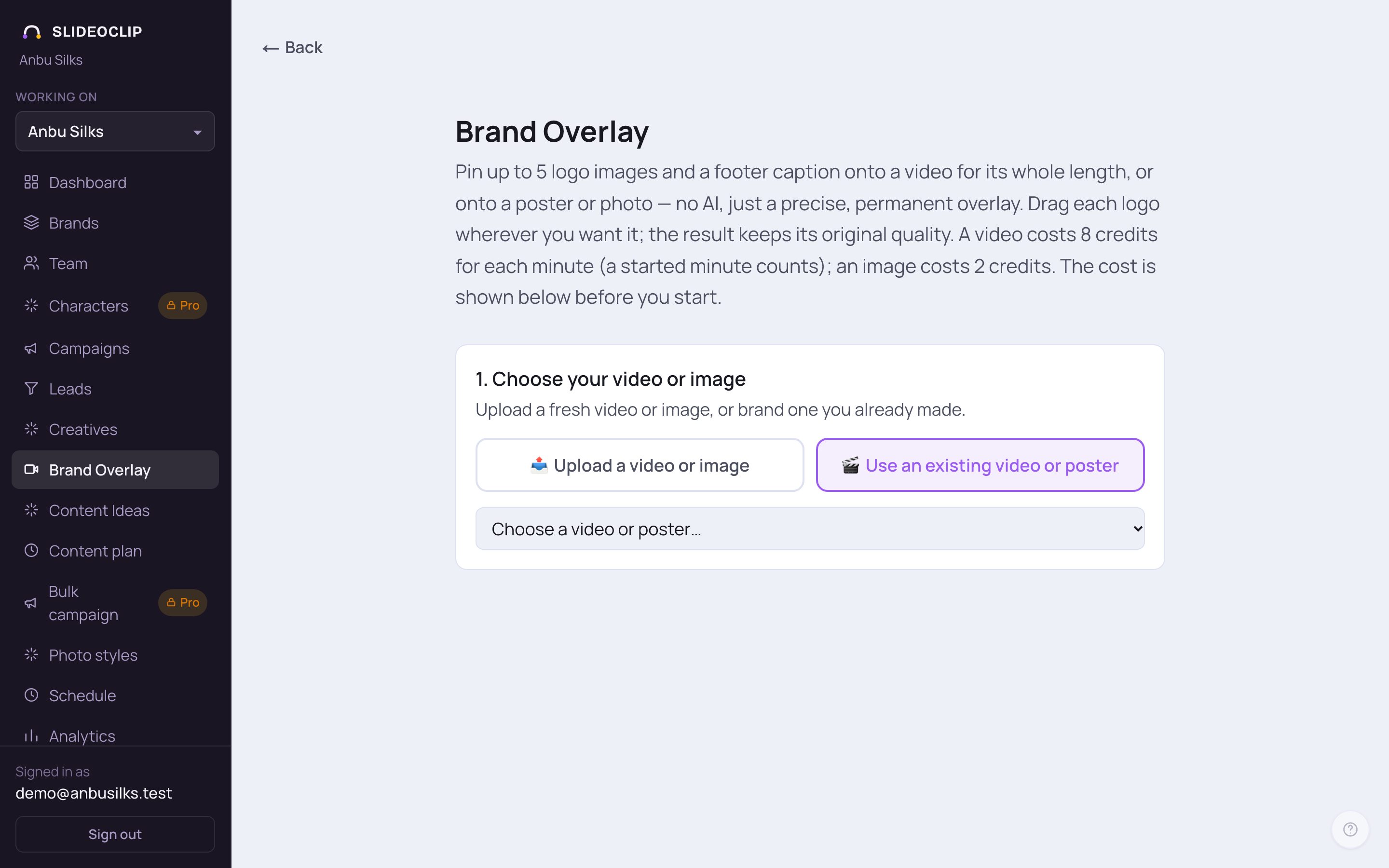
- 1Pick a ready video or poster from Choose a video or poster…. Only finished videos and posters are listed, and only those of the business chosen under Working on (all of them when All clients is chosen).
- Once one is chosen, 2. Position your branding appears with it on show. Tap + Logo 1 up to + Logo 5 to add logo images (PNG or JPG), drag each box where you want it, and use Logo 1 size to resize it. Tap the red × on a logo to remove it.
- Type your Footer text (for example "www.yourbusiness.com | +91 98765 43210") and drag it on the video. Set its Text height, Text colour and Background (Black, See-through dark, See-through light, A colour or None). Back to the bottom puts it back in its usual place.
- Under 3. Finish up, give the new video a Title. Turn on Auto-tune colors if you'd like the video's brightness and contrast evened out (this isn't AI).
- Check the cost shown under the form, then tap Create branded video (for a poster it says Create branded image). The new one appears in Creatives. Your original is kept as it was.
Good to know
- Upload the logo once on the Brands page. Every poster for that business uses it.
- If the logo covers the headline, open the poster, tap Place by dragging and move it. It's free.
- Use the footer for things people act on: a phone or WhatsApp number, website or address. Keep it to one short line.
Questions
Will the AI redraw or change my logo?
No. Your real logo file is placed on after the poster is made. It is never redrawn.
Why doesn't my video show my logo?
Videos carry the logo only when you ask for it. Say "add my logo" when you ask for the video, or add it yourself with Brand Overlay.
Does moving the logo cost credits?
No. Moving, resizing or removing logos and the footer is free.
Can I put two or three logos on a poster?
Yes. A poster takes up to 3 logos: the business's main logo and up to two more. Brand Overlay takes up to 5 logos on a video.