All guides
Photo styles: a new look for your photo
Pick a look — anime, 3D avatar, an 80s photo and more — add one photo, and get one finished picture. Fun for greetings, profile pictures and festival posts.
Before you start
- ✓A clear photo (JPG, PNG, WebP or HEIC, up to 20 MB) that you have the right to use
1. Choose a style
On Creatives, tap the Photo style card, a look in the Photo styles — a new look for your photo row, or See all →. You'll land on See your photos in a new way.
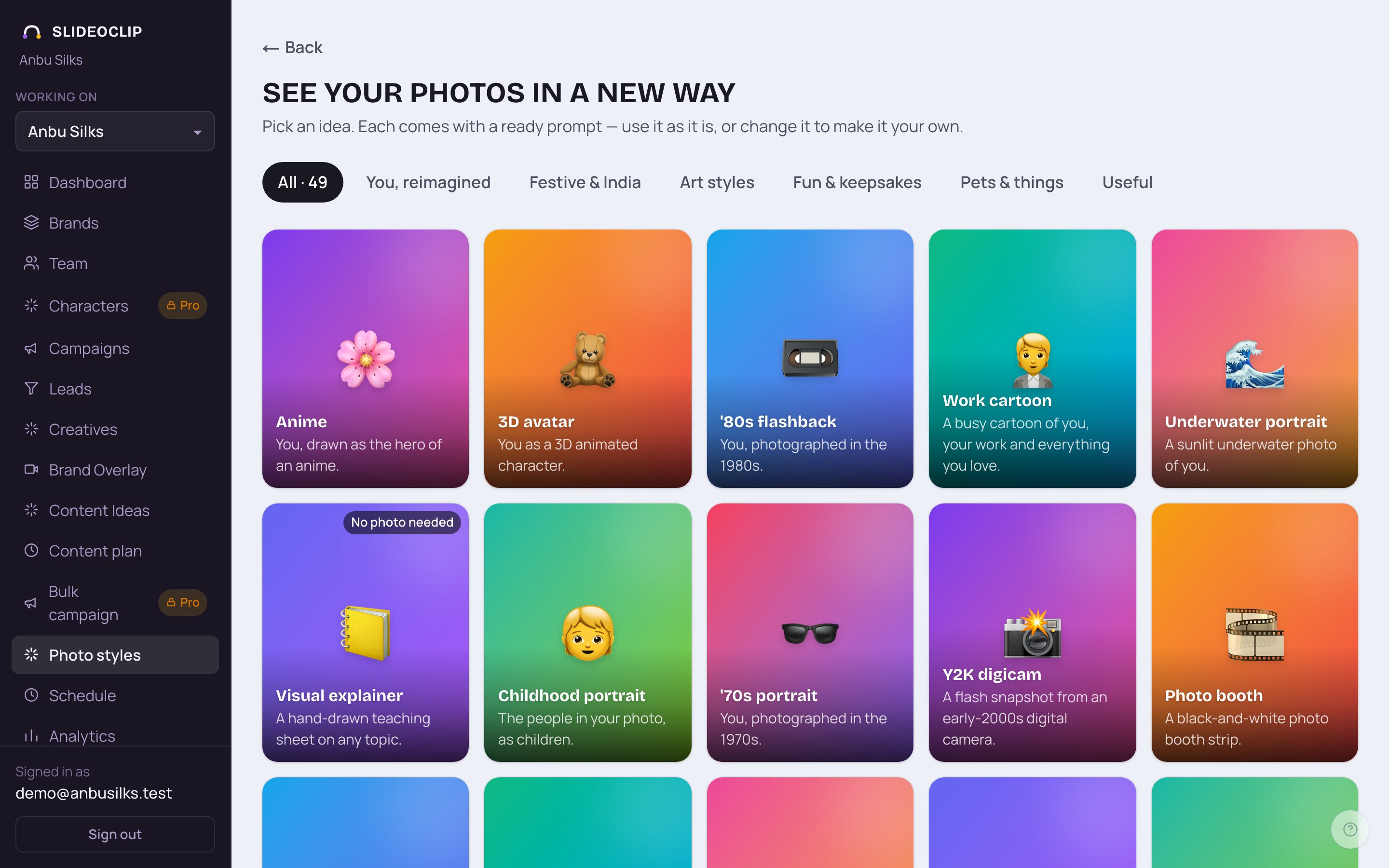
- 1Pick a kind to narrow the list: All, You, reimagined, Festive & India, Art styles, Fun & keepsakes, Pets & things or Useful.
- 2Every idea is a card with its name and one line about it, such as Anime, 3D avatar, '80s flashback, Work cartoon or Underwater portrait. Tap a card to open that style.
- 3A card marked No photo needed, like Visual explainer, works from your words alone.
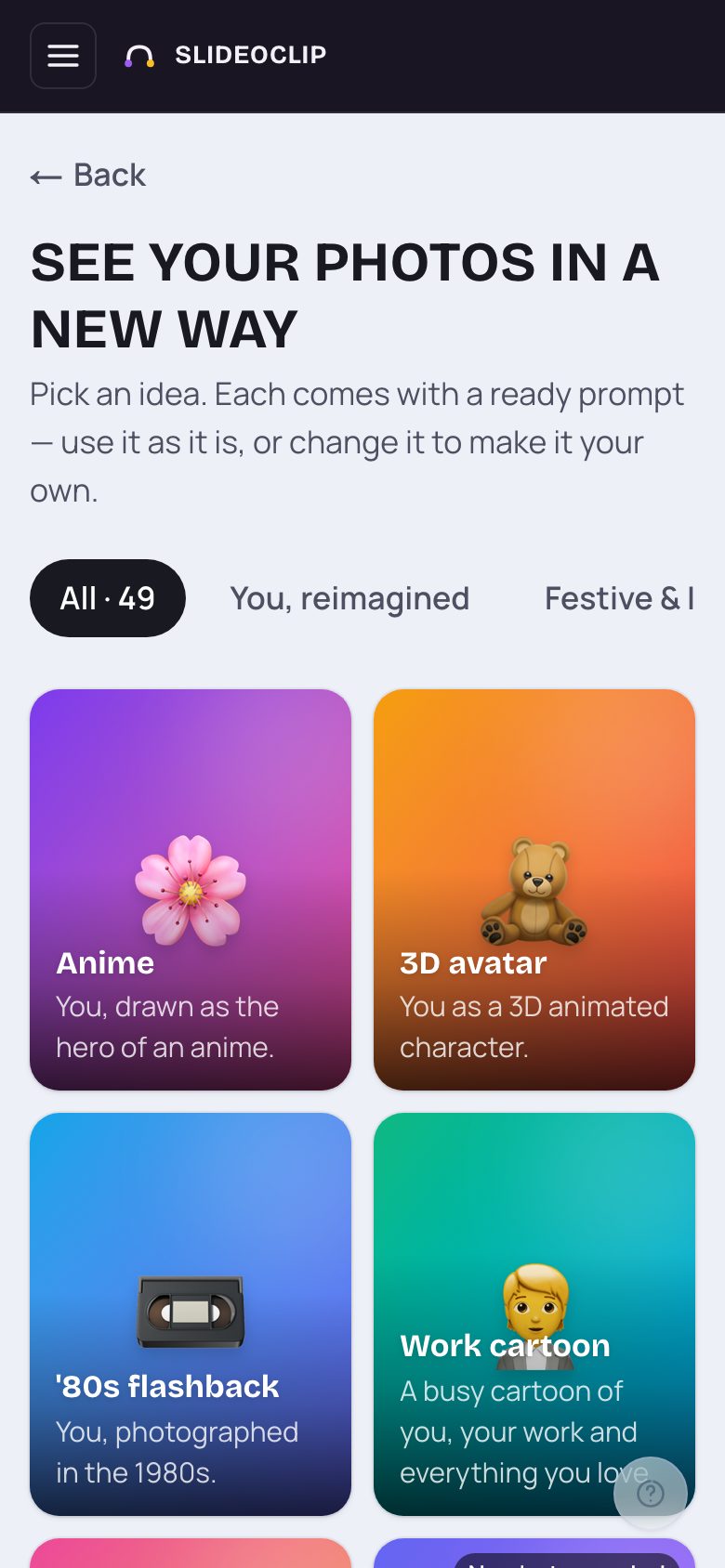
- 1On a phone the cards are shown two across. Scroll and tap the one you like.
2. Add your photo
The style's own page opens with its name at the top. Most styles need a photo of you or someone else.
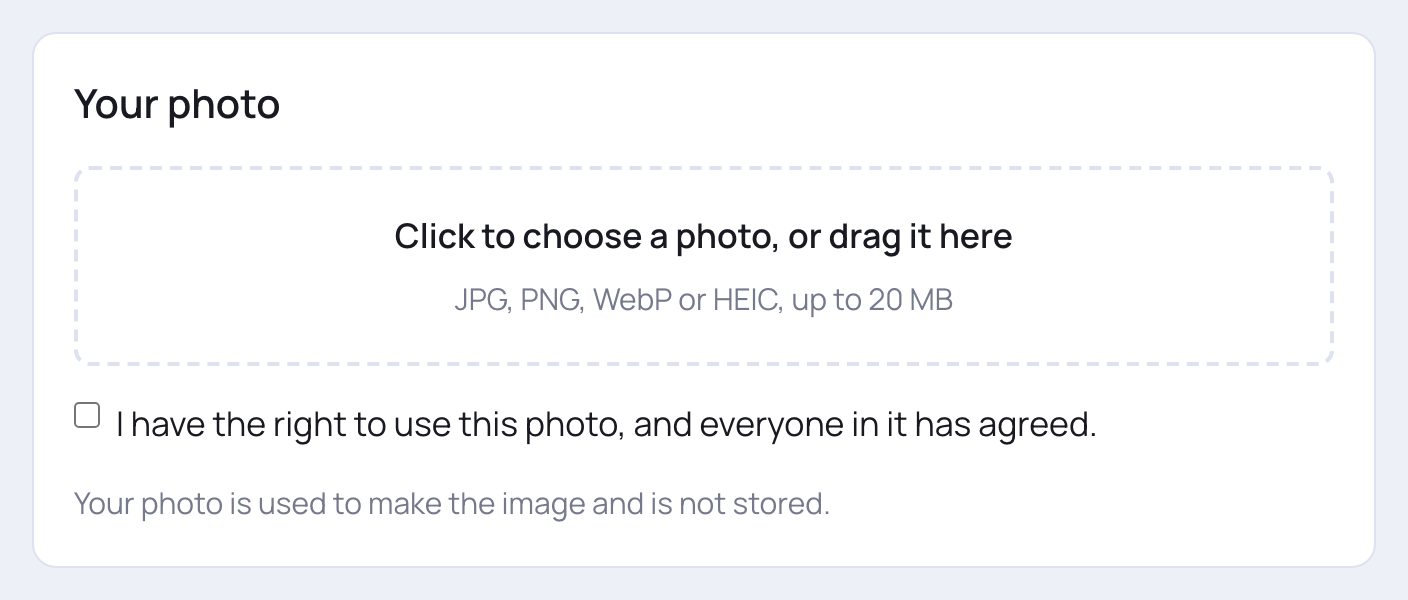
- 1Under Your photo, tap the box to choose a photo, or drag one onto it. JPG, PNG, WebP or HEIC (iPhone photos), up to 20 MB. After choosing, tap Replace photo to pick another, or Remove photo.
- 2Tick I have the right to use this photo, and everyone in it has agreed. You can't create without it.
- Your photo is used only to make the picture and is not stored.
3. Check the prompt
Under your photo is Your prompt: the words sent to make your picture. Each style comes with a ready prompt.
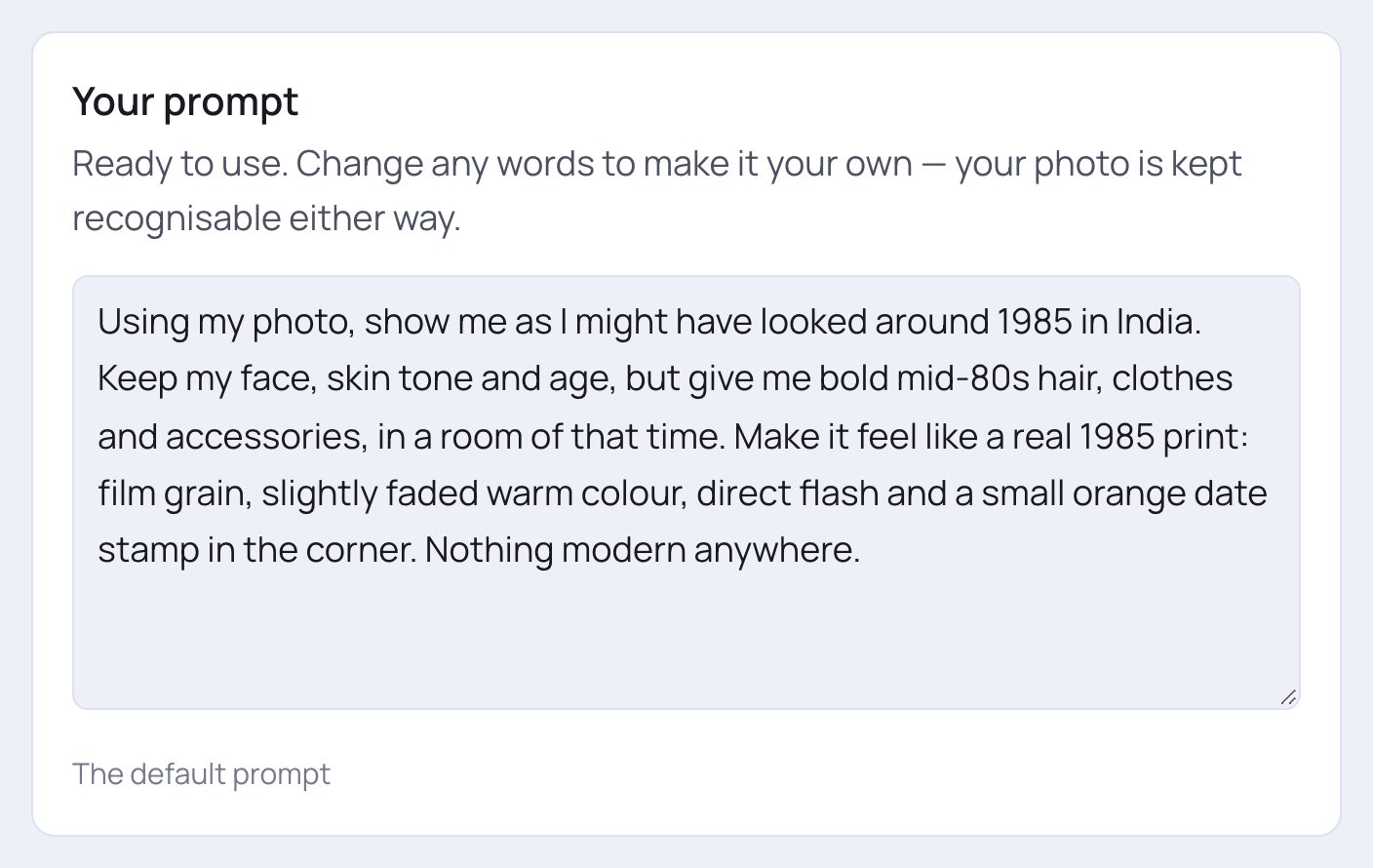
- 1Use it as it is, or change any words to make it your own. Your photo is kept recognisable either way.
- Under the box it says The default prompt. If you change it, it says Your own version and a Reset to default button appears.
4. Your choices
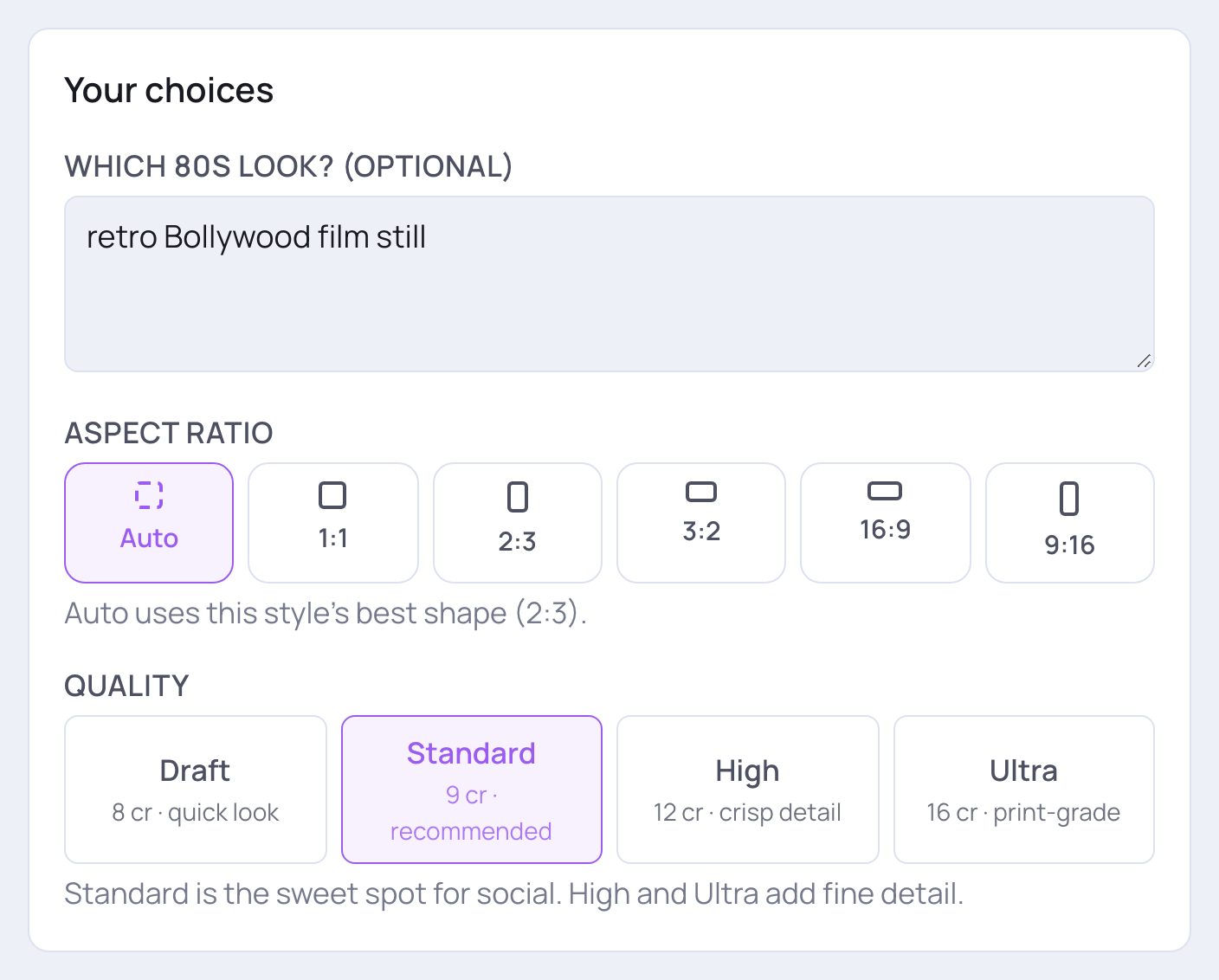
- 1Some styles ask one question, like Which 80s look? (optional) or Anything to add? (optional). Add a few words to steer it, or leave it empty. Some styles need an answer: the Work cartoon asks What do you do, and what do you love?
- 2Aspect ratio: Auto, 1:1, 2:3, 3:2, 16:9 or 9:16. Auto uses the shape that suits the style best, and says which.
- 3Quality: Draft, Standard, High or Ultra. Each shows its credits. Standard is the sweet spot for social.
5. Create it
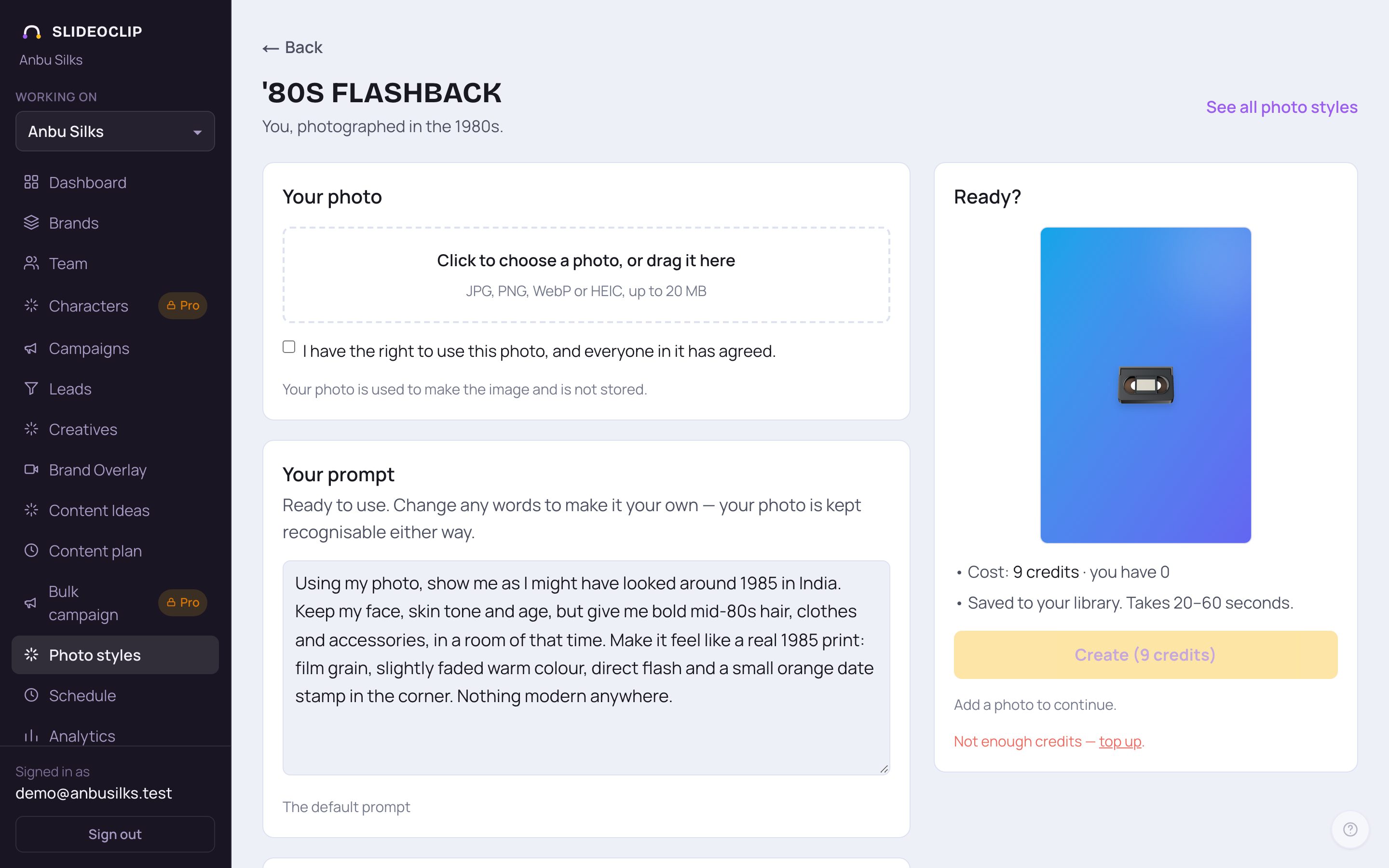
- 1Ready? shows a sample of the style in your chosen shape, the Cost in credits and how many you have.
- 2Tap Create — the credits are on the button. It takes 20–60 seconds; keep the page open.
- 3If the button is faded, the line under it tells you what's missing — a photo, the tick box, or an answer to the question.
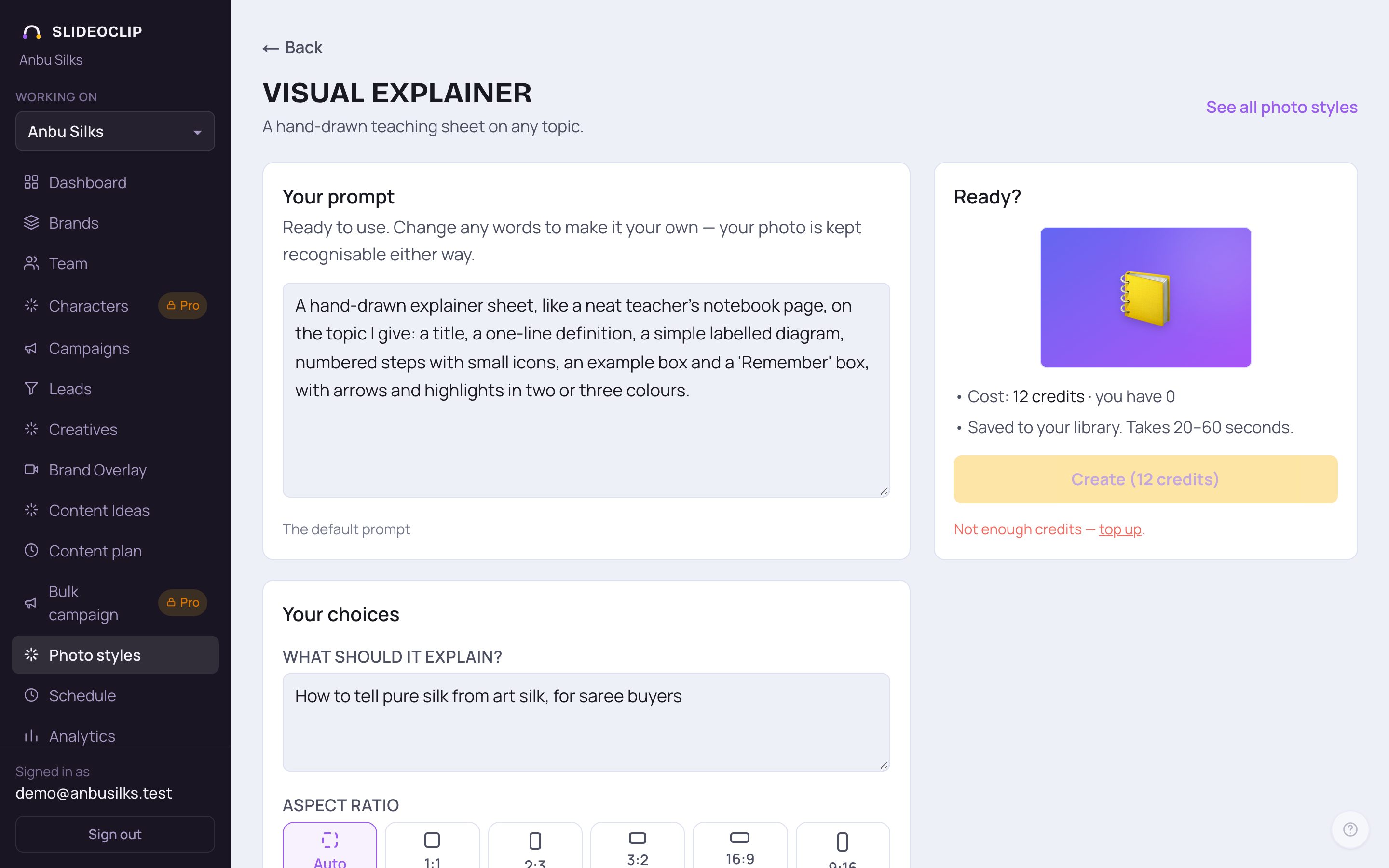
- 1Visual explainer needs no photo. It makes a hand-drawn teaching sheet on any topic.
- 2Answer What should it explain? — a topic and who it's for.
- 3Tap Create when ready.
6. Your image, and changes
When it's ready, your picture is shown big on the left. On the right, Your image shows the credits used and how many are left. Tap Download to save it, or Open in library →. Under Ask for a change, type one change (like "make the background a beach") and tap Ask for a change — it uses the credits shown under the box. Try another style keeps your photo so you don't upload it again; Make another makes a fresh picture in the same style.
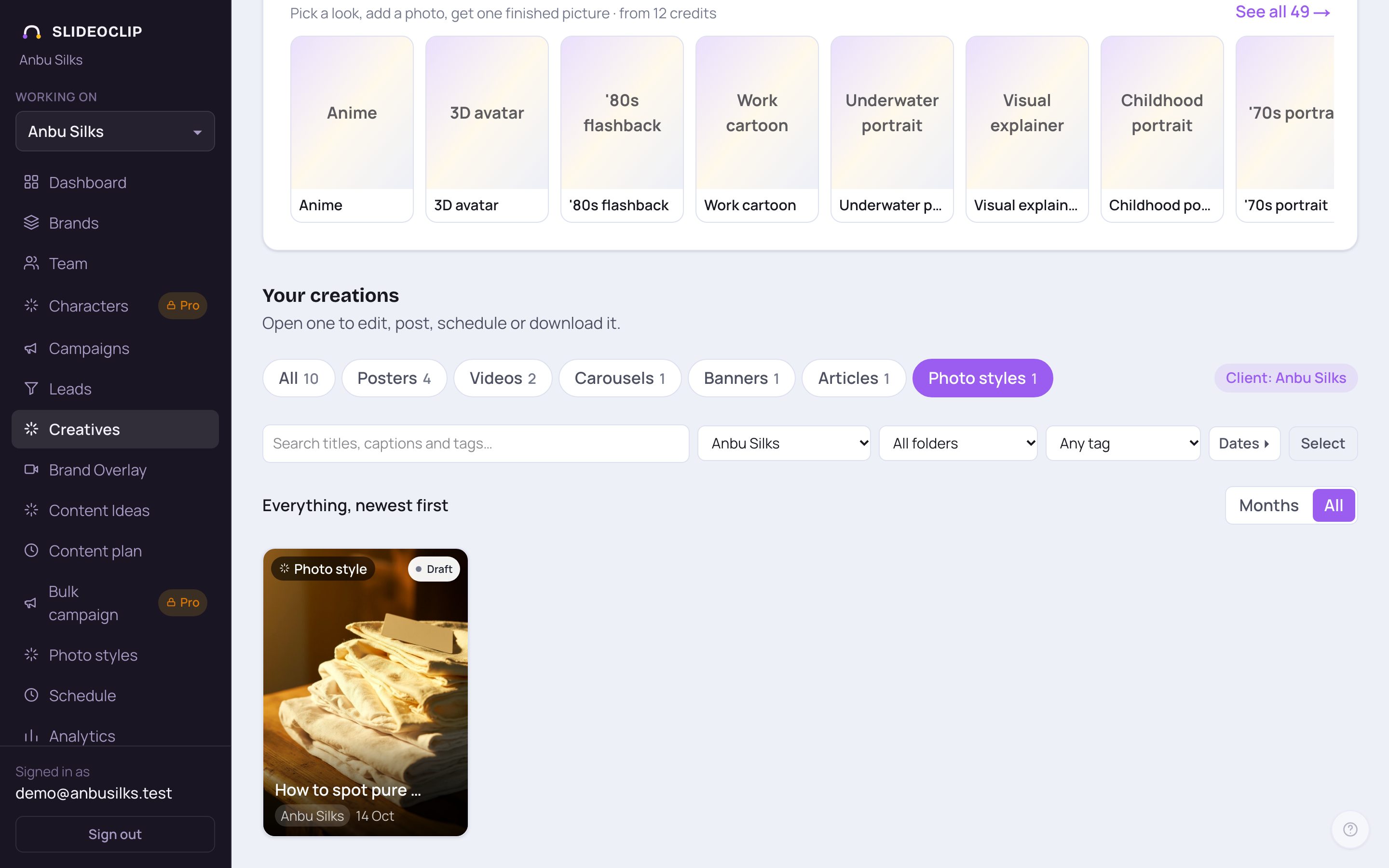
- 1Later, find every photo-style picture in Your creations on the Creatives page by tapping Photo styles.
- 2Tap one to open it, then post it, schedule it or download it.
Good to know
- Use a sharp, well-lit photo where the face is clearly visible.
- Ask for one change at a time — it's easier to get exactly what you want.
- Try a few styles with the same photo: Try another style keeps it for you.
Questions
Is my photo kept?
No. Your photo is used to make the picture and is not stored. The finished picture is saved in your library.
Why do I have to tick the box?
You must have the right to use the photo, and everyone in it must have agreed. Creating stays off until you tick it.
Can I use this for a poster with my offer on it?
Photo styles make one picture without your offer text. For an offer poster from your photo, use Make a poster and add it under Your photos, or Posters and videos from your photos.