All guides
Make and share a client report
Make a one-page report for a client: what you made for them, how their posts did, the leads and ads, and the latest content. Save it as a PDF and send it on WhatsApp or email.
Before you start
- ✓A Growth, Pro or Agency plan (client reports are included from Growth)
- ✓The client's accounts connected on the Dashboard
1. Open the report for a client
There are two ways in: tap Client report in the menu, or, with a client picked in the top bar, tap the … report ↗ button at the top of the Dashboard. The second way opens the report for that client straight away.
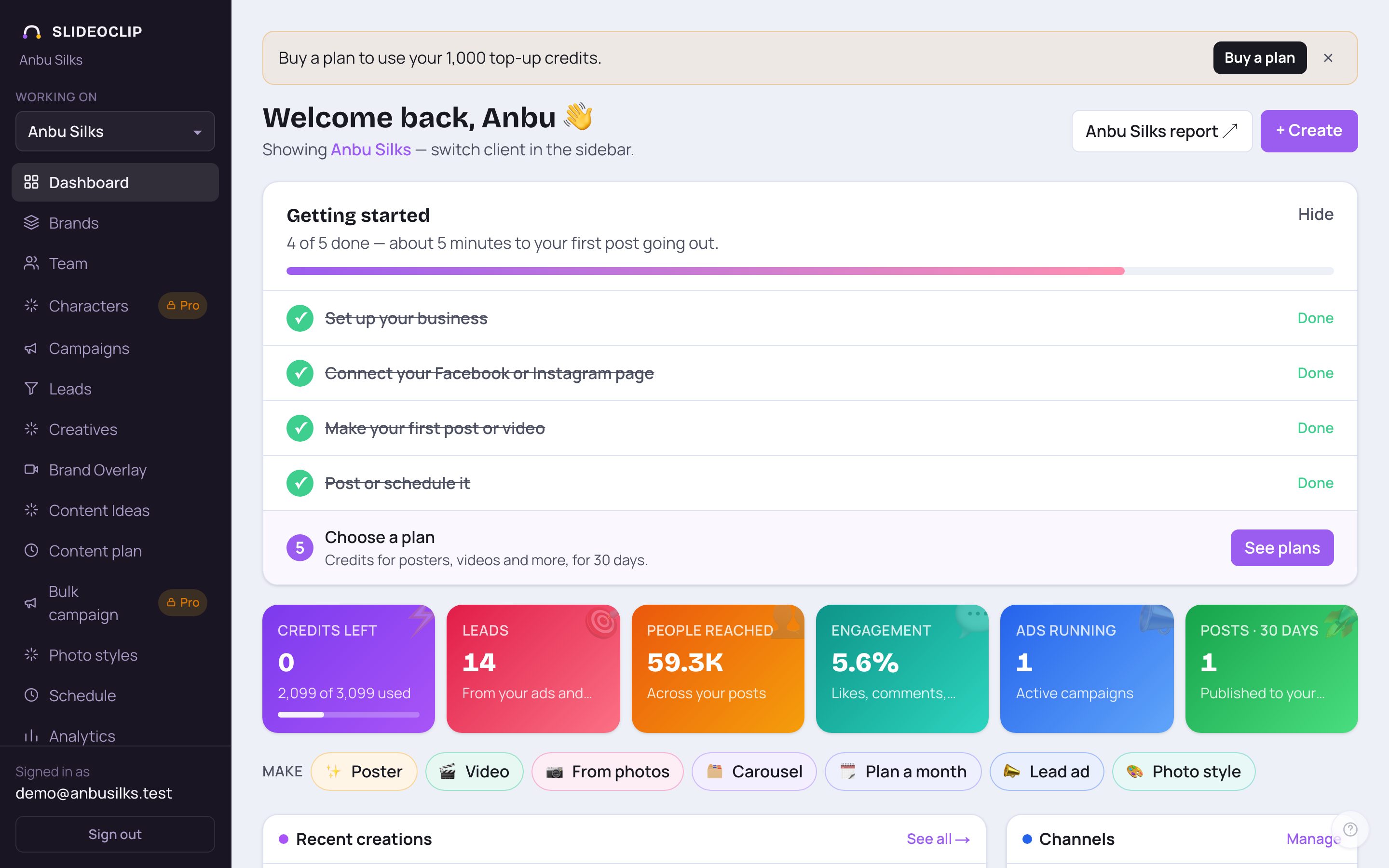
- 1With Anbu Silks picked in the top bar, tap Anbu Silks report ↗. The report opens for that client.
- With no client picked, the button says Client report ↗ and the report covers all clients.
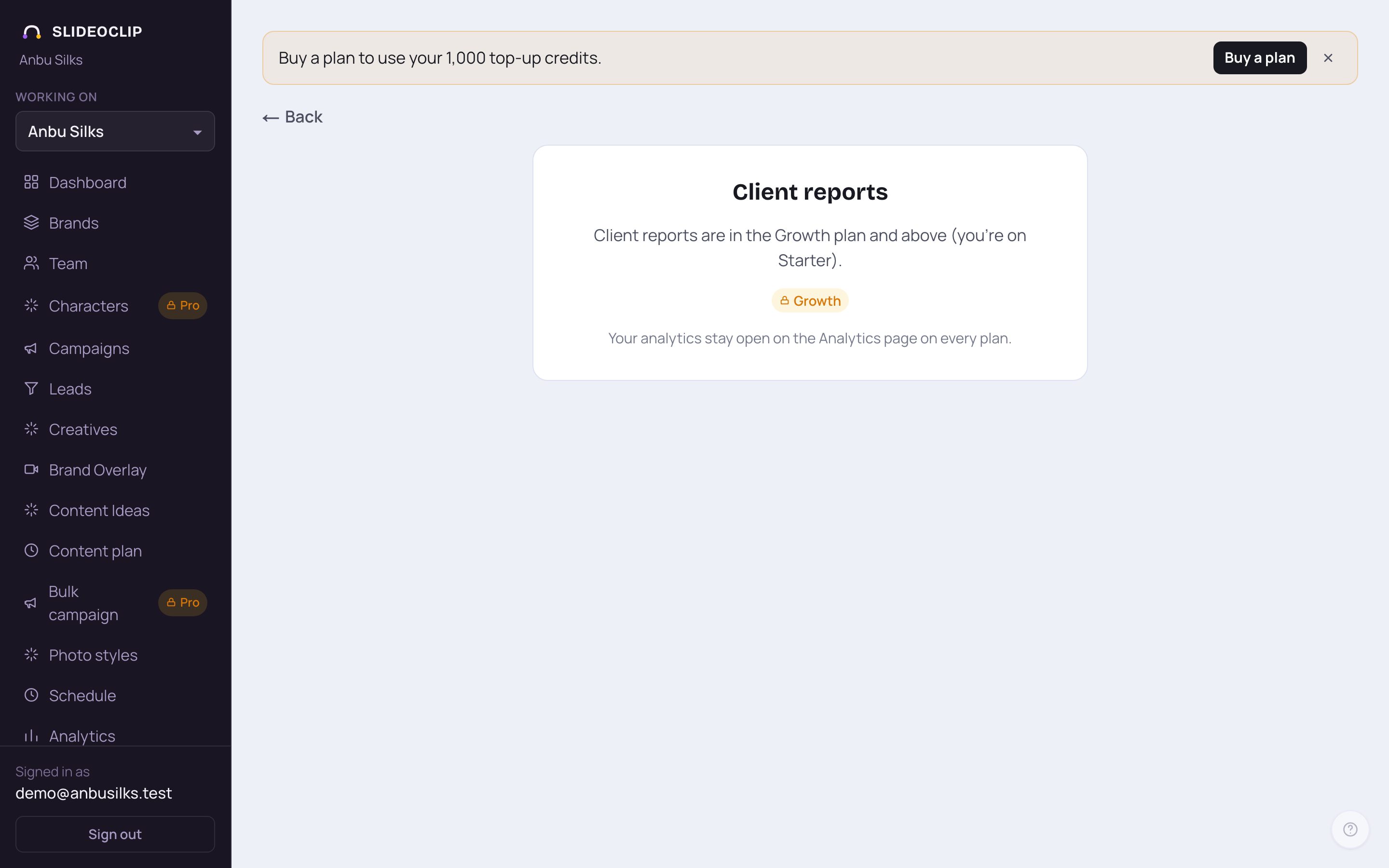
- 1Tap Client report in the menu on the left. On a phone, tap the menu button at the top first.
- 2If your plan doesn't include reports, this page says so and shows a Growth tag instead of the report. Upgrade to Growth or above to get it.
- Your numbers stay open on the Analytics page on every plan.
2. Pick the client and the period
At the top of the report page, Client lets you pick one client or All clients. Next to it, choose the period: Last 30 days, Last 90 days, This month, Last month or All time. The report below updates at once, and the dates are shown on its cover next to Marketing report, the client's name, Prepared by with your workspace name, and today's date.
3. What the report shows
At a glance shows Content made, Published, People reached and Enquiries (or Engagement when the client has no ads or leads), with a few plain sentences about what happened. The work counts what you made for the client by type (posters, videos, carousels, banners and covers, articles) and shows pictures of up to eight of them with their date and status. Reach & engagement shows People reached, Likes, Comments, Shares and Posts counted, read from the connected accounts. When the client has lead campaigns or leads, Enquiries shows how many leads reached each stage (New, Contacted, Qualified, Booked, Won), plus Won value and a table of campaigns. When Meta ads have run, Advertising shows Ad spend, Enquiries from ads, Cost per enquiry, the Best performer and a table of campaigns. Parts with nothing to show are left out or say so, so a client without ads gets a shorter report.
4. Save it as a PDF and send it
Make sure the right client and period are picked, then tap Print / Save as PDF at the top right. Your browser's print screen opens with only the report on it (the menu and buttons are left out). On a computer, set the printer (Destination) to Save as PDF and save the file. On a phone, choose to save as a PDF or share it, depending on your phone. Then send the PDF to your client on WhatsApp or by email, like any other file. The report is made fresh each time you open it, so open it on the day you want to send it.
Good to know
- Send a report every month on the same date, so the client sees steady progress.
- Mark leads as Won with the sale amount on the Leads page, and the report shows the won value.
- Making the report uses no credits. Make it as often as you like.
- For day-by-day numbers and your best posts, open Analytics with the client picked.
Questions
Is there a link I can send instead of a PDF?
Not for the report. Save it as a PDF and send the file. (For approving posts, clients get their own review link; see Manage your clients.)
Why do I see an upgrade note instead of the report?
Client reports are included from the Growth plan. On the Starter plan the page shows Client reports with a Growth tag; your numbers stay open on the Analytics page.
Why are the engagement numbers zero?
Reach and engagement are read live from your connected accounts. Check on the Dashboard that the accounts are connected and don't need reconnecting. Facebook per-post likes and comments only appear once Meta approves page-content access.
Can I change the date range?
Yes. Pick Last 30 days, Last 90 days, This month, Last month or All time at the top of the report. Ad spend and campaign totals are for each campaign so far.