All guides
Set up for 30 days of posts
In about 5 minutes, tell SlideoClip who the posts are for and what the business does. It then checks it knows enough for a month of different posts and asks only what is missing. After that you can plan 30 days in one go.
Before you start
- ✓A business added on the Brands page (see Add your business). If you have none yet, this setup creates one for you.
1. Open the setup
Open it from Set up on the Getting started card on your Dashboard, or go straight to the setup page. It has four steps, shown at the top. A tick marks each step you've finished, and you can tap any finished step to go back to it.
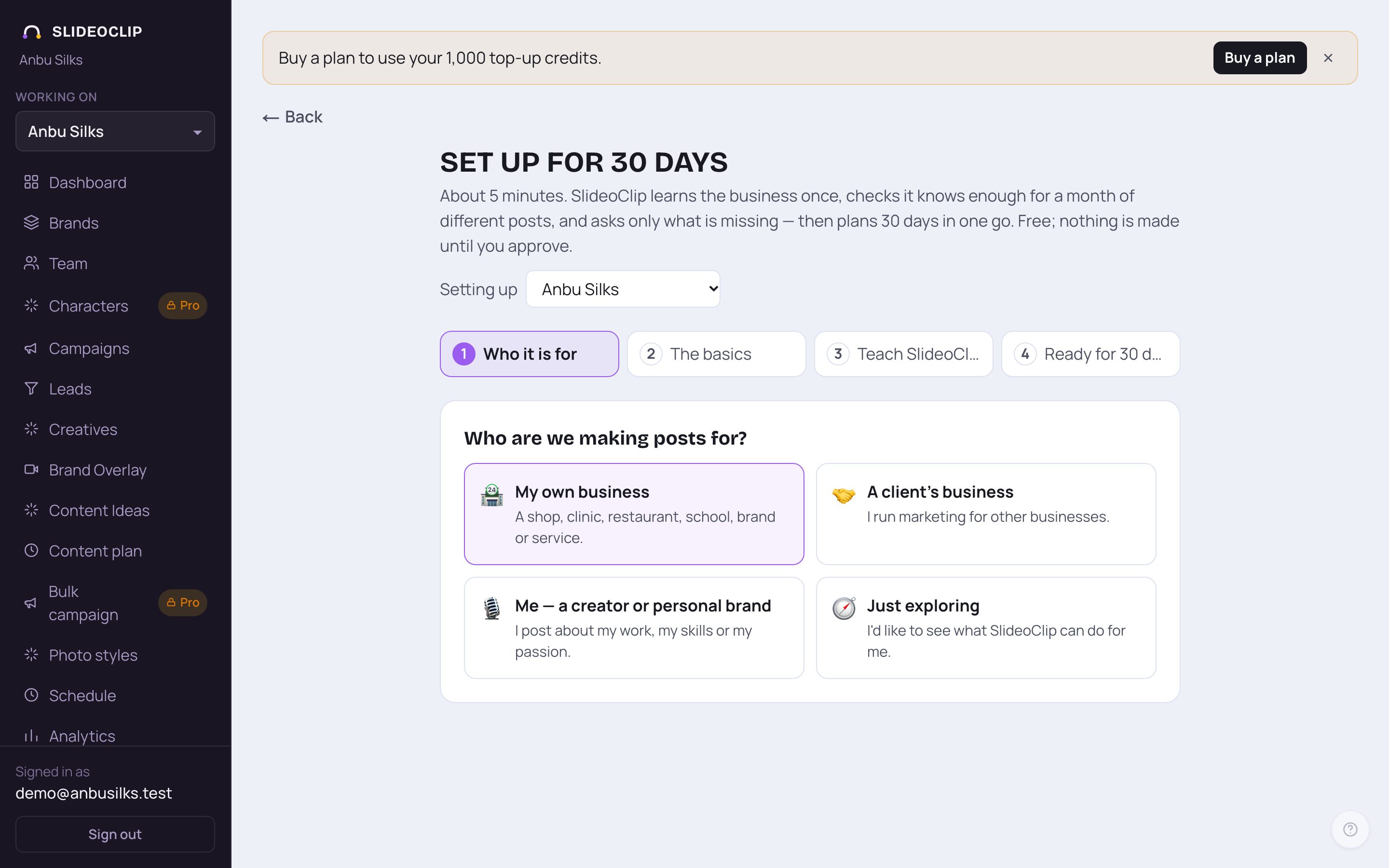
- 1If you have more than one business, choose which one you're setting up next to Setting up.
- 2The four steps: Who it is for, The basics, Teach SlideoClip and Ready for 30 days?
- 3Tap My own business for a shop, clinic, restaurant, school, brand or service you own.
- 4Tap A client's business if you run marketing for other businesses.
- Tap Me — a creator or personal brand if you post about your own work, skills or passion.
- Tap Just exploring if you'd like to see what SlideoClip can do first.
- Your choice changes the questions SlideoClip asks later. Tapping a card takes you straight to the next step.
2. The basics
If the business is already on the Brands page, these boxes are filled in for you. Just check them.
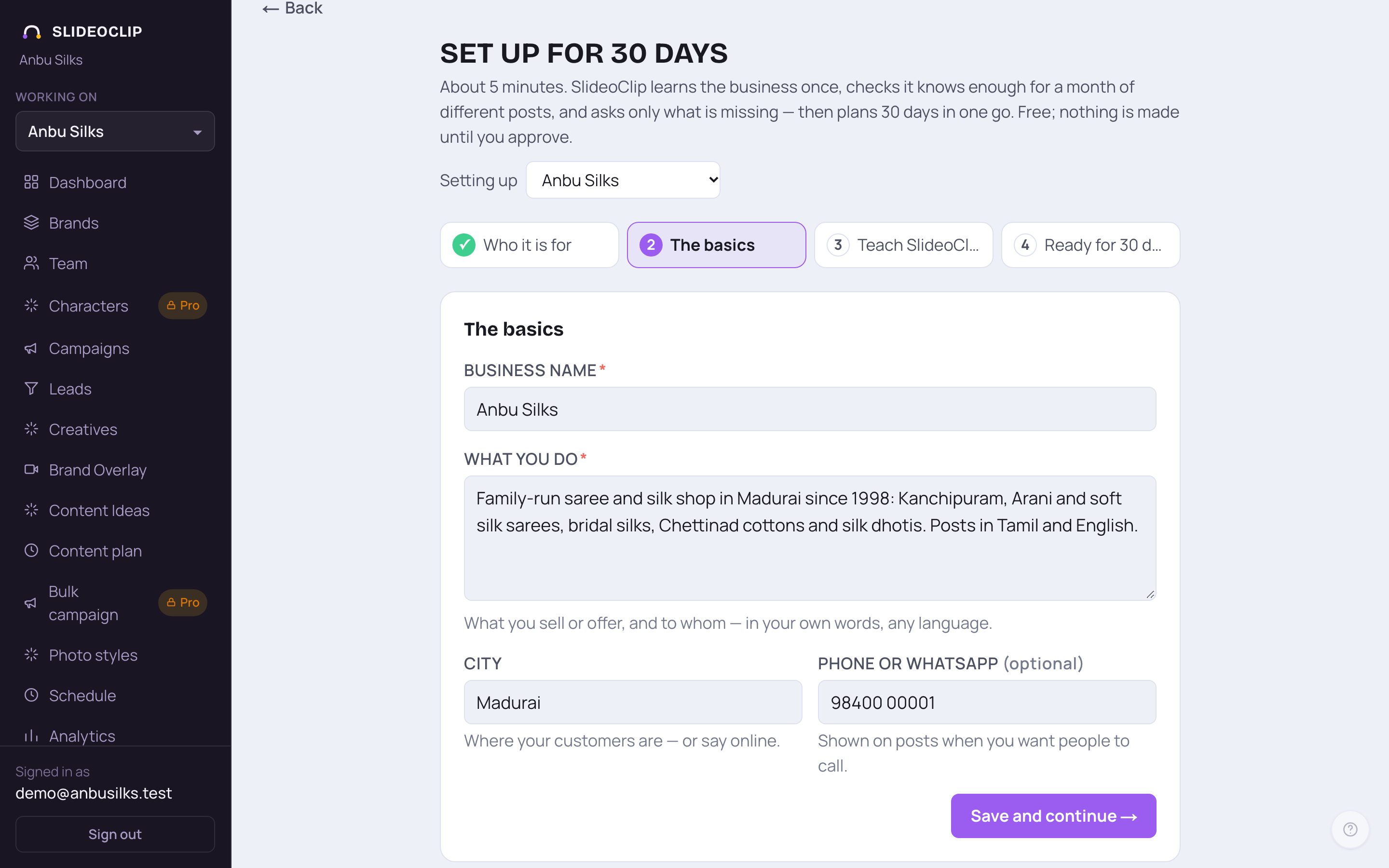
- 1Business name: the name of the business. Must be filled.
- 2What you do: what you sell or offer, and to whom, in your own words and any language. Must be filled with at least a sentence or two.
- 3Phone or WhatsApp (optional): shown on posts when you want people to call.
- 4Tap Save and continue →.
- City: where your customers are. If you only sell online, just write "online".
💡 If you picked creator or just exploring, the boxes ask for Your name or channel name and What you post about, and what you want from SlideoClip instead, and the city is optional.
3. Teach SlideoClip
Give SlideoClip anything that describes the business: the website, the Facebook and Instagram pages, a document, or your own words. Use one or all of them. The more it reads, the better and more varied your 30 days. It only uses what you give it and never makes facts up.
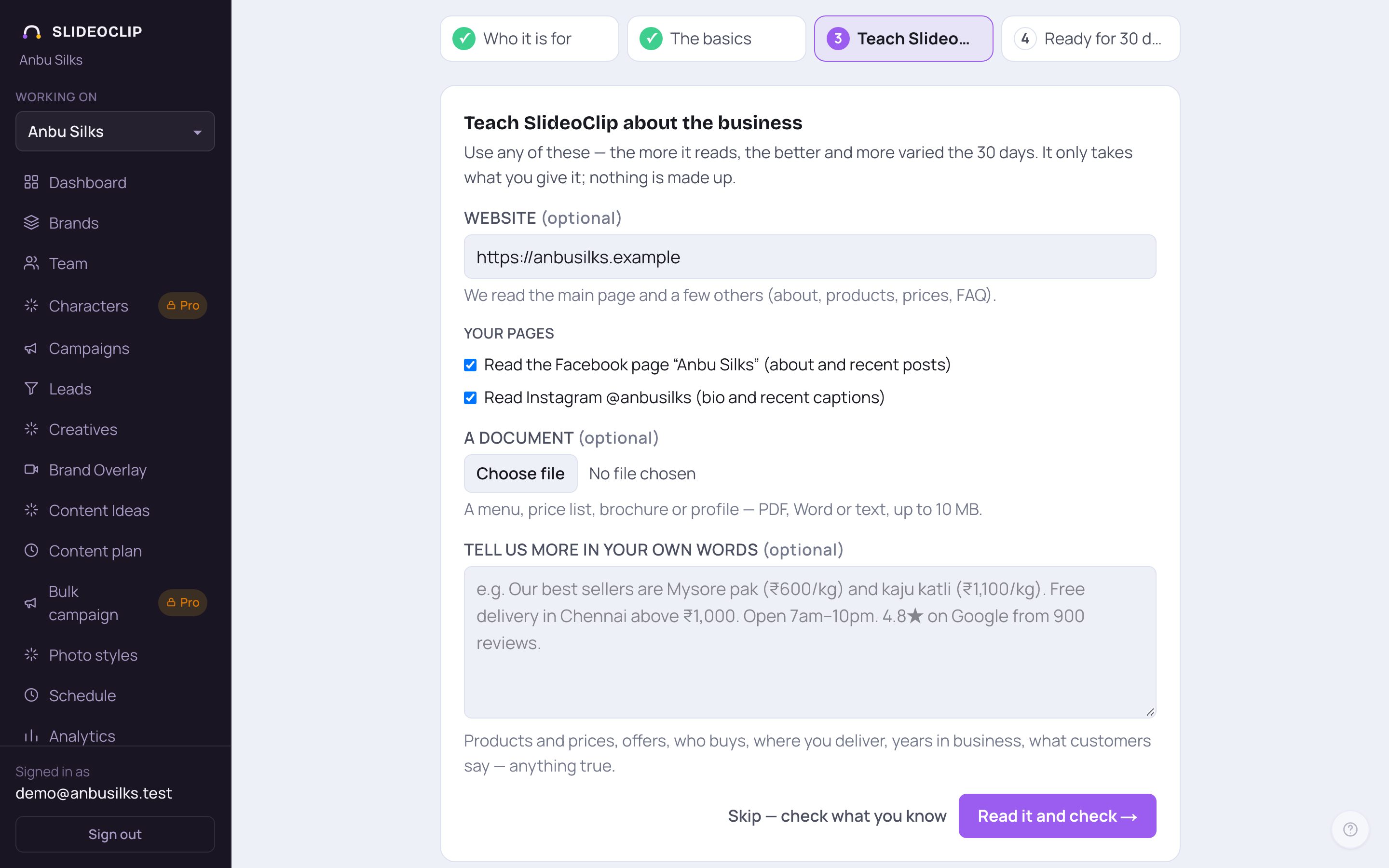
- 1Website (optional): type the address. SlideoClip reads the main page and a few others, like about, products, prices and FAQ.
- 2Your pages: tick Read the Facebook page and Read Instagram to use the About text and recent posts. These show only if the business's Facebook Page is connected. If it isn't, the link here takes you to Brands to connect it, or you can skip it.
- 3A document (optional): add a menu, price list, brochure or profile. PDF, Word or text, up to 10 MB.
- 4Tell us more in your own words (optional): products and prices, offers, who buys, where you deliver, years in business, what customers say. Anything true.
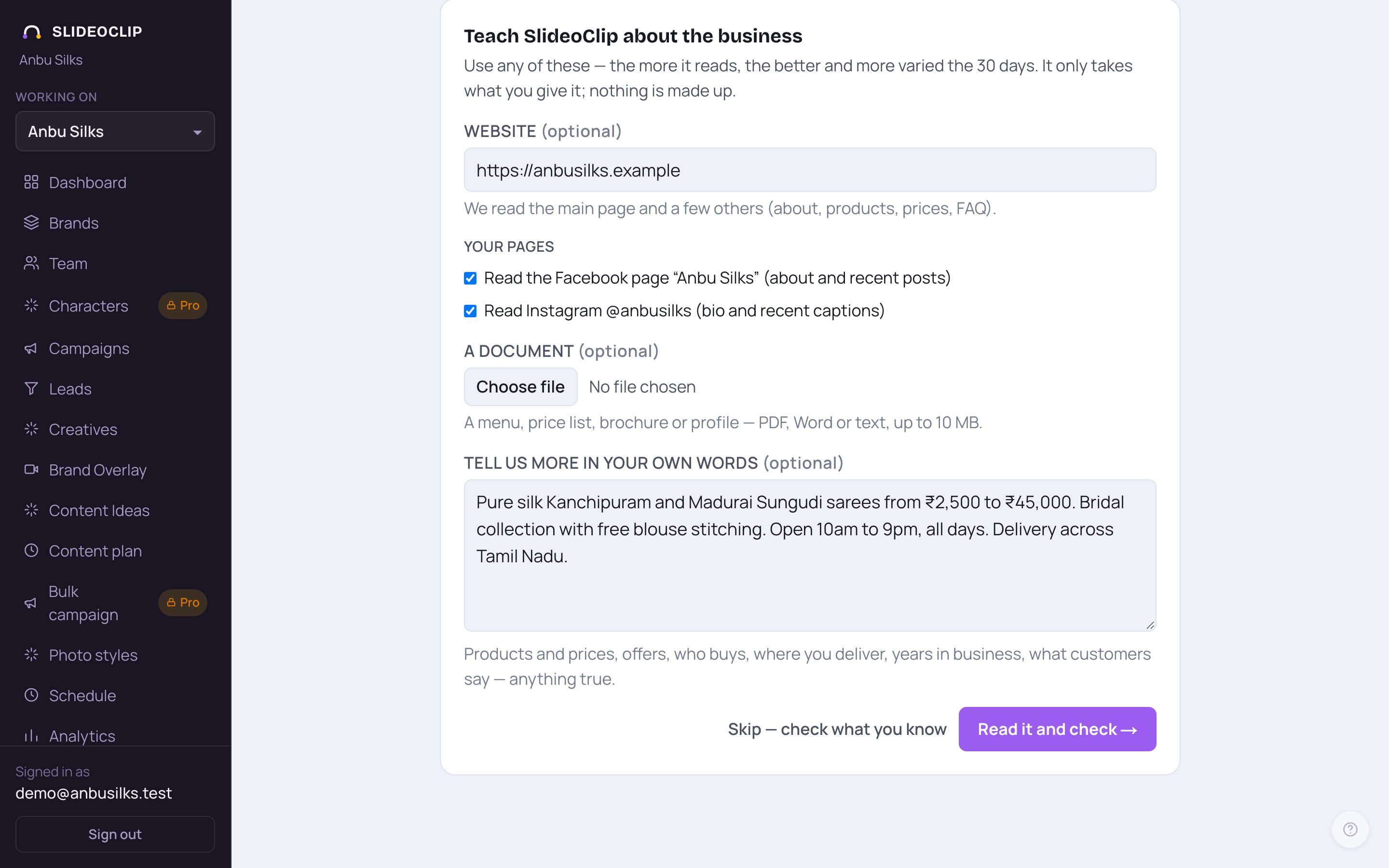
- 1Write plainly, as you'd tell a friend. Real prices, timings and offers make the best posts.
- 2Tap Read it and check →. Reading takes up to a minute. Then SlideoClip checks what it knows.
- 3Nothing to add right now? Tap Skip — check what you know to go straight to the check.
4. Ready for 30 days?
SlideoClip checks whether it knows enough for about 30 different, honest posts. Greetings for festivals count for only a few. You'll see one of three results: Ready for 30 days, Almost there or A few more details needed, with a bar showing roughly how many different posts it could make.
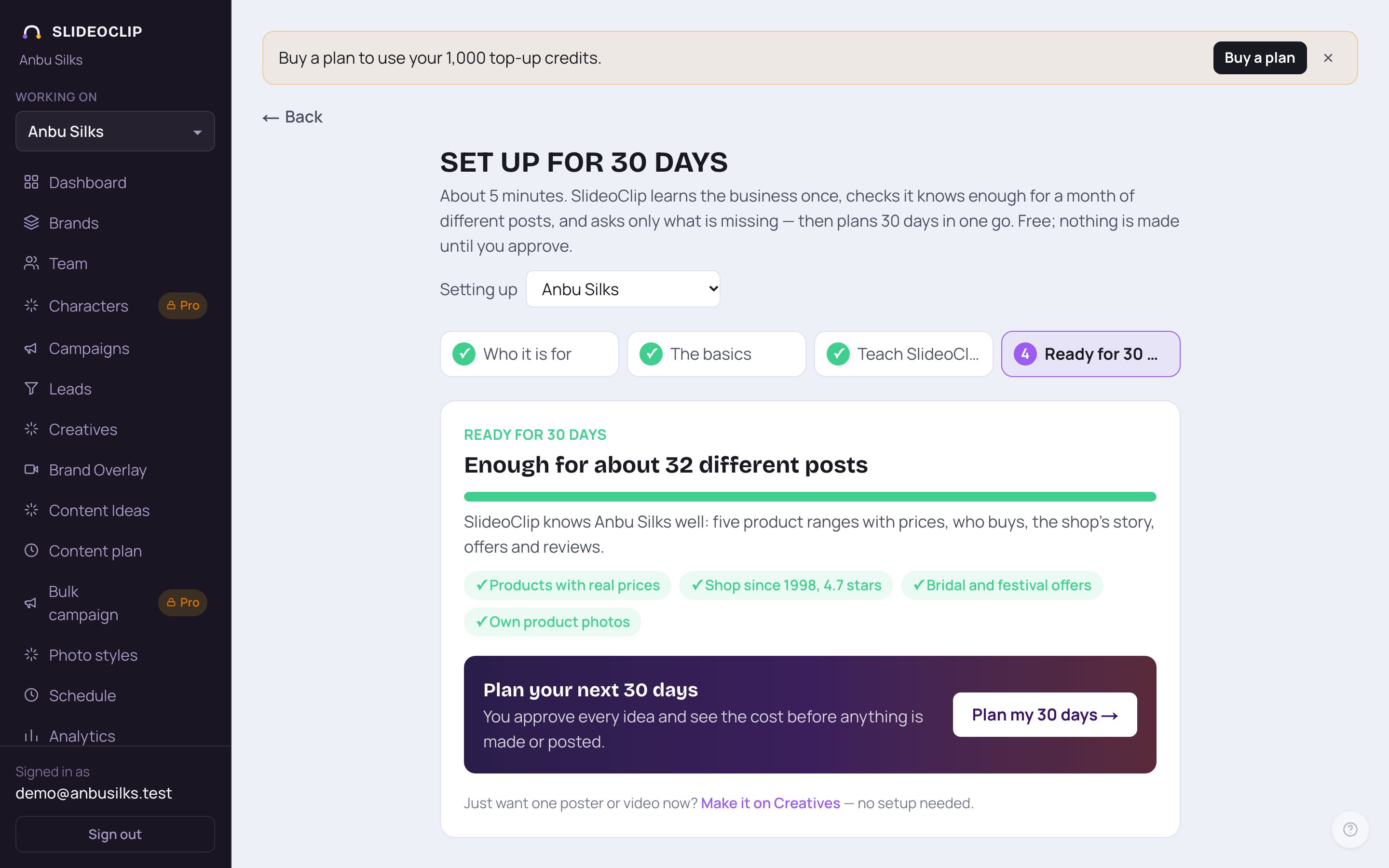
- 1Tap Ready for 30 days? any time to see the latest check.
- 2If you haven't checked yet, tap Check now. Otherwise you'll see the result: Enough for about … different posts, one line on what is known and what is thin, and green ticks for what it already knows well.
- If something is missing, a few short questions appear under A few questions — answer what you can, at most six, the most useful first. Each one says what it helps with and gives an example answer.
- Answer what you can and skip the rest. Then tap Save answers and check again. Your answers are saved to the business and used in every post.
- Tap Check again to run the check without new answers, for example after adding more in Teach SlideoClip.
💡 SlideoClip never asks for passwords, bank or card details or ID numbers.
5. Plan your 30 days
At the bottom of the check, a coloured box shows what comes next. When SlideoClip is ready, or once you've answered its questions, it says Plan your next 30 days with a Plan my 30 days → button. This opens the Content plan with the next 30 days already chosen. You approve every idea and see the cost before anything is made or posted. If it still needs you, the box says Answer a question to plan your 30 days with a Teach it more button.
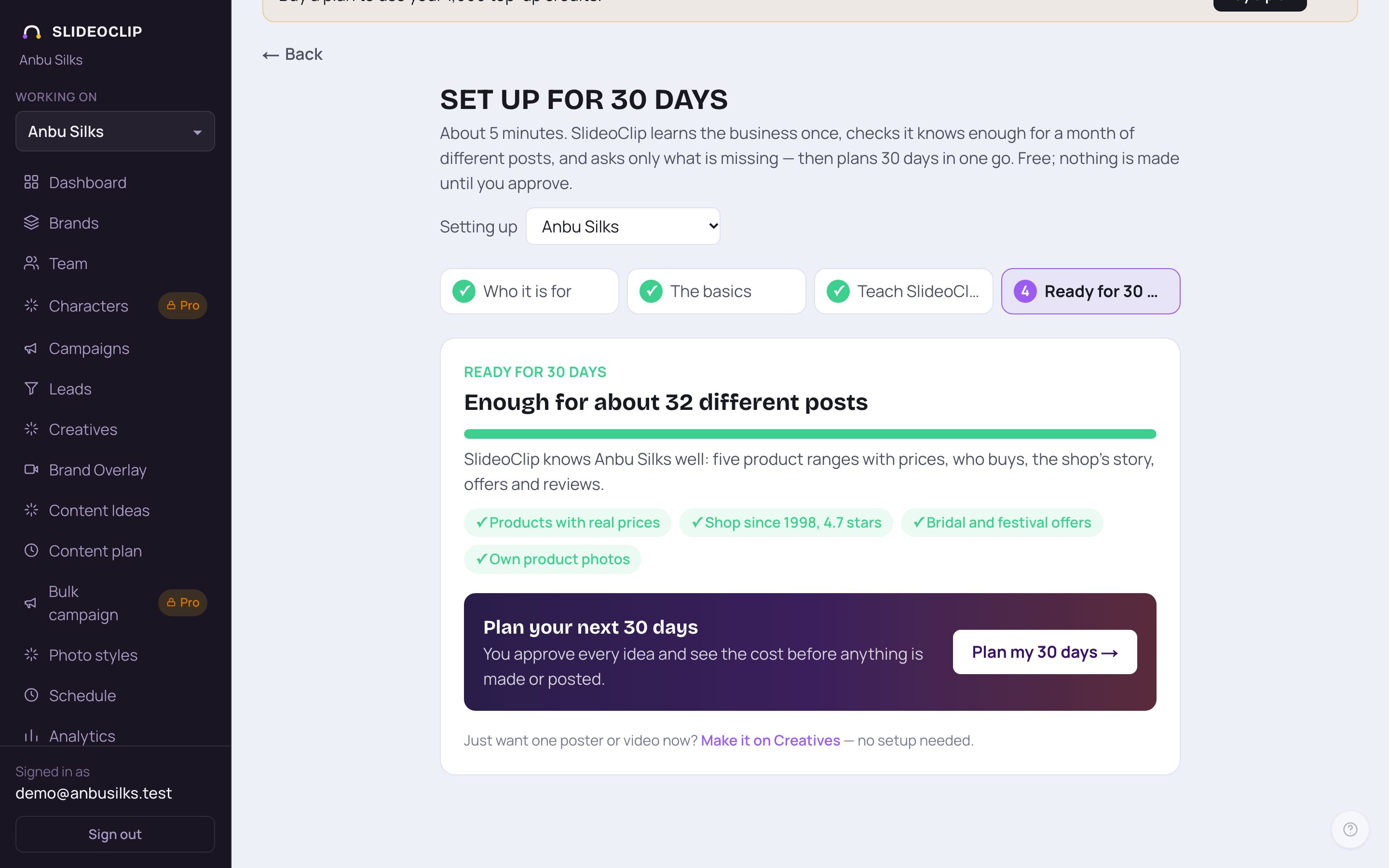
- 1When you're ready, tap Plan my 30 days → in the box above. It opens the Content plan with the next 30 days already chosen. See Plan a month of posts.
- 2Want just one poster or video now? Tap Make it on Creatives. Single posters and videos never wait for this setup.
Good to know
- The setup itself costs no credits. Credits are only used when posters or videos are actually made, and you see the cost first.
- Set up each client separately. An agency can switch between them with the Setting up list at the top.
- Everything you give here also goes into the business's Knowledge, so you can check or edit it later (see Teach SlideoClip about your business).
Questions
Why does my first month plan wait for this setup?
A business's FIRST month plan waits until SlideoClip knows enough for 30 different posts, or until you've answered its questions once. This way the plan is about your real business, not made-up facts. Later plans don't wait.
Do I need it to make a single poster or video?
No. You can make a single poster or video any time, without the setup.
What if I can't answer a question?
Skip it. Answer what you can. Answering at least one question is enough to start your first month plan.
Can I do it again later?
Yes. Open the setup any time, add more in Teach SlideoClip, and tap Check again.