All guides
Make a video
Describe the video you want in your own words, read the plan and the exact price, then tap Create. SlideoClip writes it, draws or films it, adds the voice and music, and tells you when it is ready.
Before you start
- ✓A brand set up for the client the video is for (see Start creating)
- ✓Enough credits for the video — the exact price is shown before anything is made
1. Open the video maker
Every video — a Reel, an ad, a narrated story, a song or a series — starts in the same chat screen.
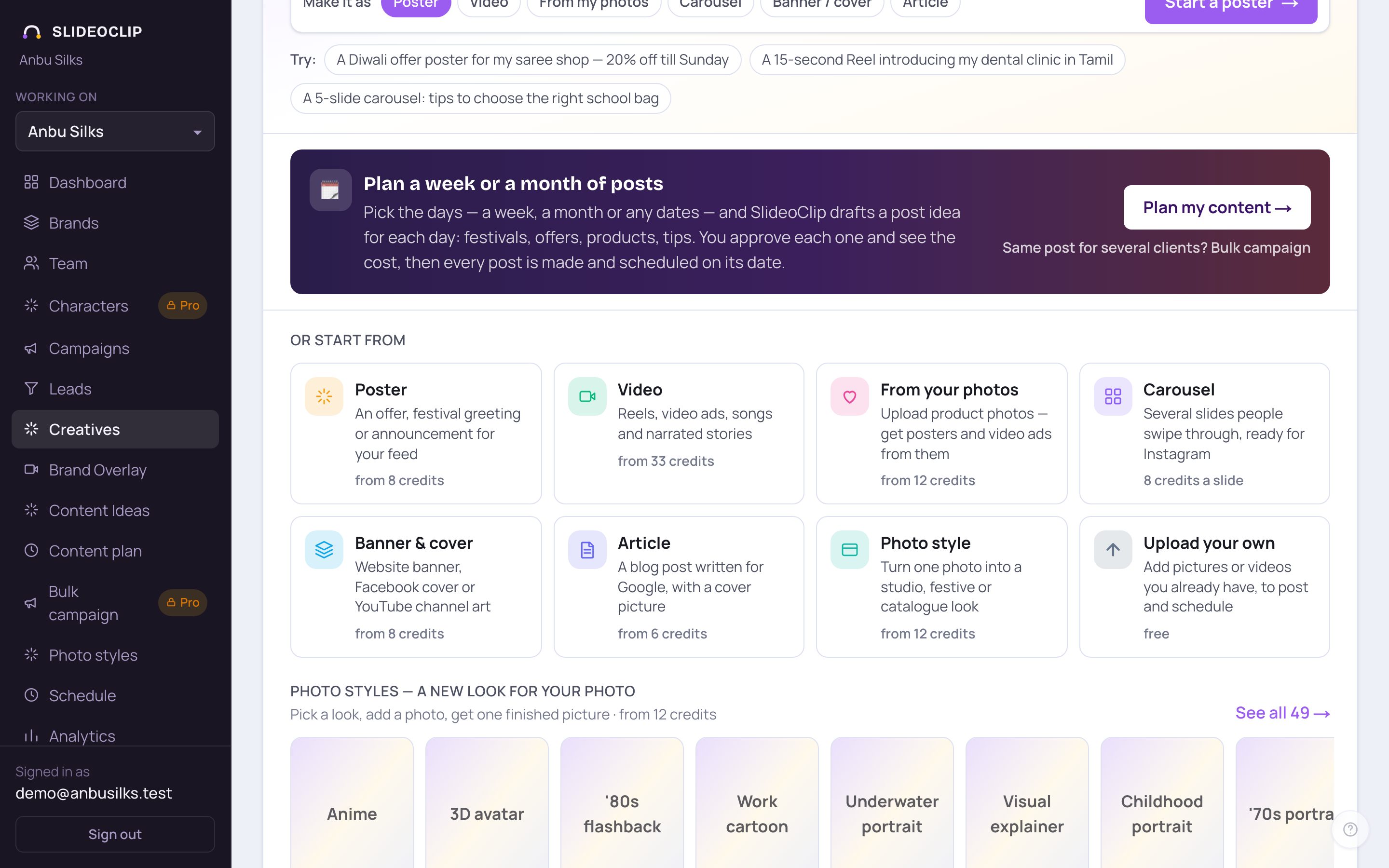
- 1On Creatives, under Or start from, tap Video.
- Or type your idea in the box at the top of Creatives, tap Video next to Make it as, and tap Create video — your words go straight into the video chat.
- On the home page you can also tap 🎬 Video in the Make row.
2. Describe your video
The top of the screen holds your settings. You don't have to touch them — SlideoClip can work everything out from what you type. The settings are explained in Video settings.
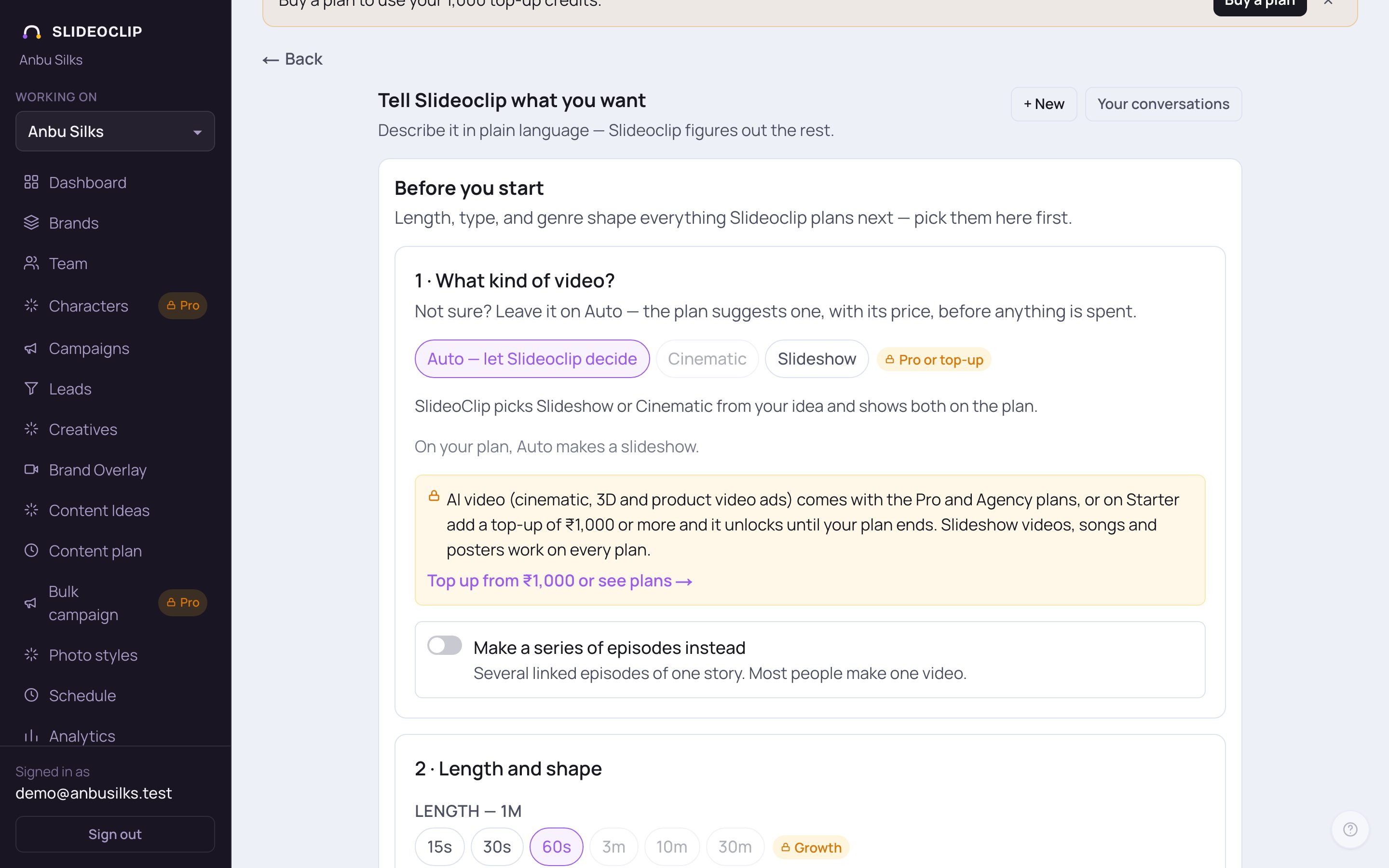
- 1This is the video chat. You talk to SlideoClip here, the way you would message a person.
- 2Before you start holds the settings: the kind of video, length and shape, sound, and look. Leave them as they are, or pick what you already know.
- 3Your conversations opens your earlier video chats, so you can carry on with one later.
- 4+ New clears the screen and starts a fresh video.
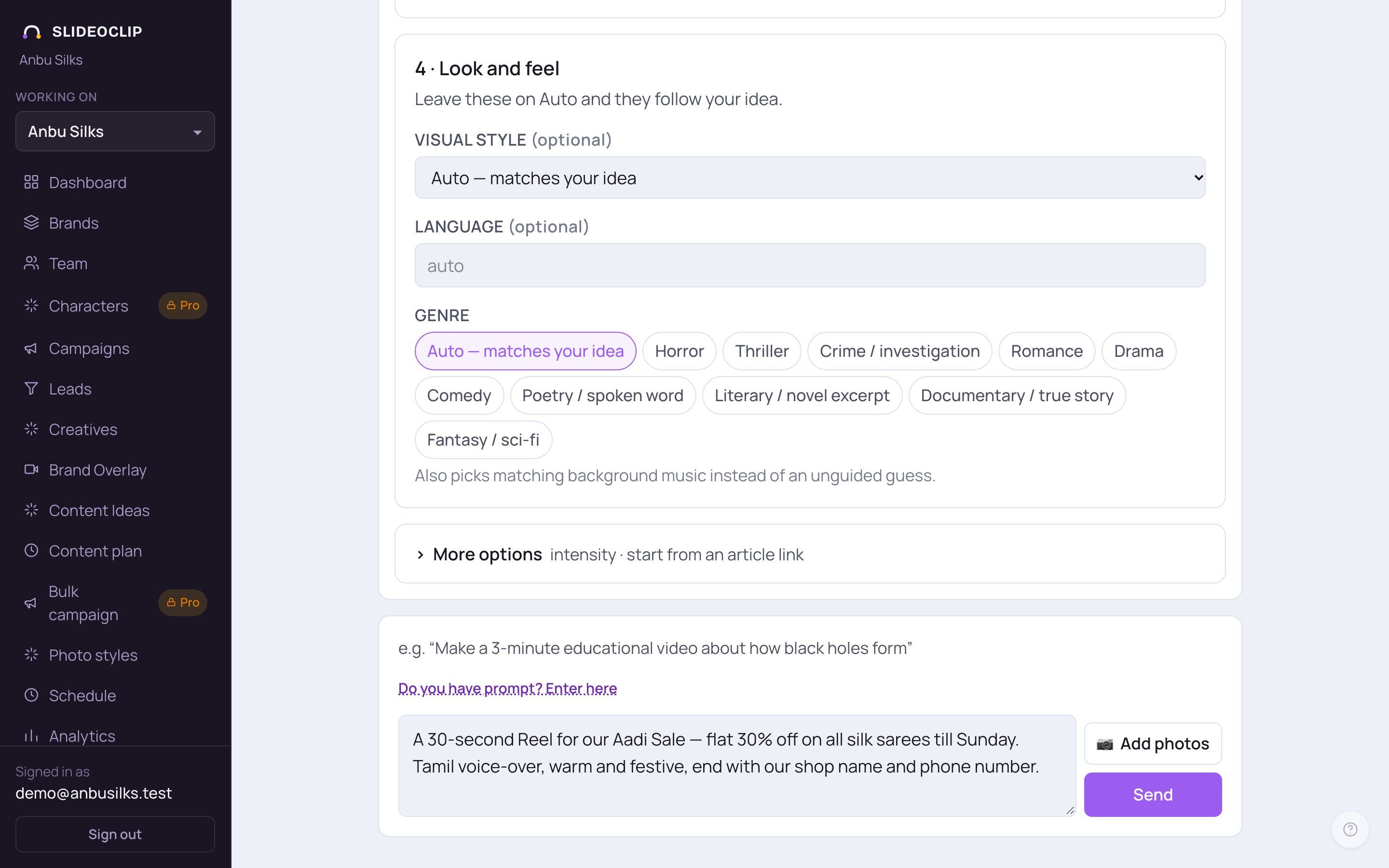
- 1Type what the video is for and what it should say, in any language. Say the length, the language and the feel if you know them.
- 2Tap Send (or press Enter). Sending a message is free — nothing is charged until you tap Create at the end.
- 3Have product photos? Tap 📷 Add photos to attach them (see Photos to posters and videos).
💡 If your message names a length ("30 seconds"), that length is used even if the setting above shows another one.
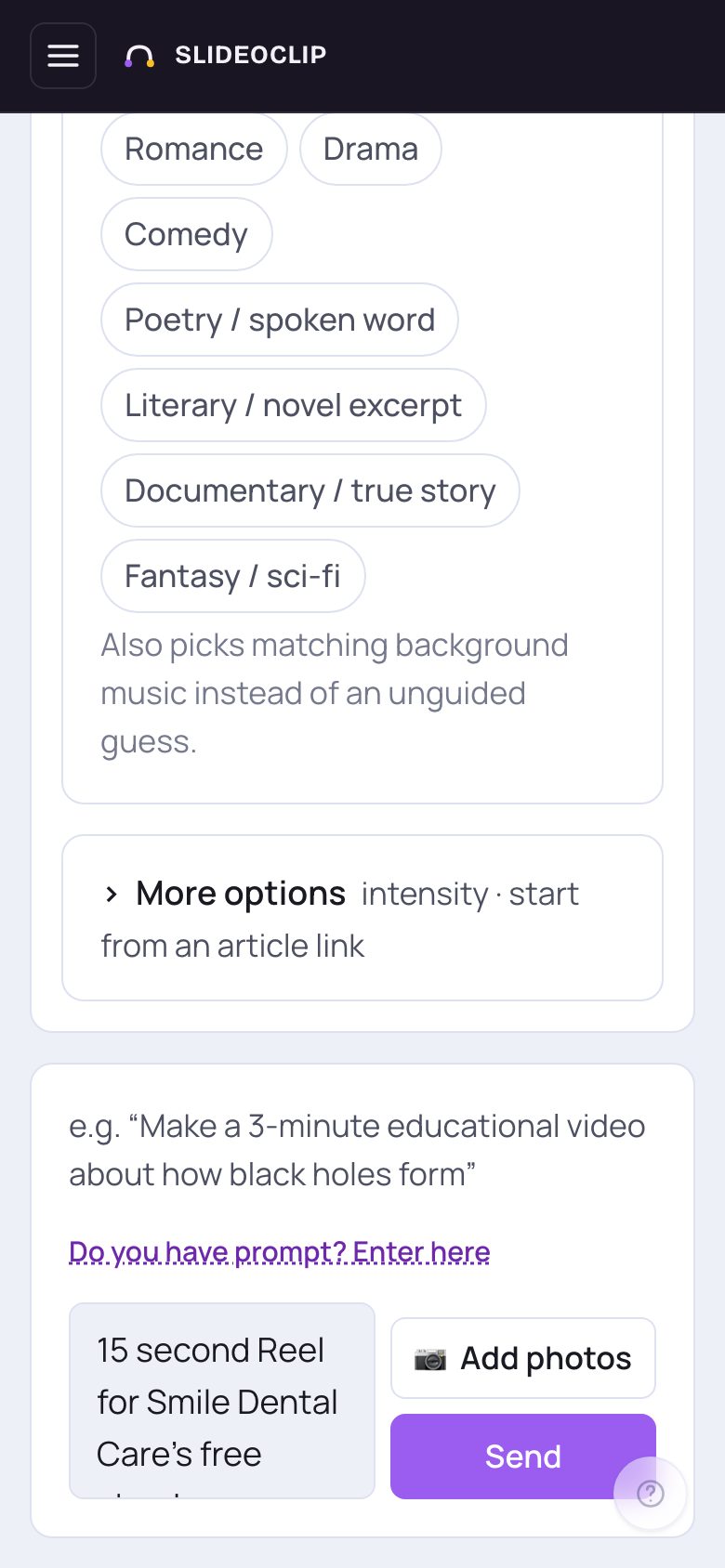
- 1On a phone, scroll past the settings to the message box at the bottom and type your idea.
- 2Tap Send.
3. See the price before anything is spent
You always see what a video will cost before it is made.
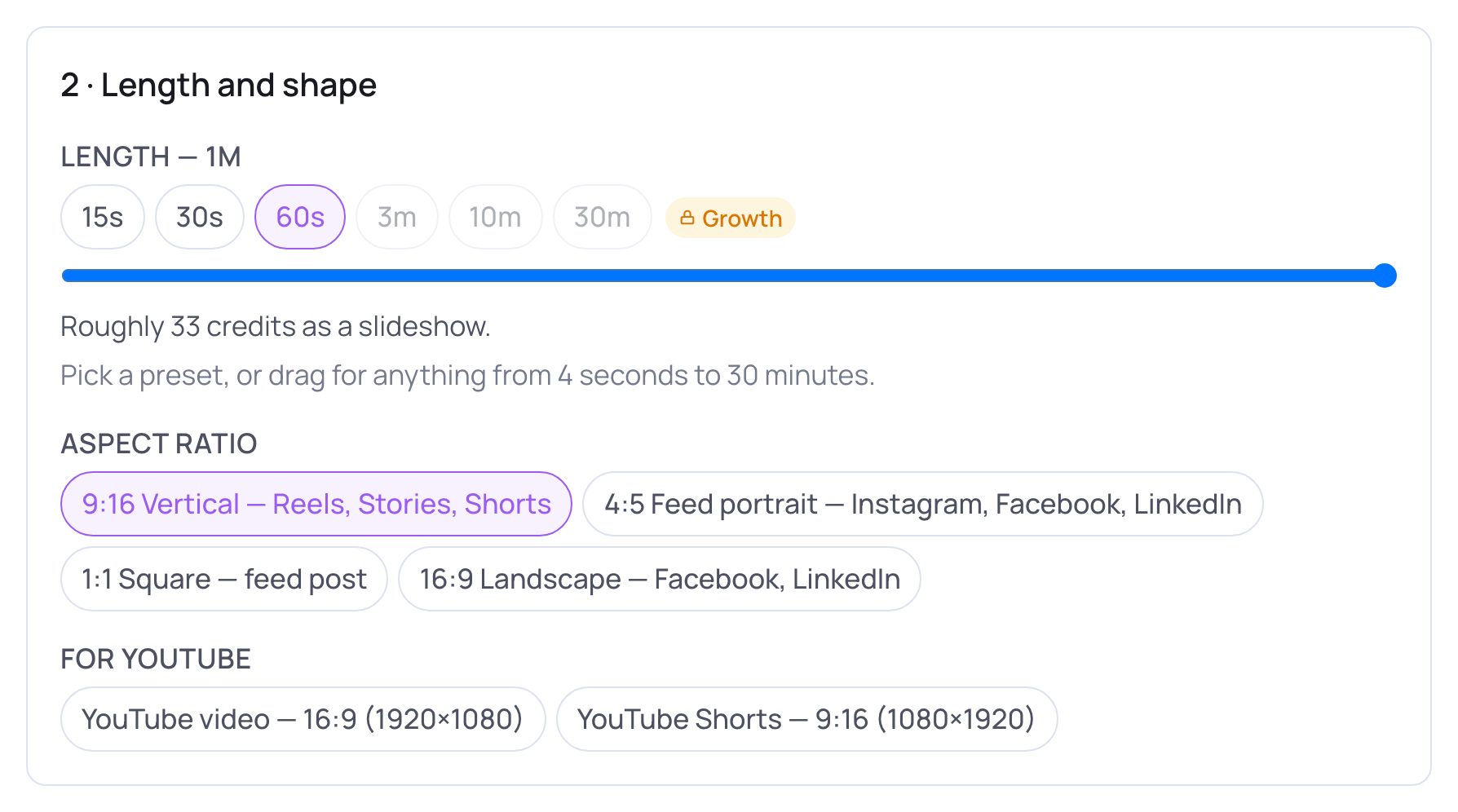
- 1The length you pick (or say in your message) sets most of the price.
- 2This line gives a rough price for that length. A slideshow is the cheaper kind; a cinematic video costs more.
- Once the plan is written, the exact price shows as Price now: … credits (on some accounts, with Show cost breakdown under the plan). It changes when you change the plan, and nothing is charged until you tap Create.
4. Talk it through with SlideoClip
After you tap Send, SlideoClip replies in the chat. If something important is unclear it asks you — tap one of the answers shown, or just type your answer. If what you asked doesn't fit the length (for example, more words than a 15-second video can hold), a yellow card titled Your choice is needed appears: pick an option, such as making the video longer or trimming to fit. Nothing is dropped until you choose. You can ask questions at any time too — “is 30 seconds enough?”, “why does it cost this much?” — or ask for a change in your own words: “use a female voice”, “make it more festive”, “change slide 3's headline”.
5. Read the plan, then tap Create
When you are ready, tap Build the plan → (on some accounts it reads Move to final plan drafting →), or simply type “go ahead”. The plan appears in the chat under 📝 The plan: every slide or scene with the words that will be spoken or shown, and for a song, the lyrics under 🎵 Lyrics. Read it like a script. Want something different? Type the change and a new version of the plan appears — earlier versions are folded away above. Under the plan you see the length the video is written for (for example Length: 30s), an optional 🖼 See a preview image button (it costs the credits shown on it), and the yellow Create (… credits) → button. Tapping Create is the only step that spends credits, and the number on the button is exactly what is charged.
6. While your video is being made
After Create, the chat turns into a dark In the studio card that says Making your …-second video. A row of stages lights up as each one really finishes — Script, Scenes, Voice, Music and Final cut for a slideshow, or Script, Filming and Final cut for a cinematic video. Each scene picture drops into the strip below as soon as it is drawn (a cinematic video shows Clip 1, Clip 2… instead). The clock shows how long it has been running and roughly how long it usually takes. You don't need to wait on this page: it says You can leave this page — it keeps going, and we'll let you know when it's ready. Tap Make a poster meanwhile → if you want to work on something else. If a video can't be finished, the card says This one didn't come out, your credits for it are returned automatically, and you can tap Try again.
7. When it's ready
The card changes to Your video is ready 🎉 with a little confetti, shows how long it took, and plays the video silently so you can check it (tap the sound icon on the video to hear it). It is already saved in Creatives. Then: tap Publish or edit → to open it in Creatives, where you can post it now, schedule it, run it as an ad, change the thumbnail or make Shorts from it; tap ↓ Download to save the video file to your phone or computer; or tap Make another to start a fresh video.
8. Already have a finished prompt?
If you wrote a full video prompt somewhere else and want it used word for word, paste it here instead of chatting.
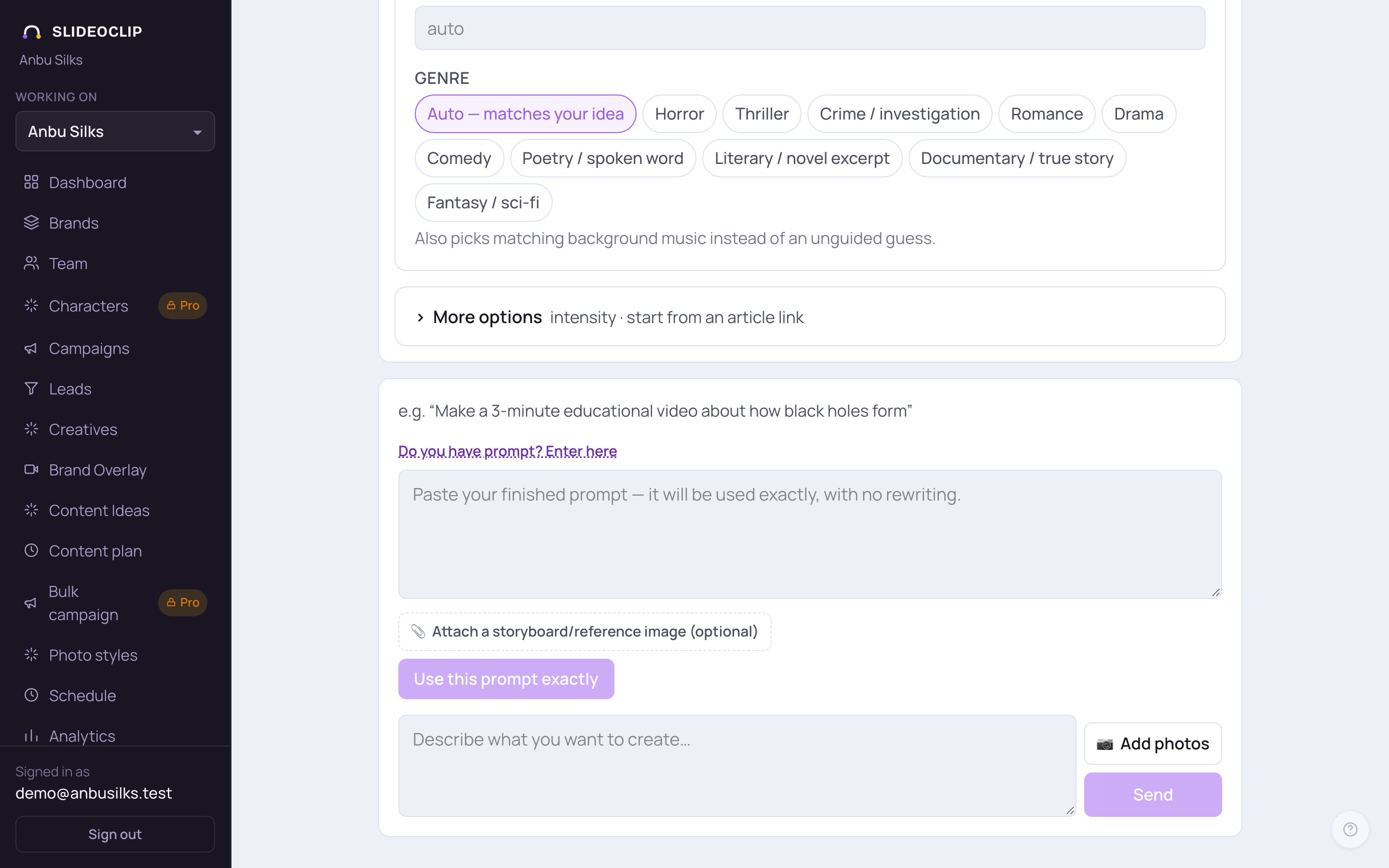
- 1Tap Do you have prompt? Enter here.
- 2Paste your prompt. It is used exactly as written, with no rewriting.
- 3Optionally attach a storyboard or reference picture.
- 4Tap Use this prompt exactly. You still see the plan and the price, and still tap Create yourself.
Good to know
- Say who the video is for and what you want people to do (“call us”, “visit the shop this Sunday”). The plan is written around it.
- Your shop's name, address and phone come from the Brands page, so check them there once and you don't have to type them every time.
- You can close the tab while a video is being made. It shows up in Creatives when it's done.
- Changed your mind about a setting halfway? Change it in the settings above the chat and tap Apply (or Update & continue →), or just say it in the chat.
Questions
Does chatting cost credits?
No. Messages, questions and plan changes are free. Credits are spent only when you tap Create (and on the optional preview image, which shows its price on the button).
What if the video fails?
The card says “This one didn't come out” and the credits for it are returned automatically. Tap Try again to start over.
Can I come back to a video chat later?
Yes. Tap Your conversations at the top of the video screen and pick it. Chats that made a video are marked ✓ Created; unfinished ones are marked Draft.
Why can't I pick Cinematic?
Cinematic AI video isn't included on every plan. A locked option shows which plan has it. Slideshows, songs and narrated videos work on every plan.