All guides
Make a poster
Make a finished poster for your feed (an offer, a festival greeting or an announcement) by chatting with SlideoClip, with your logo and your exact contact line. You will learn what to type, what the plan on the right shows, what it costs, and how to ask for changes.
Before you start
- ✓A brand set up (see Add your business)
- ✓Credits — the exact amount is shown on the button before anything is made
1. Open the poster maker
On Creatives, type what you want in the top box and tap Create poster, or tap the Poster card under Or start from. Your words are carried into the poster maker.
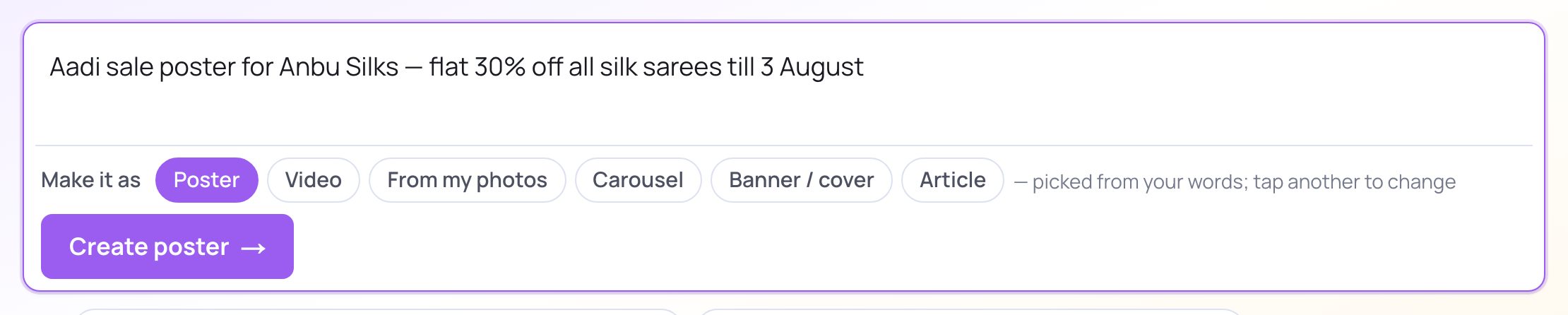
- 1Describe your poster in your own words — the offer, the dates, the feeling.
- 2Check that Poster is selected under Make it as.
- 3Tap Create poster. Nothing is charged yet.
2. Tell it what you need
The poster maker is a chat. Say what you want the way you would tell a designer, and a plan for the poster appears on the right.
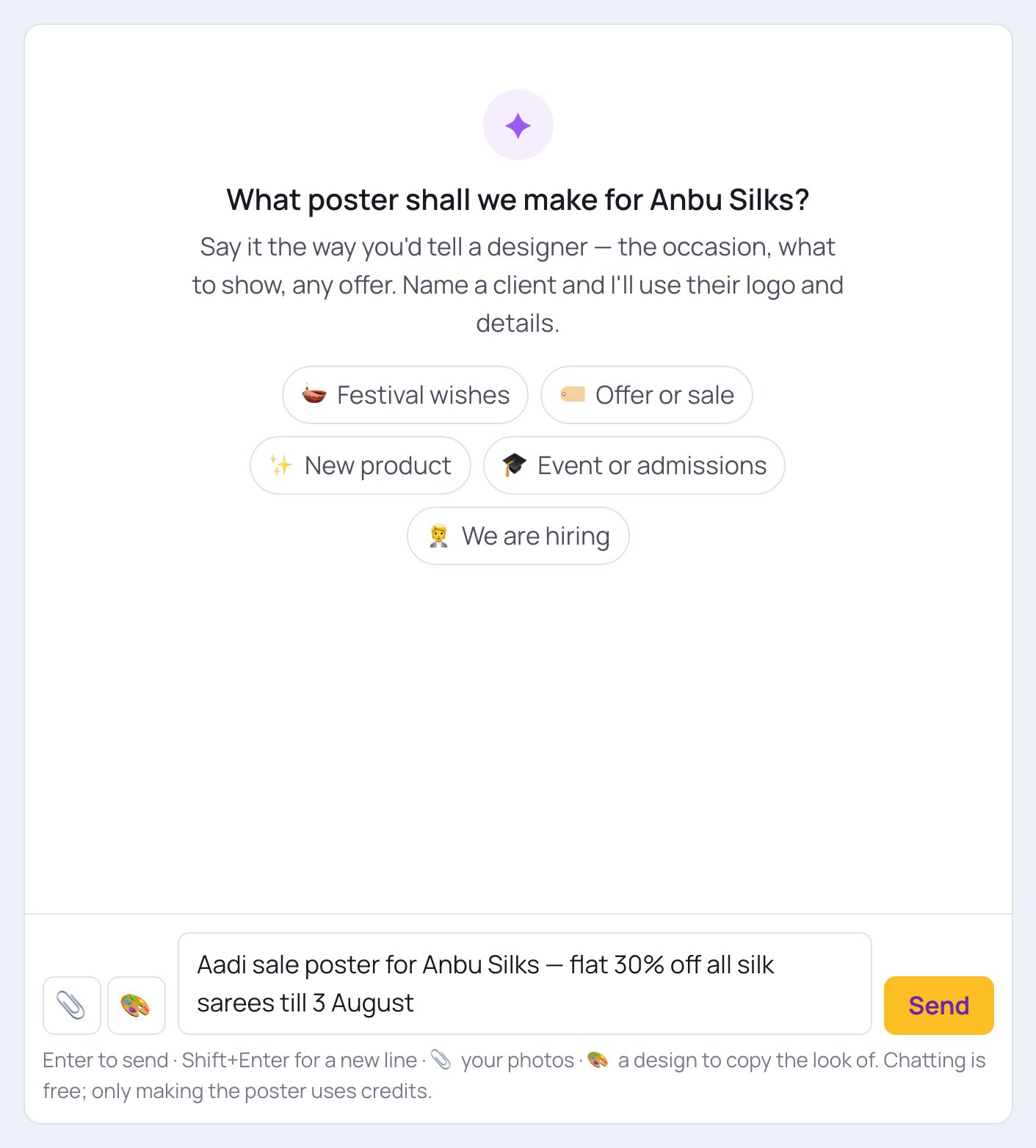
- 1Type your idea in the message box: the occasion, what to show, any offer or dates. Any language is fine. If you name a client, their logo and details are used.
- 2Tap Send, or press Enter. Chatting is free; only making the poster uses credits.
- 3Tap the paperclip (Add photos) to add up to 12 of your own photos: your team, a product, your shop.
- 4Tap the palette (Add a design to copy the look of) to pick a finished poster or ad whose style you love. Only its style is used.
- Not sure how to start? Tap Festival wishes, Offer or sale, New product, Event or admissions or We are hiring. The box is filled with the start of a sentence and you finish it.
💡 After you send, SlideoClip reads your request, drafts the words and tells you its plan. It asks only what a designer would need, for example your contact details: answer and tap Use these answers, or tap Skip. Then it says it is ready and shows a Create poster button with the credits on it. To change anything, just type it, such as "make the logo bigger", "Tamil only" or "add our address".
3. Check the plan on the right
The panel called Your poster shows what will be made. Nothing is charged until you tap Create poster.
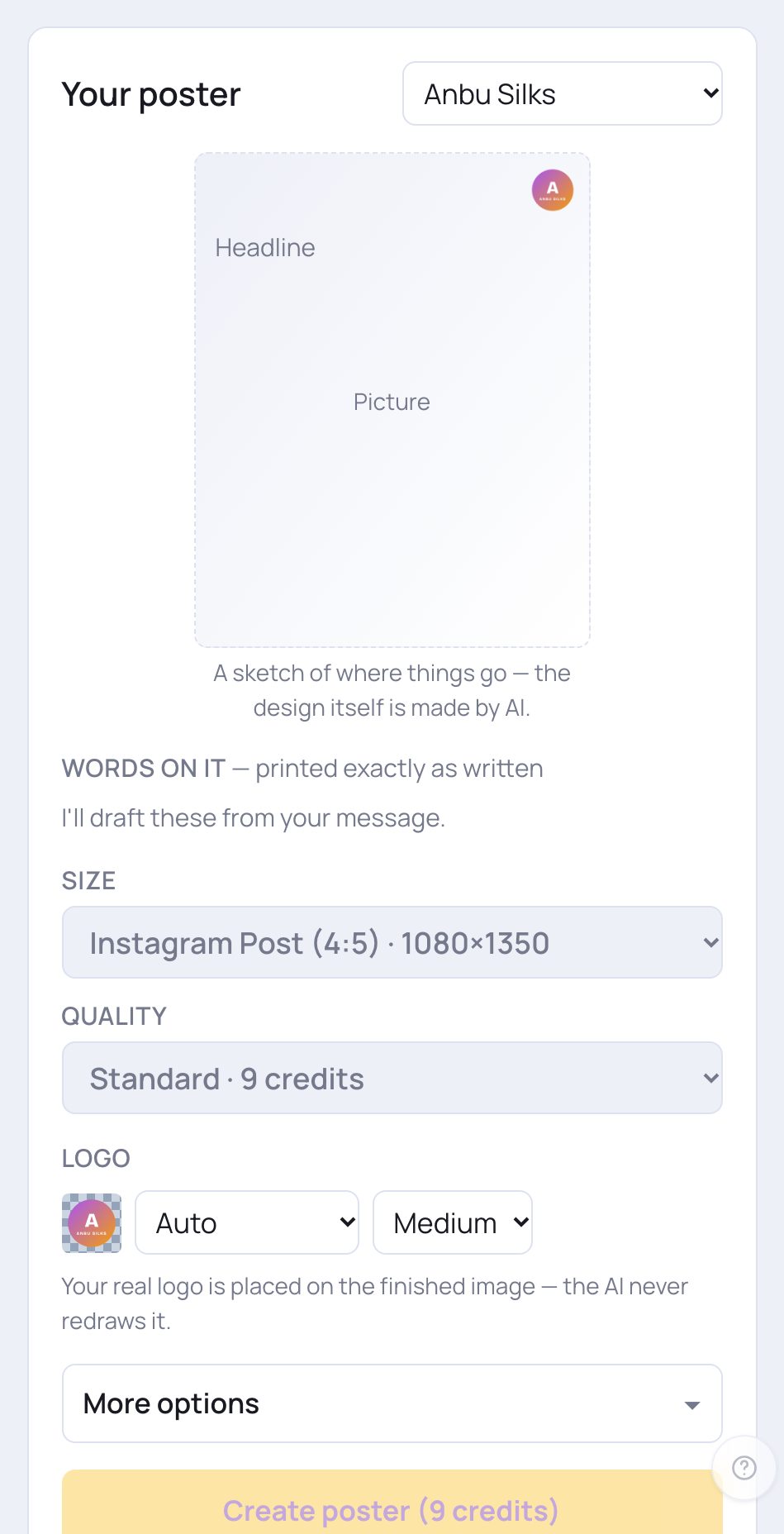
- 1Client: which client the poster is for. Its logo, colours and style shape the poster. It starts on the client selected in the sidebar, and changes by itself if you name another client in your message.
- 2Words on it: the words printed on the poster, exactly as written. After your first message they are filled in for you, in boxes called Headline, Second line, Highlights and Contact line. Tap any box to change a word.
- 3Size: Instagram Post (4:5) is the default. There are also Square, Story / Reel, Facebook, YouTube, LinkedIn, X / Twitter, WhatsApp Status and A4 print sizes. Pick Custom size… to type your own width and height in pixels.
- 4Quality: Draft is a quick, cheaper look for trying an idea. Standard is the usual choice for social media. High and Ultra add fine detail and crisper words, for print or a hero picture. Each choice shows its credits.
- The dashed sketch shows roughly where the logo, headline and contact line will go. The real design is made by AI, so it will look better than the sketch.
💡 The Contact line (phone, address, website, dates) is printed letter-perfect as a clean band along the bottom. The AI never touches it.
4. Logo, and creating the poster
Under the quality choice you will find the logo and the Create poster button.
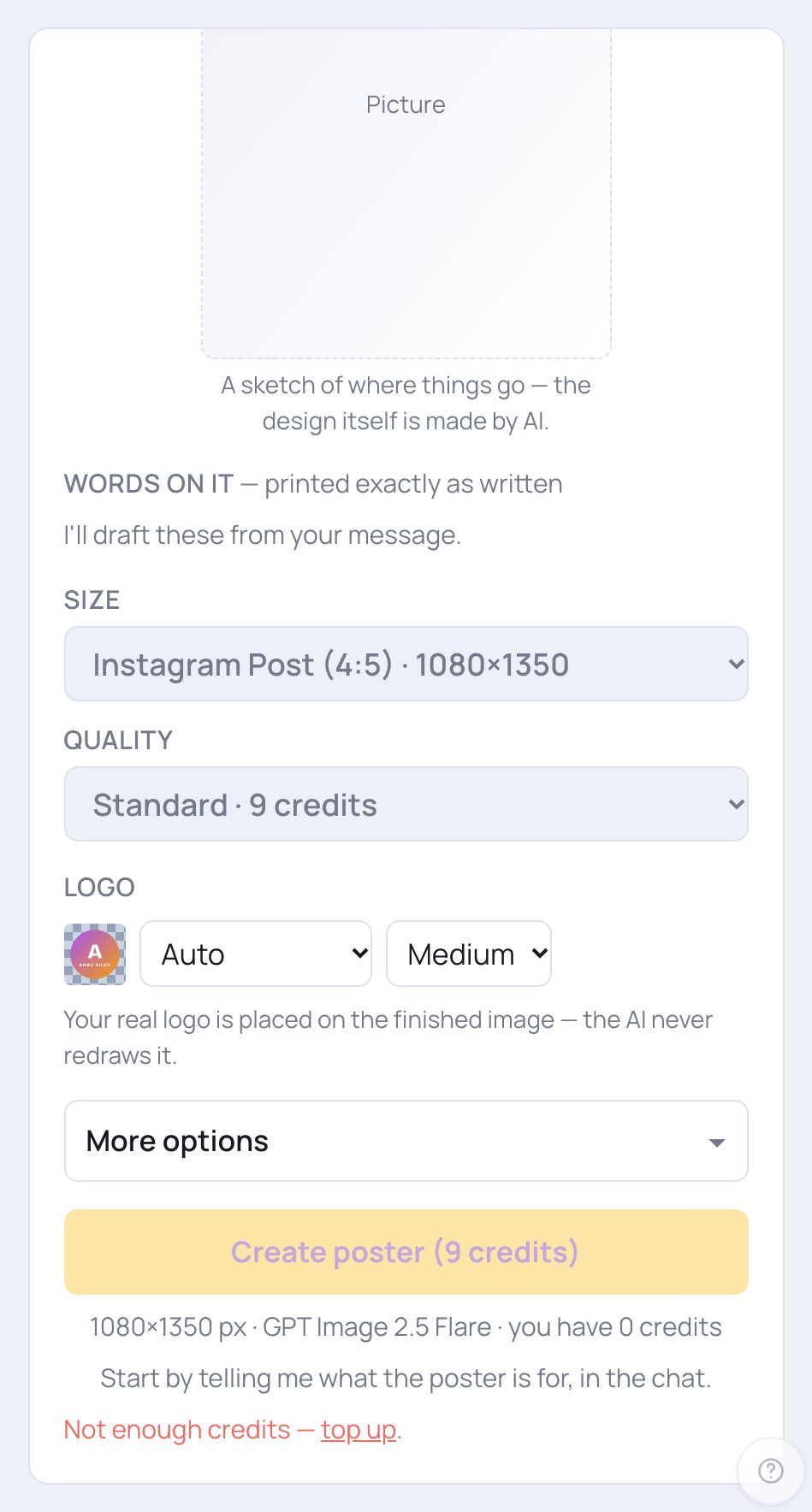
- 1Logo position: Auto, Top-left, Top-right, Bottom-left, Bottom-right or No logo.
- 2Logo size: Small, Medium or Large. Your client's real logo is placed on the finished poster exactly as it is. The AI never redraws it.
- 3More options opens everything else. See the next part.
- 4When the plan looks right, tap Create poster. The credits are on the button, and the line under it shows the size and how many credits you have. It takes 20 to 60 seconds.
💡 If the button is faded, read the line under it: it says what is still needed (tell the chat what the poster is for) or that you need to top up. The credits go up with quality, your own photos and a second version. Logos are saved on the client, so they are ready next time; if there is no logo yet you will see an Upload logo button. A PNG with a see-through background is best. See Your logo and footer line.
5. More options
Tap More options under the logo to open it. You can ignore it: the defaults work for most posters.
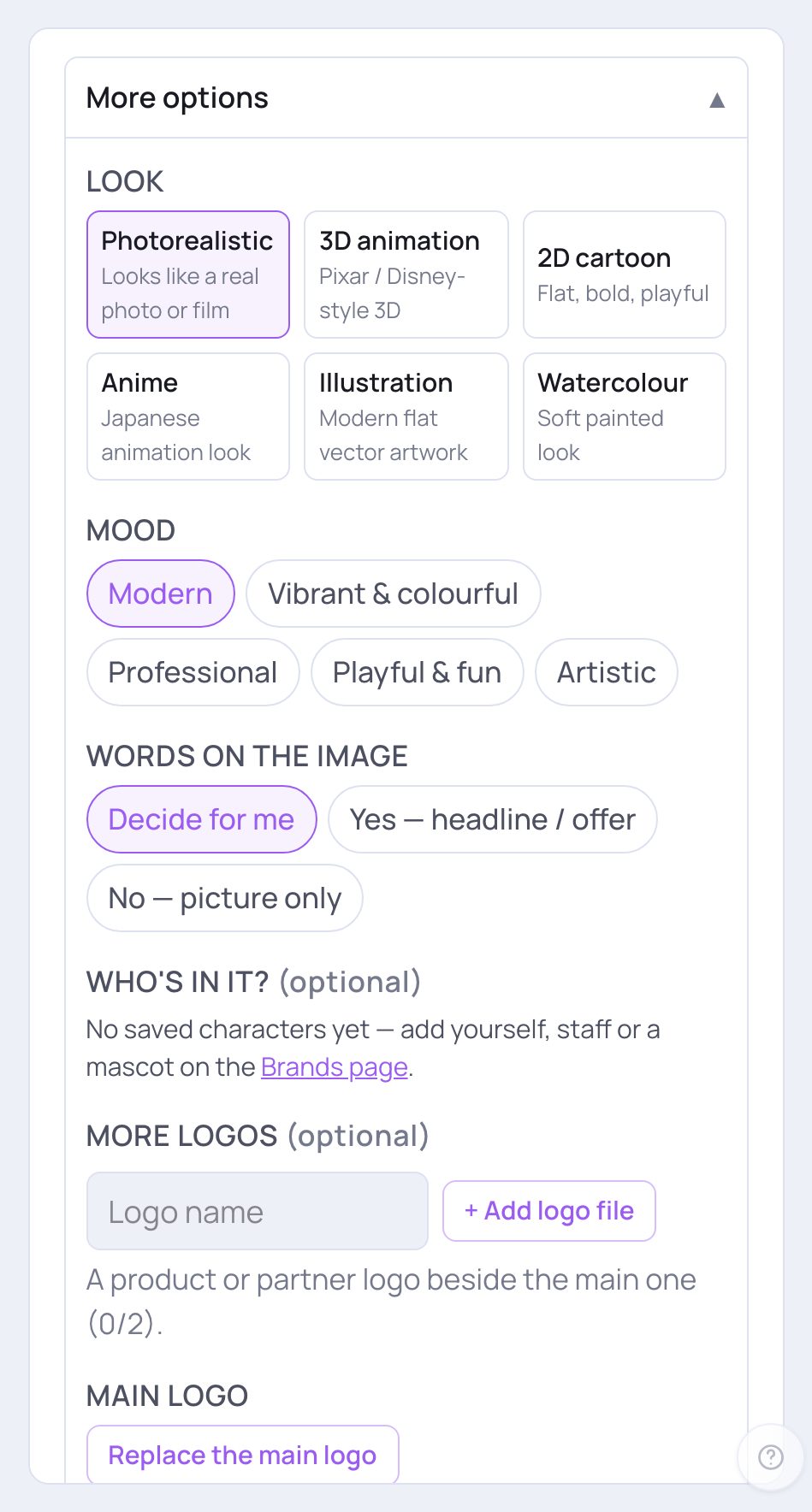
- 1Look: Photorealistic, 3D animation, 2D cartoon, Anime, Illustration or Watercolour.
- 2Mood: Modern, Vibrant & colourful, Professional, Playful & fun or Artistic.
- 3Words on the image: choose whether the poster has words at all.
- 4Decide for me is best for most people. Yes — headline / offer and No — picture only are there when you want to be sure. Sales, offers and dates need words; a product or mood picture usually does not.
💡 Further down in More options you can also tick saved people under Who's in it? (they appear with their real face), add up to two More logos (a product or partner logo), choose 1 version or 2 versions (double credits), and switch on Show me the prompt to see and edit the exact instructions sent to the picture maker. Most people leave that off.
6. Where your poster is, and how to change it
When the poster is ready it appears in the chat and in Your poster, and it is already saved in your library. Tap Post it from the library → to post it, or Another version to make one more (it uses the credits again). To change it, type what you want in the chat, or open it in the library.
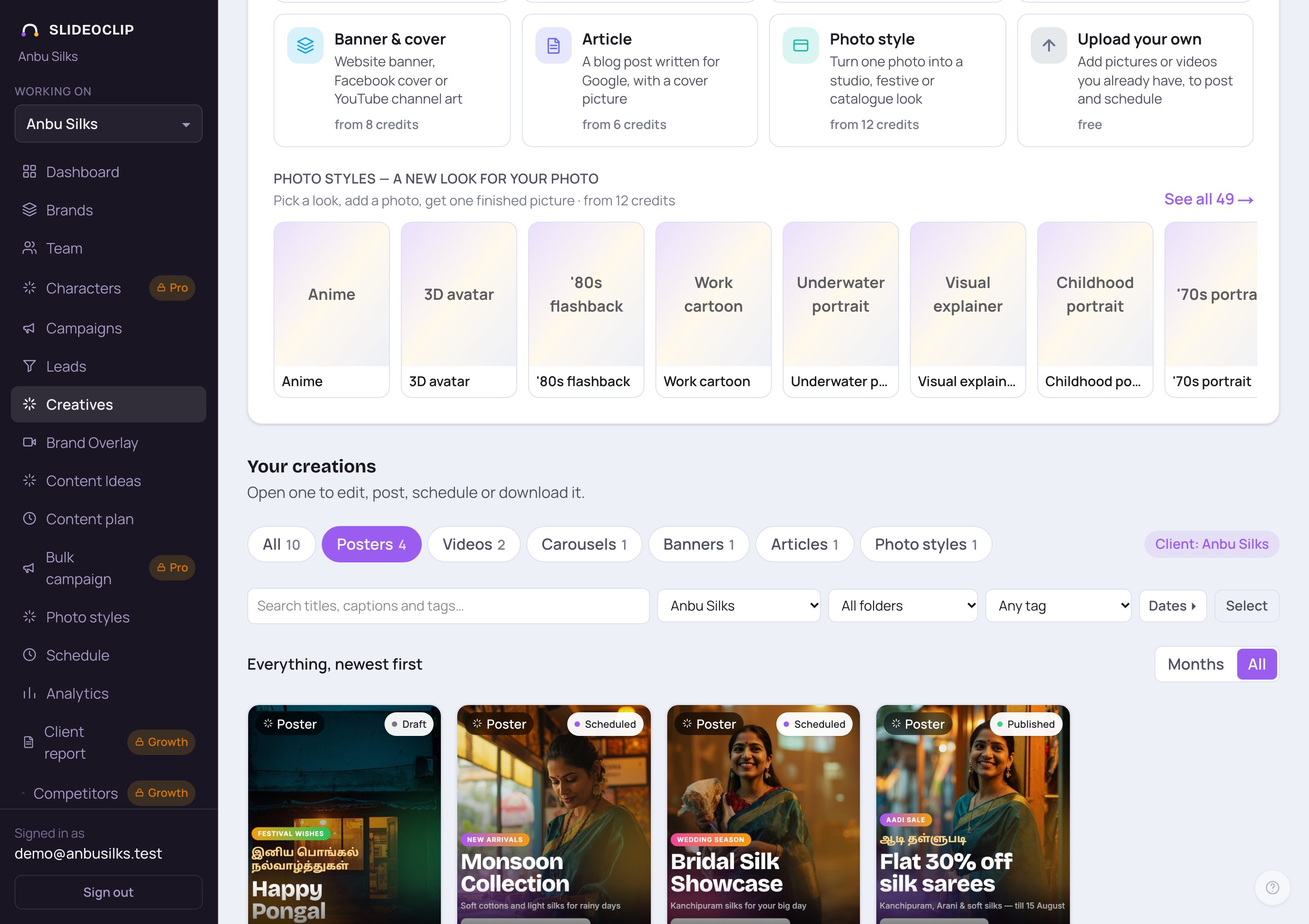
- 1Your posters are in Your creations on the Creatives page. Tap Posters to see only posters.
- 2Tap a poster to open it.
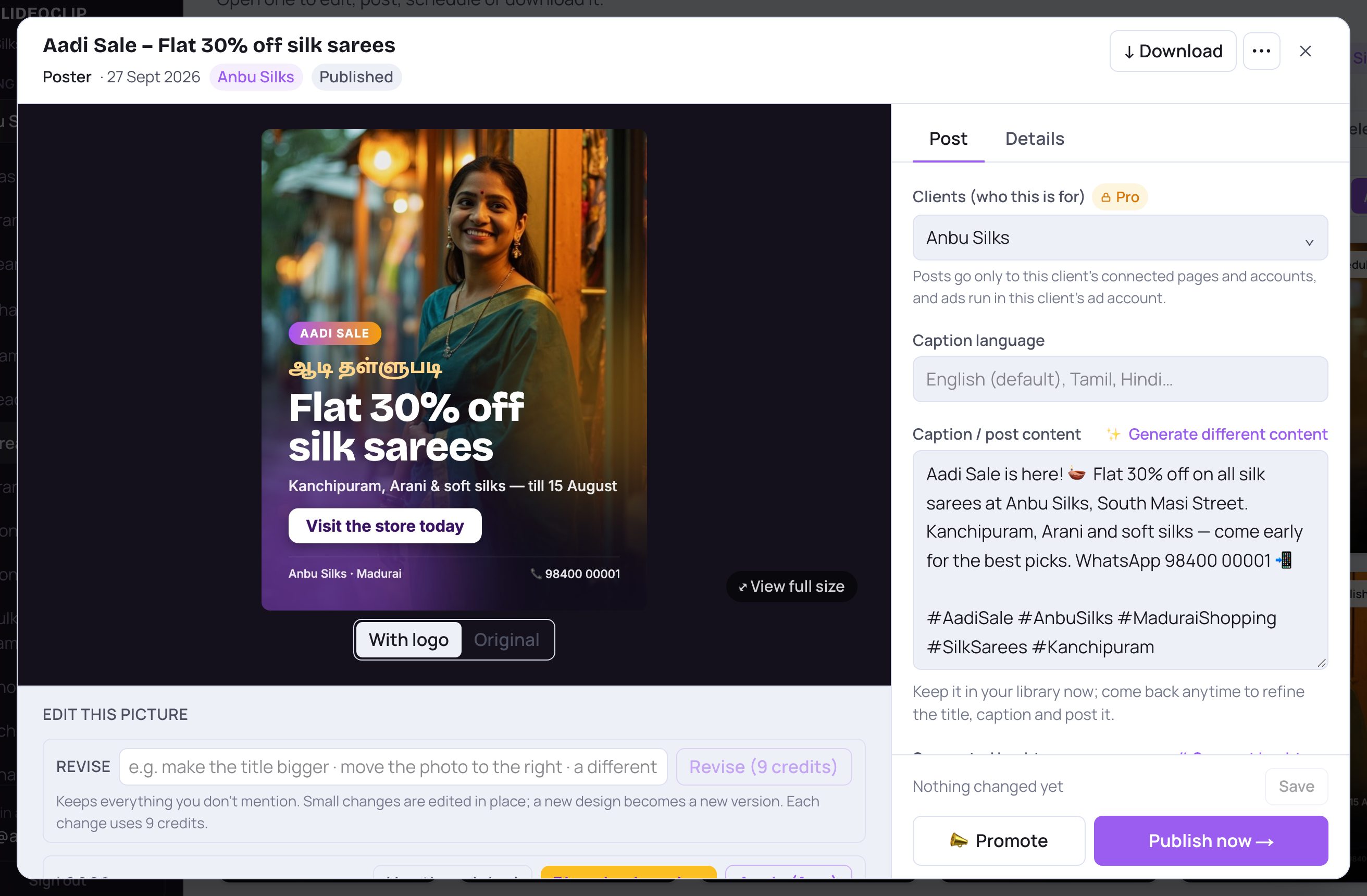
- 1Under Edit this picture, type what to change next to Revise — for example "make the title bigger", "move the photo to the right" or "a different design". Everything you don't mention stays the same.
- 2Tap Revise. The button shows the credits each change uses. Small changes are made on the same poster; a new design is saved as a new version.
- From the same window you can post it now, schedule it or download it. See The details screen of a creative and Post it now.
Good to know
- Type the offer, dates and phone number yourself. SlideoClip never invents them.
- Put your phone number and website in the Contact line so they come out spelled perfectly.
- Use Draft quality to try an idea cheaply, then make the final one in Standard or higher.
- Want words in Tamil or Hindi on the poster? Say so in your message, or type the headline and lines in that language.
Questions
How many credits does a poster use?
It depends on the quality you pick, how many of your own photos you add and whether you ask for 2 versions. The exact number is always on the Create poster button before anything is made.
The logo looks wrong on my poster. Can I fix it?
Your real logo file is placed on top after the picture is made, so it is never redrawn. If it is in the wrong place or size, change Logo position or Logo size and make it again, or open the poster in your library to adjust it.
Can I make a Facebook cover or YouTube banner here?
Yes. See Banners and covers. The banner maker is the same chat, with a Where it goes choice instead of Size.
Why are the words already filled in?
After you send your first message, SlideoClip drafts the headline, second line, highlights and contact line from what you wrote. Change any of them in Your poster.