All guides
Make a video series
Plan a whole show of 5 to 10 linked episodes in one go — same narrator, tone, look and music — review each episode's title and hook, then make the episodes one by one or all together.
Before you start
- ✓The video screen open (see Make a video)
1. Turn on a series
A series starts in the same video chat as any other video.
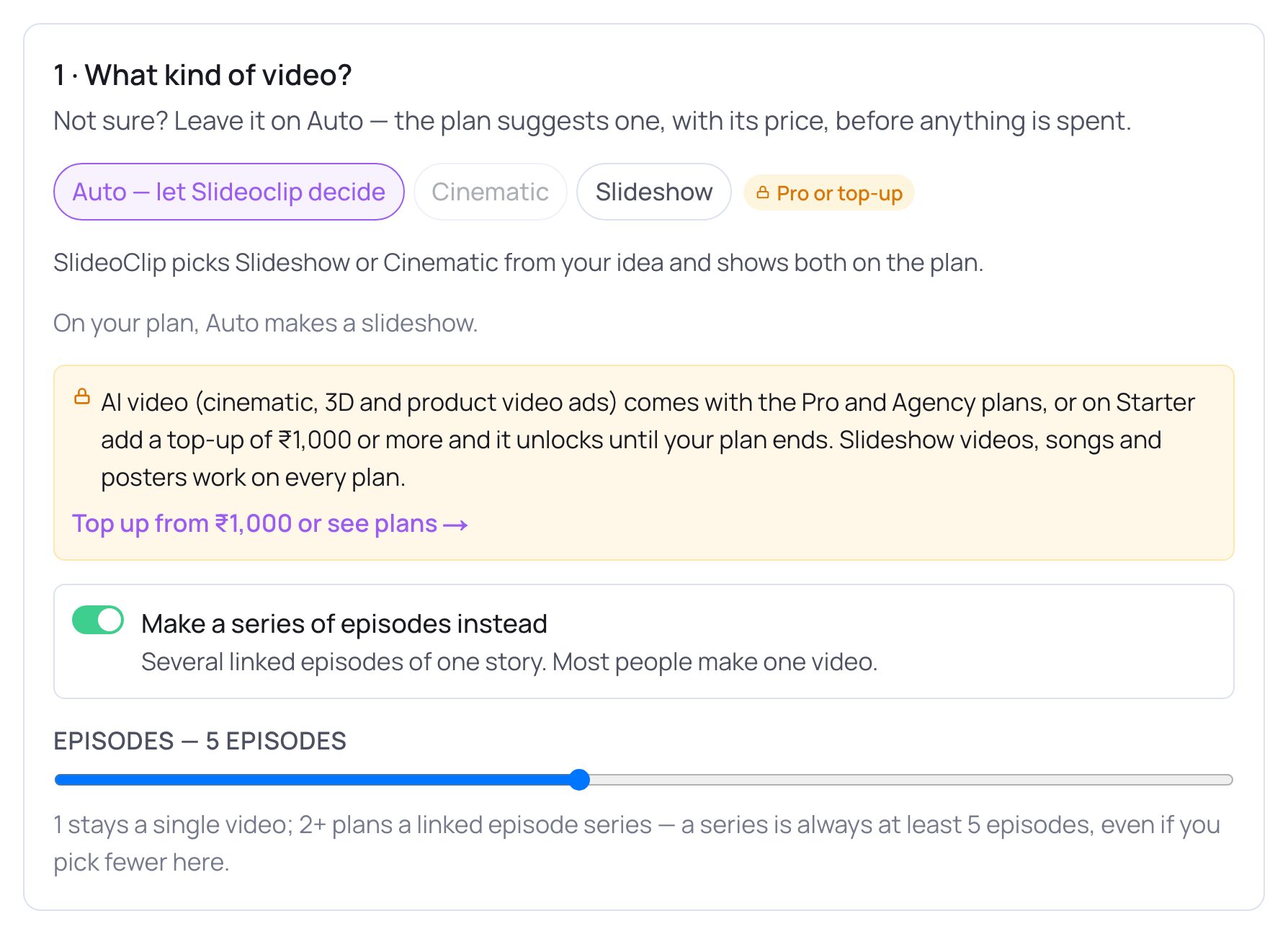
- 1In 1 · What kind of video?, tap Make a series of episodes instead.
- 2Drag the Episodes slider to choose how many. A series always has at least 5 episodes, even if you pick fewer, and up to 10.
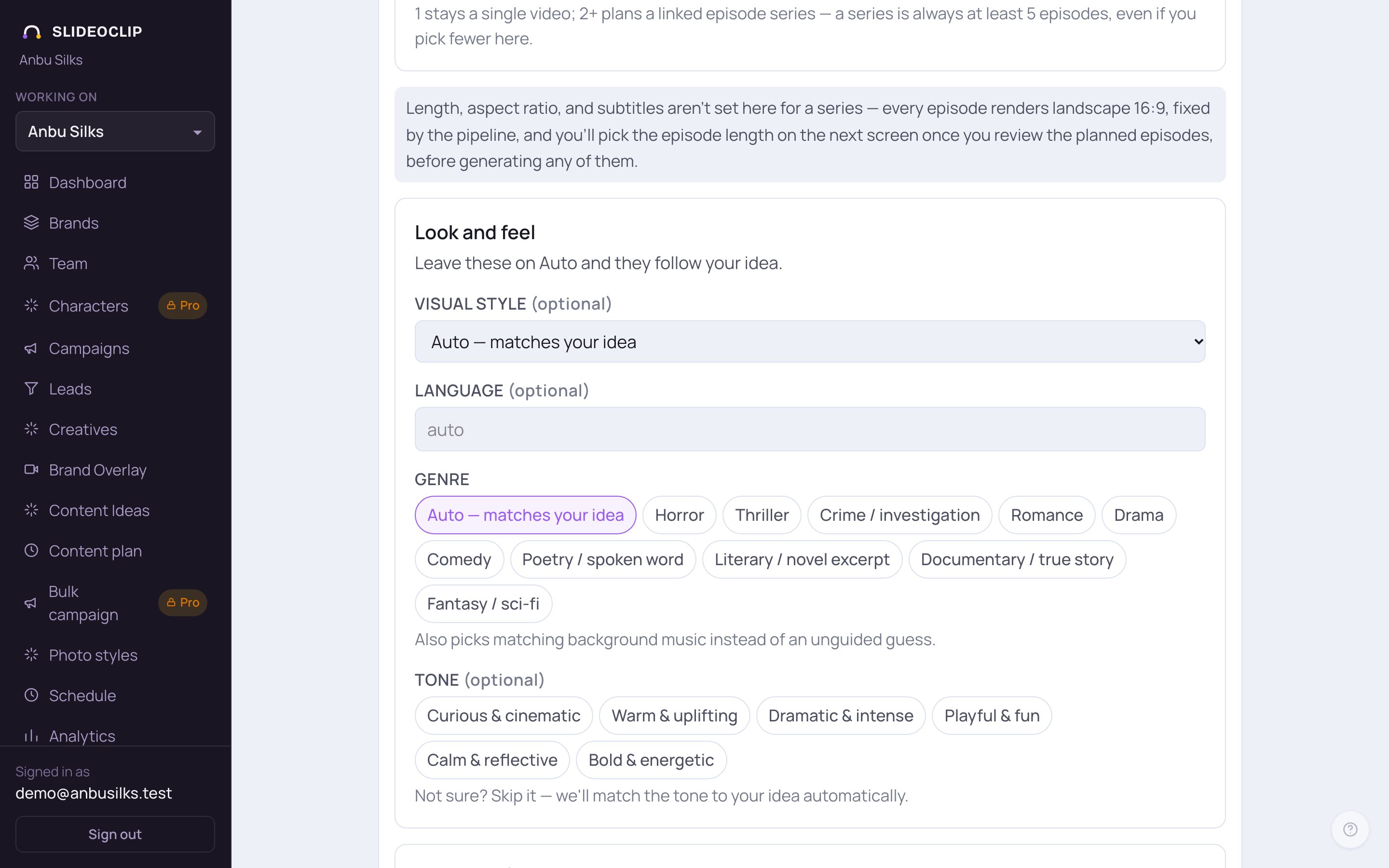
- 1For a series, length, shape and subtitles aren't set here. Every episode is made wide (16:9 landscape), and you choose the episode length on the next screen, before any episode is made.
- 2Look and feel gets an extra Tone choice — Curious & cinematic, Warm & uplifting, Dramatic & intense and more. Skip it and the tone is matched to your idea.
2. Describe the show
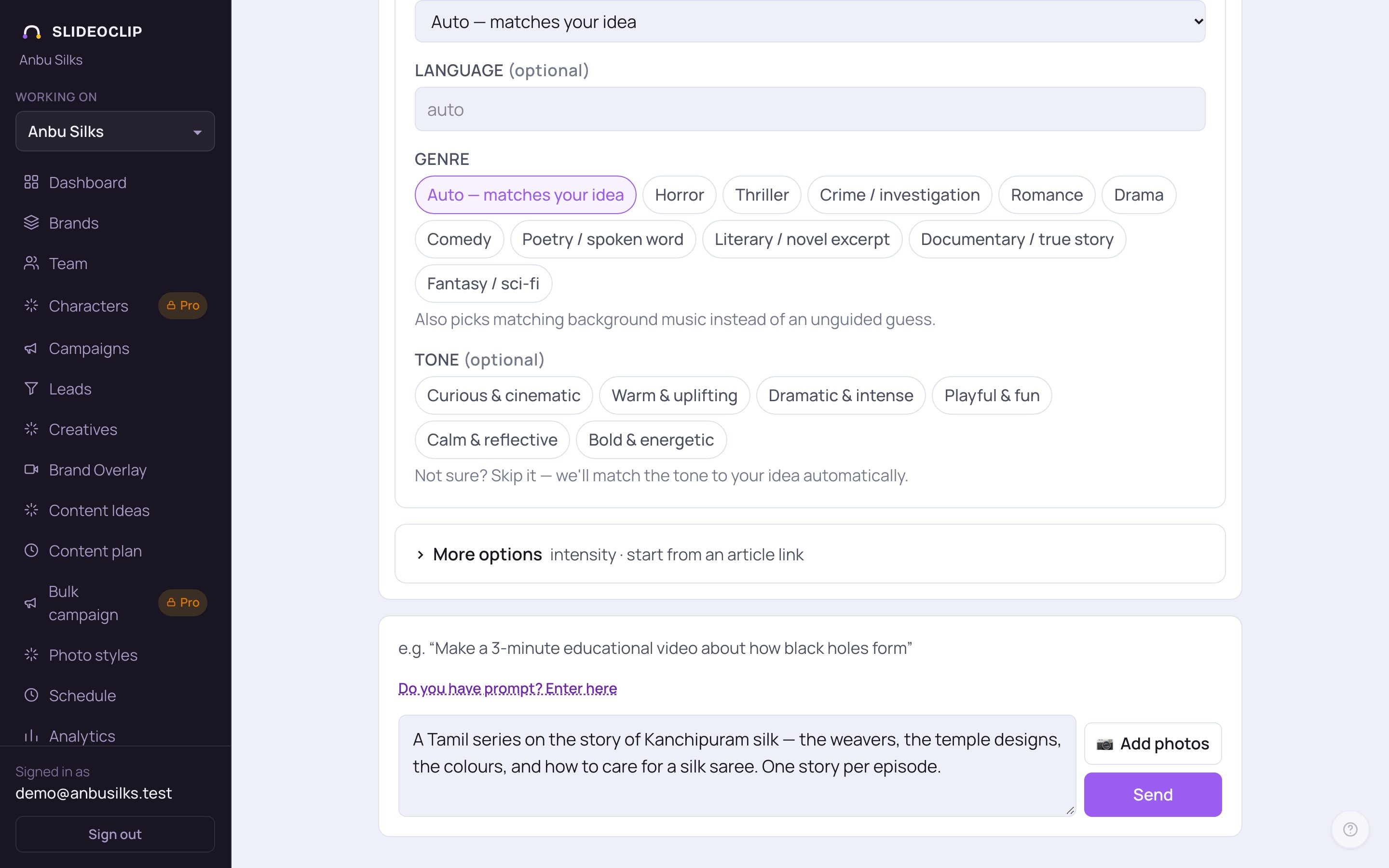
- 1Describe the show: what it's about, who it's for, the language, and what each episode should do.
- 2Tap Send. Chat with SlideoClip as usual, then tap Build the plan → (or Move to final plan drafting →).
- The plan appears as 📝 The series plan: each episode with its title and opening hook.
- Tap Plan episodes (free) →. Planning a series costs nothing — you pay for each episode only when you make it.
3. Review the episodes and make them
After Plan episodes (free) →, you land on the series screen. At the top are the series name, its premise and its tone, style, genre and language. Under Change episode count you can move the slider and tap Replan to plan a different number of episodes — episodes already made are not touched. Under Episode length drag the slider to set how long each episode is; the label shows the credits each episode will cost. Use a short length for a cheap test run first. Each planned episode shows its number, title and hook, with Show title options, thumbnail concept, tags & more for other title ideas, a thumbnail idea, tags, a subscribe line and ideas for Shorts. Tap Generate (… cr) on one episode to make just that one, or Generate all … remaining (… credits total, ~… min) to make the rest. Episodes are made one at a time, so the first is ready sooner. You can close the tab — it keeps going.
4. Follow the progress
Episodes you've started move to Generated episodes at the bottom of the series screen. Each one shows where it is: Queued — starts in ~… min, Rendering — ~… min left, Almost done, or Ready. Tap View → to open a finished episode in Creatives, where you can post it, schedule it or make Shorts from it. If an episode fails, tap Retry (… cr); slides already made are reused and the rest is refunded.
5. Come back to a series later
On the series screen, tap See all series to see every series you have planned, with how many episodes are made and how many are still waiting. Tap a series to open it again. The same page also lets you plan a new series straight away.
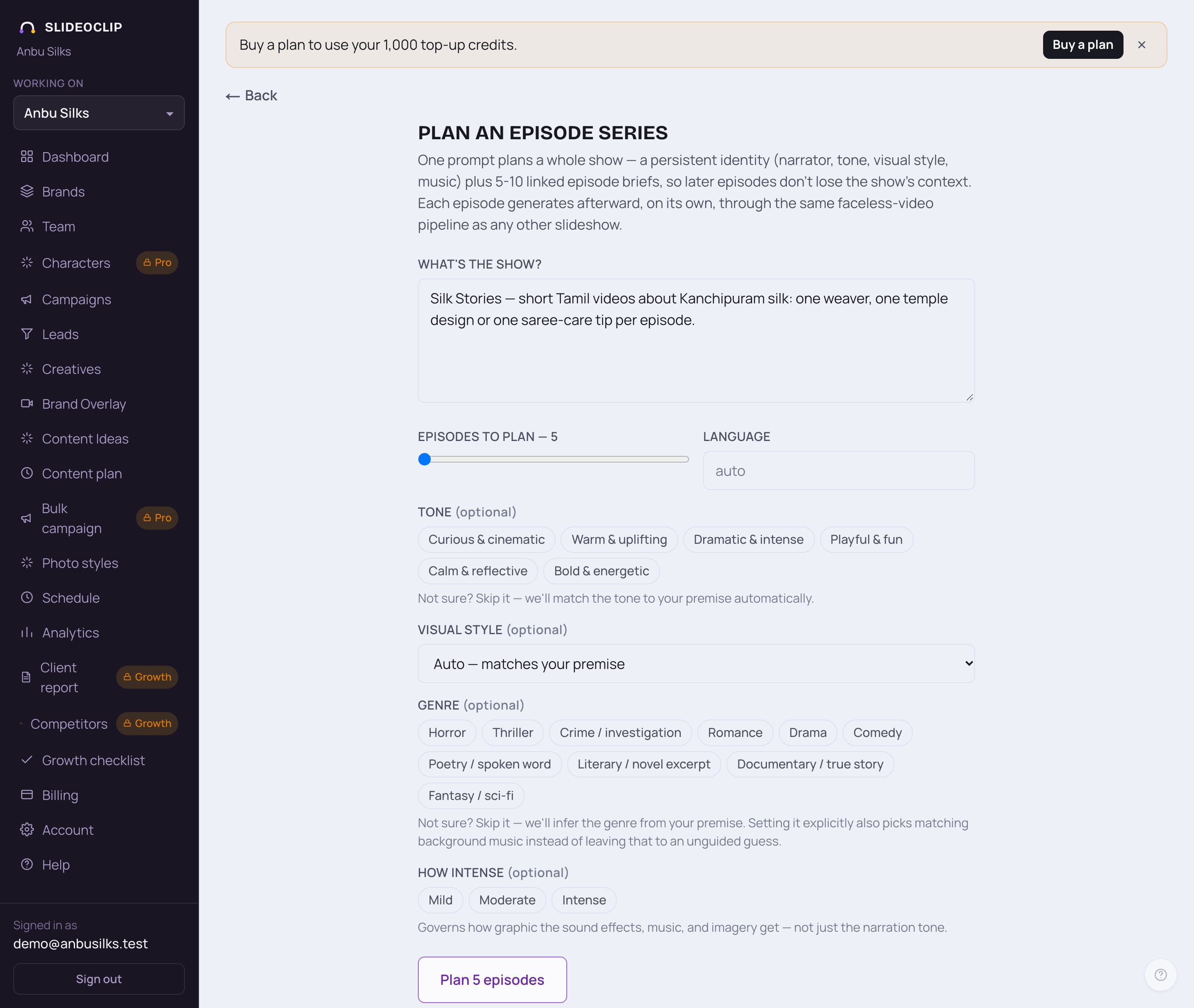
- 1Plan an episode series lists Your series (when you have any) at the top — tap one to open it.
- 2To plan a new one here, describe the show under What's the show?.
- 3Choose how many episodes to plan (5 to 10), and optionally the language, tone, visual style, genre and how intense it gets.
- 4Tap Plan 5 episodes (the number follows the slider). Planning is free.
Good to know
- Make one episode at a short length first to check the voice and look, then make the rest at full length.
- Each episode is a narrated slideshow, priced like any slideshow of its length.
- The episode ideas include Shorts ideas — after an episode is ready, use Make Shorts on it in Creatives (see Edit a video).
Questions
Why did I get 5 episodes when I picked 3?
A series is always at least 5 episodes. For fewer, make separate videos instead.
Can a series be vertical for Reels?
No. Every episode is made wide, 16:9. To post a vertical piece, make Shorts from a finished episode.
Does Replan change episodes I've already made?
No. It only replaces the episodes that are still waiting to be made.