All guides
The details screen of a creative
Tap any poster or video in your library to open its details screen. Here you see it large, change it, write its caption, save, and post or promote it — all in one place.
Before you start
- ✓A poster or video in your library (see Your creatives library)
1. Open a creative
Go to Creatives, scroll to Your creations and tap a poster or video. Its details screen opens on top of the library.
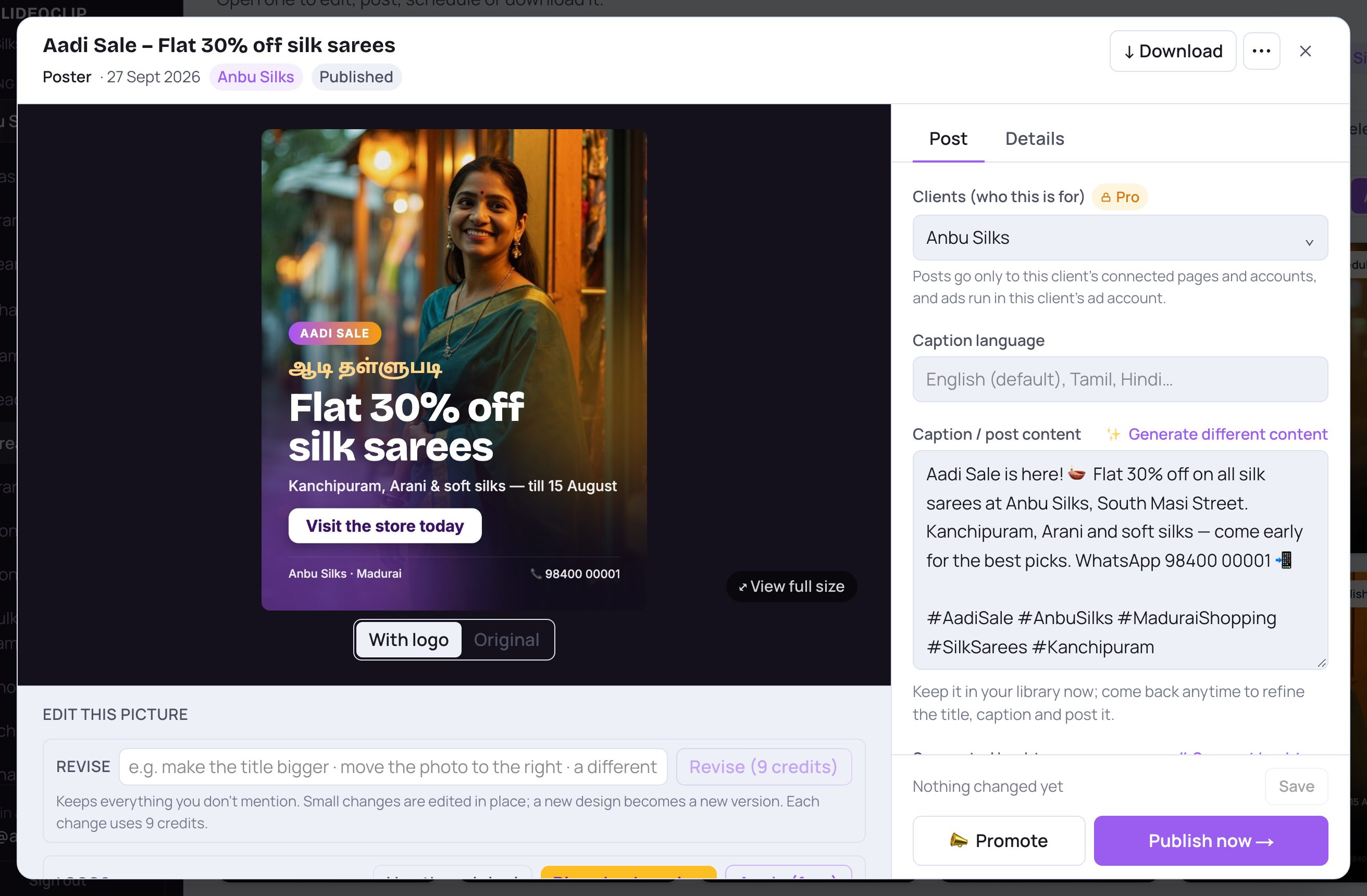
- 1At the top: the title, and under it what it is (Poster, Video, Banner…), the length for a video, the date it was made, the client it is for, and its status (Draft, Scheduled, Published, or the client's answer).
- 2Tap Download to save the file to your phone or computer.
- 3⋯ has the same quick actions as the tile in the library: Request client approval, Regenerate, Delete and, for videos, Make Shorts and YouTube.
- 4Tap ✕ (or anywhere outside) to go back to the library.
2. The big picture and the tools under it
The left side shows your creative large. Right under it are the tools that change the picture or video itself.
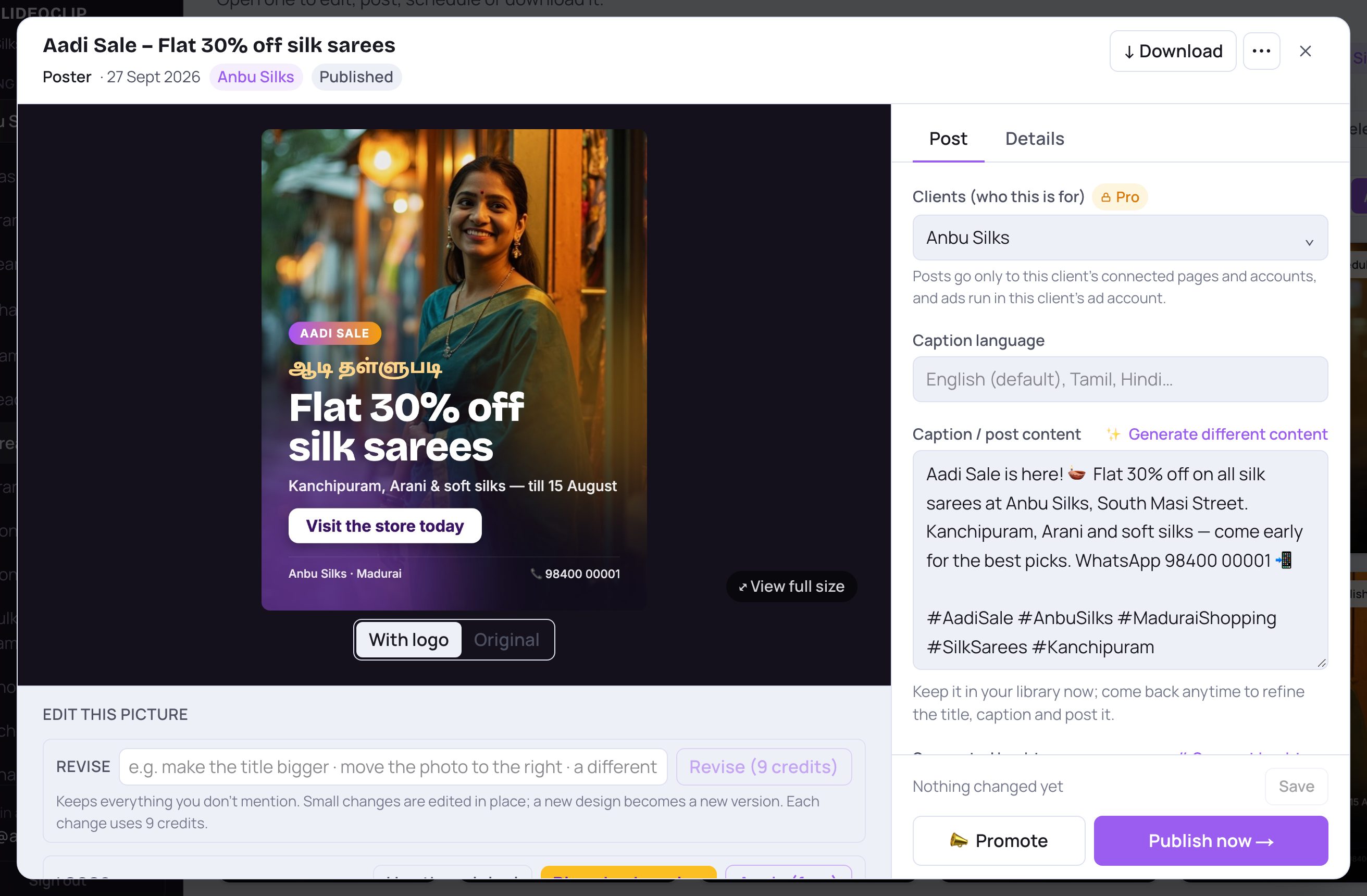
- 1Your poster, as large as your screen allows.
- 2With logo shows the poster as it will be posted; Original shows the plain picture before the logos and footer line went on.
- 3Edit this picture: for posters you can Revise it in your own words and move or change the Logos. The Edit a poster guide shows each step.
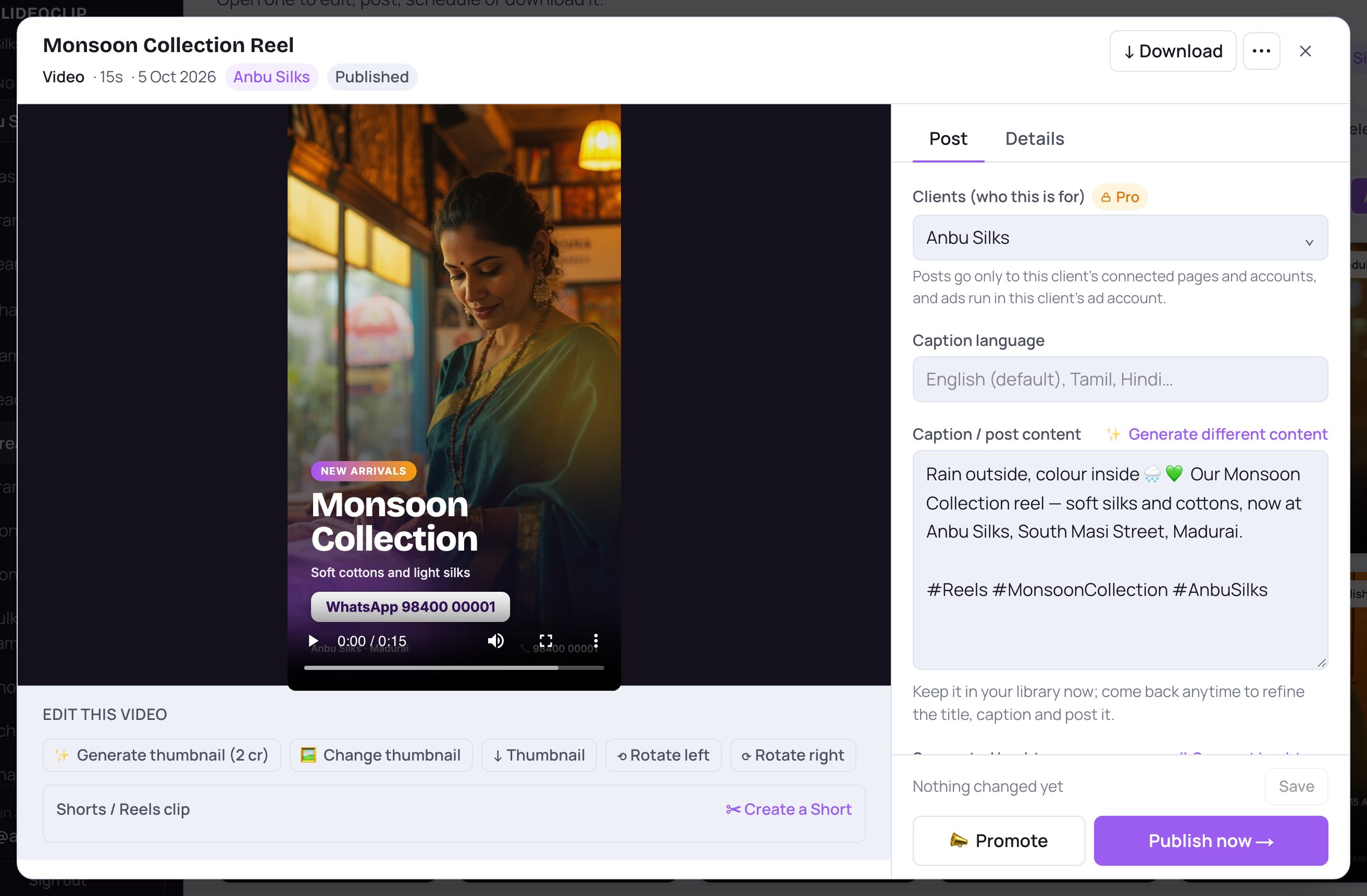
- 1A video plays right here, with the usual play and volume controls.
- 2✨ Generate thumbnail draws a new cover picture with the title designed into it. The credits are shown on the button.
- 3🖼 Change thumbnail uses a picture of your own as the cover instead. ↓ Thumbnail saves the cover on its own.
- 4✂ Create a Short cuts a short clip (9:16, 1:1 or 16:9) out of this video — let the AI pick the best moment, or choose the start and length yourself.
- ⟲ Rotate left and ⟳ Rotate right fix a clip that came out sideways. Under Slides you can turn any slide of a slideshow into a poster of its own.
💡 For a Facebook cover or YouTube banner you'll also see Set as FB cover or Set as YouTube banner here.
3. The Post tab: who it's for and the caption
The right side has two tabs. Post is about posting: the client, the caption and hashtags.
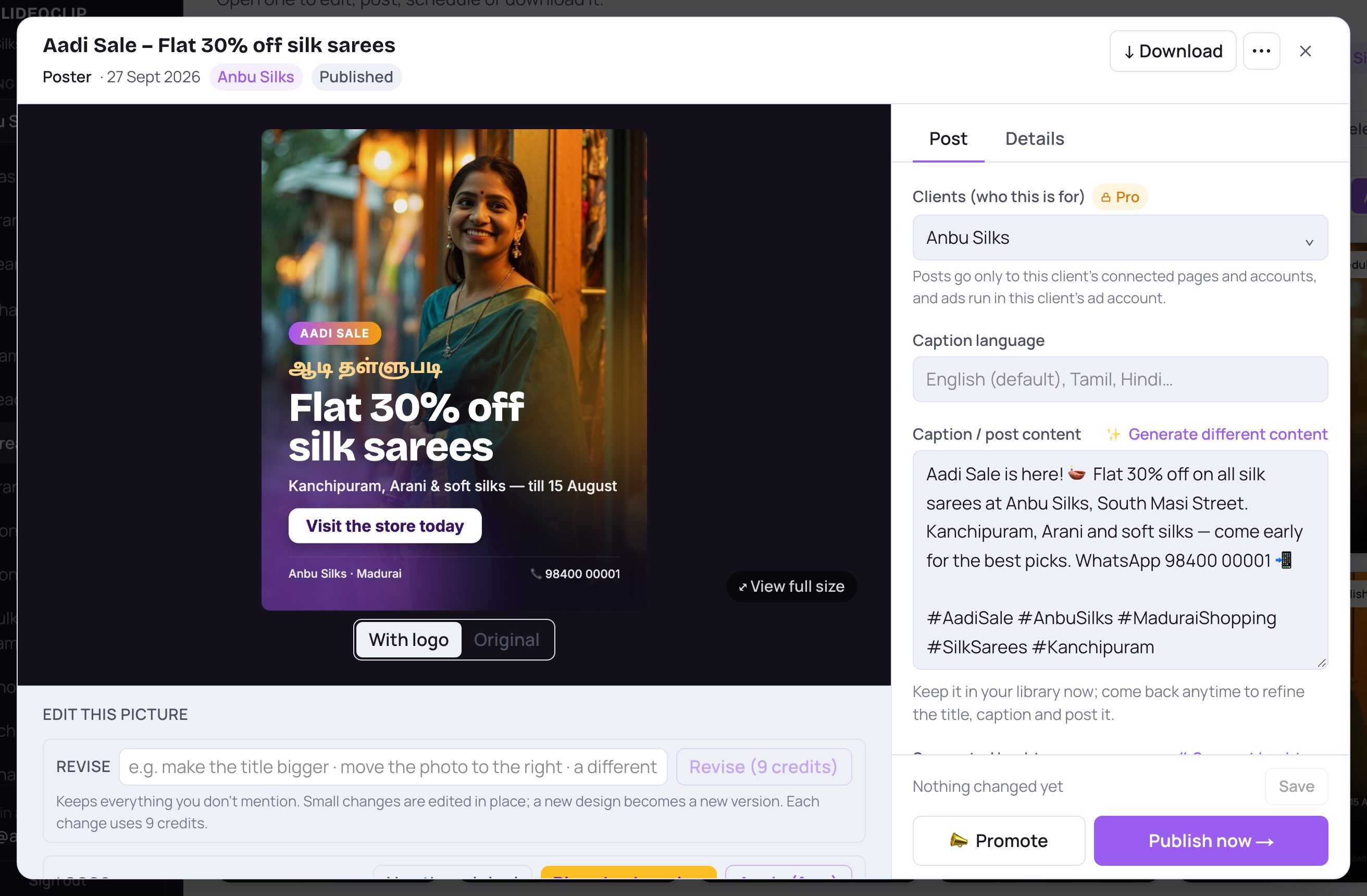
- 1Clients (who this is for): tap the box and tick the client (or clients) this is for. It posts only to their own connected Pages and accounts, and ads run in their own ad account. The first one ticked is the main client — its logo is used.
- 2Caption language: type or pick a language, such as Tamil or Hindi. English is used if you leave it empty.
- 3The caption is written for you the first time you open a poster or video. Change any word — this is exactly what gets posted. Tap ✨ Generate different content for a fresh one in the language you picked.
- 4Tap # Suggest hashtags for tags that suit your business, then + Add to caption to put them at the end.
- Writing captions and hashtags uses no credits.
- When the creative is listed for clients, a Client approval box appears here with each client's answer and a ✎ Send for approval button (see the Approvals guide).
4. The Details tab: your own title and notes
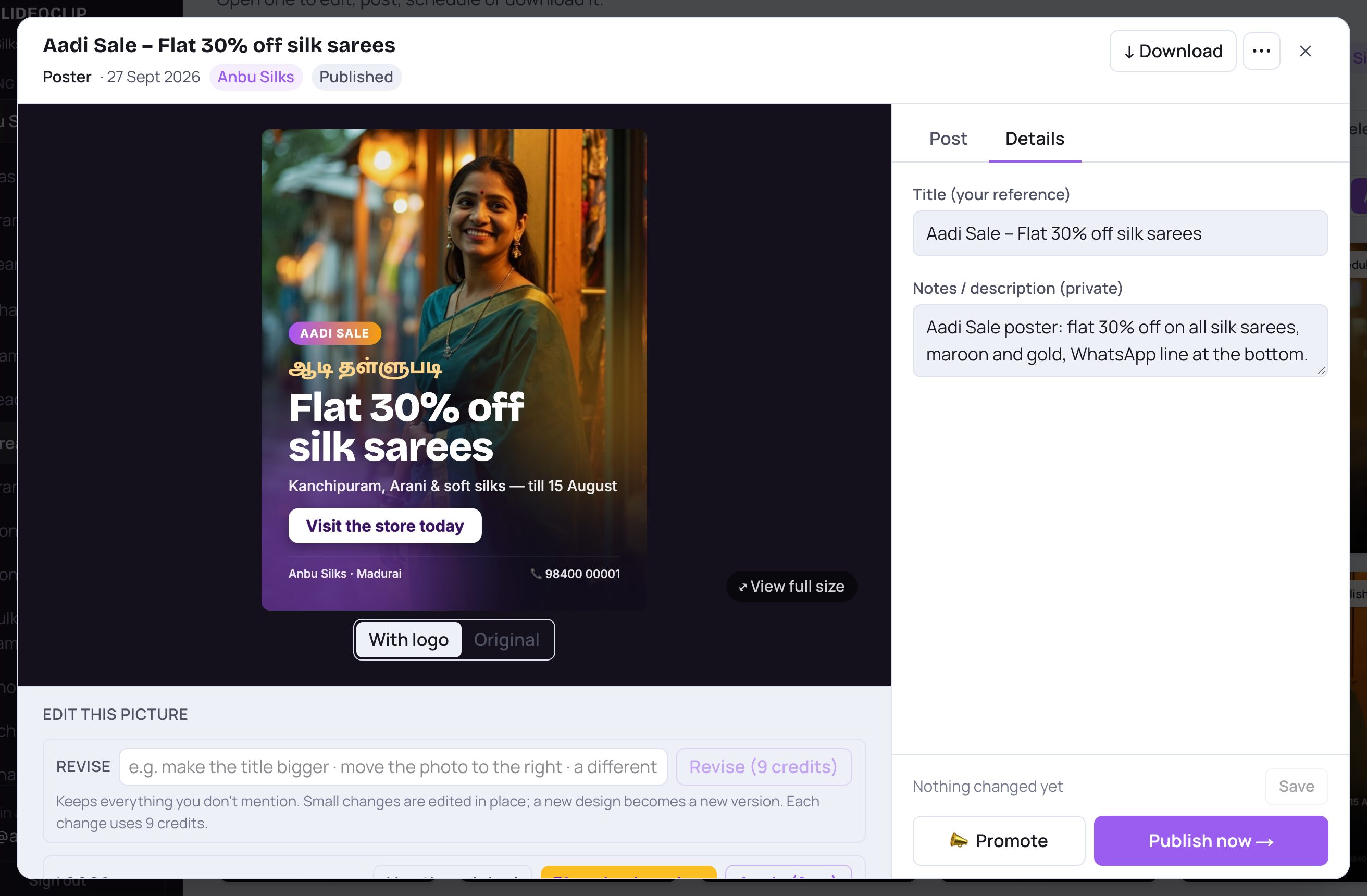
- 1Tap Details.
- 2Title (your reference) is the name you see in your library. Make it easy to find later, like "Aadi Sale – week 2".
- 3Notes / description (private) is for you and your team only. It is never posted.
5. Save, Promote and Publish now
The bottom of the right side always tells you whether your changes are saved, and holds the two main buttons.
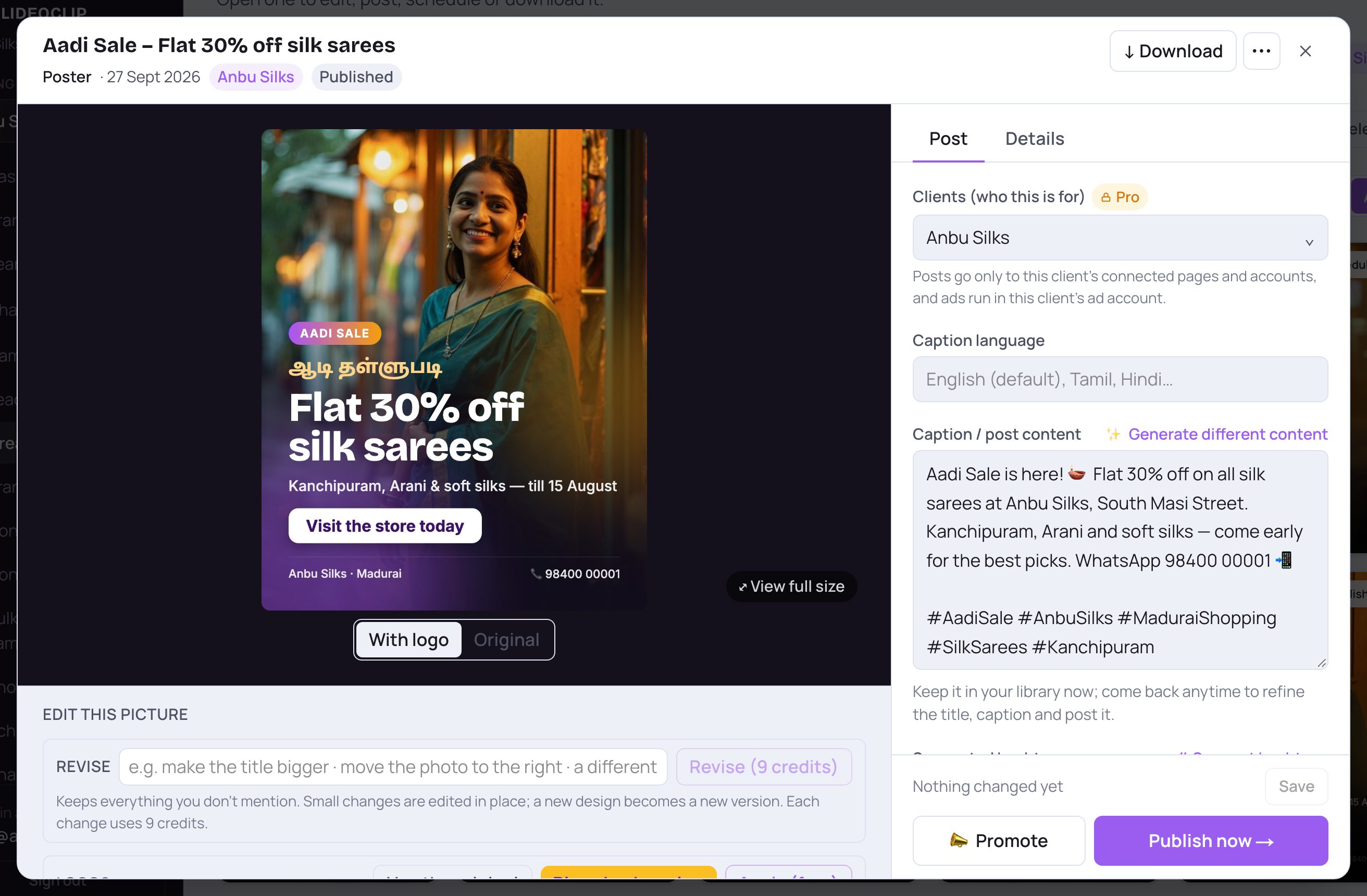
- 1The line on the left says Nothing changed yet, ● Unsaved changes or ✓ All changes saved. When you have changed the title, notes or caption, tap Save to keep them for later.
- 2📣 Promote turns this poster or video into a Meta ad. Nothing is spent until you check and confirm it — see the Promote a post guide.
- 3Publish now → opens the posting window with your caption already in it. See the Publish now guide.
💡 You don't have to post straight away. Save, close, and come back any time — everything stays in your library.
6. On your phone
On a phone the details screen fills the screen and everything sits in one column: the picture first, then its tools, then the Post and Details tabs and the buttons. Scroll down to reach them.
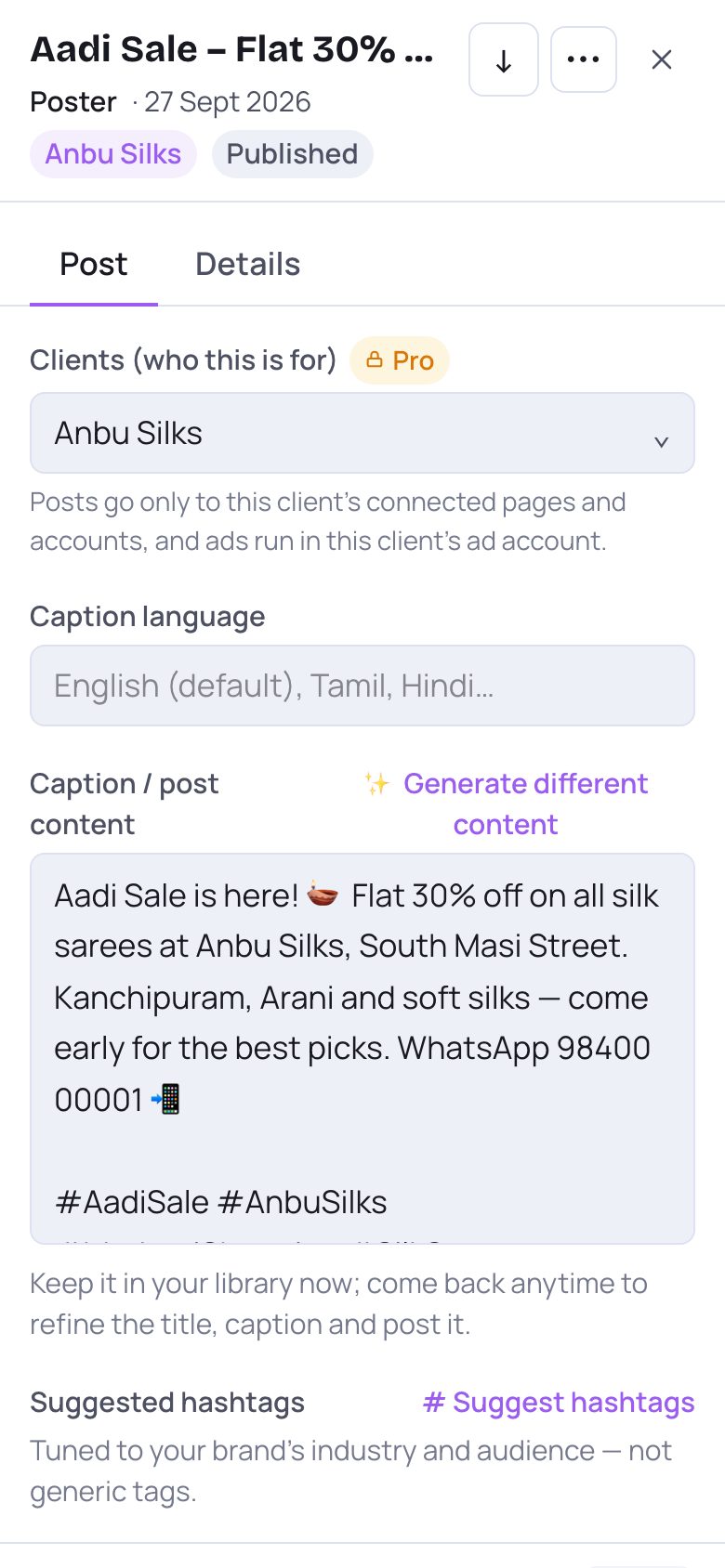
- 1Scroll down to the Post and Details tabs.
- 2Edit the caption here, then scroll to the bottom for Save and Publish now →.
Good to know
- Pick the client before you post or promote — that decides which Facebook Page, Instagram account and ad account are used.
- An article opens in a reader instead of this screen; its button there is Publish to Facebook.
Questions
The Publish now button is grey.
A caption is being written for you. Wait a moment until the text appears in the caption box.
I don't see Revise or Logos under my poster.
Those tools only appear for posters that can be changed that way. For an older poster, use Regenerate in the ⋯ menu to make a fresh version.
Do I have to tap Save before Publish now?
No. Publish now takes the caption that is in the box right now. Save is for keeping your changes when you come back later.