All guides
Plan a month of posts
Pick the days, and SlideoClip writes a dated poster idea for each one: festivals, products, offers, tips, happy customers and behind the scenes. You check each idea, see the cost, and then the posters are made and put on their dates for you.
Before you start
- ✓A client added on the Brands page (see Manage your clients)
- ✓For a client's very first plan: the 5-minute Set up for 30 days (see Set up for 30 days)
- ✓Facebook, Instagram or LinkedIn connected before the first post date (you can plan before connecting)
1. Open the content plan
Tap Content plan in the menu. You can also get here from Plan a month on the Dashboard, or from Schedule → + New schedule → Plan and approve new content. A client's very first plan starts with Set up for 30 days: about 5 minutes where SlideoClip learns the business and asks only what is missing. If you tap Draft the ideas → before that, it opens the setup for you.
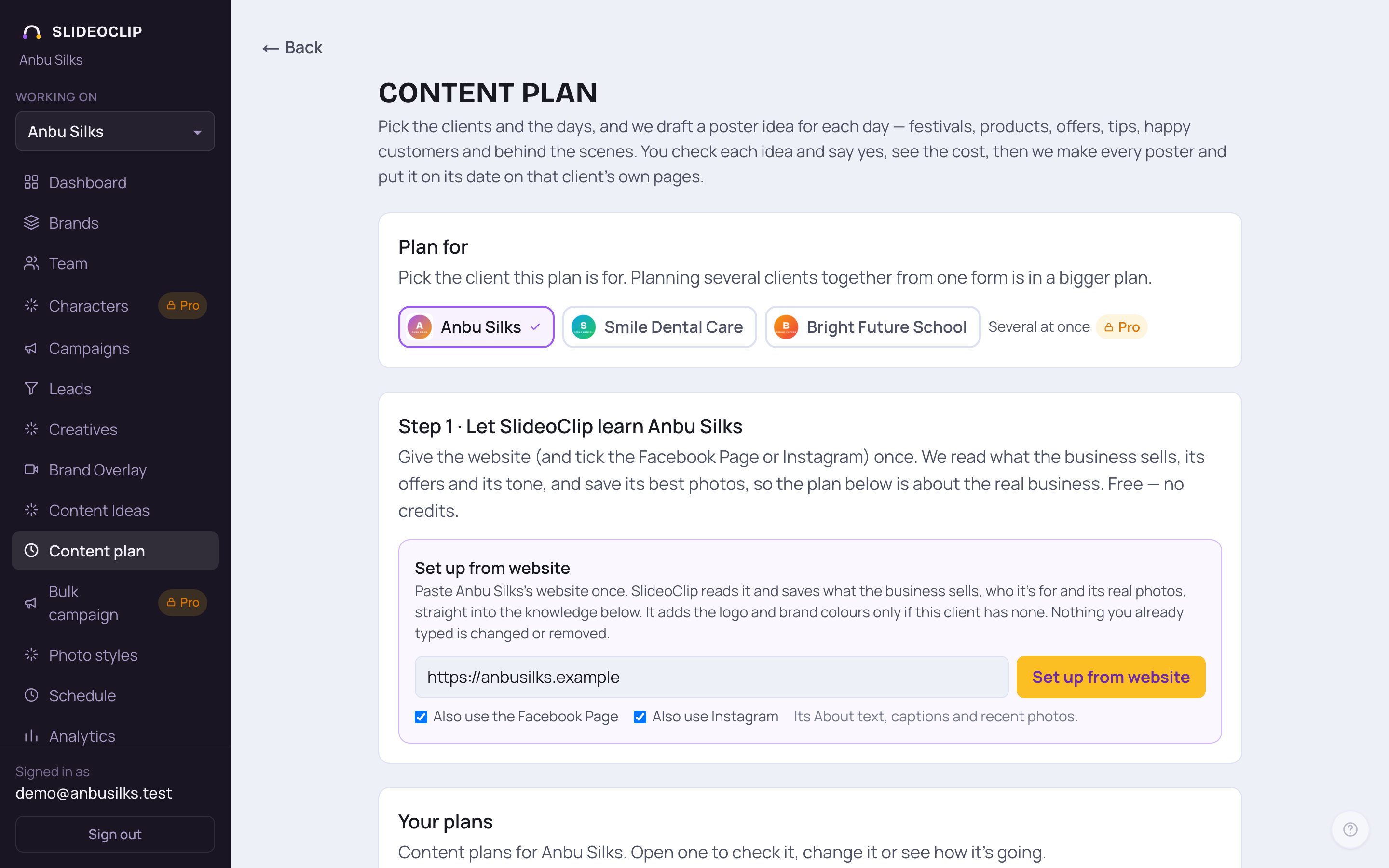
- 1Under Plan for, the client picked in the top bar is already ticked. Here it is Anbu Silks.
- 2On the bigger plans (Pro and Agency) you can tap another client to tick it too, and plan several clients together from the same settings. Each one still gets its own ideas from its own details and photos, and posts only to its own pages.
- 3Step 1 · Let SlideoClip learn …: type the client's website once (and tick Also use the Facebook Page or Also use Instagram if you see them), then tap Set up from website. SlideoClip reads what the business sells, its offers and its tone, and saves its best photos, so the ideas are about the real business. This is free.
- 4Your plans lists the plans you already made for this client. Tap Open → on one to check it, change it or see how it's going.
- With several clients ticked, the button at the bottom says Draft 2 plans → (or 3), and you get one Contact line at the bottom for each client. After drafting, a combined screen shows All clients together with each client's cost and the total, an Approve all and make (every client) → button, and a tab for each client to check its ideas one by one.
💡 On other plans, tapping a client switches the form to that client instead (as in this picture, where the Pro tag sits next to Several at once).
2. Pick the dates, the days and the time
Scroll down to Plan more content (or Plan content for … if this client has no plans yet). The first box is about when the posts go out.
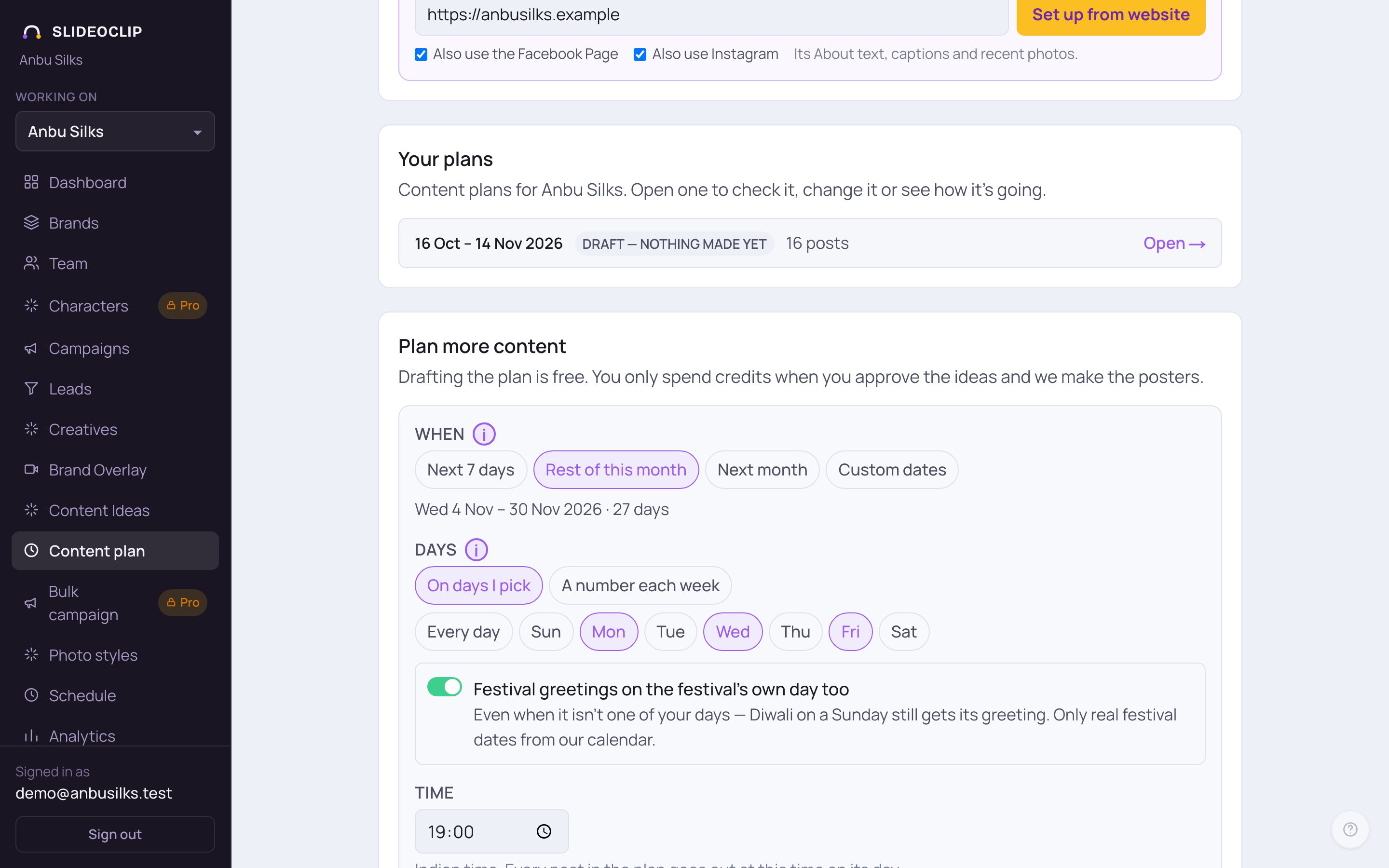
- 1Under When, tap Next 7 days, Rest of this month or Next month. The line under the buttons shows the exact dates and how many days that is.
- 2Want other dates? Tap Custom dates and pick the first and last day yourself (next picture).
- 3Under Days, keep On days I pick and tap the weekdays you want to post on. Mon, Wed and Fri are ticked to start; Every day ticks all seven. Or tap A number each week and pick 3 to 7 posts a week, and we spread them out.
- 4Leave Festival greetings on the festival's own day too on, and a festival such as Diwali gets its greeting even when it falls on a day you didn't pick. Only real festival dates from our calendar are used.
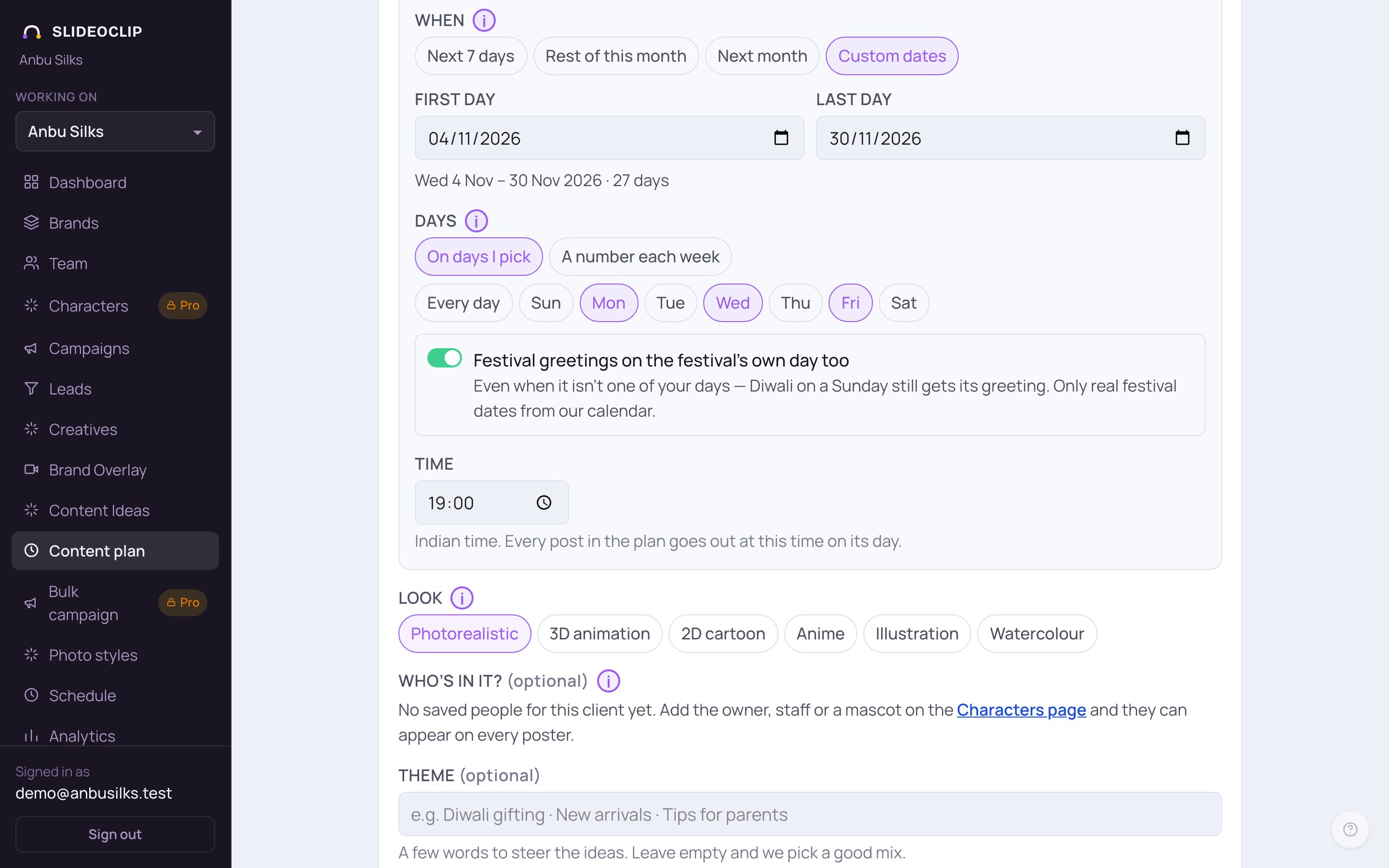
- 1Pick the First day of the plan.
- 2Pick the Last day. A plan can cover up to 92 days (about 3 months); you can plan the next part after.
- 3Set the Time in Indian time. Every post in the plan goes out at this time on its day.
- A plan can start today only if that time is still at least 45 minutes away. Otherwise it starts tomorrow, and the line under the dates says so.
3. Choose how the posters look and what they say
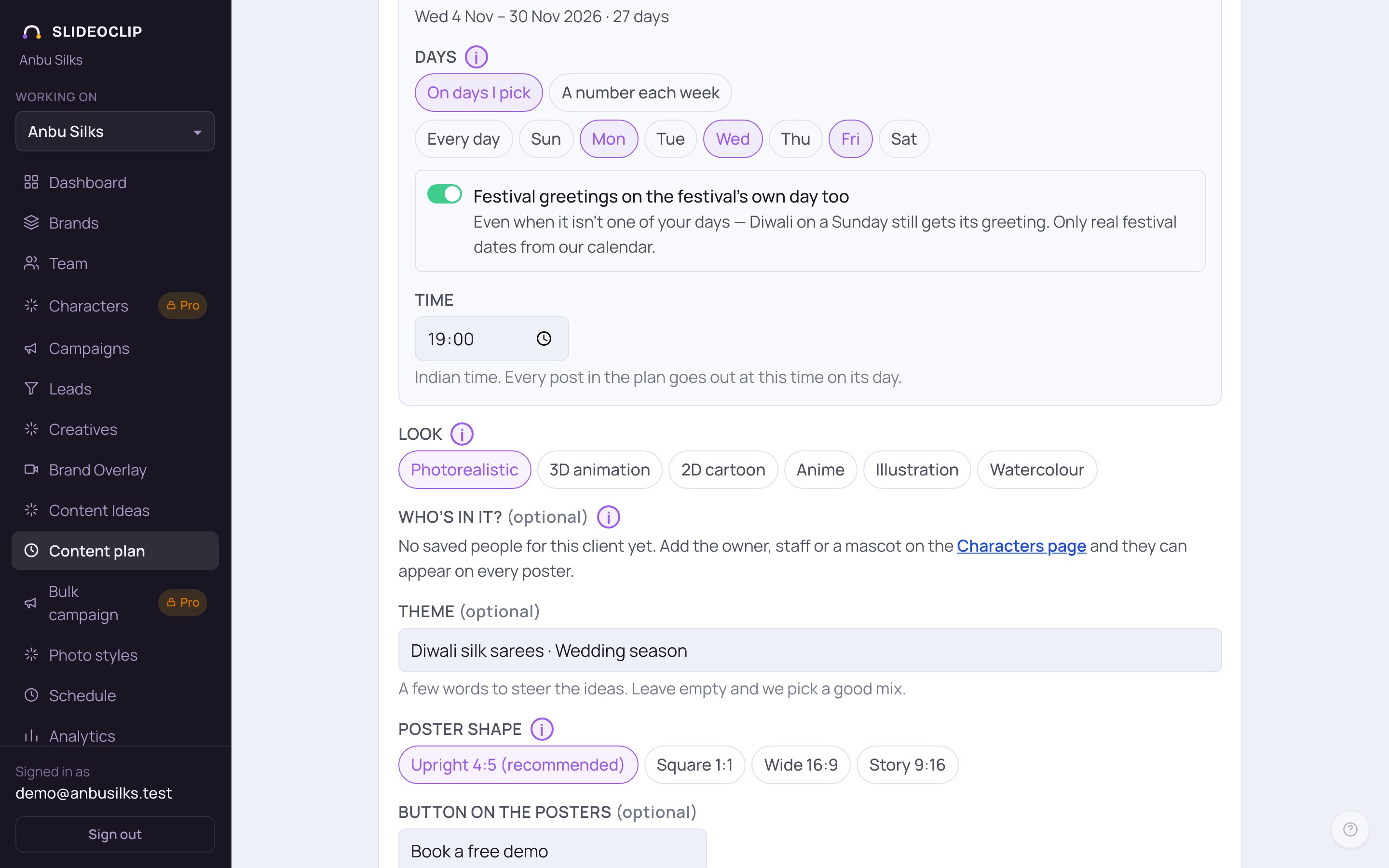
- 1Look is how the pictures are drawn: Photorealistic, 3D animation, 2D cartoon, Anime, Illustration or Watercolour. The same look goes on every poster in the plan.
- 2Who’s in it? (optional): tap the client's saved people or mascots and they appear on every poster. If none are saved yet, add the owner, staff or a mascot on the Characters page first.
- 3Theme (optional): a few words to steer the ideas, like Diwali silk sarees · Wedding season. Leave it empty and we pick a good mix.
- 4Poster shape: Upright 4:5 (recommended) fills more of a phone screen. Square 1:1, Wide 16:9 and Story 9:16 are there too. The price is the same for every shape.
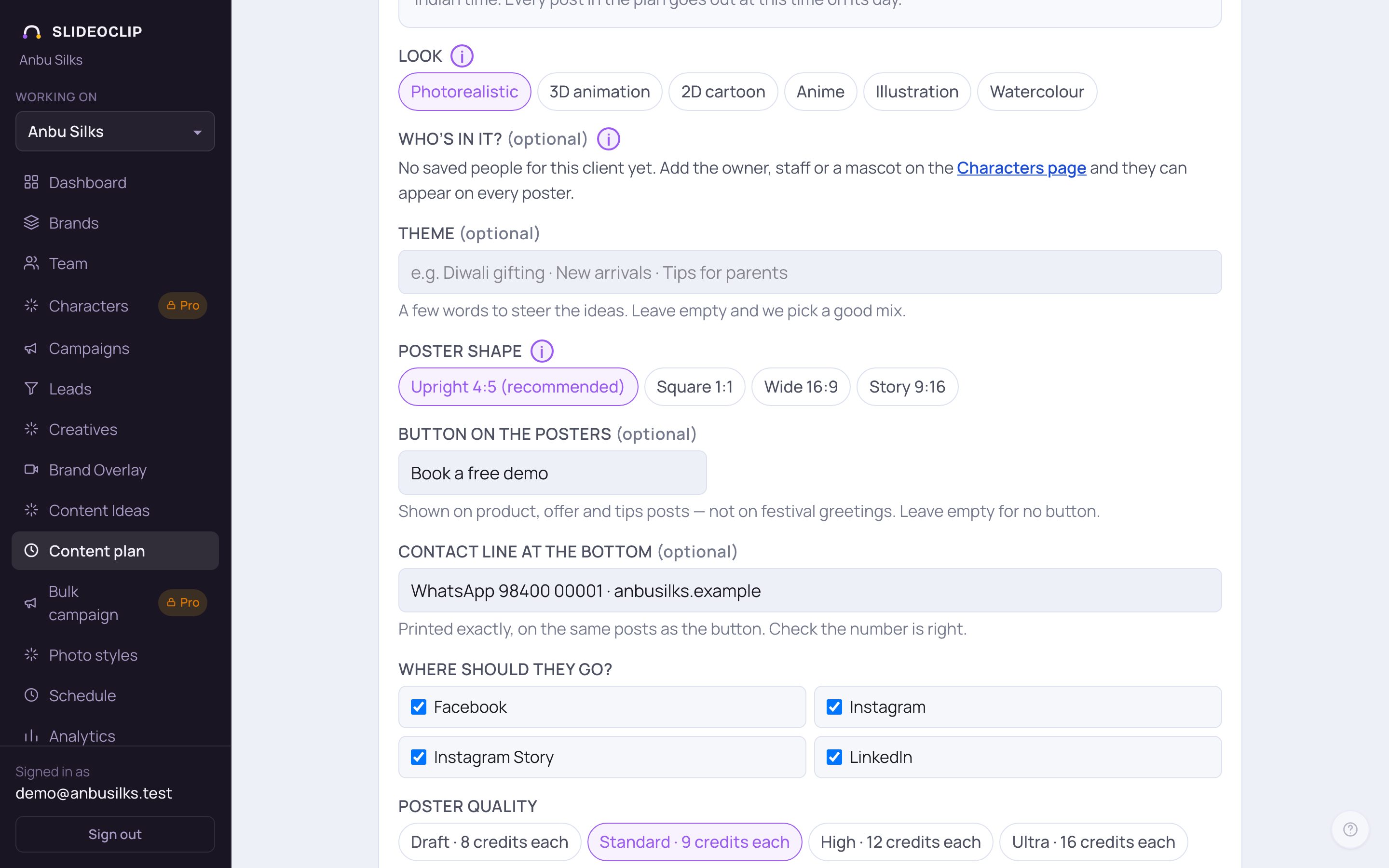
- 1Button on the posters: the words on the button of product, offer and tip posts (festival greetings get no button). It starts as Book a free demo, so change it to suit the business, like Visit our shop, or clear it for no button.
- 2Contact line at the bottom: filled in from the client's saved phone and website. It is printed exactly as written, so check the number.
- 3Where should they go?: tick Facebook, Instagram, Instagram Story or LinkedIn. YouTube isn't offered because these are pictures. A place marked not connected yet must be connected from the Dashboard before the first post date, or those posts won't go out.
- 4Poster quality: Draft, Standard, High or Ultra. Each button shows its credits per poster. Standard suits most posts.
4. Decide how posts go out, then draft the ideas
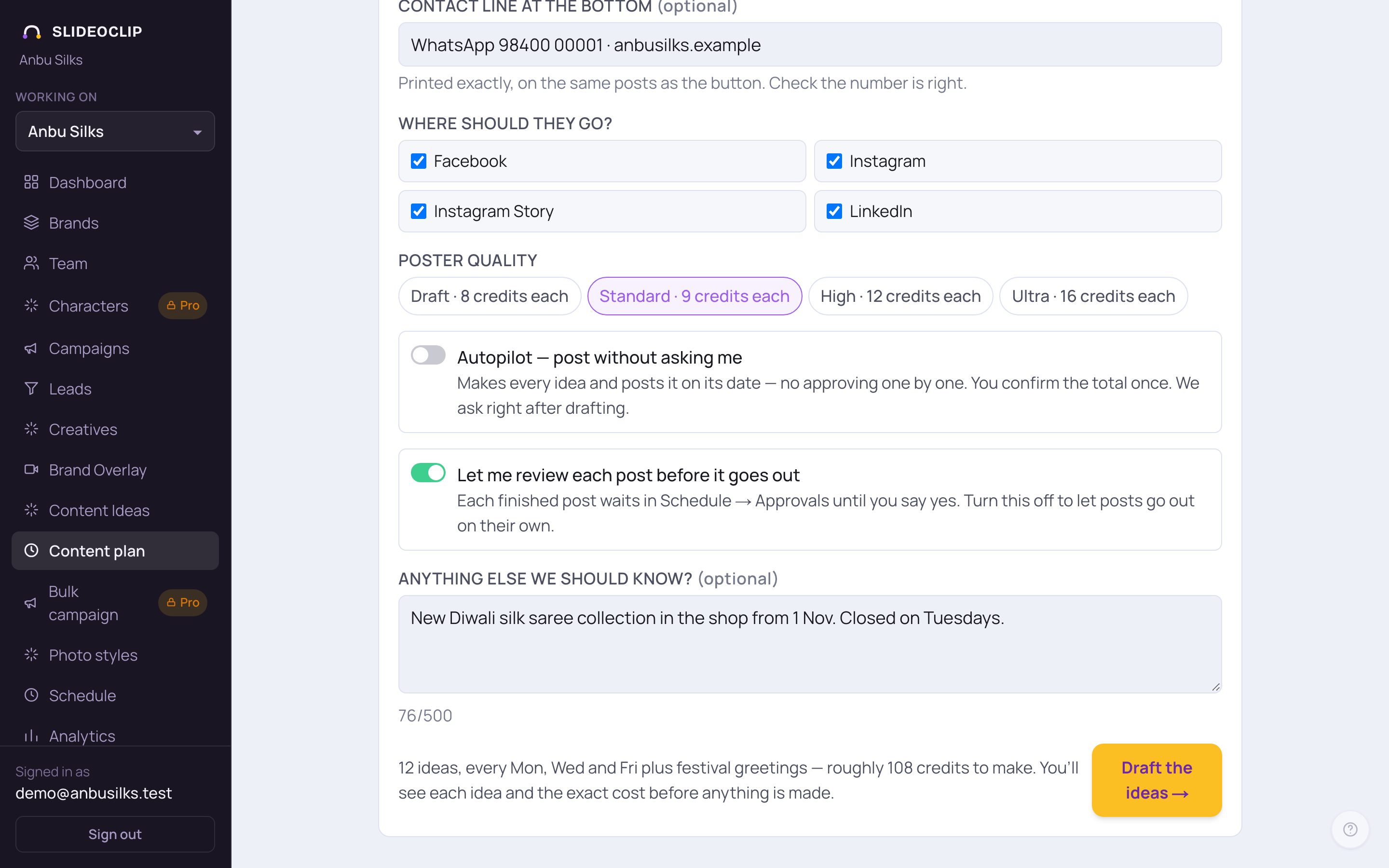
- 1Leave Autopilot — post without asking me off if you want to say yes to each idea. Turn it on for a hands-off shop: every idea is made and posted on its date, and you confirm the total cost once, right after drafting.
- 2Let me review each post before it goes out: when it's on, each finished poster waits in Schedule → Approvals until you say yes. Turn it off to let posts go out on their own.
- 3Anything else we should know? (optional): offers, new stock, closed days. Up to 500 letters.
- 4Read the line next to the button: how many ideas, and roughly how many credits they would cost to make. Then tap Draft the ideas →.
- Drafting is free. It usually takes under a minute, so keep the page open. No credits are used until you approve the ideas and press Make.
💡 This guide stops before Draft the ideas → so no plan is made. When you tap it, the new plan opens on its own, ready for you to check (next section).
5. Check each idea: approve, edit or skip
The plan opens straight after drafting. To come back later, tap Open → on it under Your plans.
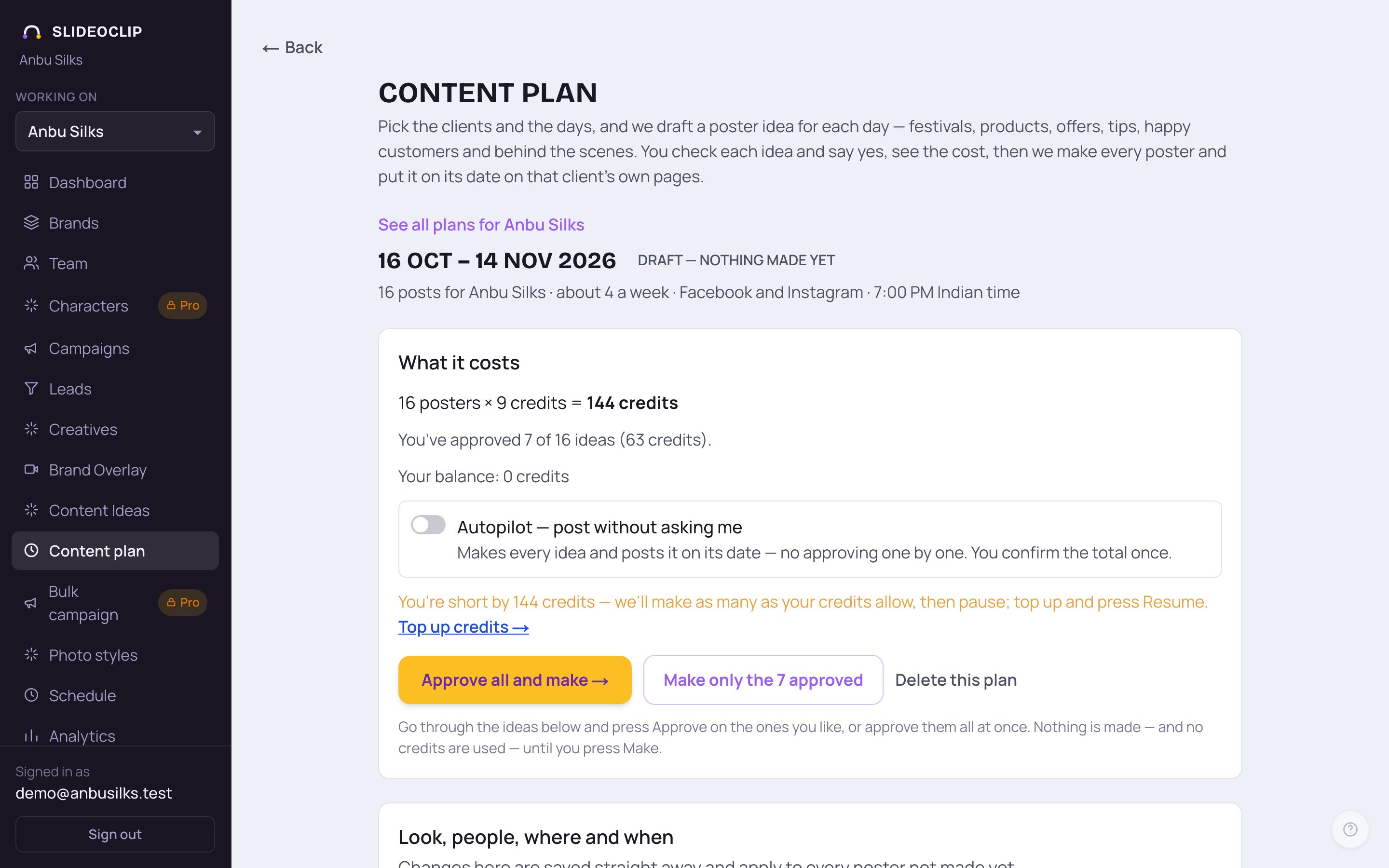
- 1At the top: the plan's dates, its status (for example Draft — nothing made yet), how many posts, which days, where and at what time. See all plans for Anbu Silks takes you back to the list.
- 2What it costs shows the number of posters × credits each, how many ideas you have approved so far, roughly what that comes to in credits, and Your balance.
- 3Nothing is made yet. Go through the ideas below first; you can approve them all with Approve all and make → at the end.
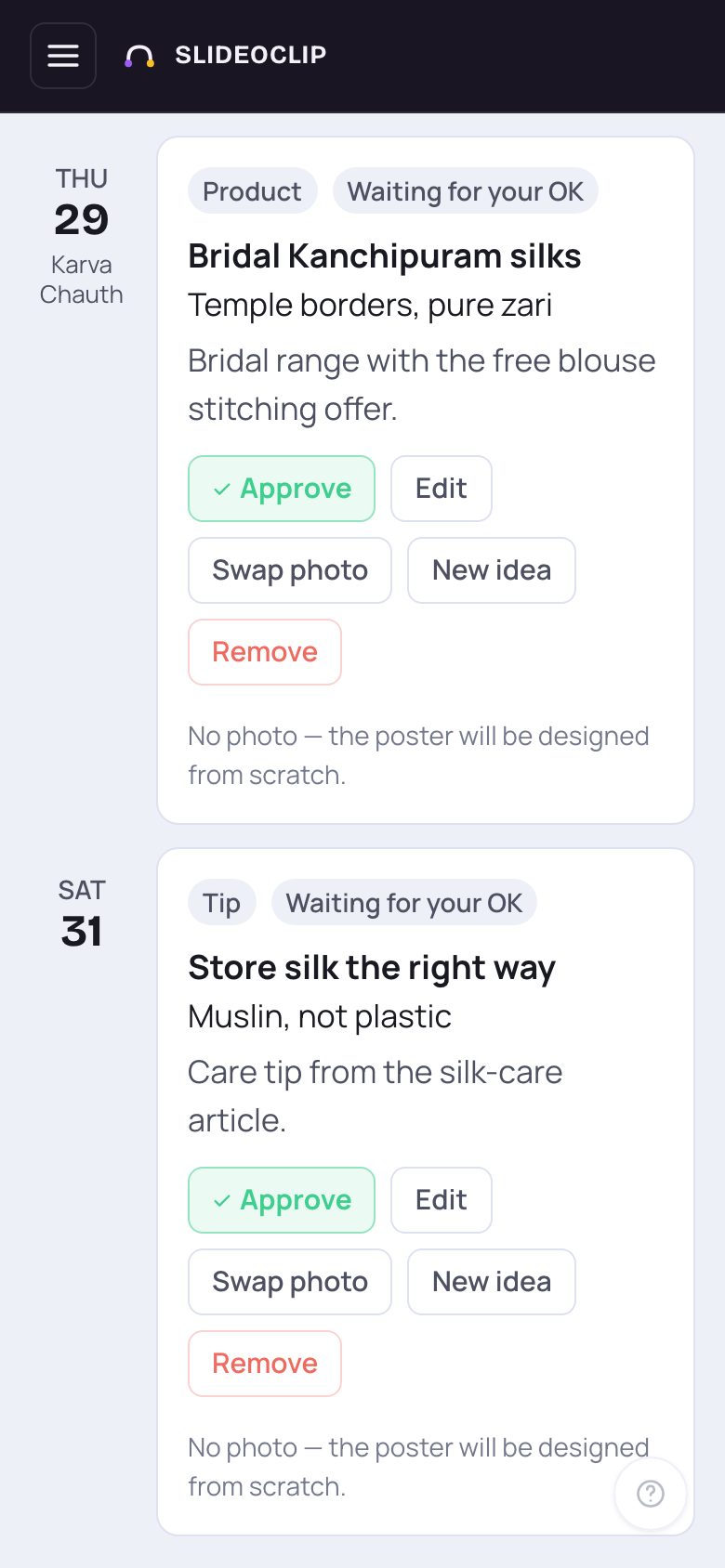
- 1Each date shows one idea: the kind of post (Product, Offer, Tip, Customer proof, Festival or Behind the scenes), the big headline, a smaller line, and what the poster will show. Waiting for your OK means you haven't said yes yet.
- 2Tap Approve if you like it. The card turns green and says Approved. Changed your mind? Tap Undo approve.
- 3Tap Edit to change the date, the kind of post, the headline, the smaller line or the idea itself (next picture).
- 4Don't like it? Tap New idea for a fresh idea on the same date. This is free.
- Swap photo picks one of the client's own photos for this poster, or No photo to have it designed from scratch. Remove takes the idea out of the plan (skip it).
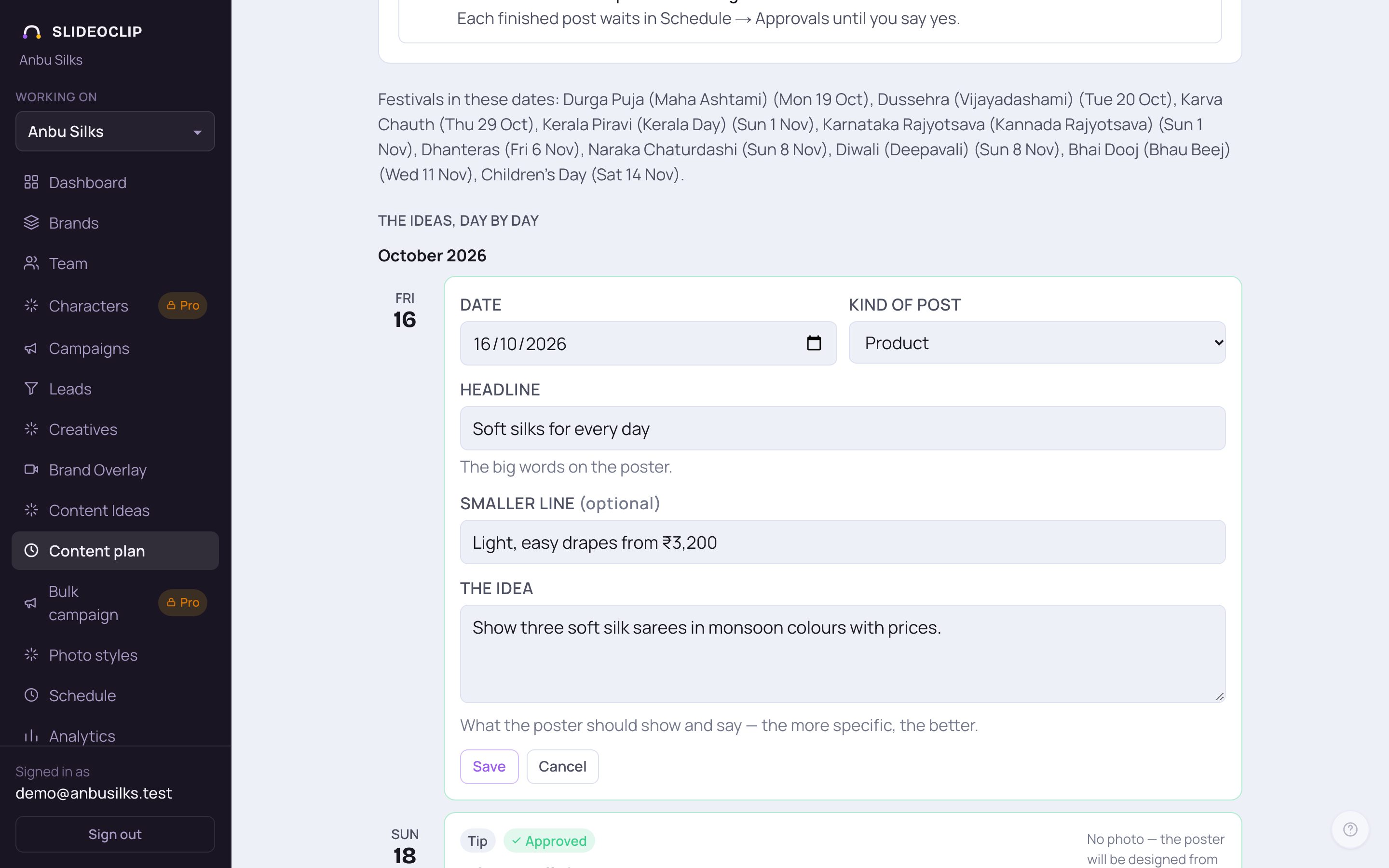
- 1Change the Date (it must stay inside the plan's dates) or the Kind of post.
- 2Headline is the big words on the poster. Smaller line is optional.
- 3The idea: what the poster should show and say. The more exact, the better, for example A bride in a red Kanchipuram silk saree, close-up of the gold border.
- 4Tap Save, or Cancel to leave it as it was.
💡 At the bottom of the list, + Add a post lets you write your own idea for any date in the plan. A post you write yourself counts as approved.
6. See the cost and make the posters
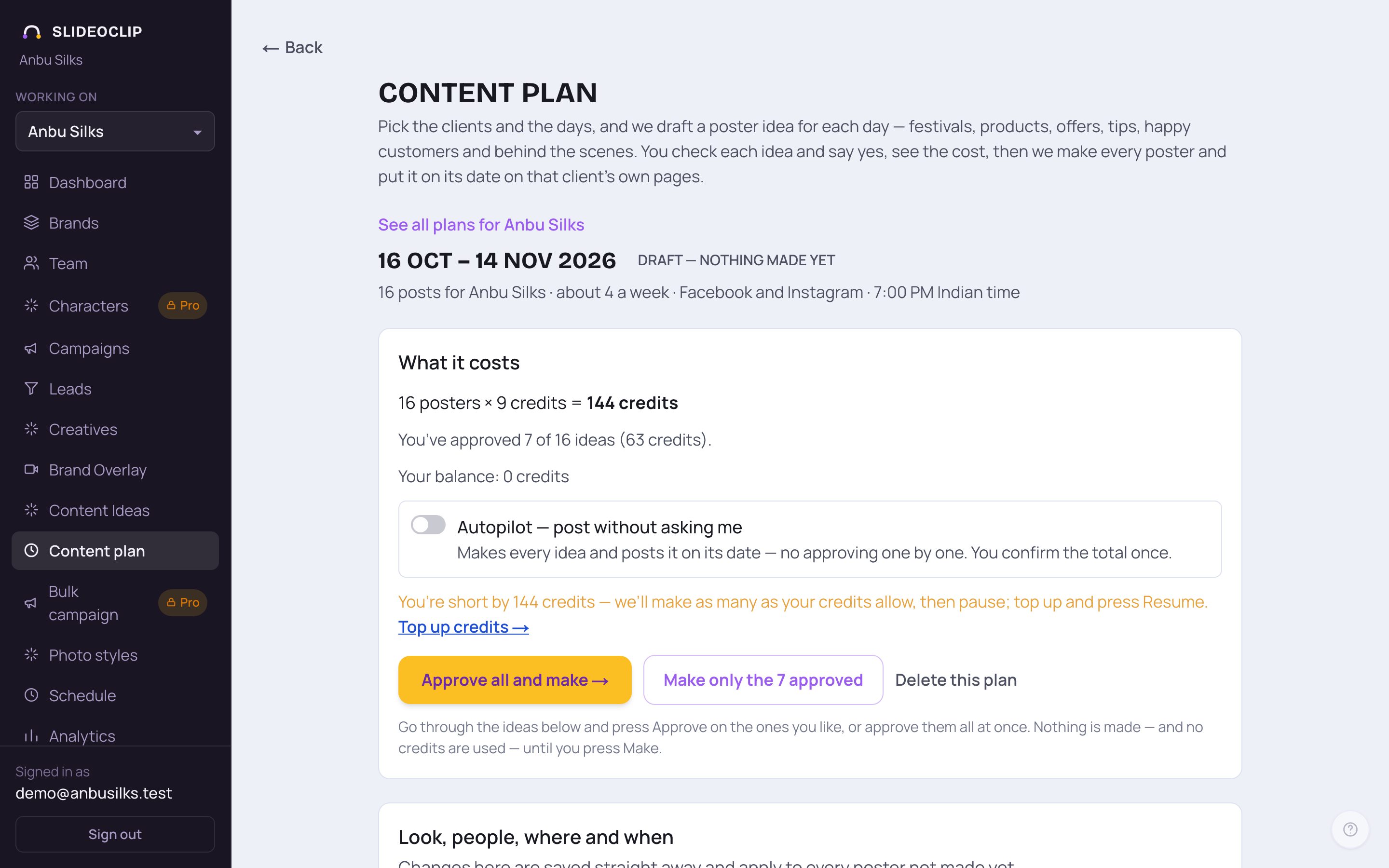
- 1Check Your balance. Your credits cover this. means you're ready. If you're short, as in this workspace where the balance is 0, a line says how many credits you are short by: we make as many posters as your credits allow and then pause. Tap Top up credits →, then Resume →.
- 2You can still turn on Autopilot — post without asking me here. You are asked once to confirm the total before anything is spent.
- 3Approve all and make → approves every idea still waiting and makes them all. A box shows the number of posters, the credits and where they will post; nothing starts until you confirm in that box.
- 4Make only the … approved makes just the ideas you said yes to. The others stay in the plan, not made, and you can make them later.
💡 These buttons use credits. Stop here until you've checked the ideas. The guide does not press them.
7. What happens after you press Make
The posters are made one at a time and each one is put on its date and time on the places you picked. The plan shows Made 3 of 12 (for example) with a bar, and you can leave the page; it keeps going and updates on its own. Each finished idea shows the poster, Open the poster →, and when it goes out (for example Goes out Fri 6 Nov, 7:00 pm (Indian time)). If you chose to review each post, the plan tells you how many are waiting, with Review them in Schedule →. Tap Stop to pause after the poster being made; Resume → carries on. A poster that couldn't be made gets Try again. Cancel all posts from this plan cancels every post that hasn't gone out; the posters stay in Creatives. When it's done you'll see See them on the Schedule calendar →.
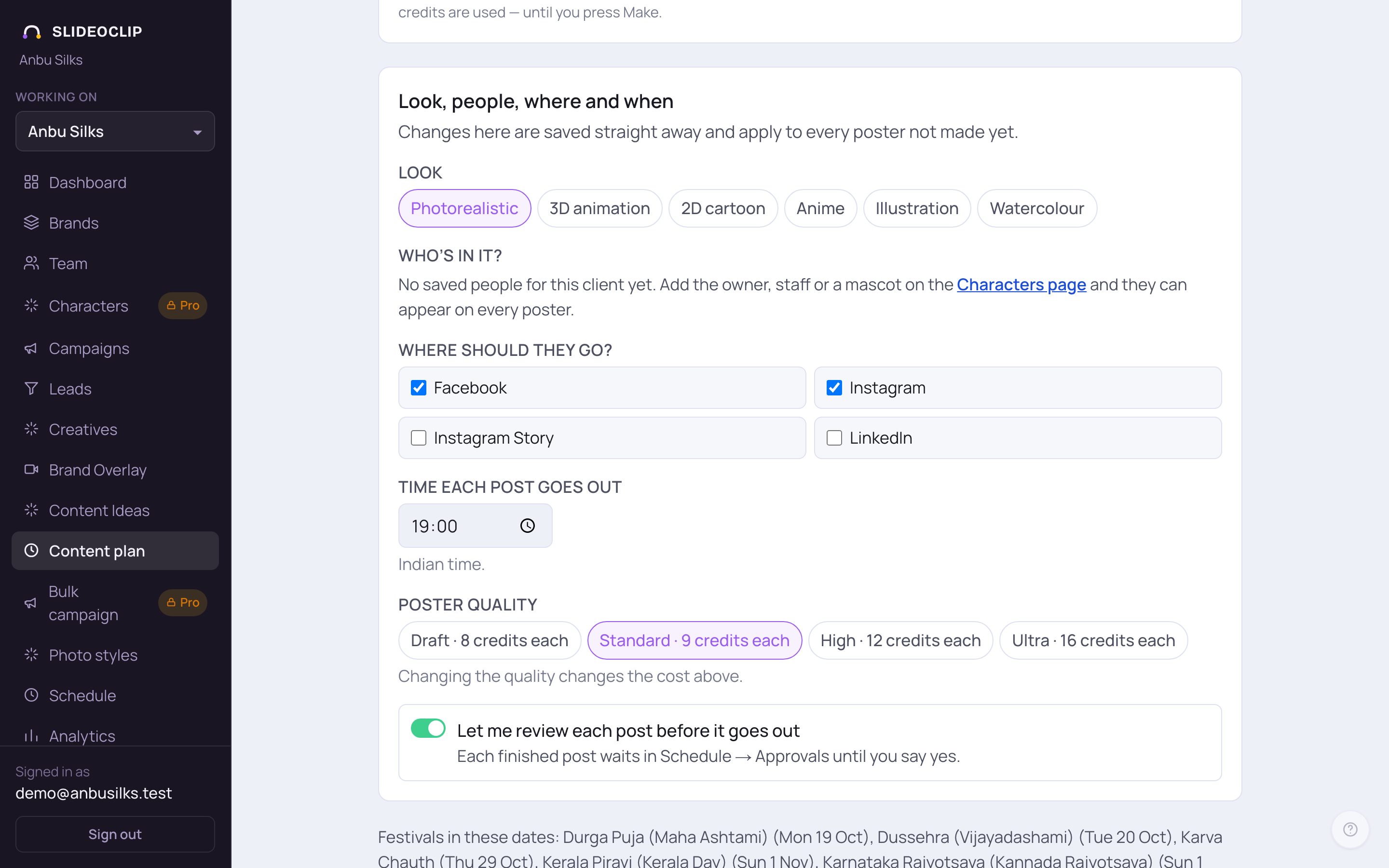
- 1Look, people, where and when: change the look, the people, or the places to post. Changes are saved straight away and apply to every poster not made yet.
- 2Time each post goes out (Indian time) for the whole plan.
- 3Poster quality: changing it changes the cost shown above.
- 4Turn Let me review each post before it goes out on or off for this plan.
- While posters are being made these settings are locked; pause first to change them.
Good to know
- Drafting a plan and asking for a New idea are free. Credits are used only when posters are made, and you always see the total first.
- Give the client's website once under Step 1 (or in Set up for 30 days). Ideas built from the real products and offers need far fewer edits.
- Add the client's own photos on the Brands page; the plan can use them on the posters.
- If a festival post is missing, the plan may say festival dates for those days aren't loaded yet. Add one yourself with + Add a post.
- If some ideas were left out because they didn't stick to the facts or your days, the plan says so in a line you can open to see why.
Questions
Why did it open a setup page instead of drafting my plan?
A client's first plan waits for Set up for 30 days. It takes about 5 minutes, is free, and makes sure SlideoClip knows enough about the business for a month of different posts. After that, come back and draft; later plans for that client don't wait.
Does drafting cost credits?
No. Drafting, editing, New idea and adding your own posts are free. Credits are used only when the posters are made, after you confirm the total.
Can I plan for all my clients at once?
Yes, on the Pro and Agency plans. Tick each client under Plan for. Each client gets its own plan, ideas and pages, and you can approve all of them together or one client at a time.
What if my credits run out halfway?
Making pauses with a note saying why. The posters already made stay on their dates. Top up on the Billing page and tap Resume →.
Why can't I post the plan to YouTube?
A content plan makes posters, which are pictures. YouTube takes videos, so it isn't offered here.
It says I've drafted as many plans as I can for today.
There is a daily limit on free drafting. Try again tomorrow, or open one of your existing plans and use New idea or + Add a post.
How do I delete a plan?
Open it and tap Delete this plan at the bottom of What it costs. Posters already made stay in Creatives.