All guides
Get help and contact support
Find answers in the Help centre inside the app, replay the tour and the welcome screen, and know how to reach the SlideoClip team when you are stuck.
1. Open Help from anywhere
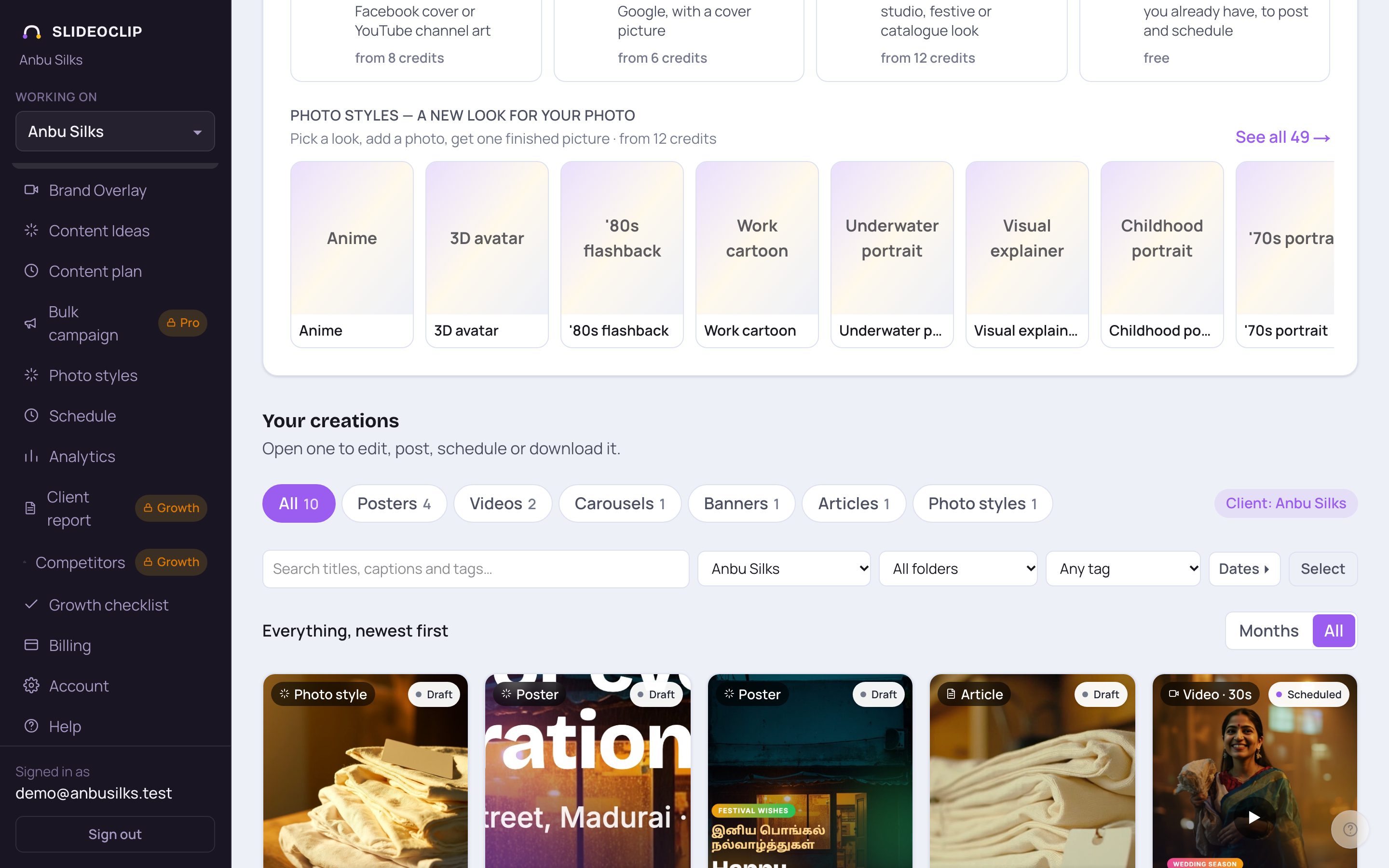
- 1Tap Help in the menu. On a phone, open the menu with the three lines at the top first.
- 2Or tap the round question-mark button at the bottom right of any page. It is faint until you point at it.
2. Search for an answer
The Help centre answers the common questions: costs and credits, making posters and videos, connecting accounts, posting, and fixes for the usual problems.
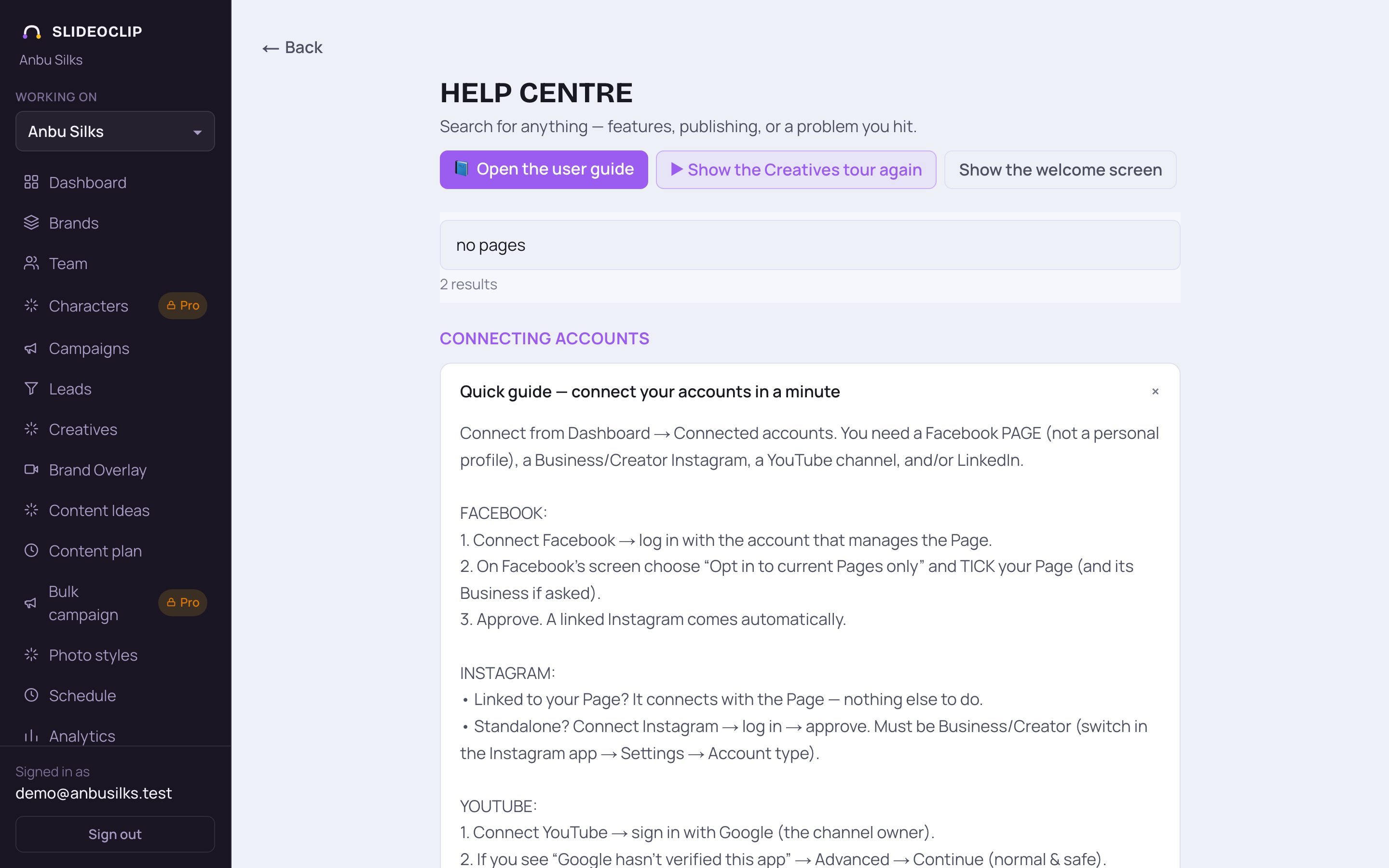
- 1Type a few words in the search box, such as "no pages", "instagram story", "credits" or "2K video". The list shrinks as you type and shows how many results matched.
- 2Matching answers open by themselves. Read the answer under each question.
💡 Nothing matched? The page shows the support email right there. Try other words, or write to us.
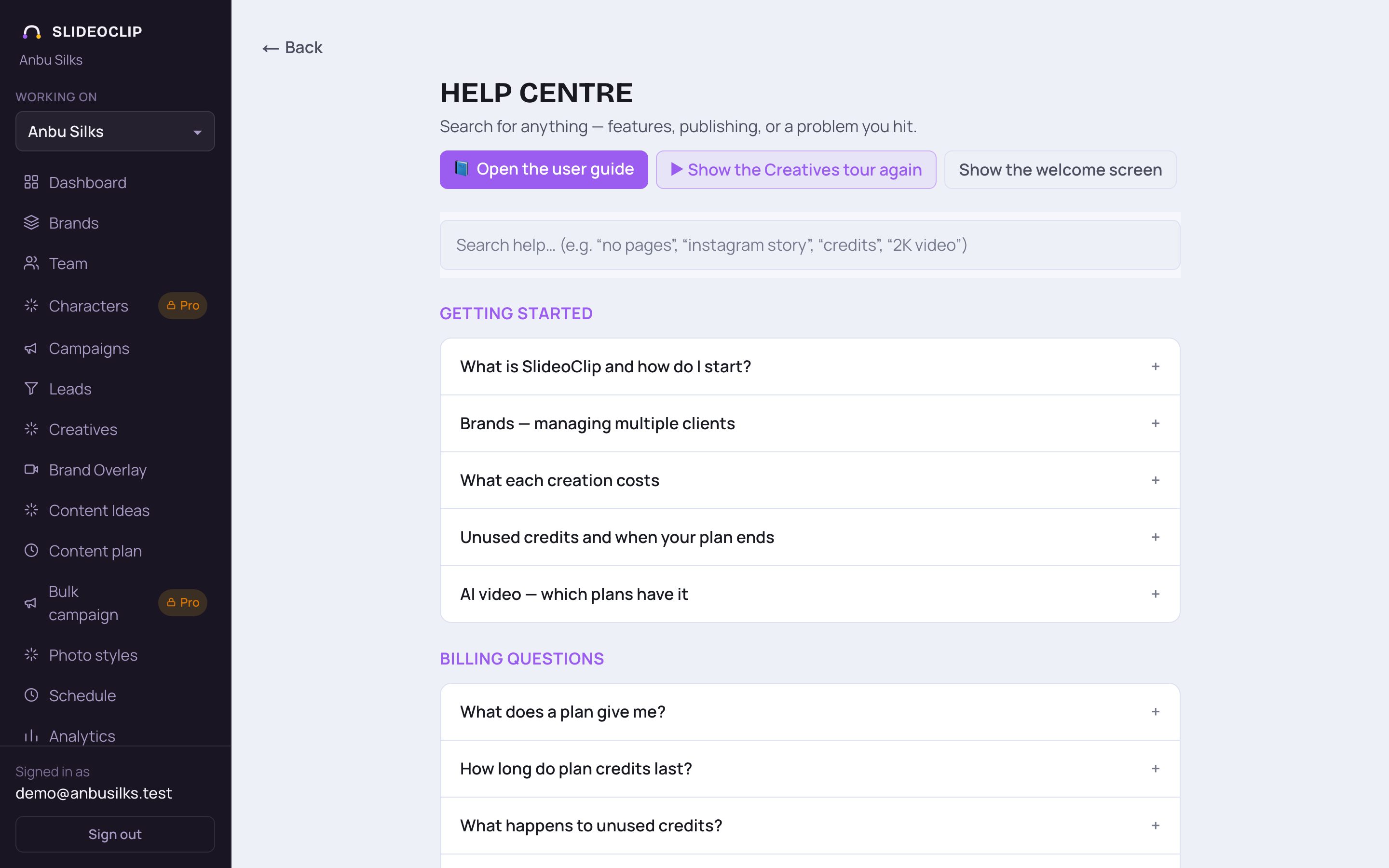
- 1Or just scroll. Answers are grouped: Getting started, Billing questions, Creating content, Connecting accounts, Publishing & scheduling, Troubleshooting & common hiccups and Privacy & data.
- 2Tap a question to open its answer. Tap it again to close it.
- 3Billing questions has the same answers as the pricing page: plans, top-ups, expiry, GST and refunds.
3. Replay the tour or the welcome
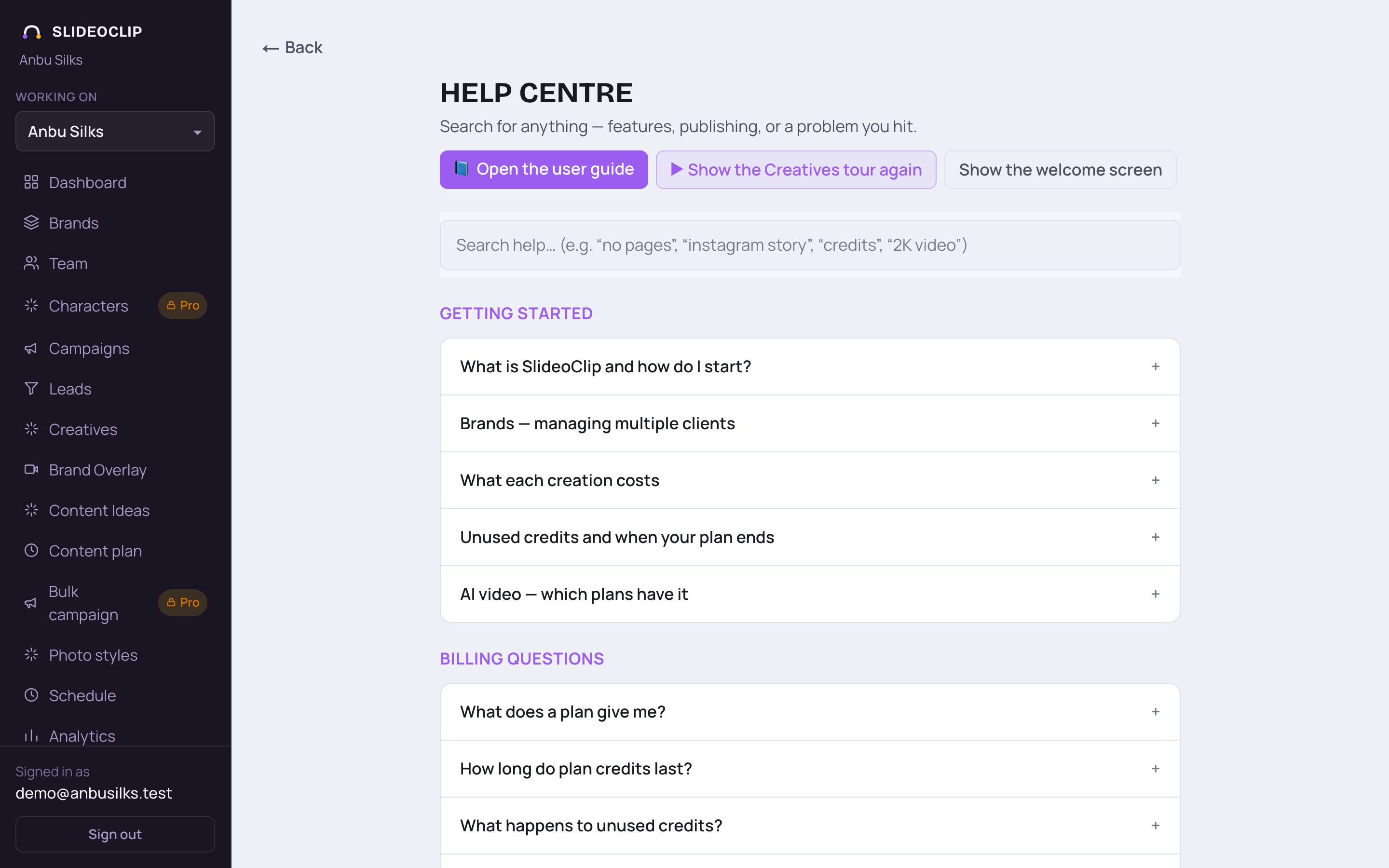
- 1▶ Show the Creatives tour again opens Creatives with the 5-step tour that points out each part.
- 2Show the welcome screen opens the first-login welcome with its three starting choices.
💡 Both are handy when a new team member joins. See "Your first login: welcome, tour and checklist".
4. Contact support
Still stuck? Write to the SlideoClip team by email.
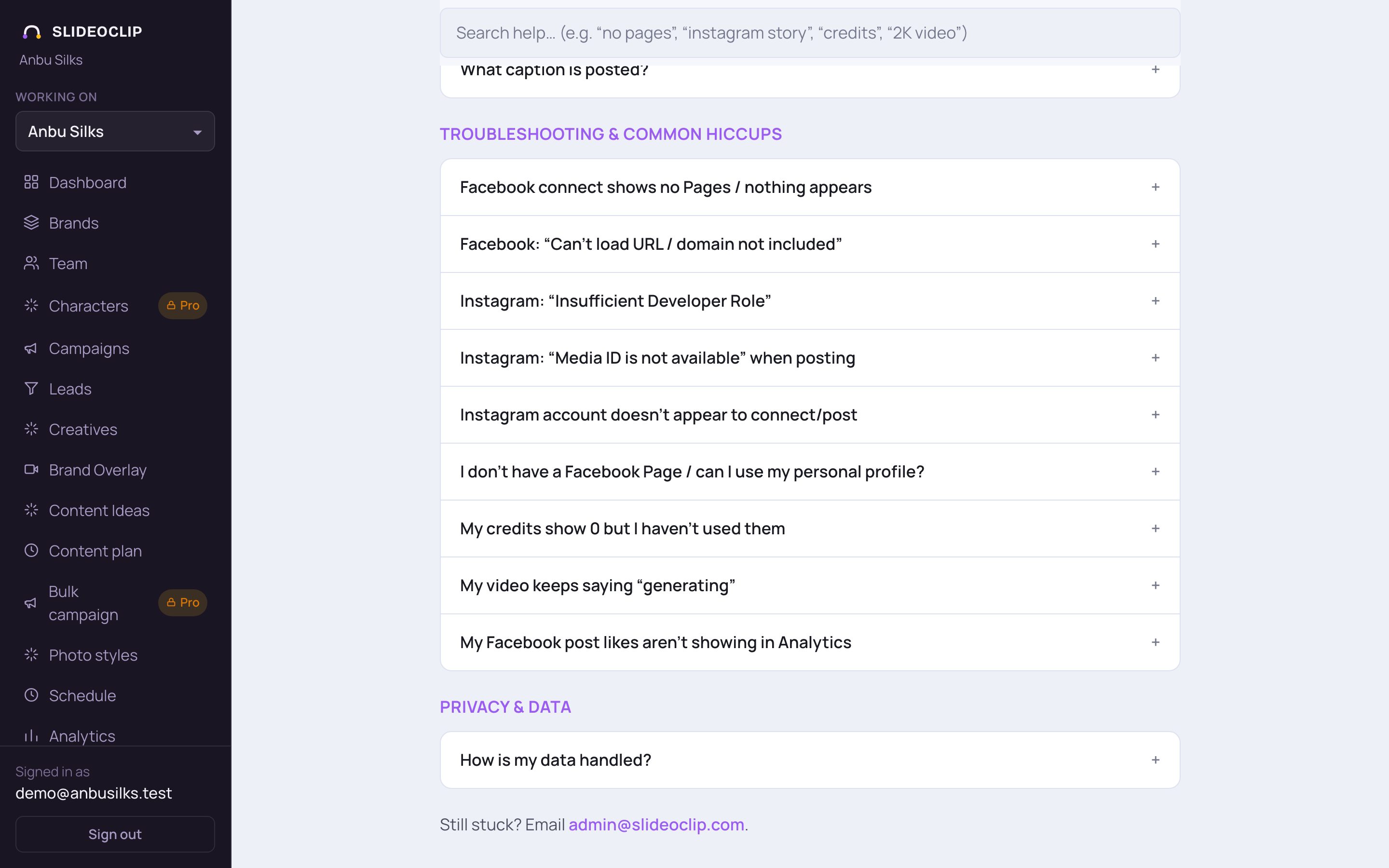
- 1At the bottom of the Help centre, tap admin@slideoclip.com. Your email app opens with our address filled in.
- Say which email you log in with, and which client (brand) it is about.
- Say what you tapped and what happened, and copy any red message word for word.
- Attach a screenshot if you can. It is the fastest way for us to see the problem.
💡 Never send your password. We never need it to help you.
Good to know
- Posting problems? Look for the Reconnect and Details buttons next to a failed place on the Publish screen first. See "Fix posting problems".
- Many connection problems on Facebook come from choosing all current and future Pages. The Help centre answer "Facebook connect shows no Pages / nothing appears" explains the fix.
Questions
Which email address do I write to?
admin@slideoclip.com, the address shown in the Help centre.
How do I close my account?
Email support@slideoclip.com from the address you log in with, as our Terms of Service explain.
Do I lose credits if something fails?
No. A failed creation is never charged; the credits come back by themselves. Check Billing, Recent transactions, to see it.