All guides
Teach SlideoClip about your business
Each business has its own Knowledge page: what you sell, who buys, real numbers, offers, things never to say, how you sound and common questions. SlideoClip uses it in every poster, video, article, caption and ad, so you never have to explain your business again.
Before you start
- ✓A business added on the Brands page (see Add your business)
1. Open the Knowledge page
Every business card on the Brands page has a Knowledge button. It shows how many facts SlideoClip knows, for example Knowledge (12 facts). It says Add knowledge when nothing is saved yet.
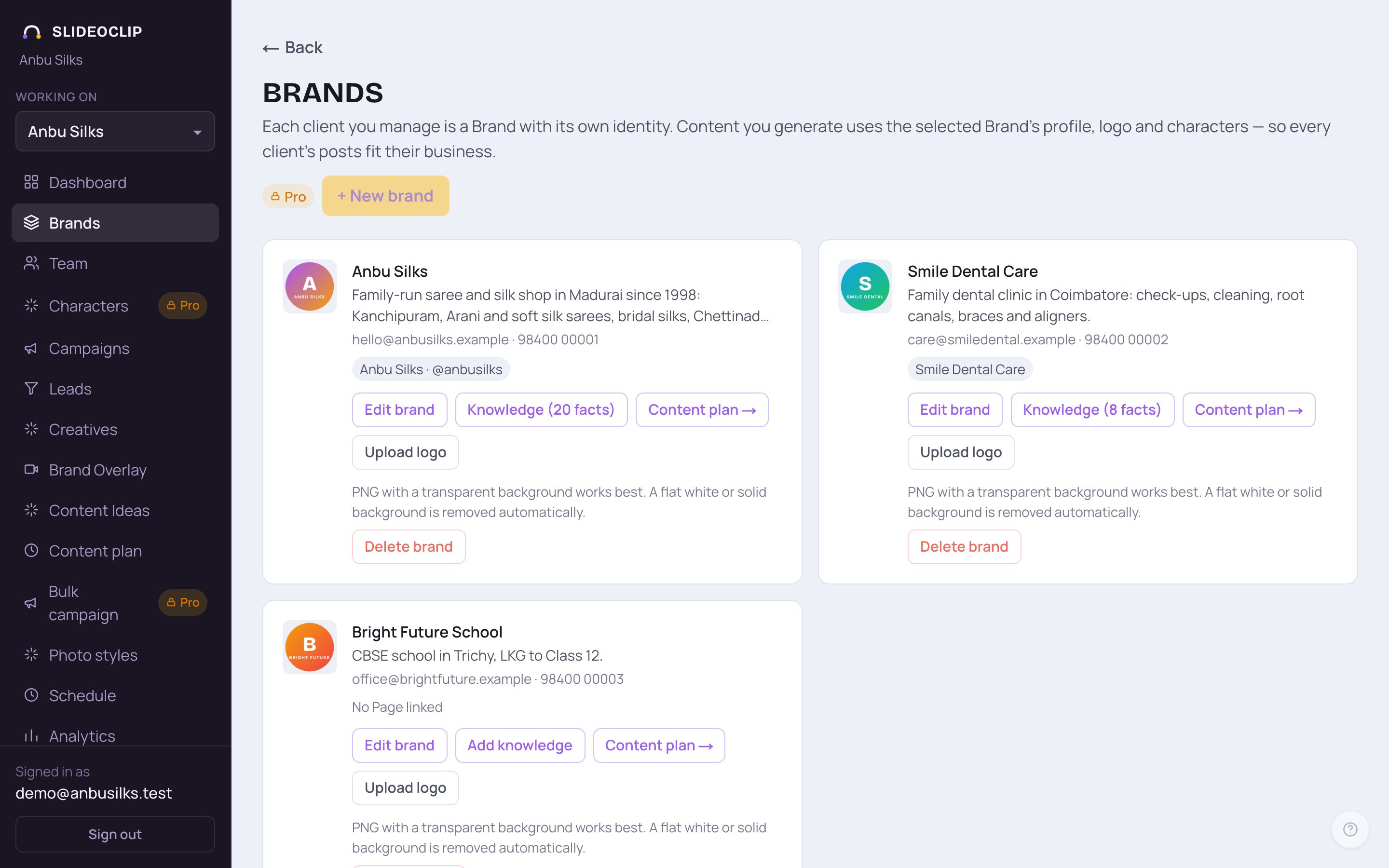
- 1Tap Brands in the menu.
- 2On the business's card, tap Knowledge (or Add knowledge).
- You can also open it from inside Edit brand, with the Open knowledge button under Knowledge.
2. Fastest way: set up from the website
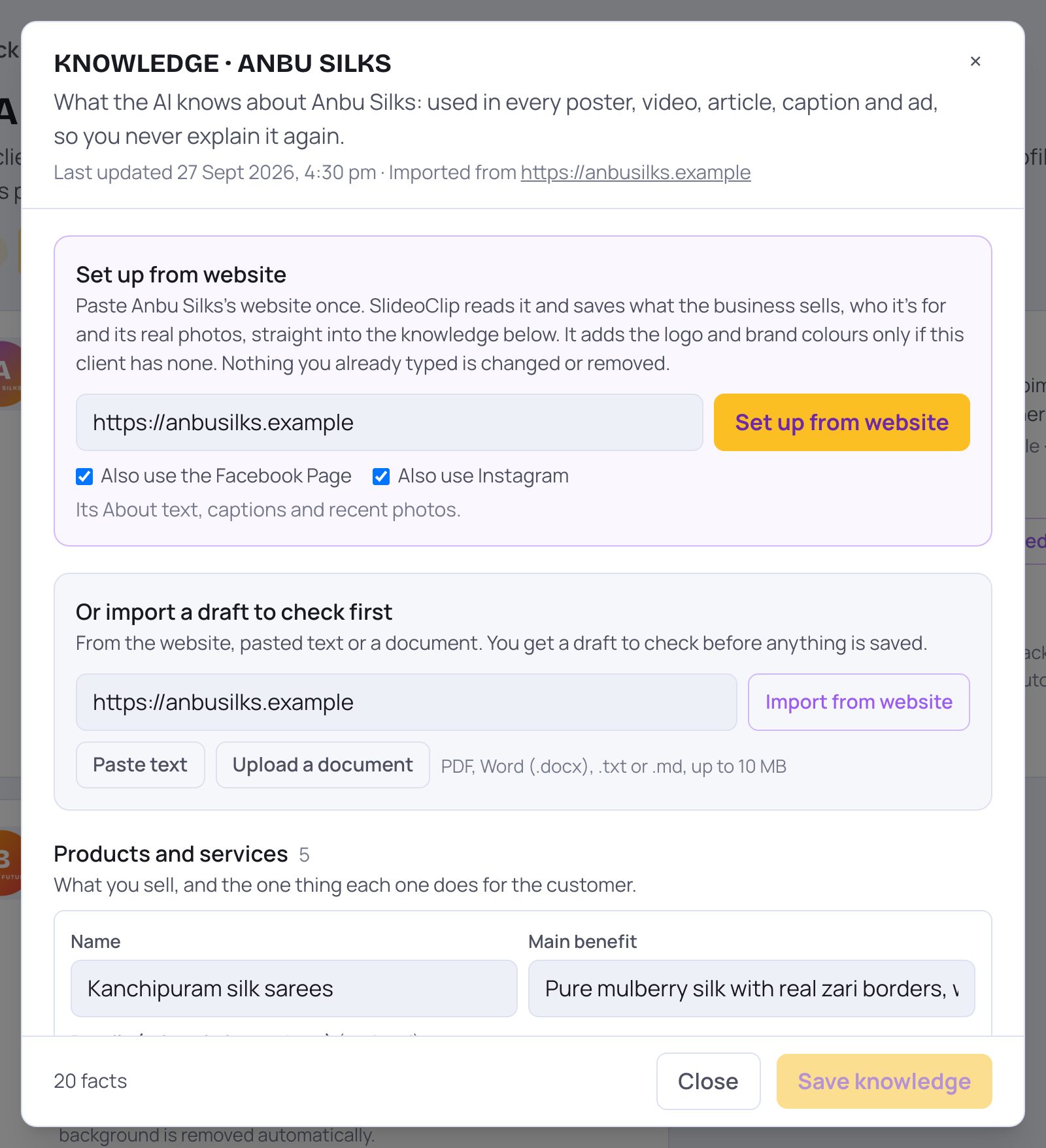
At the top of the Knowledge page is Set up from website. Paste the website once and SlideoClip reads it. It saves what the business sells, who it's for and its real photos, straight into the knowledge. It adds the logo and brand colours only if the business has none. Nothing you already typed is changed or removed. It costs no credits.
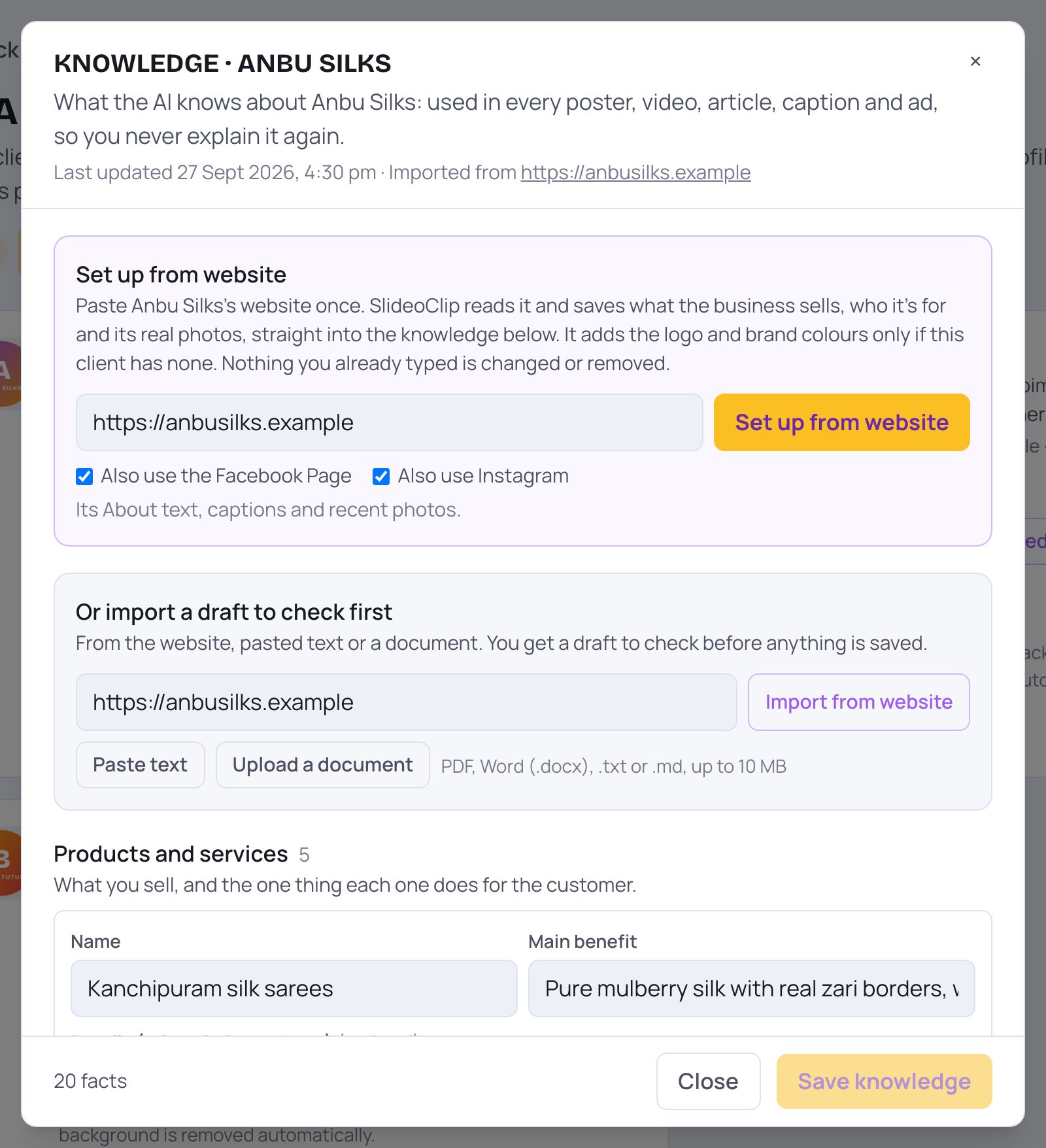
- 1Type or paste the website address, like www.yourshop.in. If the business already has a website saved, it's filled in for you.
- 2Tick Also use the Facebook Page to read its About text, captions and recent photos too. This shows only when a Facebook Page is linked to the business.
- 3Tick Also use Instagram to read the linked Instagram as well.
- 4Tap Set up from website. It takes about a minute. Keep the window open to see what was found.
- No website? Leave the box empty and tick Facebook or Instagram. SlideoClip learns from those alone.
- When it finishes, a summary appears under Done. Here's what SlideoClip set up for …: About the business (how many products, customer groups, facts, offers and questions were added), Logo (saved, or kept the one you have), Brand colours (with colour dots) and Photos (the real photos it saved, each marked Product, People, Place or Photo, and where it came from).
- Tap Remove under any photo that isn't right. It is only taken off the business's photos; the website or post it came from is not touched. Left out lists anything it skipped.
💡 The facts it learned appear in the sections further down. Read through them and fix anything wrong: SlideoClip only writes what it found, but a website can be out of date. At the top of the window, Last updated and Imported from show when the knowledge was last saved and where it was read from.
3. Or import a draft to check first
This box lets you read a website, some pasted text or a document into a DRAFT. Nothing is saved until you check it and tap Save knowledge. If you already have facts, SlideoClip asks whether to Add to mine or Replace mine.
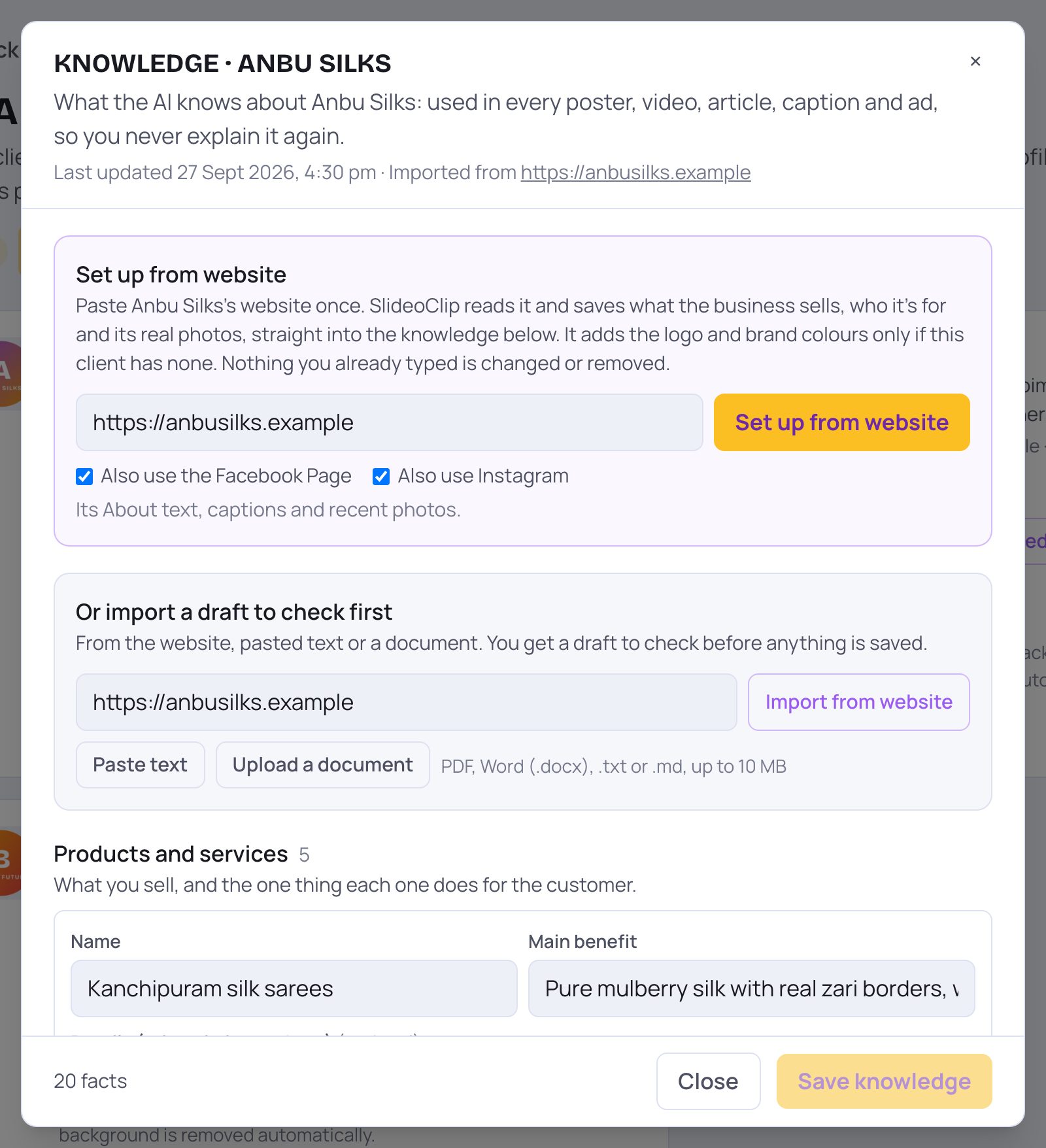
- 1Type a website address in the box and tap Import from website.
- 2Tap Paste text to paste a brochure, About page, price list or WhatsApp notes.
- 3Tap Upload a document to read a PDF, Word (.docx), .txt or .md file, up to 10 MB. Old .doc files can't be read: save them as .docx or PDF first.
- Reading takes 20 to 60 seconds. Tap Stop if you change your mind.
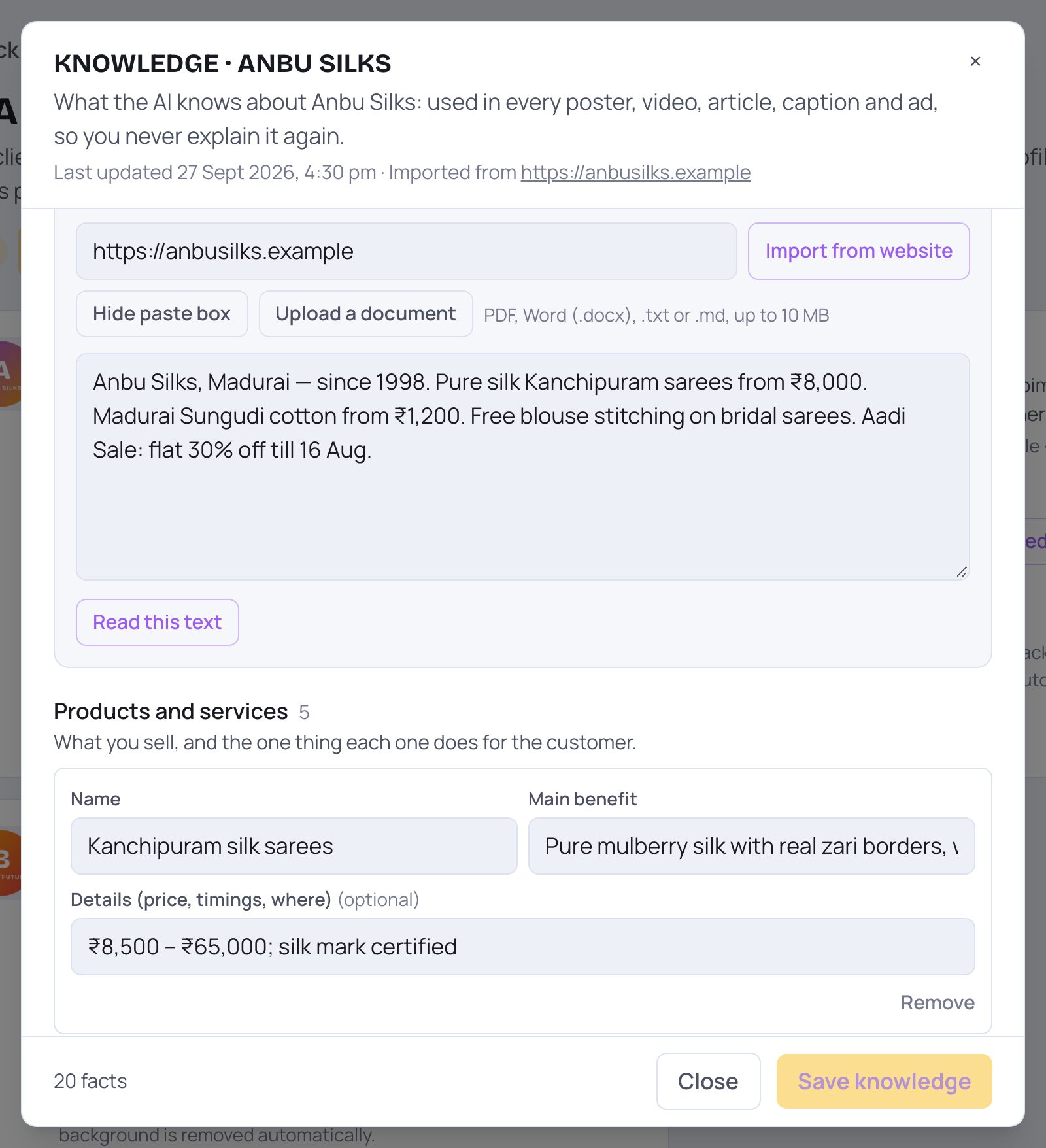
- 1Paste or type a few sentences about the business, in any language.
- 2Tap Read this text. A yellow note Draft from your text appears, and the facts fill the sections below. Check them, then save.
- Tap Hide paste box to close the box without reading.
4. Check, add and remove facts
The facts are kept in sections. Each section has a short hint and a + Add … button. Each row has a Remove button. Boxes marked (optional) can be left empty.
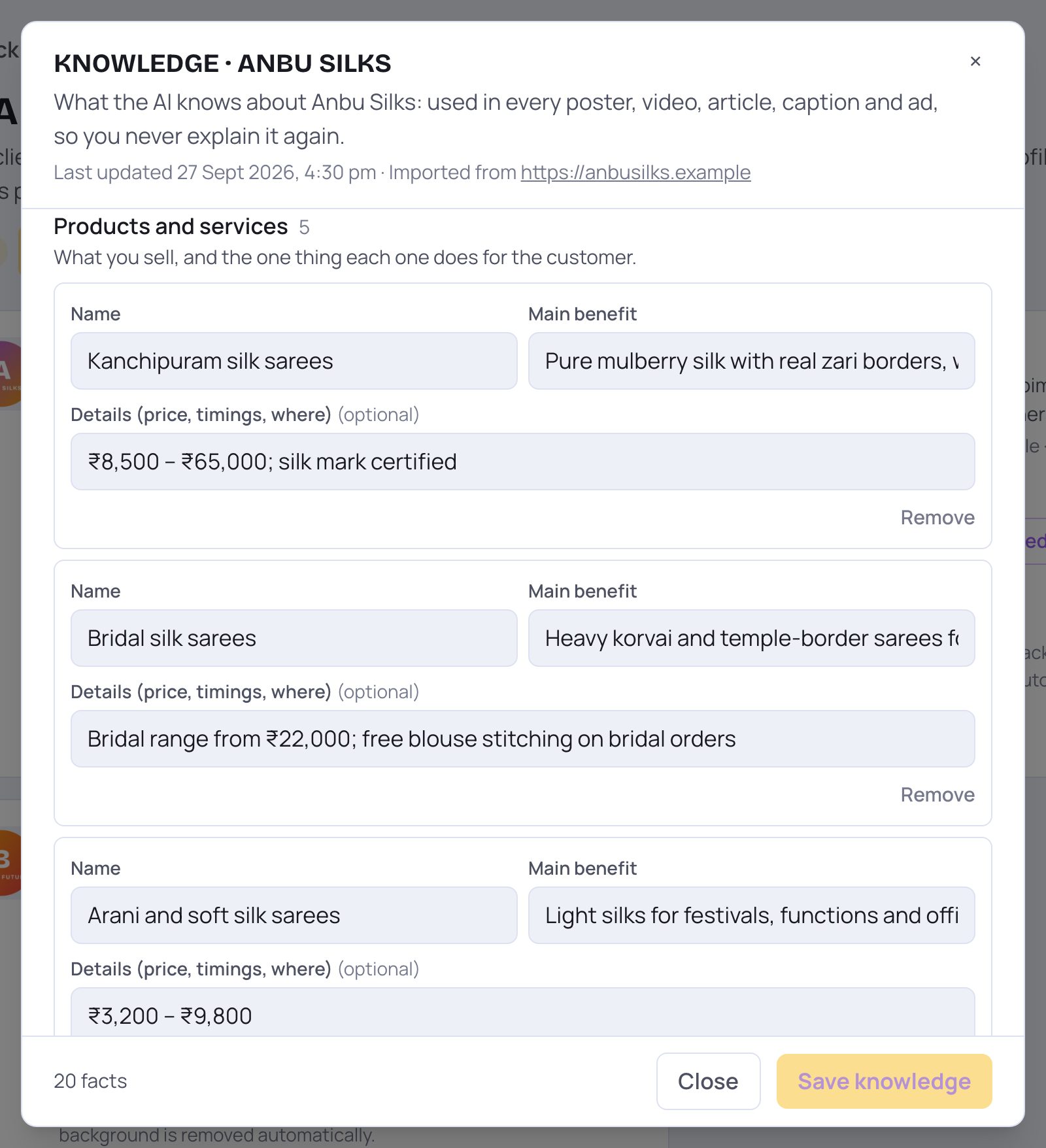
- 1Products and services: what you sell, and the one thing each one does for the customer.
- 2Each product has a Name, a Main benefit, and Details (price, timings, where) if you like.
- 3Tap Remove under a row to delete that fact.
- At the end of the list, tap + Add a product or service for another one.
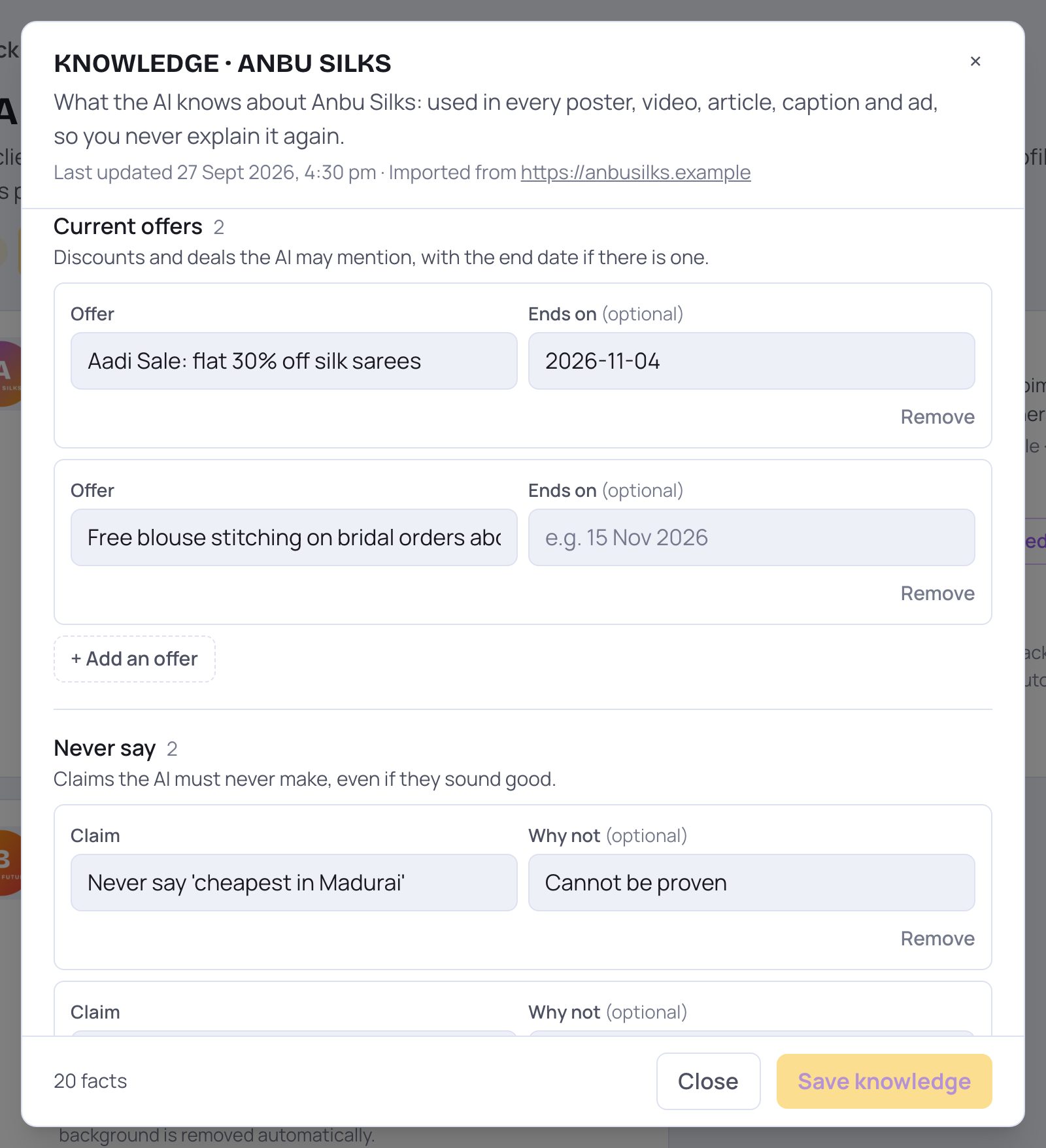
- 1Current offers: discounts and deals SlideoClip may mention, with Ends on if the offer has an end date.
- 2Never say: claims SlideoClip must never make, even if they sound good, like "Guaranteed results". Add Why not if you like.
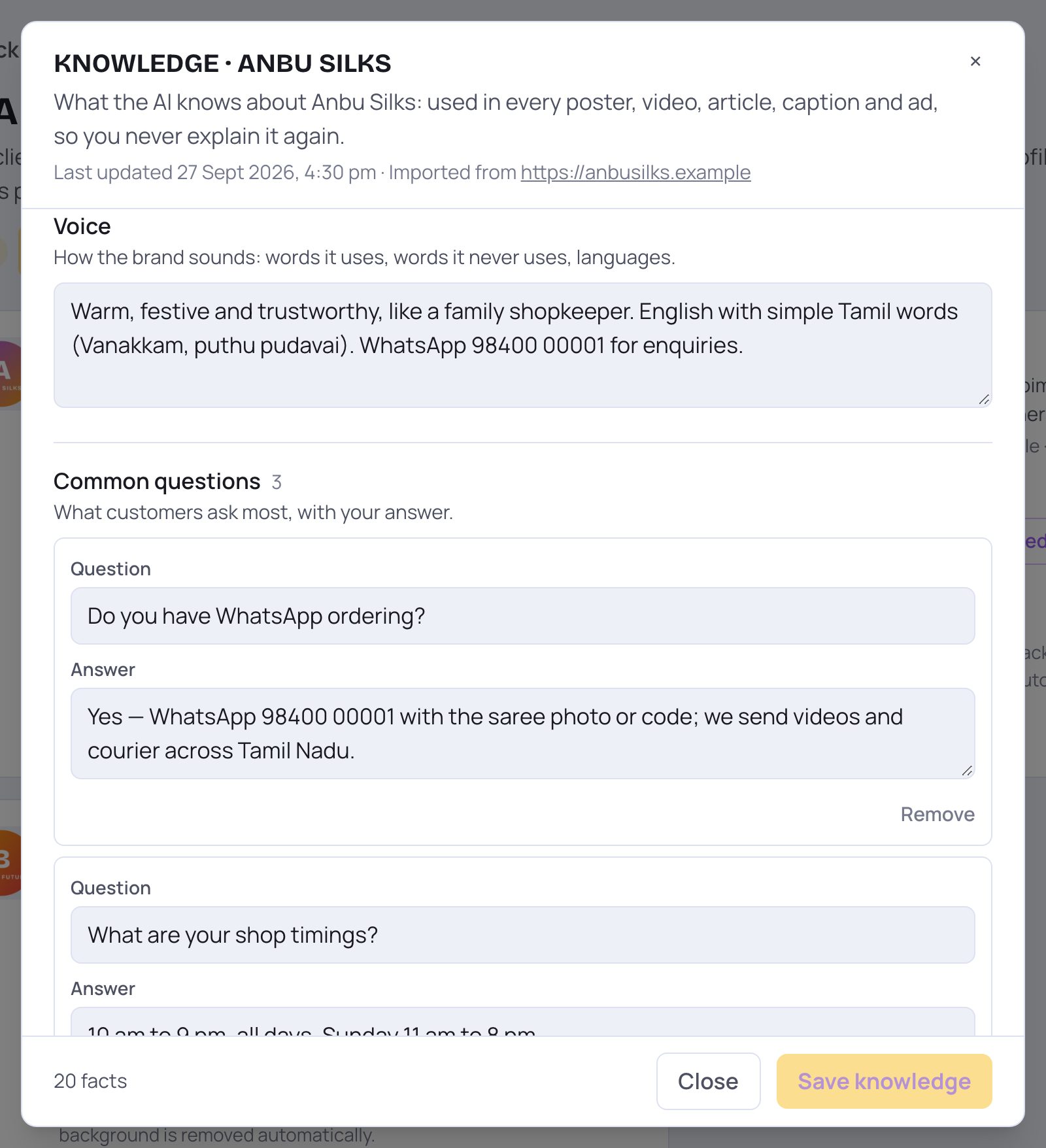
- 1Voice: how the business sounds, words it uses or never uses, and the languages, for example "Warm and simple. Mix in Tamil words. No ALL CAPS."
- 2Common questions: what customers ask most, with your answer.
- 1Tap Save knowledge to save your changes. It can only be tapped when something has changed. The left of the bar says Unsaved changes until you save, then Saved.
- 2Tap Close when you're done. If you have unsaved changes, SlideoClip asks before closing: tap Keep editing to go back, or Leave without saving.
- If a row is half filled, the bar tells you which one, for example "row 1 needs a name".
Good to know
- Real numbers make the best posts: prices, years in business, number of happy customers, Google rating. Put them in Proof and numbers so they are quoted exactly.
- Update Current offers when a sale starts or ends, so old offers don't appear in new posts.
- Use Never say for anything risky in your trade, like medical promises or "100% guaranteed".
- The Set up for 30 days check reads this same knowledge, and your answers to its questions are added here too.
Questions
Does reading my website cost credits?
No. Set up from website and the knowledge itself are free.
Will SlideoClip change what I typed?
No. Set up from website only adds. An import first shows a draft, and you choose Add to mine or Replace mine before anything is saved.
Is the knowledge shared between my clients?
No. Each business has its own knowledge. Posts for one client never use another client's facts.
It says "No facts found there". What now?
The page may have little text. Try another page of the website, paste the text with Paste text, or upload a document.