All guides
Track your competitors
Keep an eye on a competitor's YouTube channel, website and news in one place, and see what changed since you last looked. Use it to spot their new offers and videos, and plan your own posts.
Before you start
- ✓A Growth, Pro or Agency plan (each plan allows a set number of competitors)
1. Add a competitor
Tap Competitors in the menu. Everything here comes from public sources: their YouTube channel, their website and news mentions.
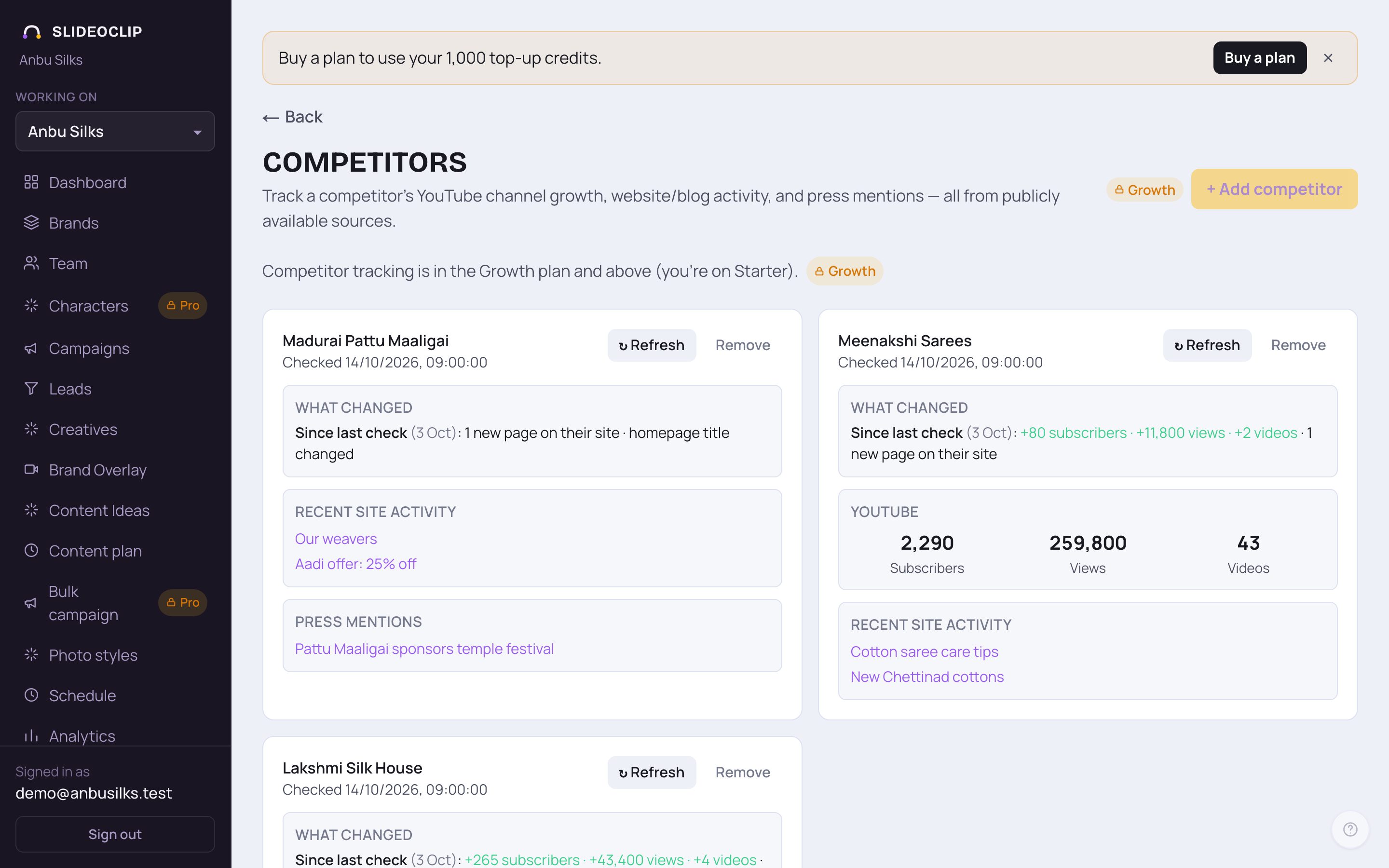
- 1Tap + Add competitor.
- Competitors you already track show as cards below. With none yet, the page says No competitors tracked yet.
💡 If the button is greyed out, you've reached the number of competitors your plan allows, or your plan doesn't include competitor tracking. The note next to it says which.
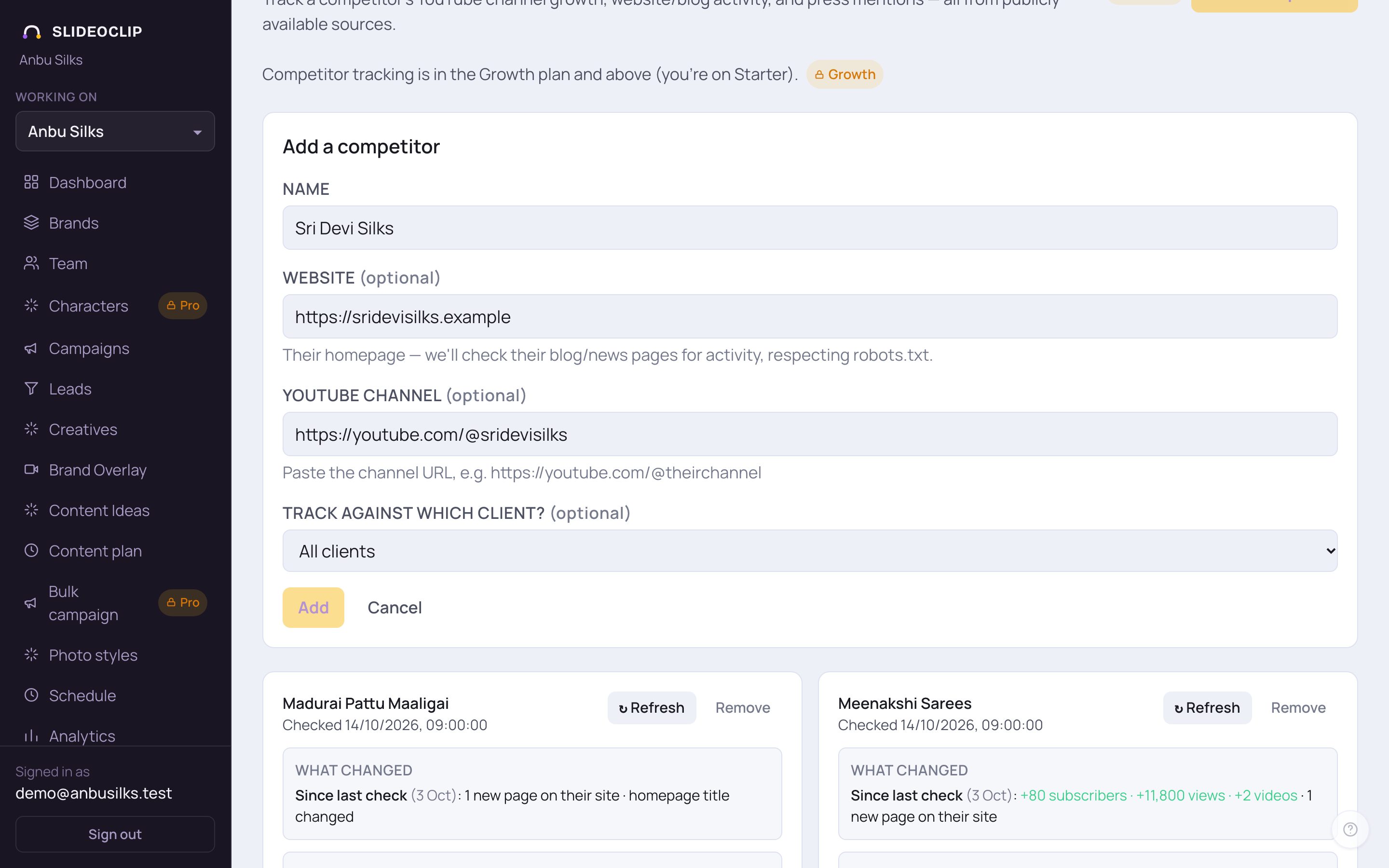
- 1Name: the competitor's name, the way you know them.
- 2Website (optional): their homepage. We check their blog and news pages for new activity.
- 3YouTube channel (optional): open their channel in YouTube, copy the link (it looks like https://youtube.com/@theirchannel) and paste it here.
- 4Tap Add. Tap Cancel to close the form without adding.
- Track against which client? (optional): pick the client this competitor matters to, or leave All clients.
💡 Give at least the website or the YouTube channel; with only a name there is little to check.
2. Get the first snapshot, then check again
A new competitor says Never checked. Tap ↻ Refresh on its card to pull the first snapshot; it shows Checking… for a moment. Nothing is checked on its own, so tap ↻ Refresh whenever you want fresh numbers, for example once a week. Refreshing uses no credits.
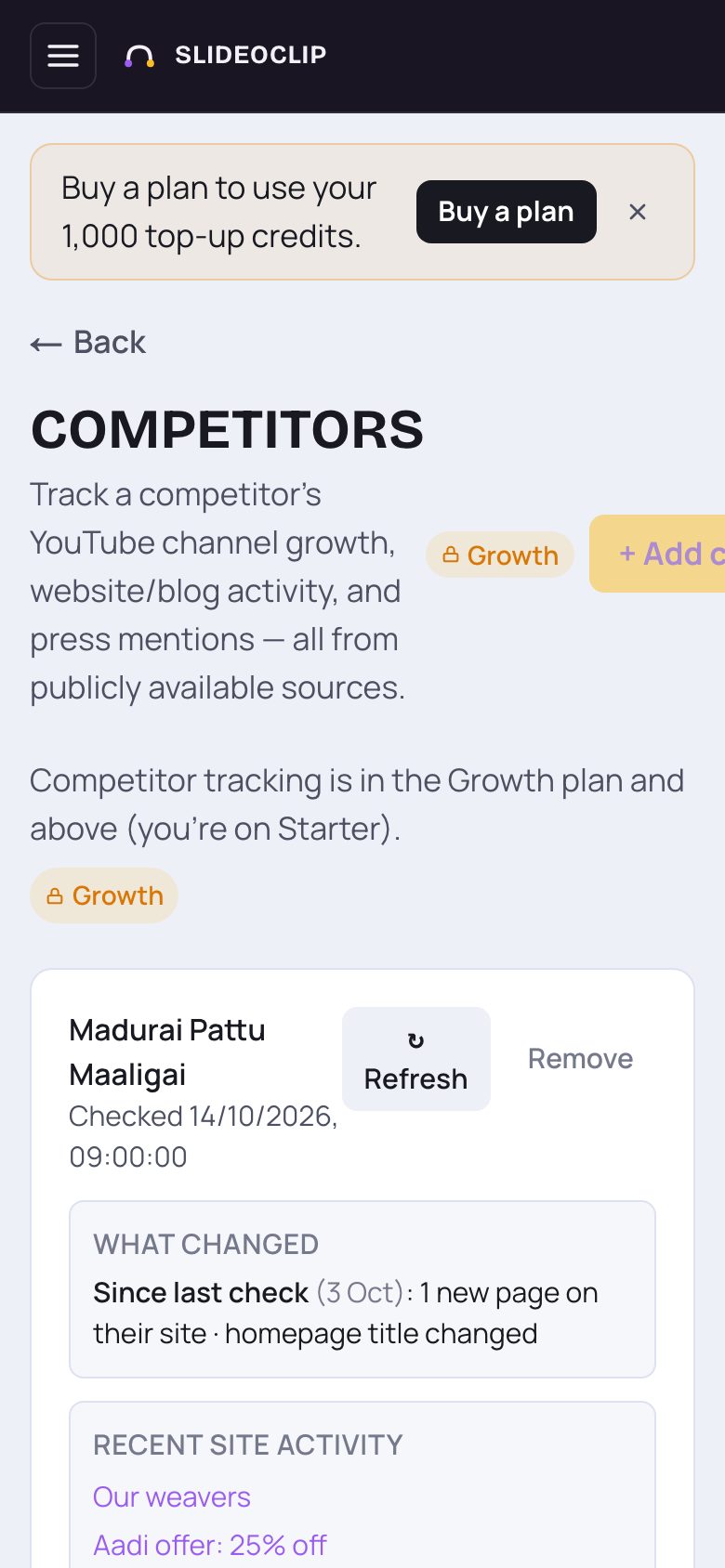
- 1↻ Refresh checks the competitor again now. The line under the name says when it was last checked.
- 2Remove stops tracking this competitor (you're asked to confirm).
3. What you learn from each card
After a refresh, each card can show these parts (a part is left out when there's nothing to show):
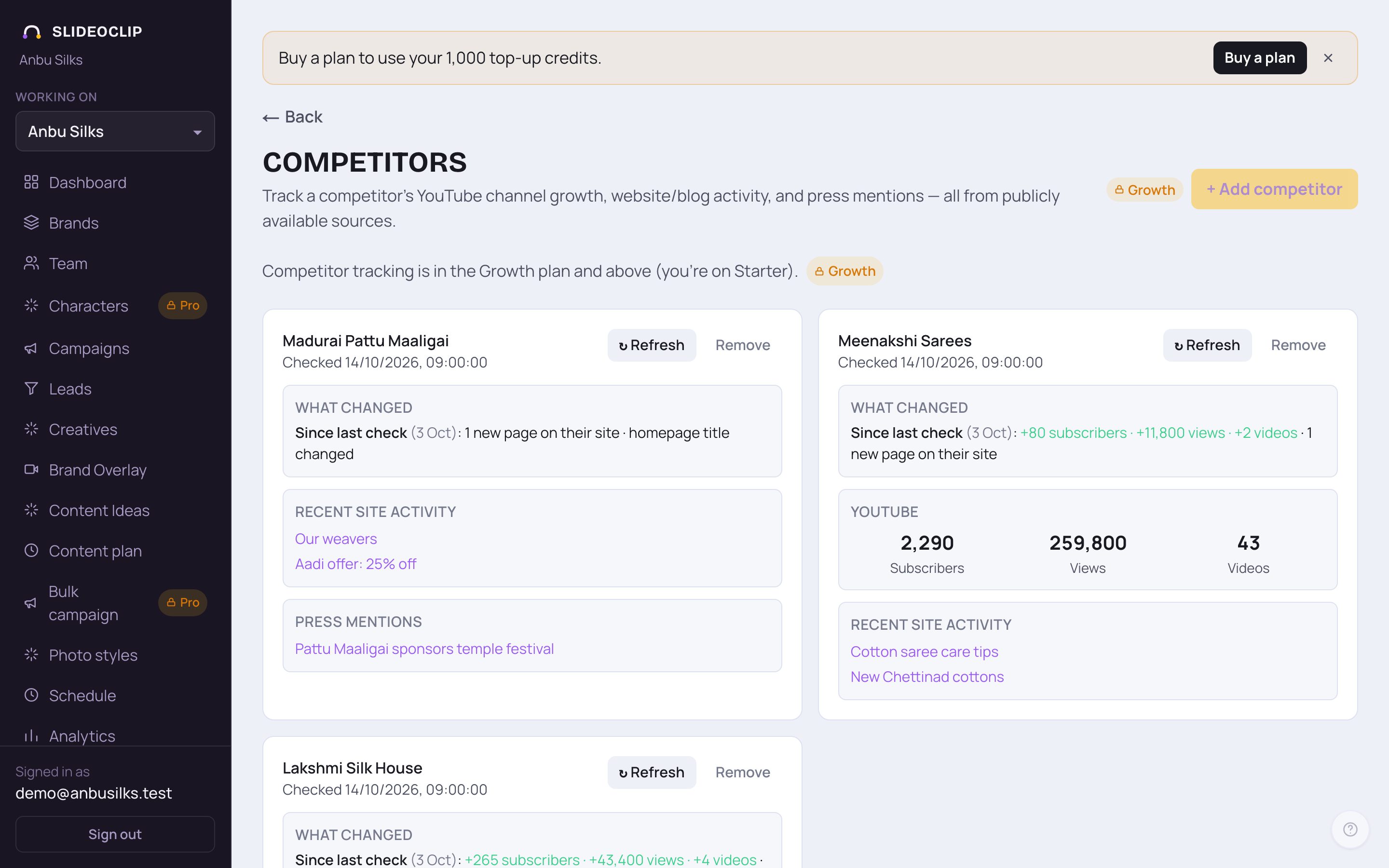
- 1What changed: Since last check and since about a month ago, for example +1,200 subscribers · 3 new pages on their site · 2 new press mentions. Green means up, red means down. It appears once you've refreshed at least twice.
- 2YouTube: the channel's Subscribers, total Views and number of Videos.
- 3Recent site activity: the newest pages on their website, such as blog posts or offers. Tap one to open it.
- 4Press mentions: recent news about them. Tap one to read it.
Good to know
- Track two or three close competitors, not big national brands. Their moves matter more to your customers.
- When What changed shows a jump in their subscribers or a new page on their site, open it and see what they did: a new offer, a new video series, a festival sale.
- Turn what you learn into your own posts: add the idea to your content plan with + Add a post, or make a poster or video about it.
- Use Content Ideas alongside this page to see what's trending in your whole niche, not just with one competitor.
Questions
Does it check automatically?
No. Numbers update only when you tap ↻ Refresh on a card. Every refresh is kept, so What changed can compare with your last check and with about a month ago.
Why is the YouTube part missing?
Either no YouTube channel link was given, or YouTube couldn't find the channel; the card then shows the reason. Some channels also hide their subscriber count, which then shows as —.
Can I see their Facebook or Instagram posts?
Not here. The page tracks their YouTube channel, website and news mentions.
How many competitors can I track?
It depends on your plan; competitor tracking starts on the Growth plan and bigger plans allow more. When you reach the limit, + Add competitor is greyed out.