All guides
Schedule posts for later
Pick a poster or video from your library and choose the day and time it goes out. Then see everything on the calendar, move posts to another day, or cancel them.
Before you start
- ✓At least one account connected (see Connect your accounts)
- ✓A poster or video in your library
1. Open the Schedule page
Tap Schedule in the menu on the left. At the top are your schedules; below is the calendar of everything that is going out.
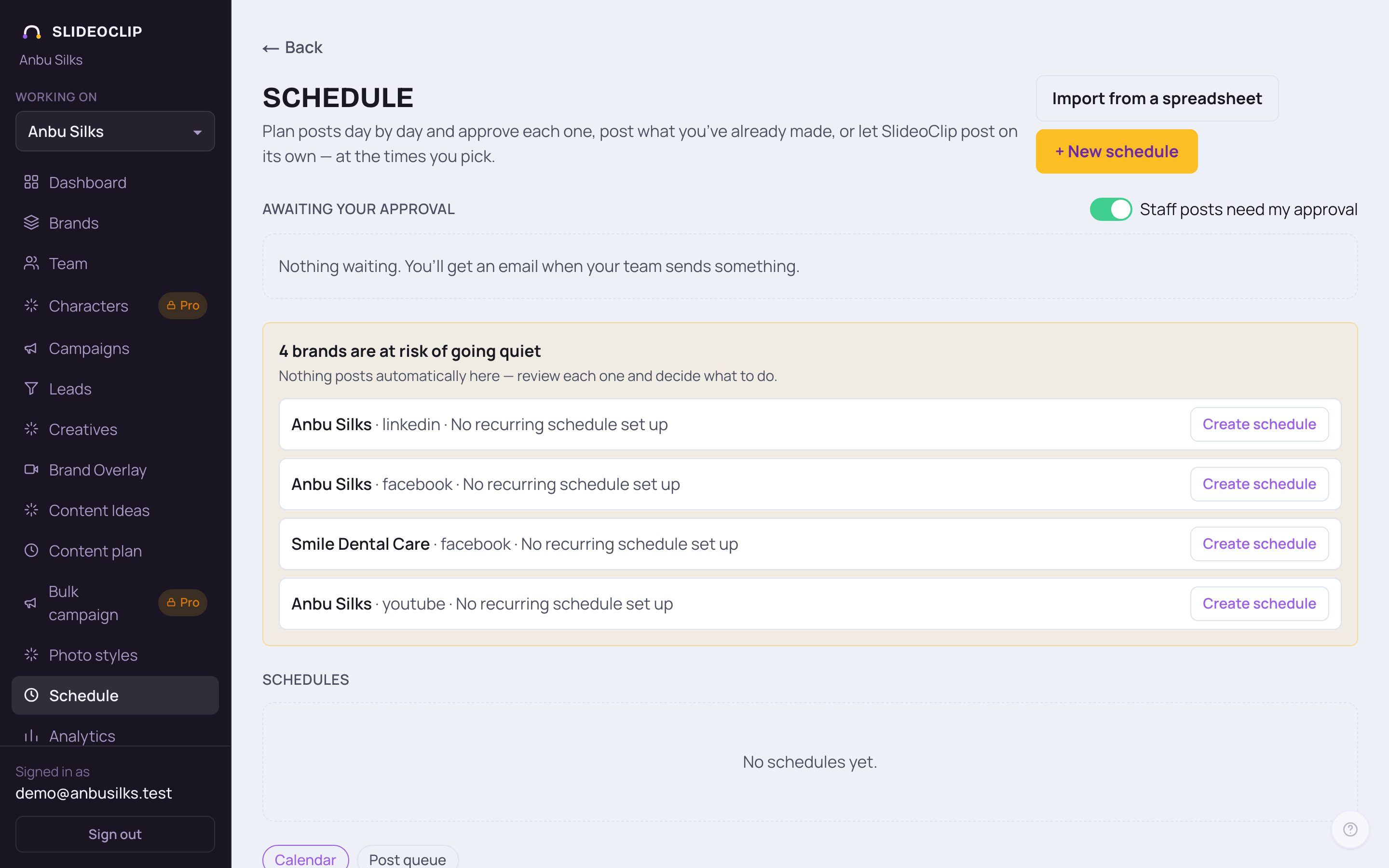
- 1+ New schedule is where you add a post for later.
- 2Import from a spreadsheet adds many posts at once from a file. SlideoClip checks every row before anything is scheduled.
- 3If a business has nothing going out, a box says it is at risk of going quiet. Tap Create schedule next to it to start one.
- Your schedules are listed under Schedules. Scroll down for the calendar.
💡 On a phone the calendar opens as a list of days, which is easier to read on a small screen.
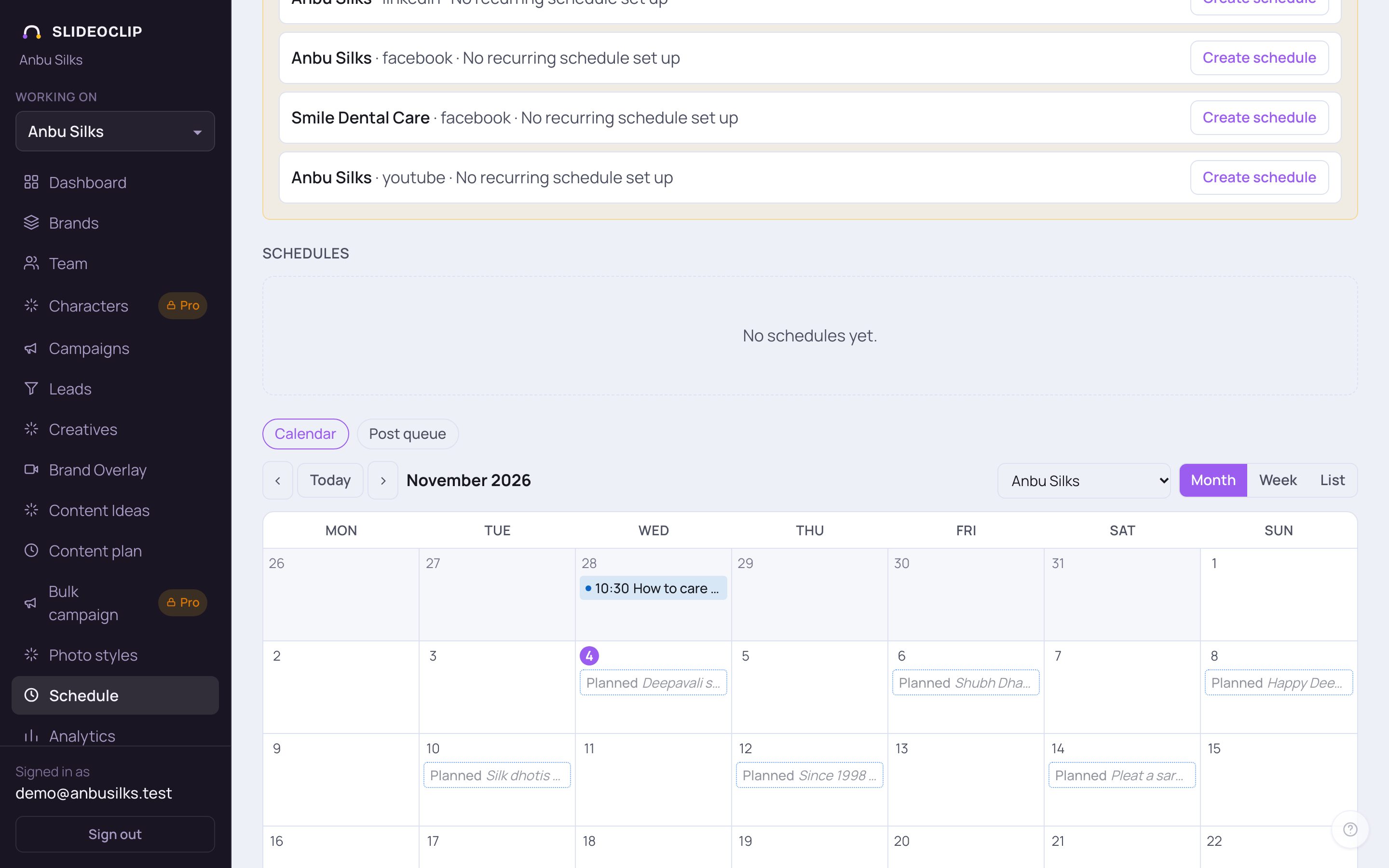
- 1Calendar shows every post on its day, coloured by platform.
- 2Post queue lists the same posts one under the other, with their status.
- 3Use ‹ and › to go back or forward, and Today to come back to now.
- 4The buttons on the right switch between Month, Week and List. The client picker shows All clients or just one.
2. Schedule a post you already made
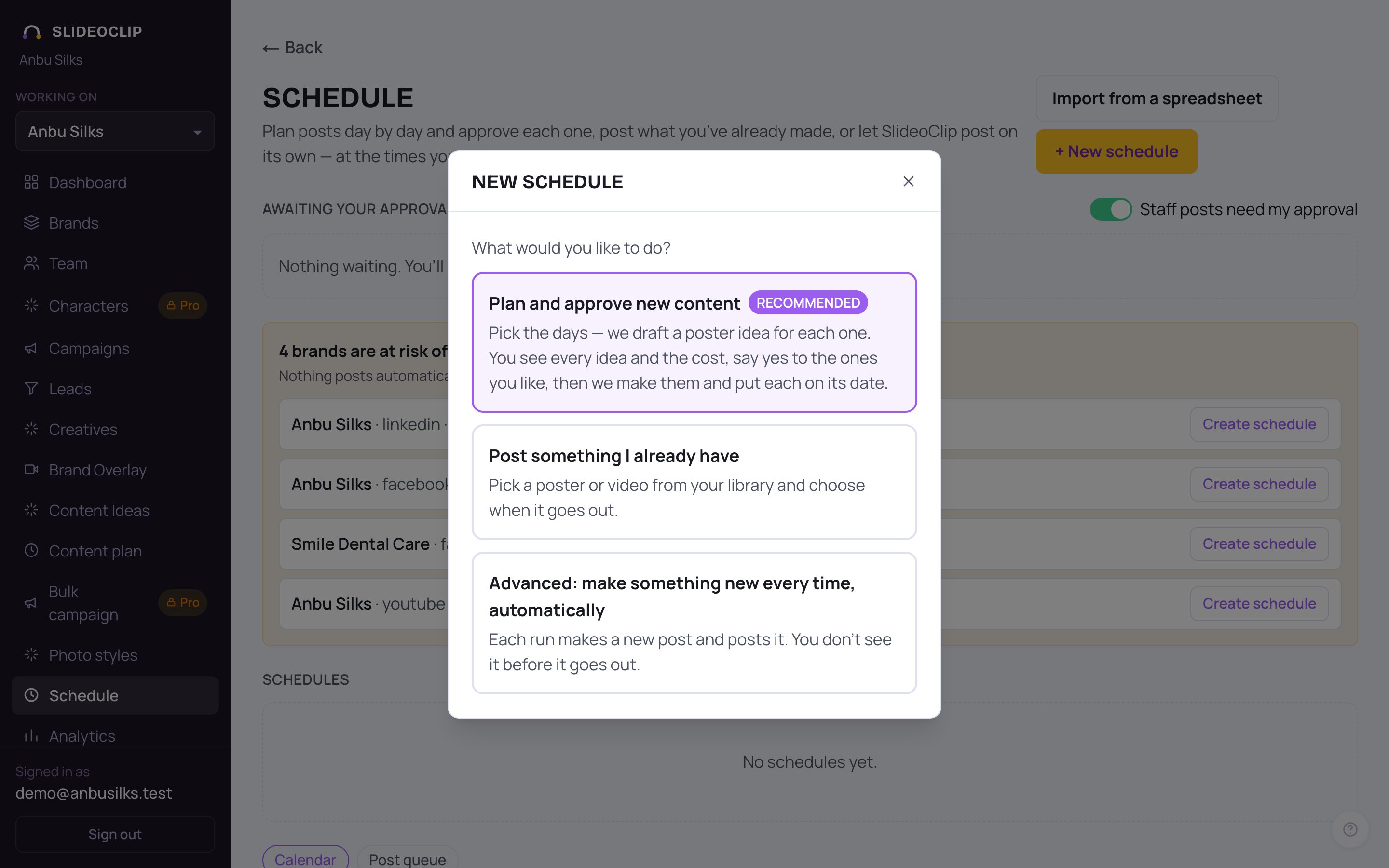
- 1Plan and approve new content drafts a poster idea for each day you pick; you approve each one before it's made. See Plan a month.
- 2Tap Post something I already have to pick a poster or video from your library and choose when it goes out.
- 3Advanced: make something new every time, automatically makes and posts a new post on every run — you don't see it before it goes out.
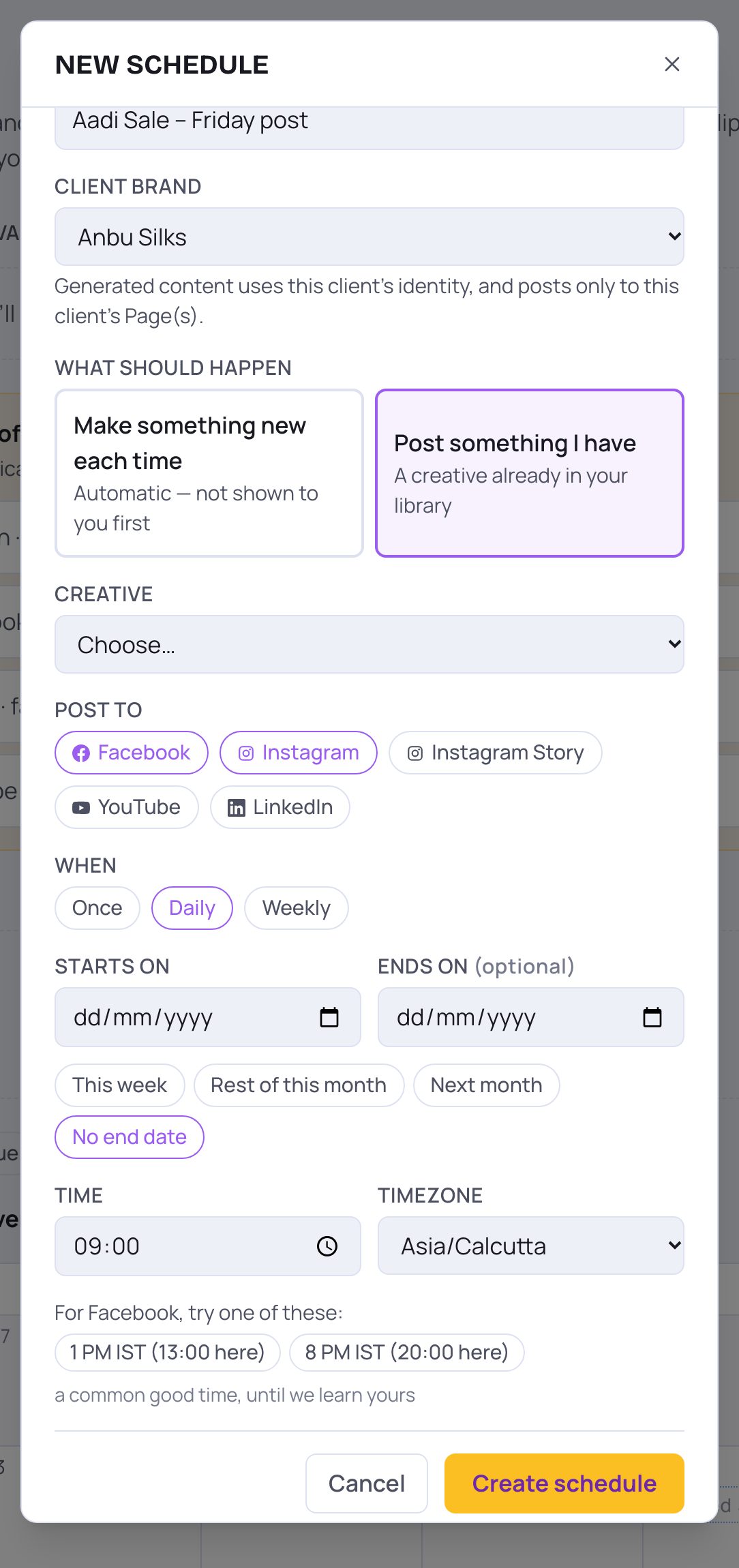
- 1Give it a Name you'll recognise, like "Aadi Sale – Friday post".
- 2Under Client brand, pick the client. It posts only to that client's Pages and accounts.
- 3Under Creative, pick the poster or video to post. Videos that are still being made don't appear here yet.
- 4Under Post to, tap each place it should go: Facebook, Instagram, Instagram Story, YouTube, LinkedIn. Tap again to remove one.
- If a place isn't connected yet, a note tells you — those posts will fail until you connect it from the Dashboard.
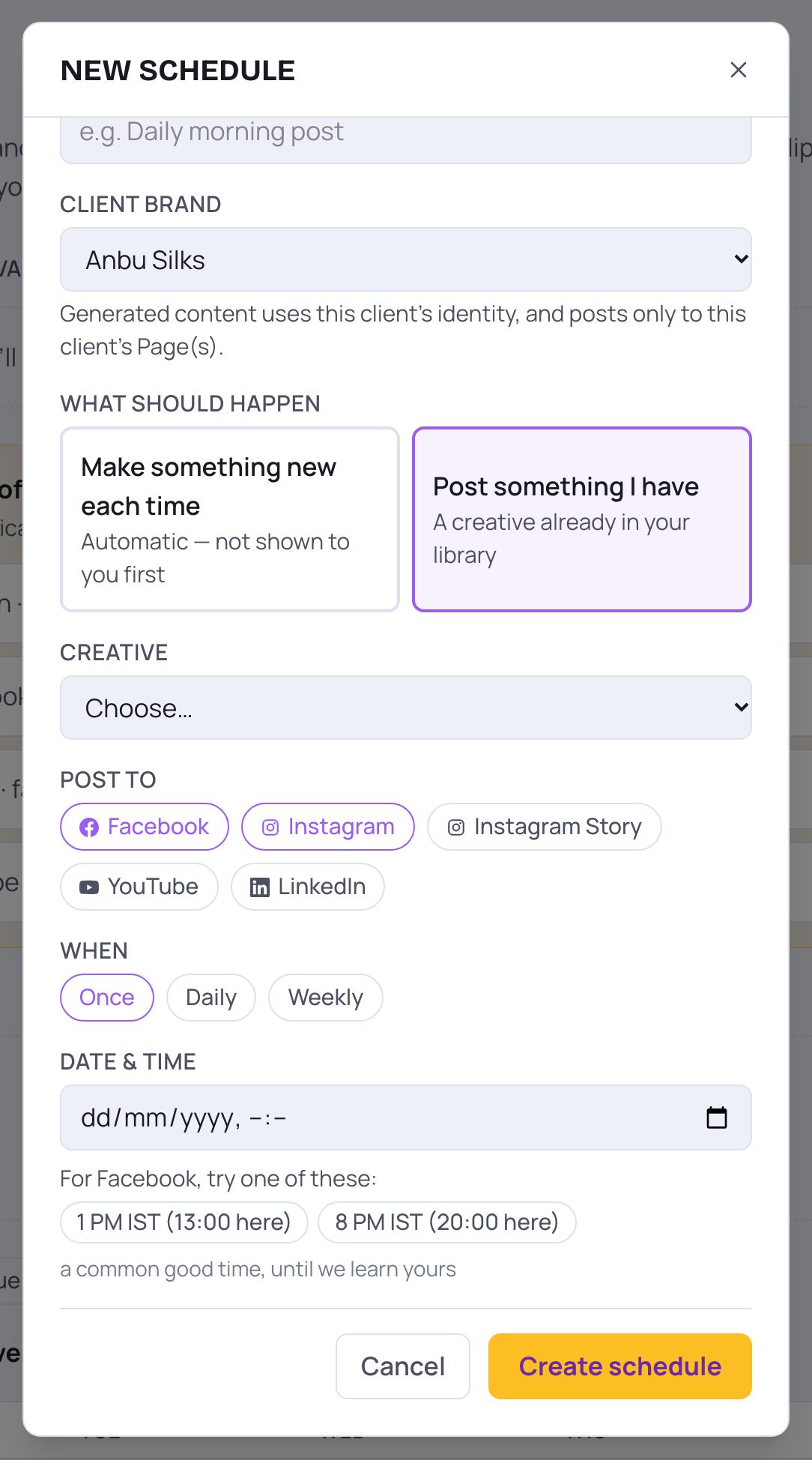
- 1Under When, tap Once for a single post.
- 2Pick the Date & time. Under it, SlideoClip suggests good times to post — tap one to use it. Once it has learned when your audience is most active, it tells you.
- 3Tap Create schedule. The post appears on the calendar on that day.
💡 Posts go out on their own at that time — you don't need to keep SlideoClip open.
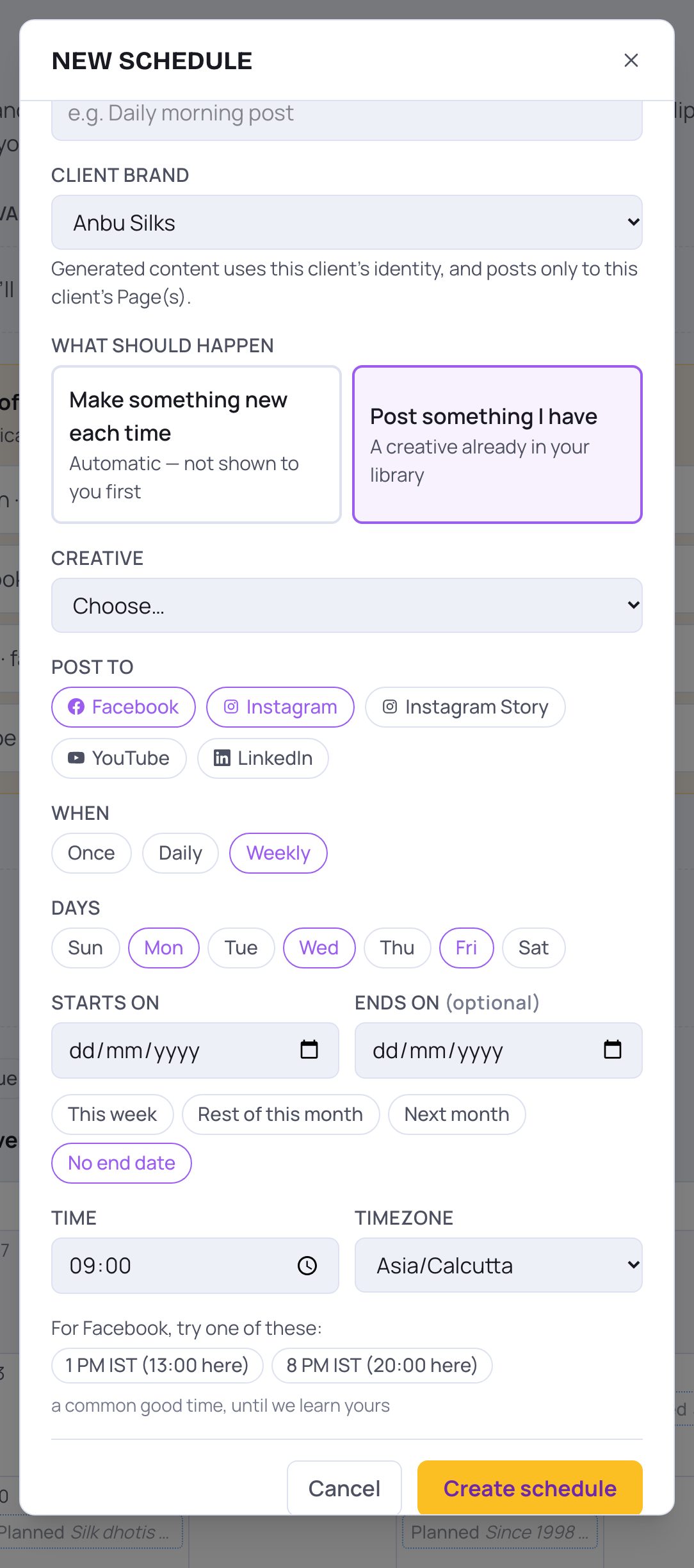
- 1To repeat a post, tap Daily or Weekly instead of Once.
- 2For Weekly, tap the Days it should go out (for example Mon, Wed and Fri).
- 3Set Starts on and Ends on, or tap a shortcut: This week, Rest of this month, Next month or No end date.
- 4Pick the Time and check the Timezone, then tap Create schedule.
3. Move or cancel a waiting post
On the calendar, a post waiting to go out can be dragged to another day (in Month view) or another hour (in Week view). Or tap it to change it.
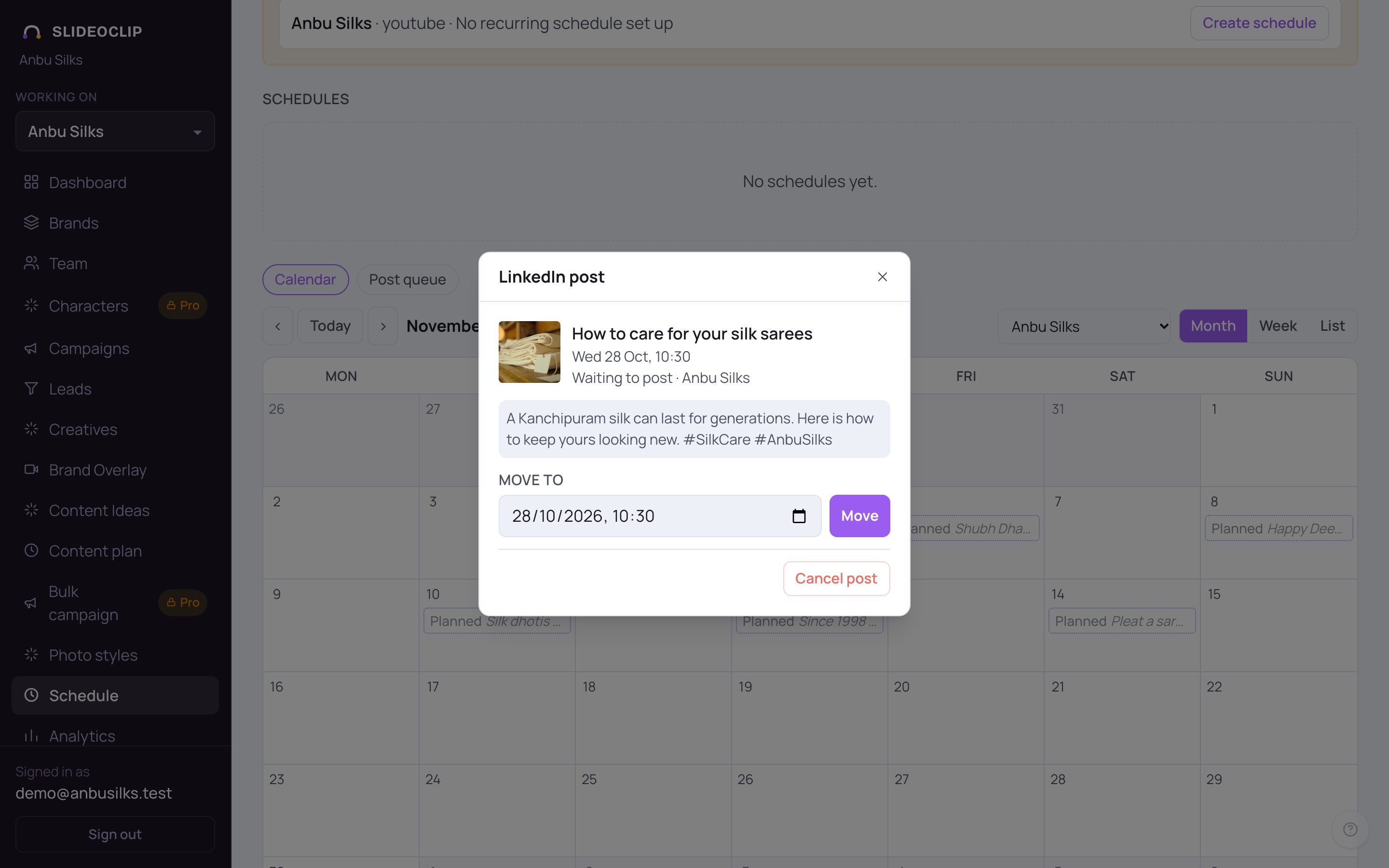
- 1Tap a post on the calendar. You see the picture, the time, the client and the caption. Under Move to, pick a new date and time…
- 2…and tap Move.
- 3To stop it from going out, tap Cancel post.
- A post that already went out has View post instead; a failed one has Try again.
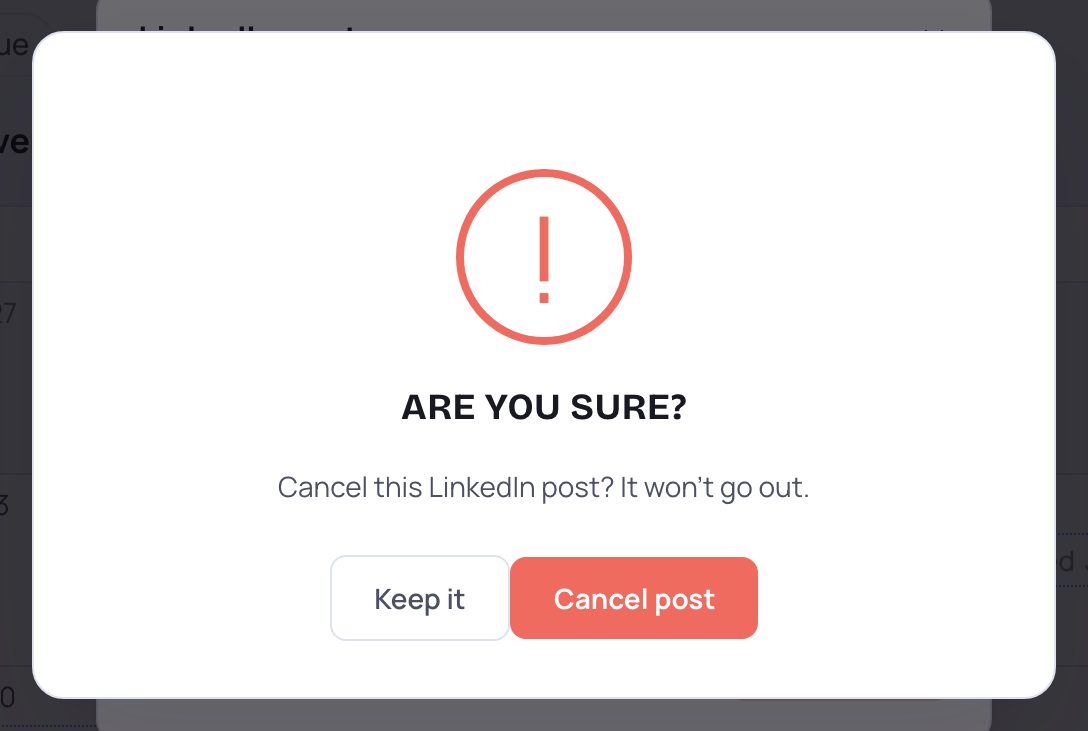
- 1SlideoClip asks you to confirm. Tap Cancel post to cancel it — it won't go out.
- 2Tap Keep it if you changed your mind.
4. The post queue
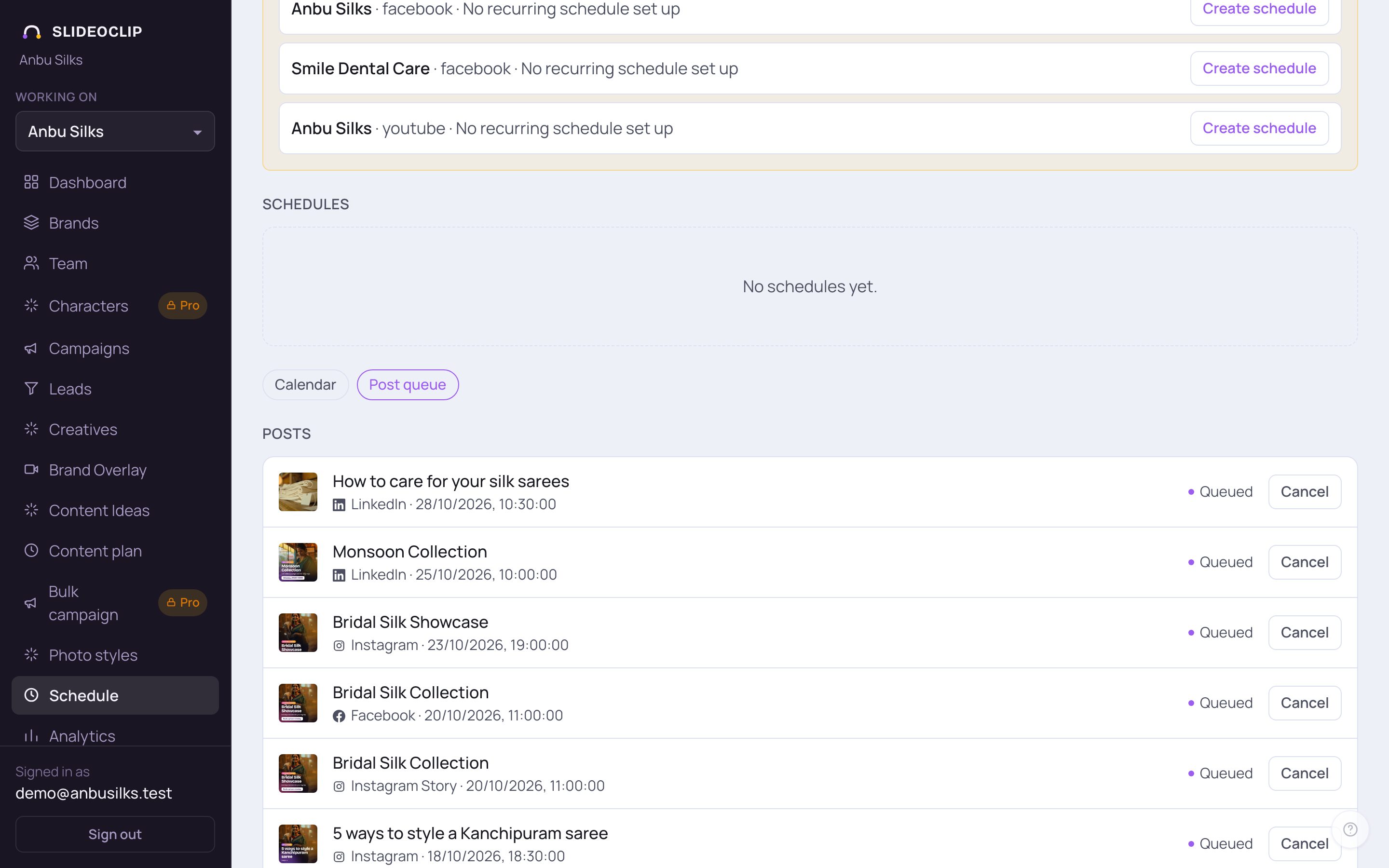
- 1Tap Post queue to see every post in one list, with its platform and time.
- 2The label says where it stands: Queued (waiting), Posting, Posted, Failed, Cancelled, or Waiting for approval.
- 3Cancel stops a queued post. A failed post has Retry; a posted one has View.
Good to know
- Tap + Schedule on any day in the calendar (it shows when you move over the day) to start a post on that day — it is filled in for 10:00 that day.
- To change a repeating schedule, use Edit on it at the top of the page. The switch next to it pauses and resumes it. Delete removes the schedule; posts it already queued still go out unless you cancel them.
- Faint dotted chips on the calendar are ideas in a content plan that haven't been made yet; outlined chips are the next runs of a repeating schedule.
Questions
My post shows Failed.
Tap it to read why, fix the cause (often the account needs reconnecting), then tap Try again. The Fix posting problems guide explains each message.
Can I schedule from the creative itself?
Posting from the details screen is always immediate (Publish now). To post later, use Schedule → + New schedule → Post something I already have.
It says Waiting for approval.
The owner approves team members' posts before they go out. It posts as soon as it is approved — or straight away if its time has already passed. See Approvals.