All guides
Account and password
Change your password, set one if you signed up with Google, get a reset link when you forget it, confirm your email address, and sign out on a computer or phone.
Before you start
- ✓A SlideoClip account (see Create your account)
1. Open your Account page
Everything about your own login is on one page: Account in the menu.
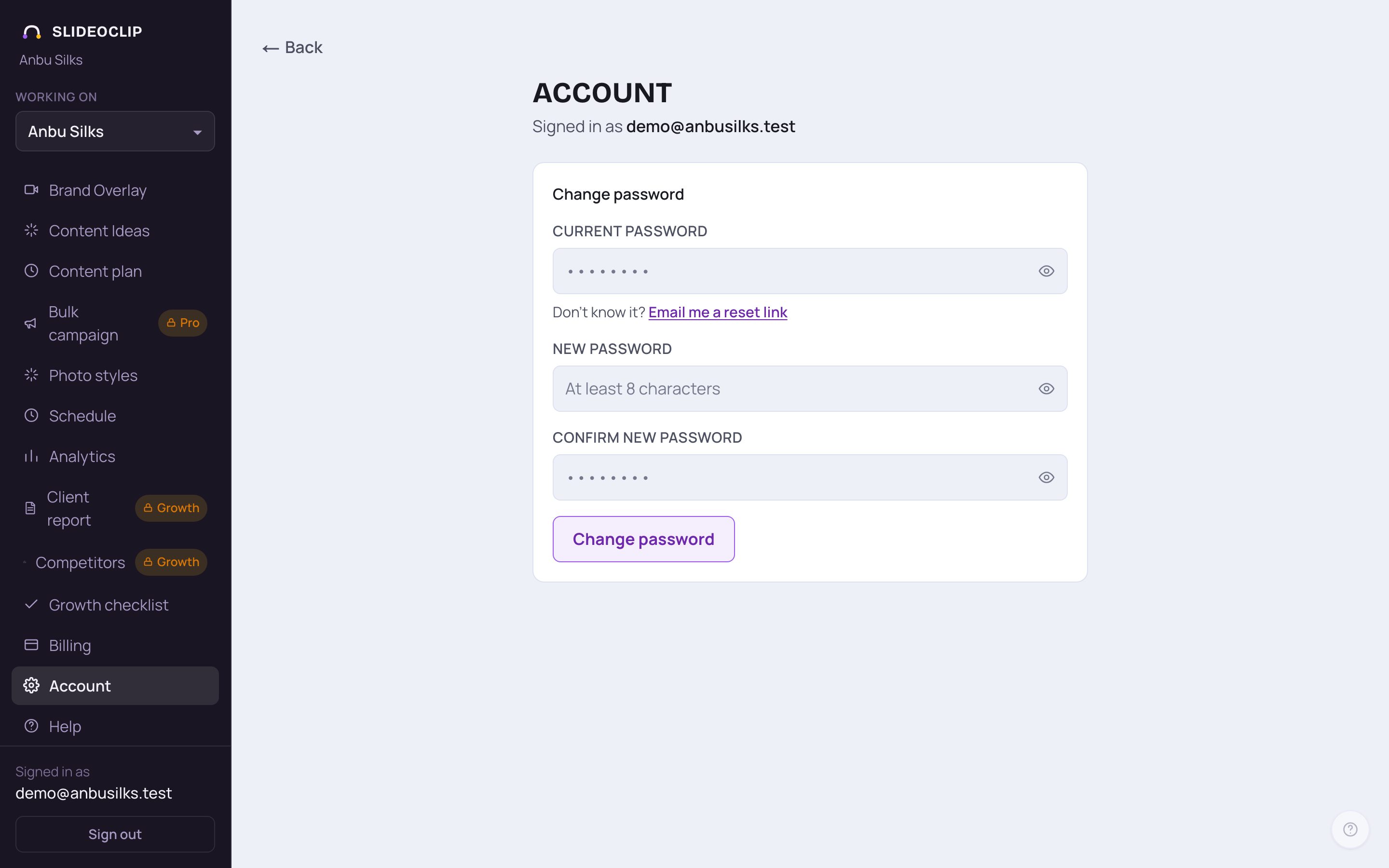
- 1Tap Account in the menu (on a phone, open the menu with the three lines at the top first).
- 2Signed in as shows the email address you log in with.
- If your email isn't confirmed yet, a yellow box at the top says "Your email isn’t verified yet." Tap Resend verification email and open the link in the newest email. The page then says "Verification email sent to …".
💡 This page is about your own login. Your business details, logo and colours are under Brands; your plan and credits under Billing.
2. Change your password
Every password box in SlideoClip has a small eye button at its right end. Tap it to see what you typed, and tap it again to hide it. It is there on the login, sign-up and reset pages too.
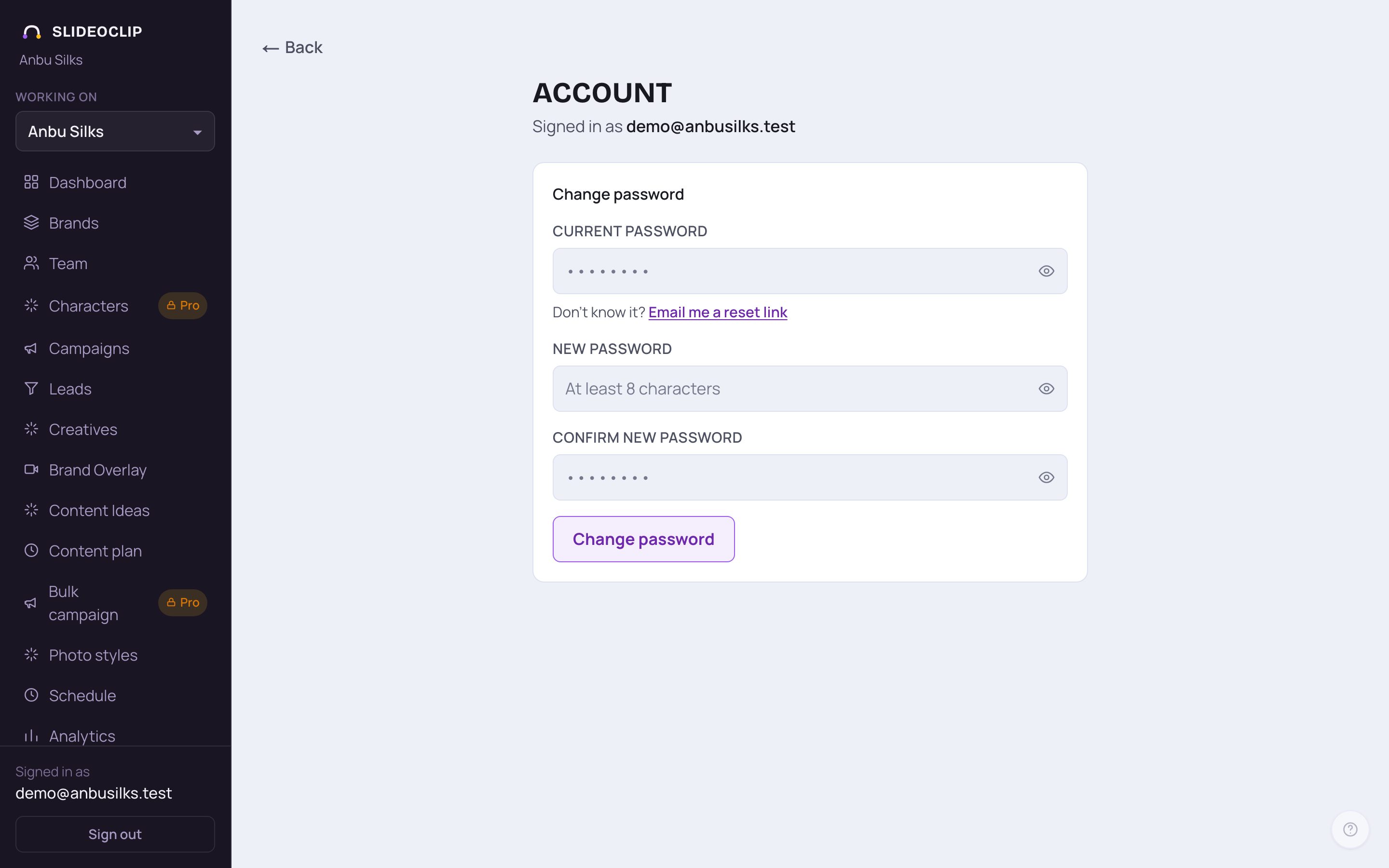
- 1Type the password you use now in Current password.
- 2Not sure you typed it right? Tap the eye at the right end of the box to show what you typed. Tap it again to hide it. The other password boxes on this page have one too.
- 3Type your new password in New password (at least 8 characters), and again in Confirm new password under it.
- 4Tap Change password. A green "Password changed." message appears. Use the new password next time you log in.
💡 If the two new passwords are different you see "New passwords don’t match." Type them again.
3. Don't know your current password?
Maybe you usually log in with Google, or it was set long ago. You don't need the old password: ask for a reset link.
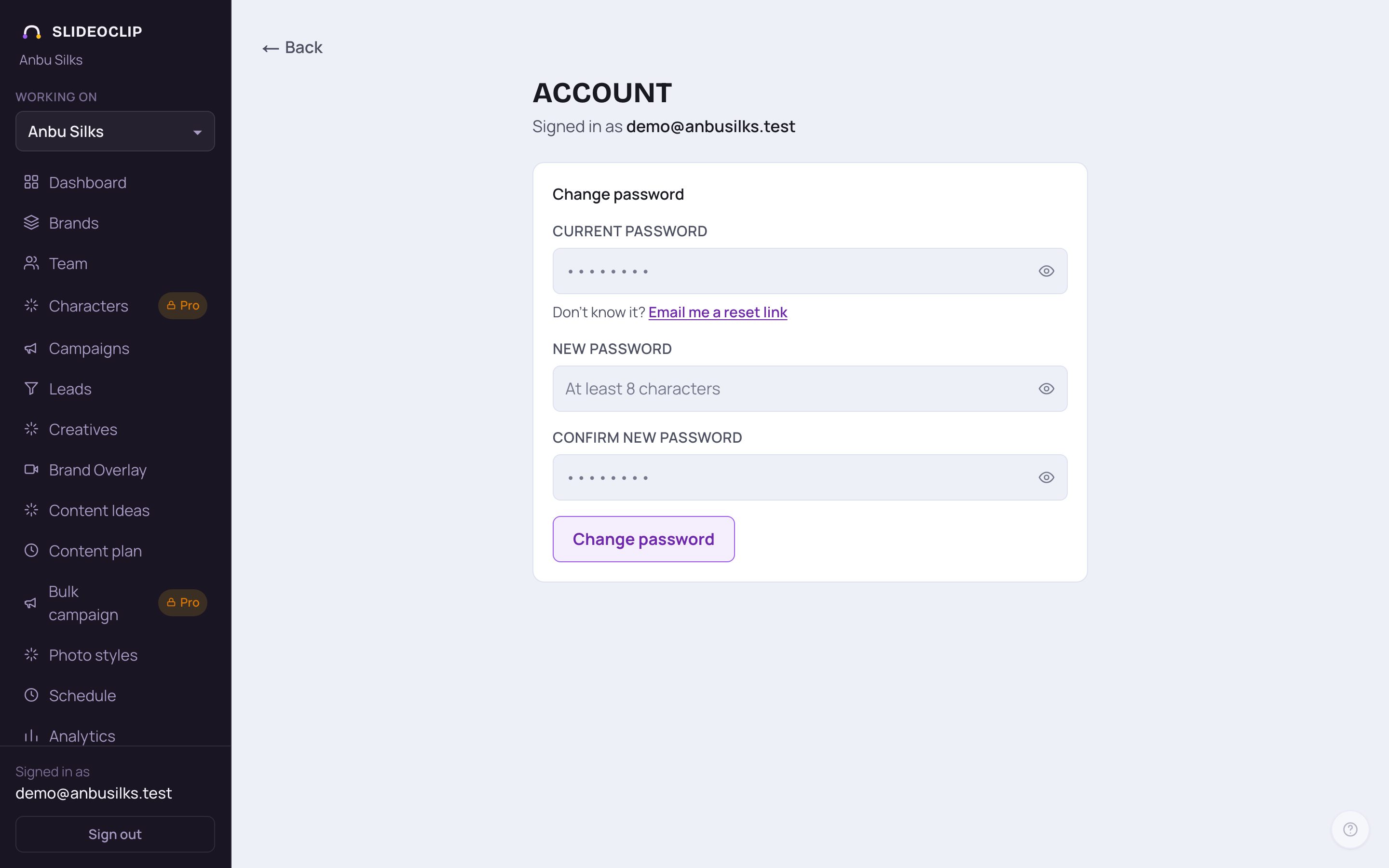
- 1Under Current password, tap Email me a reset link. A message says "Reset link sent to …".
- Open the email and tap the link. It works once, within an hour. Choose your new password there and tap Set new password.
💡 This is the same reset link as Forgot password? on the login page, so it also works when you are logged out.
4. Signed up with Google? Set a password
An account made with Google has no SlideoClip password. If you also want to log in with your email and a password (for example on a shared computer without your Google account), set one here. You can keep using Google as before.
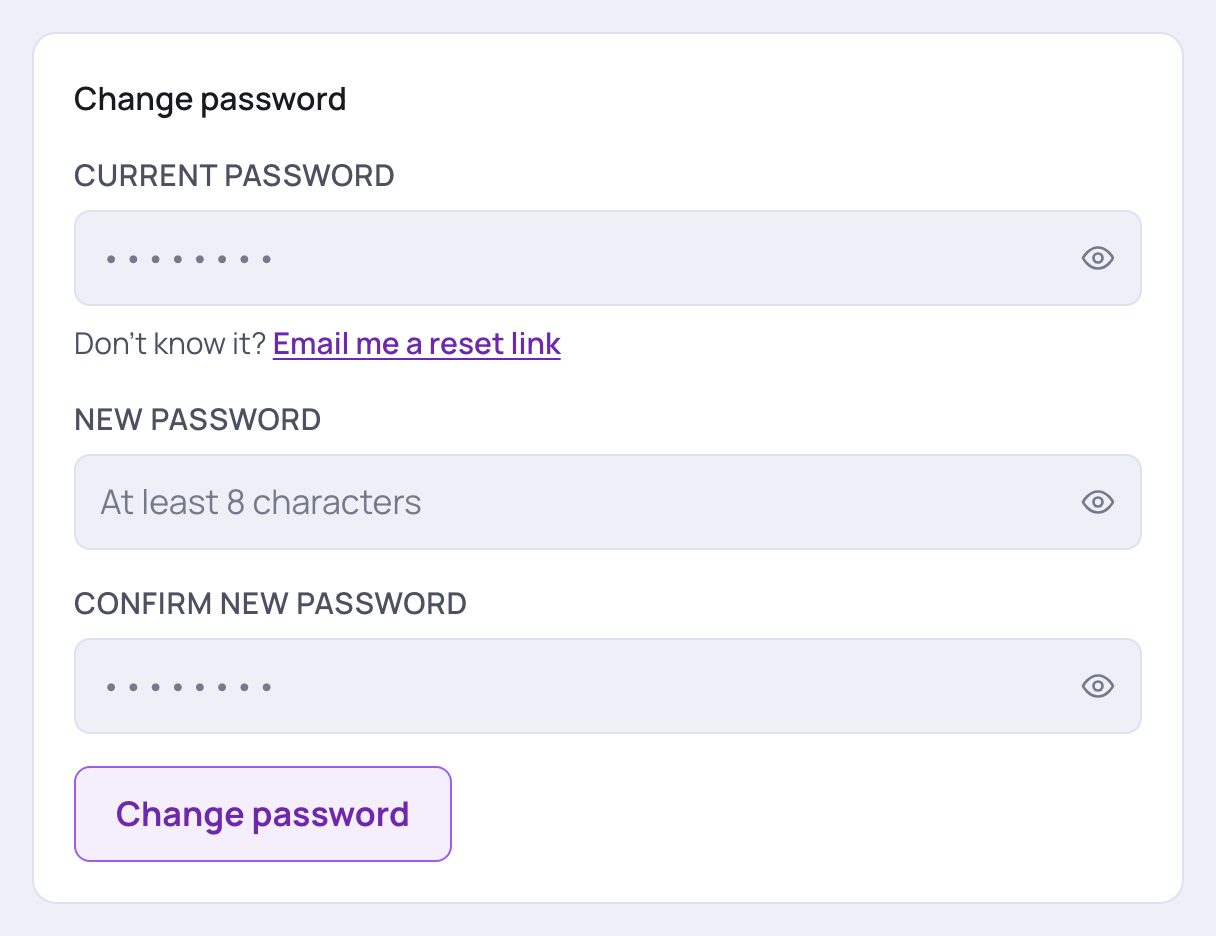
- 1For a Google account this box is called Set a password, with a line that says "You sign in with Google, so this account has no password yet." There is no Current password box.
- 2Type your new password (at least 8 characters) in New password and again in Confirm new password.
- 3Tap Set password. The message tells you that you can now log in with your email and this password, or with Google as before.
💡 The picture shows an account that already has a password, so its labels say Change password.
5. Sign out
Sign out on shared or office computers so nobody else can use your account.
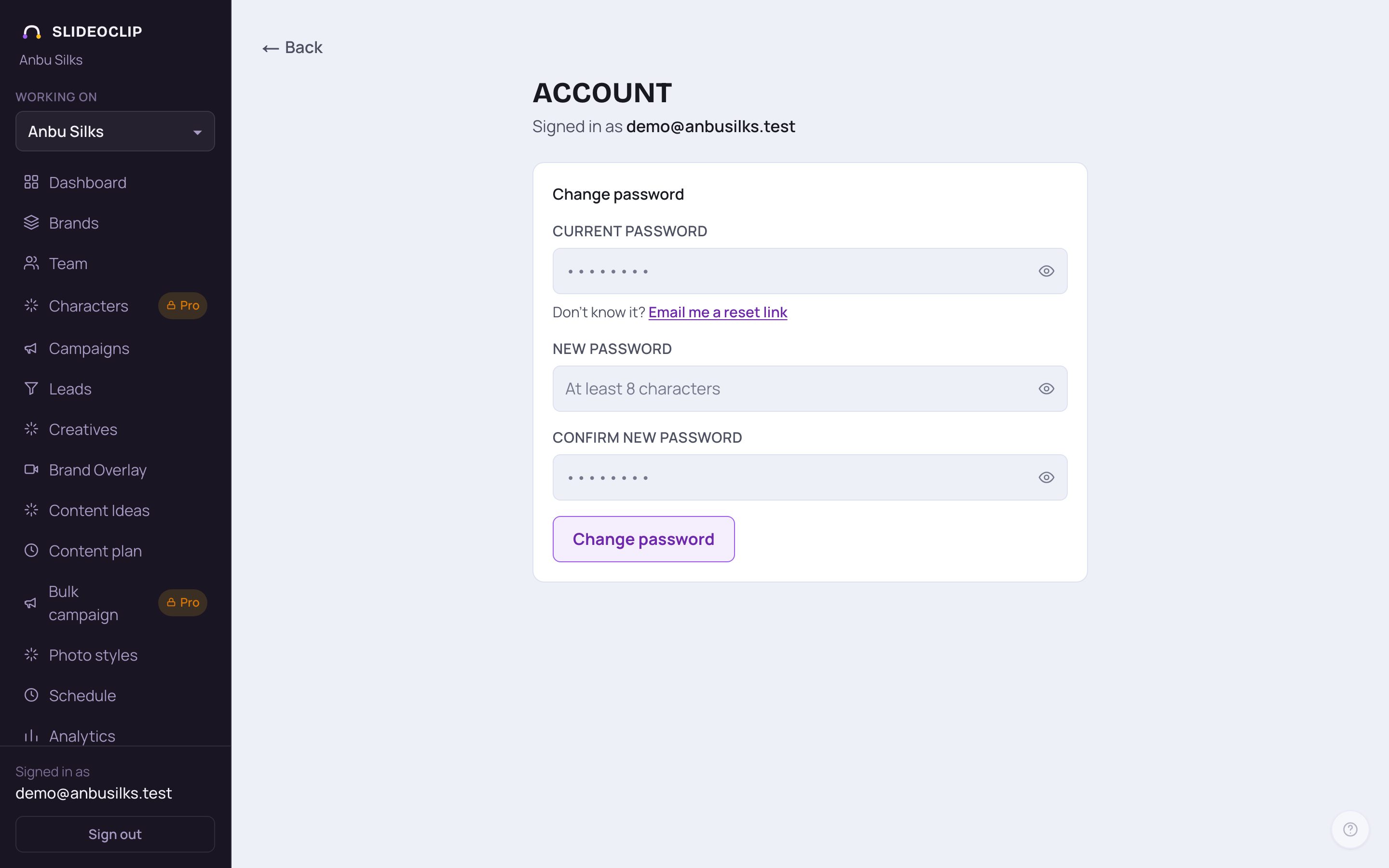
- 1At the bottom of the menu, under your email, tap Sign out. You land on the login page.
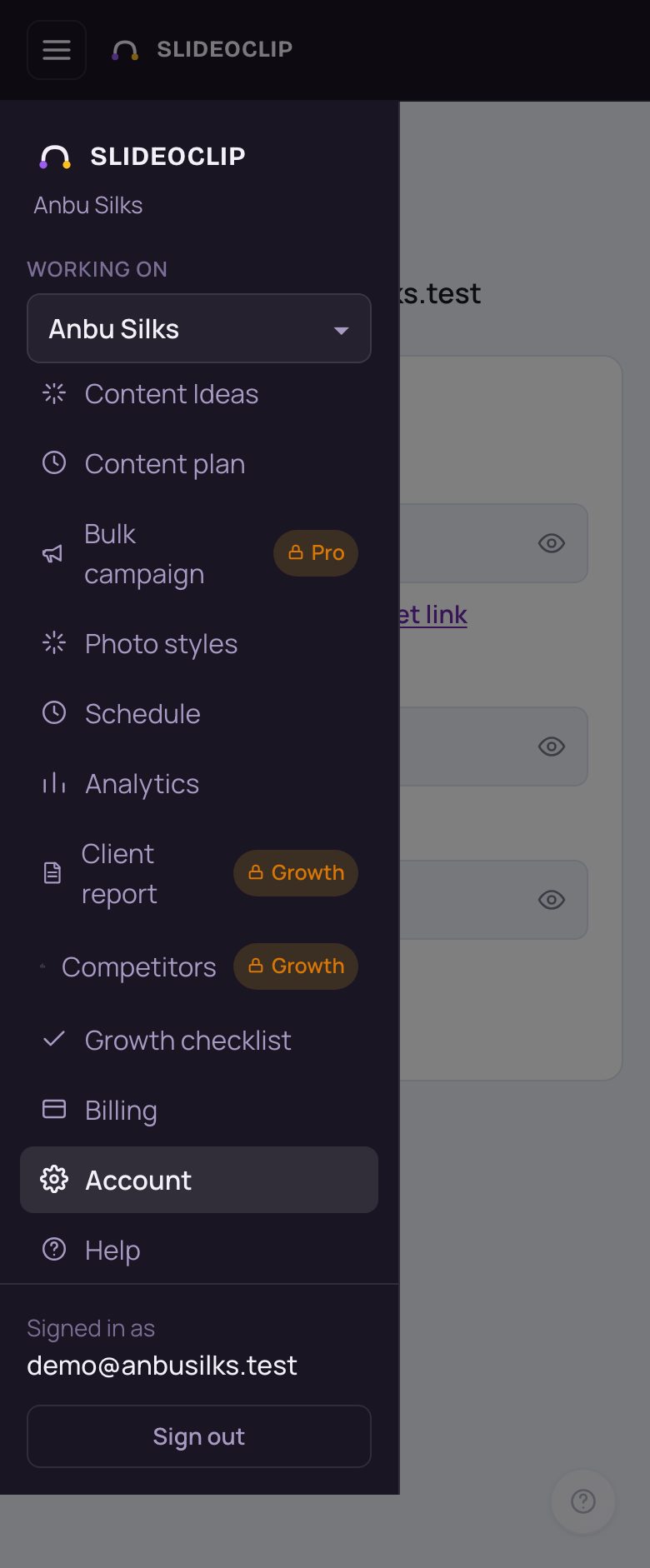
- 1On a phone, tap the three lines at the top left. The menu slides in. Account is near the bottom of the list.
- 2Scroll the menu to the bottom and tap Sign out. Tap the dark area beside the menu to close it without signing out.
Good to know
- Choose a password you don't use anywhere else.
- Staff added by the owner start with a password the owner chose. Change it here the first time you log in.
- Logged in on someone else's phone? Sign out when you're done.
Questions
Can I change my email address or my name?
Not from the Account page yet. Email admin@slideoclip.com from your current address and say what you want changed.
Can SlideoClip tell me my password?
No. Passwords are stored in a way that can't be read back, by anyone. Use Email me a reset link to choose a new one.
The reset email never came.
Check Spam and Promotions, and make sure the email under Signed in as is right. Each link works once and for one hour, so always use the newest email.
Does signing out stop my scheduled posts?
No. Scheduled posts go out at their time whether you are logged in or not.