All guides
Start creating: what do you want to make today?
Use the box at the top of Creatives to say what you want in your own words. SlideoClip picks the right maker for you, and you can change it before you go on. Nothing is charged here.
Before you start
- ✓A brand set up (see Add your business)
1. Say what you want, in your own words
Open Creatives from the menu. At the very top you'll see the question What do you want to make today? This is the easiest way to start anything.
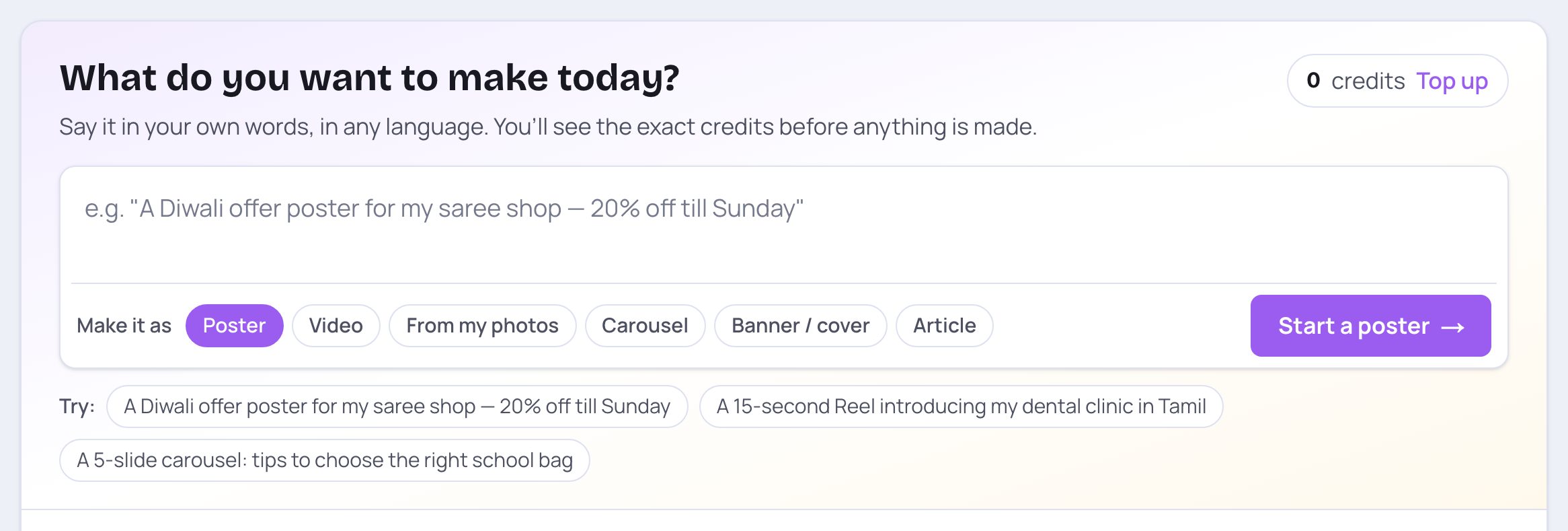
- 1Type what you want to make — in English, Tamil, Hindi or any language. Write it the way you would tell a designer: what it is for, the offer, the dates.
- 2Under Make it as, the kind of thing it will be made as is highlighted: Poster, Video, From my photos, Carousel, Banner / cover or Article.
- 3Your credits are shown here. Tap Top up to add more on the Billing page.
💡 Nothing is charged on this screen. Every maker shows the exact credits before anything is made.
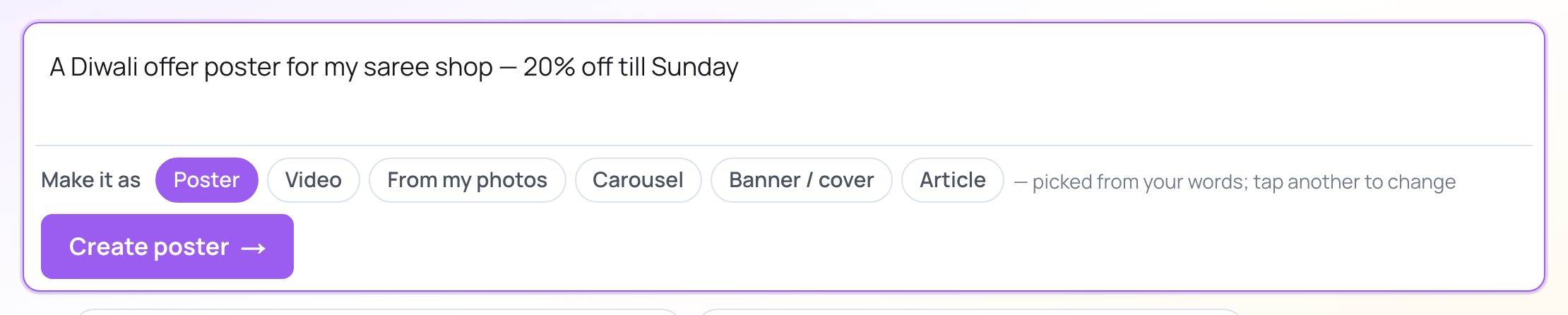
- 1As you type, SlideoClip guesses what you want from your words. Words like "video", "reel" or "song" pick Video; "carousel" or "slides" pick Carousel; "banner" or "cover" pick Banner / cover; "blog" or "article" pick Article; "my photos" picks From my photos. Anything else starts as a Poster.
- 2This note tells you the choice was picked from your words. If it is wrong, just tap another kind — your choice wins.
- 3Tap the button (it reads Create poster, Create video and so on) or press Enter. You are taken to that maker with your words already filled in.
💡 Press Shift+Enter if you want a new line in the box instead of going ahead.

- 1To choose yourself, tap a kind under Make it as. Here the same words will be made as a Carousel instead of a poster.
- 2The button changes to match (Create carousel). Tap it to go to the carousel maker.
2. Not sure what to write? Try an example
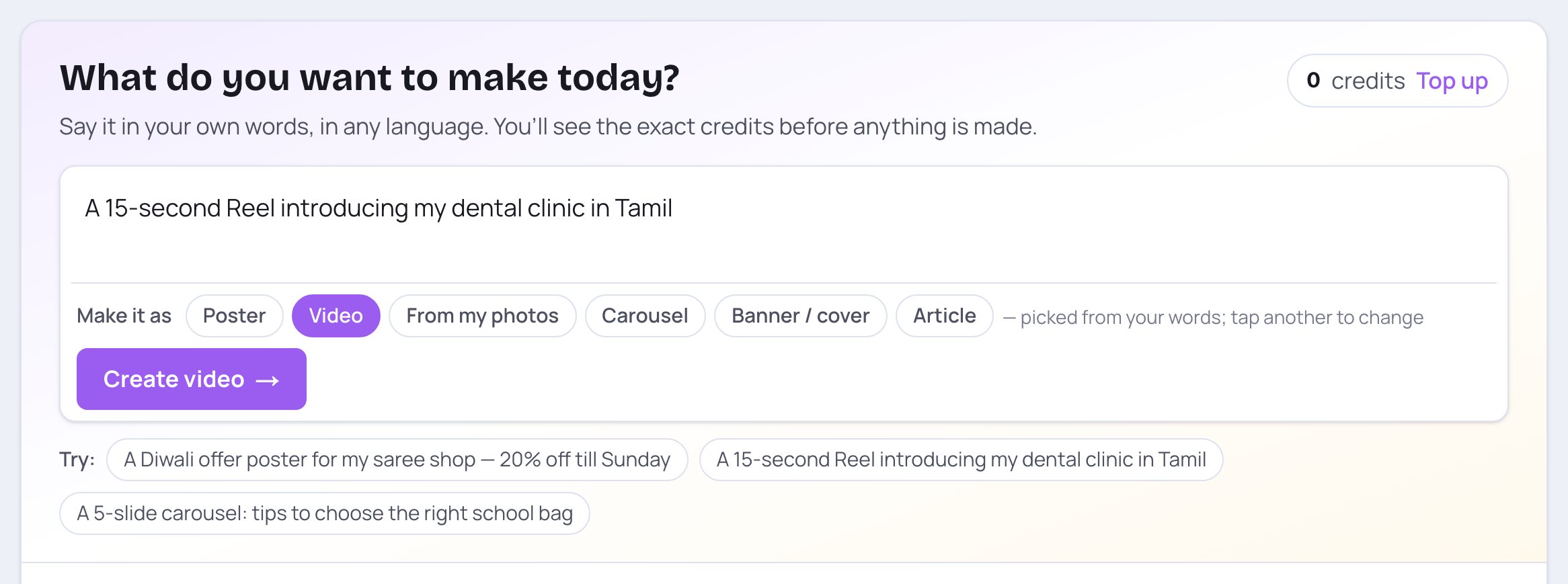
- 1Next to Try: there are three ready examples — a festival offer poster, a short Reel and a 5-slide carousel. Tap one.
- 2The example is copied into the box. Change the words to fit your own business.
- 3The kind is picked again from the new words — here Video, because the example says "Reel".
3. Plan a week or a month in one go
Right under the box is a dark banner for planning many posts at once.

- 1Plan a week or a month of posts: pick the days, and SlideoClip drafts a post idea for each day — festivals, offers, products, tips. You approve each idea and see the cost, then each post is made and scheduled on its date.
- 2Tap Plan my content → to open the Content plan. See the guide Plan a month of posts.
- 3Running an agency? Tap Same post for several clients? Bulk campaign to make one post for many clients at once. See Make many at once (bulk campaign).
4. Or start from a card
Below the banner, under Or start from, every kind of thing you can make has its own card. Each card says what it makes and what it starts at.
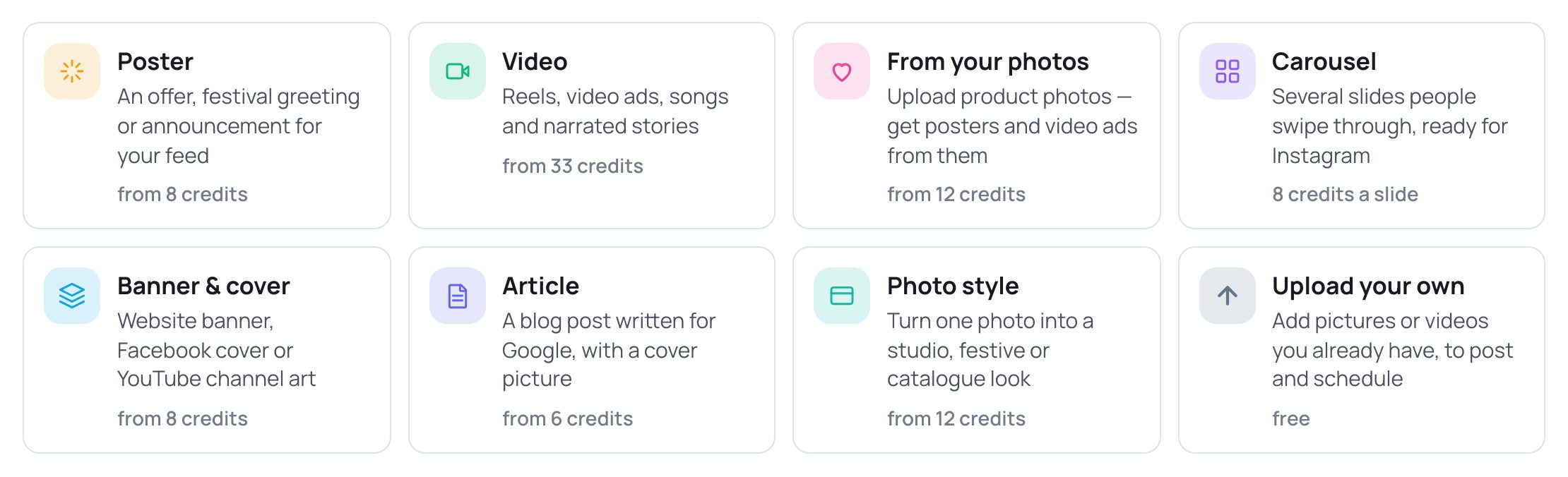
- 1Poster — an offer, festival greeting or announcement for your feed. Video — Reels, video ads, songs and narrated stories. Carousel — several slides people swipe through. Banner & cover — website banner, Facebook cover or YouTube channel art. Article — a blog post written for Google, with a cover picture.
- 2From your photos — upload product photos and get posters and video ads made from them.
- 3Photo style — turn one photo into a new look.
- 4Upload your own — add pictures or videos you already have, to post and schedule. This one is free.
- The small grey line on each card shows what it starts at, in credits. The exact price is always shown again before anything is made.
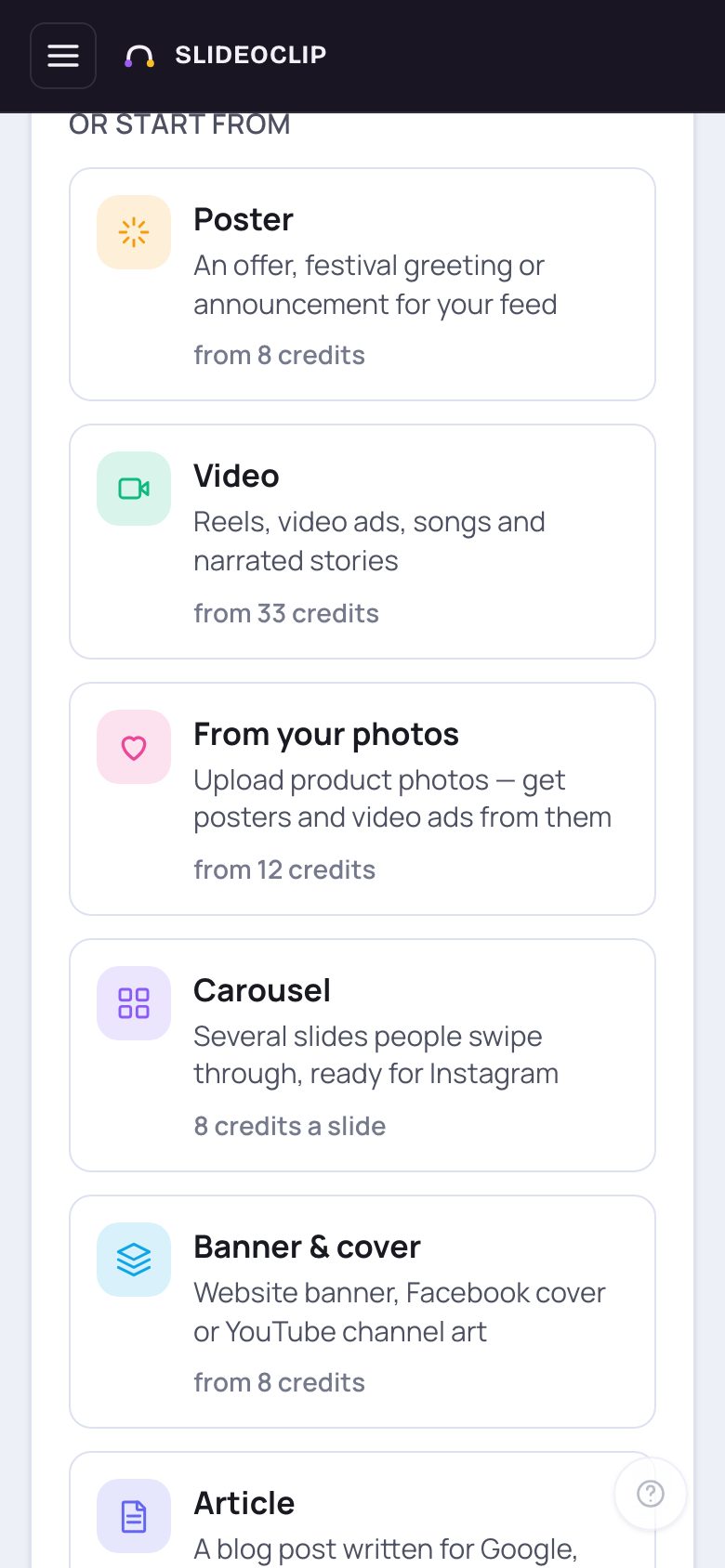
- 1On a phone the cards are stacked one under another. Scroll down and tap the one you want.
5. Photo styles strip
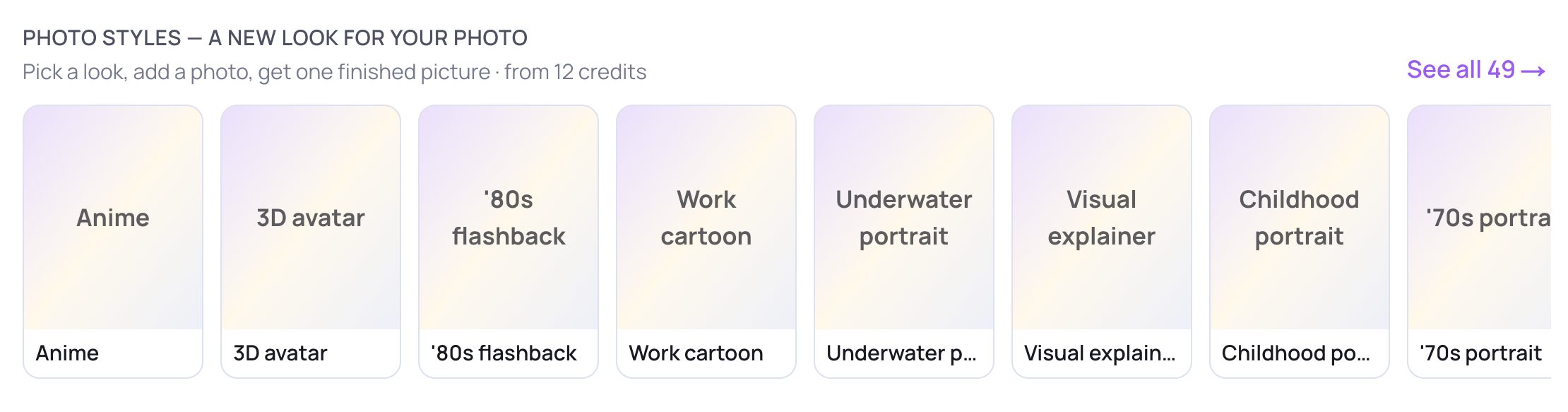
- 1Under the cards, Photo styles — a new look for your photo shows a row of looks with a sample picture each. Swipe or scroll the row sideways to see them all.
- 2Tap a look to open it straight away, ready for your photo.
- 3Tap See all to see every style on one page. See the guide Photo styles.
Good to know
- Write the real details — offer, dates, phone number, place. SlideoClip never invents numbers or offers, so what you type is what gets used.
- Don't worry about picking the wrong kind. Every maker has its own fields, and you can still change everything there before you spend anything.
- Everything you make lands in Your creations, lower down on the same Creatives page.
Questions
Does typing in the box cost credits?
No. The box only takes you to the right maker. Credits are used only when you tap the final create button there, and the exact amount is shown on that button first.
Can I write in Tamil or Hindi?
Yes. Write in any language. The guess of what to make works best with English words like poster, video, carousel or banner — if it guesses wrong, just tap the right kind under Make it as.
Where do my finished pieces go?
To your library, under Your creations on the Creatives page. From there you can post, schedule or download them.