All guides
Voice and language
Make your video speak Tamil, Hindi, English or another language, pick and preview the narrator's voice, have someone speak on camera, and decide about subtitles.
Before you start
- ✓The video screen open (see Make a video)
1. Choose the language
The script is written in the language itself, not translated word by word. The easiest way is to say it in your message: “in Tamil”, “Hindi voice-over”. Or set it in the settings.
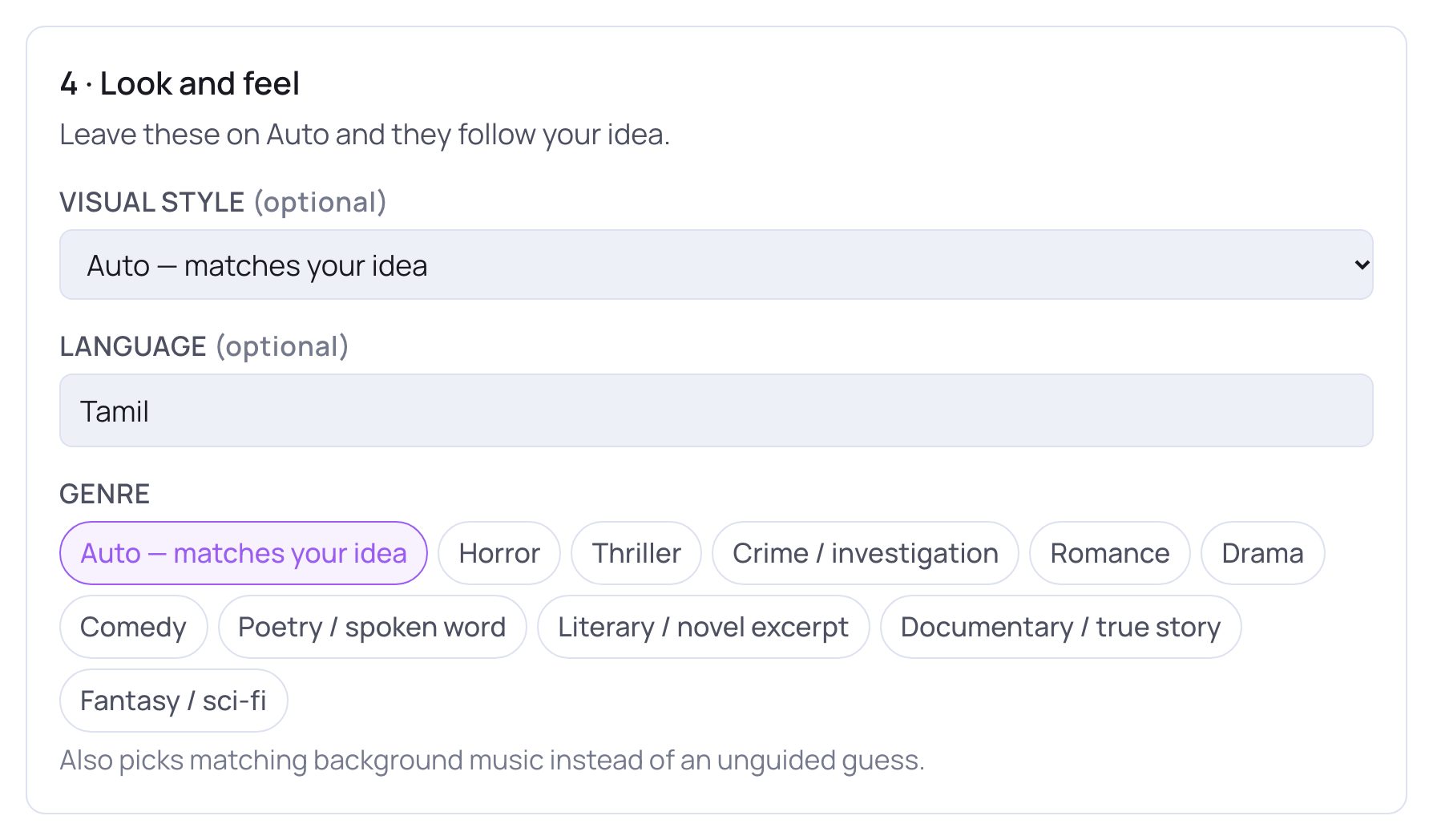
- 1In 4 · Look and feel, type the language in Language — for example Tamil, Hindi or English. Leave it on auto to follow your message.
2. Pick the narrator's voice
The narrator voice is used when the video is a narrated slideshow. It shows in 3 · Sound while Voice is on Auto or Spoken narration and the kind of video isn't Cinematic.
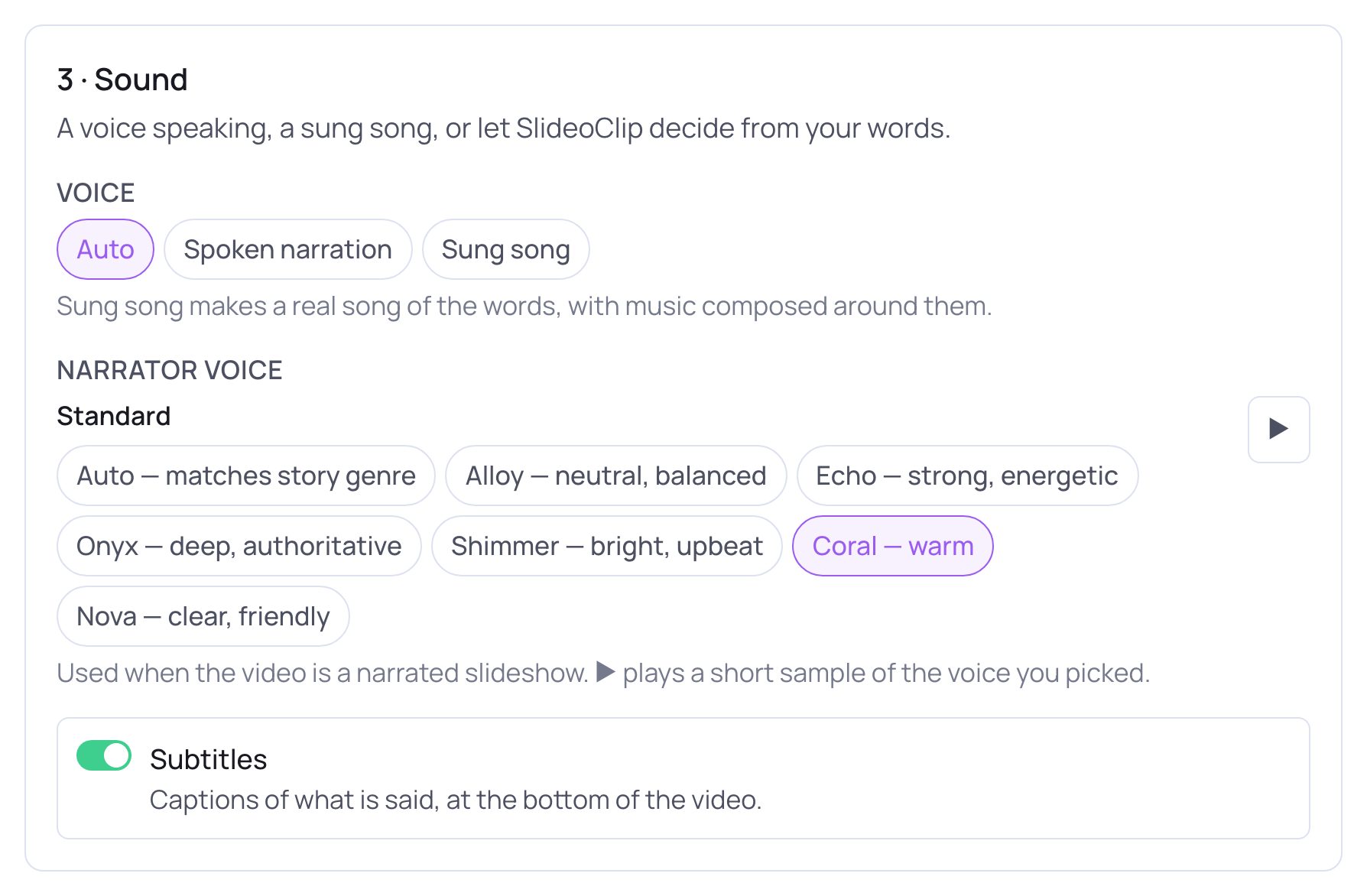
- 1Under Standard, tap a voice — for example Coral — warm or Onyx — deep, authoritative. Standard voices come at no extra cost. Leave Auto — matches story genre if you want SlideoClip to pick one that suits your video.
- 2Tap ▶ to hear a short sample of the voice you picked. Listening to samples is free.
- If your plan includes them, more groups appear under Standard. Premium · ElevenLabs ★ voices are very realistic and expressive — best for storytelling, especially in English. Premium · MiniMax ★ voices have strong support for Indian languages, including Tamil and Hindi, and the line under the voices suggests one when your language is Tamil or Hindi. Tap the ⓘ beside a group's name to compare them.
- A premium voice adds a small charge per minute of video. The line under the voices shows it ("Premium voice: +… cr/min"), and it is included in the price before you tap Create.
- Your brand voices shows voices you have cloned, if your plan includes them.
💡 Premium voices aren't on every plan. If they are locked, the lock shows which plan has them.
3. Someone speaking on camera
A narrator speaks over pictures. If you want a person in the video who speaks to the camera, describe it in your message — for example: “A young woman in a silk saree tells viewers, in Tamil: Aadi Sale is here — flat 30% off on all silk sarees!”. Someone speaking or singing on camera is made as a Cinematic video, so your plan needs to include AI video. For a short video ad where a model wears or uses your product and says your words, start from your product photos with 📷 Add photos (see Photos to posters and videos).
4. Subtitles
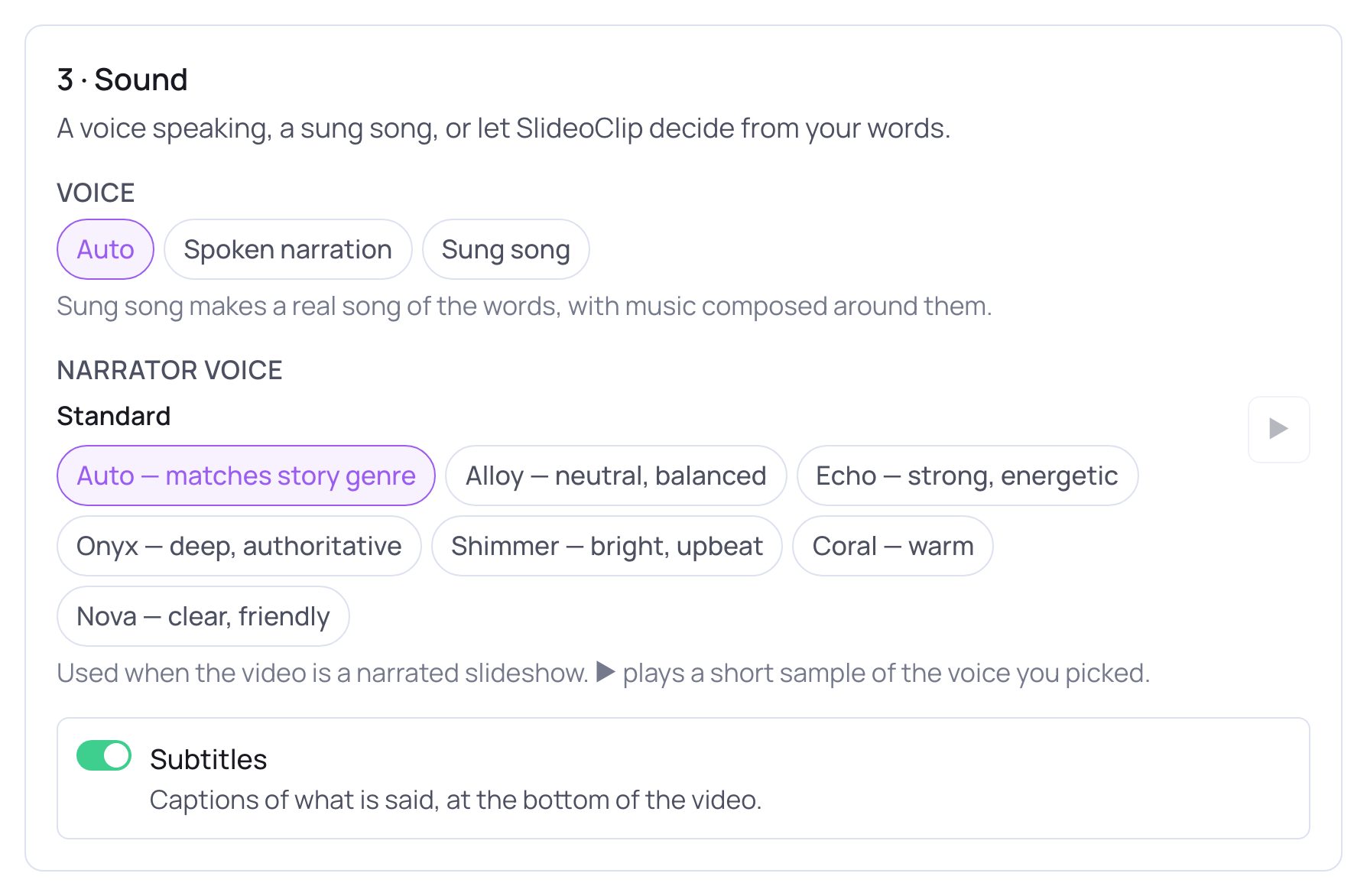
- 1Subtitles puts captions of what is said at the bottom of the video. Tap it to switch them off or on.
- On a narrated slideshow the captions are in English. When the voice speaks Tamil or Hindi, the captions show the English meaning, so more people can follow.
- If you turn on Words on each slide (Slideshow options), subtitles are switched off, because the words are already on the slides.
- Many people watch with the sound off — leave subtitles on unless you have a reason not to.
Good to know
- Not sure which voice? Pick two or three and tap ▶ on each before you send your message.
- Ask for a change of voice in the chat any time before Create: “use a female voice”, “a deeper voice please”.
- The caption you post with the video can be in another language — set Caption language when you post it (see Creative details).
Questions
Which languages can the voice speak?
Videos are written and voiced in 40 languages, including Tamil, Hindi and English. Telugu, Malayalam, Kannada, Marathi and Bengali can be written but not voiced.
Does previewing a voice cost credits?
No. The ▶ sample is free.
I chose a premium voice but my plan doesn't have it — what happens?
Premium voices are locked on plans that don't include them, and a premium voice picked earlier goes back to a standard one, so you are never charged for something you can't use.