All guides
Add your business (or a client)
Add your business, or each client you manage, on the Brands page: name, contact details, address, industry, tone, colours and logo. Everything SlideoClip makes for that business uses these details.
Before you start
- ✓A SlideoClip account (see Create your account)
1. Open the Brands page
Each business is called a Brand. If you run one shop, you have one Brand. If you run marketing for others, each client is its own Brand with its own logo, details and connected pages.
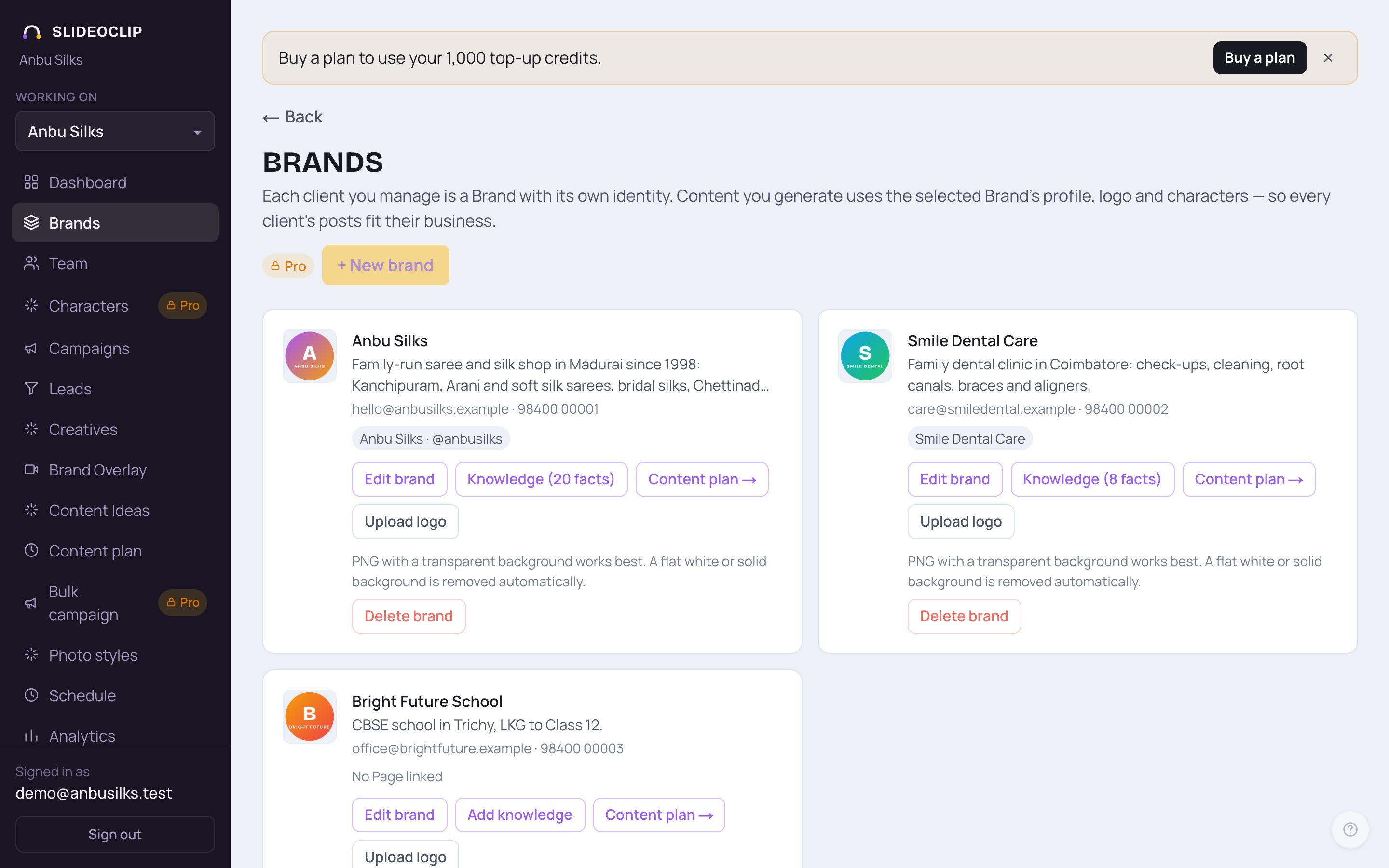
- 1Tap Brands in the menu on the left. On a phone, tap the menu button at the top first.
- 2Tap + New brand to add a new business or client.
- 3Tap Edit brand on a card to fill in or change its details.
- 4Tap Upload logo to add or change that business's logo.
- Each card shows the logo, a short description, the contact email and phone, and the Facebook Page (and Instagram) linked to it. No Page linked means no Facebook Page is linked to it yet.
- A yellow No contact email tag means the email is missing. Add it under Edit brand.
- A yellow Draft — review tag appears on a Brand made automatically from a connected Facebook Page. Open Edit brand, check the details and save.
💡 The other buttons on each card, Knowledge and Content plan →, are explained in Teach SlideoClip about your business and Plan a month of posts.
2. Add a new business or client
Only the name and the contact email are needed to start. You can fill in the rest now or later.
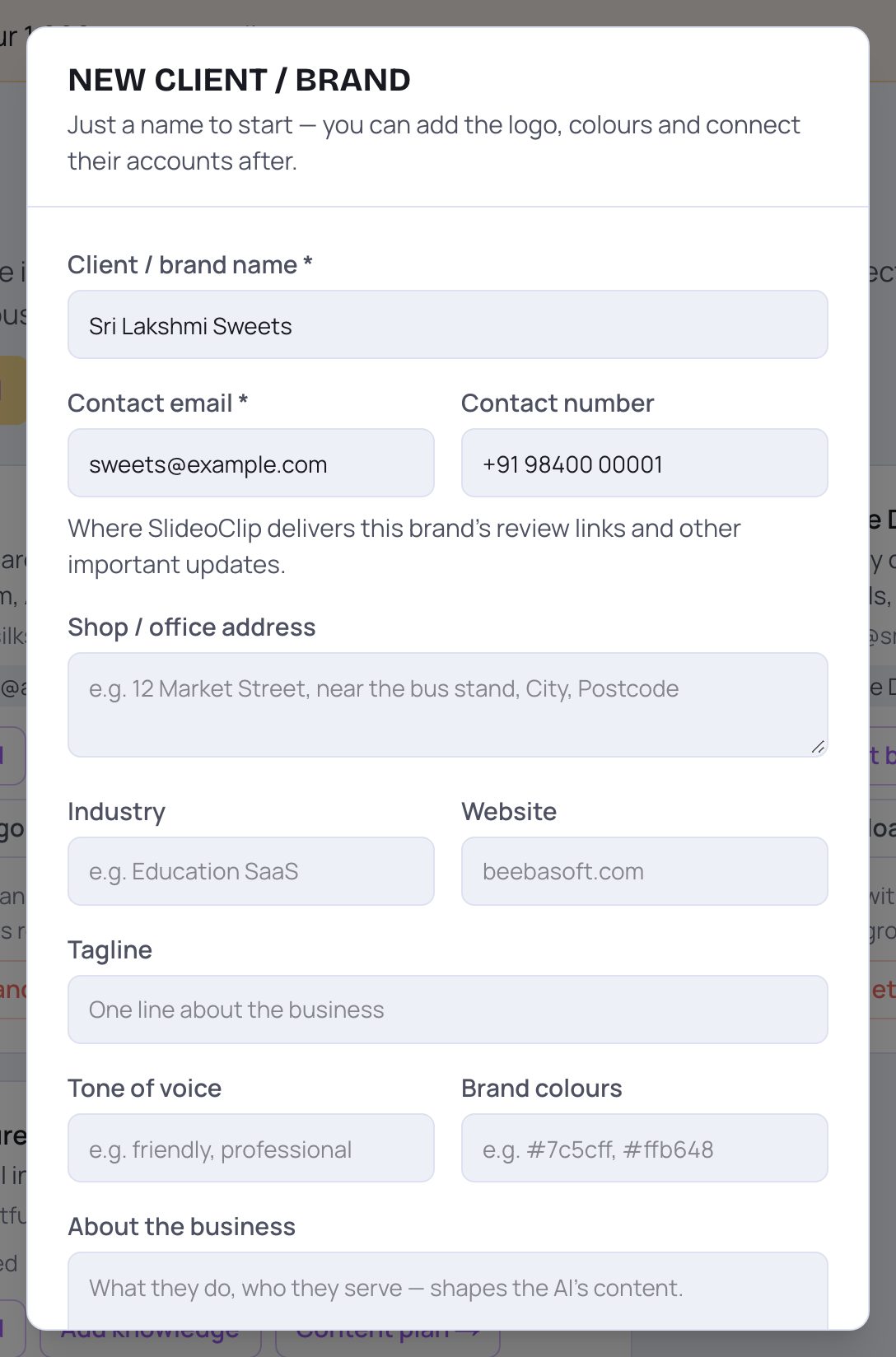
- 1Type the business name in Client / brand name. This box must be filled.
- 2Type an email in Contact email. This box must be filled too. SlideoClip sends this business's review links and important updates here.
- 3Add the phone or WhatsApp number in Contact number if you want it used on posters and at the end of ad videos.
- Scroll down for the other boxes, then tap Create brand at the bottom. Or tap Cancel to close without saving.
💡 If + New brand is greyed out with an upgrade note beside it, you've reached the number of brands your plan allows.
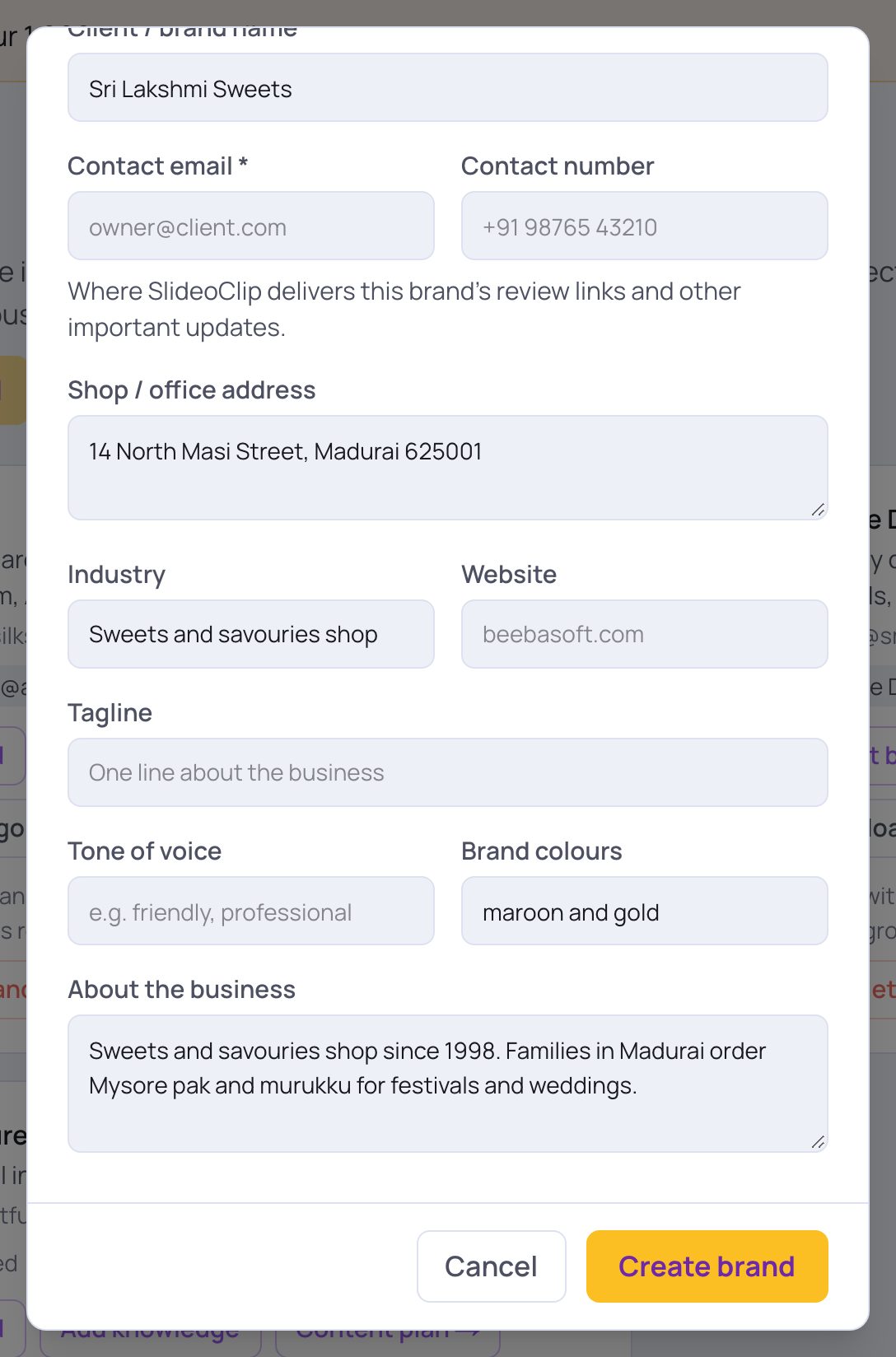
- 1Shop / office address: where customers can find you. It is shown with the phone number on the closing card of this business's ad videos.
- 2Brand colours: type colour names ("maroon and gold") or colour codes if you know them.
- 3About the business: what you sell and who buys. Write it in your own words. This shapes everything the AI writes for you.
- 4When you're happy, tap Create brand.
- Industry: what kind of business it is, in a few words.
- Website: the business's website, if it has one.
- Tagline: one line about the business.
- Tone of voice: how the posts should sound, for example "friendly, professional".
3. Fill in or change every detail
Tap Edit brand on a card. The window that opens has all of the business's details, from top to bottom. Scroll inside it to see everything.
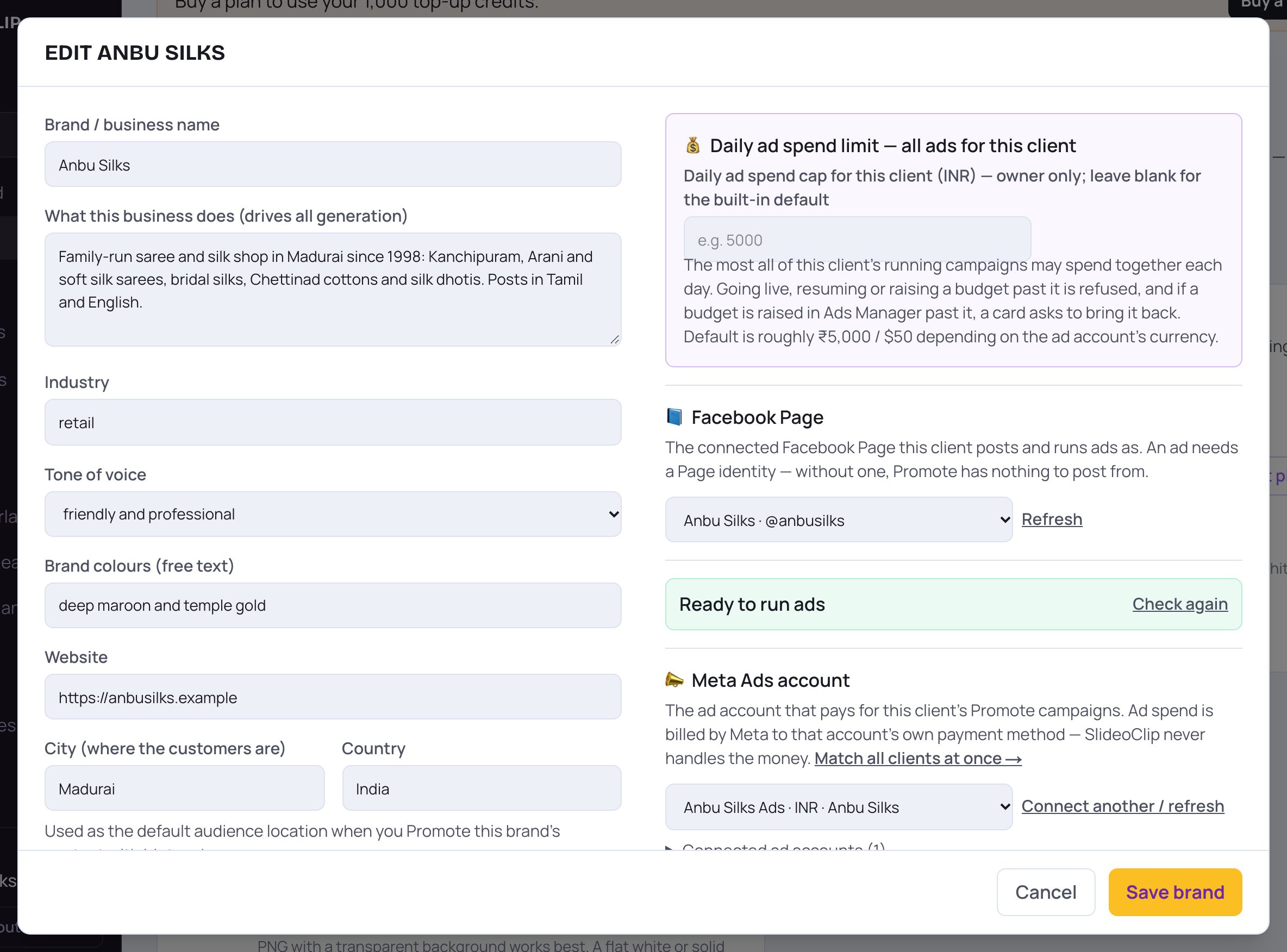
- 1Brand / business name: the name printed on posters and used in captions.
- 2What this business does: the most important box. Write what you sell, to whom and where. Every poster, video and caption starts from it.
- 3Tone of voice: pick how the business should sound: friendly and professional, bold and energetic, warm and caring, premium and elegant, playful and fun, or authoritative and expert.
- 4Brand colours: type the colours in plain words, like "maroon and gold".
- Industry and Website sit just below. Fill them in if you have them.
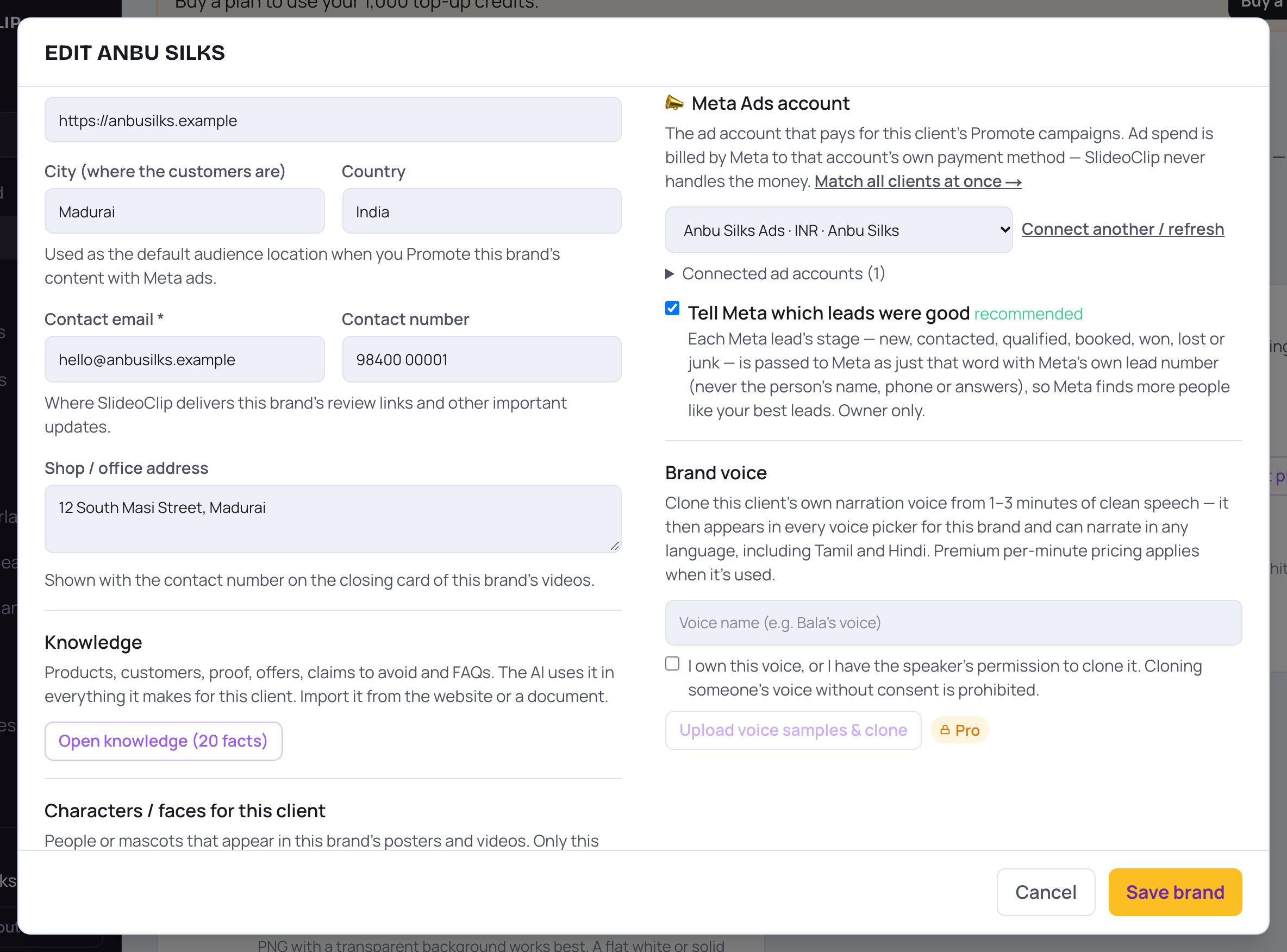
- 1City and Country: where your customers are. When you promote a post with a Meta ad, this is the place the ad is shown in, unless you change it.
- 2Contact email: must be filled. Review links and important updates for this business go here.
- 3Contact number: your phone or WhatsApp number, for example +91 98765 43210.
- 4Shop / office address: shown with the contact number on the closing card of this business's ad videos.
💡 SlideoClip only prints contact details you have typed. It never makes up a phone number or address.
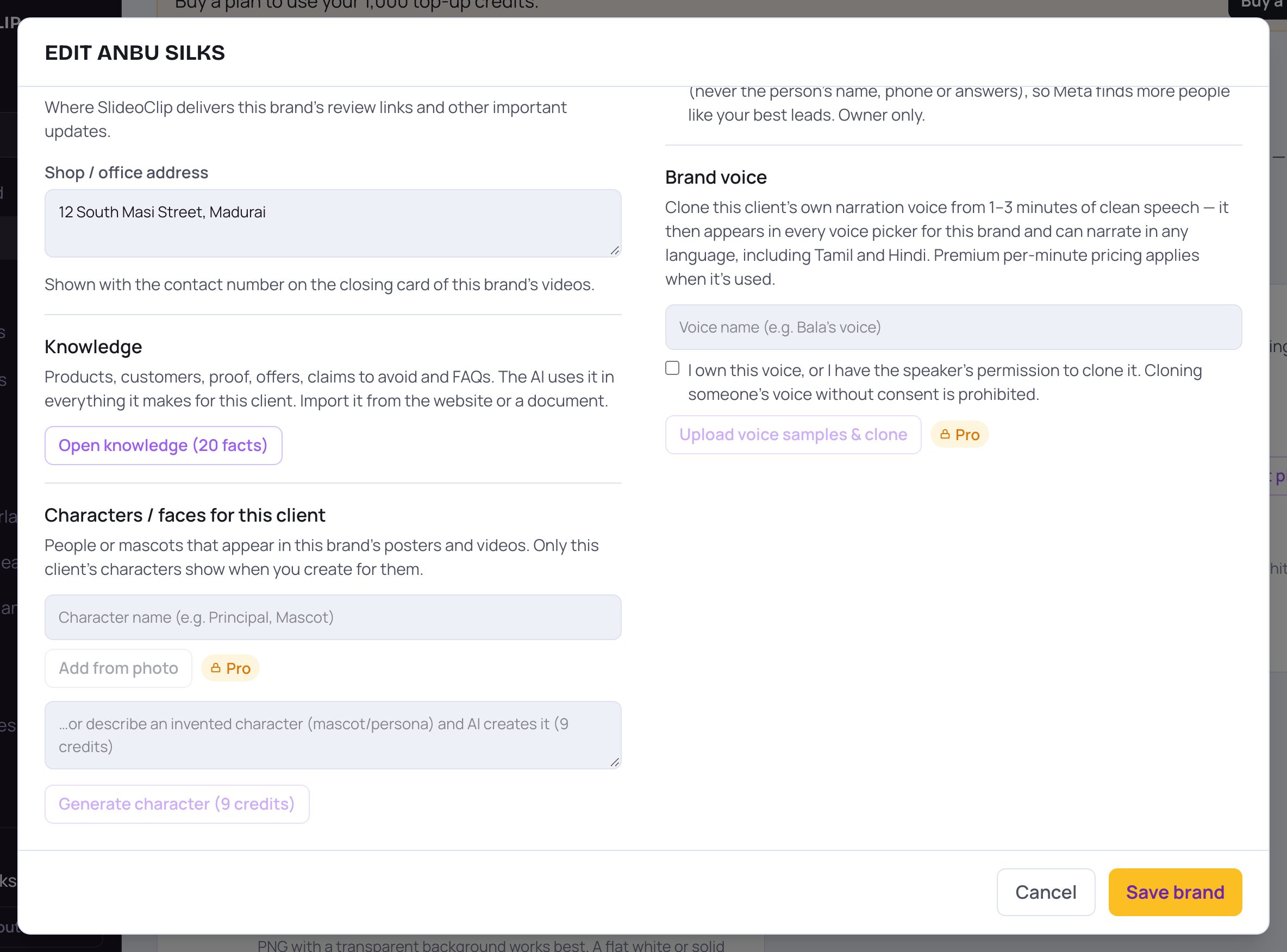
- 1Knowledge: tap the Open button (it reads Open knowledge or Open add knowledge, with the number of facts) to tell SlideoClip about the products, prices, offers and common questions. See Teach SlideoClip about your business.
- 2Characters / faces for this client: type a Character name, then add the owner, staff or a mascot from a photo, or describe an invented one. They can then appear in this business's posters and videos. See Save people and characters.
- The right side of this window has the Facebook Page, Meta Ads account and Brand voice parts. They are shown next.
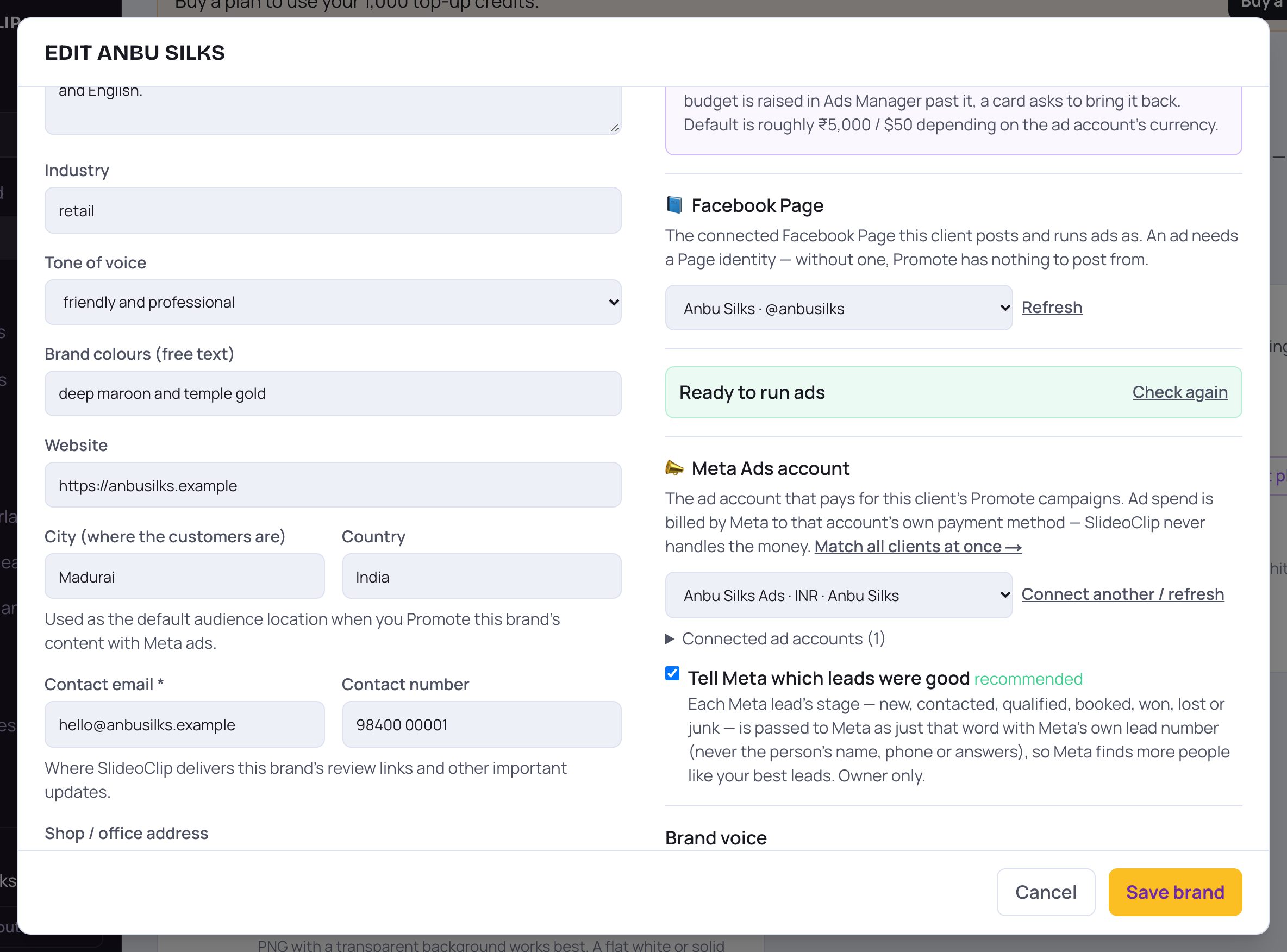
- 1Facebook Page: choose which connected Facebook Page this business posts and runs ads as. Tap Refresh if you just connected one. See Connect your accounts.
- 2Meta Ads account: choose the ad account that pays for this business's ads. Meta bills that account's own payment method; SlideoClip never handles the money. See Run lead ads.
- 3Tell Meta which leads were good: when ticked, each lead's stage (new, contacted, won and so on) is passed to Meta as a single word, never the person's name.
- Above the Facebook Page is Daily ad spend cap for this client: the most all of this business's running campaigns may spend together each day. Only the workspace owner can change it. Leave it blank to use the built-in default.
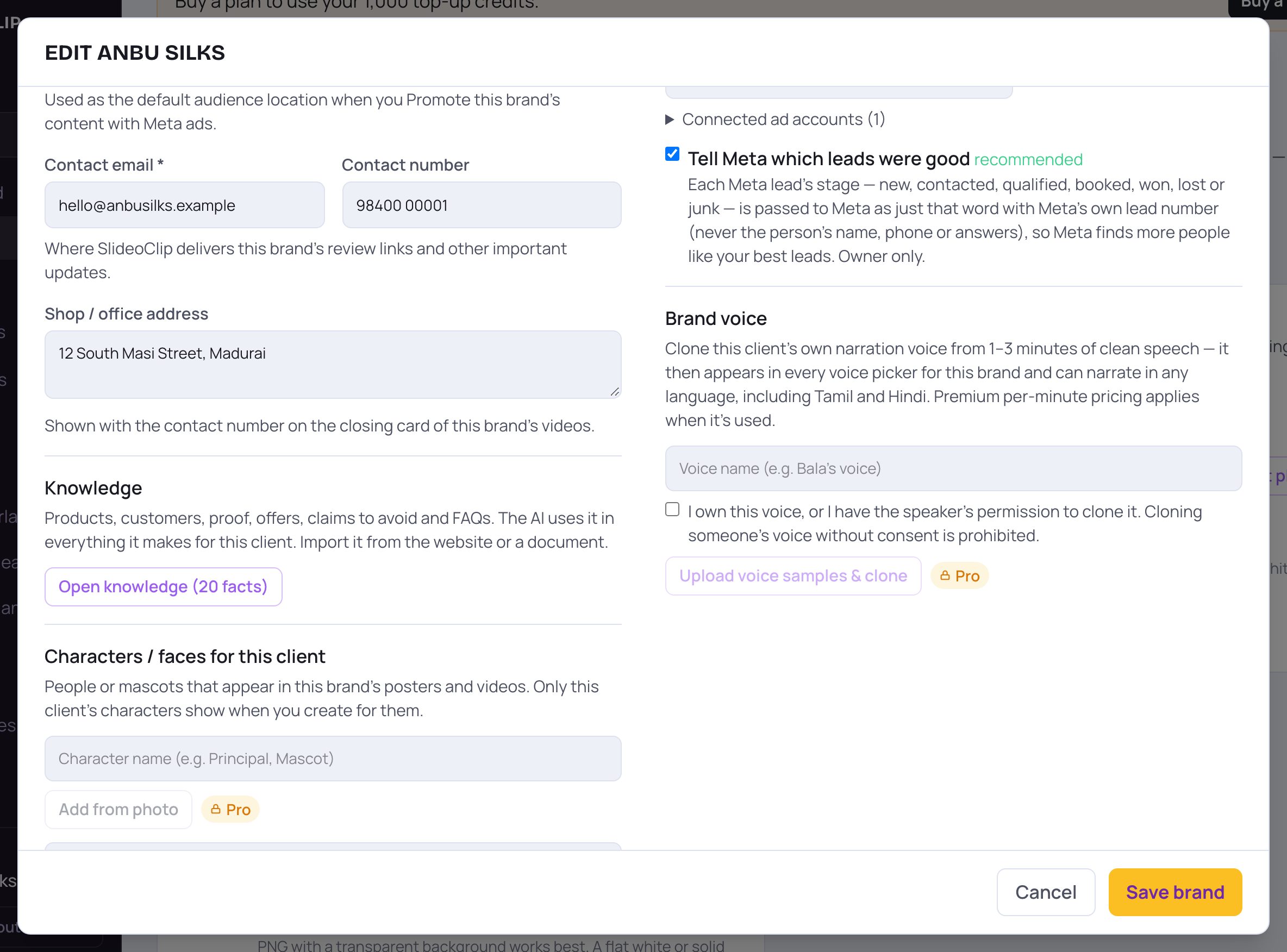
- 1Brand voice (optional): record 1 to 3 minutes of clear speech from the owner, and SlideoClip can narrate this business's videos in that voice, in any language. The price for using it is shown when you make a video.
- 2To clone a voice, type a Voice name, tick the box to confirm you own the voice or have the speaker's permission, then tap Upload voice samples & clone.
- 3Tap Save brand to keep your changes. Cancel closes the window without saving.
💡 Voice cloning is not on every plan. If it isn't on yours, a Pro upgrade note appears next to the button.
4. Add the logo
Your real logo is placed on your posters after they are made. The AI never redraws it.
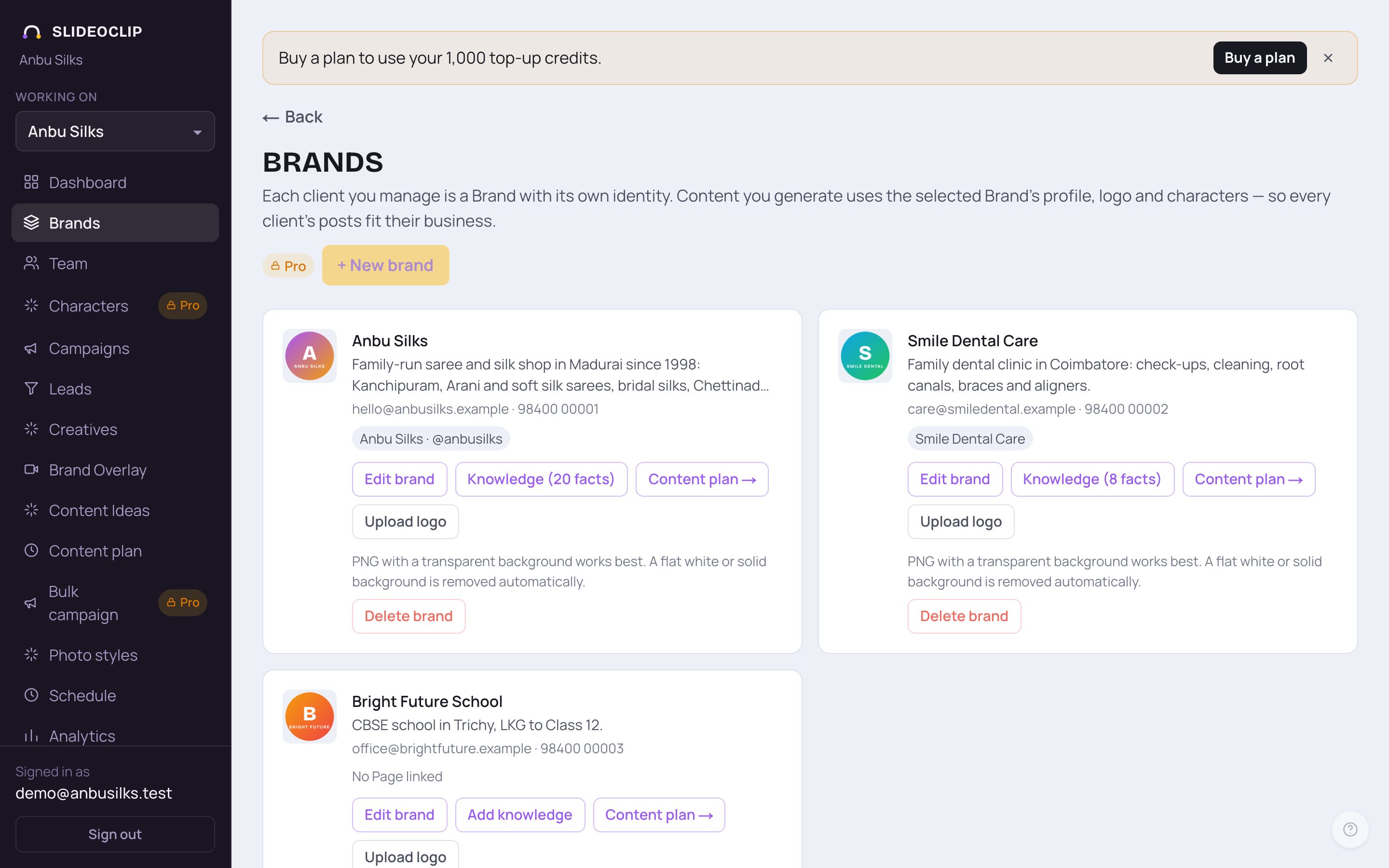
- 1Tap Upload logo on the business's card and choose the logo file from your phone or computer (PNG, JPG or WEBP).
- 2A PNG with a see-through background looks best. If your logo sits on plain white or one solid colour, that background is removed for you.
- When it's saved, you'll see Logo updated at the top and the logo on the card.
💡 No logo file? Open Knowledge and use Set up from website: if the website has a logo, SlideoClip adds it for you (only when the business has no logo yet).
5. Switch the business you're working on
The menu on the left shows Working on with the business you have chosen. Posters, videos, plans and schedules you make are for that business. If you only have one business, you never need to change it.
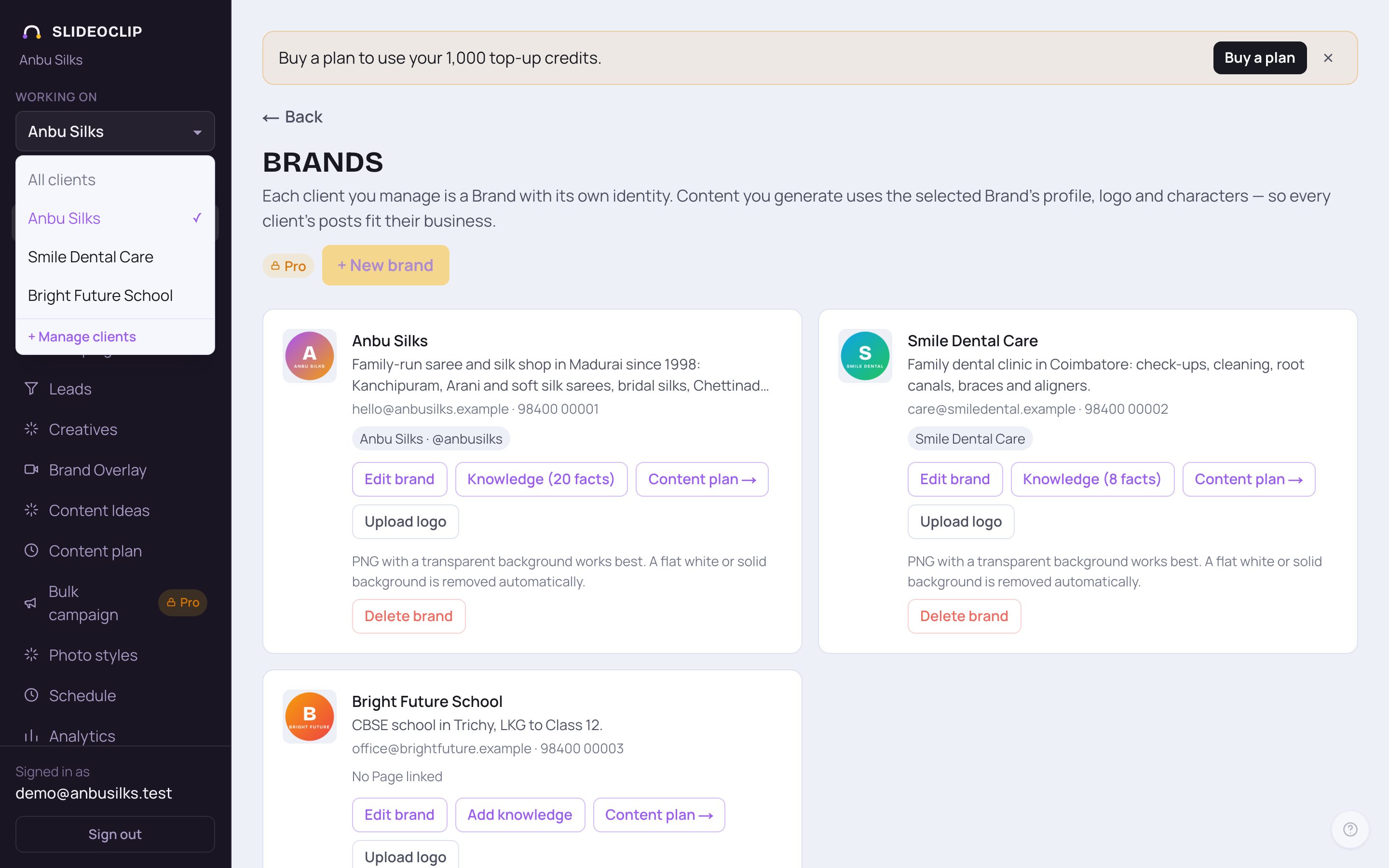
- 1Tap the name under Working on to open the list.
- 2Tap another business to switch to it. A tick shows the one you're on.
- 3Tap All clients to see everything from every business together.
- 4Tap + Manage clients to come back to the Brands page.
- With more than six businesses, a Search clients… box appears at the top of the list.
💡 SlideoClip remembers your choice on this device, so it stays picked when you come back.
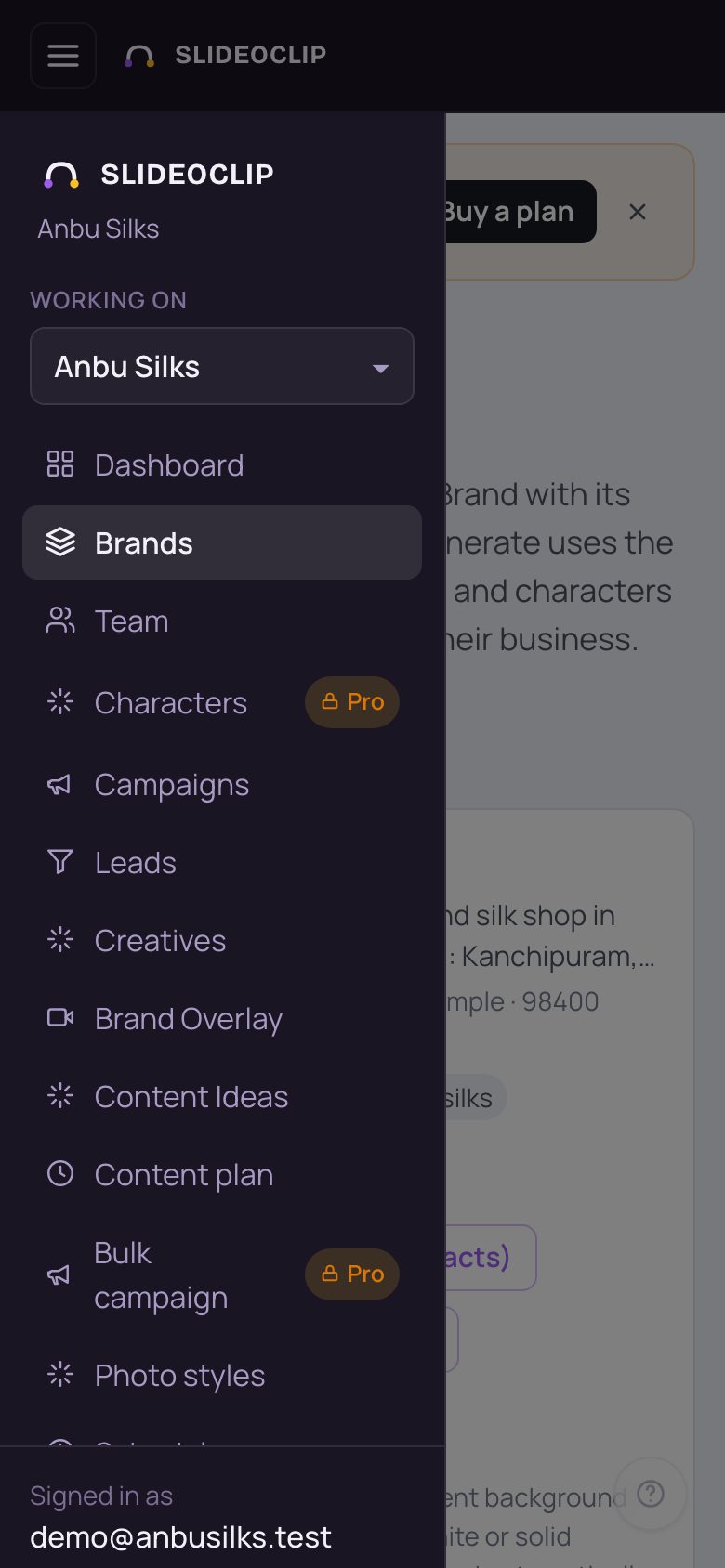
- 1On a phone, tap the menu button (three lines) at the top left. Working on is at the top of the menu that slides in. Tap it to change the business.
6. Remove a business you no longer need
Deleting a Brand can't be undone, so SlideoClip first shows you exactly what is linked to it.
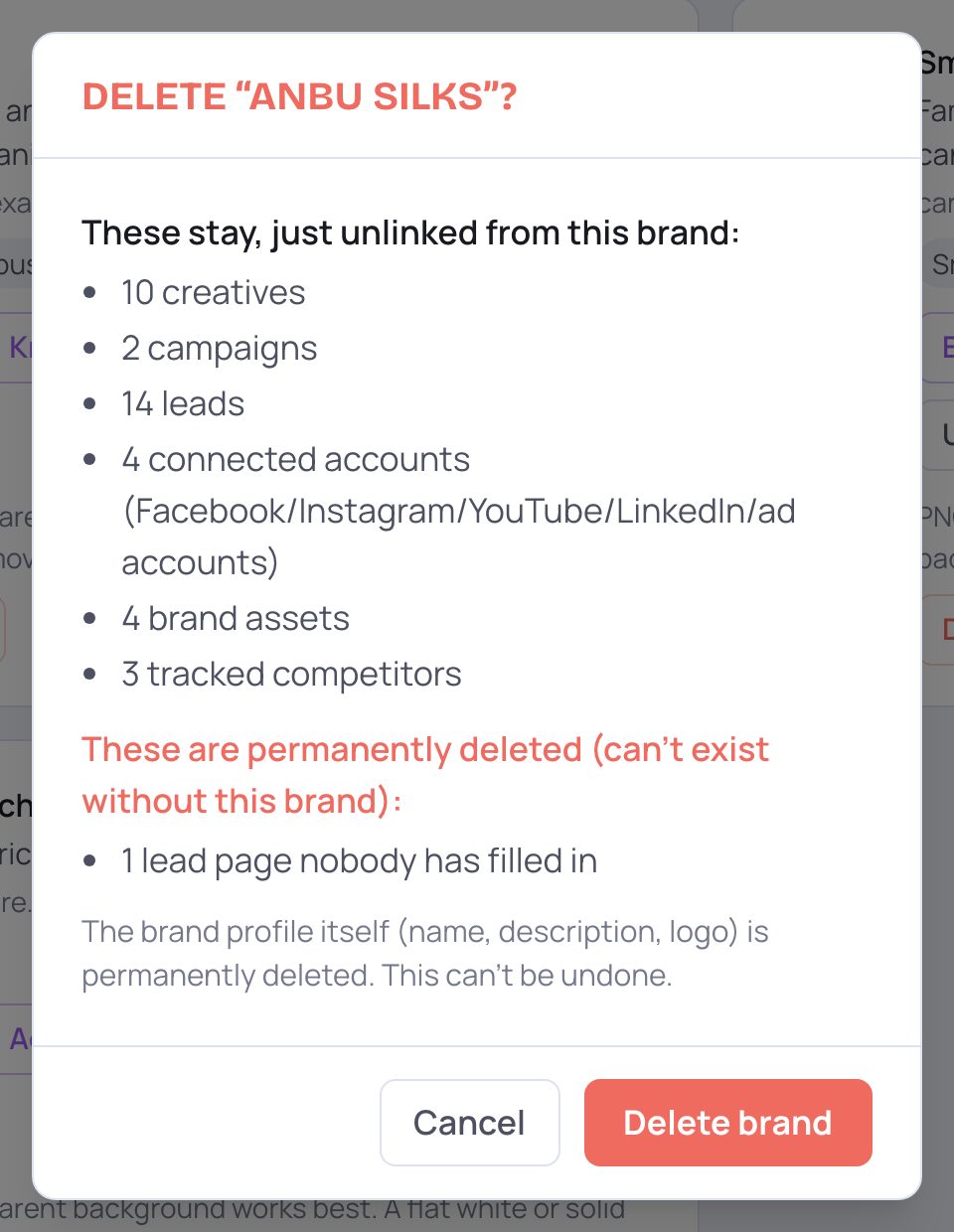
- 1Read the list. Under These stay, just unlinked from this brand are things that are kept (creatives, campaigns, leads, connected accounts and more). Anything under These are permanently deleted goes for good, such as review links and cloned voices.
- 2Only if you're sure, tap Delete brand. The name, description and logo are deleted for good.
- 3Tap Cancel to keep the business.
Good to know
- Write "What this business does" like you would explain it to a new staff member: what you sell, prices if you like, who buys and where. The more real detail, the better every post.
- There's no separate language setting. Write the language you want (for example "Tamil and English mix") in the Voice part of Knowledge, or just ask for it when you create.
- Connected a Facebook Page? Each Page becomes its own Brand automatically. Open it, check the details and tap Save brand.
Questions
Why does SlideoClip need a contact email for each business?
Review links (so a client can approve posts) and important updates for that business are sent to it. One workspace can hold many businesses, each with its own contact.
Do I have to fill in every box?
No. Only the name and contact email are needed. But the more you fill in, especially "What this business does", the better and more accurate your posts will be.
Can I change the details later?
Yes. Tap Edit brand any time, change anything and tap Save brand. New posters and videos use the new details.
How many businesses can I add?
It depends on your plan. When you reach the limit, + New brand is greyed out with an upgrade note beside it.