All guides
Plans and credits
Understand what credits are and where you see the price before anything is made, buy a plan or a top-up, keep your unused credits when you renew, and check your payment history.
Before you start
- ✓A SlideoClip account (see Create your account)
1. What credits are
Credits are how you pay for the AI work: drawing a poster, writing an article, making a video with voice and music. Everything else is free: planning, previews, captions, scheduling, posting, analytics and uploading your own pictures or videos. You get credits by buying a plan, and you can add more with a top-up. A plan is paid once for 30 days. There is no subscription and nothing is ever charged automatically.
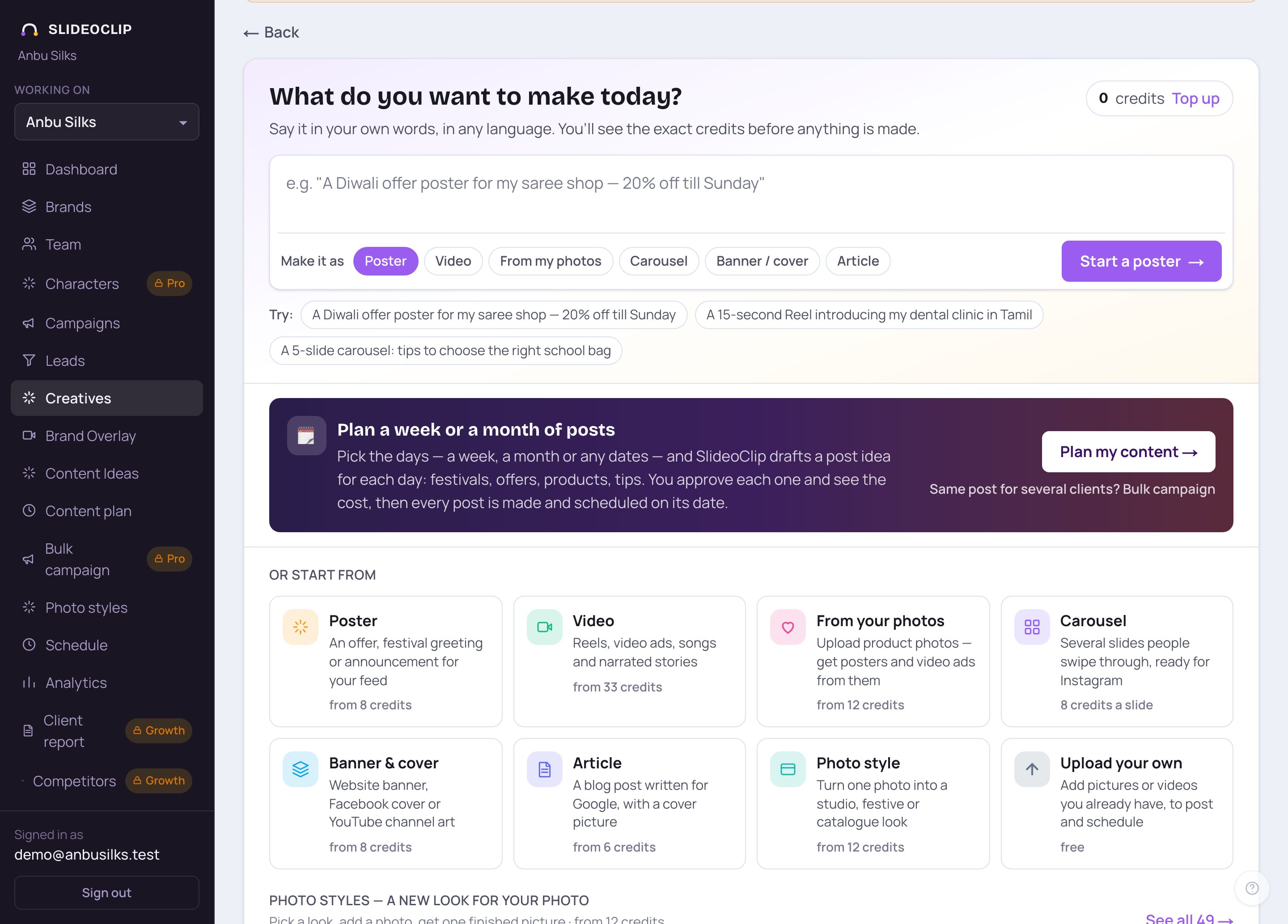
- 1On Creatives, the top right shows how many credits you have. Tap Top up on it to open Billing.
- 2Each starting card says what it costs, for example "from 8 credits" or "free" for uploading your own.
- Before anything is made, the button you press shows the exact number of credits. Nothing is used until you press it.
- If a creation fails, it isn't charged: the credits come back to your balance by themselves.
💡 Your balance is also on the purple Credits left tile on the Dashboard.
2. Your balance and your plan
Open Billing in the menu. The top of the page is about you: what you have now and what your plan allows.
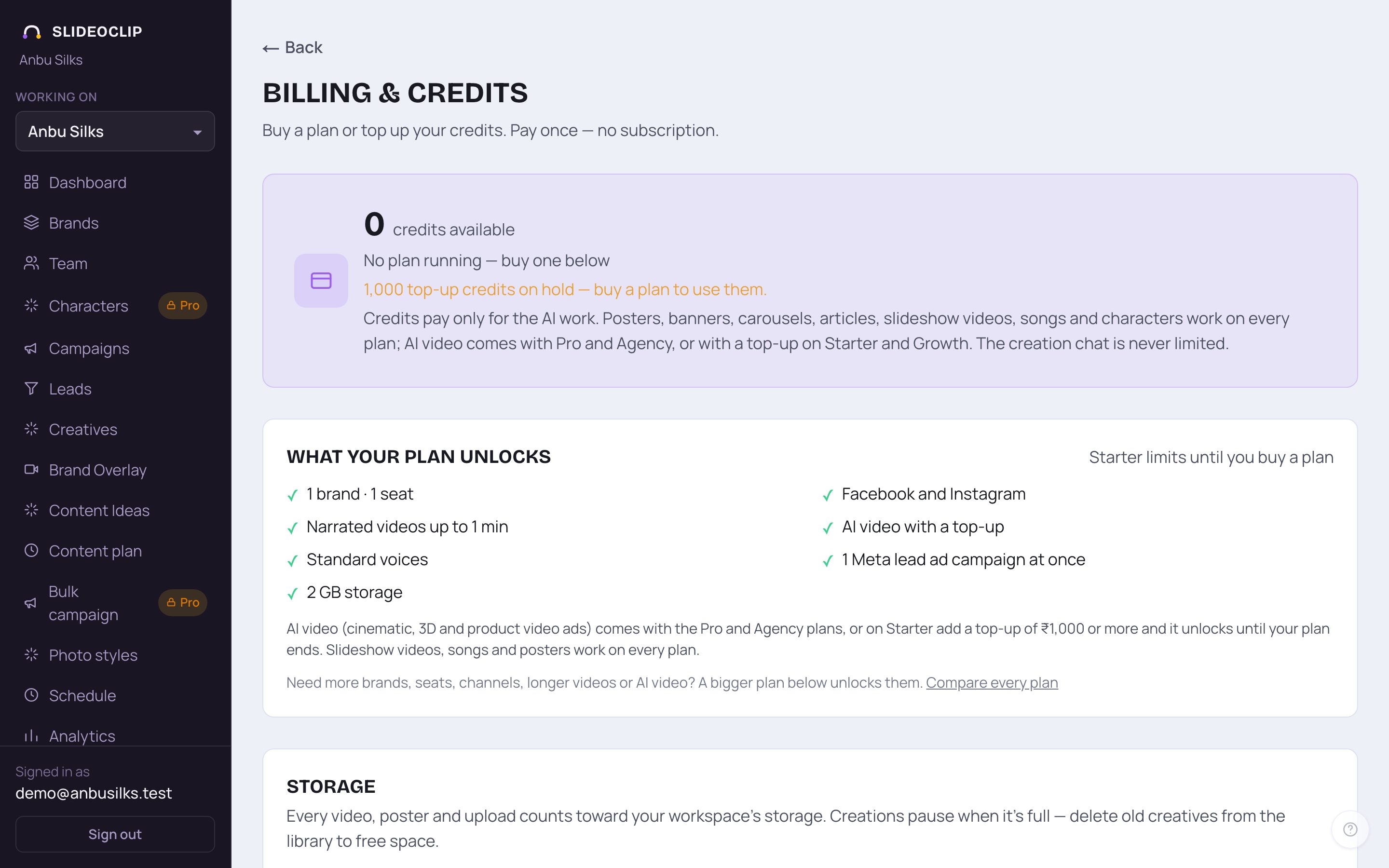
- 1The big number is the credits you can spend now.
- 2Your plan: the plan that is running. With no plan it says "No plan running — buy one below".
- Once a plan is running, the same area shows the date it ends, how many days are left, and what will happen to your credits. It turns yellow in the last week.
- Under that you may see lines such as "120 credits expire on 28 Oct 2026" (the soonest first), and, if no plan is running, top-up credits "on hold".
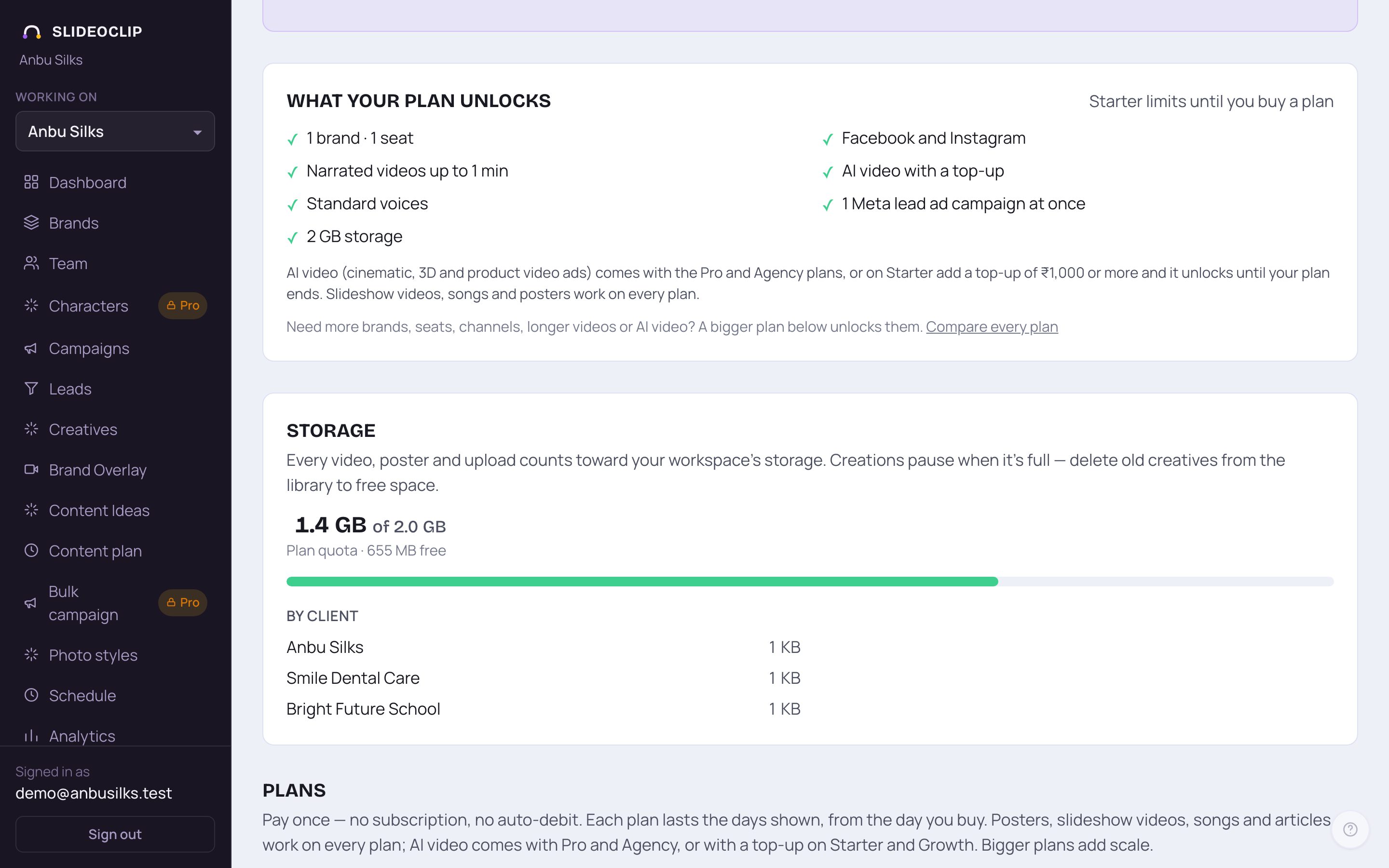
- 1What your plan unlocks lists what your workspace can use: how many brands and seats, which channels, the longest video, AI video, voices, lead ad campaigns at once, client approval links, storage and more.
- 2Storage shows the space used out of your limit. When it is full, new creations pause until you free space.
- 3By client shows how much space each client uses.
- When you have big files, Largest items appears next to it. Tap one to open it in Creatives, where you can delete it.
💡 On a smaller plan, a line under the list says what a bigger plan adds, with a Compare every plan link.
3. Buy a plan
There are four plans: Starter, Growth, Pro and Agency. Posters, carousels, articles, slideshow videos and songs work on every plan. The bigger plans add scale (more clients, team seats, channels, longer and 2K videos, premium voices, approvals, storage) and AI video, and give more credits.
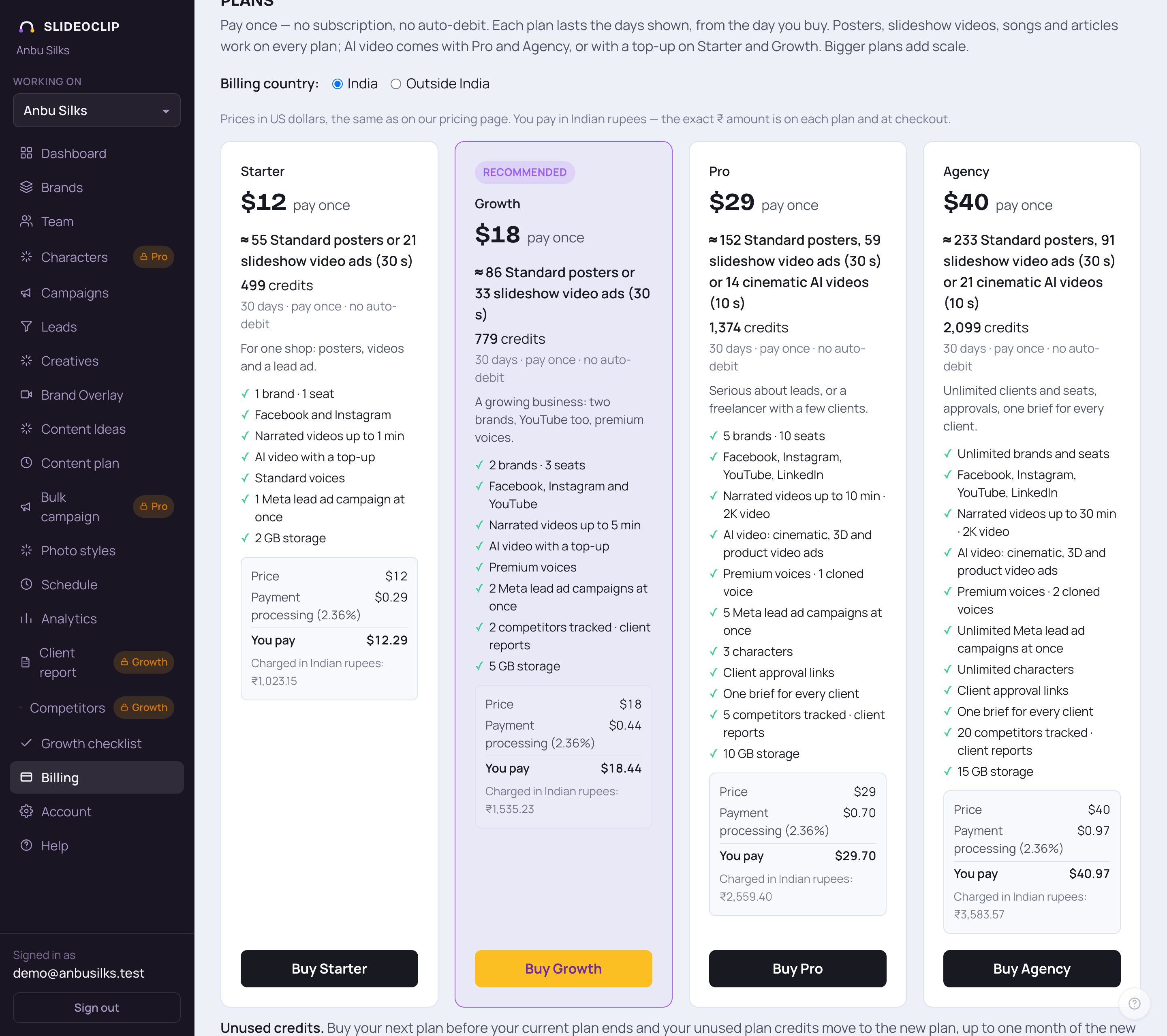
- 1Choose your Billing country: India or Outside India. It decides whether GST is added (India only).
- 2Compare the cards. Each shows the price ("pay once"), roughly what its credits make, how many credits, the days it lasts, and what it includes. Recommended marks the best value for a small shop; your current plan says Your plan.
- 3The grey box shows the price, any GST, a small payment processing fee, and You pay: the full amount.
- 4Tap Buy and the plan's name (for example Buy Growth). Razorpay's secure payment window opens. Choose how to pay there and finish the payment.
- Once paid, the window closes and your credits and plan appear on this page within a few seconds. Reload the page if they don't.
💡 If the Buy buttons stay greyed out with the message "Payment couldn’t load", an ad-blocker or privacy extension is blocking Razorpay. Turn it off for this site, or open the page in a private window, and reload.
4. Keep your unused credits
Plan credits last as long as the plan: 30 days from the day you buy it. In the last 7 days, a yellow message at the top of every page tells you when your plan ends, with a Renew now button. The workspace owner also gets reminder emails 7, 3 and 1 days before.
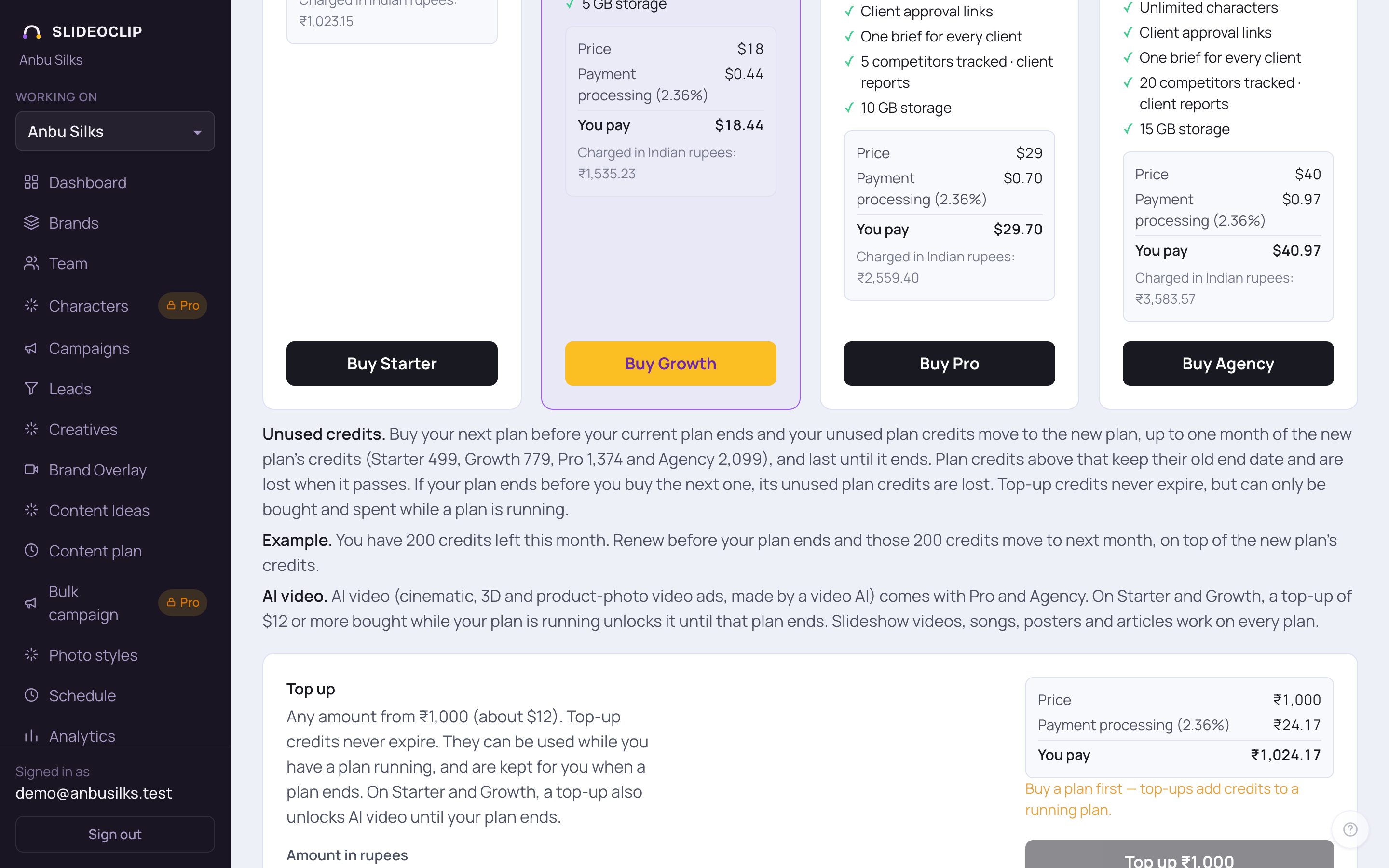
- 1Unused credits. Buy your next plan before the current one ends, and the plan credits you didn't use move to the new plan, up to one month of the new plan's credits. If the plan ends first, its unused plan credits are lost.
- 2Example. You have 200 credits left this month. Renew before your plan ends and those 200 move to next month, on top of the new plan's credits.
- 3AI video. Cinematic, 3D and product-photo video ads come with Pro and Agency. On Starter and Growth, a top-up of ₹1,000 or more bought while your plan is running unlocks AI video until that plan ends.
💡 Credits closest to their end date are used first, so your plan credits are spent before your top-up credits.
5. Top up
A top-up adds credits to a running plan. Top-up credits never expire. If your plan ends, they are kept on hold and can be used again as soon as you buy a plan.
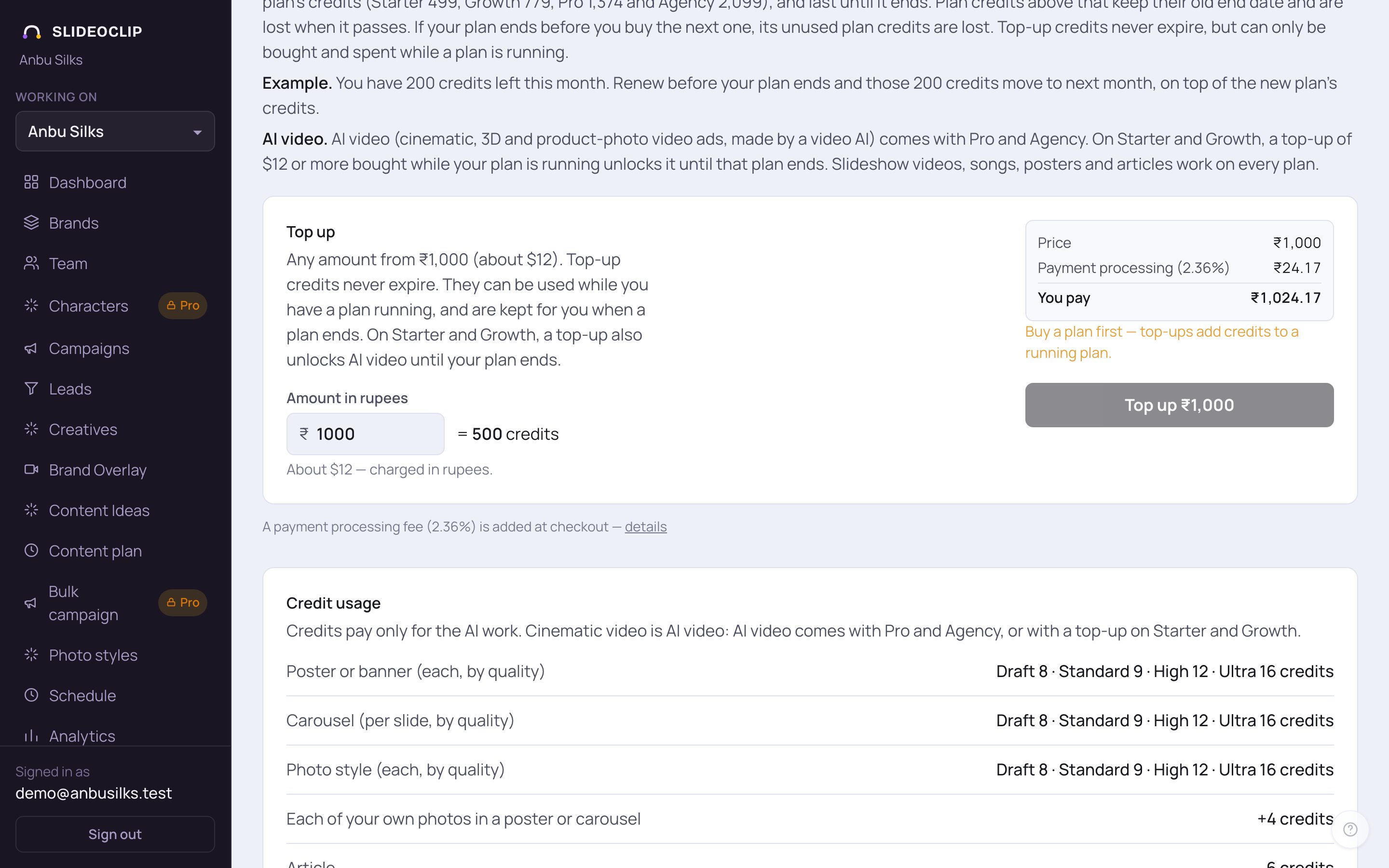
- 1Find Top up under the plan cards.
- 2In Amount in rupees, type any whole number from the minimum shown. Next to it you see how many credits that gives, and the full amount with fees appears beside it.
- 3Tap Top up ₹… to pay in Razorpay's window. The credits are added once it's paid.
💡 You need a plan running to buy a top-up. Without one, the page says "Buy a plan first — top-ups add credits to a running plan."
6. What each thing costs
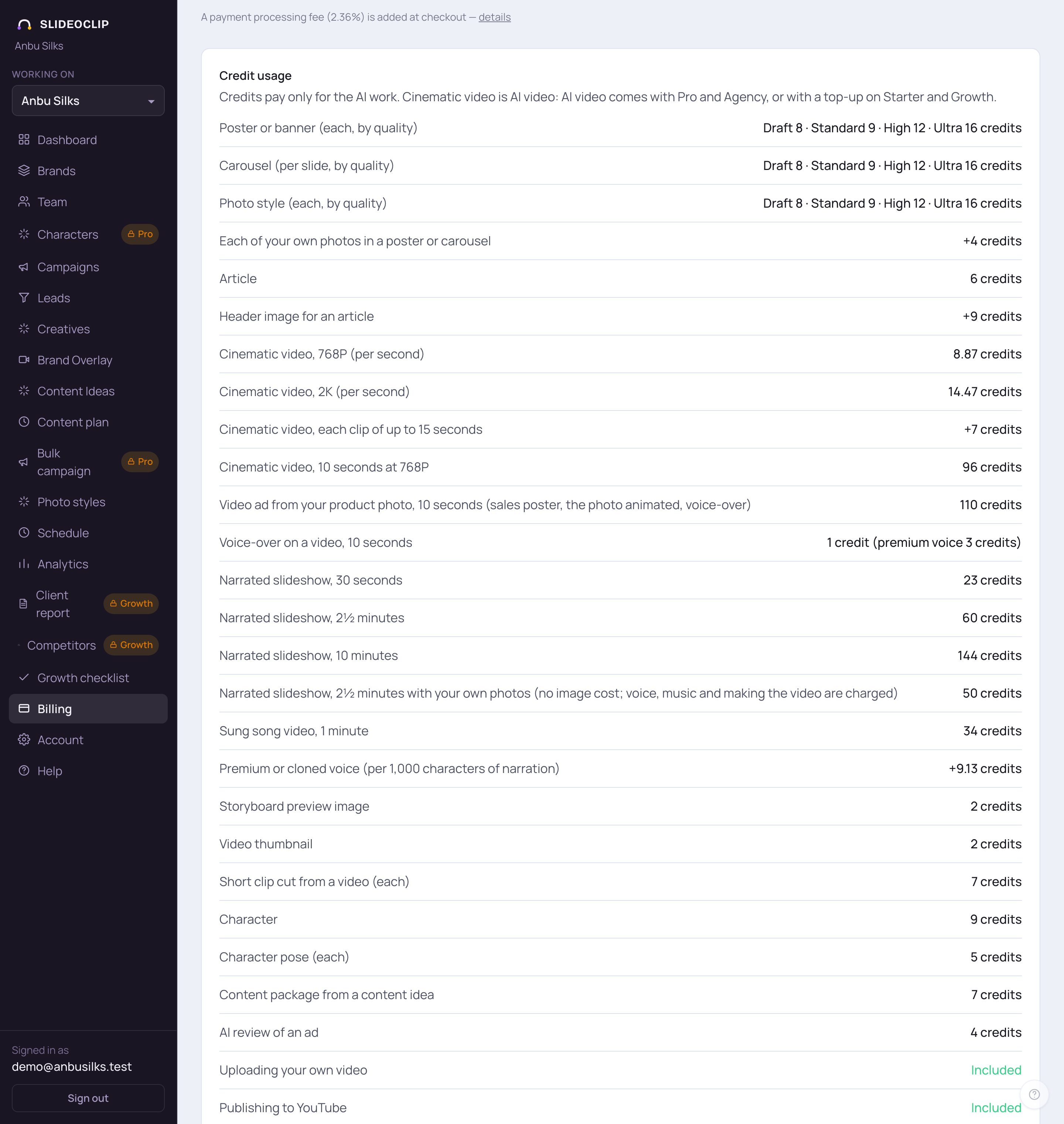
- 1Credit usage is the price list, always up to date.
- 2Each line is one kind of work with its credits: posters by quality (Draft, Standard, High, Ultra), carousels per slide, articles, videos per second, slideshows of different lengths, songs, voices, characters and more.
- 3The last lines show what is Included, with no credits: uploading your own video, publishing to YouTube, and scheduling, analytics, content ideas and Promote.
💡 Money for Meta ads is paid by you to Meta directly. SlideoClip takes nothing from your ad spend.
7. Your payment and credit history
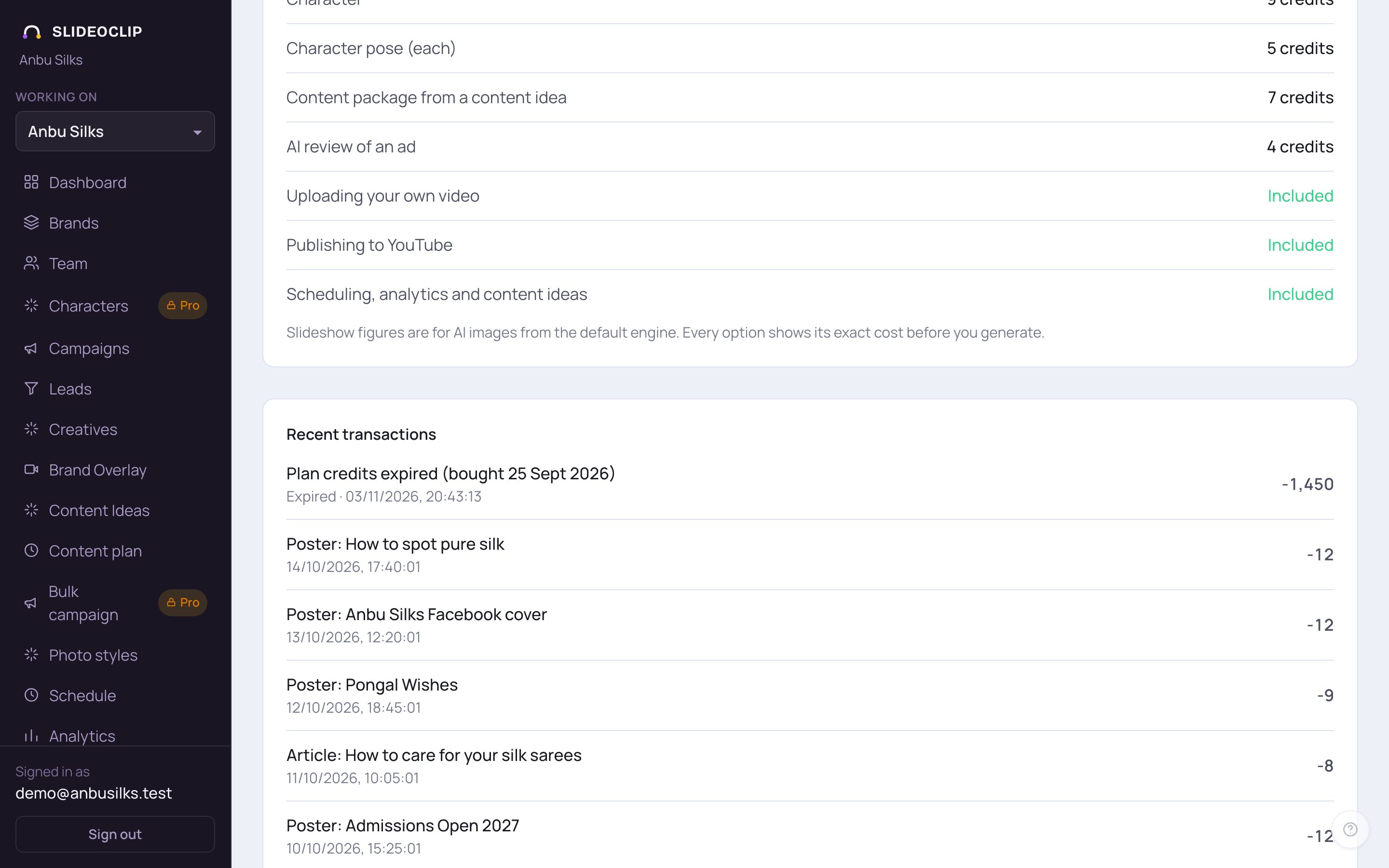
- 1Recent transactions lists every change to your credits with its date and time: plans and top-ups you bought (green, with a +), credits used by each creation, refunds for failed creations, and credits that ran out (marked Expired).
- Wondering why your balance dropped? Look here first.
💡 There is no invoice download on this page yet. If you need a bill for your accounts, email admin@slideoclip.com with your login email and the payment date.
Good to know
- Renew a day or two before your plan ends, not after, so your leftover plan credits move across.
- Not sure which plan? Start small. You can move to a bigger or smaller plan when you renew, and nothing you made is deleted.
- Only the AI work costs credits. Posting, scheduling and planning are always free.
Questions
How much do the plans cost?
At the time of writing: Starter ₹999, Growth ₹1,499, Pro ₹2,499 and Agency ₹3,499, each paid once for 30 days. The Billing page always shows today's prices and the exact amount you pay, with fees.
Is this a subscription? Will I be charged again?
No. Each plan is a single payment for 30 days. Nothing renews and nothing is charged automatically. When a plan ends, you decide whether to buy another.
Is there a free trial?
There is no free trial period. While the sign-up offer is running, a new account gets a few free posters to try (the home page and the sign-up page say so when it is on). After that, every button shows its price before anything is made, and a failed creation is never charged.
What happens when my plan ends?
Its unused plan credits are lost and buying a new plan later does not bring them back. Top-up credits are kept on hold. Nothing you made, connected or stored is deleted.
Can I buy another plan while one is running?
Yes, and that is how you keep your credits: up to one month of the new plan's credits move across. Your workspace then gets the new plan's limits.
Is GST added?
GST applies only to customers in India, and only when it is switched on; the price box shows a GST line when it is. Choose your billing country above the plans.
Which currency am I charged in?
Always Indian rupees. If you see dollar prices, they are only for reference.
Can I get a refund for unused credits?
No. Unused or expired credits are not refunded as cash, except where the law requires it.
My balance looks wrong.
Reload the page. Then check Recent transactions on Billing: credits from an ended plan show as Expired, and top-up credits are on hold while no plan is running.