All guides
Connect Facebook, Instagram, YouTube and LinkedIn
Connect the pages and channels SlideoClip should post to, choose which business each one posts for, and reconnect when a connection stops working (for example after a password change).
Before you start
- ✓A Facebook Page (not a personal profile) for Facebook posting
- ✓An Instagram Business or Creator account for Instagram
- ✓A YouTube channel and/or a LinkedIn account, if you want those
- ✓Your businesses added on the Brands page (see Add your business)
1. See what is connected
The Channels card on your Dashboard shows Facebook, Instagram, YouTube and LinkedIn, with a green dot for each one that is connected.
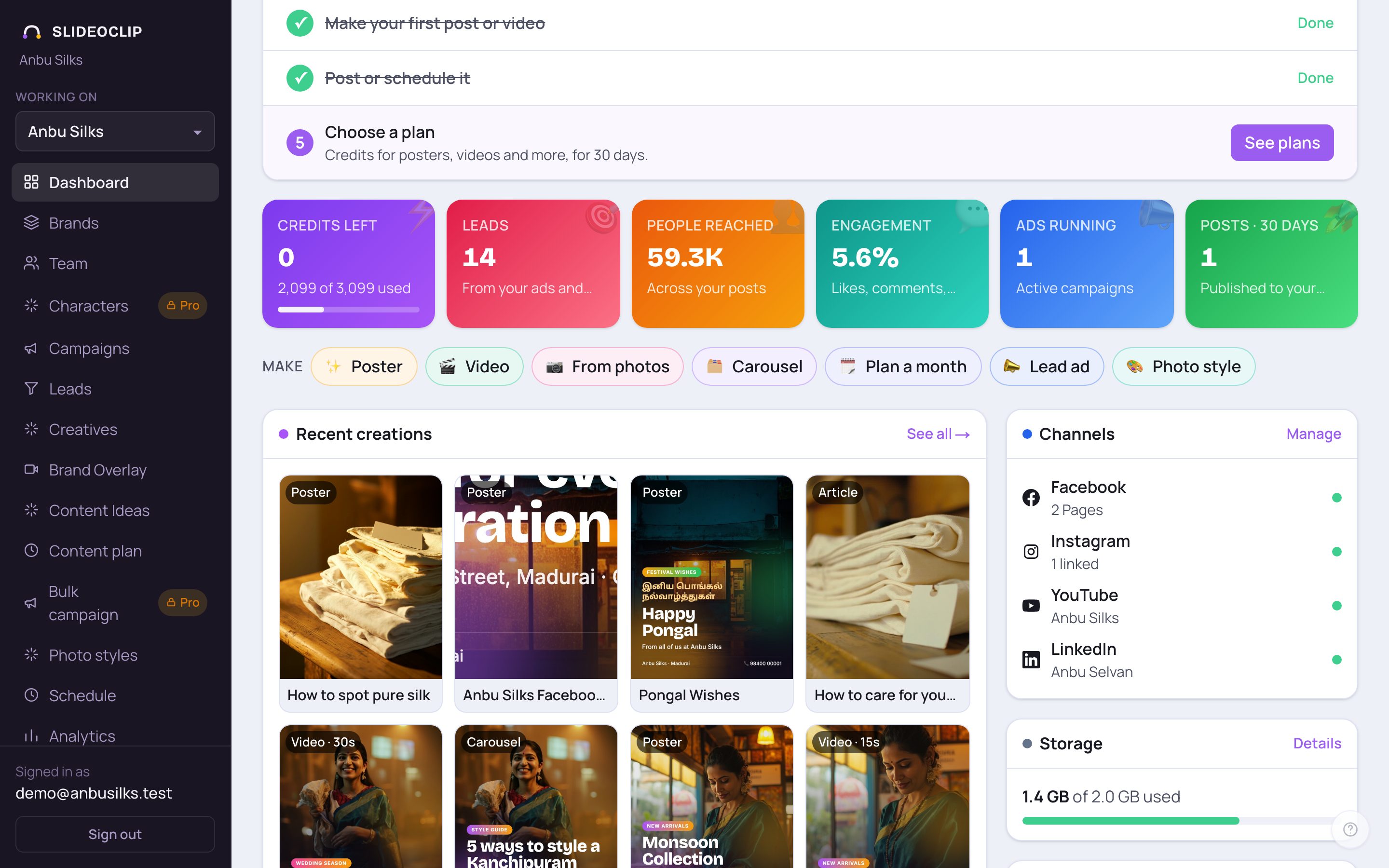
- 1Check the Channels card: each line says how many Pages, which Instagram, and which YouTube or LinkedIn account is connected, or Not connected.
- 2Tap Manage to open Connected accounts & clients further down the Dashboard.
💡 Personal Facebook profiles and personal Instagram accounts can't be posted to by any app. That's Meta's rule. You need a Facebook Page, or an Instagram account switched to Business or Creator (free, in the Instagram app's settings).
2. Open Connected accounts & clients
This folded box at the bottom of the Dashboard holds everything about connecting. Tap its title to open it.
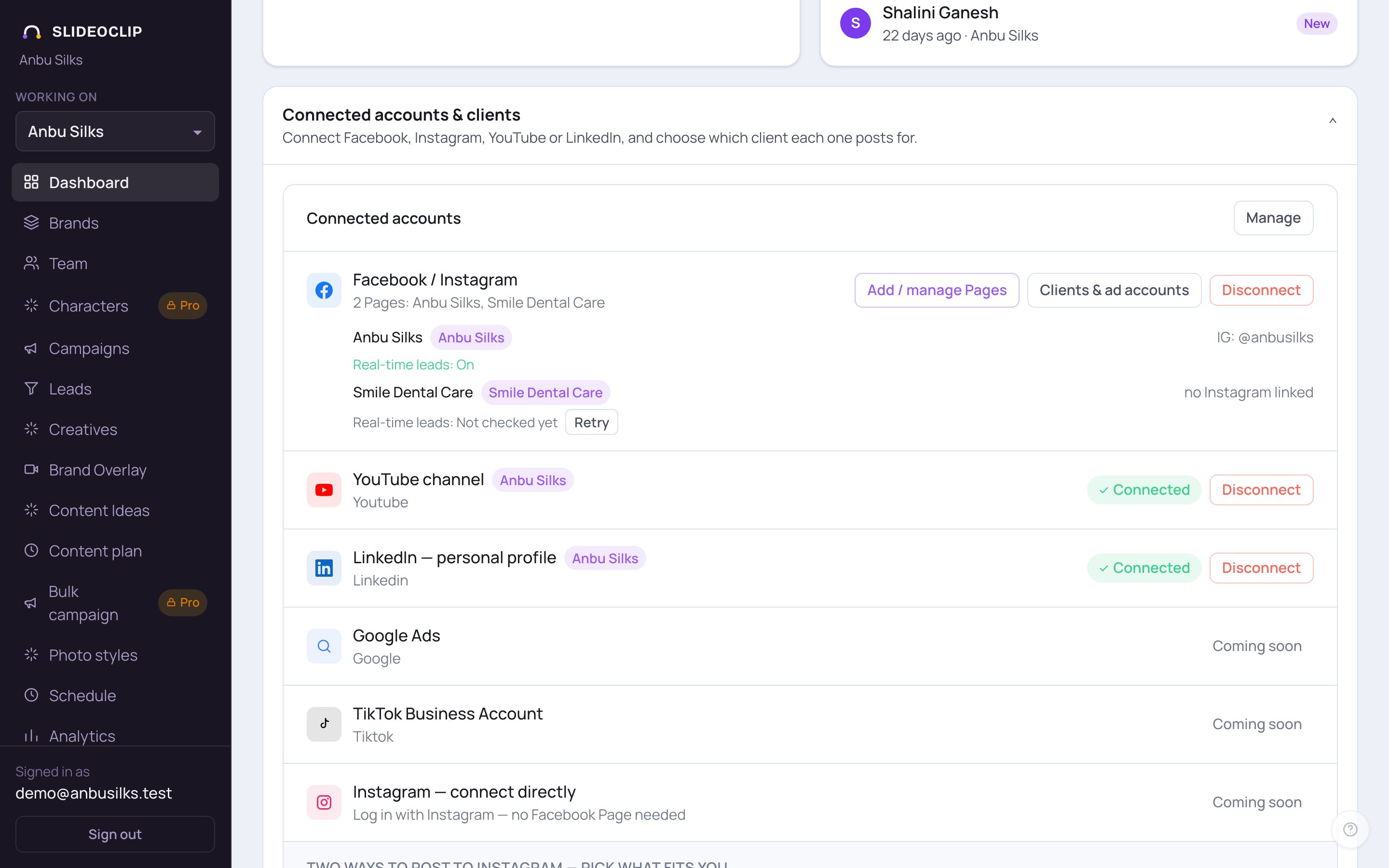
- 1Tap Connected accounts & clients to open it.
- 2Facebook / Instagram: tap Connect (or Add / manage Pages once connected). Your Pages are listed underneath, each with the business it posts for and its linked Instagram.
- 3YouTube channel: tap Connect. A green Connected shows when it's done.
- 4LinkedIn — personal profile: tap Connect.
- Lines marked Coming soon can't be connected yet.
- YouTube and LinkedIn are not on every plan. If yours doesn't include them, you'll see an upgrade note next to Connect.
💡 You can also reach this box from anywhere with the Reconnect → link that appears when a post fails.
3. Connect your Facebook Pages
Each Facebook Page you connect becomes its own business (client) in SlideoClip. An Instagram Business account linked to a Page comes with it automatically.
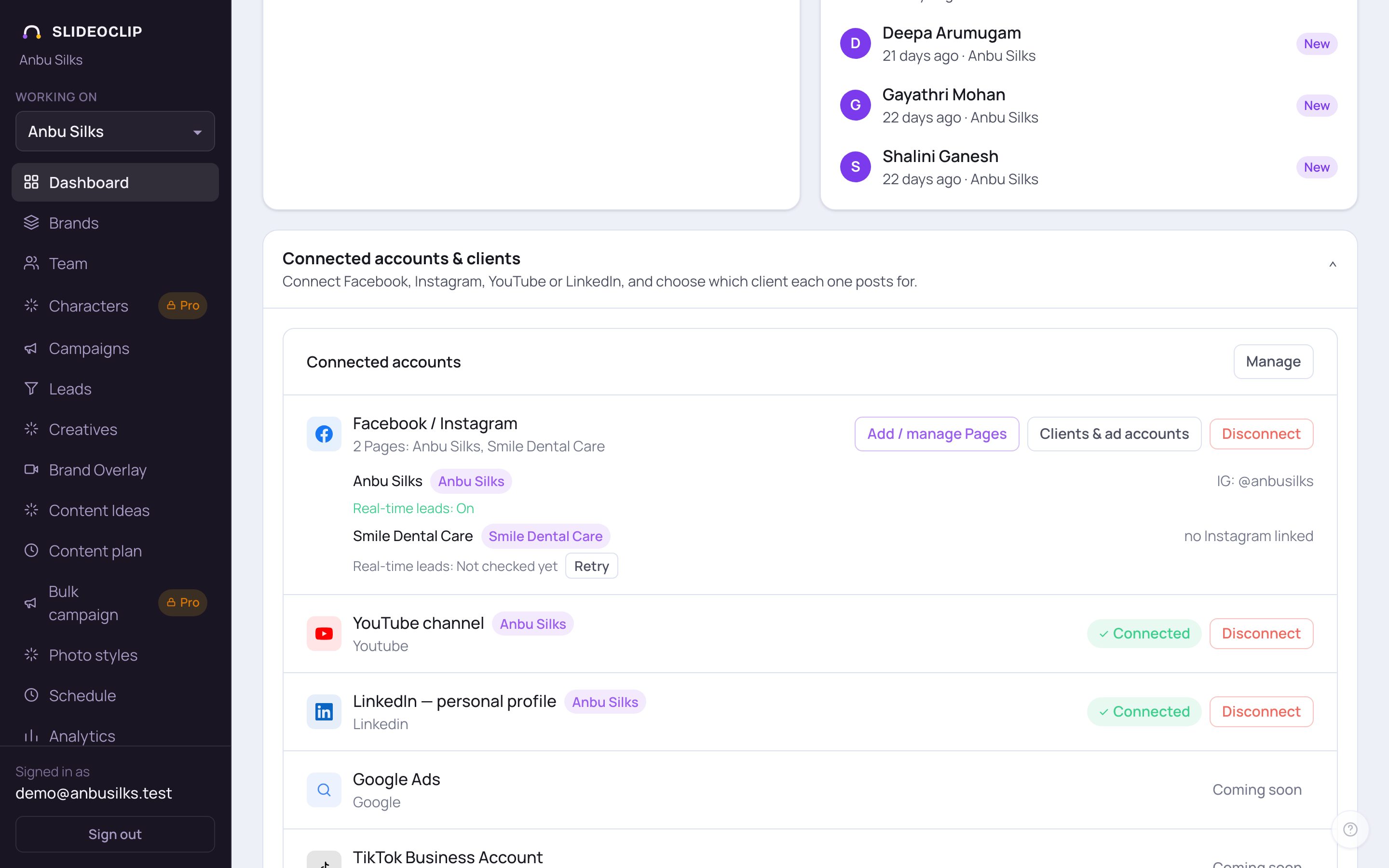
- 1Tap Connect (or Add / manage Pages). Facebook's own window opens. SlideoClip can't show it here, so follow these steps there:
- 2Back here, your Pages are listed with IG: @… when an Instagram account is linked, or no Instagram linked.
- 3Tap Clients & ad accounts to check which business each Page belongs to (next section).
- Log in with the Facebook account that manages the Page, and tap Continue as ….
- When Facebook asks which Pages to share, choose Opt in to current Pages only, then TICK every Page you want SlideoClip to post to. If a Page belongs to a Business, tick that Business too when asked.
- Keep all the permissions switched on and tap Save or Continue until Facebook sends you back to SlideoClip.
💡 Did no Pages appear? Facebook only shares the Pages you tick, and it remembers your last choice. Tap Add / manage Pages, choose Edit access in Facebook's window and tick the missing Page.
4. Match Pages to your clients
After connecting Facebook you may land on Your clients and ad accounts. You can also open it from Clients & ad accounts. It lists every Page Facebook shares with SlideoClip.
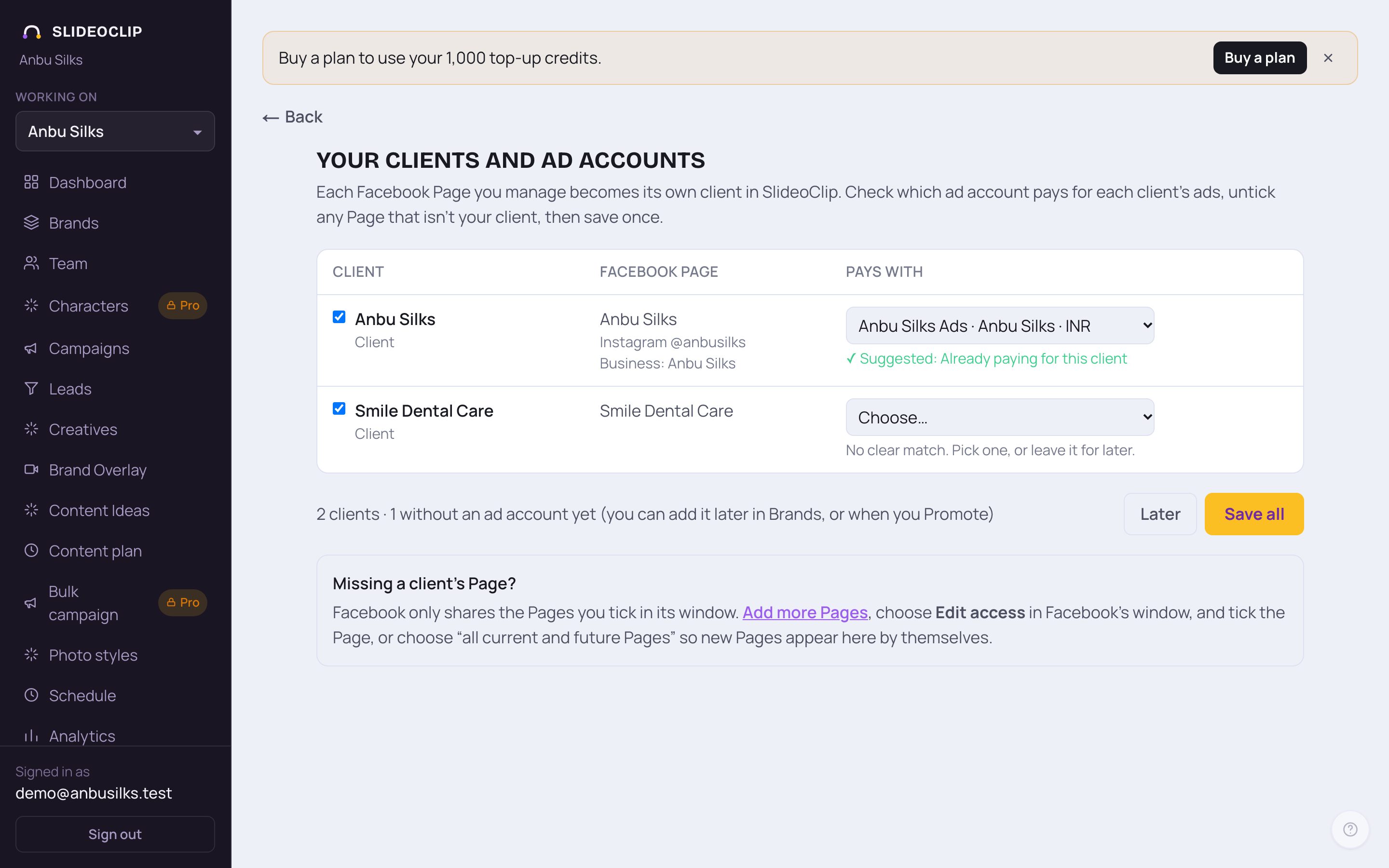
- 1Keep a Page ticked if it's your client. Untick any Page that isn't, and SlideoClip ignores it. New marks Pages added since last time.
- 2Under Pays with, choose the Meta ad account that pays for that client's ads. SlideoClip suggests one where it can. You can leave it for later.
- 3Tap Save all. Or tap Later to come back to it.
- 4Missing a client's Page? Tap Add more Pages, choose Edit access in Facebook's window and tick the Page.
5. Instagram: two ways
1 · Through your Facebook Page: if your Instagram is a Business account linked to a Facebook Page, connect the Page and Instagram comes with it. Nothing else to do. 2 · Connect Instagram directly: no Facebook Page needed. Log in with your Instagram Business or Creator account.
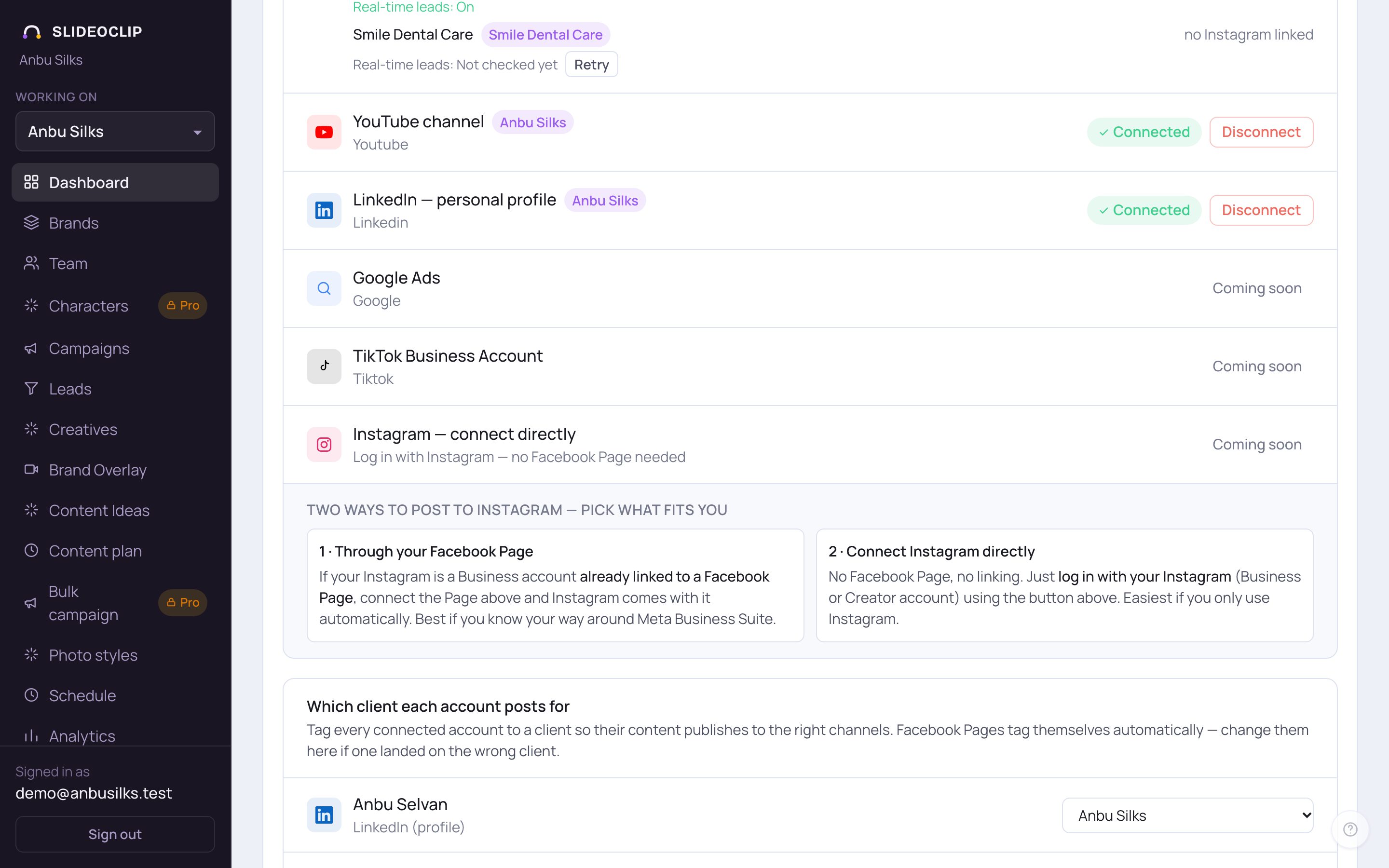
- 1To connect Instagram on its own, choose the business under Working on first, then tap Connect on this line. Instagram's own window opens: log in and allow SlideoClip. If it says Coming soon, use the Facebook Page way for now.
- 2This box explains both ways side by side.
- If Instagram says "Your activity off Meta technologies is currently turned off", open the help line under the Instagram row. In short: in Instagram go to Settings and privacy → Accounts Centre → Your information and permissions, then turn on Connect future activity. It can take up to an hour to work.
6. Connect YouTube and LinkedIn
A new YouTube or LinkedIn connection is linked to the business chosen under Working on. So choose the right business first.
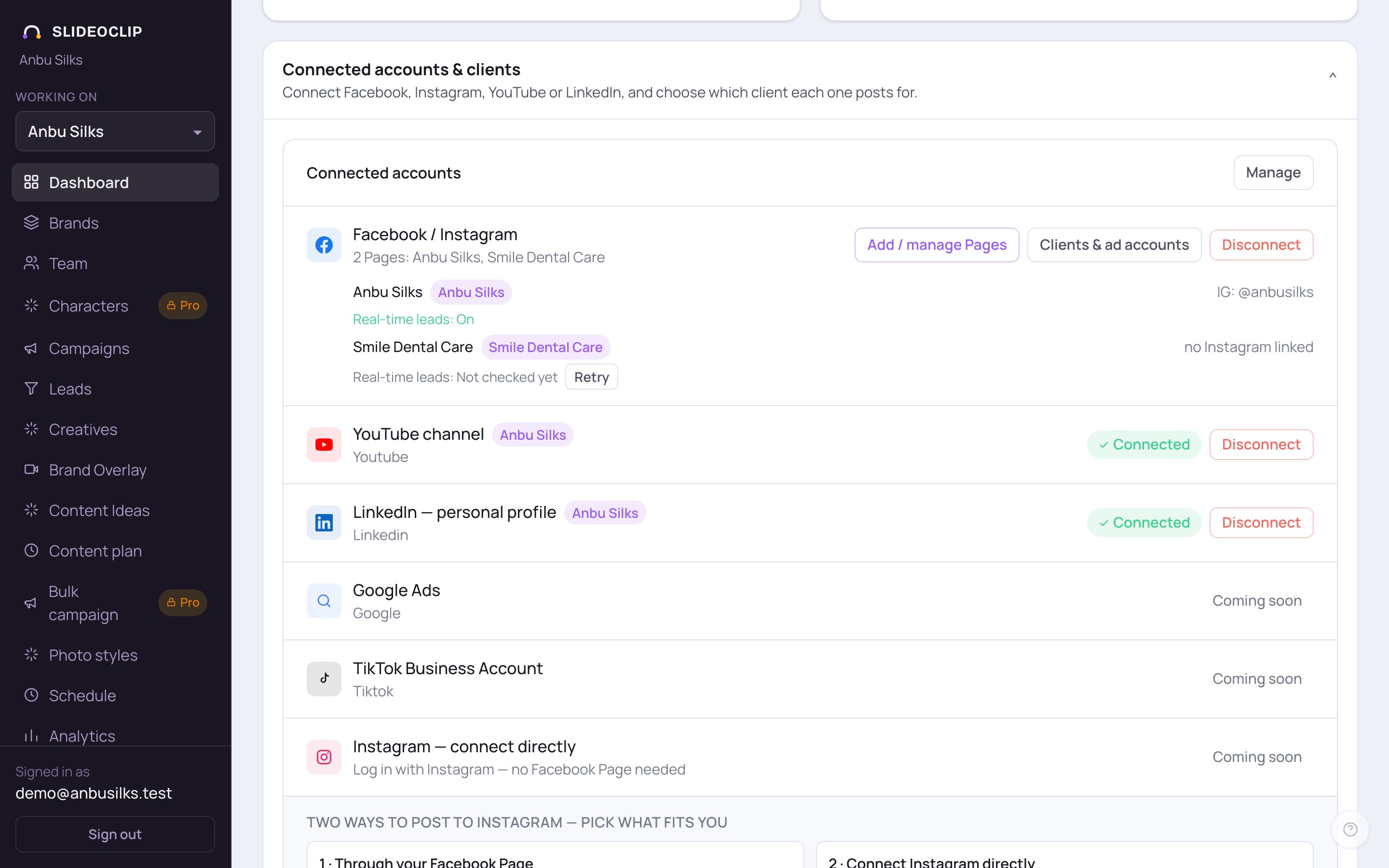
- 1Check the business under Working on.
- 2YouTube: tap Connect. Google's window opens: sign in with the Google account that owns the channel, pick the channel and allow access. If Google says it hasn't verified the app, tap Advanced, then Continue.
- 3LinkedIn: tap Connect, log in to LinkedIn and allow access. This posts to your personal LinkedIn profile.
- Once connected, the line shows a green Connected and the business it posts for.
💡 Posting to LinkedIn company Pages needs LinkedIn's approval and isn't available yet. Personal profiles work today.
7. Choose which business each account posts for
This makes sure a post for one client only goes to that client's pages. Facebook Pages link themselves to their own business. YouTube, LinkedIn and Instagram (connected directly) are linked to the business you had chosen when connecting. Change any of them here.
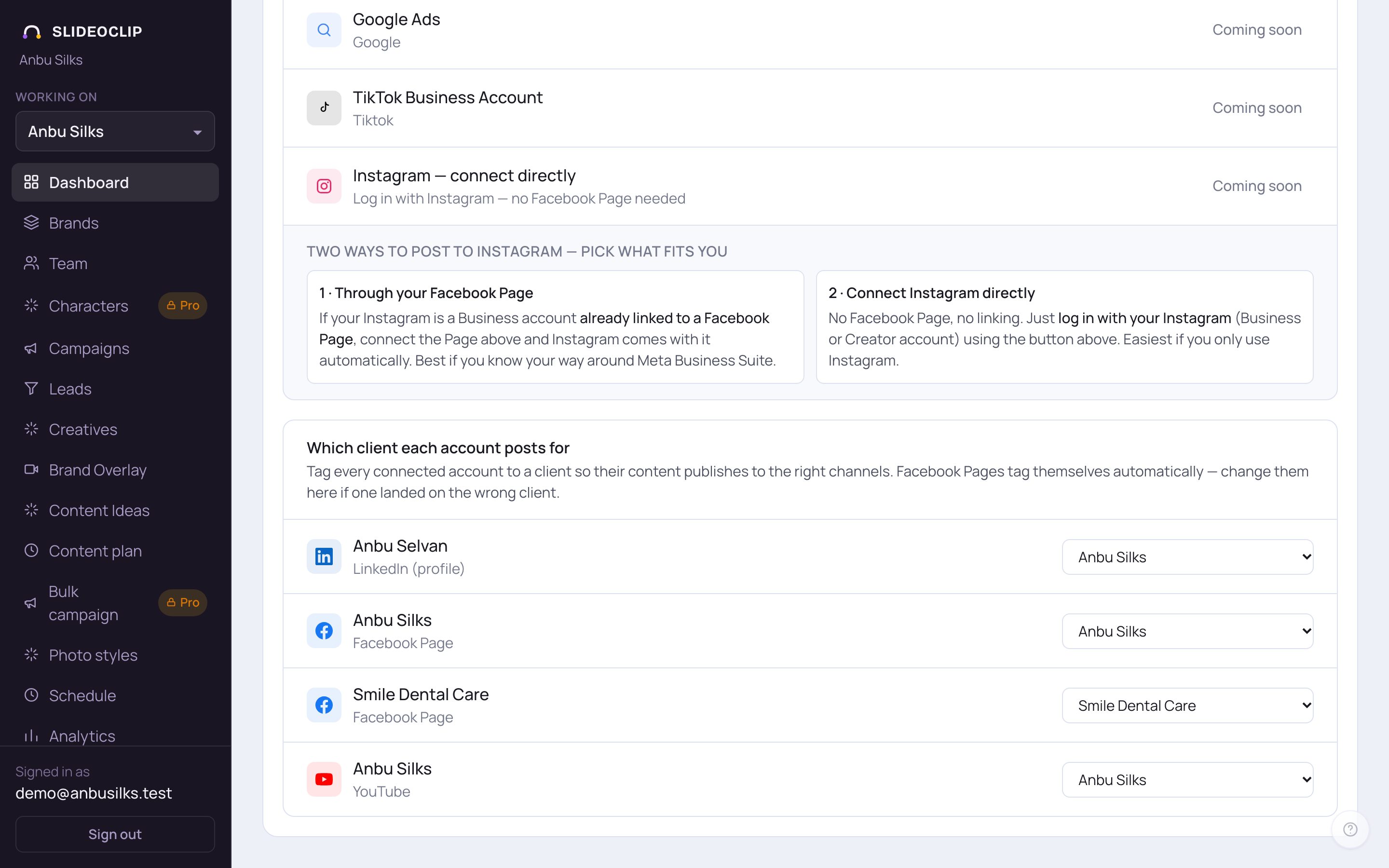
- 1Every connected account is listed here: Facebook Pages, Instagram, YouTube and LinkedIn.
- 2Pick the business from the list next to each account. It saves at once and shows Saved.
- — No client (workspace-wide) — means the account isn't linked to any one business. A name tag next to an account above shows the business it posts for; Workspace-wide means none.
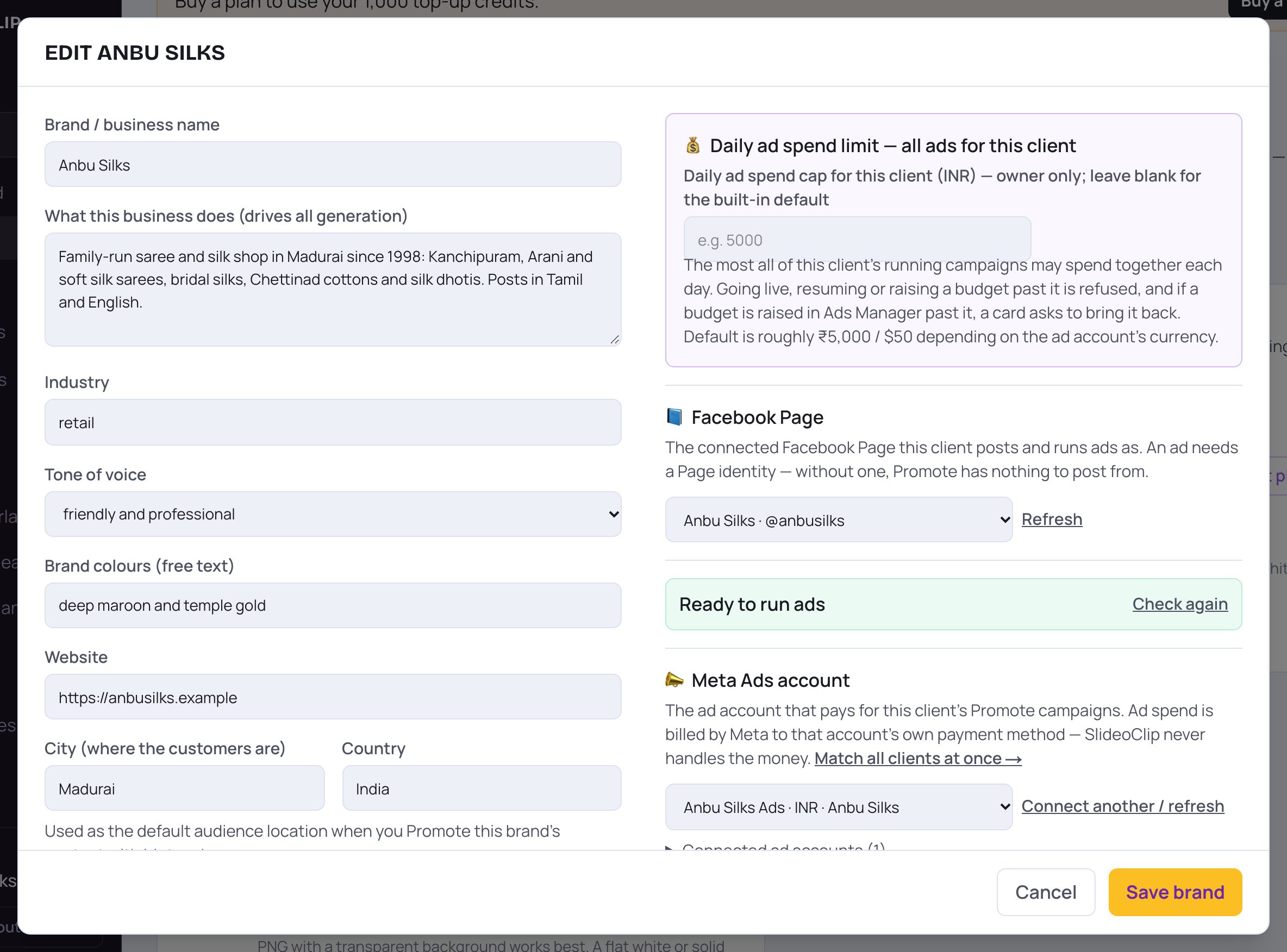
- 1You can also choose a business's Facebook Page from Brands → Edit brand → Facebook Page. A Page belongs to one business at a time. If you pick one that another business has, SlideoClip asks before moving it.
- 2Tap Refresh if a Page you just connected isn't in the list yet.
8. Reconnect after a password change
When you change your Facebook, Instagram, Google or LinkedIn password, the connection can stop working. Posts then fail with "The connection has expired (this happens after a password change)" and a Reconnect → link. The Analytics page also shows Reconnect needed. Reconnecting takes a minute.
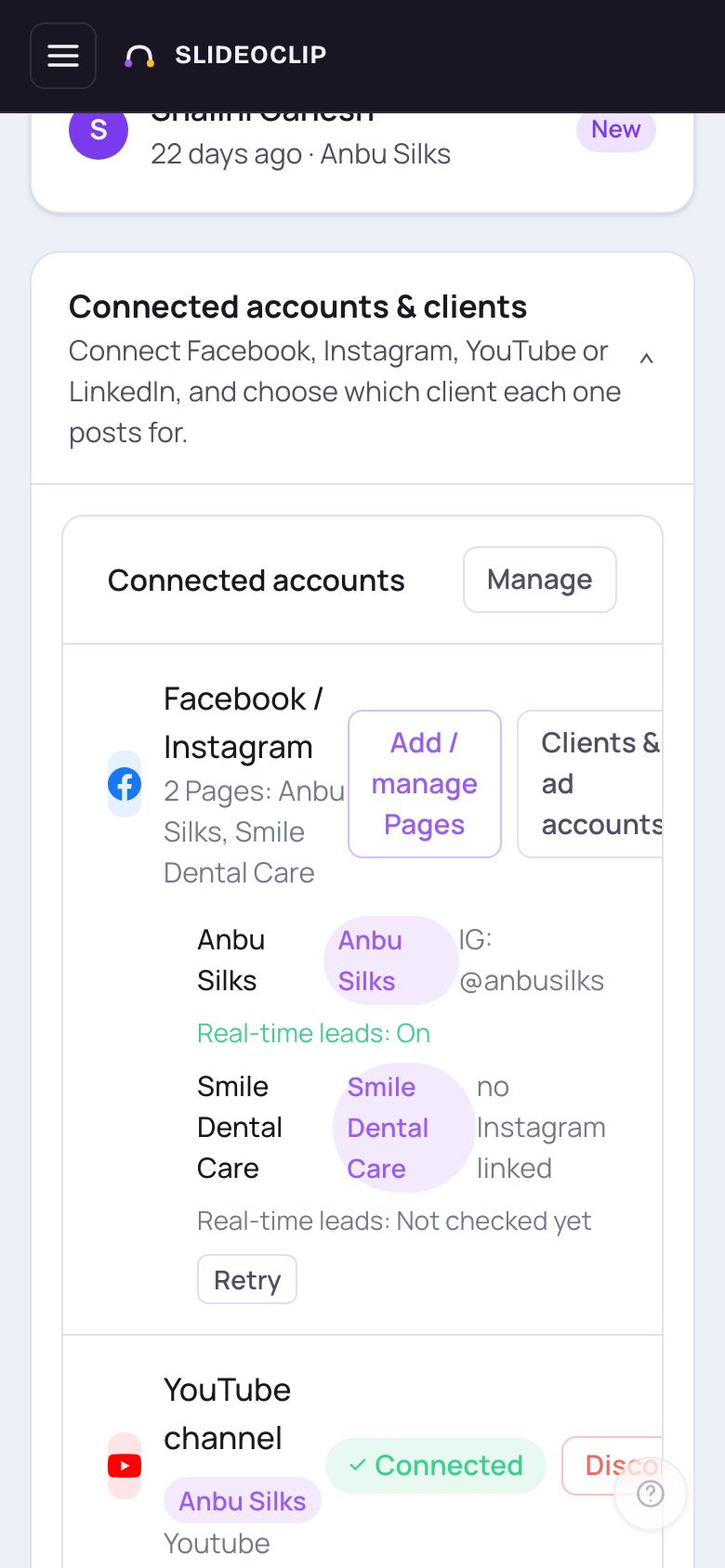
- 1Facebook and Instagram through a Page: tap Add / manage Pages and log in again in Facebook's window, keeping all your Pages ticked.
- YouTube, LinkedIn or Instagram connected directly: choose the business under Working on, tap Disconnect on that line, then tap Connect and log in again.
- Then go back to the post that failed and try it again.
💡 SlideoClip connects through each platform's own login window and never sees your password. You approve exactly which Pages or profiles it can post to, and you can remove its access any time from the platform itself.
Good to know
- Connect Facebook once with every client's Page ticked. Each Page becomes its own business, ready to post.
- If Facebook connects but shows no Pages, it's almost always the Page choice in Facebook's window. Choose Opt in to current Pages only and tick each Page.
- Disconnecting stops scheduled posts to that account until you connect it again.
Questions
Can SlideoClip post to my personal Facebook profile?
No. Meta doesn't allow any app to post to personal profiles. Create a free Facebook Page (it takes about 2 minutes) and connect that.
Facebook says my account doesn't manage any Page. What now?
Tap Create a Facebook Page → in the message, make the Page, then tap I created it — reconnect.
My Instagram isn't showing next to my Page.
Instagram must be a Business account linked to that Facebook Page. Link it in the Instagram app (Account type → Business, then connect the Page) and reconnect here. Or connect Instagram directly.
Does connecting cost anything?
No. Connecting accounts doesn't use credits.