All guides
Find your way around the dashboard
Know every part of the Dashboard: which client you are looking at, your numbers, quick ways to make something, what you made, what goes out next, your newest leads, and where your social accounts are connected.
Before you start
- ✓A SlideoClip account (see Create your account)
1. The top of the dashboard
The Dashboard is the first page after you log in. You can always get back to it with Dashboard at the top of the menu, or by tapping the SlideoClip name.
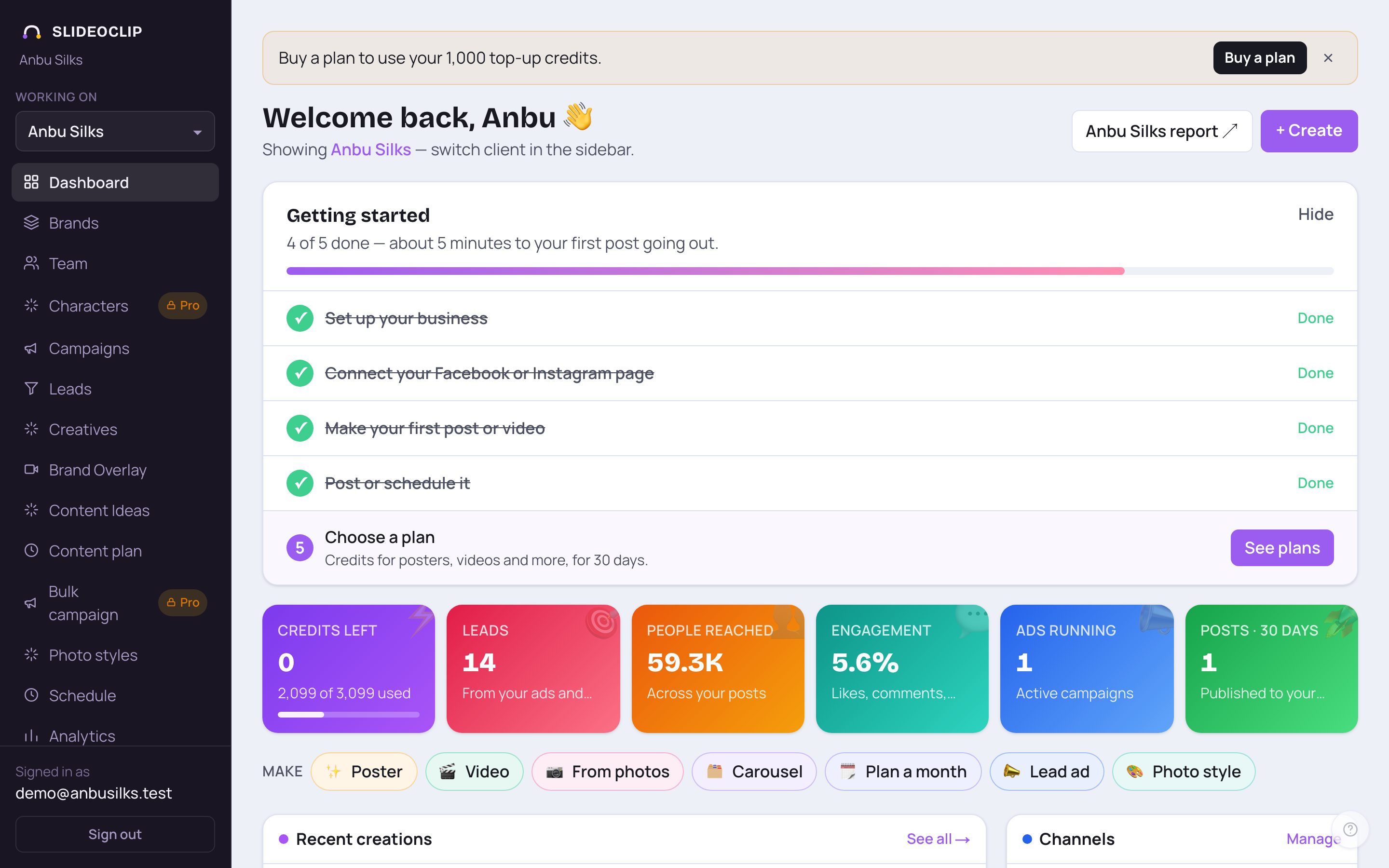
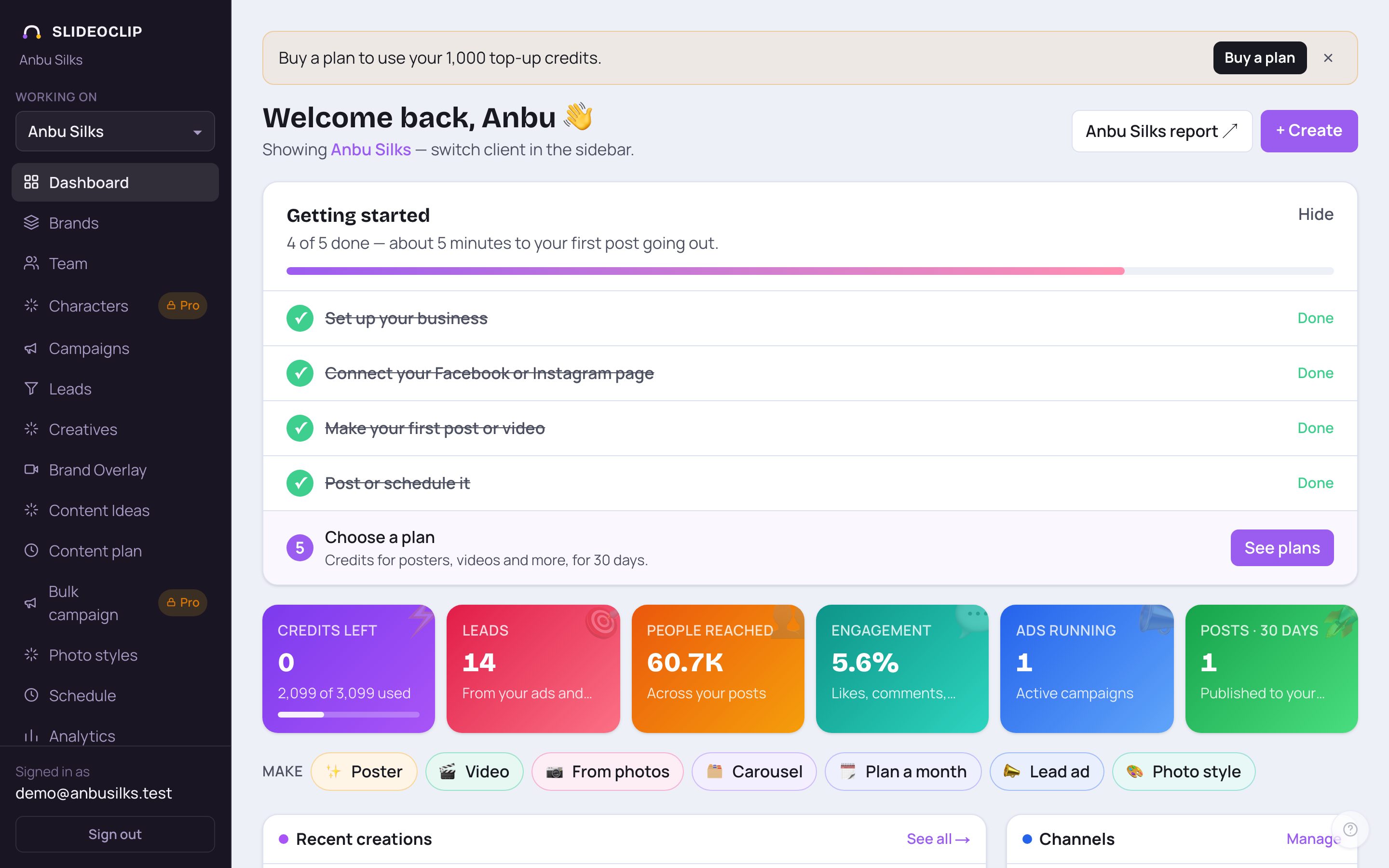
- 1Working on shows the client (business) you are looking at. The whole dashboard shows that client's numbers. Tap it to switch (see the next picture).
- 2Your greeting, and a line that says which client is showing, for example "Showing Anbu Silks".
- 3The report button (for example Anbu Silks report ↗) opens a printable report for that client. With no client chosen it says Client report ↗.
- 4+ Create opens Creatives, where you make posters, videos and more.
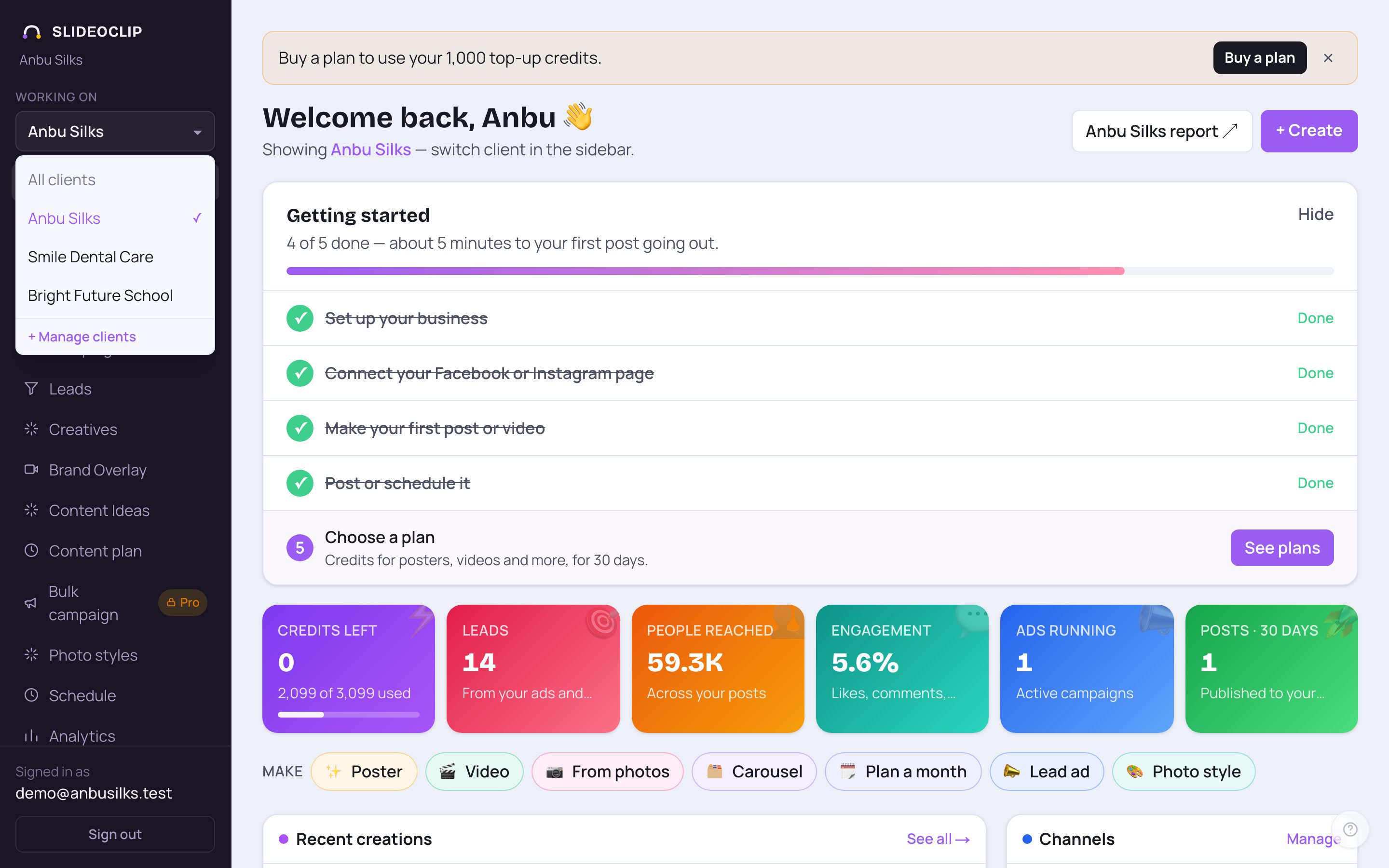
- 1All clients shows everything in your workspace together.
- 2Tap a client's name, such as Smile Dental Care, to see only that client. A tick shows the one that is chosen. With many clients, a search box appears at the top of this list.
- 3+ Manage clients opens Brands, where you add or edit clients.
💡 The client you choose here is also used when you make and post things, so posts go to that client's own pages.
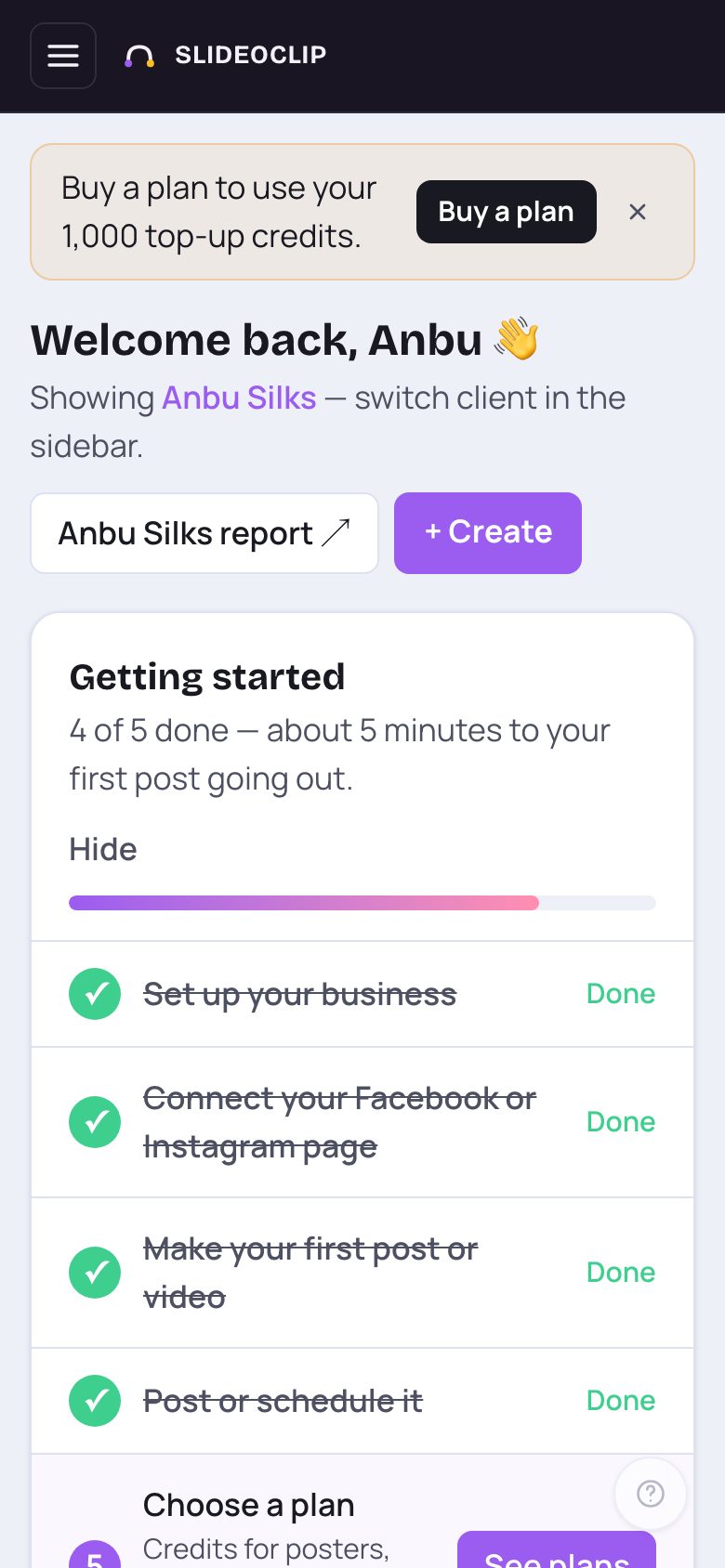
- 1On a phone the menu is hidden. Tap the three lines at the top left to open it. The Working on client picker is at the top of the menu.
- 2The dashboard is the same, one card under another. Scroll down to see it all.
- 3+ Create is right under the greeting.
2. Your numbers at a glance
Six coloured tiles show what matters most. Each tile is a shortcut: tap it to open the page behind the number.
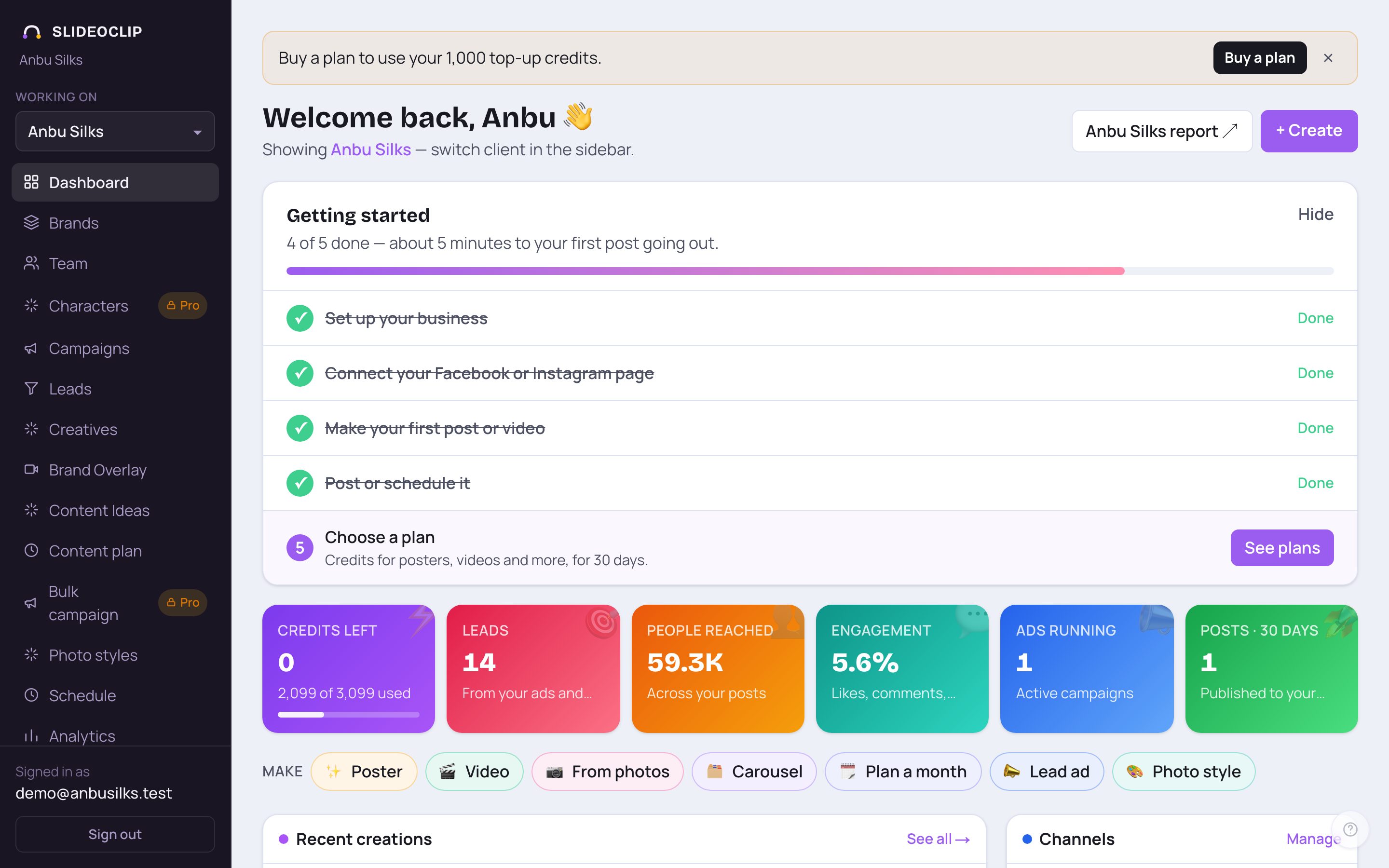
- 1Credits left: credits you can still spend, and the next batch that expires with its date. The bar shows how much of what you bought is left. Tap to open Billing.
- 2People reached: how many people saw your posts. Next to it, Engagement is the share who liked, commented, shared or clicked. Both open Analytics.
- 3Ads running: your active ad campaigns. Tap to open Campaigns.
- 4Posts · 30 days: posts published to your pages in the last 30 days. Tap to open Schedule.
- Leads (second tile): enquiries from your ads and lead page, with how many came this week. Tap to open Leads.
💡 The numbers follow the client chosen under Working on. Choose All clients to see the whole workspace.
3. Make something in one tap
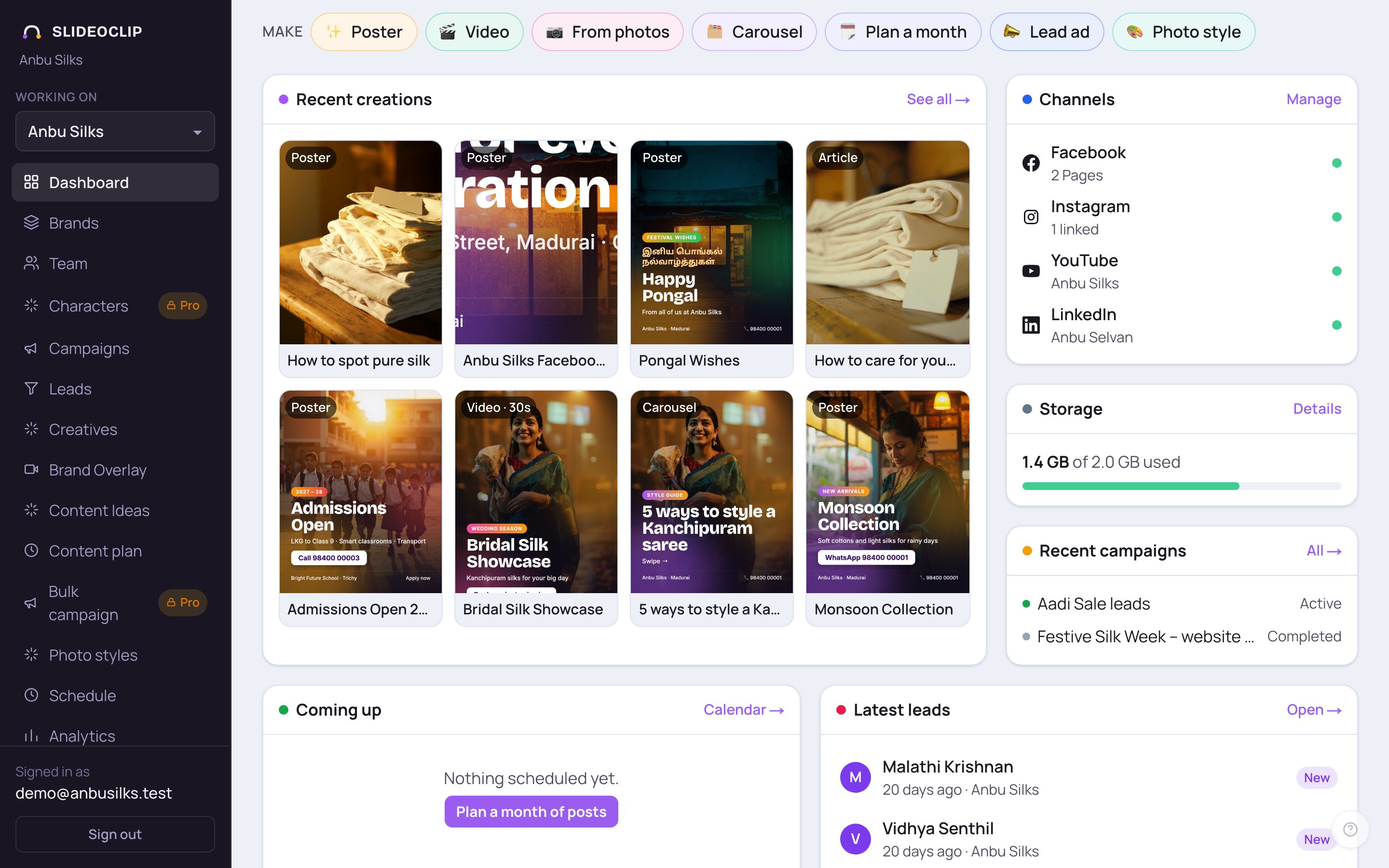
Under the tiles is a row of round buttons after the word Make. On a phone, swipe the row sideways to see them all.
- 1Poster and Video open the poster and video makers. See "Make a poster" and "Make a video".
- 2From photos makes a video from your own photos. Carousel makes swipeable slides.
- 3Plan a month opens the Content plan. Lead ad opens Campaigns.
- 4Photo style gives one of your photos a new look.
💡 Opening a maker costs nothing. Each one shows the credits before you make anything.
4. What you made, your channels, storage and campaigns
- 1Recent creations: your last 8 posters, videos, carousels and articles, with the kind and length on each. Tap one, or See all →, to open Creatives. A video still being made says "Rendering…".
- 2Channels: Facebook, Instagram, YouTube and LinkedIn. A green dot means connected; the line under each says which Page or account. Manage opens the accounts section at the bottom of this page.
- 3Storage: how much space your creations use. Near the limit it warns you; when full, new creations pause until you delete old ones in Creatives. Details opens the storage part of Billing.
- 4Recent campaigns: your latest ad campaigns with their status (active, paused, completed…). All → opens Campaigns.
5. What goes out next, and who wrote in
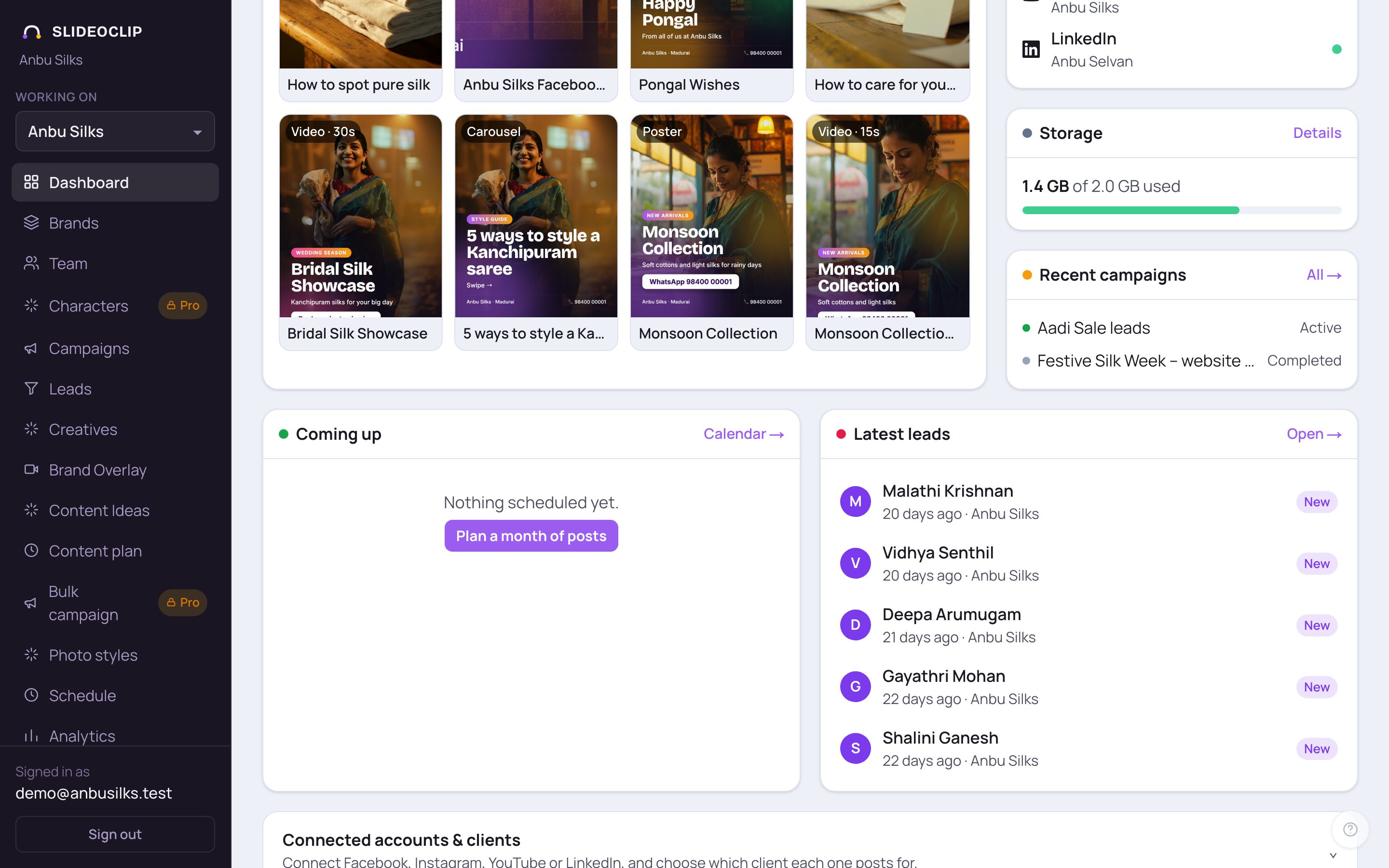
- 1Coming up: your next scheduled posts with date and time. Small icons show where each goes; a post going to several places is one line. An "S" on an icon means a story.
- 2Calendar → opens Schedule. If fewer than four posts are waiting, a Keep your pages busy — plan the next weeks link appears; with nothing scheduled you see Plan a month of posts instead.
- 3Latest leads: your newest enquiries, with when they came in, the client, and a coloured status (new, contacted, booked, won…).
- 4Open → (with how many came this week) opens your Leads inbox. With no leads yet, a link helps you start a lead ad.
6. Connected accounts and clients
At the very bottom is a folded section, Connected accounts & clients. It is where you connect Facebook, Instagram, YouTube and LinkedIn, and choose which client each account posts for. Tap it to open it, or tap Manage on the Channels card. The full steps are in "Connect your accounts".
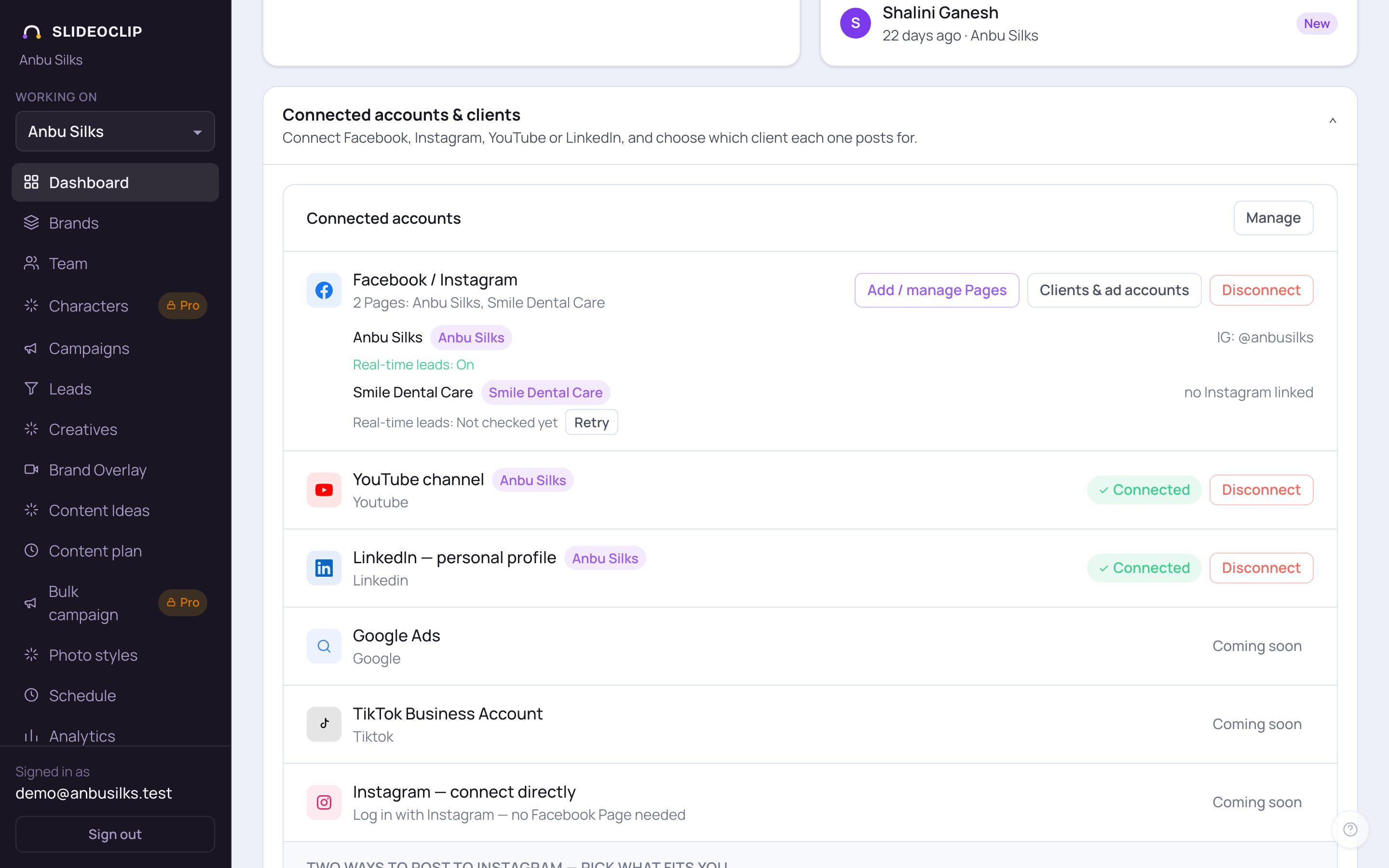
- 1Tap Connected accounts & clients to open or close this section.
- 2Facebook / Instagram lists every connected Page and its Instagram. Add / manage Pages lets you add more Pages in Facebook's window. Each Page becomes its own client.
- 3Clients & ad accounts opens the page where you check which client each Page belongs to.
- 4Instagram — connect directly is for an Instagram Business or Creator account without a Facebook Page.
- YouTube and LinkedIn show Connect, or a green Connected label. Google Ads and TikTok say Coming soon. A small lock with a plan name (for example Growth) means your plan doesn't include that channel; tap the lock to open the plans on Billing.
- Disconnect stops posting through that account; it asks you to confirm first. Scheduled posts to it will fail until you connect again.
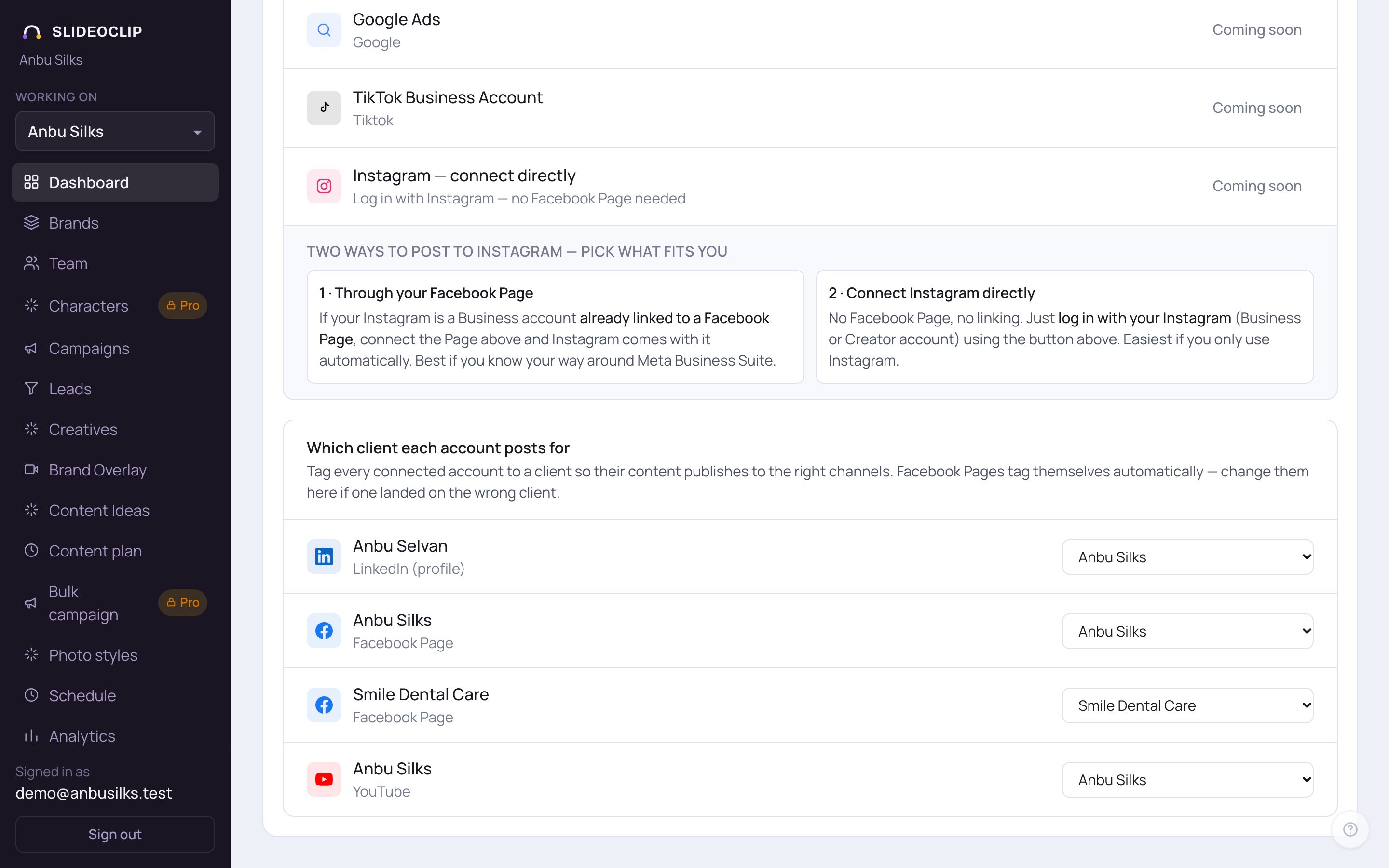
- 1Two ways to post to Instagram explains the choice: through your Facebook Page, or by logging in to Instagram directly.
- 2Which client each account posts for lists every connected account.
- 3Pick a client in the box next to an account. It saves at once and shows Saved. Posts for that client then go through this account. — No client (workspace-wide) — means it isn't tied to one client.
💡 Facebook Pages tag themselves to a client automatically. Change it here only if one landed on the wrong client.
Good to know
- Messages can appear at the top of the dashboard: a green one after you connect an account, a yellow one when your plan ends within a week (with Renew now), or a box called Set up publishing when nothing is connected yet. Each tells you the next step.
- The round question-mark button at the bottom right of every page opens Help.
- Agencies: choose All clients under Working on for the whole picture, then pick a client to focus on one.
Questions
Why are my numbers zero?
Reach and engagement fill in after your posts have gone out on connected pages. Also check Working on: you may be looking at a client that has no posts yet.
The plan-ending message is in my way.
Tap the small × on it to hide it until tomorrow. It comes back the next day until you renew.
Does opening anything on the dashboard cost credits?
No. Looking, opening makers and switching clients is free. Credits are only used when you confirm making something, and the price is shown first.