All guides
Edit a finished video
Open a finished video in Creatives to download it, change its thumbnail, turn it the right way up, cut Shorts and Reels from it, reuse its slide pictures, or make a new version with changes.
Before you start
- ✓A finished video in Creatives (see Make a video)
1. Open your video
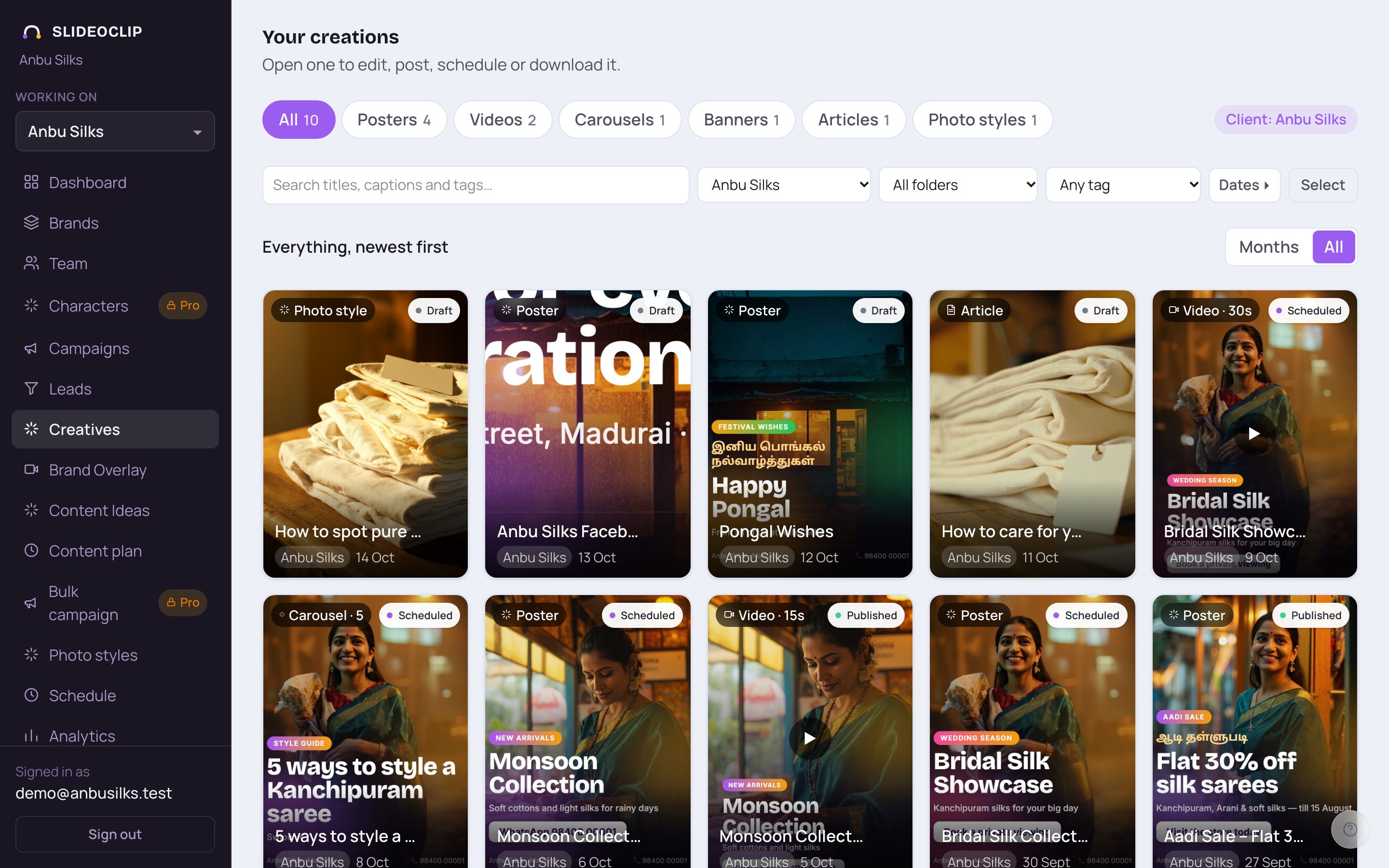
- 1In Creatives, scroll down to your library and tap the video to open it.
- Just finished a video? Publish or edit → on the finished card opens the same screen.
2. The video screen
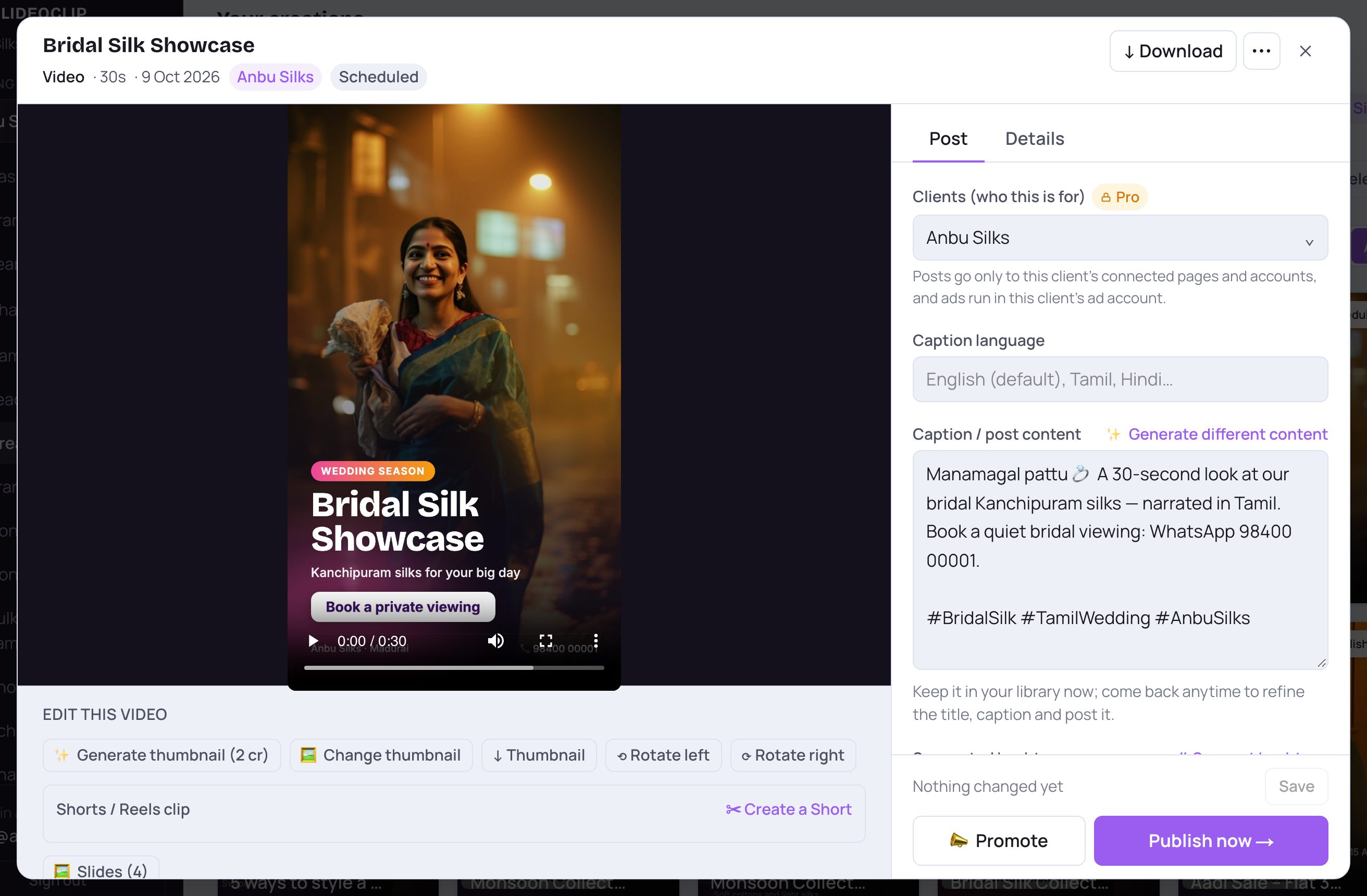
- 1Tap ↓ Download to save the video file to your phone or computer.
- 2Tap ⋯ for more: Regenerate (reuse look), Make Shorts, Request client approval, YouTube and Delete.
- 3Under the video, Edit this video holds the tools that change the video itself — explained below.
- 4On the right, Post is where you post or schedule it, and Details holds the title and caption (see Publish now and Creative details).
3. Change the thumbnail, or turn the video
The thumbnail is the still picture people see before they press play — on YouTube, in the feed and in your library.
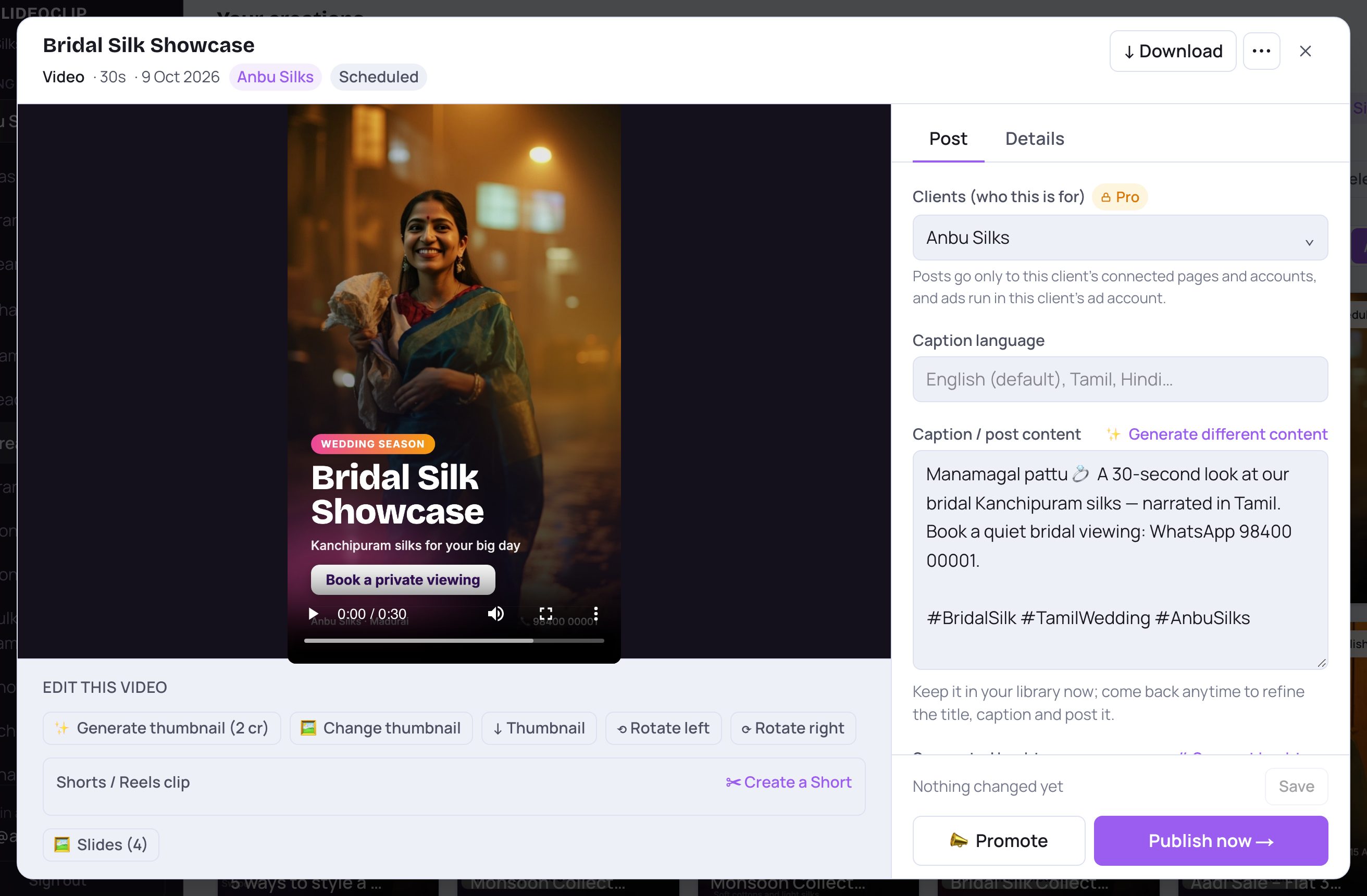
- 1✨ Generate thumbnail draws a new cover picture with the title designed into it. The credits are shown on the button.
- 2🖼 Change thumbnail lets you choose your own picture (PNG, JPG or WebP) from your phone or computer instead.
- 3↓ Thumbnail saves the thumbnail picture on its own — handy if you upload the video to YouTube yourself.
- 4Video came out sideways? Tap ⟲ Rotate left or ⟳ Rotate right. It turns the video itself, costs nothing, and you can turn it back the same way.
4. Cut one Short or Reel
Take a short piece of a longer video as a new vertical, square or wide clip. The original video stays as it is, and cutting a clip costs no credits.
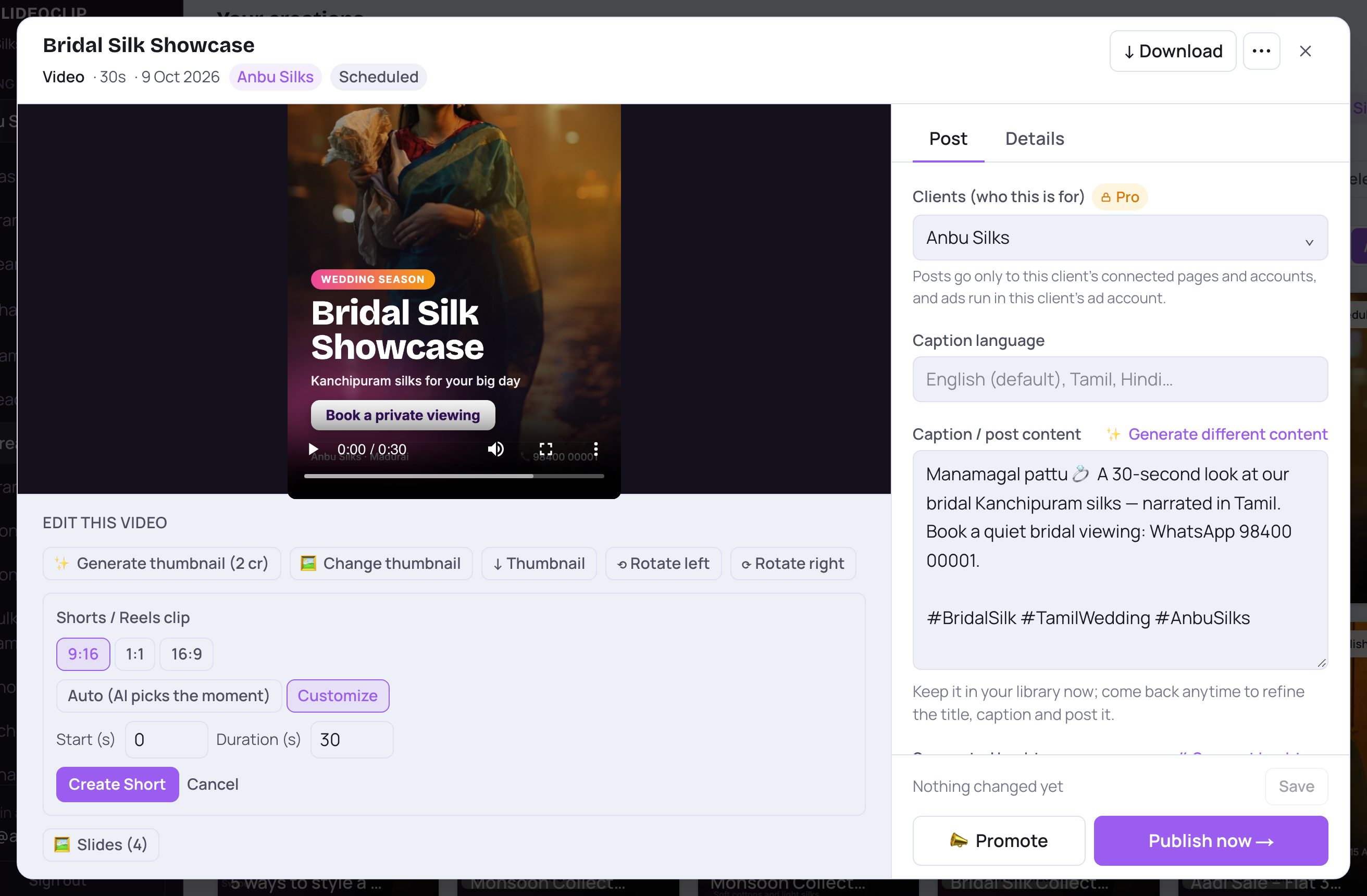
- 1In Shorts / Reels clip, tap ✂ Create a Short, then pick the shape: 9:16 for Reels and Shorts, 1:1 square or 16:9 wide.
- 2Auto (AI picks the moment) chooses the best part for you.
- 3Or tap Customize and type the Start (s) second and the Duration (s) — from 15 to 90 seconds.
- 4Tap Create Short. When it's done, tap Open it to see the new clip. It is saved in Creatives as its own video.
5. Make several captioned Shorts at once
Make Shorts cuts 3, 6 or 10 short highlight clips from a longer video, each as its own vertical Short. This one uses credits for each Short.
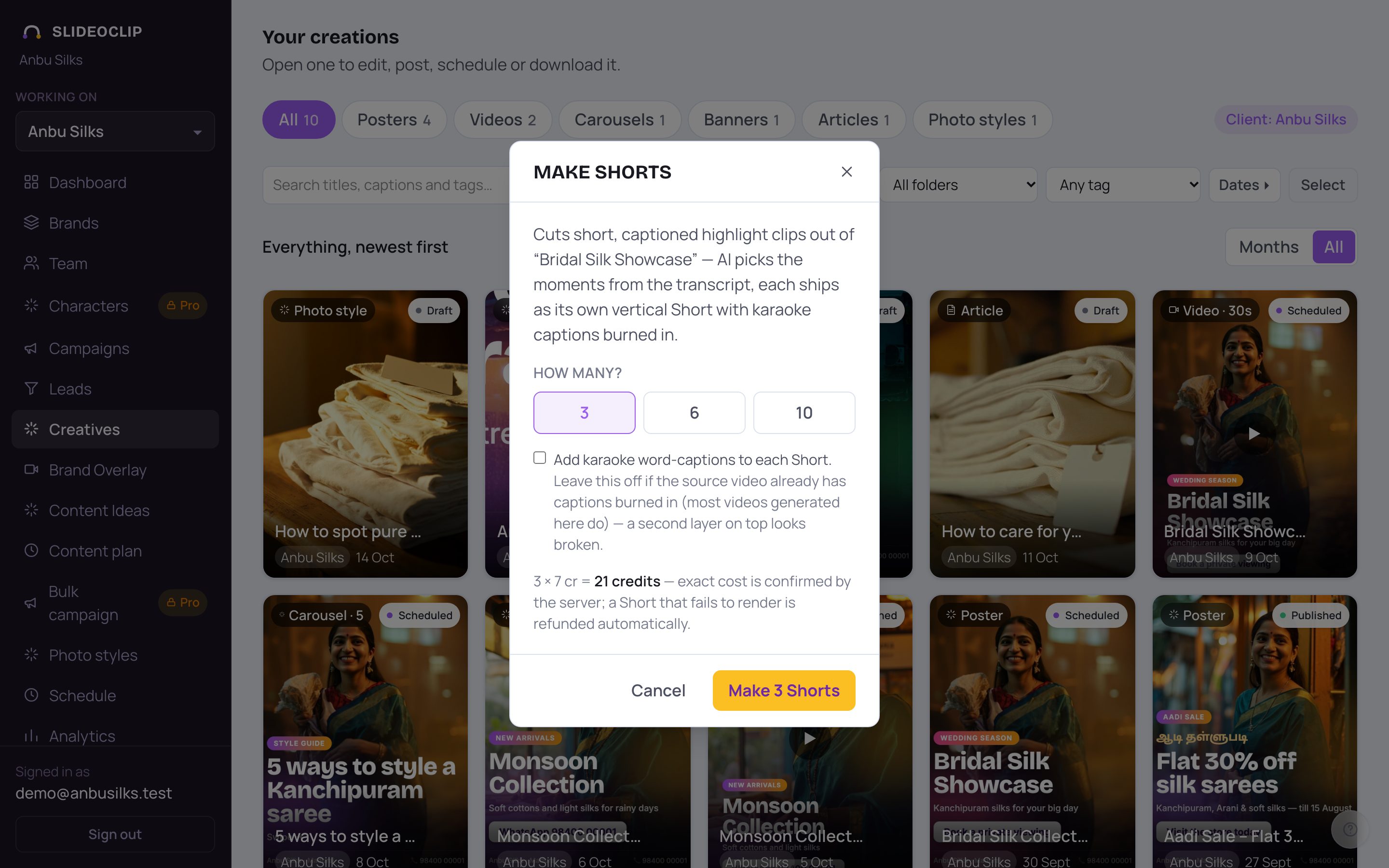
- 1Tap ⋯, then Make Shorts. Under How many? pick 3, 6 or 10. The total credits are shown below.
- 2Tick Add karaoke word-captions only if your video has no captions yet. Most videos made in SlideoClip already have them, and two layers of captions look messy.
- 3Tap Make 3 Shorts (the number follows your pick). The Shorts appear in your library as they finish. A Short that fails is refunded automatically.
6. Use the slide pictures
A slideshow made with Keep each slide as a picture switched on (it is on by default) keeps every slide. You can download them or turn any slide into a poster.
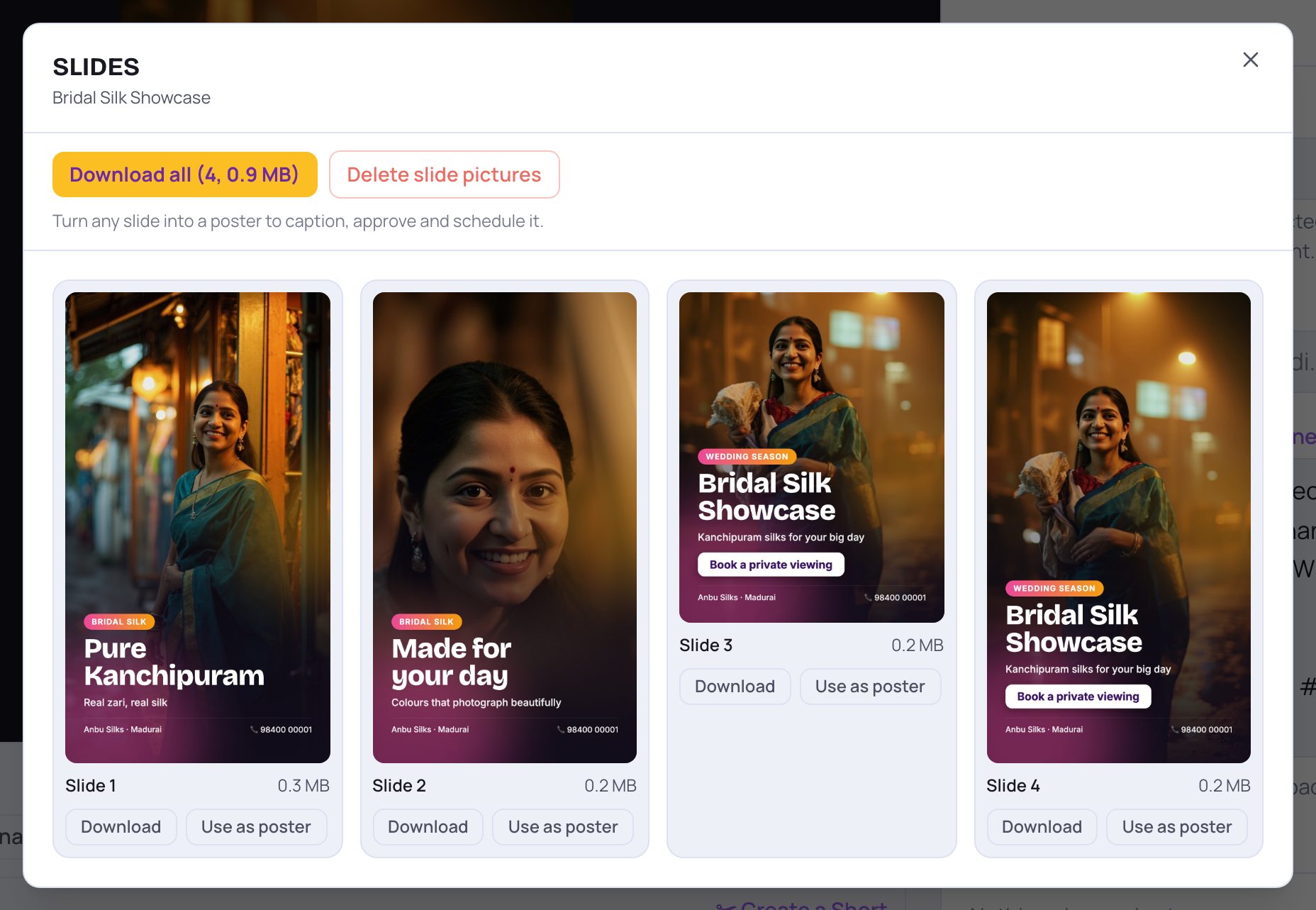
- 1Under the video, tap 🖼 Slides (…). Download all saves every slide in one zip file.
- 2Download under a slide saves just that picture.
- 3Use as poster adds that slide to your library as a poster you can caption, get approved and schedule. Tap Open it to see it.
- 4Delete slide pictures removes all the slide pictures to free storage. The video and any posters you made from them stay. This can't be undone.
💡 No Slides button under a video? Its slide pictures weren't kept, or it isn't a slideshow.
7. Change a slide's picture or the words — make a new version
A finished video can't be edited slide by slide. To change what a slide shows, the words, the voice or the music, make a new version from the same plan.
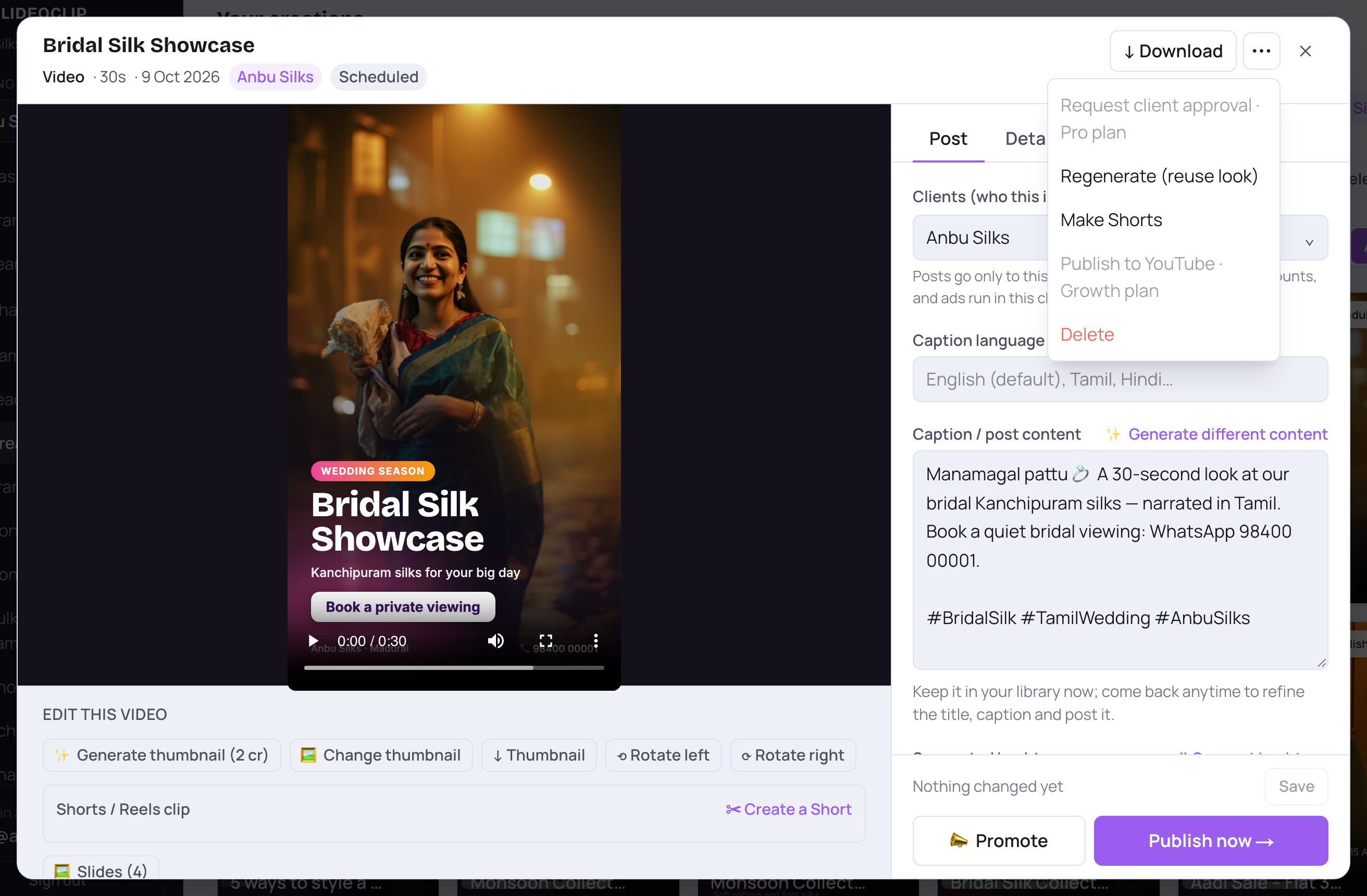
- 1Tap ⋯ at the top of the video screen.
- 2Tap Regenerate (reuse look). The video chat opens with this video's plan and price, so nothing is made yet.
- Say what to change, for example “change slide 3's picture to a bride in a red silk saree” or “say the phone number at the end”. The plan updates.
- Check the new price and tap Create (… credits) →. A new video is made at the full price; your old one stays in Creatives.
- If the video wasn't made in the video chat, a fresh video chat opens with its title already filled in instead.
Good to know
- Rotating and cutting a single Short are free. Generate thumbnail and Make Shorts show their credits before you tap.
- Posting to YouTube? Set a good thumbnail first — it's what people click on.
- Turn your best slides into posters for the days between videos.
Questions
Where is the Download button?
At the top right of the video screen (↓ Download). Right after a video is made, the finished card in the video chat also has ↓ Download.
Can I trim or edit the video on a timeline?
No. Changes are made by telling SlideoClip in words and making a new version, or with the tools on this screen (thumbnail, rotate, Shorts, slide pictures).
Does Regenerate overwrite my video?
No. It makes a new video. The old one stays in your library until you delete it.