All guides
Video settings, section by section
Understand every setting above the video chat — the kind of video, length and shape, sound, slideshow options and look — and which shape to pick for Reels, feed posts and YouTube.
Before you start
- ✓The video screen open (see Make a video)
1. 1 · What kind of video?
The settings sit above the chat, under Before you start. Every one of them is optional: anything you leave on Auto is decided from what you type. Changing a setting is free — the price only changes when the plan changes, and you always see it before Create.
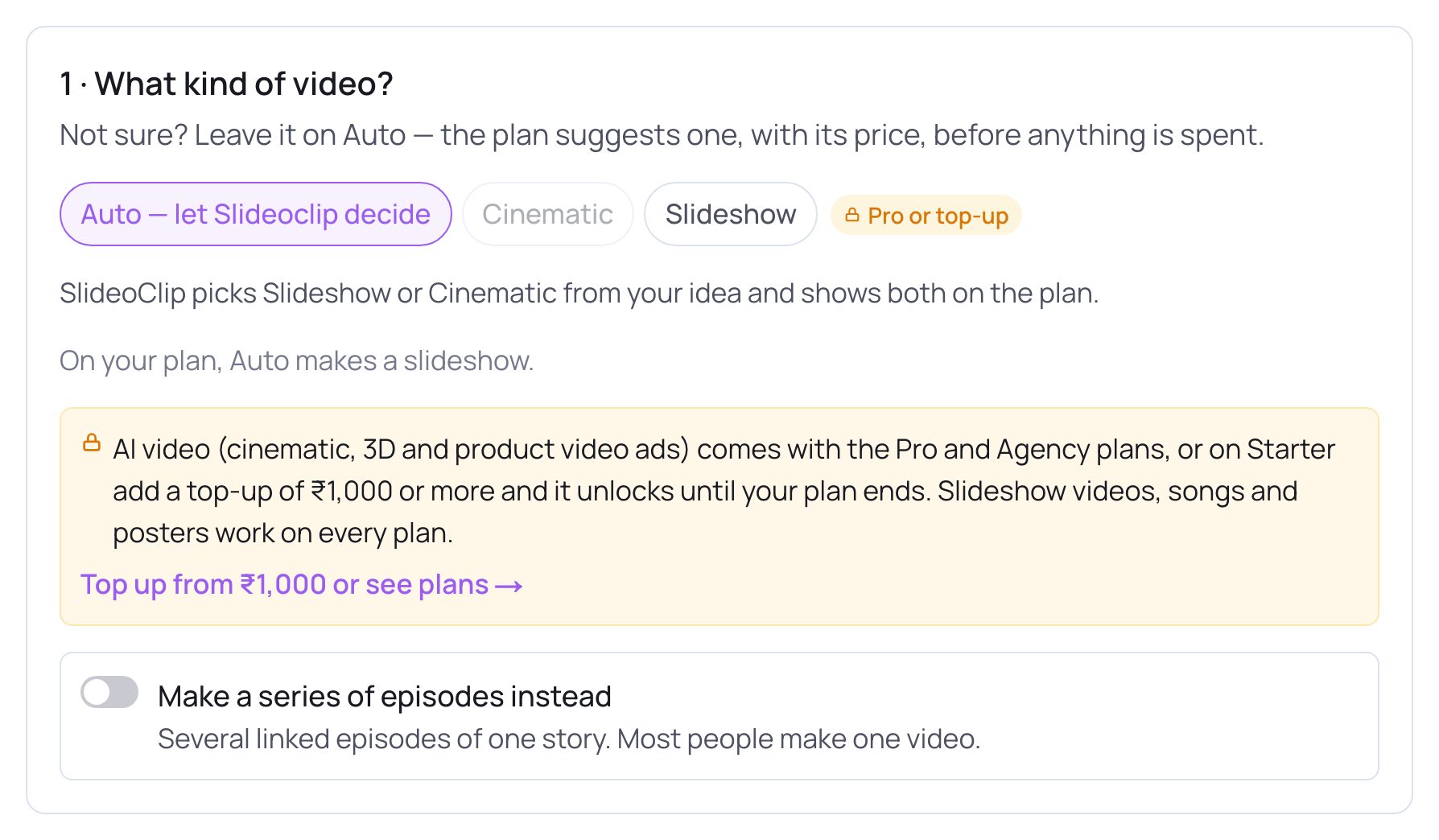
- 11 · What kind of video? — Auto — let Slideoclip decide picks Slideshow or Cinematic from your idea and shows the choice, with its price, on the plan. Not sure? Leave it here.
- 2Cinematic is real AI-made footage with motion and sound, priced by the second. Pick it when you want moving people, places or a person speaking or singing on camera.
- 3Slideshow is pictures (AI-made or your own photos) with a voice or song, music and smooth motion. It is the cheaper choice, at a flat price.
- 4Turn on Make a series of episodes instead for several linked episodes of one story (see Video series). Most people make one video.
💡 If Cinematic is greyed out, your plan doesn't include AI video — the lock shows which plan does. On those plans, Auto makes a slideshow.
2. 2 · Length and shape
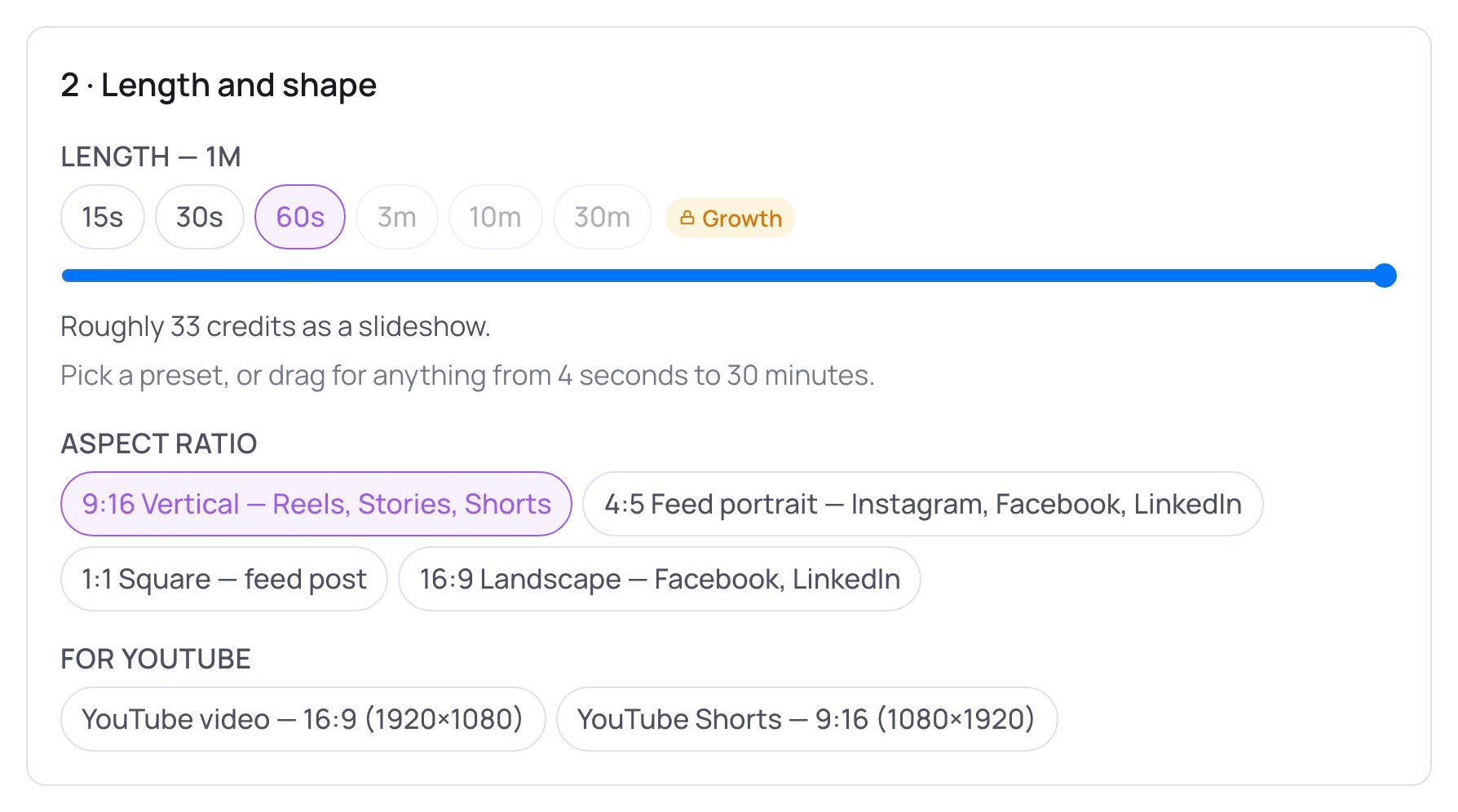
- 1Tap a length: 15s, 30s, 60s, 3m, 10m or 30m. The rough price for that length is shown just below.
- 2Or drag the slider for any length from 4 seconds up to the longest your plan allows. Longer lengths your plan doesn't cover show a lock.
- 3Under Aspect ratio, pick the shape of the video for Facebook, Instagram or LinkedIn.
- 4Making it for YouTube? Use the For YouTube row instead: YouTube video — 16:9 (1920×1080) or YouTube Shorts — 9:16 (1080×1920).
💡 Which shape? Reels, Stories and YouTube Shorts: 9:16 Vertical. A post in the Instagram, Facebook or LinkedIn feed: 4:5 Feed portrait (fills more of the screen) or 1:1 Square. A normal YouTube video, or a wide video on Facebook or LinkedIn: 16:9 Landscape.
3. 3 · Sound
A voice speaking, a sung song, or let SlideoClip decide from your words.
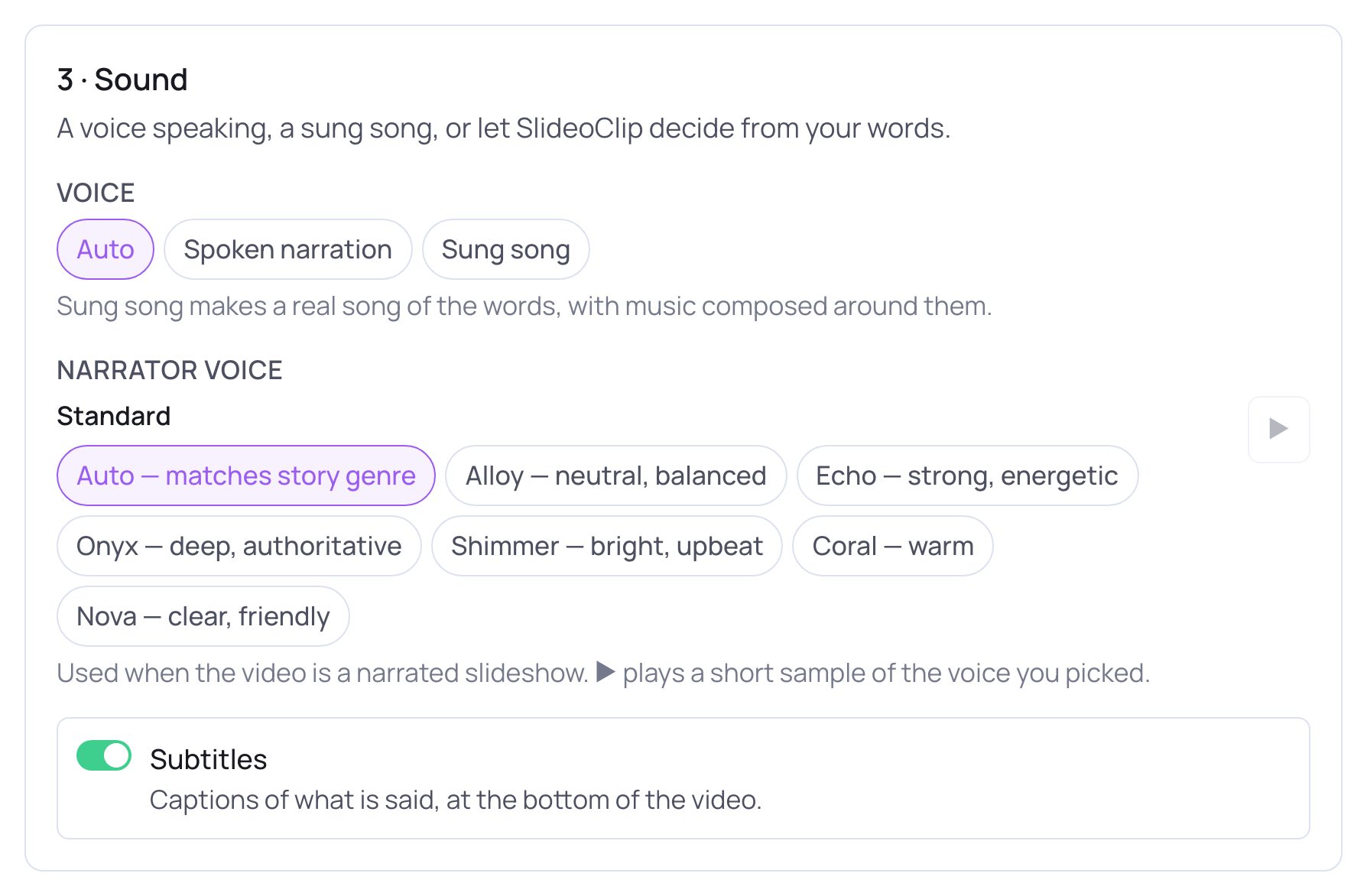
- 1Under Voice, Auto decides from your message (“write a love song” becomes a song). Spoken narration means a voice speaks over music.
- 2Sung song turns the words into a real song with music made around them. More options appear for it (see Songs).
- 3Narrator voice picks who reads a narrated slideshow. Tap a voice, then ▶ to hear a sample (see Voice and language).
- 4Subtitles puts captions of what is said at the bottom of the video. It is on unless you switch it off.
4. Slideshow options (only for slideshows)
This section appears when you pick Slideshow in section 1. It covers the pictures, words and motion.
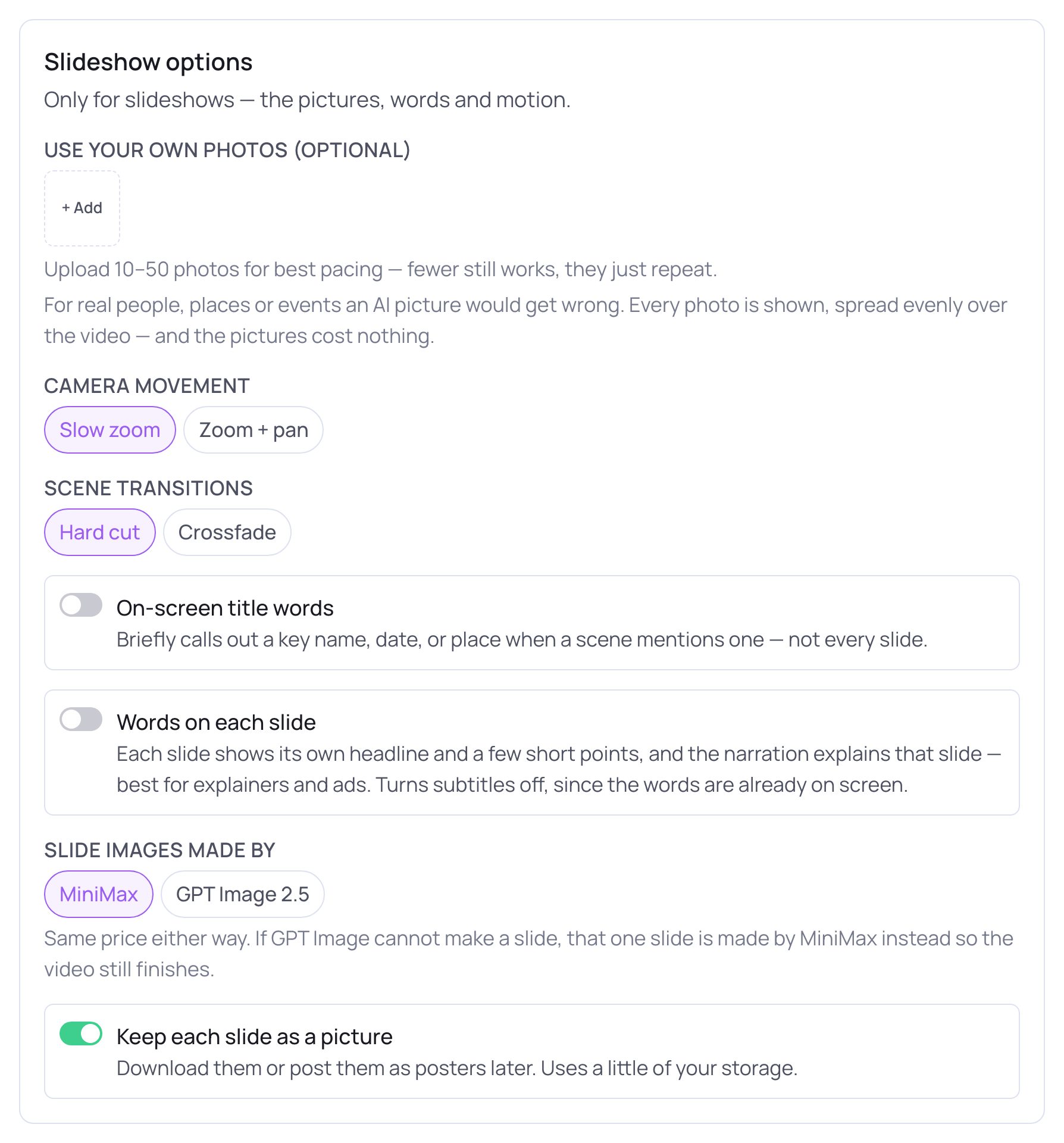
- 1Use your own photos (optional) — tap + Add to upload real photos (best for real people, places or events an AI picture would get wrong). Every photo is shown, spread evenly over the video, and your photos cost nothing. 10–50 photos give the best pacing; fewer still works.
- 2Camera movement: Slow zoom or Zoom + pan. Scene transitions: Hard cut or Crossfade. On-screen title words briefly shows a key name, date or place.
- 3Words on each slide prints a headline and a few short points on every slide, with the voice explaining it — great for ads and explainers. It switches subtitles off, since the words are already on screen.
- 4Keep each slide as a picture saves every slide so you can download it or post it as a poster later. It is on by default.
- Slide images made by chooses who draws the AI pictures: MiniMax (photographic, keeps a character's face the same) or GPT Image 2.5 (cleaner, polished). Same price either way.
💡 Your own photos only work in a slideshow. If you switch to another kind of video, SlideoClip asks before removing them.
5. 4 · Look and feel
Leave these on Auto and they follow your idea.
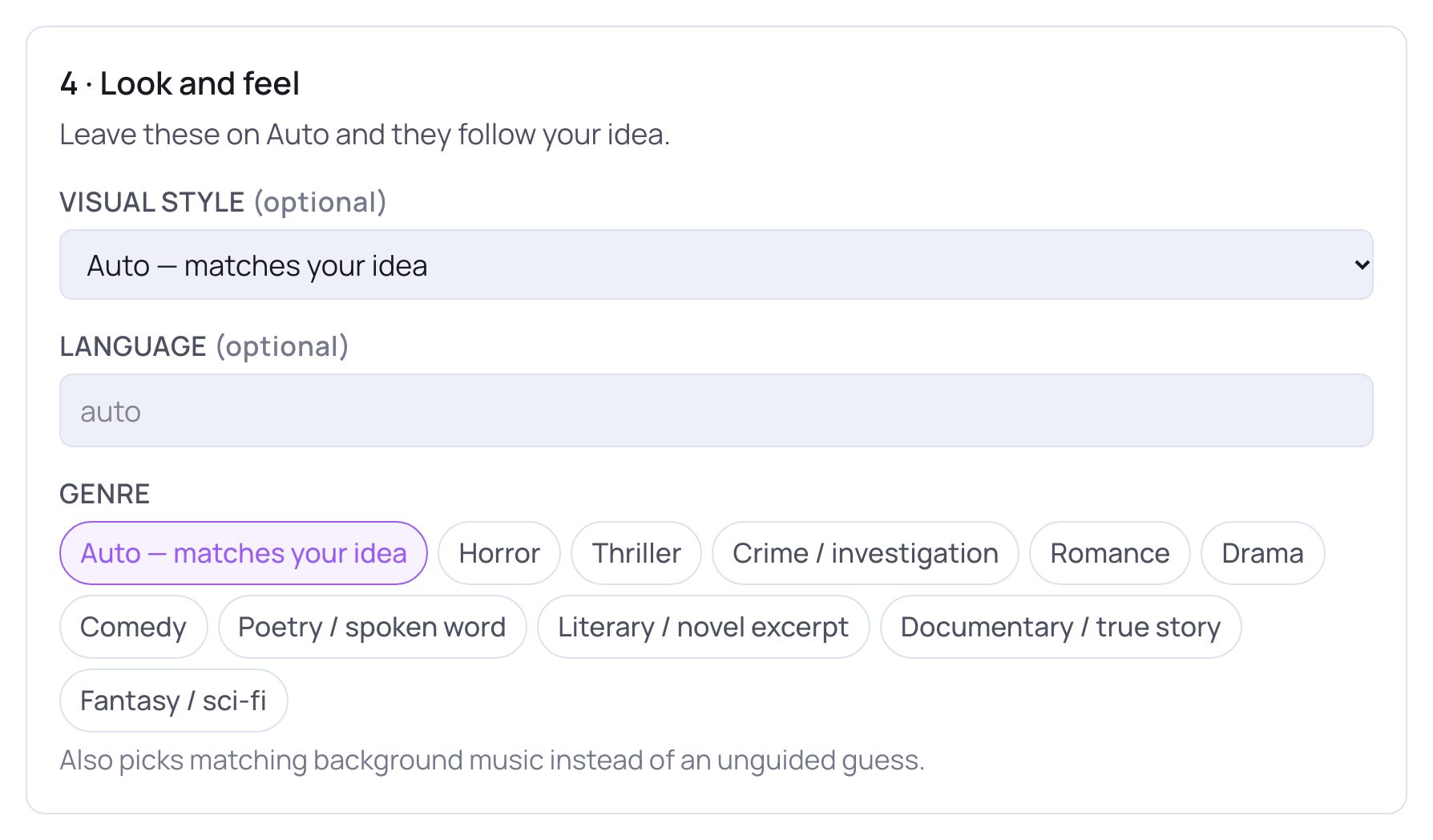
- 1Visual style: Photorealistic, 3D animation, 2D cartoon, Anime, Illustration or Watercolour — or Auto — matches your idea.
- 2Language: type the language the video should speak and show, for example Tamil or Hindi. Leave it on auto to follow your message.
- 3Genre (Horror, Romance, Comedy, Documentary / true story…) also picks matching background music. Auto — matches your idea is fine for ads.
6. More options
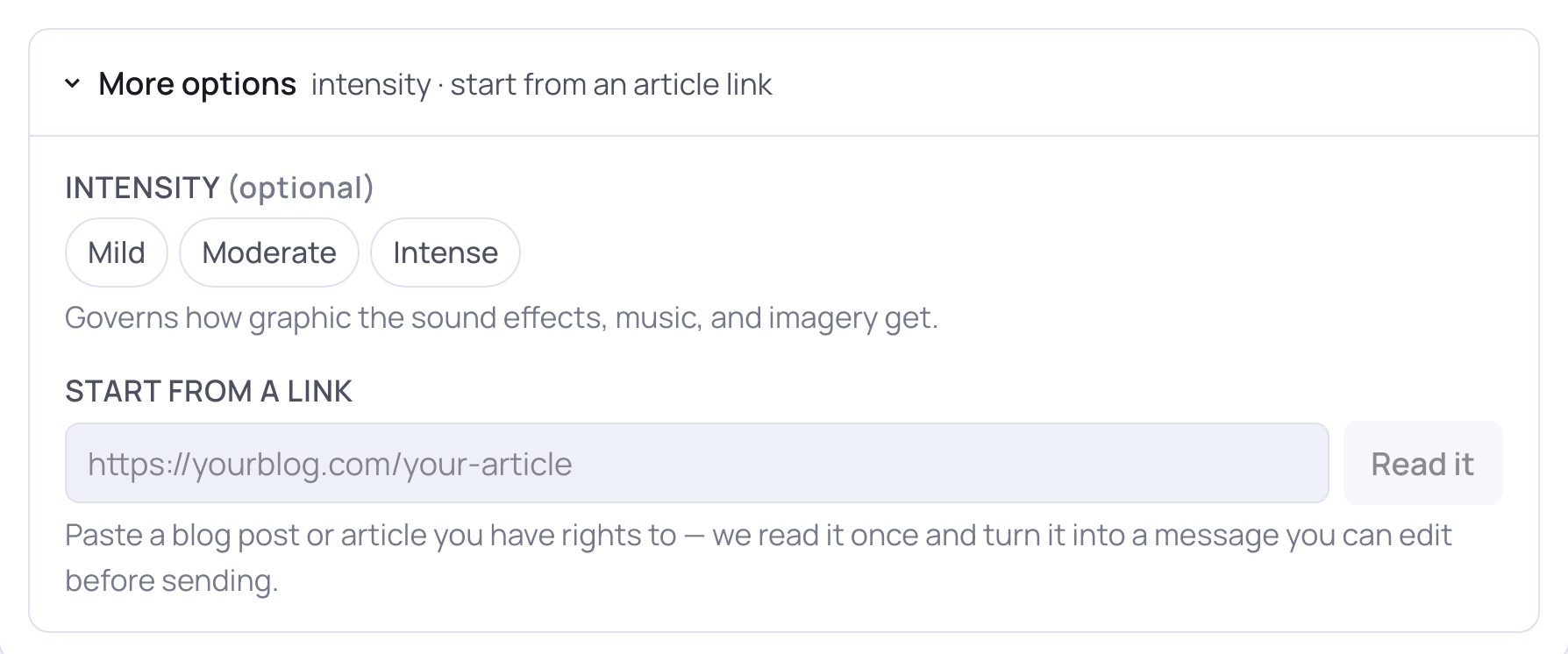
- 1Tap More options to open the settings people rarely need.
- 2Intensity — Mild, Moderate or Intense — controls how graphic the sound effects, music and pictures get in a story.
- 3Start from a link: paste a blog post or article you have the rights to.
- 4Tap Read it. SlideoClip turns the article into a message in the chat box that you can edit before you send it.
7. Changing settings after you start chatting
Once you have sent your first message, the panel is titled Your settings and stays open above the chat until you tap Create. It always shows what the plan uses right now — a change you ask for in the chat shows up here too. Change anything in the panel, then tap Apply (on some accounts the button reads Update & continue →). The plan and the price are updated to match. You can also just say it in the chat, for example “make it 16:9 for YouTube”.
Good to know
- One video for both Reels and the feed? Make it 9:16 for Reels; for the feed, make another version in 4:5.
- A 4:5 video is delivered at 1080×1350, the portrait feed size for Instagram, Facebook and LinkedIn.
- The longest video you can make depends on your plan. Longer lengths show a lock that says which plan has them.
Questions
Do I have to fill in every setting?
No. Leave anything on Auto and it is decided from your message. The plan shows what was chosen, with the price, before anything is spent.
Which is cheaper, Slideshow or Cinematic?
Slideshow. It has a flat price for its length. Cinematic is priced by the second. The rough price under Length shows both.
Can I use my own photos in a cinematic video?
Not from this panel — your own photos go into a slideshow. To make a short video ad from product photos, use 📷 Add photos (see Photos to posters and videos).