All guides
Banners and covers
Make a Facebook Page cover, a YouTube channel banner, a LinkedIn or X header, or a website banner — each at the exact size the site needs, with your logo and words kept where they won't be cut off.
Before you start
- ✓A brand set up (see Add your business)
1. Open the banner maker
On Creatives, tap the Banner & cover card under Or start from. Or type something like "Facebook cover for my saree shop" in the top box: the word "cover" or "banner" picks Banner / cover for you.
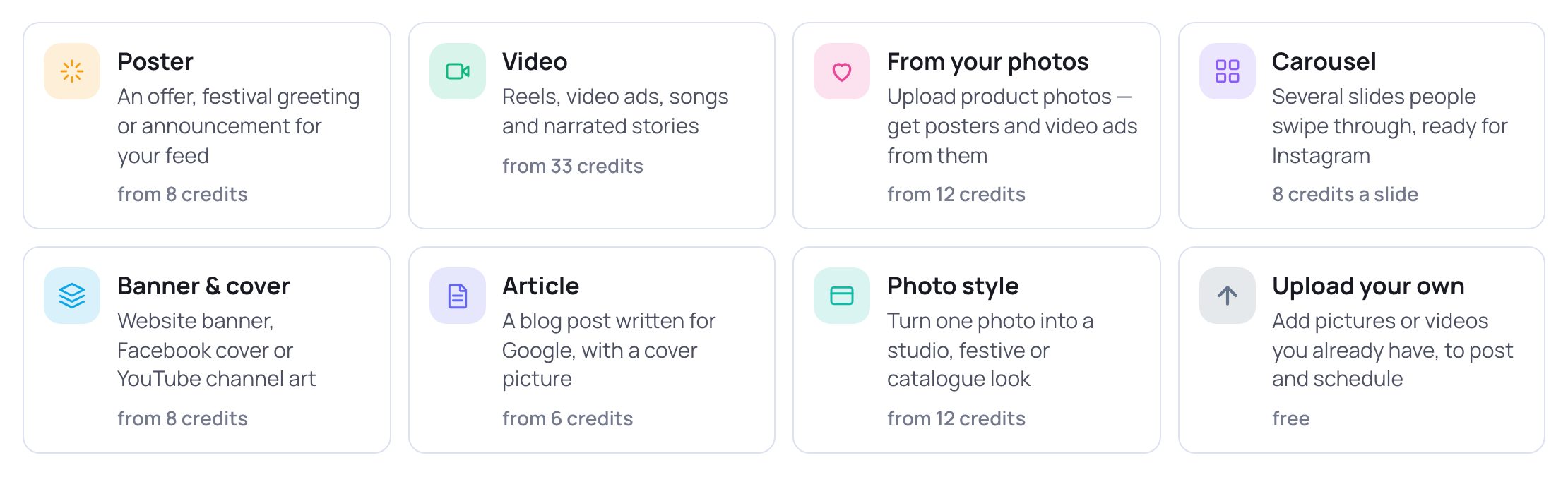
- 1Tap Banner & cover — "Website banner, Facebook cover or YouTube channel art".
2. Pick where the banner goes
The banner maker is the poster maker with a different size box. Its heading reads Create a banner.
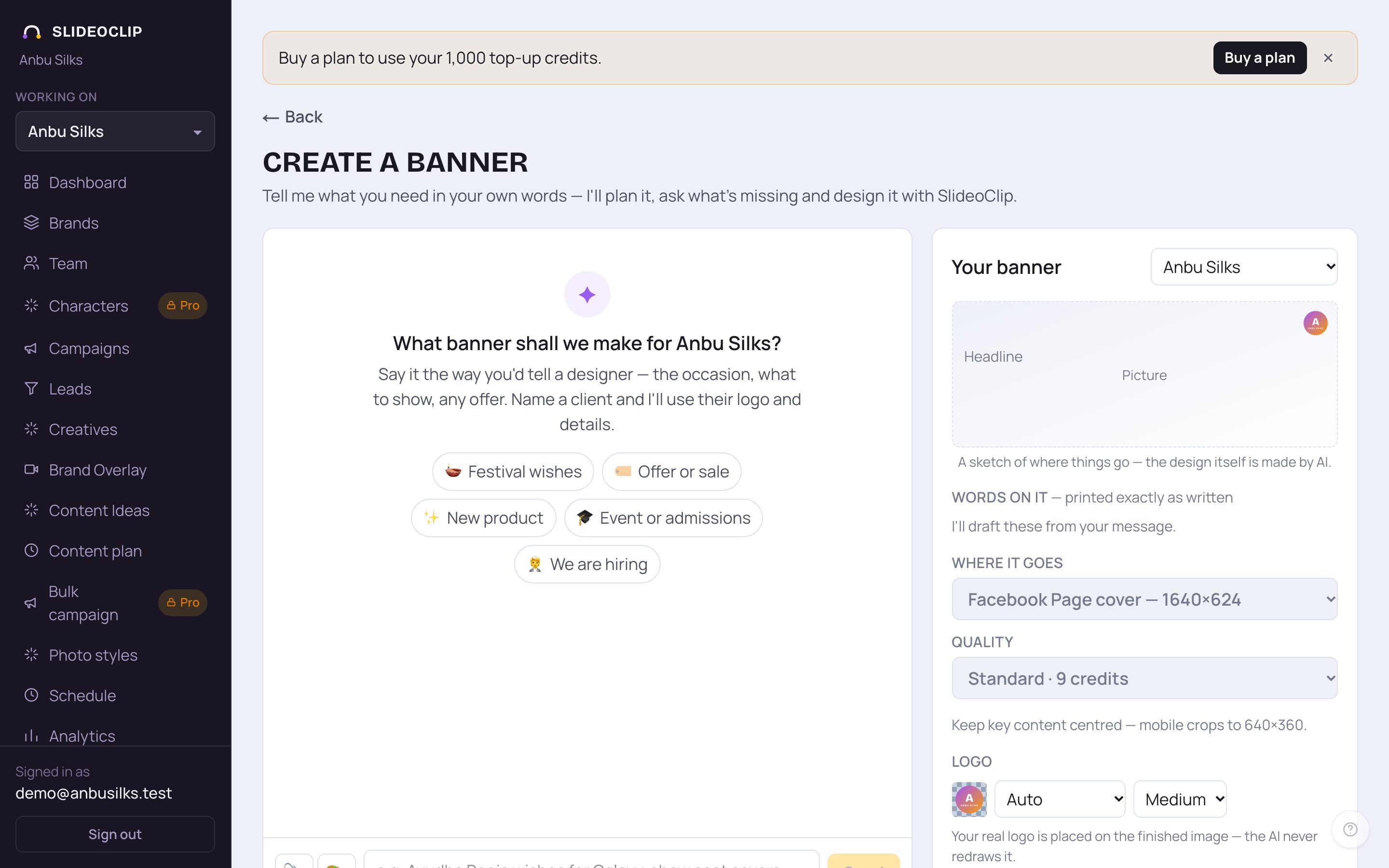
- 1Check the heading says Create a banner.
- 2Where it goes: choose YouTube channel banner (2560×1440), Facebook Page cover (1640×624), LinkedIn profile banner (1584×396), LinkedIn company cover (2256×382) or X / Twitter header (1500×500). The size is set for you.
- 3The line under the boxes tells you where to keep your logo and words so nothing is cut off on phones, TVs or under your profile photo. It changes with your choice.
💡 Instagram has no profile banner, so it isn't in the list.
3. Describe it
Like the poster maker, the banner maker is a chat. Say what you want in your own words, in any language.
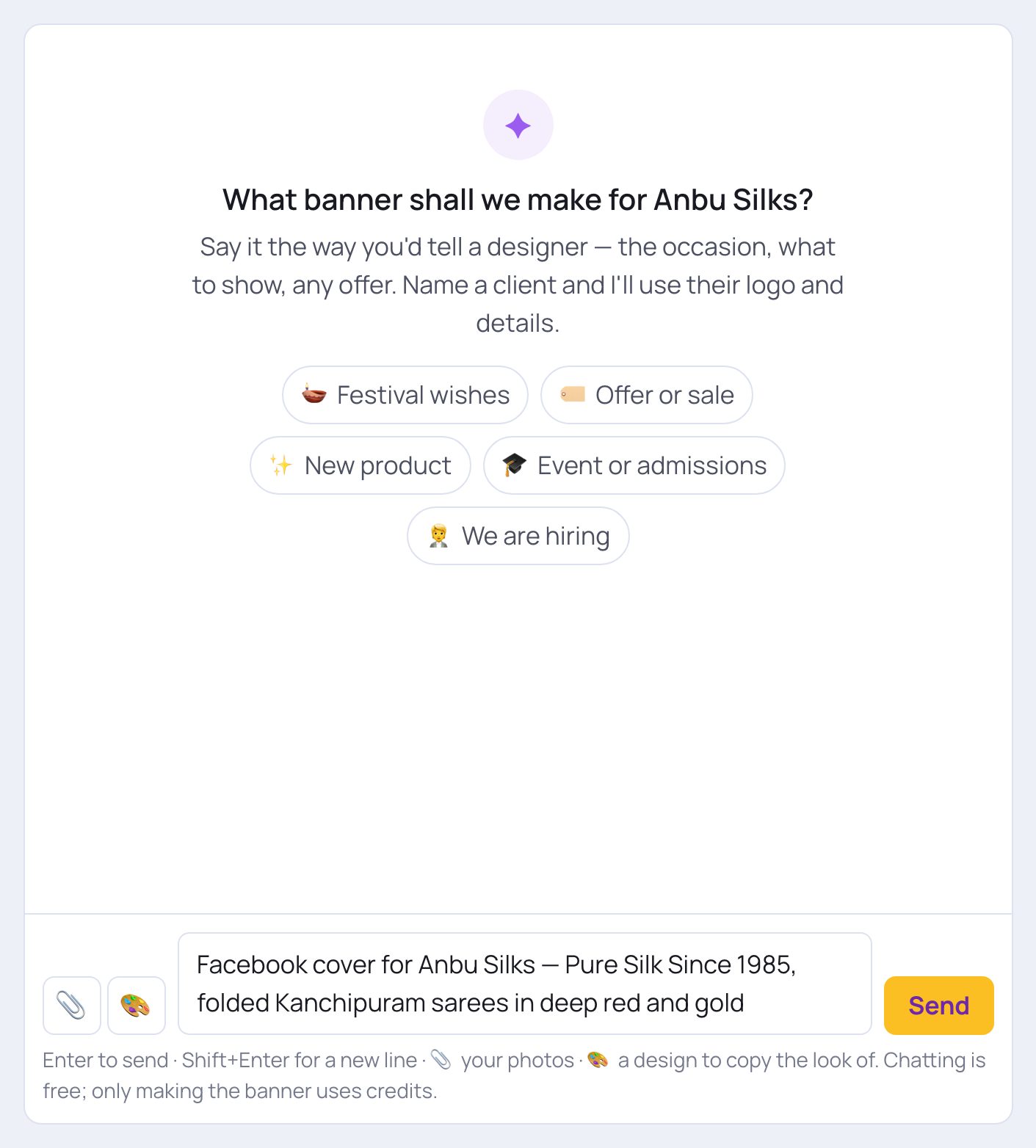
- 1Type what should be on the banner and the feeling you want: your shop name, a line like "Pure Silk Since 1985", the colours. Name a client to use their logo and details.
- 2Tap Send. Chatting is free. SlideoClip drafts the words and shows its plan in Your banner on the right. You can change any word there.
- You can also tap the paperclip to add your own photos, or the palette to copy the look of a design you like.
💡 A banner takes up to 3 highlights. Put your phone or website in the Contact line so it comes out spelled perfectly.
4. Quality, logo and create
These boxes work just like the poster maker. See Make a poster for every option.
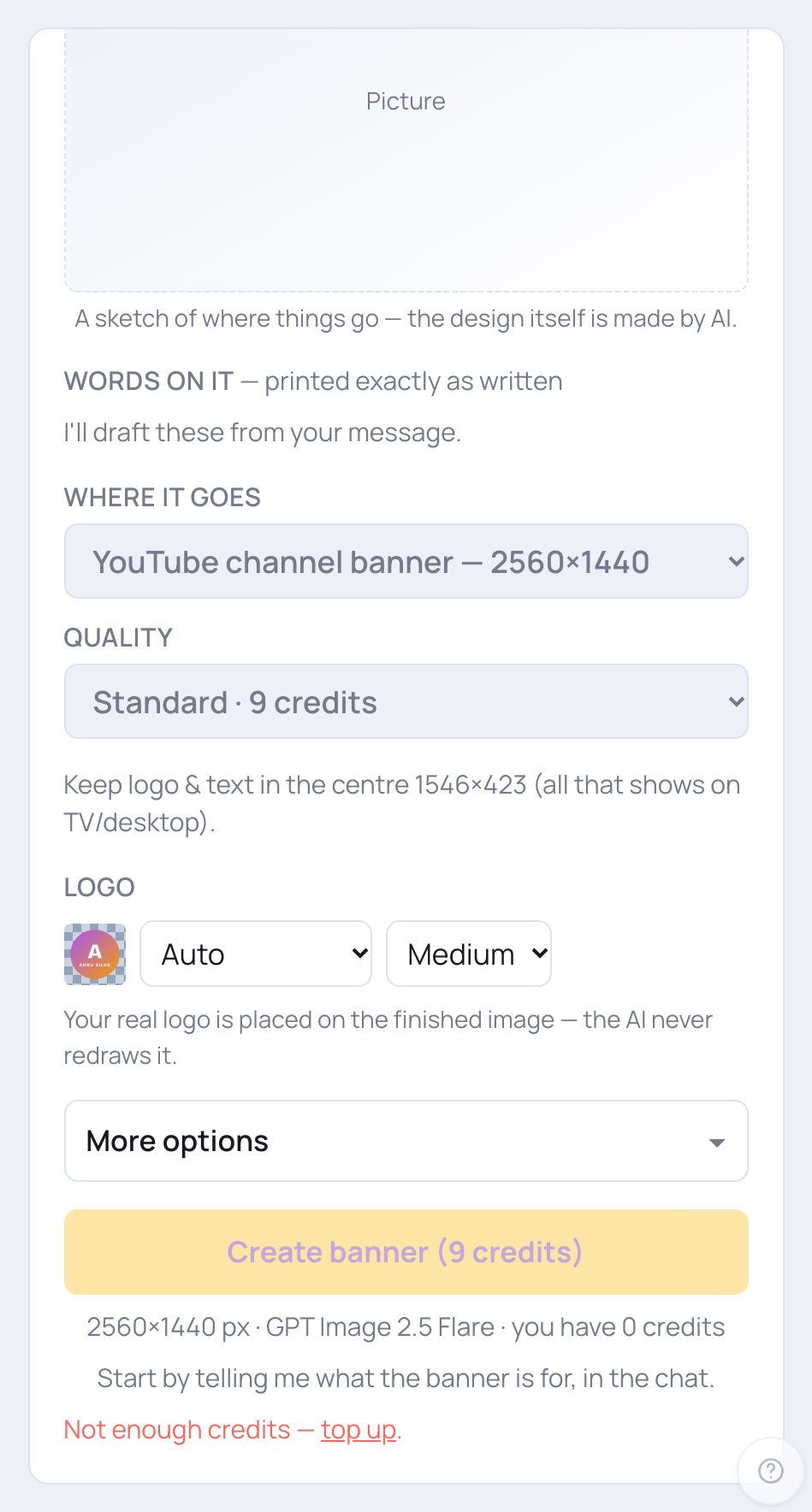
- 1Quality: for a big banner that stays up for months, High or Ultra gives crisper detail. Each choice shows its credits.
- 2Logo: choose the corner and size, or No logo. Your real logo is placed on the finished banner. The AI never redraws it.
- 3Tap Create banner when ready. The credits are on the button and the line under it shows the size. It takes 20 to 60 seconds and is saved to your library.
💡 If the button is faded, read the line under it: it says what is still needed or that you need to top up.
5. A website banner (or any other size)
There is no separate "website" choice under Where it goes. For a website banner, open the poster maker (the Poster card), and under Size pick Custom size…, then type your website's banner width and height in pixels (from 256 to 4096). The Size list also has Facebook Cover, YouTube Channel Banner, LinkedIn Banner, LinkedIn Company Cover and X / Twitter Header.
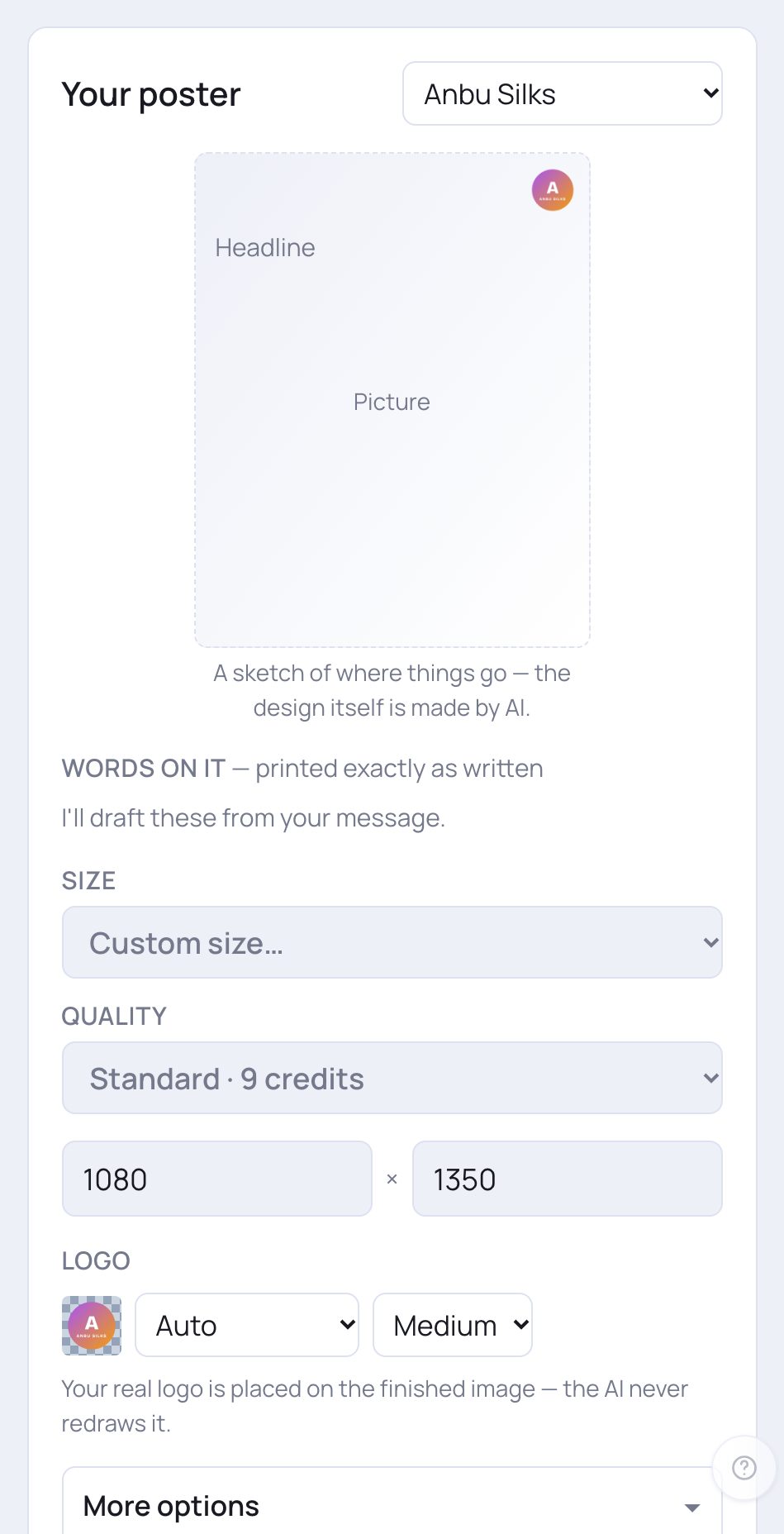
- 1Open Size and pick Custom size… at the top of the list.
- 2Type the Width in pixels.
- 3Type the Height in pixels.
6. Put it on your page
Find your banner in Your creations on the Creatives page under Banners, and open it.
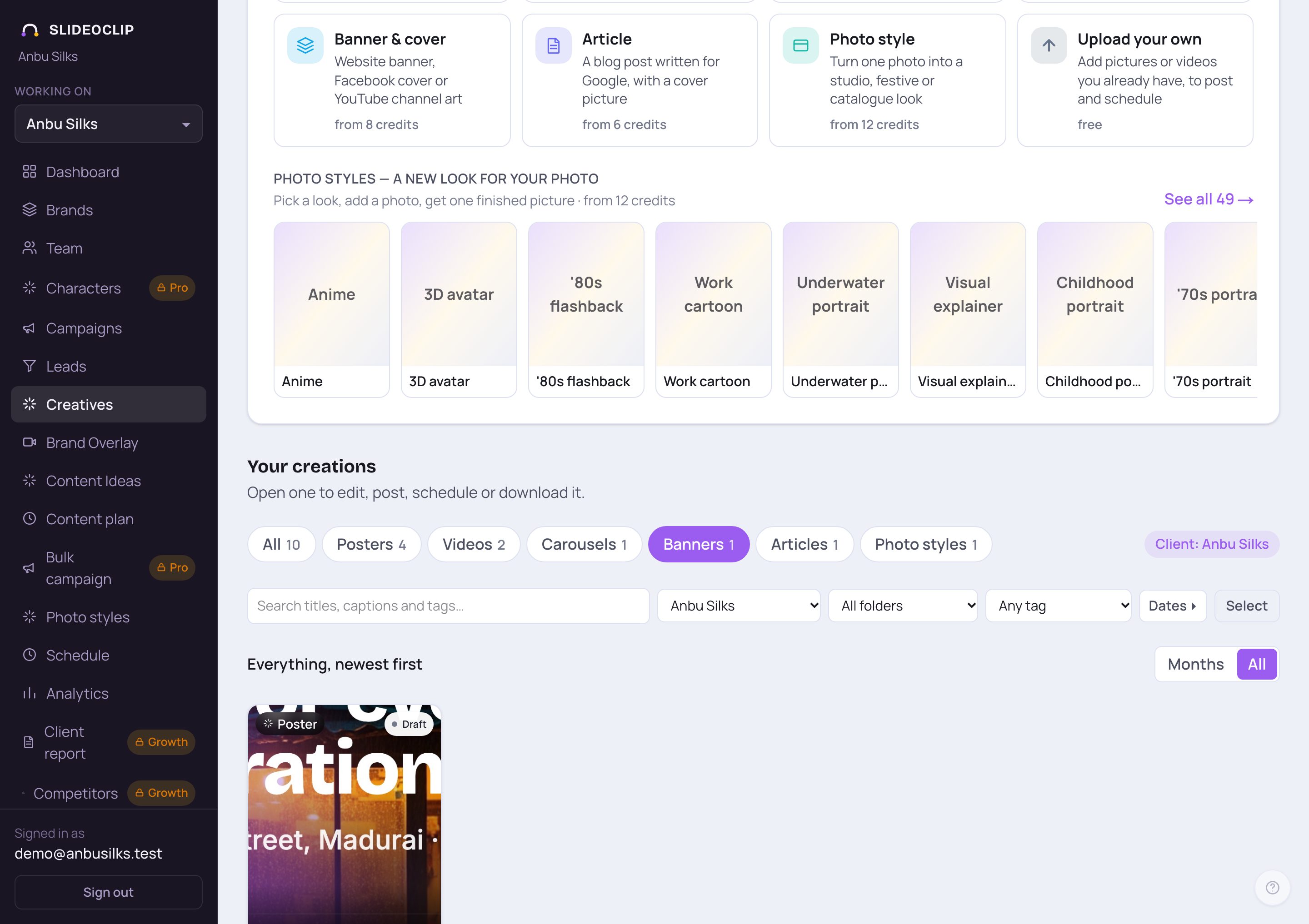
- 1Tap Banners to see only banners and covers.
- 2Tap a banner to open it.
- In the window that opens, tap Download to save the banner. Then add it as your cover on Facebook, LinkedIn or X yourself, on that site.
- A YouTube channel banner also shows Set as YouTube banner when your YouTube channel is connected.
💡 You can also type a change next to Revise in the same window, such as "move the logo to the centre". The credits for a change are shown on the button.
Good to know
- Keep your shop name and phone in the middle of a cover. The edges get cut off on phones.
- Put your phone or website in the Contact line so it comes out spelled perfectly.
Questions
Does a banner cost more than a poster?
No. A banner is made like a poster, so it uses the same credits for the same quality. The exact number is on the Create banner button.
Can SlideoClip put the banner on my Facebook Page for me?
Download it from your library and add it as your cover on Facebook yourself. For a YouTube channel banner, if your YouTube channel is connected you will also see a Set as YouTube banner button.