All guides
Work your leads inbox
Every enquiry from your Meta lead forms and your lead page lands in one inbox. Reply on WhatsApp in one tap, call, mark how each lead is going, filter the list and get an alert on your phone the moment a new lead arrives.
Before you start
- ✓A lead ad or a lead page that is collecting enquiries (see Get enquiries with Meta lead ads)
1. Open the inbox
Tap Leads in the menu. The page starts with Who saw your ads (see that guide), then the inbox. Leads are free, however many you get.
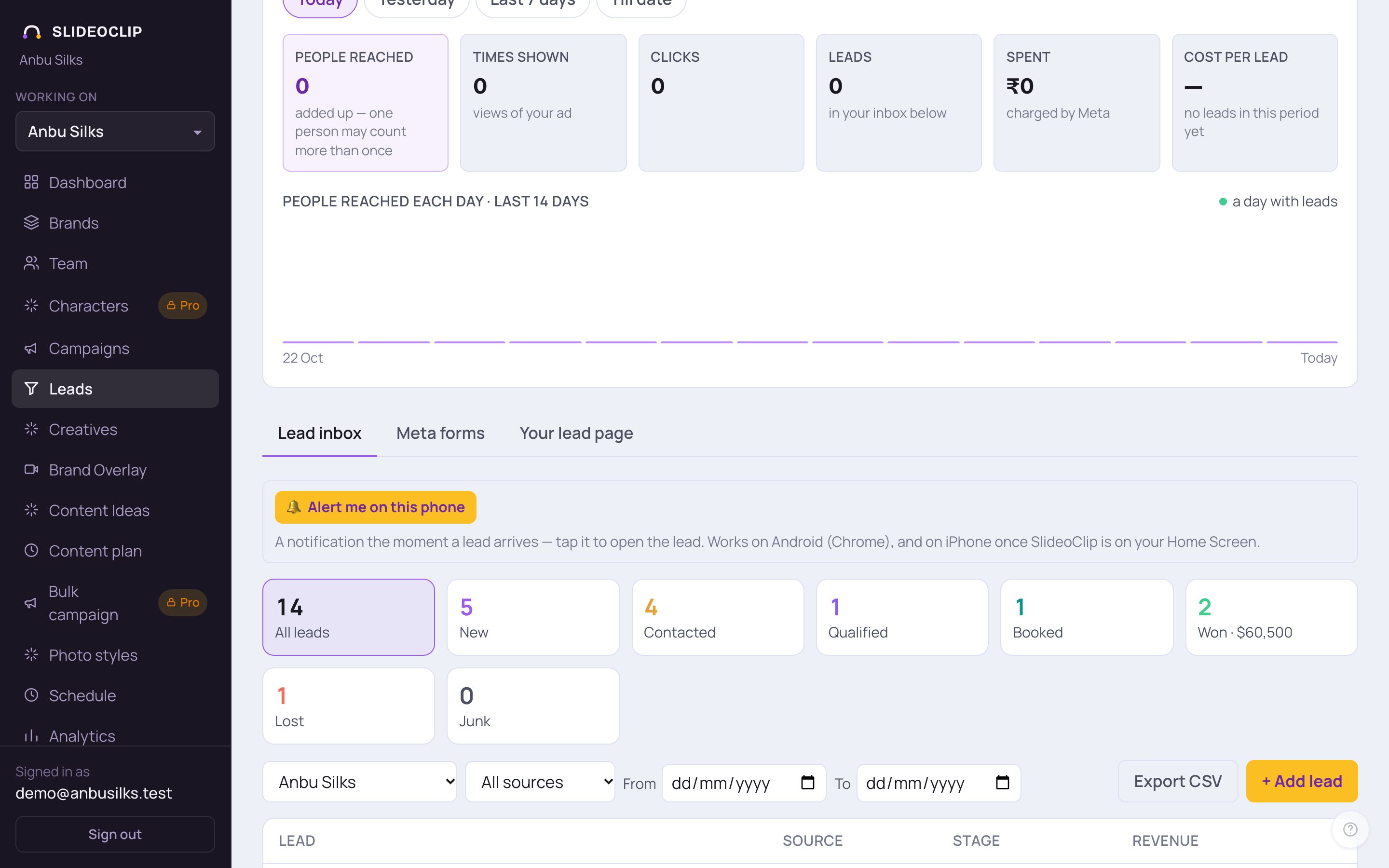
- 1Make sure Lead inbox is selected. Meta forms lists the forms built for your ads, and Your lead page is your own enquiry page.
- 2The boxes count your leads by stage. Tap All leads, New, Contacted or any other box to show only those leads.
- 3Export CSV downloads the leads you see (with your filters) as a spreadsheet.
- 4Got an enquiry by phone or in the shop? Tap + Add lead to add it by hand so everything is in one place.
2. Read a lead and reply
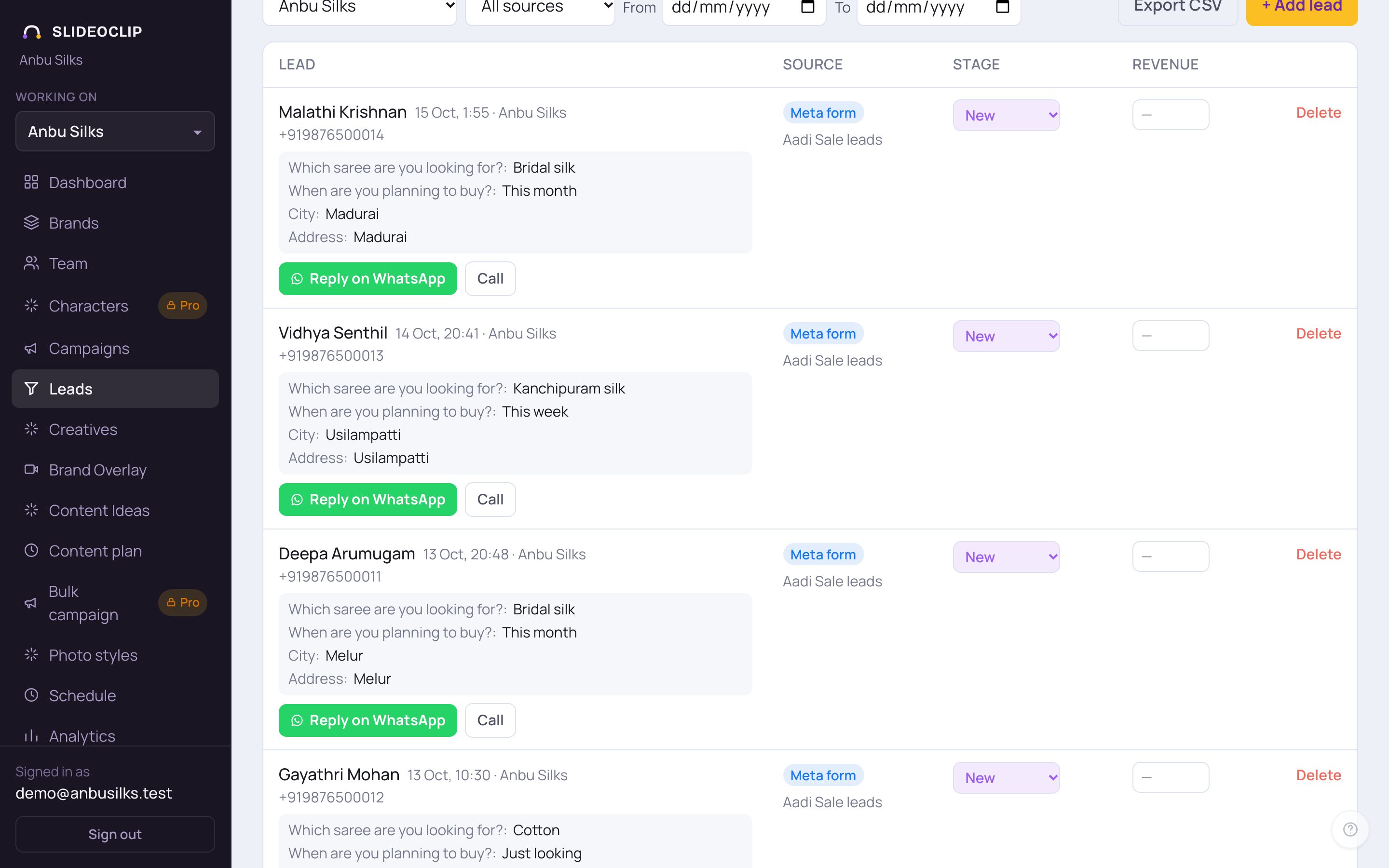
- 1Each lead shows the name, when it came in, the client, the phone or email, and their answers to your form's questions.
- 2Tap Reply on WhatsApp to see the reply SlideoClip already wrote for this lead.
- 3Tap Call to ring them from your phone. A lead with only an email shows Email instead.
- 4Source shows where the lead came from (for example Meta form or Your lead page) and the campaign under it.
💡 If a lead shows Looks like junk: with a reason, tap Mark as junk, or It’s real if you know it's genuine. Our checks can be wrong; you decide.
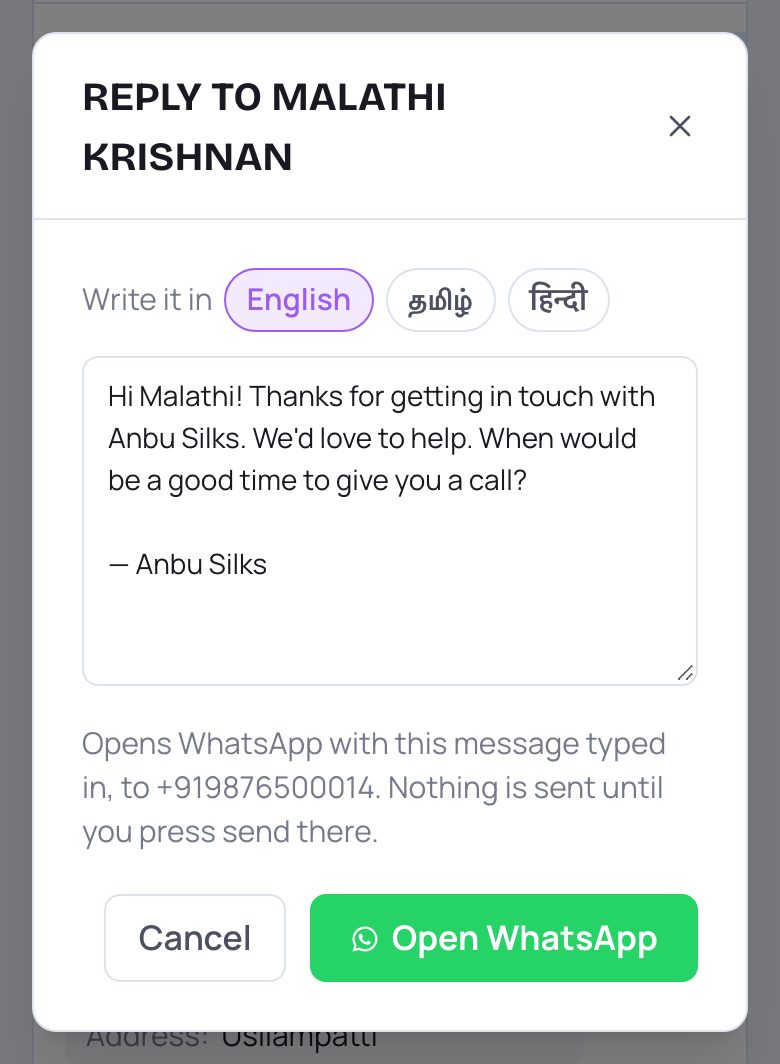
- 1Next to Write it in, tap English, தமிழ் or हिन्दी to rewrite the reply in that language.
- 2Change any words you like. Your changes are kept for next time.
- 3Tap Open WhatsApp. Your own WhatsApp opens with the message typed in, ready for this lead. Nothing is sent until you press send in WhatsApp.
3. Mark how each lead is going
Keeping each lead's stage up to date tells you who to call next and shows what a good lead really costs. For Meta form leads, the stage is also shared with Meta, so it can find more people like your good leads.
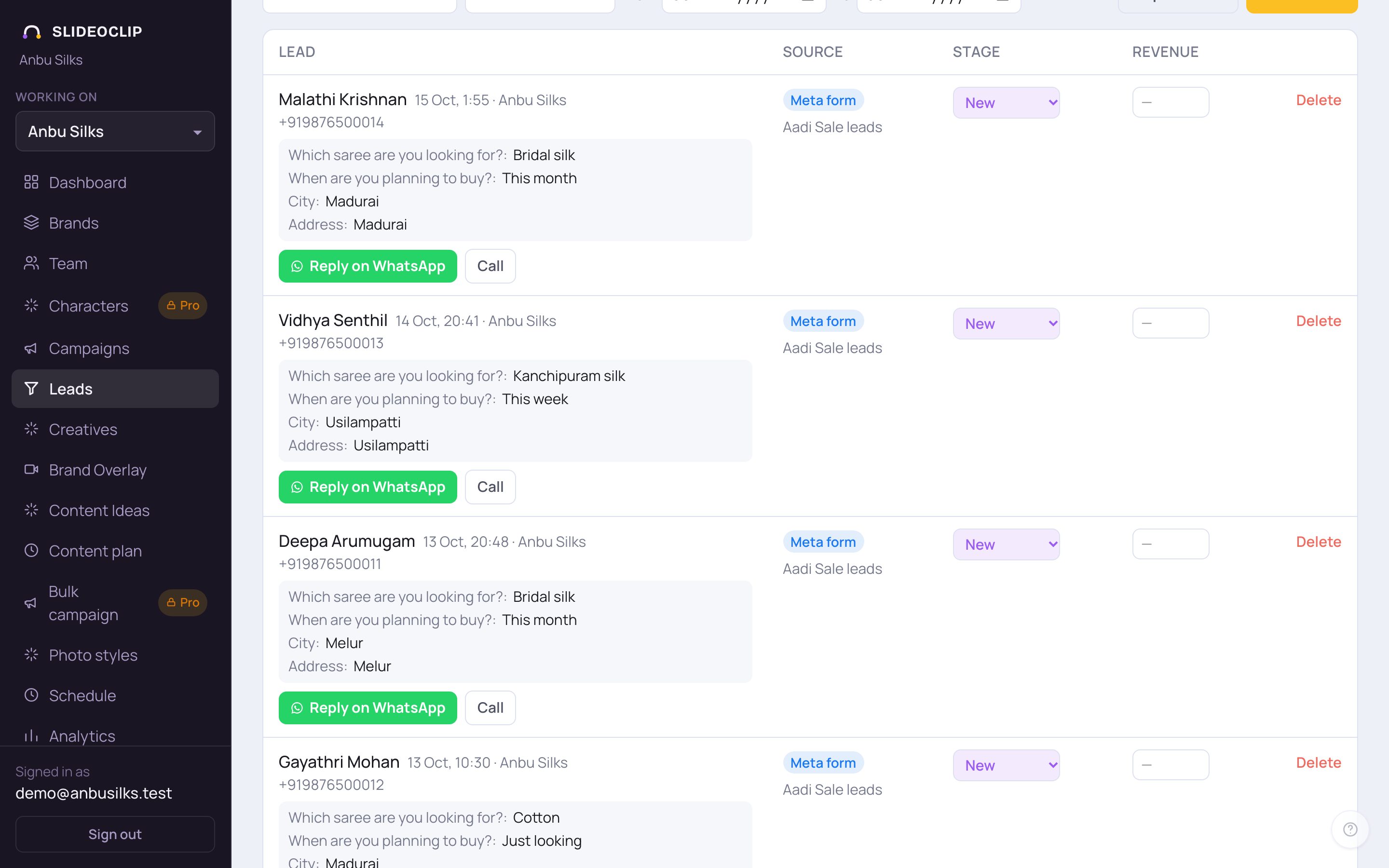
- 1Tap the Stage box and choose: New, Contacted, Qualified (a real prospect), Booked (an appointment or visit is fixed), Won (they bought), Lost or Junk (fake or wrong number).
- 2For a Won lead, type the sale amount in Revenue. It is saved when you tap outside the box.
- Delete at the end of a row removes the lead for good. Only use it for mistakes; marking Junk is usually better.
4. Find the leads you need
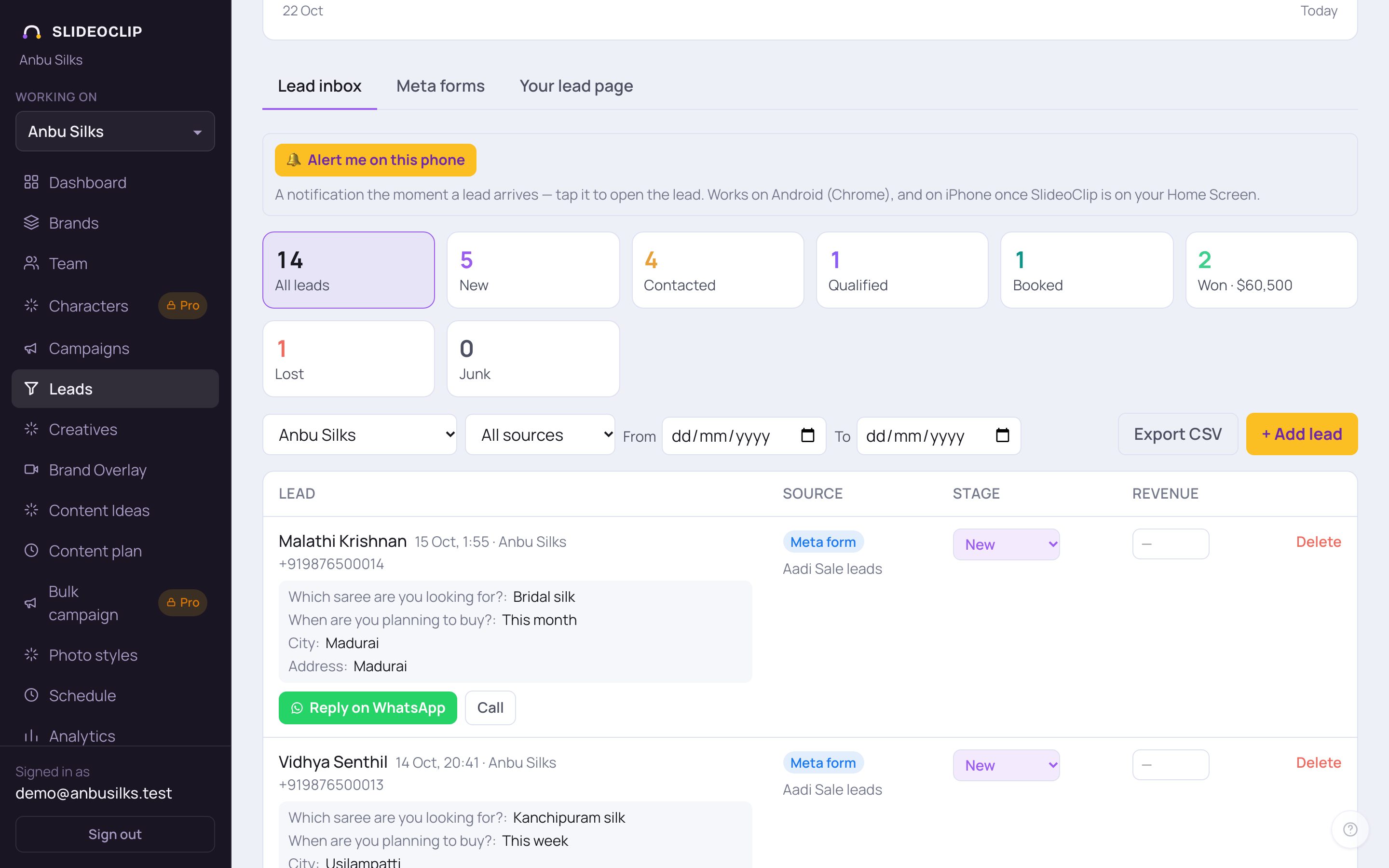
- 1Pick a client to see only their leads, or All clients.
- 2Pick a source: Meta form, Your lead page, Manual or Import.
- 3Set From and To dates to see leads from those days. Clear dates takes them off.
- Possible junk (shown when there are some) lists leads our checks think may be fake or repeated. Opening View leads from a campaign shows only that campaign's leads; tap the × on the Campaign: chip to see all again.
5. Get an alert when a lead arrives
You get an email for every new lead, with the name, the answers and a reply button. You can also get a notification on your phone.
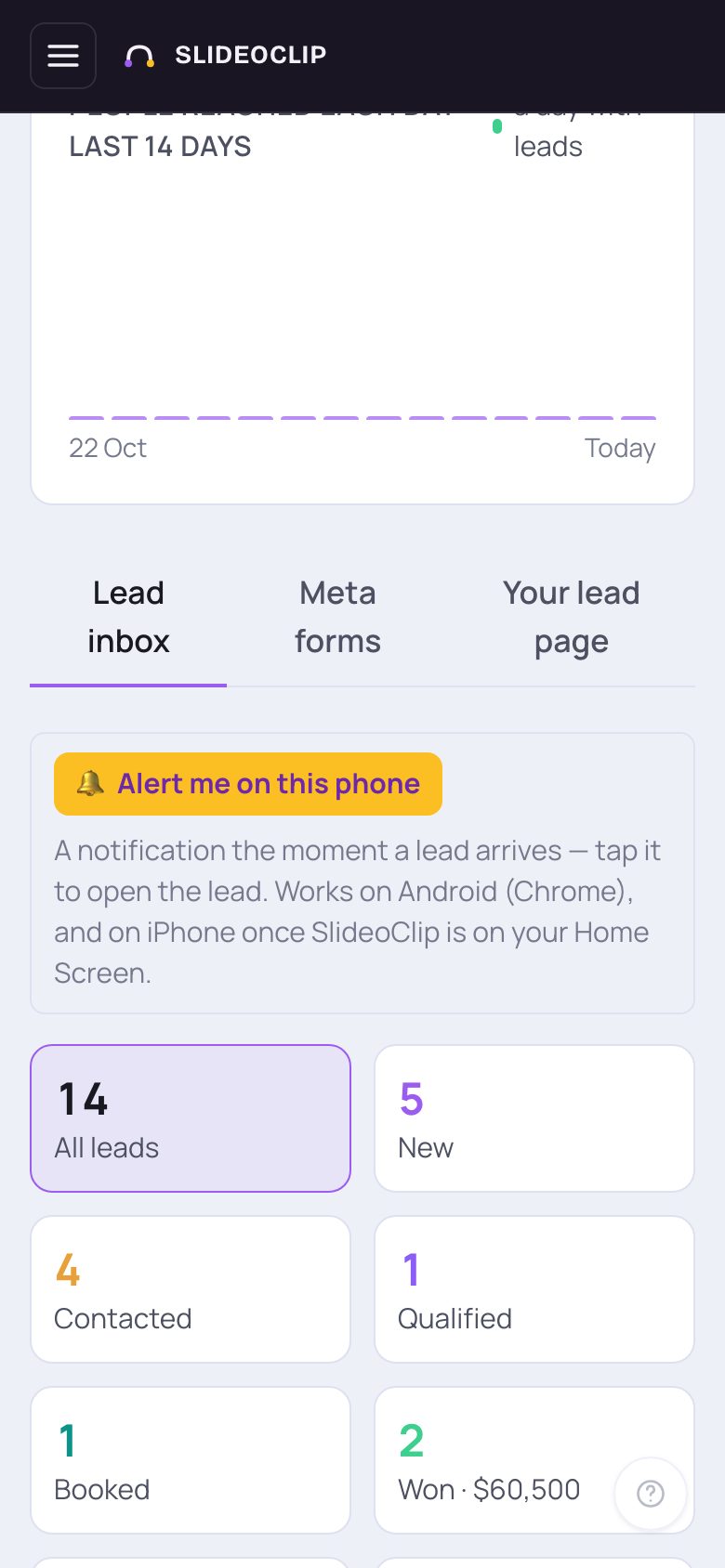
- 1On your phone, open Leads and tap 🔔 Alert me on this phone, then allow notifications. Tapping a notification opens that lead.
- Android: use Chrome. iPhone: in Safari tap Share → Add to Home Screen, open SlideoClip from that new icon, and turn alerts on there (iOS 16.4 or newer).
- When alerts are on, you see 🔔 Lead alerts are on for this phone. with a Turn off link.
Good to know
- Reply fast. The sooner you reply, the warmer the lead.
- Meta deletes leads after 90 days; SlideoClip keeps them all.
- Mark leads Qualified, Booked or Won. Your campaign card then shows what a good lead costs you, not just any lead.
Questions
Does SlideoClip send the WhatsApp message for me?
No. Open WhatsApp opens your own WhatsApp with the message typed in. You press send there.
Can I reply in Tamil?
Yes. The reply is written in the lead's language when it arrives, and you can rewrite it in English, Tamil or Hindi with one tap.
I'm not getting phone alerts.
If the box says notifications are blocked, allow them for SlideoClip in your browser's settings and reload the page. On iPhone, alerts only work from the Home Screen icon.
A lead from my ad isn't here.
New leads usually arrive within seconds. See Fix lead setup problems for what to check.