All guides
Write a blog article
Get a polished blog article in your brand's voice, in any language, with Google keywords and an optional header picture. You'll see the length and price before anything is written.
Before you start
- ✓A brand set up (see Add your business)
1. Open the article writer
On Creatives, tap the Article card under Or start from, or type your topic in the top box, tap Article under Make it as, then Create article.
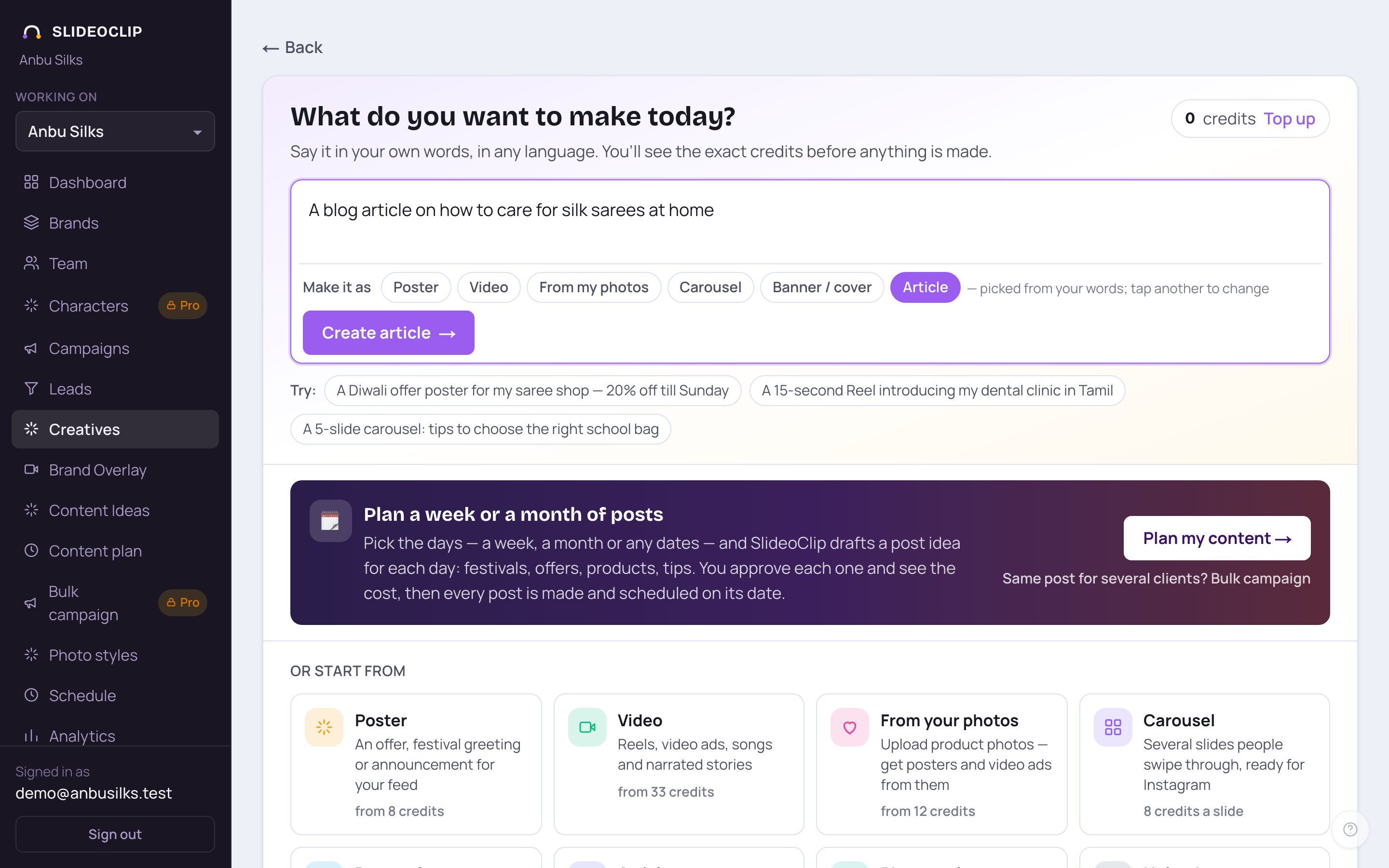
- 1Words like "blog" or "article" pick Article for you. If not, tap Article yourself.
- 2Tap Create article. Your words are carried to the writer.
2. What's it about?
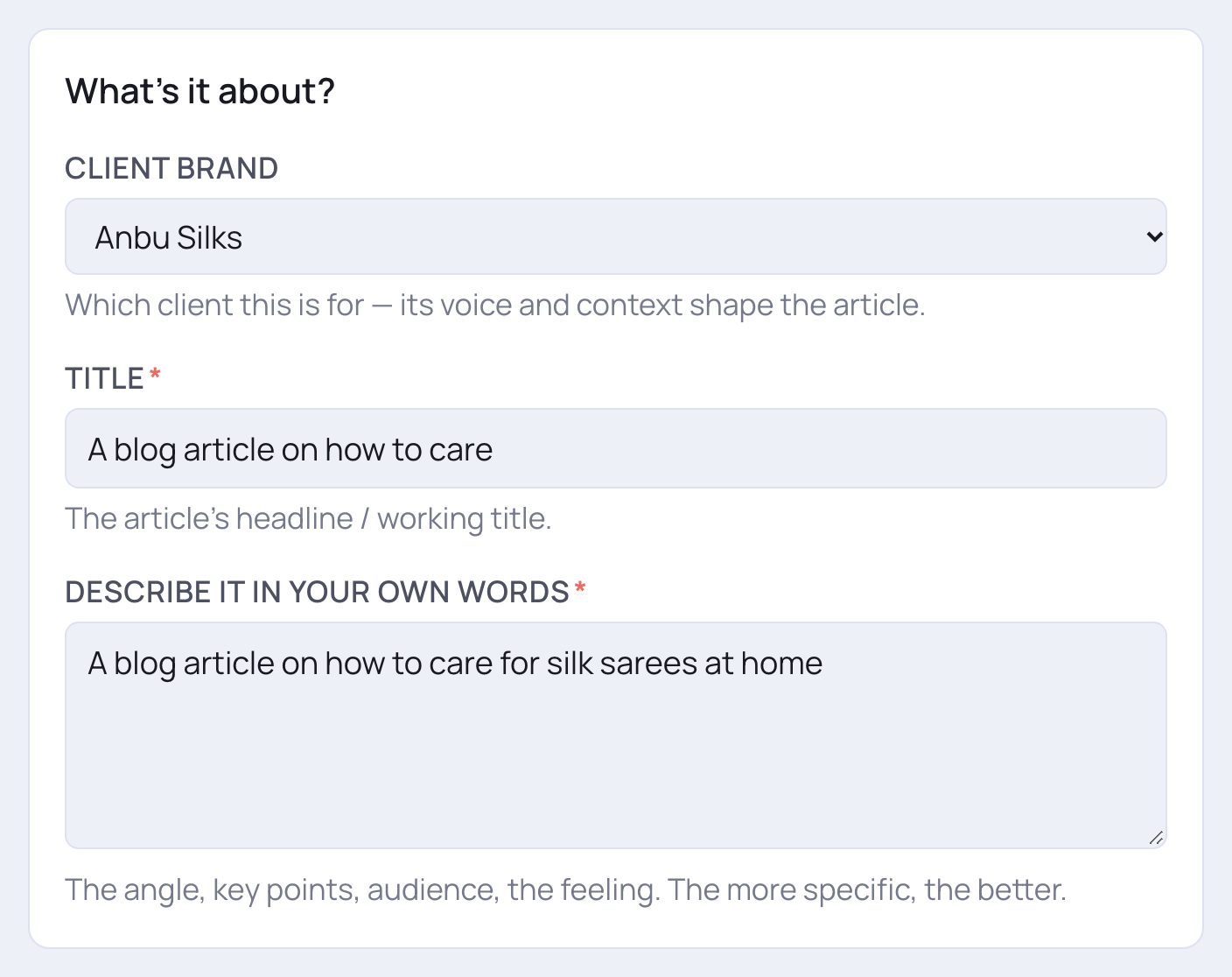
- 1Client brand: which client the article is for. Its voice and details shape the writing.
- 2Title *: the headline or a working title.
- 3Describe it in your own words *: the angle, the key points, who it's for. The more specific, the better.
3. Style & language
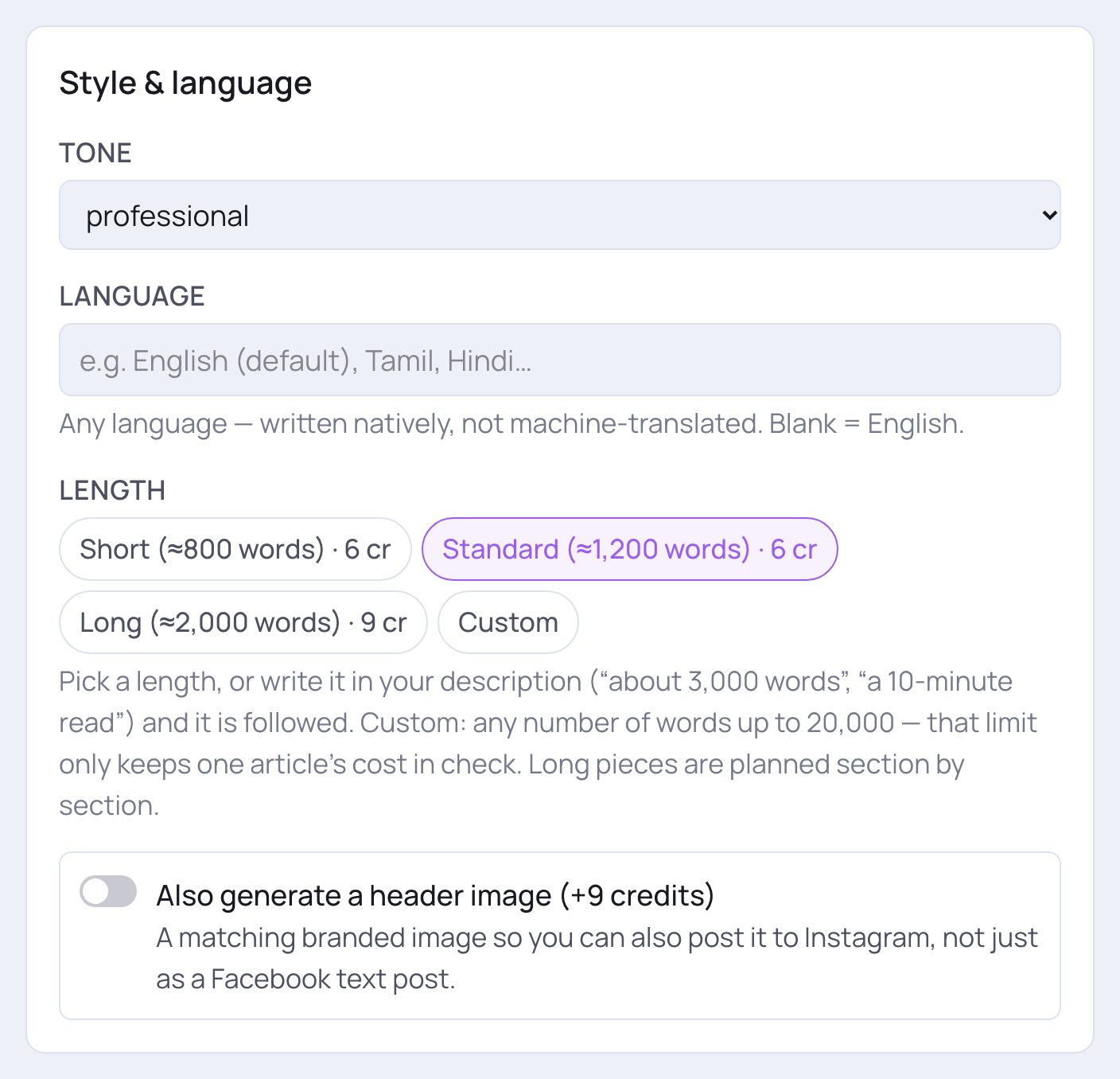
- 1Tone: professional, friendly, persuasive, informative or story.
- 2Language: type any language — Tamil, Hindi, Telugu and more are suggested as you type. It is written in that language, not machine-translated. Leave it empty for English.
- 3Length: Short, Standard or Long — each shows about how many words and its credits. Or pick Custom and type any number of words. You can also write the length in your description, like "about 3,000 words", and it is followed.
- 4Also generate a header image: switch on to get a matching branded picture too, so you can post the article on Instagram as well. The extra credits are shown in the label.
💡 Very long articles are planned and written section by section and take a few minutes. There is an upper limit per article to keep the cost in check — the page tells you if you ask for more.
4. Found on Google (optional)
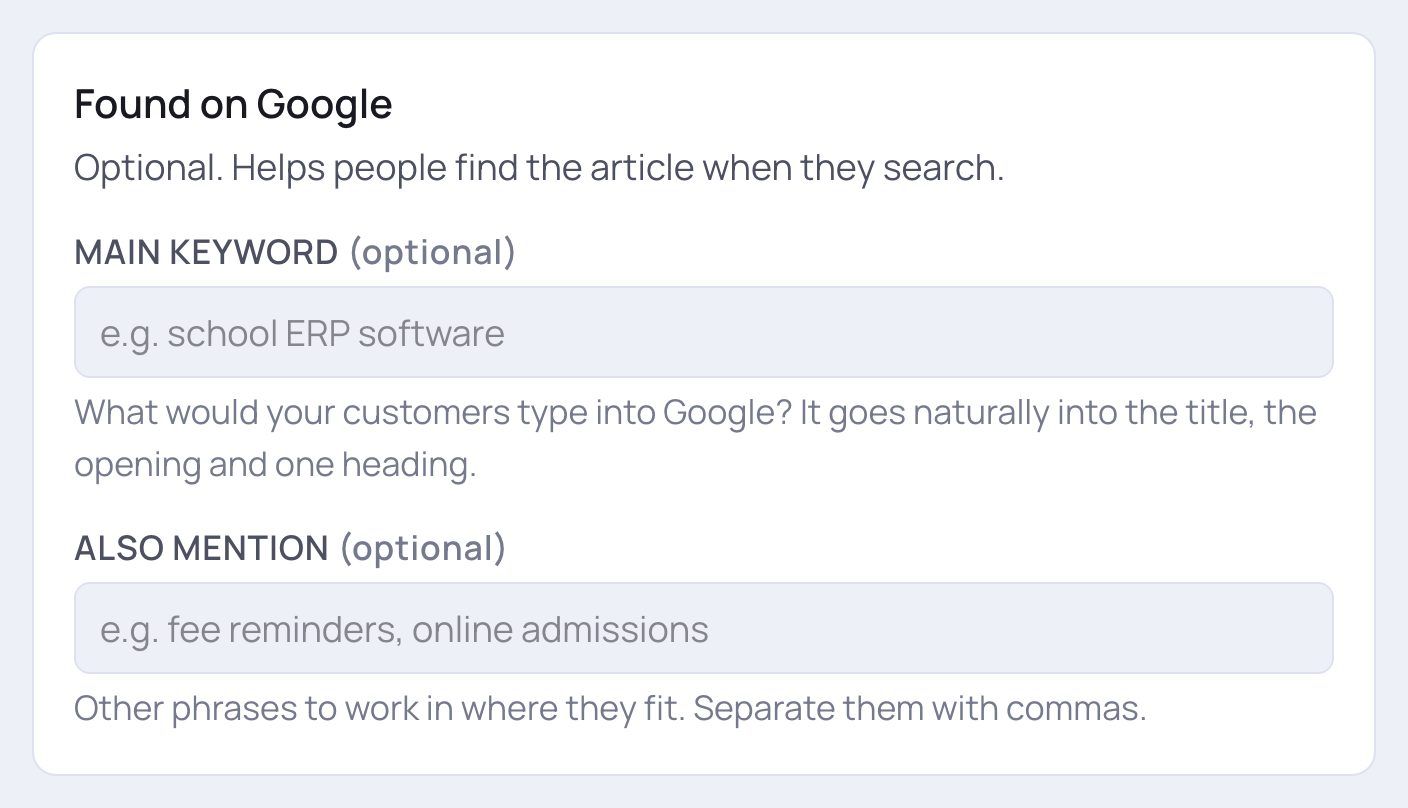
- 1Main keyword: what your customers would type into Google, like "silk saree care". It is worked naturally into the title, the opening and one heading.
- 2Also mention: other phrases to work in where they fit, separated by commas.
5. Check the price and write
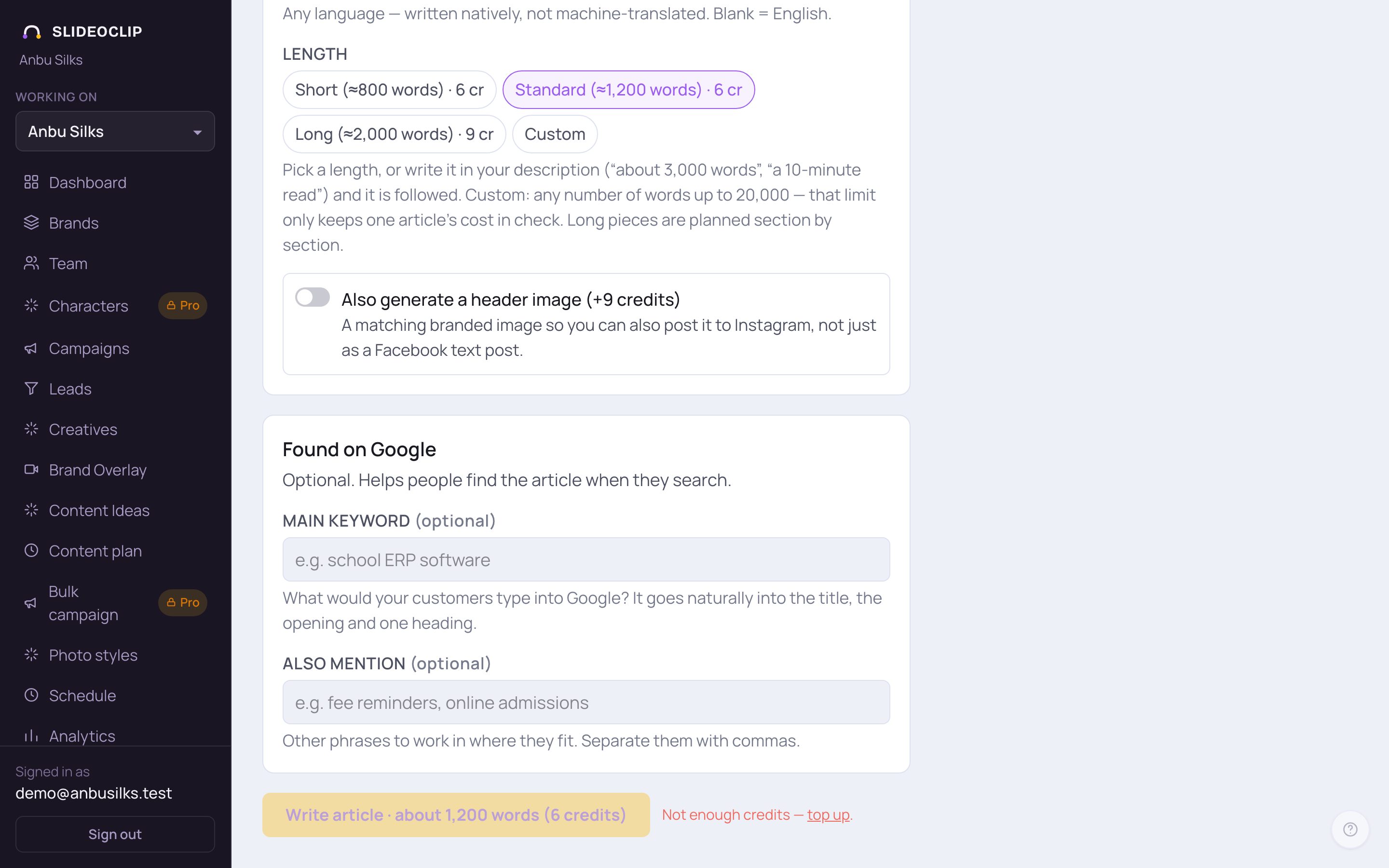
- 1The button shows about how many words and the credits, for example Write article · about 1,200 words (6 credits). If it says Working out the price…, wait a moment. Tap it when you're ready.
- Your article then appears in the box on the right, formatted and ready to copy. It is also saved to your library. Until then that box says Your article will appear here.
6. When it's ready
On the right you'll see the header picture (if you asked for one), then For your website with a Meta description (the short text Google shows under your title) and a URL slug (the end of the page address), each with a Copy button. Below that is the article itself with ⧉ Copy, ↓ (download) and ⤢ (bigger view) buttons at its top. Tap Open in library to publish → to post it.
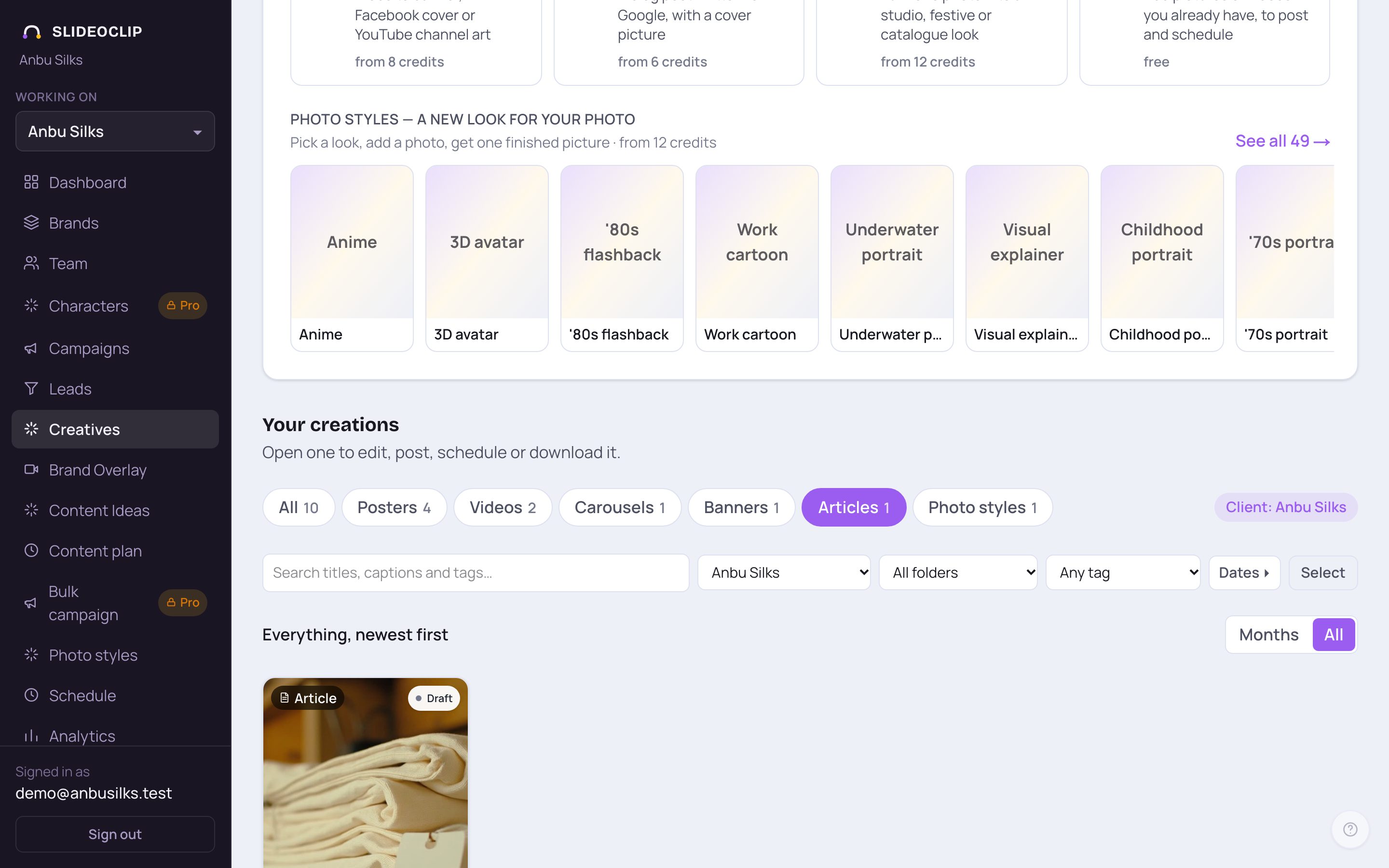
- 1Later, find your articles in Your creations by tapping Articles. Open one to post it, schedule it or copy it to your website.
Good to know
- Mention your town and what you sell in the description — it makes the article useful for local customers searching on Google.
- Switch on the header image if you also want to share the article on Instagram.
- Copy the Meta description and URL slug into your website when you publish the article there.
Questions
Can it write in Tamil or Hindi?
Yes. Type the language in the Language box. The price follows the language, and is shown on the button before anything is written.
How long can an article be?
Pick Short, Standard or Long, or Custom for any number of words up to the limit shown on the page. Long pieces are written section by section.
Is the price fixed before I tap the button?
Yes. The same details you see are what is charged — the credits are on the Write article button.