All guides
Make many at once (bulk campaign)
Write one brief — like a festival offer — and get a separate poster or article for every client you pick, each with that client's own logo, colours and tone. Made for agencies and anyone running several brands.
Before you start
- ✓Two or more clients set up on the Brands page (see Add your business)
- ✓The Pro or Agency plan — one brief for several clients is part of those plans
1. Open Bulk campaign
On Creatives, in the dark Plan a week or a month of posts banner, tap Same post for several clients? Bulk campaign.

- 1Tap Same post for several clients? Bulk campaign to make one post for many clients at once.
- 2Want many posts on different days instead, for one client? Tap Plan my content → — see Plan a month of posts.
2. Pick the clients
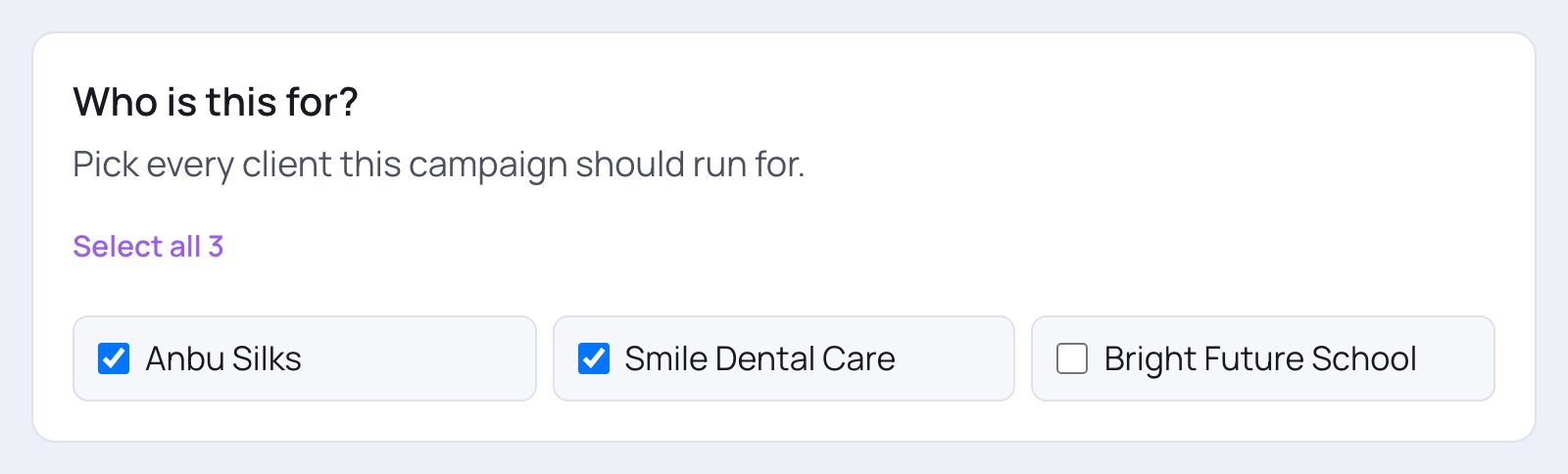
- 1Tap Select all to pick every client in one go (it changes to Deselect all).
- 2Or tick each client you want, one by one.
- 3A client you leave unticked gets nothing from this campaign.
3. What should I make?
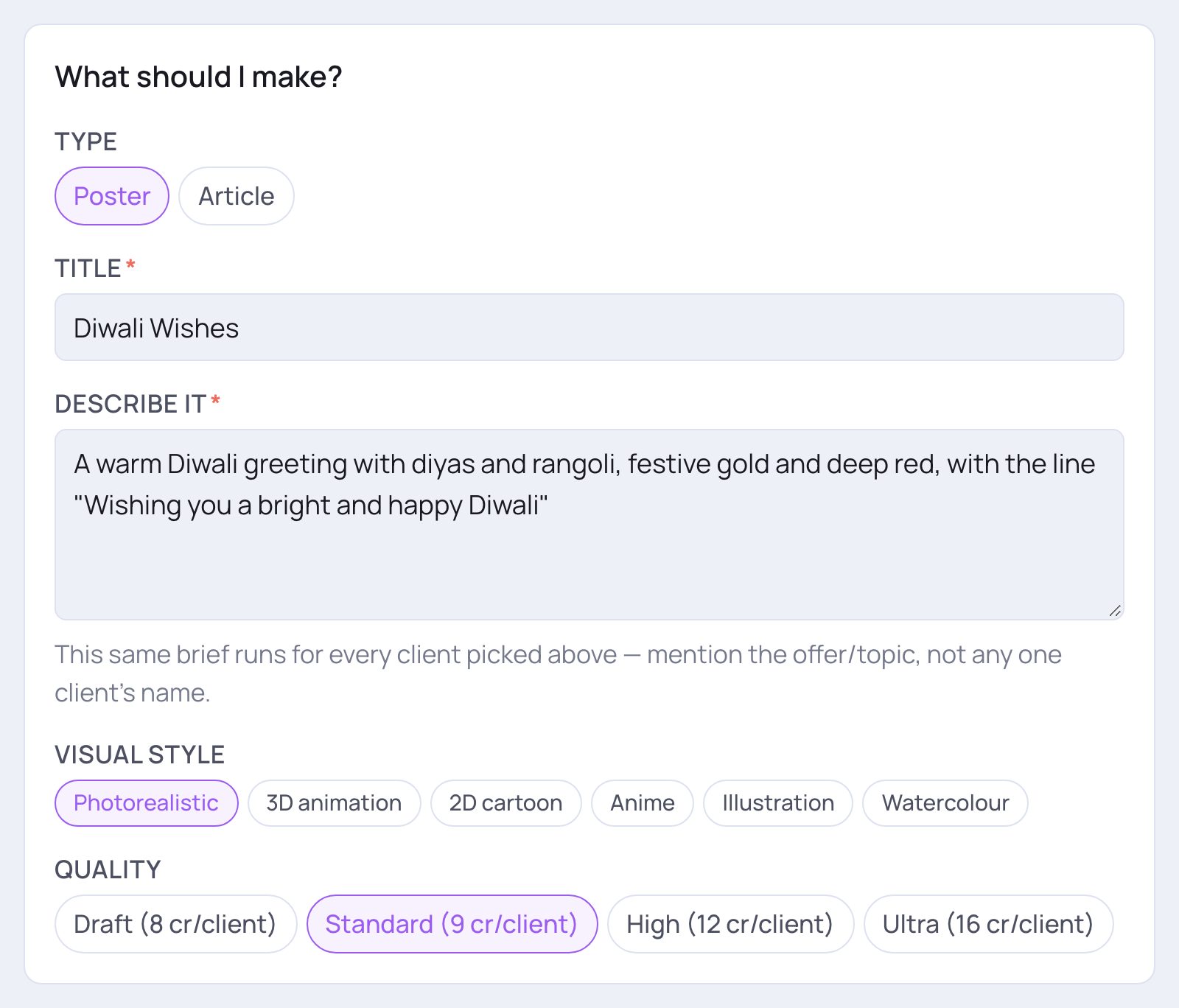
- 1Type: Poster or Article.
- 2Title *: a short name, like "Diwali Wishes" or "New Year Sale".
- 3Describe it *: the offer or topic, the feeling and the call to action. The same brief runs for every client, so don't write any one client's name — each poster gets its own client's name, logo and colours.
- 4For posters: Visual style (Photorealistic, 3D animation, 2D cartoon, Anime, Illustration or Watercolour) and Quality — each shows its credits per client.
4. Check the total and generate
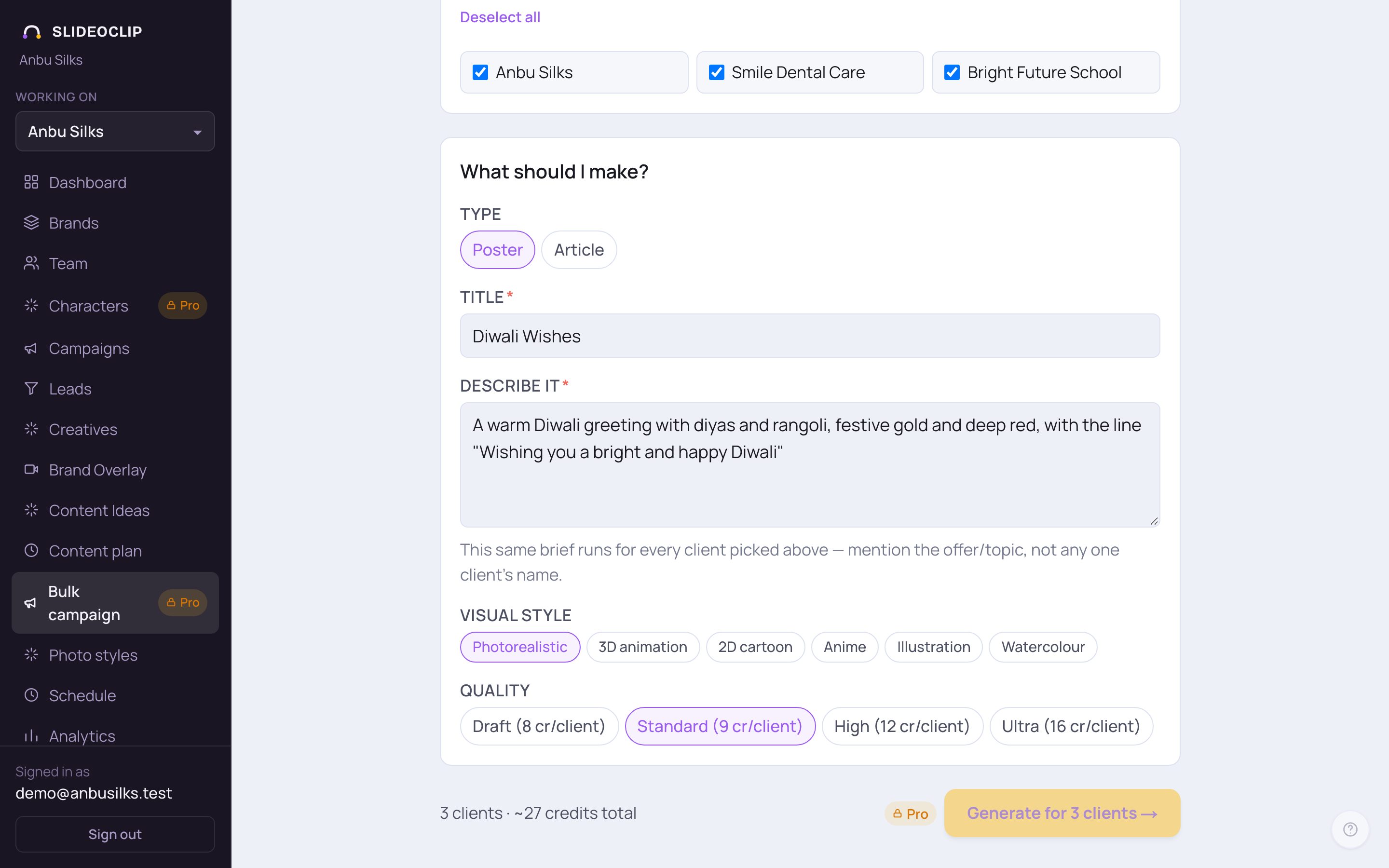
- 1Check how many clients you picked and about how many credits in total — credits per client × number of clients.
- 2Tap Generate for … clients → when you're ready. Each client's poster or article is made separately; keep the page open until it finishes.
💡 If your plan doesn't include bulk campaigns, a line at the top explains why and the button stays off. One brief for several clients comes with the Pro and Agency plans.
5. The results
When it's done, you'll see … of … succeeded and a card for each client with its poster (or the start of its article) and Open in library →. If one client failed, its card is red and says why. Tap Run another campaign to start a new one. Everything made is saved in each client's own library, ready to post or schedule.
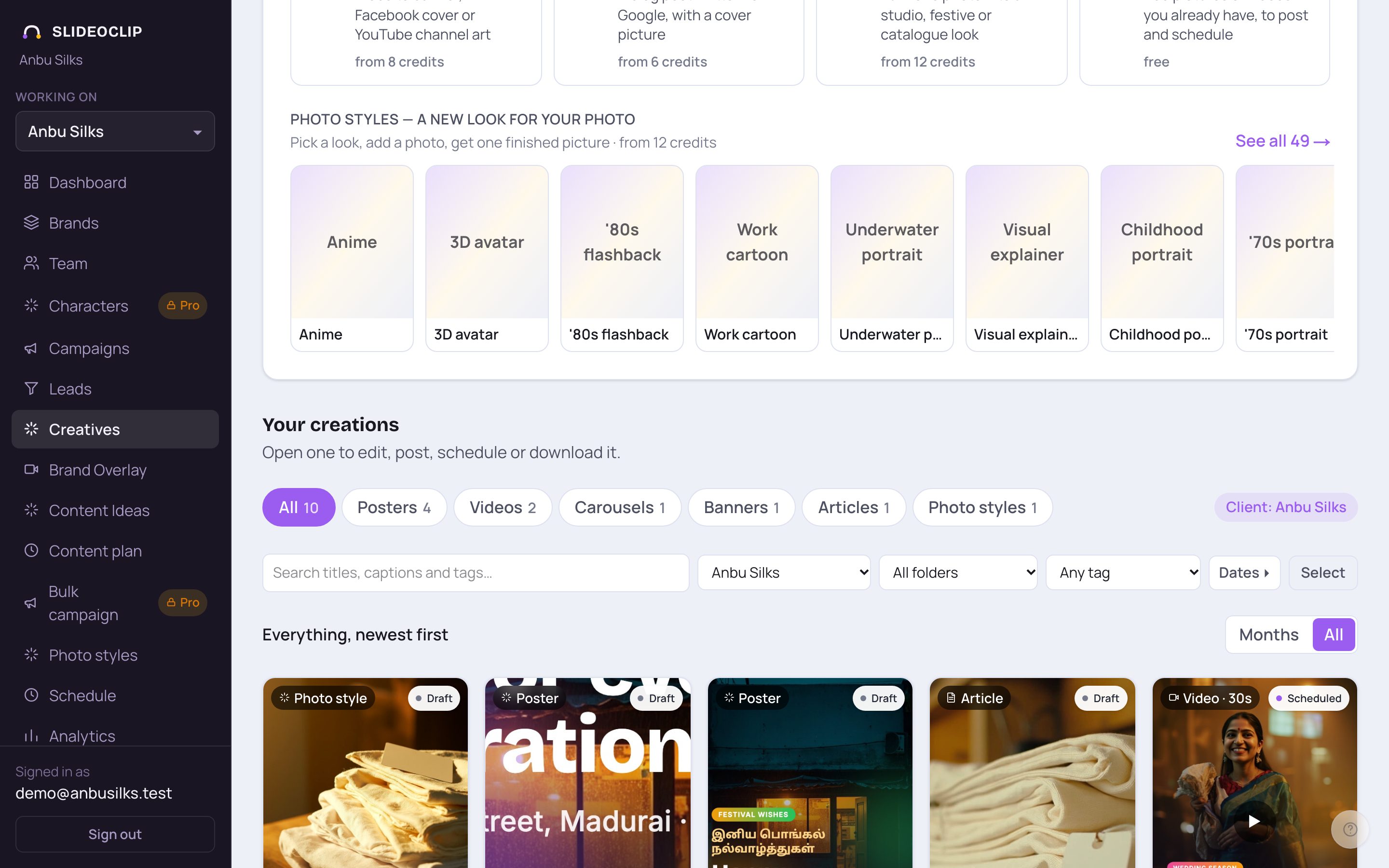
- 1In Your creations, choose a client to see just that client's pieces.
- 2Open each one to check it, then post it now or schedule it to that client's own pages.
Good to know
- Keep the brief general — a festival greeting, a holiday notice or a seasonal offer that fits every client.
- Check each client's logo and colours on the Brands page first; they are what make each poster look like that client's own.
- For different posts on different days, use the Content plan instead.
Questions
Does each client get the same poster?
No. The brief is the same, but each poster is made separately with that client's own logo, colours and tone.
How many credits does it use?
The credits for one poster (or article) times the number of clients. The total is shown next to the Generate button before you start.
Can I make videos in bulk?
This page makes posters and articles. For videos, use the video chat for each client.