All guides
Manage several clients (for agencies)
Run many businesses from one SlideoClip workspace. Each client has its own details, logo, knowledge, characters, connected pages and ad account. You switch between them in one tap, and your team can be limited to their own clients.
Before you start
- ✓A plan with room for more than one brand (the number of brands depends on your plan)
1. Every client is a Brand
Add each client on the Brands page (see Add your business). Connecting Facebook also adds a Brand for each Page you share. Everything you make for a client uses that client's own name, logo, colours, tone and knowledge.
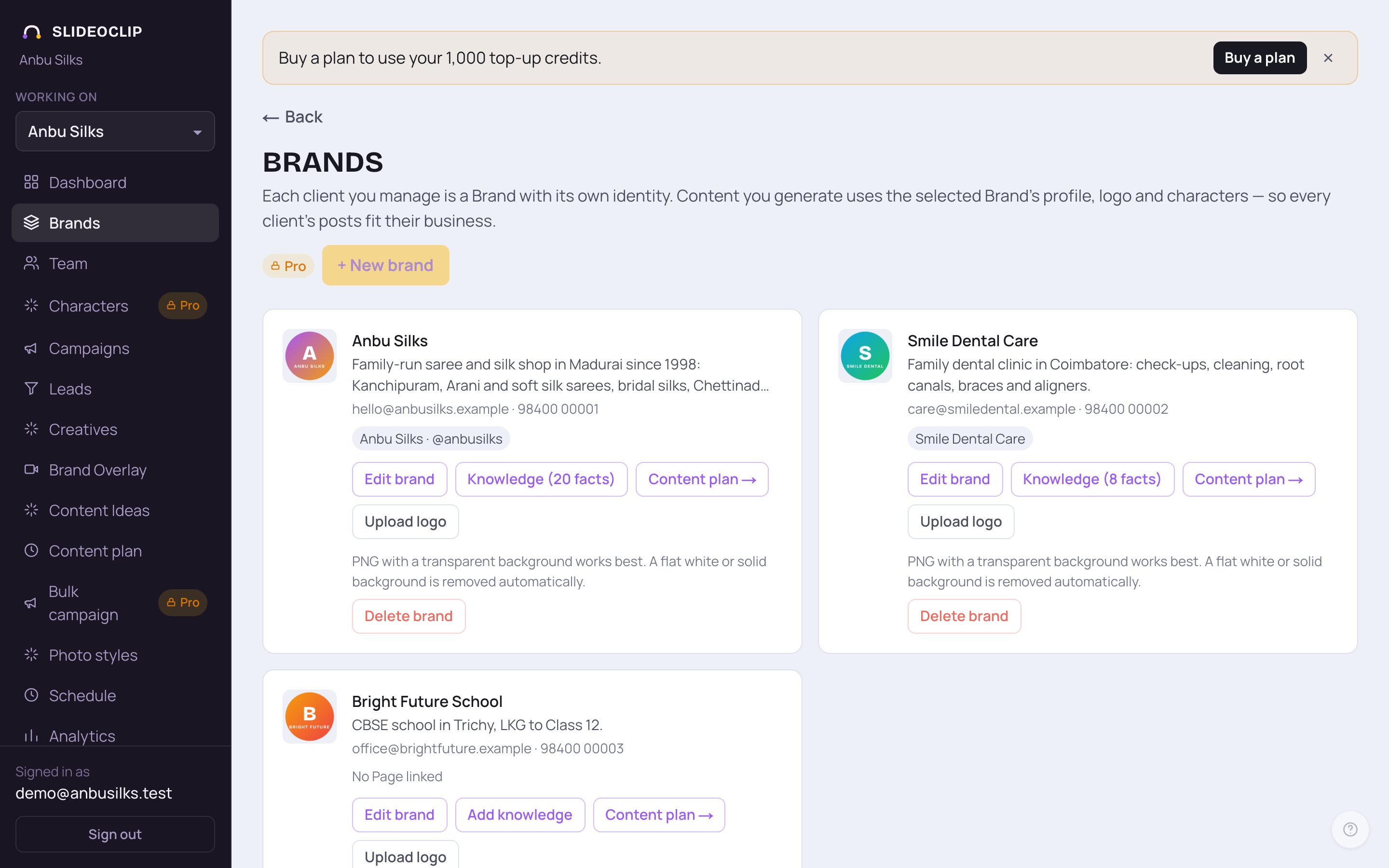
- 1Tap + New brand to add a client. Only a name and contact email are needed.
- 2Each client has its own Knowledge: products, offers, proof and things never to say. One client's facts are never used for another.
- 3Tap Content plan → on a card to open the Content plan with that client already chosen.
- Each card also shows the client's contact email and phone, and the Facebook Page (with Instagram) it posts to.
2. Switch the client you're working on
Working on, at the top of the left menu, decides which client you're working for. The Dashboard, Creatives, Content plan, Schedule, Analytics, Campaigns, Leads and the create pages all follow it. Choose All clients to see everything together.
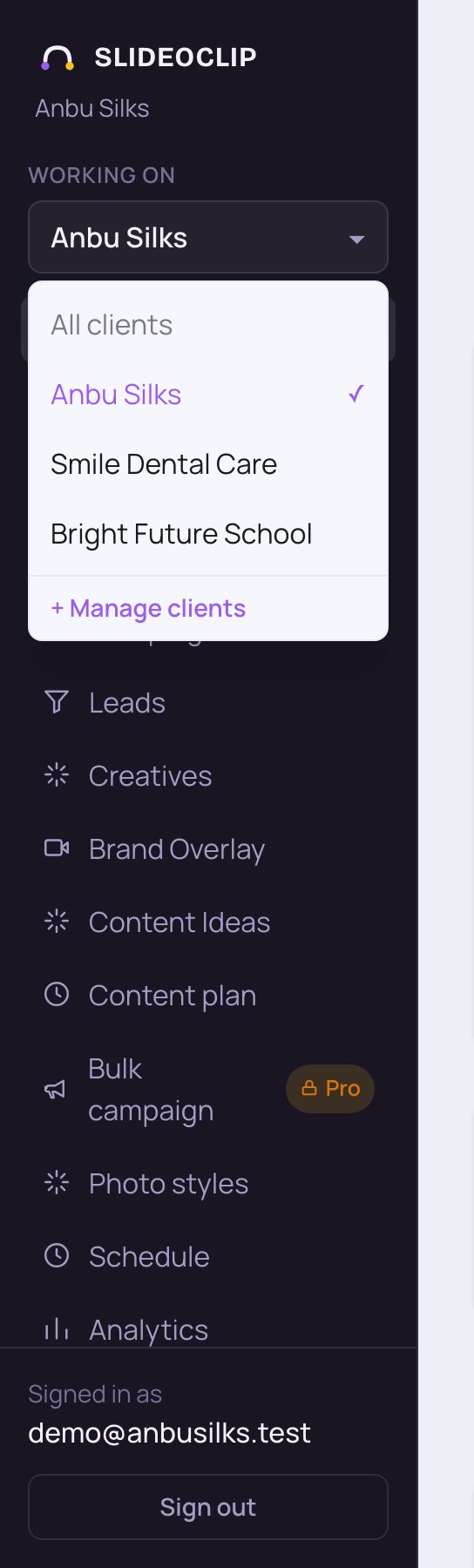
- 1Tap the client's name under Working on.
- 2Tap the client you want. A tick shows the one you're on, and the pages change to show only that client.
- 3Tap All clients to see every client's posts, plans and leads together.
- 4Tap + Manage clients to open the Brands page.
- With more than six clients, a Search clients… box appears at the top. A draft tag marks a client added from a Facebook Page that you haven't checked yet.
💡 Before you make a poster or video, glance at Working on. What you make uses that client's logo and details.
3. What belongs to each client, and what is shared
EACH CLIENT HAS ITS OWN: name, description, industry, tone and colours; logo; contact email, phone and address; Knowledge; the Set up for 30 days check; characters added in Edit brand; cloned brand voice; Facebook Page and linked Instagram; the YouTube, LinkedIn or Instagram accounts linked to it; Meta ad account and daily ad spend cap; content plans; and review links for client approval. SHARED BY THE WHOLE WORKSPACE: your plan and credits, billing, team members, and characters made on the Characters page. An account that isn't linked to any client is marked Workspace-wide.
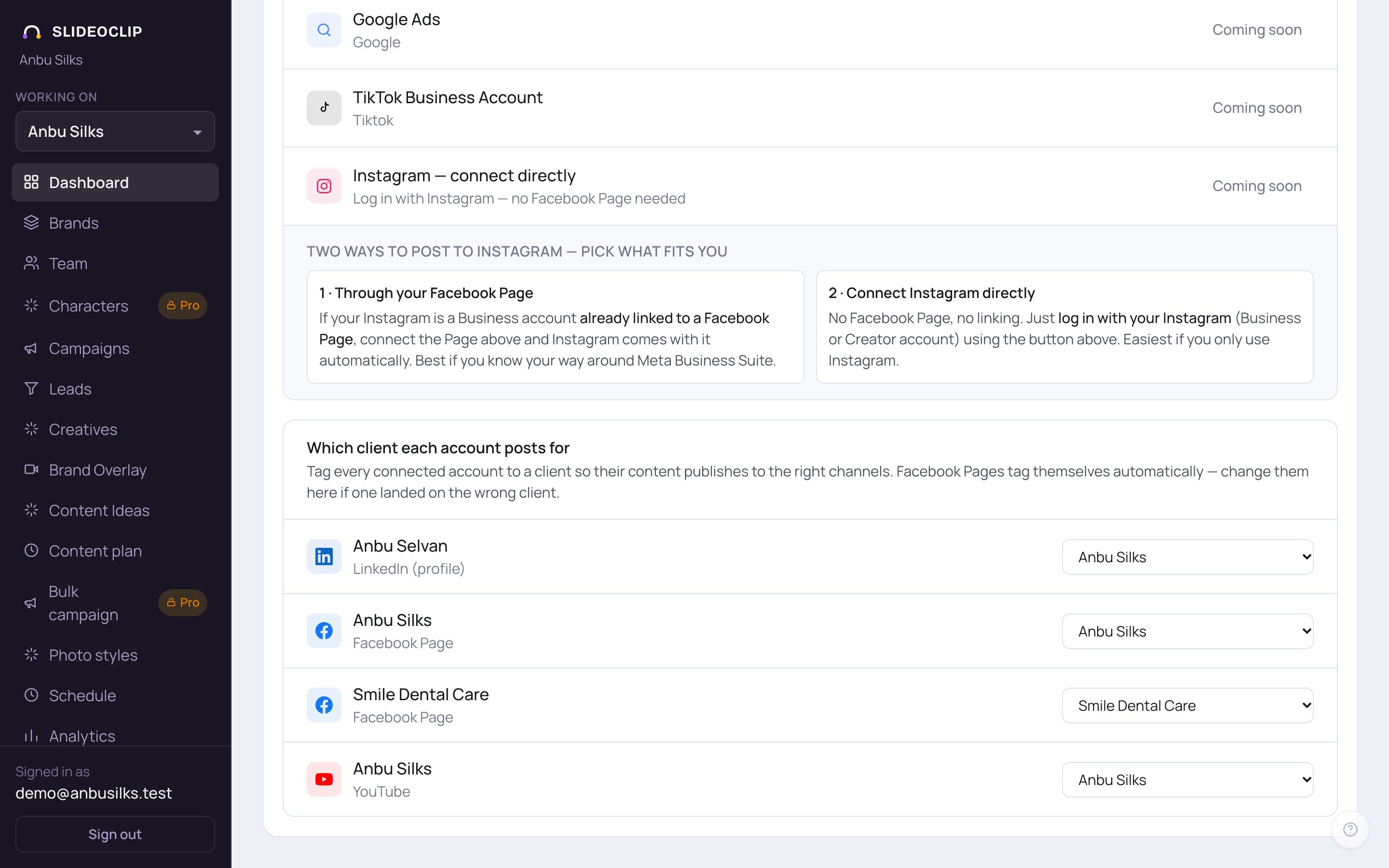
- 1Open Connected accounts & clients on the Dashboard and find Which client each account posts for.
- 2Pick the right client for every account. A post for a client then only goes to that client's pages.
- Facebook Pages are linked to their own client automatically. Change one here if it landed on the wrong client. See Connect your accounts.
4. Give each team member only their clients
On the Team page you choose which clients each staff member can work on. Staff only see their assigned clients, and their posts only go to those clients' pages.
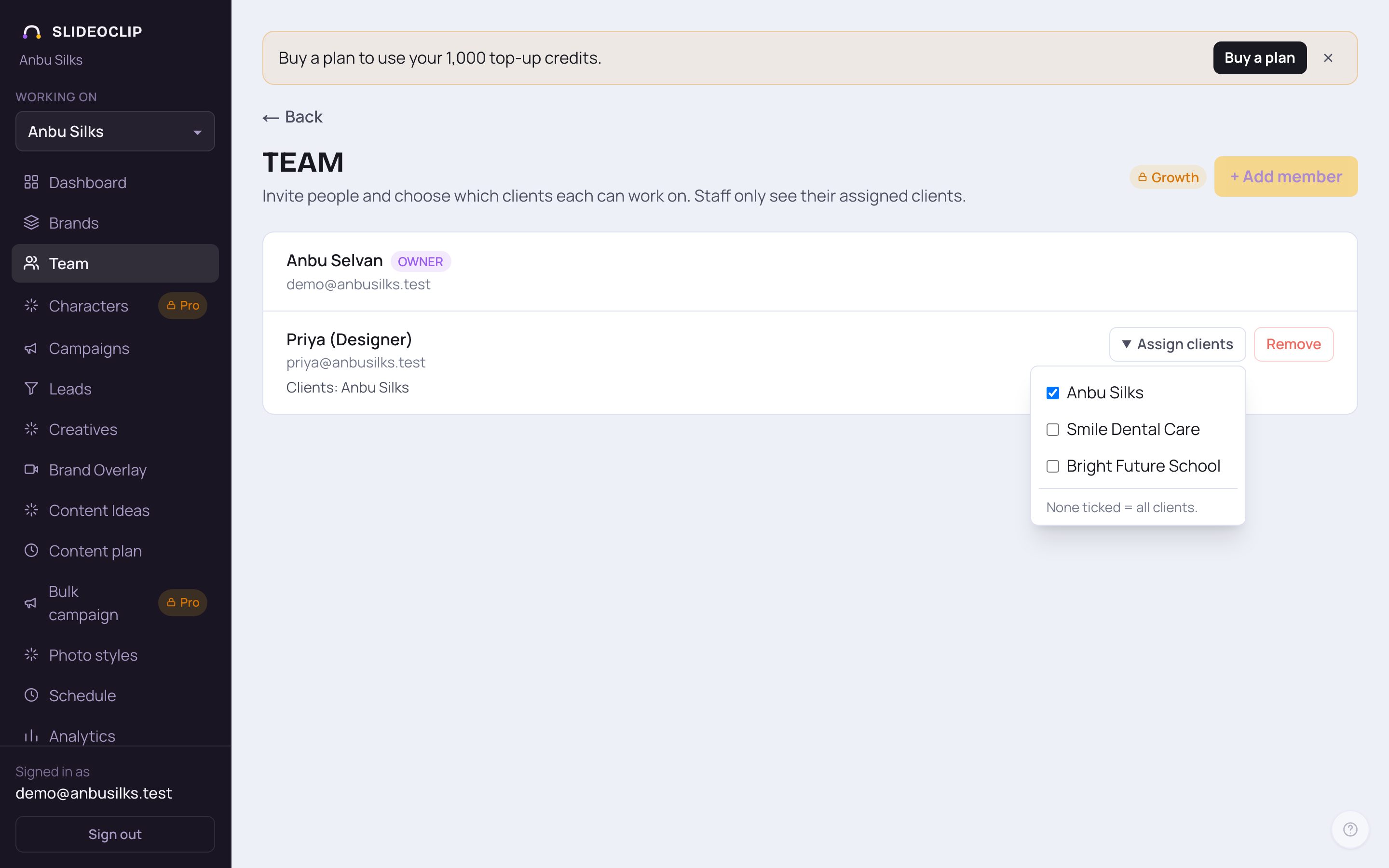
- 1Tap Team in the menu.
- 2Next to a staff member, tap Assign clients and tick the clients they may work on. It saves when you tick.
- 3If nothing is ticked, they can work on all clients. The line under their name says Clients: All clients in yellow.
- 4Tap + Add member to add someone new. See Add team members.
5. Save time across clients
A few tools are made for working with many clients at once.
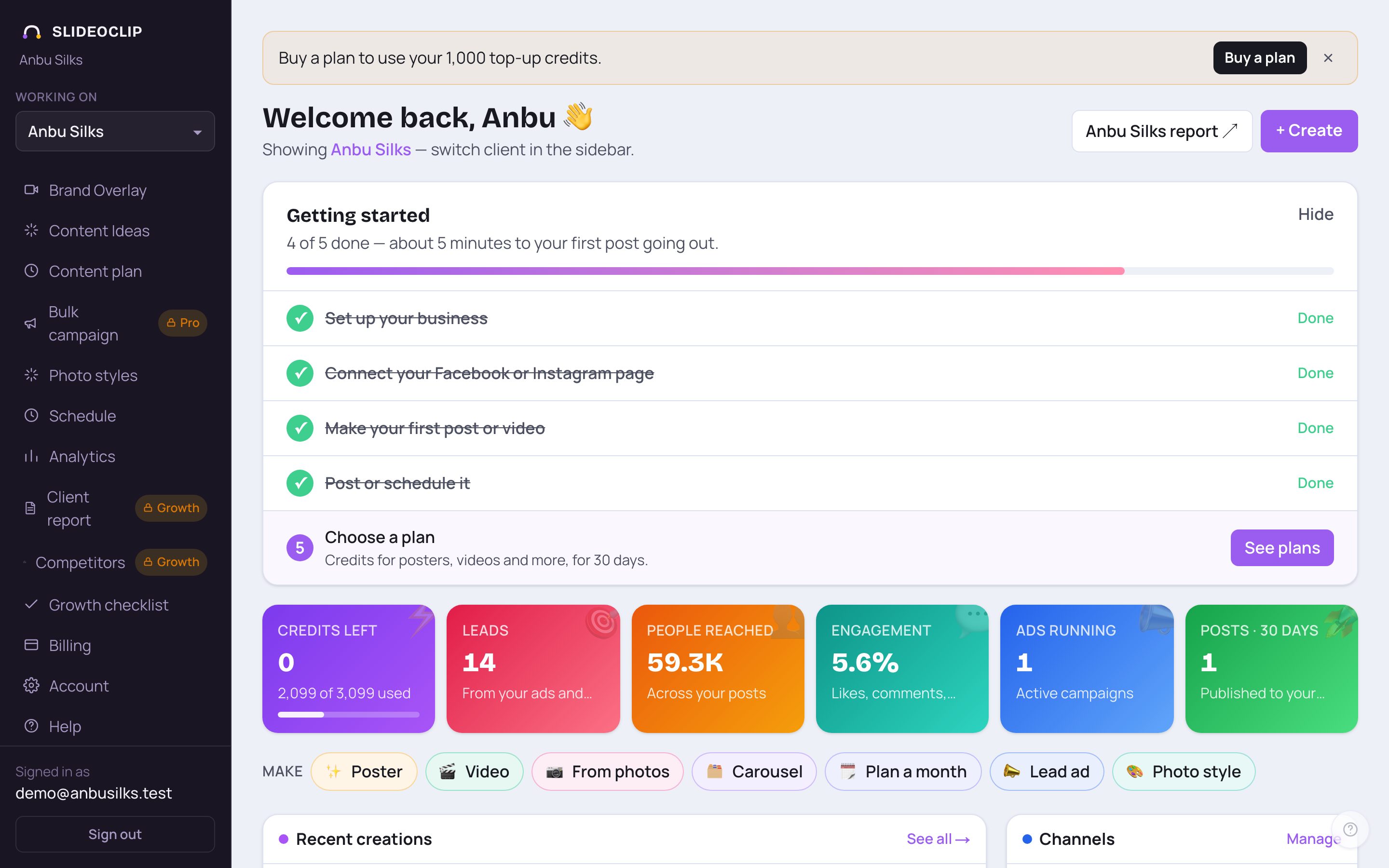
- 1Bulk campaign: write one brief, and SlideoClip makes it separately for every client you pick, each with that client's own logo, colours and tone.
- 2Content plan: plan posts for several clients at once, then approve each idea. A client's first plan needs Set up for 30 days first.
- 3Client report: a printable report of how a client's posts are doing, to share with the client.
- A small lock next to a menu item means that tool isn't in your plan. The page still opens and shows what's needed.
Good to know
- Fill in every client's contact email. Review links for client approval are sent there.
- Run Set up for 30 days for each client. The more SlideoClip knows about each one, the less you need to type per post.
- Name characters clearly per client ("Dr. Kavitha – Smile Dental") so your team picks the right person.
Questions
Do I pay extra for each client or team member?
No. Your plan sets how many brands and seats you get. There is no extra charge per client, seat or channel on top of the plan.
Can two clients share one Facebook Page?
No. A Page belongs to one client at a time. If you pick a Page another client has, SlideoClip asks before moving it.
Can one Meta ad account pay for several clients?
Yes. When you choose the ad account, the list shows the other clients it already pays for.
I posted for the wrong client. How do I stop that?
Check Working on before you create, and make sure each account is linked to the right client under Which client each account posts for.