All guides
Save people and characters
Save the owner, staff, a presenter or a mascot once, from a real photo or from a description. Then pick them when you make a poster or video, and they look the same every time.
Before you start
- ✓A plan that includes characters. If yours doesn't, you'll see an upgrade note next to the button.
1. Two places to save characters
The Characters page holds characters for your whole workspace, each with a full set of poses. Characters added inside a business's Edit brand window belong to that business only, and only show when you create for it. An agency should use the business's own list for a client's staff or mascot.
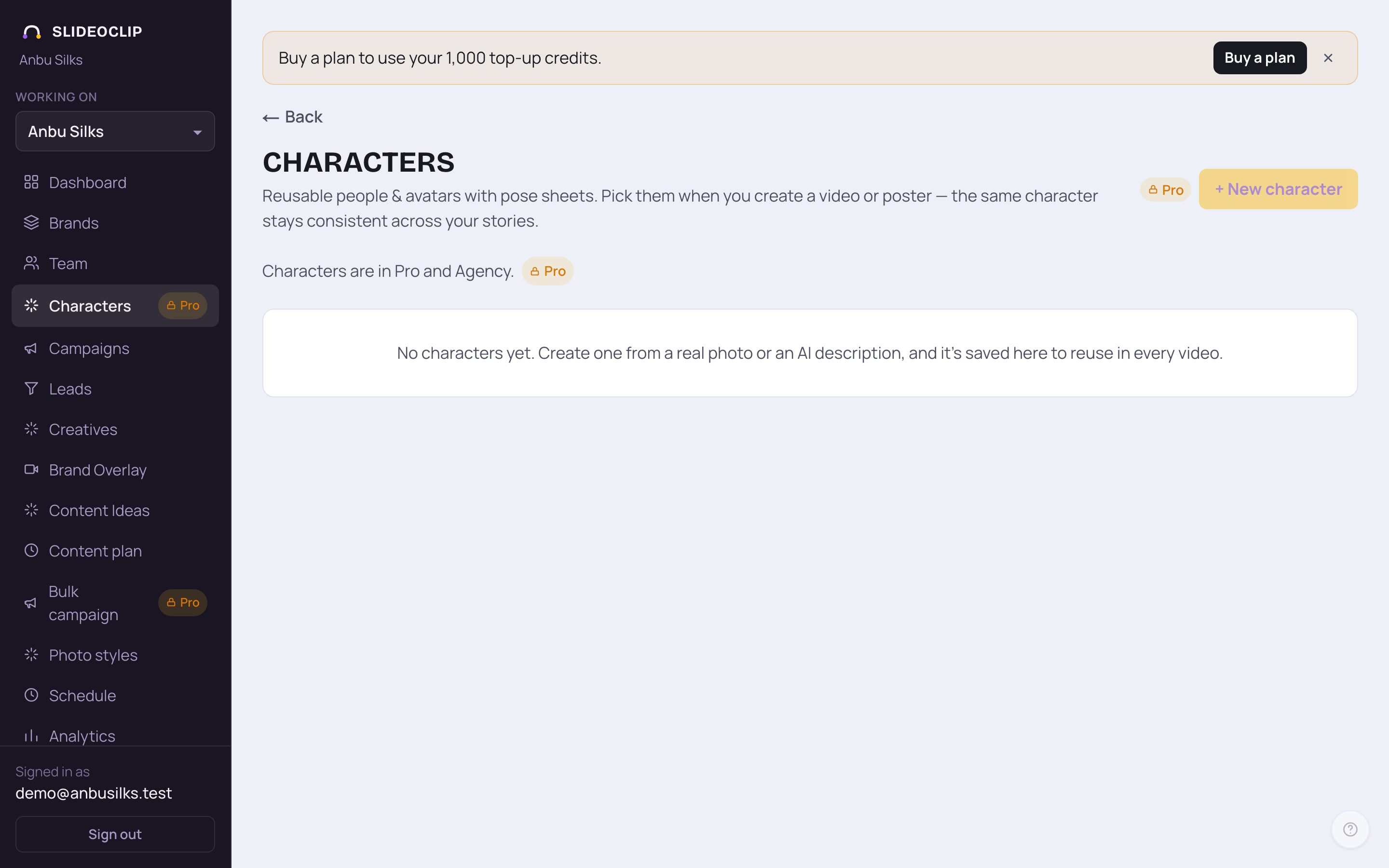
- 1Tap Characters in the menu.
- 2Tap + New character to make one.
- Saved characters show as cards with their face, From photo or AI, and how many photos they have. Until you make one, the page says No characters yet.
- Tap a card to open it and see all its photos: Face, Full body and each Pose. Tap a photo to see it full size, use the arrows to move between them, and tap Download to save it. Delete removes one pose or the body photo (the face only goes with the whole character).
- At the bottom of an open character: Download all saves every photo, + Add 4 more poses makes four more (the credits are on the button), and Delete character removes it and all its photos for good.
2. Make a new character
Start from a real photo to keep that person's likeness, or just describe someone and SlideoClip invents them. You get a face, a full-body picture and a set of poses.
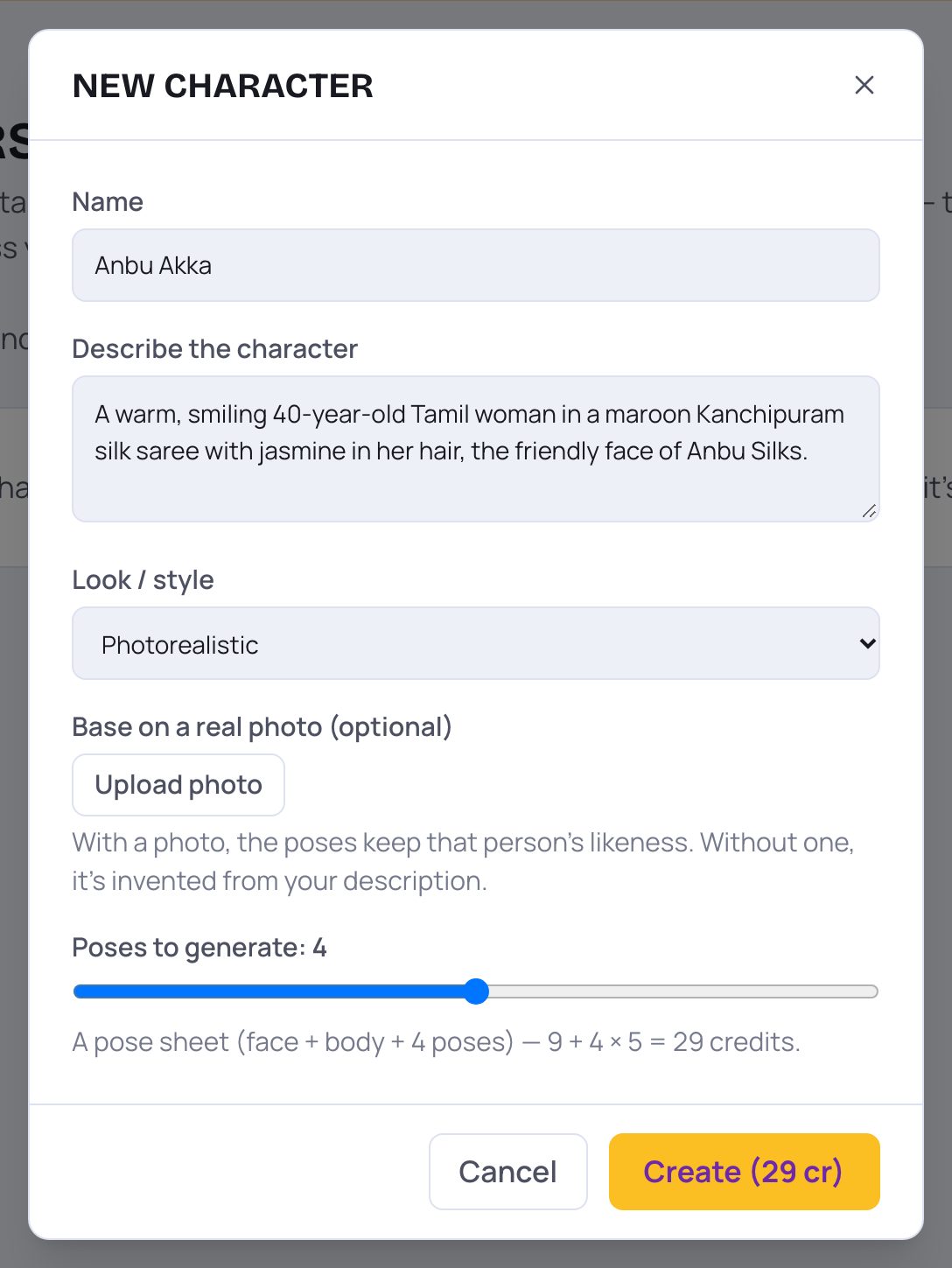
- 1Name: what you'll call them, like "Host Anjali" or "Mascot Leo".
- 2Describe the character: age, look, clothes, mood. Needed when you don't upload a photo.
- 3Look / style: Photorealistic, 3D animation, 2D cartoon, Anime, Illustration or Watercolour.
- 4Base on a real photo (optional): tap Upload photo and choose a clear photo of the person's face. With a photo, the poses keep that person's likeness. Without one, the character is invented from your description.
💡 Only upload photos of people who have agreed to it.
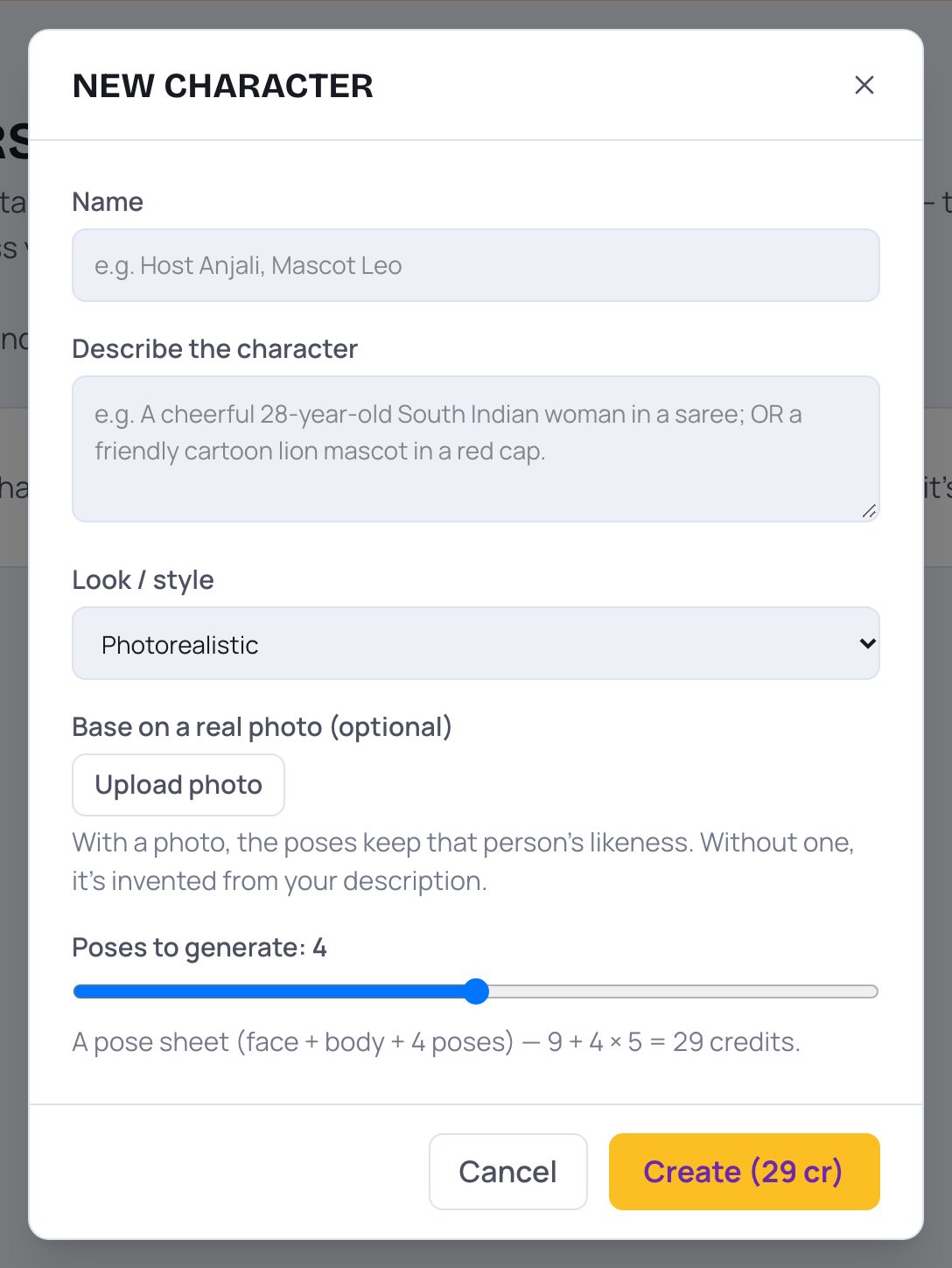
- 1Slide Poses to generate to choose how many poses you want. The line below shows exactly how many credits the face, body and poses will cost.
- 2Tap Create. The button shows the total credits. It takes up to a minute, and you can leave the window open while it works.
- Tap Cancel to close without making anything.
3. Characters for one business only
For a client's owner, staff or mascot, save them inside that business. They then show only when you create for that business.
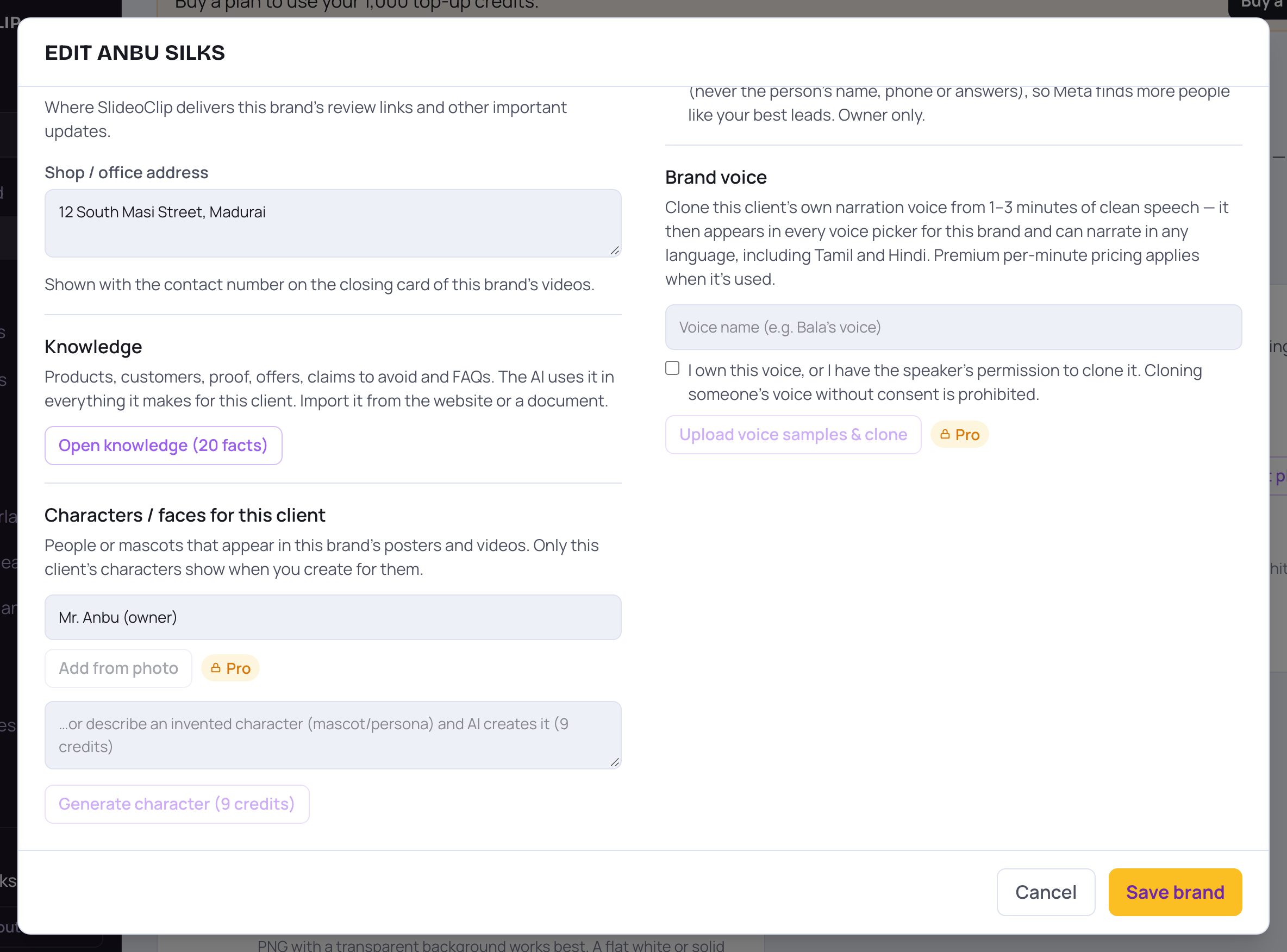
- 1For one business only: open Brands, tap Edit brand, and scroll to Characters / faces for this client. Type a Character name.
- 2Tap Add from photo and choose a photo of the real person. This is quick.
- 3Or describe an invented mascot or persona in this box...
- 4...and tap Generate character. The button shows the credits. It takes up to a minute.
- Saved characters appear as small photos above. Tap the red × on one to remove it. A business can keep up to 12 characters.
4. Use them in your posters and videos
When a form asks Who's in it?, tick the people you want. They appear in the result with their real face. Pick a cartoon or 3D look to get their avatar instead. In a Content plan, Who's in it lists the chosen business's own characters. A character stays the same across all the clips of a video.
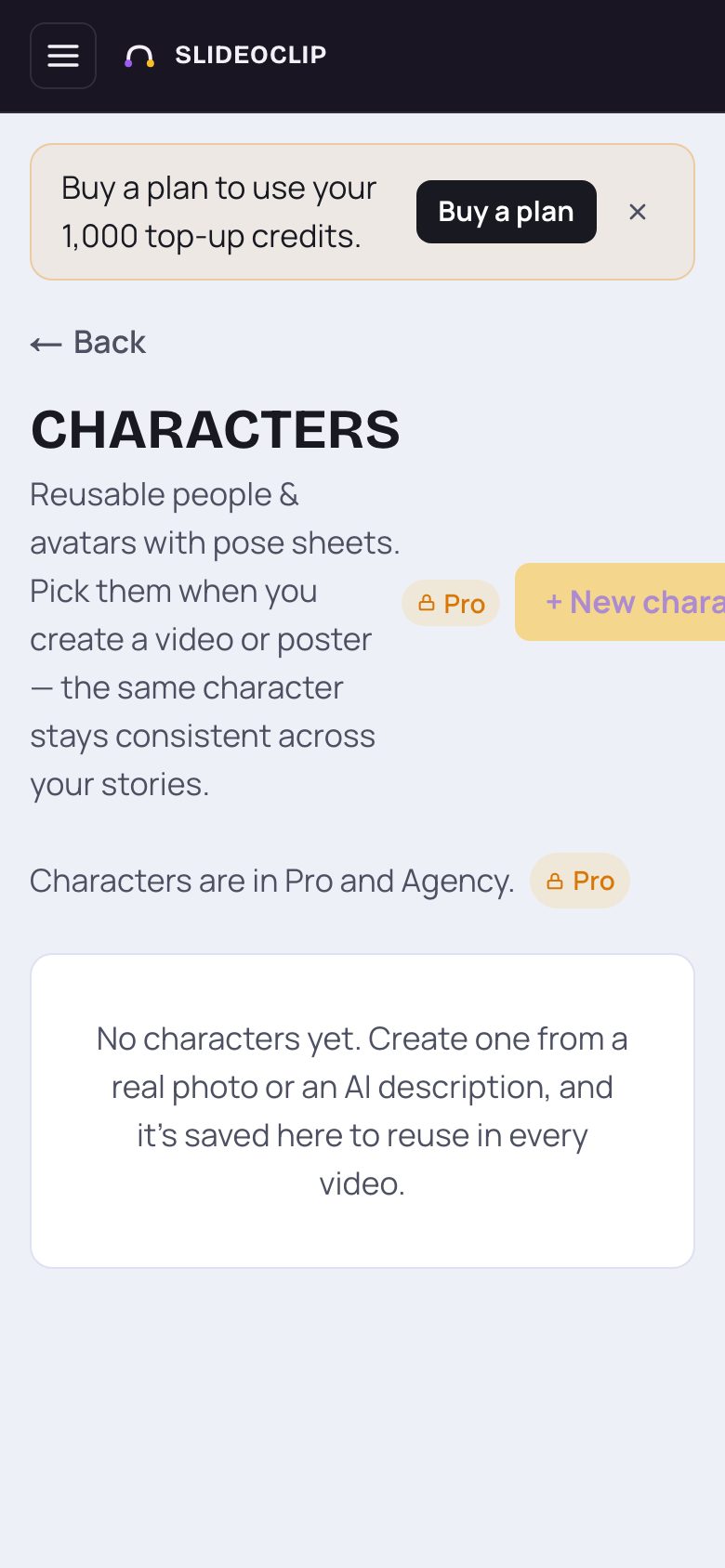
- 1On a phone it works the same way: tap + New character, fill in the form, and tap Create.
- Characters you've already made stay usable even if your plan changes.
Good to know
- Use a clear, front-facing photo in good light for the best likeness.
- Describe clothes and colours that match the business, like a uniform or saree colour, so the character fits your posts.
- AI-made pictures can change a face slightly. Check posters and videos before posting.
Questions
What does a character cost?
The credits are shown on the button before anything is made: the character itself plus each pose you ask for.
Can staff see characters of clients they don't work on?
No. Staff only see characters of the clients they are assigned to.
Why can't I tap + New character?
Characters are in the Pro and Agency plans. If your plan doesn't include them, or you've reached its limit, the button is greyed out with an upgrade note.