All guides
Edit a poster
Change a finished poster in your own words, move or resize the logos, change the footer line, or go back to the original picture — without starting again.
Before you start
- ✓A poster in your library (see Make a poster)
1. Revise it in your own words
Open the poster from Creatives (tap its tile). Under the picture, in Edit this picture, you'll find Revise. Say what you want changed, the way you would tell a designer.
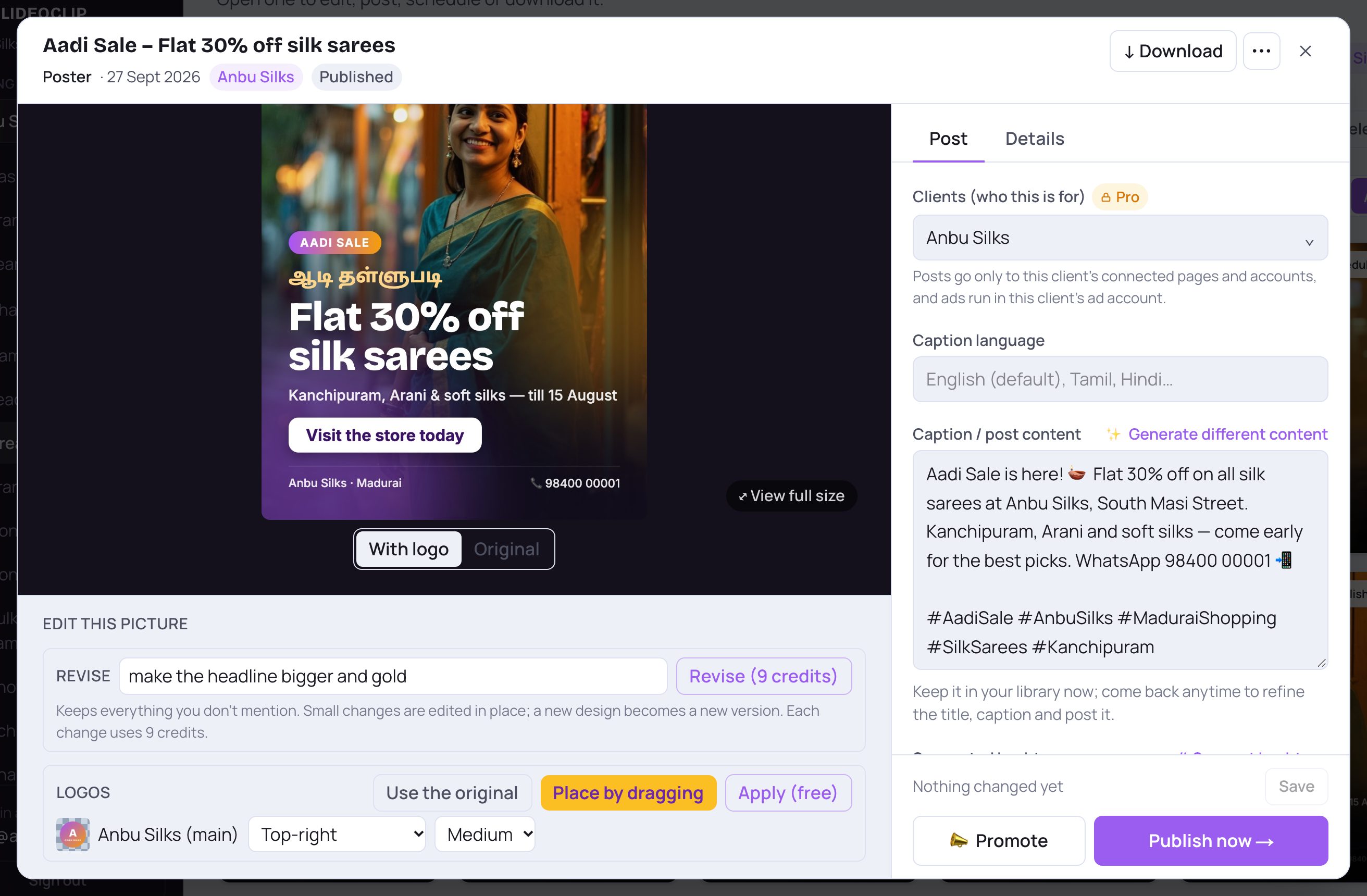
- 1Type the change in any words — for example "make the headline bigger and gold", "move the saree photo to the right", or "a different design".
- 2Tap Revise. The price of one change is shown on the button, so you know it before you tap.
- Everything you don't mention stays the same. A small change is made on the same poster; if you asked for a new design, a new version is made and opens for you, and the old one stays in your library.
- A short green note under the box tells you what was done and how many credits it used.
💡 Revise leaves names, offers, prices, dates and contact details alone unless you ask to change them. Always give the new version a quick look before posting.
2. Move, resize or remove a logo
Logos are put on top of your poster after it is drawn, so they can be moved, resized or taken off any time — for free.
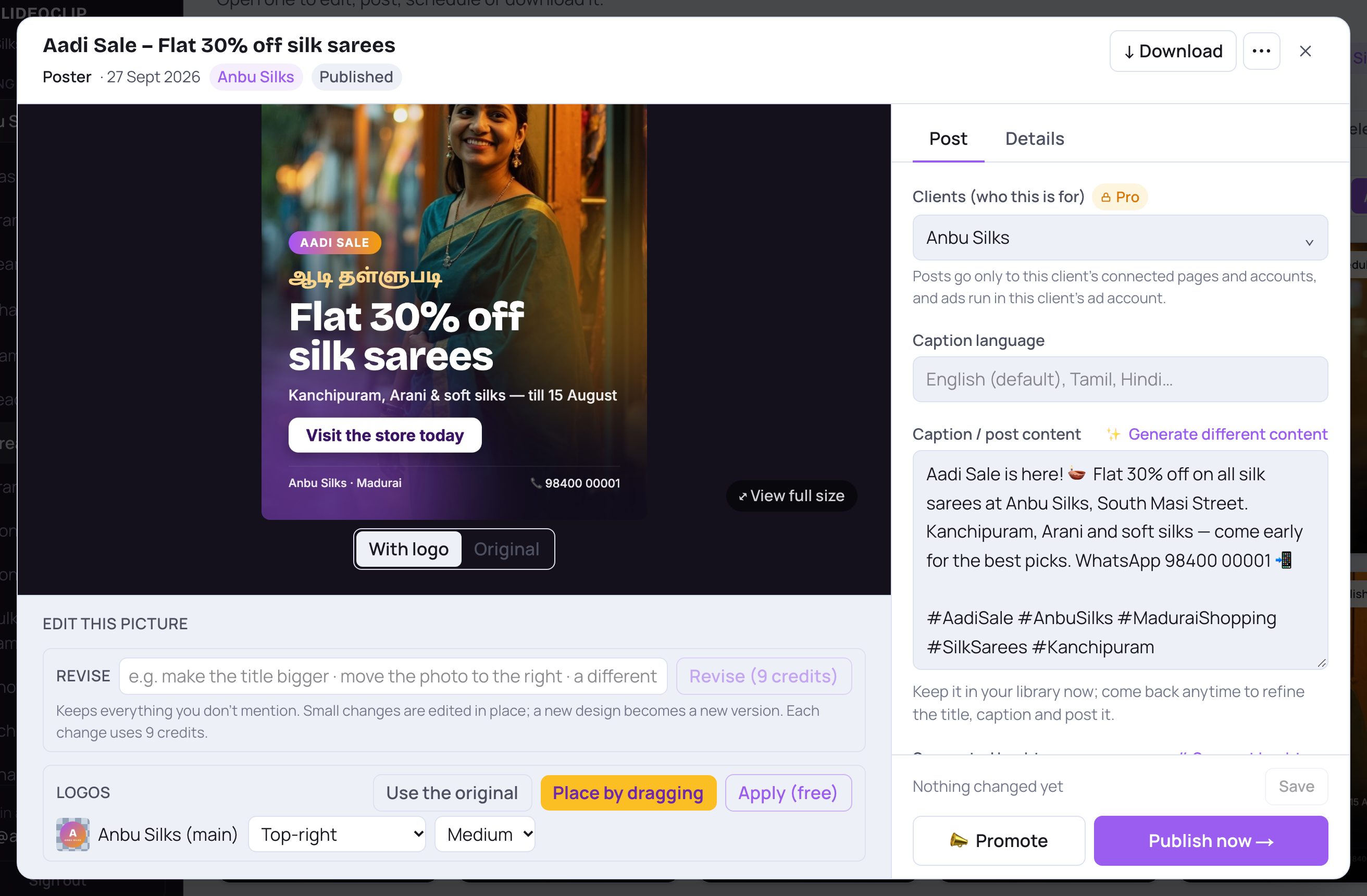
- 1Each logo has its own row. Pick where it goes: Auto corner, Top-left, Top-right, Bottom-left, Bottom-right, or Not on this image to take it off. Then pick Small, Medium or Large.
- 2Tap Apply (free) to redraw the poster with your choice.
- 3Want it in an exact spot? Tap Place by dragging (next step).
- 4Use the original takes every logo and the footer line off (see the last section).
- A second or third logo (a product or partner logo saved for this client on the Brands page) has its own row, with an extra choice: Beside the previous logo.
3. Place logos by dragging
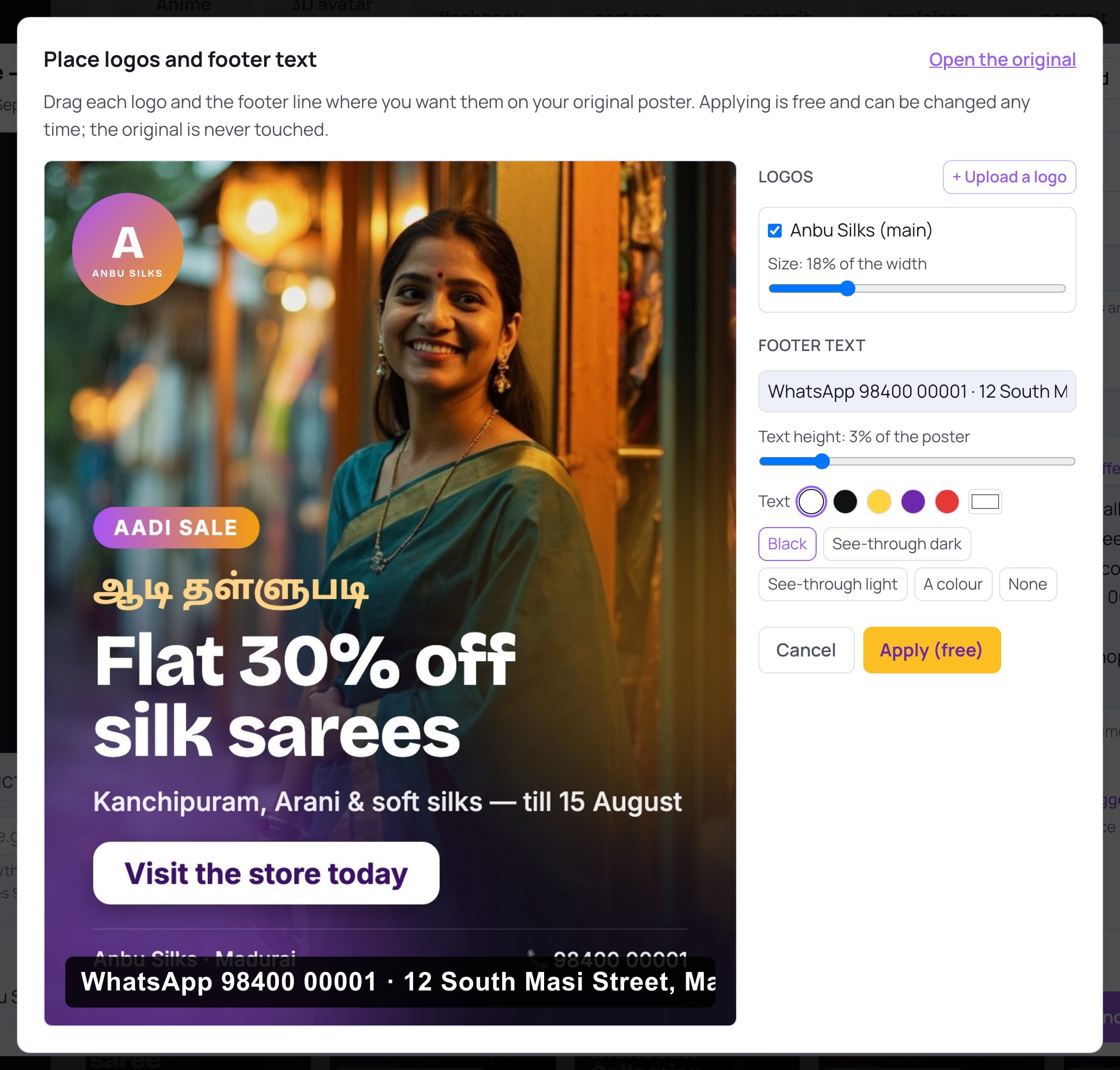
- 1Your original poster, with the logos on top. Press on a logo and drag it where you want it — away from the headline and faces.
- 2Use the Size slider under each logo to make it bigger or smaller. Untick a logo to leave it off.
- 3Need another logo? Tap + Upload a logo and pick the file. It is saved with this client's logos so you can use it again. A poster takes up to 3 logos.
- 4Tap Apply (free) when it looks right, or Cancel to leave things as they were.
💡 Your original picture is never changed — logos are drawn on a copy, so you can move them again as often as you like.
4. Change the footer line
The footer line is the strip of text along the bottom — your address, phone or website. It is typed in by SlideoClip, not drawn by the AI, so it is always spelled exactly as you wrote it. You change it in the same Place by dragging window.
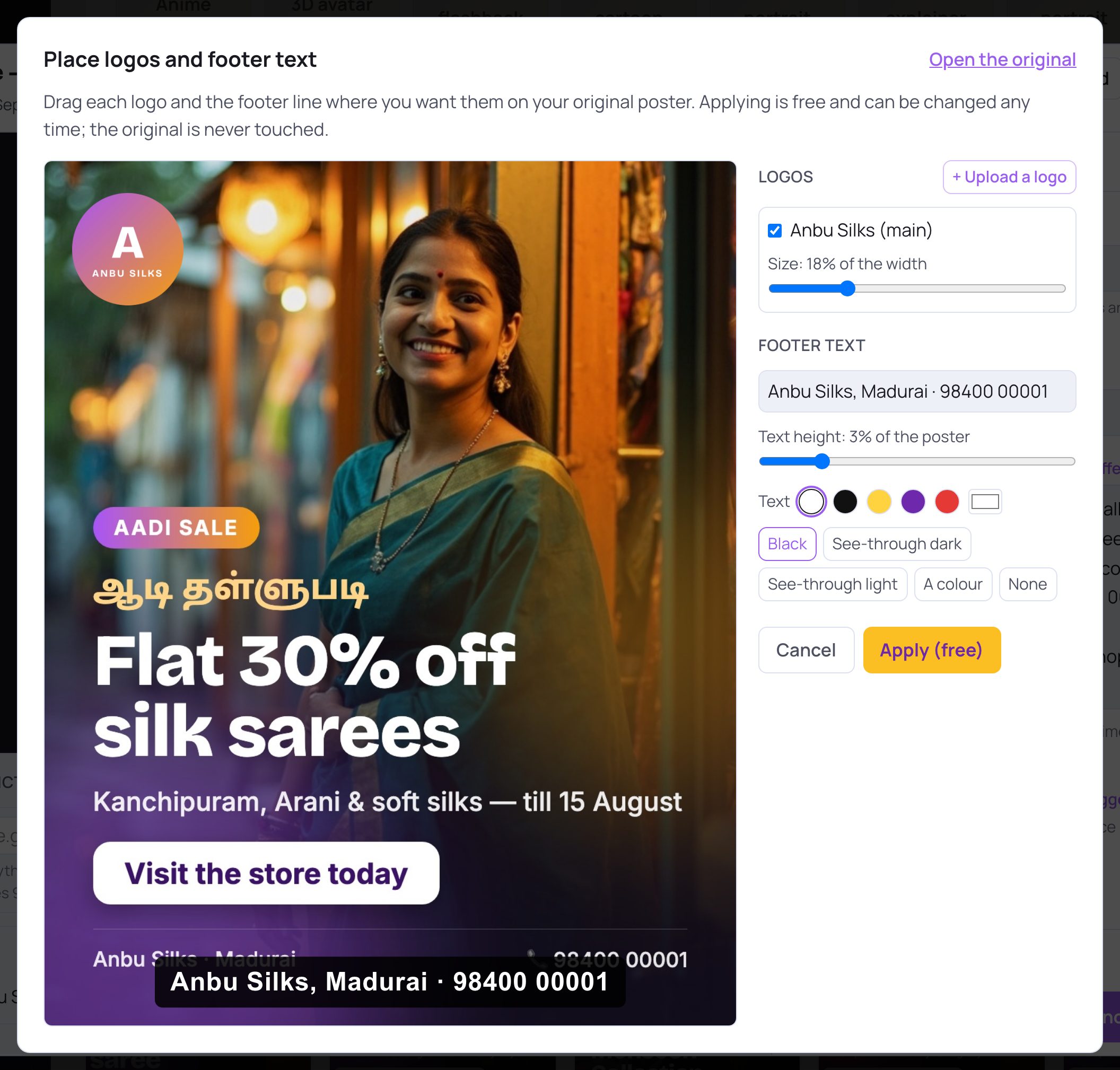
- 1Type the footer text. Leave it empty if you don't want a footer line.
- 2Use Text height to make the text bigger or smaller, and tap a colour for the text. You can also drag the line itself on the poster.
- 3Pick the strip behind the text: Black, See-through dark, See-through light, A colour (then pick the colour), or None.
- 4Tap Apply (free) to put it on the poster.
5. Compare with the original, or go back to it
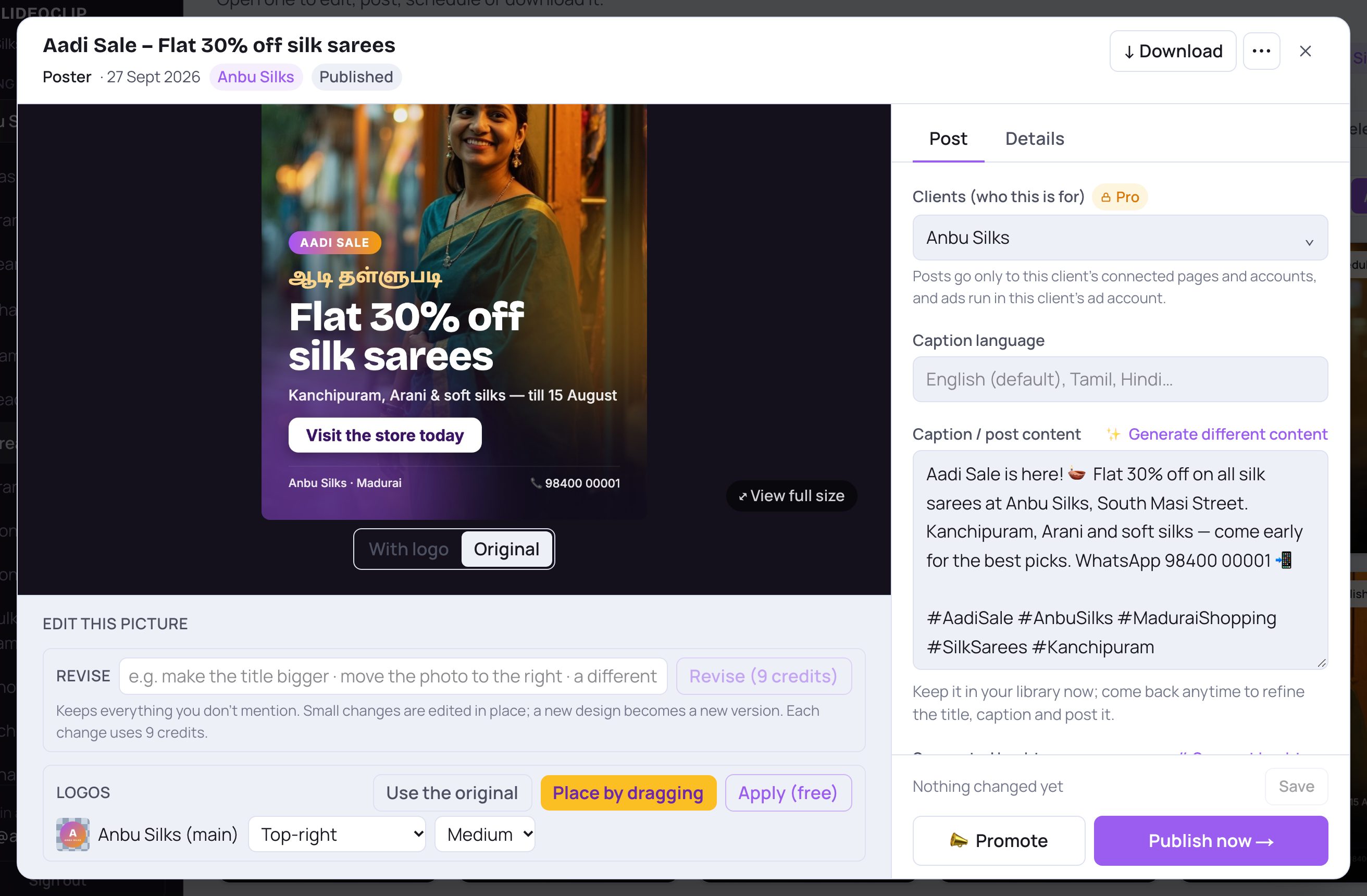
- 1Tap Original to see the picture without logos and the footer line. This only changes what you see.
- 2Tap With logo to see the poster as it will be posted.
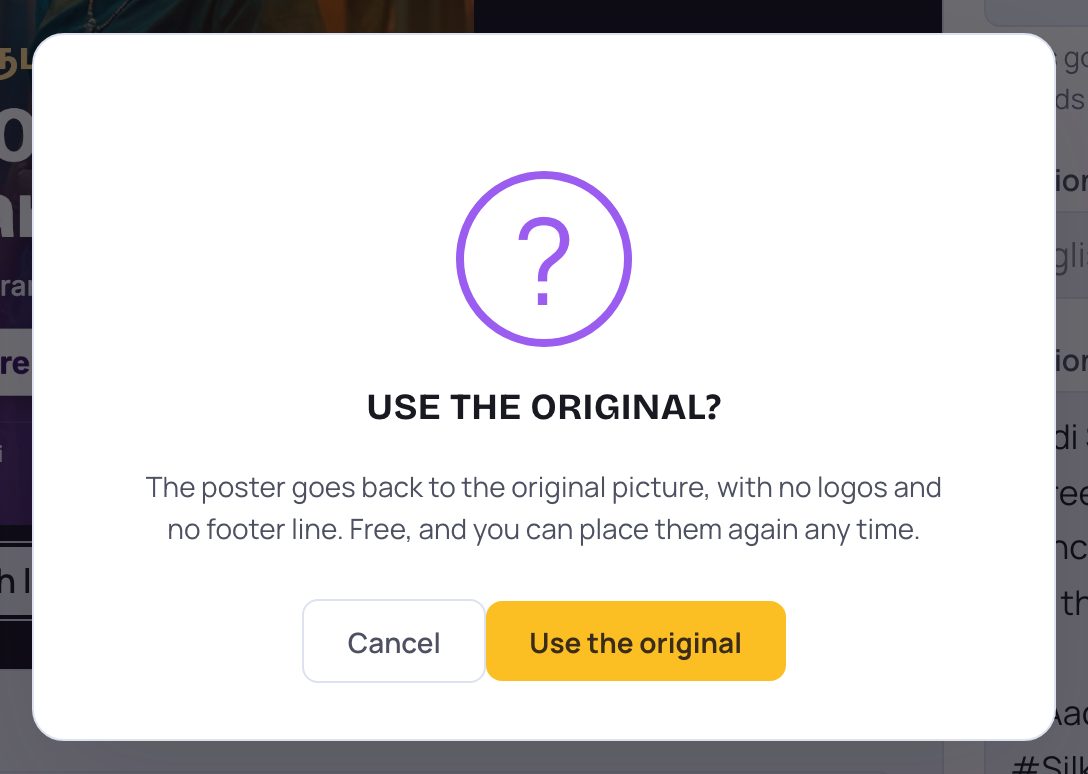
- 1To really post the plain picture, tap Use the original, then Use the original again here. Every logo and the footer line come off. It's free.
- 2Changed your mind? Tap Cancel.
- You can put the logos and footer back any time with Apply (free) or Place by dragging.
6. Taking the words off a picture
Some pictures are meant to have no words at all — for example a photo-only post. If a picture like that comes out with stray letters, SlideoClip's own fix-up removes the text instead of moving it. You can also ask for this yourself with Revise.
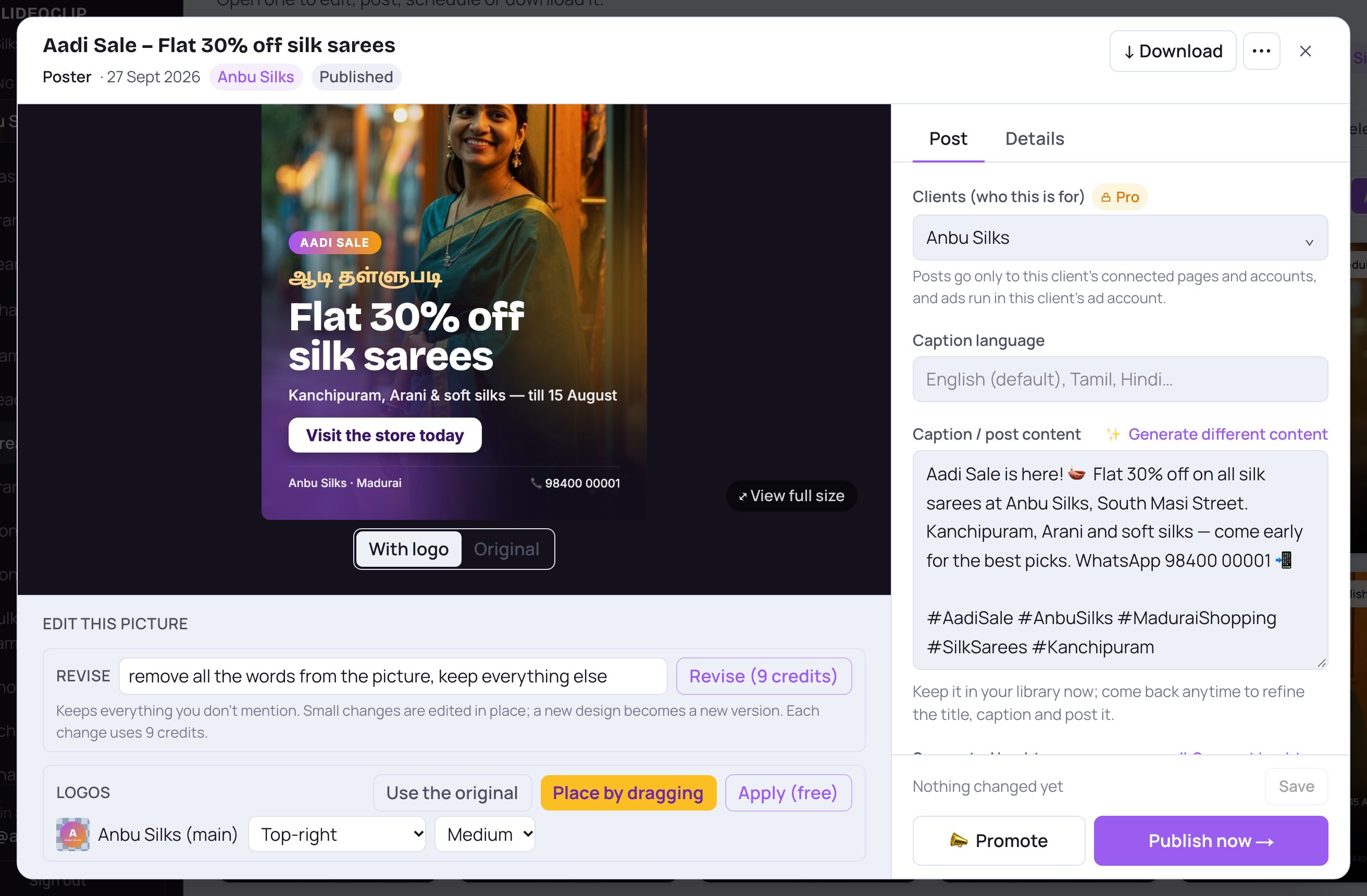
- 1Type something like "remove all the words from the picture, keep everything else".
- 2Tap Revise. The price is on the button.
- The footer line and logos are not part of the drawn picture — take those off with Use the original or Place by dragging instead (free).
Good to know
- Try the free things first: moving logos and changing the footer line cost nothing. Revise uses credits each time.
- Be specific in Revise: "make the 30% bigger" works better than "make it better".
- Want a completely different poster? Use Regenerate in the ⋯ menu — it opens the poster maker filled in with this poster's details.
Questions
I don't see Revise or Logos for my poster.
They only show for posters that support them. For an older poster, tap ⋯ → Regenerate to make a fresh one; the new one will have both.
Did Revise replace my poster?
A small change replaces the picture on the same poster. A new design is saved as a new poster, and the old one stays in your library.
Does moving a logo cost credits?
No. Moving, resizing or removing logos and changing the footer line are free.