All guides
Approvals: check posts before they go out
Make your team's posts wait for your OK, approve or reject them in one place, and send clients a link to approve their posts — nothing goes to their page until they say yes.
Before you start
- ✓You are the owner of the workspace (staff can't turn approvals on)
- ✓For staff approvals: a team member (see Team members)
- ✓For client approval links: the Pro or Agency plan
1. Two kinds of approval
Staff approval — you, the owner, check what your team posts or schedules before it goes out. Client approval — your client gets a link (no login needed) to approve a post or ask for changes; it won't post to their page until they approve. A post that needs both waits for both.
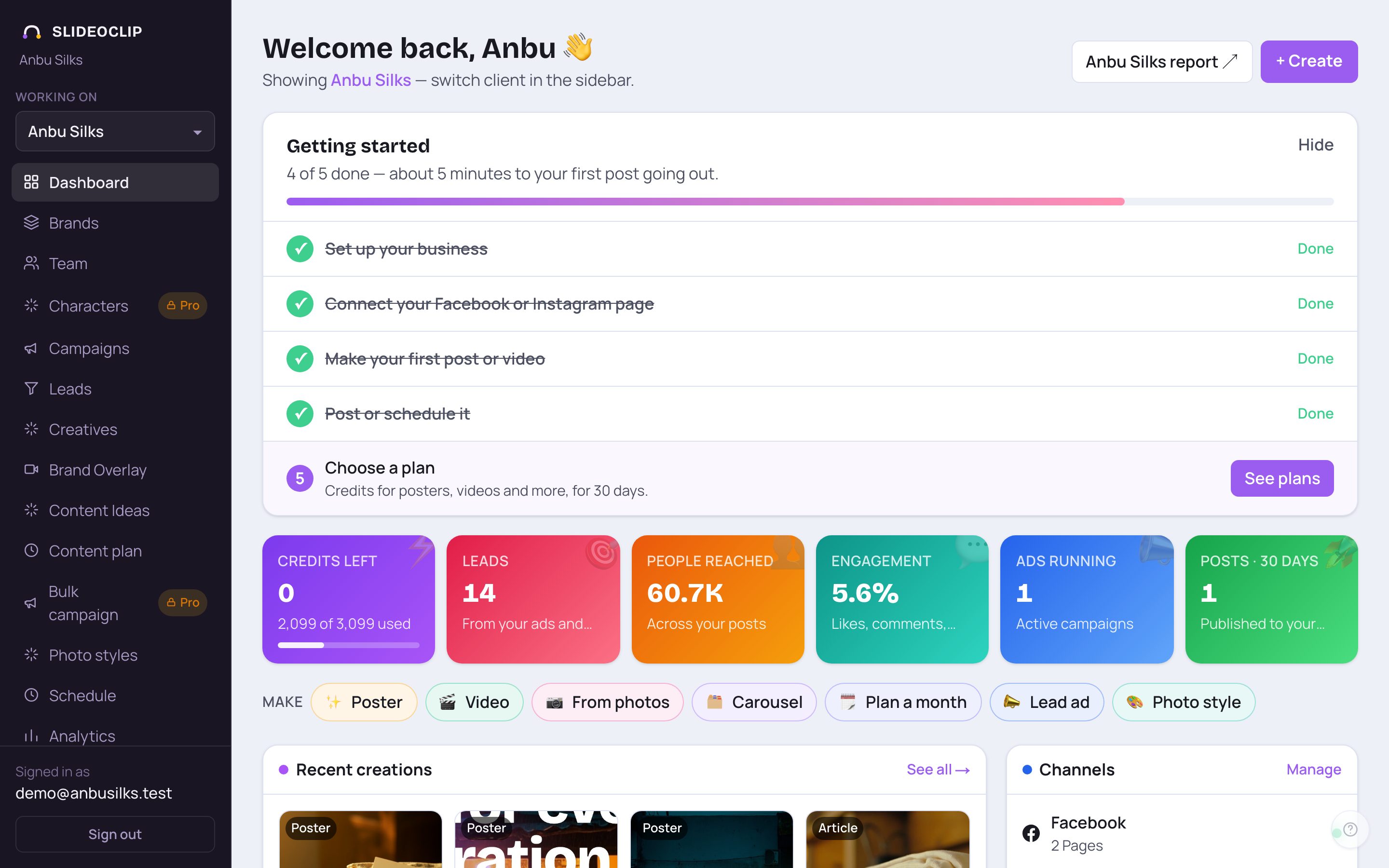
- 1Tap Schedule in the menu. When team posts are waiting for you, a small number appears next to it.
- You also get an email each time your team sends something for approval. The link in it opens the same list.
2. Turn on staff approval, then approve or reject
On the Schedule page, the Awaiting your approval section has the switch and the list of waiting posts.

- 1Awaiting your approval lists everything waiting for your OK. The number beside it is how many.
- 2Turn on Staff posts need my approval. From then on, anything a team member posts or schedules waits here first. Turn it off to let their posts go straight out.
- Each waiting post shows its picture, title, platform, time, client, who sent it and the caption.
- Tap Approve on a row to let it go out at its time — or right away if its time has already passed (it then says as soon as you approve). Tap Reject to stop it.
- To decide several at once, tick them (or Select all), type a Note for your team if you like — for example "fix the price" — and tap Approve or Reject at the top. Your team member sees your answer and your note.
- A waiting post also shows on the calendar with a dashed border and ⏳, and in the post queue as Waiting for approval.
💡 This switch is only for team members' posts. Your own posts never wait for anyone — unless you choose "Let me review each post before it goes out" in a content plan; those posts wait here too.
3. What your team sees
When staff approval is on, a team member's Publish now window shows a yellow note — "The owner approves posts before they go out" — and the button says Send for approval. On their Schedule page, Your posts waiting for approval shows each post as Waiting, and later Approved or Not approved, with your note. A rejected post never goes out; they can make changes and send it again.

- 1This is the owner's window, so the button says Post now. For a team member who needs approval, the same button says Send for approval, and each place shows ✓ Sent for approval after they tap it.
4. Ask a client to approve
First tell SlideoClip which client the post is for. Open the creative and, on the Post tab, use Clients (who this is for).

- 1Tap the Clients box.
- 2Tick each client this post is for. It is saved straight away.
- A Client approval box then appears below the caption, listing each client as Not sent yet. Tap ✎ Send for approval — every client gets their own link by email, to the contact email saved for them on the Brands page.
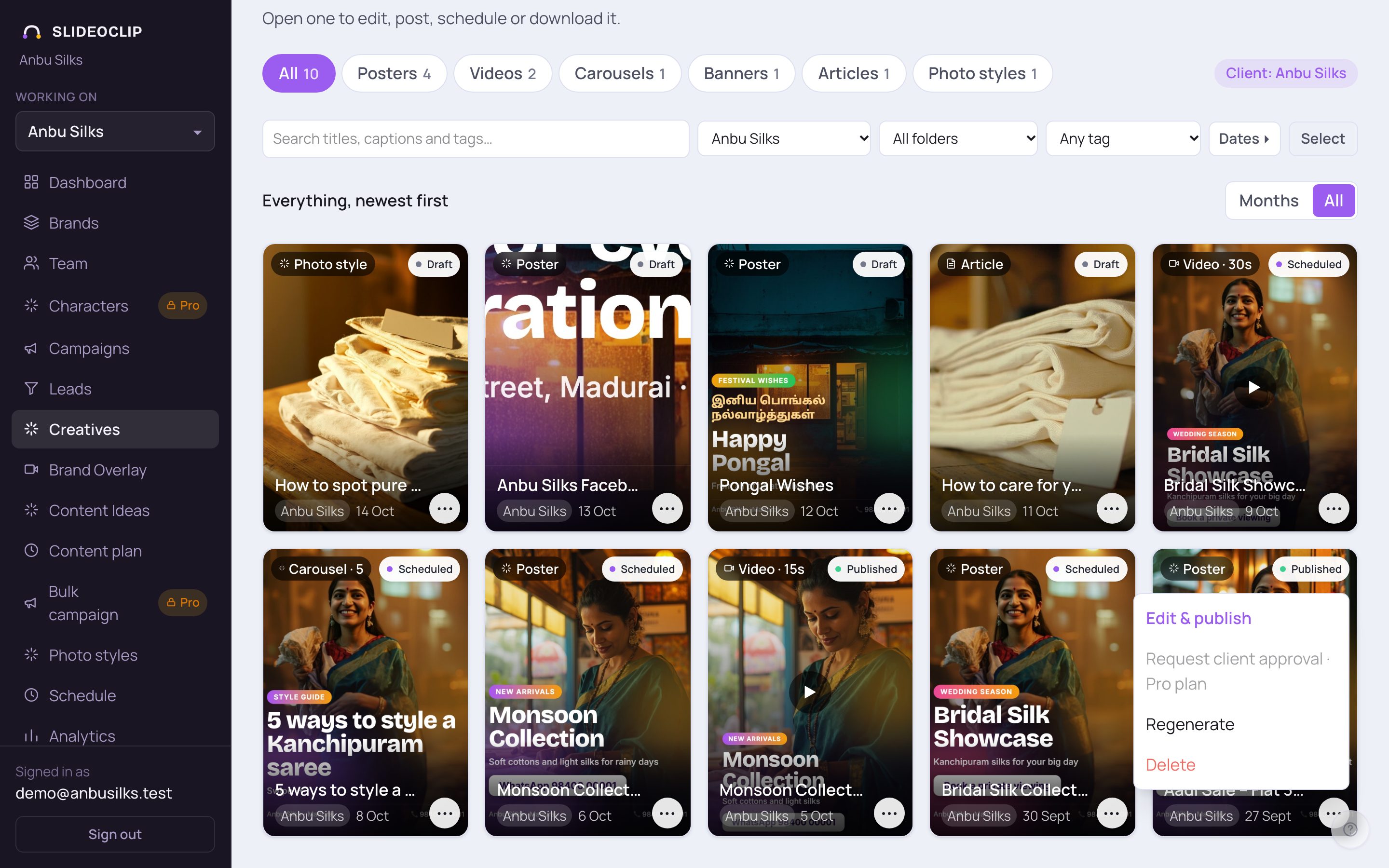
- 1You can also tap ⋯ on the tile → Request client approval. If clients are already ticked for it, each one is emailed their own link straight away. If not, you're asked to confirm the client's email (filled in from the Brands page): tap Send to email the link, or skip the email to copy the link and share it yourself — for example on WhatsApp.
- Sent already? The same menu item says Re-request client review.
5. What your client sees, and what happens next
Your client opens the link — no login, no app. They see the poster or video and the caption, can write a comment, and tap ✓ Approve or Request changes. In your library the tile label changes to Awaiting client review, then Client approved or Client requested changes, and their comment shows in the Client approval box. Until they approve, SlideoClip won't post it to that client's page; if they ask for changes, edit it and send it again. A client you never sent it to doesn't hold anything up. The white label at the top right of each tile in your library shows the client's answer at a glance.
Good to know
- Save each client's contact email on the Brands page — then approval links go out in one tap.
- Staff approval and client approval work together: a team member's post for a client waits for you first, and then for the client.
Questions
I approved a post but its time had passed. Will it still go?
Yes — an overdue post goes out as soon as you approve it.
My client never replied. Is the post stuck?
It won't post to that client's page until they approve. Send the link again with Re-request client review, or ask them on the phone.
I don't see Request client approval.
Client approval links are part of the Pro and Agency plans. On other plans the item shows which plan it needs.