All guides
Post it now
Post a poster, video or article to Facebook, Instagram, YouTube and LinkedIn in one go, and see clearly what posted and what didn't.
Before you start
- ✓At least one account connected (see Connect your accounts)
- ✓A poster, video or article in your library
1. Open the Publish now window
Go to Creatives and tap the poster or video you want to post. Its details screen opens.
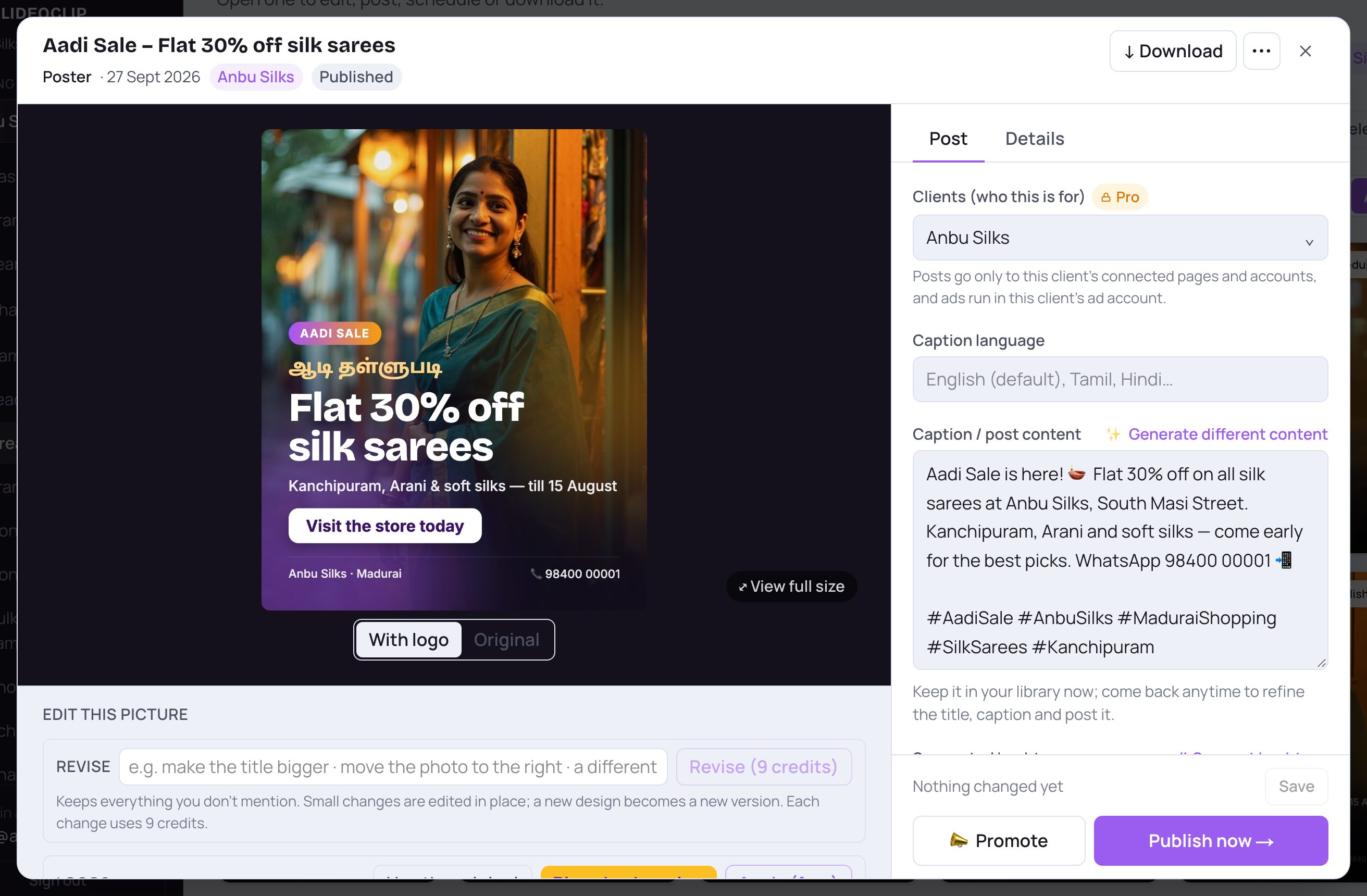
- 1Check the client. The post goes only to that client's own connected Pages and accounts.
- 2Check the caption. You can change it here or in the next window.
- 3Tap Publish now →.
- For an article: tap the article's ⋯ → Publish now, or open it and tap Publish to Facebook.
2. Pick where to post
The window shows your creative large on the left and the choices on the right. On a phone it slides up from the bottom.
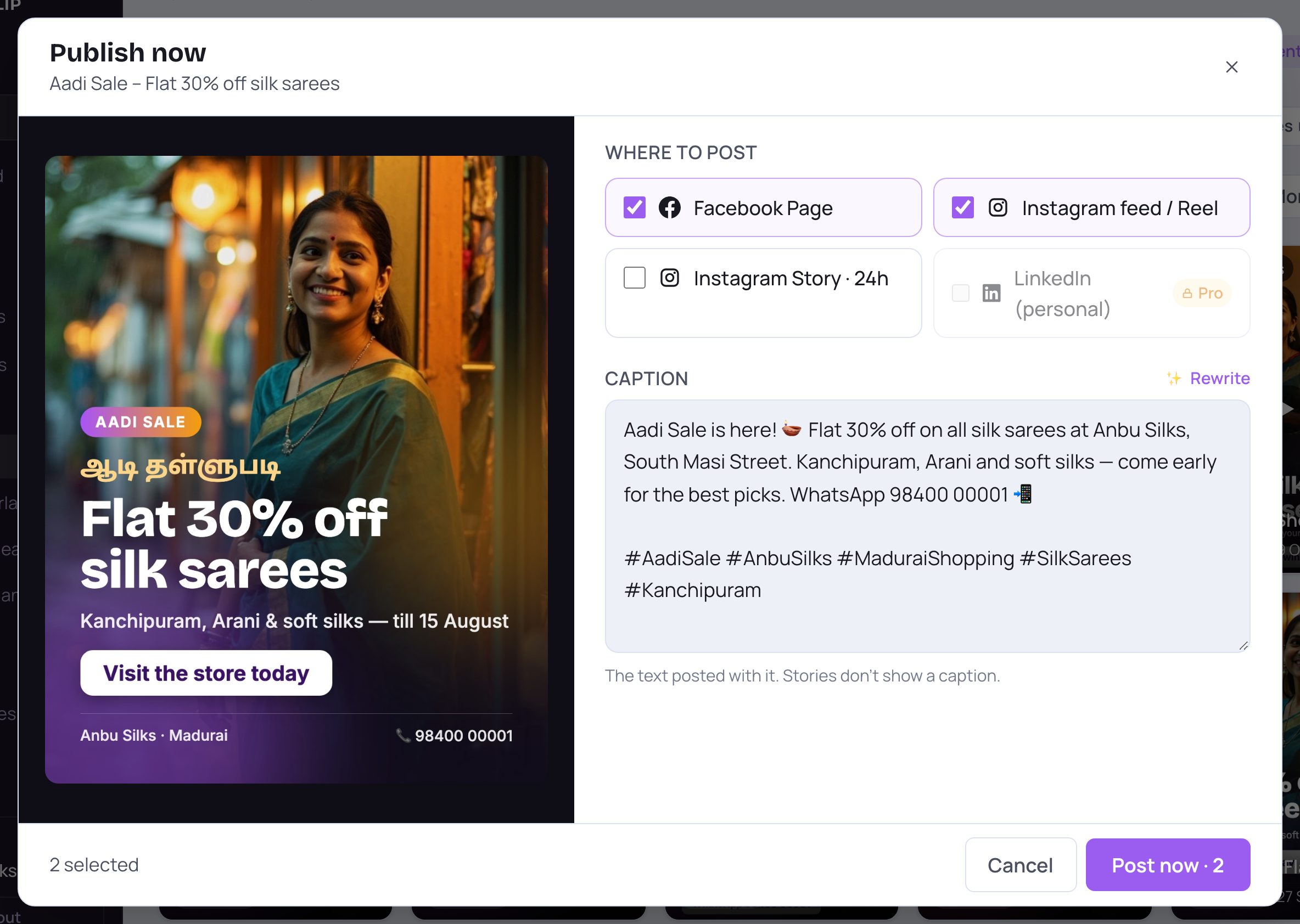
- 1Facebook Page posts to your Facebook Page.
- 2Instagram feed / Reel posts to your Instagram feed (a video goes up as a Reel).
- 3Instagram Story · 24h puts it in your Story for a day. Stories don't show a caption, and a Story video can be up to 60 seconds.
- 4LinkedIn (personal) posts on your own LinkedIn profile.
- Everything that is connected is ticked for you (except Story). Tap a row to tick or untick it. A row marked not connected is greyed out — connect it first from the Dashboard.
- YouTube appears only for videos. LinkedIn Page appears only when a LinkedIn Page is connected and working.
- A row with a lock and a plan name (Pro or Growth) needs a plan that includes it.
3. Check the caption
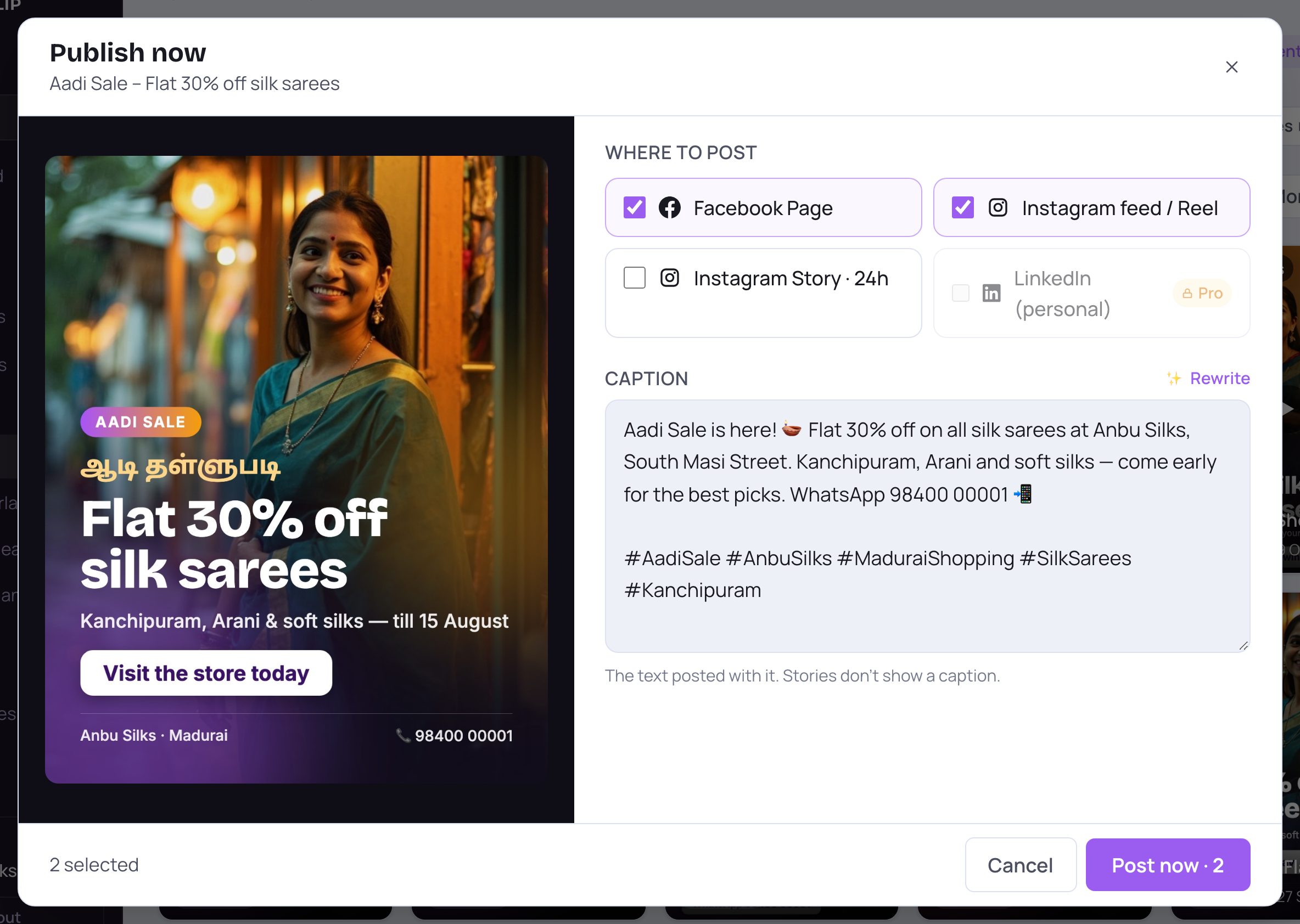
- 1This is the text that goes out with your post. Change anything you like — prices, phone number, emojis.
- 2Not happy with it? Tap ✨ Rewrite for a fresh caption. It uses no credits.
4. Post it
The bottom bar always stays on screen, however long the caption is.
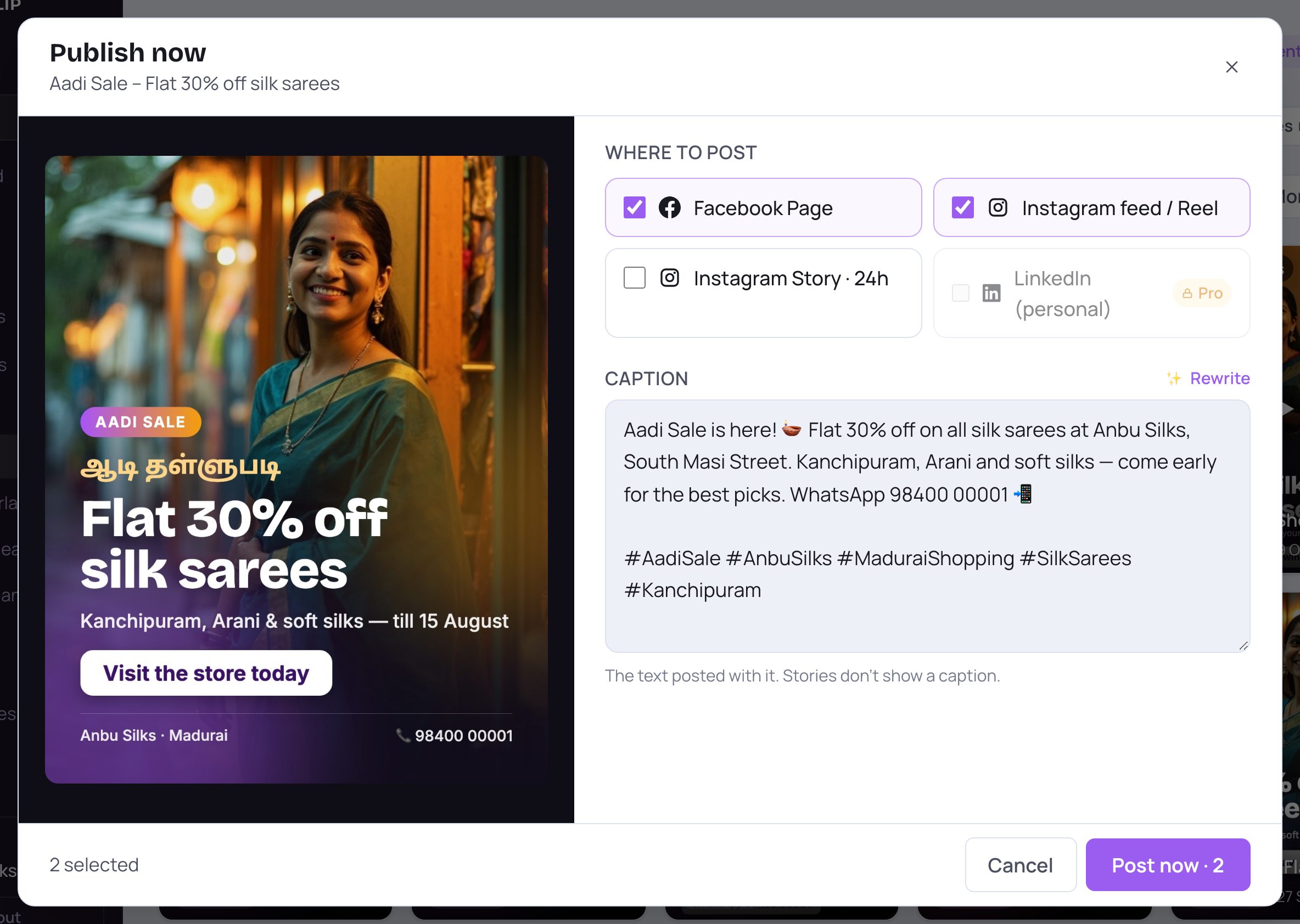
- 1Tap Post now. The number on the button is how many places are ticked. Instagram can take a few seconds — wait for it.
- 2Cancel closes the window without posting anything.
- Each place then shows its own result on its row. ✓ Posted · View post means it's live — tap View post to open it.
- ✕ Didn't post comes with the reason in plain words underneath. Details shows the platform's own message (useful for support). If the account needs connecting again, a Reconnect → link takes you straight there.
- If everything posted, the window says All done. and closes by itself.
- If something failed, the window stays open and the main button becomes Try again for … (for example Try again for Instagram). Tap it — only the places that failed are ticked again — then tap Post now. The places that already worked are not posted twice. Tap Done to close.
- When a creative is for several clients, each client gets its own line under each place.
💡 Posting goes out straight away and can't be undone from SlideoClip. To post later instead, use the Schedule page (see Schedule posts).
5. Posting a video
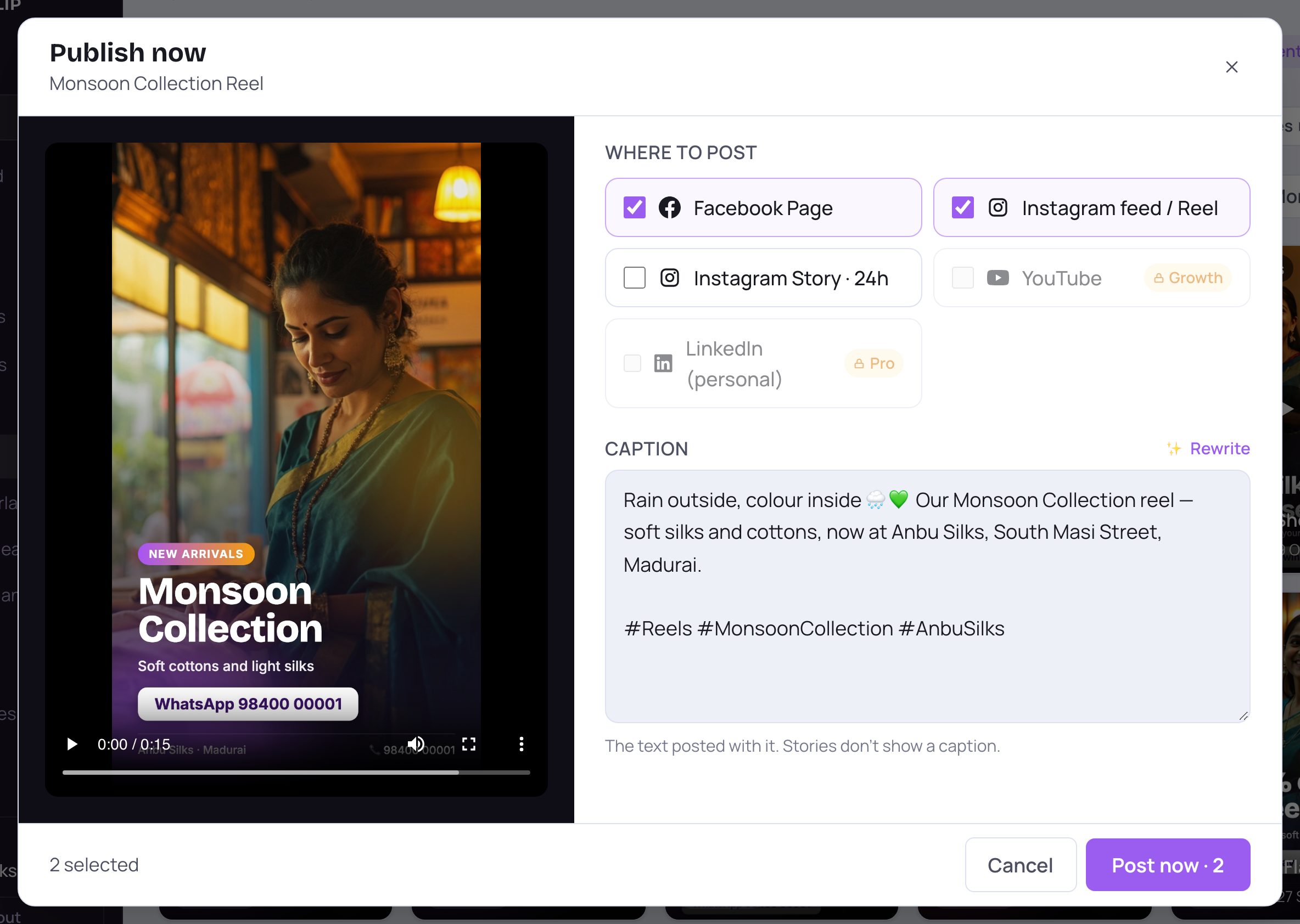
- 1For a video, you can play it here to check it one last time.
- 2Videos can also go to YouTube. A row with a lock and a plan name (here Growth) needs a plan that includes it, so it can't be ticked until then.
- When YouTube is ticked for a video, a small line under the choices says uploads arrive as Private until Google's review of the app is approved. That is Google's rule for new apps, not a failure. You can make the video public in YouTube Studio.
6. If you are a team member
If the owner has turned on Staff posts need my approval, your window shows a yellow note: "The owner approves posts before they go out". The button says Send for approval instead of Post now, and each place shows ✓ Sent for approval. It posts as soon as the owner approves it. See the Approvals guide.
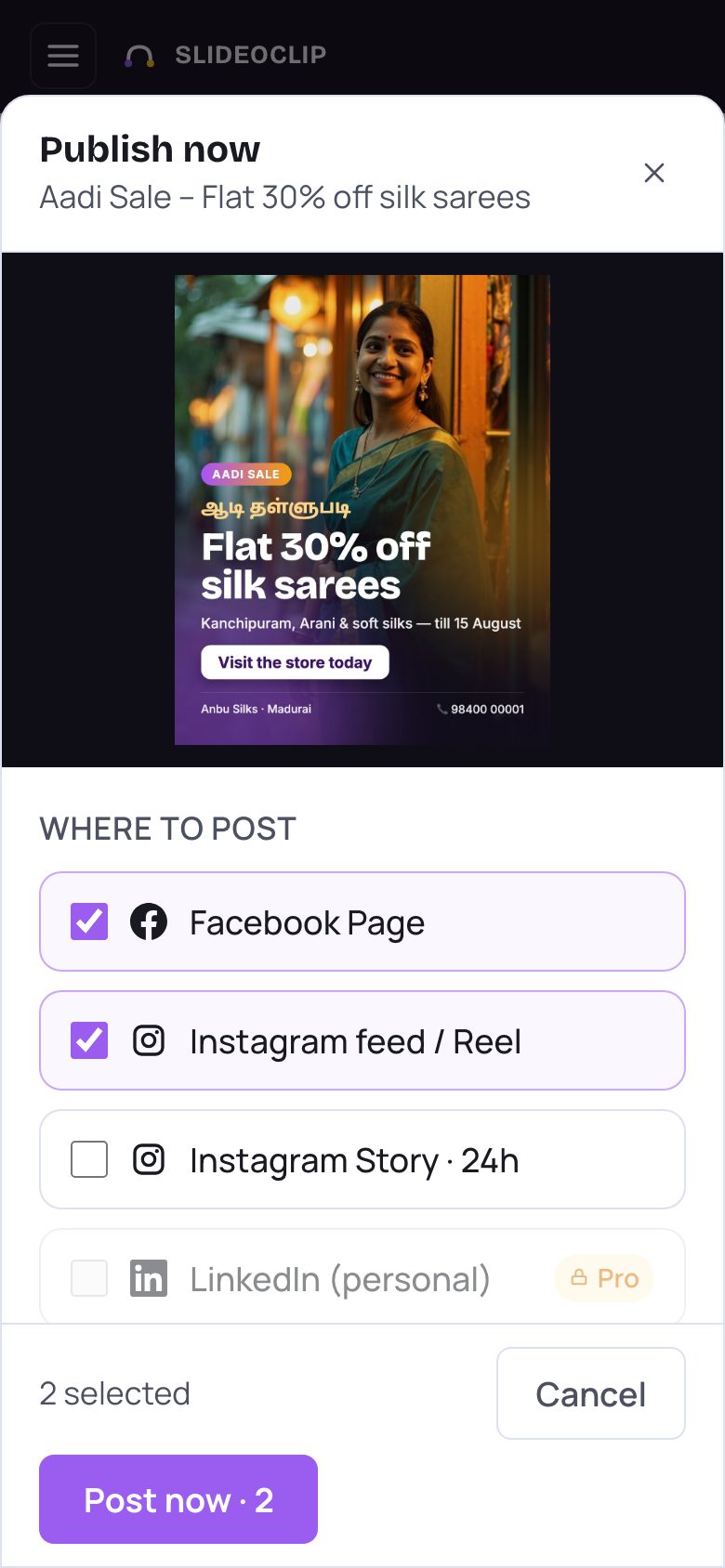
- 1On a phone, scroll the middle part to see every place and the caption.
- 2The Post now button stays at the bottom of the screen.
Good to know
- Post to the client's own accounts: set the client on the details screen before you tap Publish now.
- If a client must approve first (you sent them an approval link), it won't post to their accounts until they approve.
- Something didn't post? The Fix posting problems guide explains every message.
Questions
Why isn't Instagram ticked for my article?
Instagram needs a picture or video. A text-only article can go to Facebook only; an article with a header picture can go to Instagram too.
I tapped Post now twice — will it post twice?
Once everything has posted, the button changes to Posted ✓ and can't be tapped again, and the window closes by itself.
My YouTube video says Private.
That's expected for now — Google keeps uploads from new apps private until its review is approved. Change it to Public in YouTube Studio.
Does posting use credits?
No. Credits are used when something is made; posting and captions don't use them.