All guides
Your first login: welcome, tour and checklist
Know what the welcome screen offers on your first login, take the one-minute tour of the Creatives page, and use the Getting started checklist to reach your first post. You can bring the tour and welcome back any time.
Before you start
- ✓A SlideoClip account (see Create your account)
1. The welcome screen
The first time you log in to a workspace that already has a business, a welcome box opens over your dashboard and asks what you want to do first. It shows only once. Nothing you pick here costs anything: you always see the price and say yes before credits are used. (Brand-new workspace with no business yet? See the next section.)
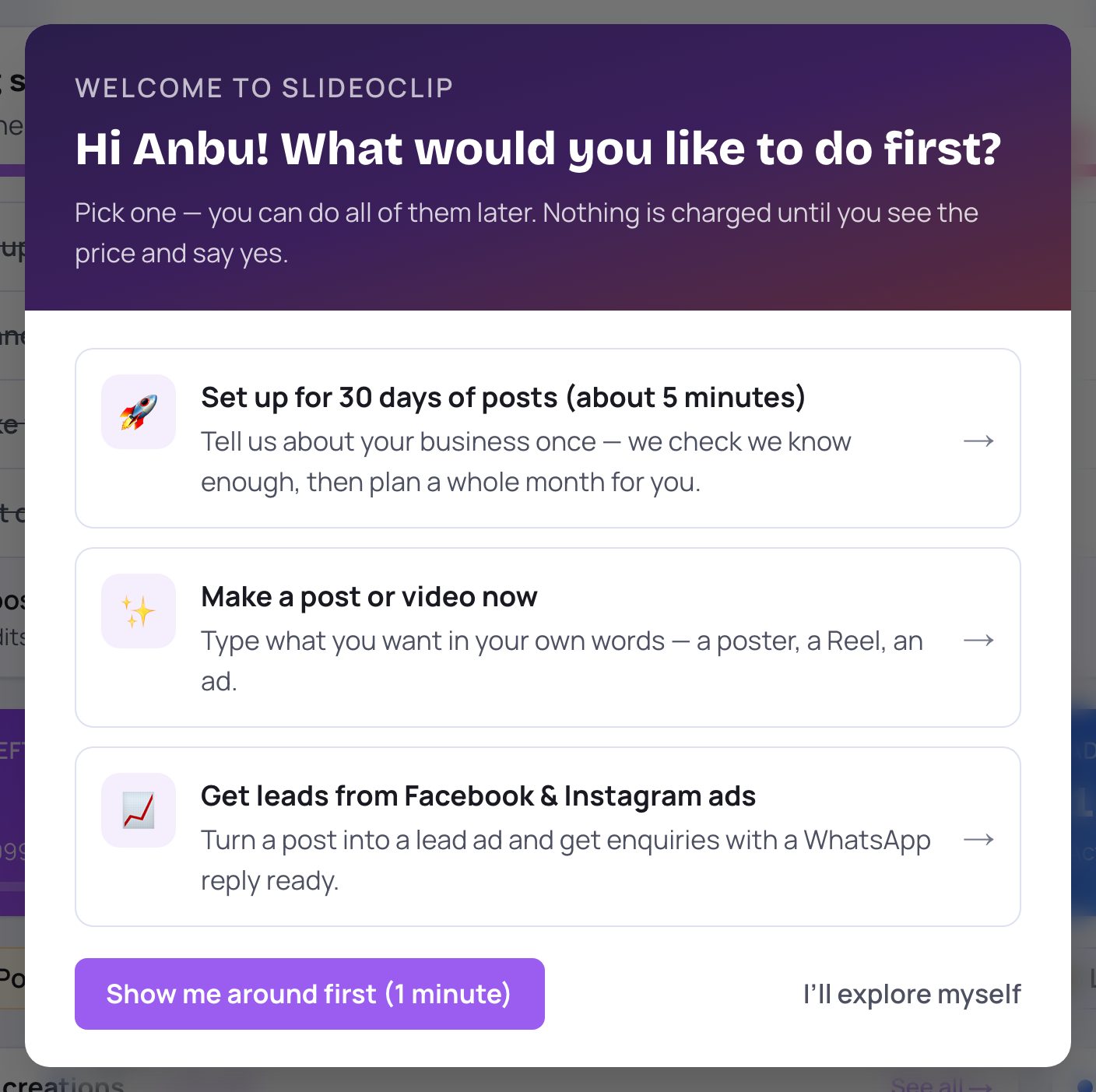
- 1Set up for 30 days of posts (about 5 minutes) is the best start. You tell SlideoClip about your business once, it checks it knows enough, and then it can plan a whole month of posts for you.
- 2Make a post or video now opens Creatives, where you type what you want in your own words: a poster, a Reel, an ad.
- 3Get leads from Facebook & Instagram ads opens Campaigns, where a post becomes a lead ad that collects enquiries.
- 4Show me around first (1 minute) opens Creatives with a short tour. It is explained in the next section.
💡 Whatever you pick, you can do the other things later from the menu.
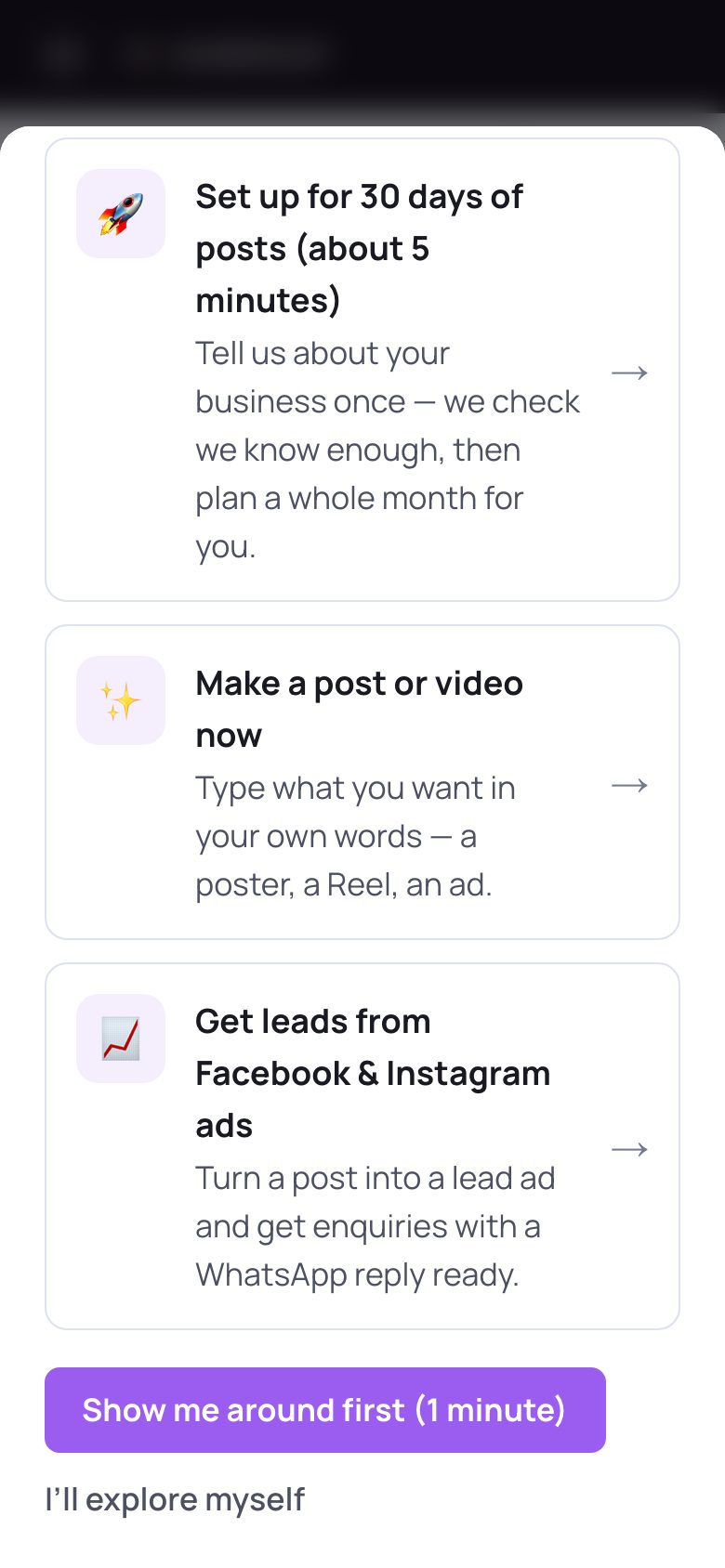
- 1On a phone the welcome slides up from the bottom. Scroll inside it to see all the choices, then Show me around first (1 minute).
- 2Prefer to look around on your own? Tap I’ll explore myself. The box closes and won't come back by itself.
2. Brand new? The first-time setup screens
If your workspace has no business yet, you don't see the welcome box. Instead SlideoClip walks you through five short setup screens, once, so everything it makes fits your business. A thin bar at the top shows how far you are, and Skip for now at its right is always there. Nothing on these screens costs credits and nothing is posted. These screens only appear for a workspace with no business yet, so the demo workspace used for this guide's pictures can't show them — they are described in words.
3. Setup 1 · Welcome
Welcome to SlideoClip gives three short lines on what happens next: tell us what you have online, we learn your business, and you see free content made around what you sell. Tap Let's start →.
4. Setup 2 · Where does your business live online?
Tap one card: A website, Facebook or Instagram, No online presence yet, or I run marketing for clients. ← Back takes you a step back.
5. Setup 3 · Your website or your own words
If you picked A website, you see What's your website? Type the address (for example yourstore.com) and tap Read my website →. SlideoClip reads it for you, which takes about a minute and is free — keep the page open. Prefer to type it yourself? Tap I would rather describe it myself. With the other cards you see Tell us about your business (or Tell us about your first client): fill in Business name, What you do in your own words and any language, and City if you like, then tap Continue →.
6. Setup 4 · Is this your business?
SlideoClip shows what it found — Logo, Colours, Photos, Brand voice, What you sell and Who buys. Fix anything that is wrong, or tap the ✕ beside something to remove it. Check Business name, and add a Category, City or Tagline if you like. Then tap Looks right →.
7. Setup 5 · Connect where you post
Optional. Tap Facebook Page (and its Instagram) or Instagram only to connect — you choose on Facebook's or Instagram's own screen. Or tap Skip for now and connect later from the dashboard. Make my first poster → takes you straight to the poster maker.
8. The one-minute tour of Creatives
Creatives is where you make posters, videos and more, and where everything you make is kept. The tour dims the page and lights up one part at a time, with a short note. It has 5 steps. Tap Next to move on, Back to go back, or Skip to close it. On a computer you can also use the left and right arrow keys, and Esc to close. Step 2 of 5, We pick the right tool, lights up the row of choices under the box (Make it as). SlideoClip guesses from your words whether you want a poster, video, carousel and so on, and the one it picked is filled in. Tap another to change it. You always see the credits before anything is made.
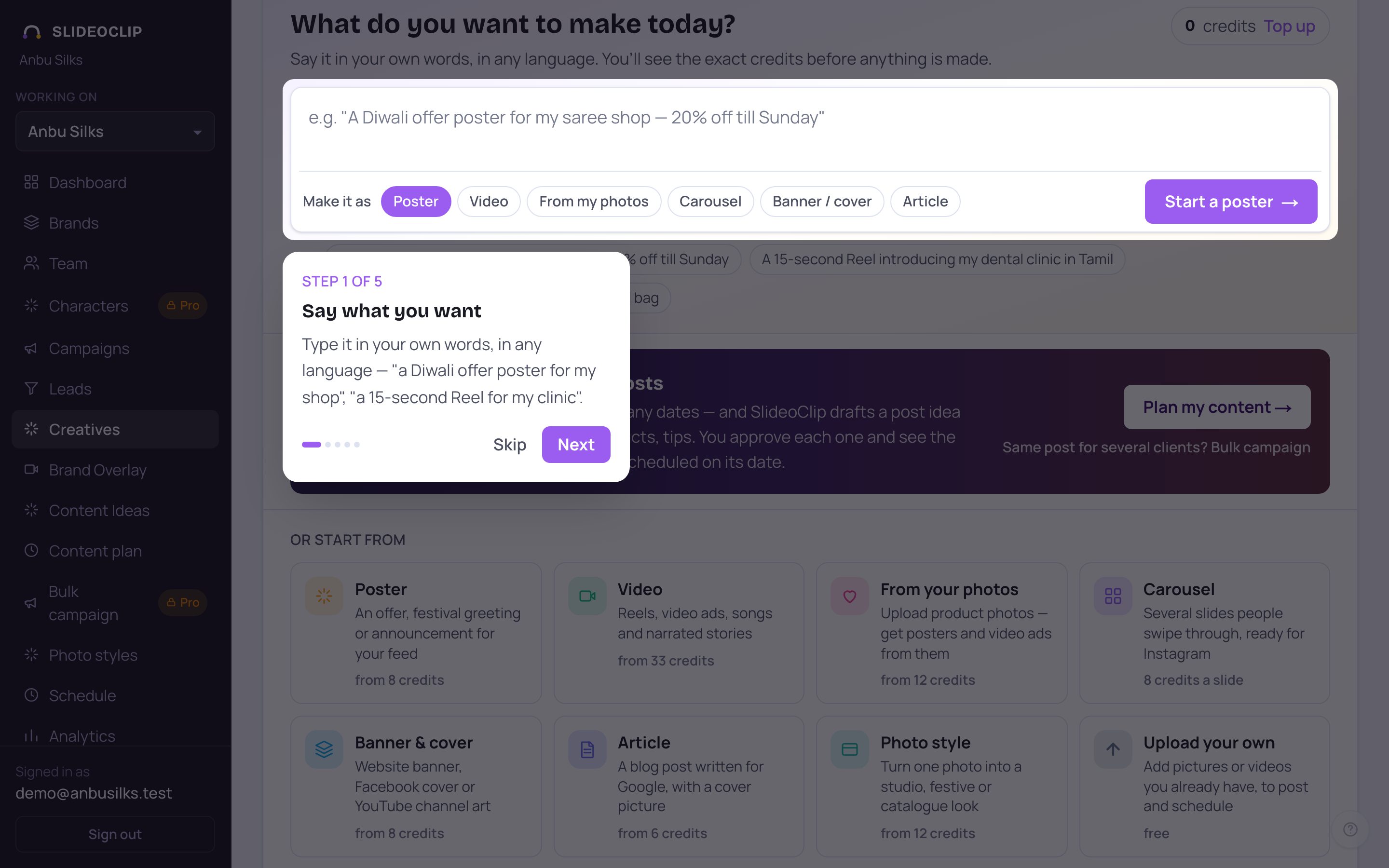
- 1Say what you want. This is the box where you type your idea, in your own words and in any language, for example "a Diwali offer poster for my shop".
- 2The tour card shows which step you are on.
- 3Skip closes the tour at any time.
- 4Tap Next for the next step.
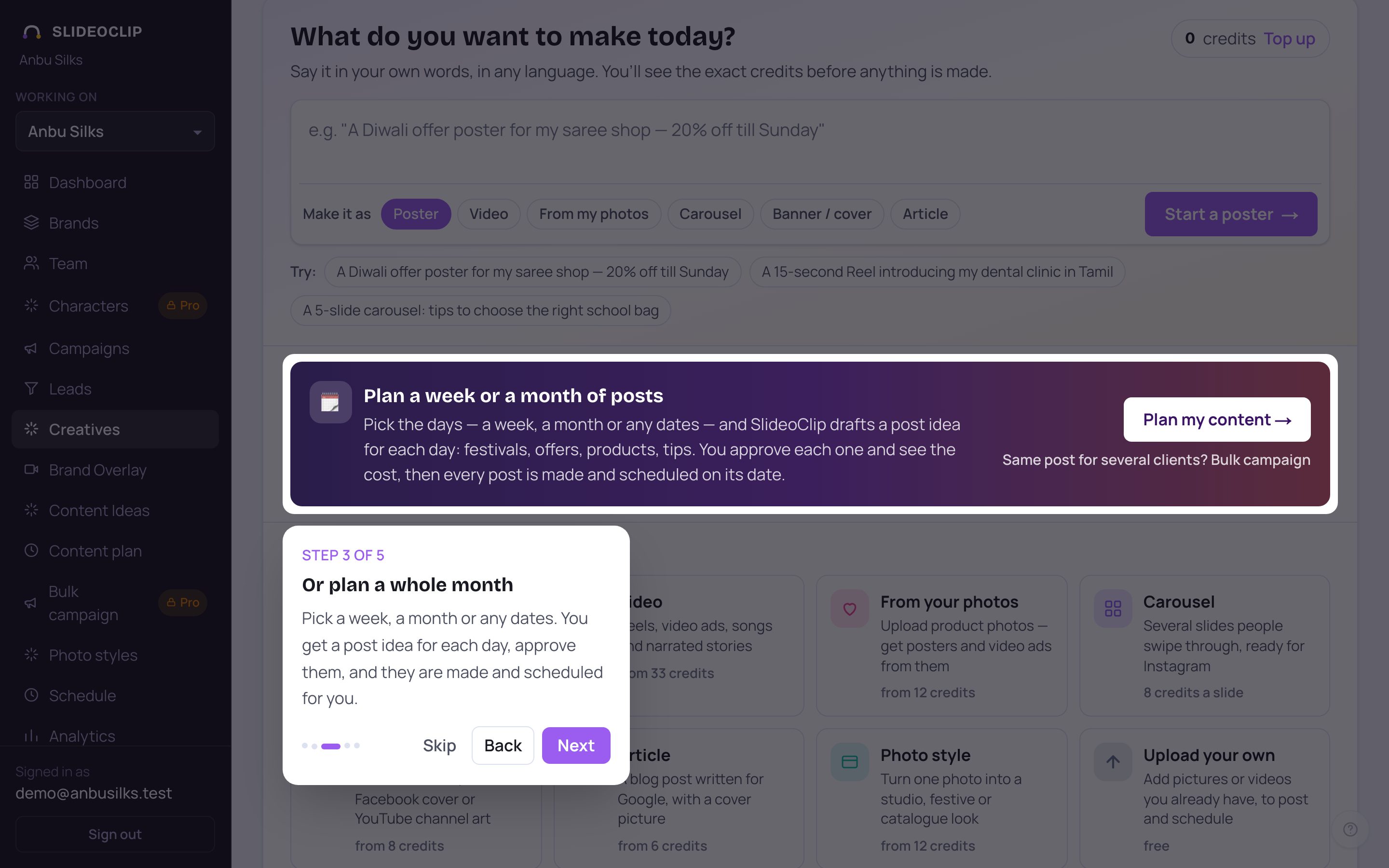
- 1Or plan a whole month. Pick a week, a month or any dates. You get a post idea for each day, you approve them, and they are made and scheduled for you. See "Plan a month of posts".
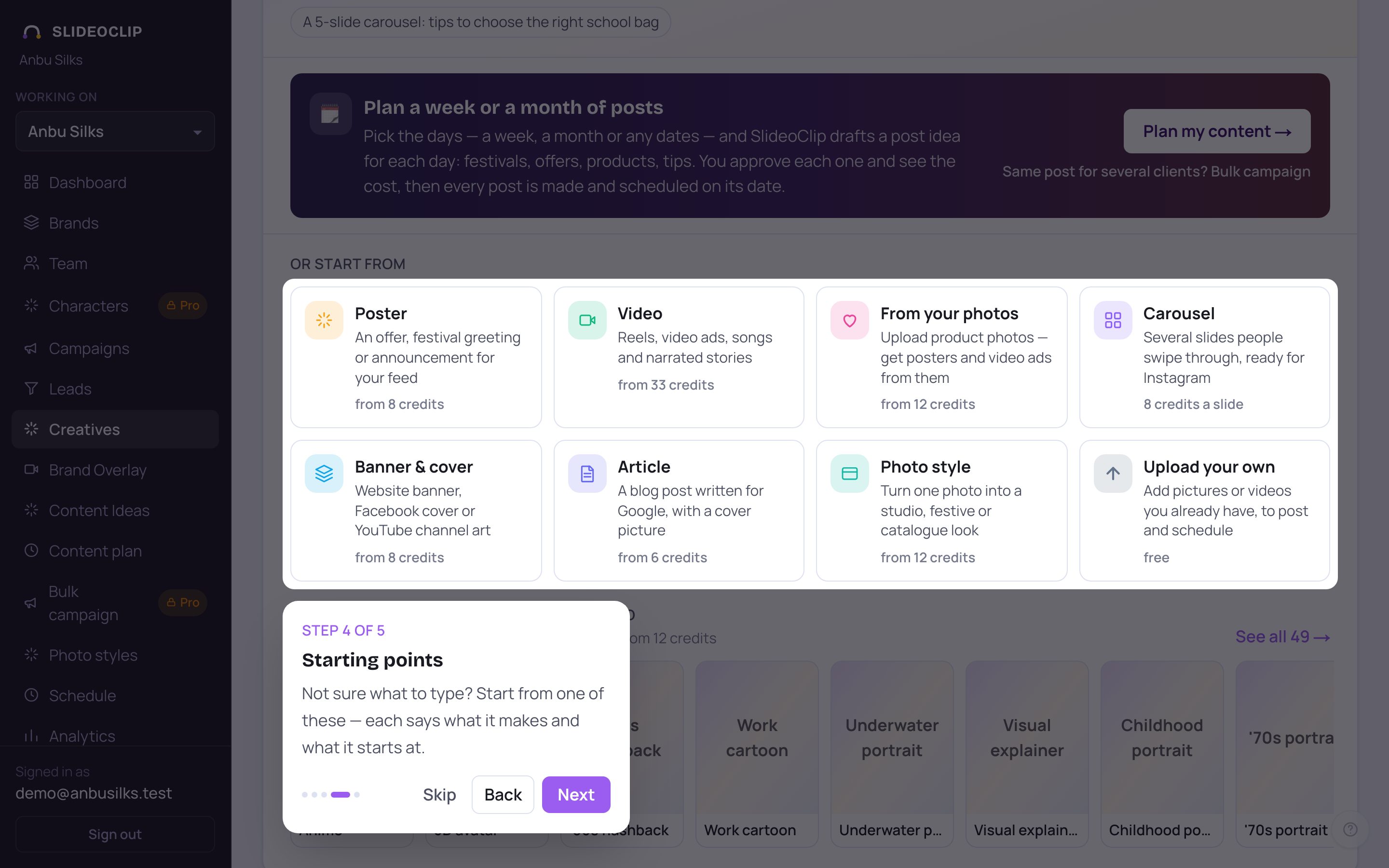
- 1Starting points. Not sure what to type? Start from one of these cards. Each says what it makes and what it starts at in credits.
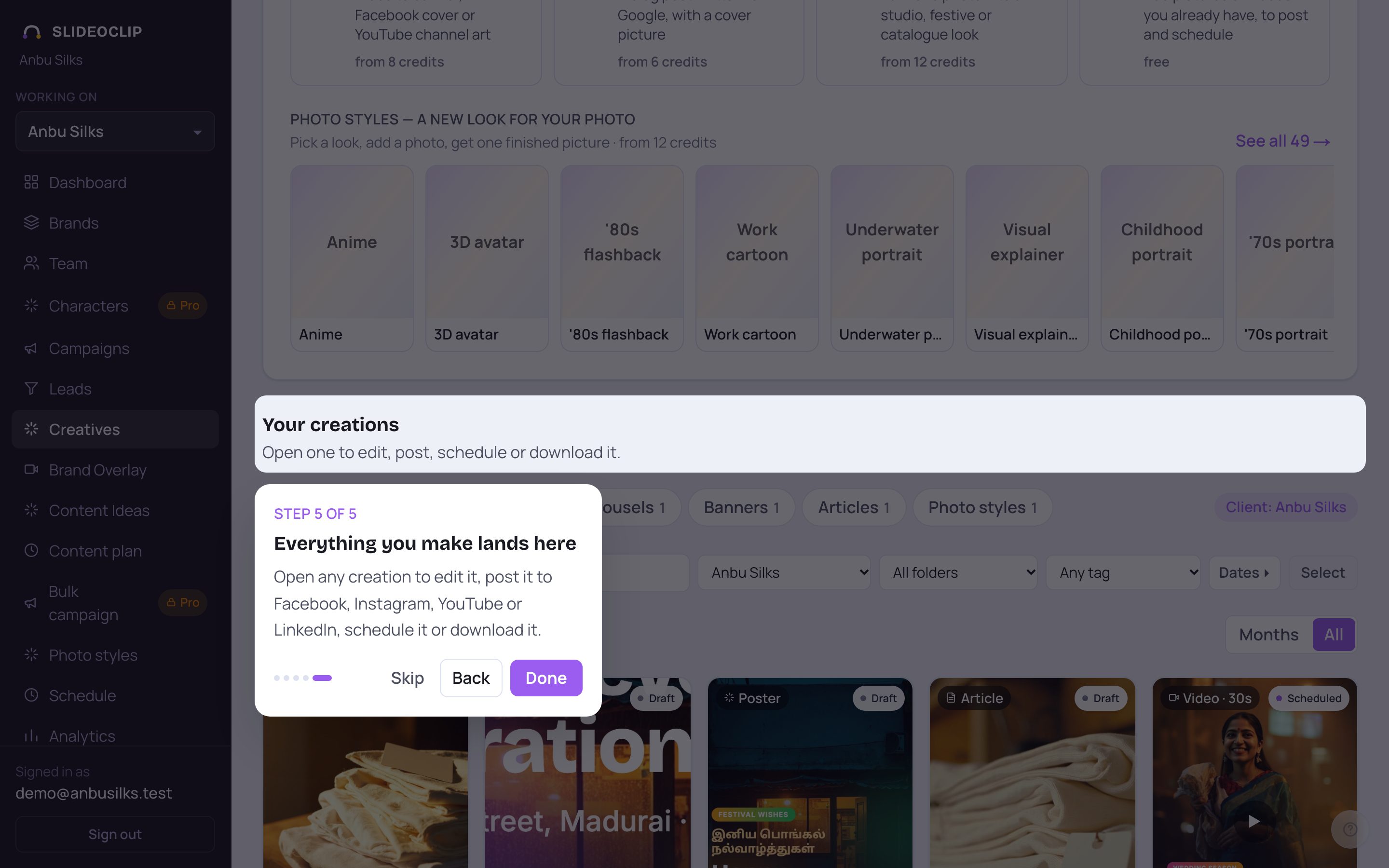
- 1Everything you make lands here. Open any creation to edit it, post it to Facebook, Instagram, YouTube or LinkedIn, schedule it, or download it.
- 2Tap Done to close the tour. You are left on Creatives, ready to make your first post.
9. The Getting started checklist
Until you have done the basics, a Getting started card sits at the top of your dashboard, under the greeting. Its title line says how many of the 5 steps are done, with a bar that fills up as you go. The steps, in order: Set up your business (button Set up), Connect your Facebook or Instagram page (Connect), Make your first post or video (Create), Post or schedule it (Go to Creatives) and Choose a plan (See plans). The next step to do is highlighted; done steps are crossed out with a green tick and the word Done. Each step ticks itself off when you have really done it. Once all five are done the card disappears by itself. Don't need it? Tap Hide at its top right to remove it from your dashboard.
10. See the tour or the welcome again
Closed the tour too fast, or want to show a new team member around? Both are one tap away on the Help page.
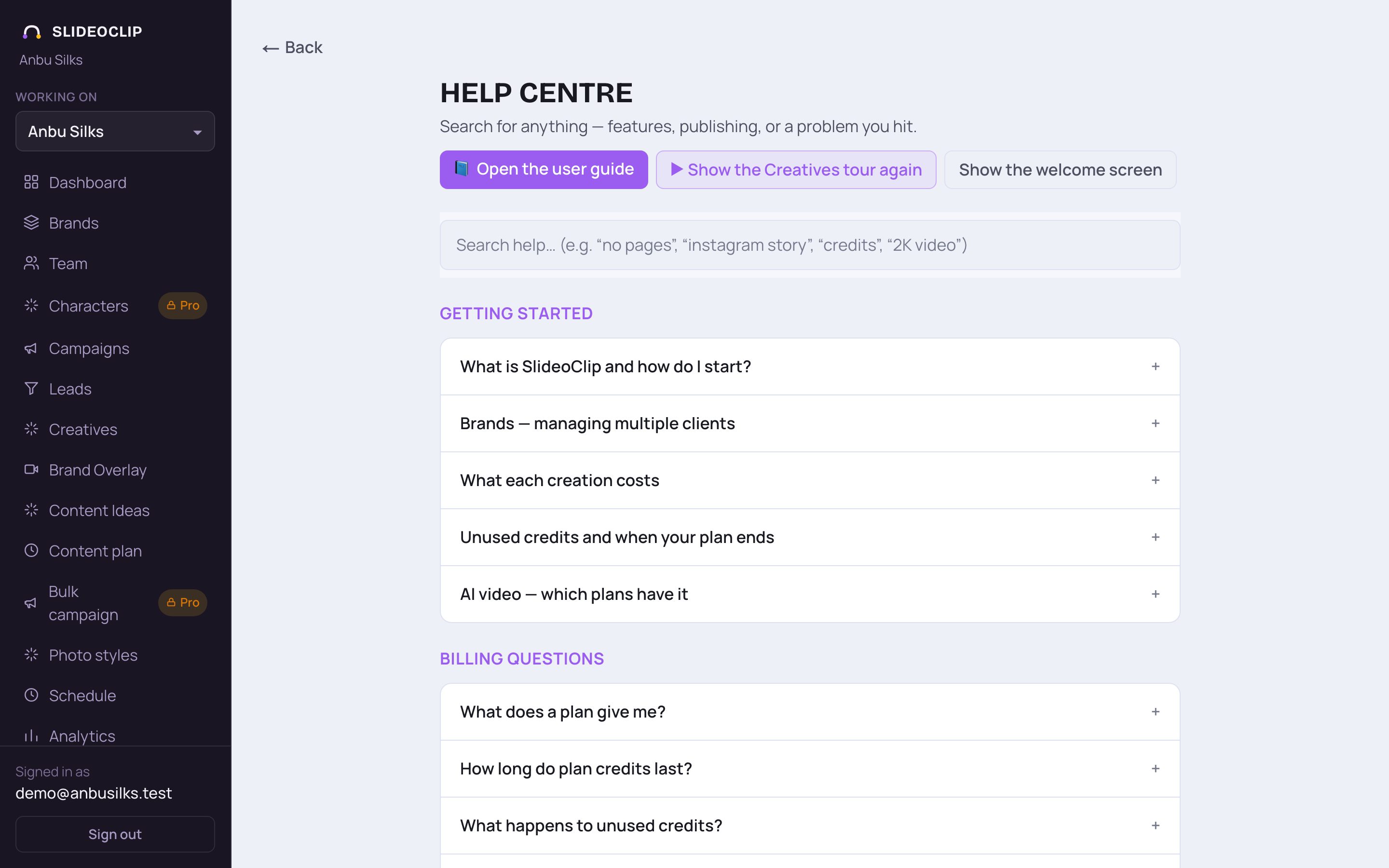
- 1Tap ▶ Show the Creatives tour again to replay the 5-step tour.
- 2Tap Show the welcome screen to see the three first choices again.
💡 Help is in the menu on the left (on a phone, tap the menu button at the top first), or tap the round question-mark button at the bottom right of any page.
Good to know
- If you are not sure where to begin, choose Set up for 30 days of posts. SlideoClip writes better posts once it knows your business.
- The tour never costs anything and never makes anything. It only points at the parts of the page.
- Each person on your team gets their own welcome the first time they log in.
Questions
I closed the welcome box by mistake. Can I get it back?
Yes. Open Help and tap Show the welcome screen.
Why don't I see the Getting started card?
It goes away by itself when all five steps are done, or when someone tapped Hide. Everything it links to is also in the menu.
A step on the checklist isn't ticked even though I did it.
The card checks what your workspace has really done. For example, Post or schedule it is ticked only after a post has actually been posted or scheduled. Reload the dashboard after you finish a step.